Solved Cannot boot from SSD after windows partition cloning

I would change the alignment setting.
There's one for Win 7 i believe.
 

My Computer My Computer

At a glance

Multi-Boot W7_Pro_x64 W8.1_Pro_x64 W10_Pro_x6...AMD Athlon II x4 6206GB GSkill DDR2 800AMD 4670 GPU + AMD 4200 IGP
Computer type
PC/Desktop
Computer Manufacturer/Model Number
home built
OS
Multi-Boot W7_Pro_x64 W8.1_Pro_x64 W10_Pro_x64 +Linux_VMs +Chromium_VM
CPU
AMD Athlon II x4 620
Motherboard
Gigabyte GA-MA785G-UD3H
Memory
6GB GSkill DDR2 800
Graphics Card(s)
AMD 4670 GPU + AMD 4200 IGP
Sound Card
on board Realtek ALC889A
Monitor(s) Displays
RCA 40" LCD TV, Insignia 32" LCD TV, HP 15" LCD monitor
Screen Resolution
1680 x 1050
Hard Drives
OCZ Vertex 3 120GB,
Samsung F3 1TB (3),
Several others - WD, Seagate, Hitachi, ...
PSU
Corsair 500 W
Case
Rosewill mid tower
Cooling
CM 90mm rifle
Keyboard
Gyration wireless, Logitech wireless, Dell USB wired
Mouse
Gyration wireless, Logitech wireless, V7 USB wired
Internet Speed
Spectrum - 100Mbps D / 10Mbps U
Antivirus
Avast, MBAM3, EMET, WinPatrol
Browser
Pale Moon, Firefox, IE
Other Info
2 multi-boot PC's
Mainly HTPC/Office/Gen purpose (no gaming).
Trendnet USB KVM.
LG DVD burner/Blue Ray Player.
Tray system for removable SATA backup drives.

Not currently OCd, under-volted.
I use Hybrid sleep, rarely re-boot or shutdown.

Hauppauge HD-PVR, Avermedia PCIe TV Tuner, Hauppauge PCI TV Tuner.
I would change the alignment setting.
There's one for Win 7 i believe.

Thanks I did that.

Using Partition Wizard I deleted the partition in the ssd.
Using Macrium Reflect I cloned the WIN7 partition to the ssd.
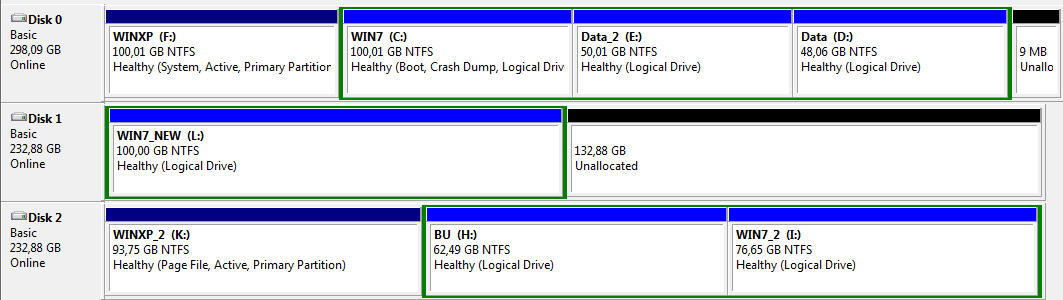
Now I have this:

disks6.jpg


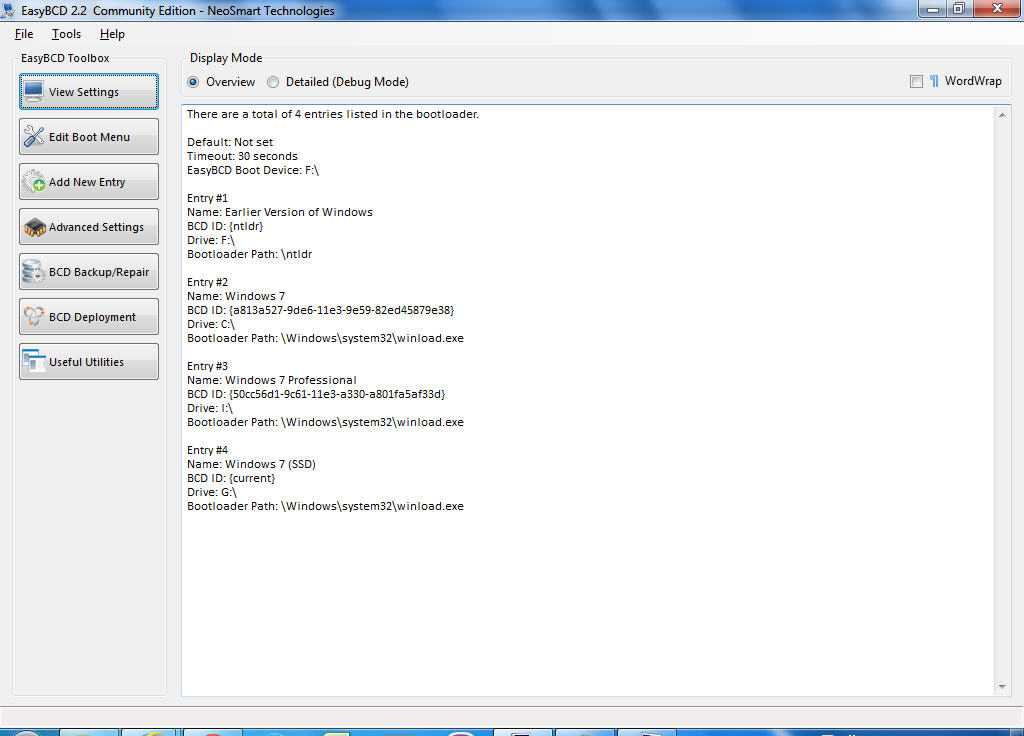
Using EasyBCD I deleted the entry I had added for the ssd and I added a new entry for L (WIN7_NEW).
I will now try to boot from the ssd.
 

My Computer My Computer

At a glance

Windows 7 Professional 342it
Computer type
PC/Desktop
OS
Windows 7 Professional 342it
No luck :(
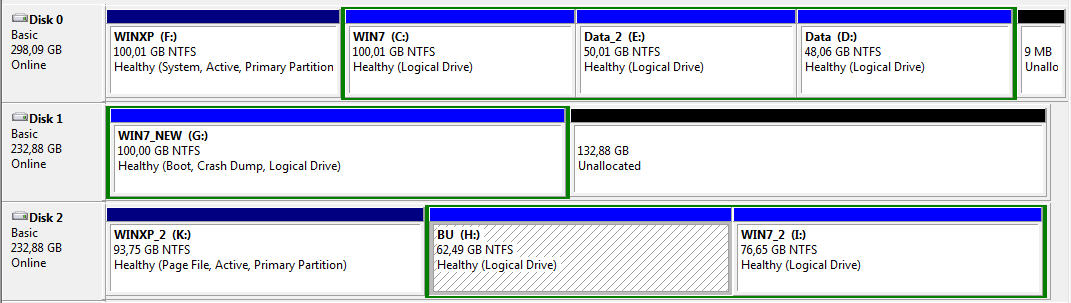
I booted from the hard disk using the new option (WIN7_NEW), but now I have this:

disks7.jpg


The disks have changed places.
%windir% leads to G:\Windows and the G partition says "Boot" in Disk Management, but C is on WIN7.
What is going on?
 

My Computer My Computer

At a glance

Windows 7 Professional 342it
Computer type
PC/Desktop
OS
Windows 7 Professional 342it
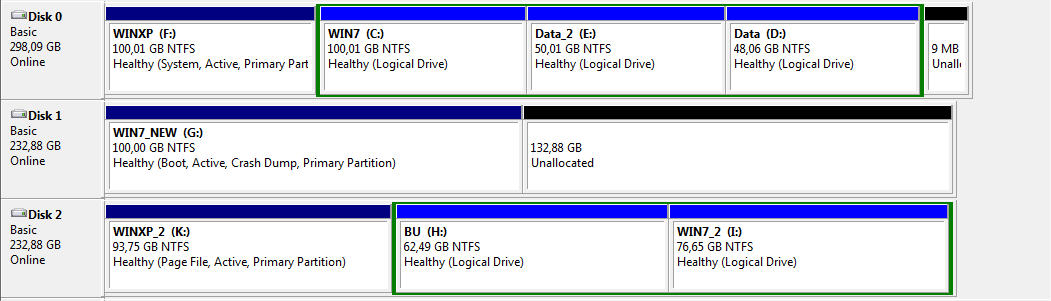
I rebooted and now the initial disk order is back:

disks8.jpg


But the main problem remains.
 

My Computer My Computer

At a glance

Windows 7 Professional 342it
Computer type
PC/Desktop
OS
Windows 7 Professional 342it

My Computer My Computer

At a glance

Windows 7 Professional 342it
Computer type
PC/Desktop
OS
Windows 7 Professional 342it
Macrium Reflect marks the cloned target partition "active" automatically

I don't see "Active" in Disk Management for G.
Well, your original Win7 partition was "logical" and not "primary", so marking it "active" is not allowed or possible. There's no need for it as it's your WinXP partition which is "active" and where Boot Manager lived.

Had you had a normal 100MB "system reserved" for Win7 booting and which was "active" and "primary", and had you cloned both that 100MB "system reserved" along with its partner Win7 system partition from spinner to the SSD, then the cloned "system reserved" on the SSD would have been marked "active". That would have allowed removal of the spinner, setting BIOS to point to the SSD as boot drive #1, and normal booting to then occur (from "system reserved" cloned onto the SSD, into the Win7 partition cloned onto the SSD, via the boot menu in the cloned "system reserved").


Now, I'm wondering what's going on in your BIOS, in terms of the two 232GB drives. Are they two 256GB SSDs, or what?

One looks like they contain usable copies (WinXP_2 and Win7_2) of your original two primary OS's (WinXP and Win7) along with a "backup" partition? (BU). How did you create the partitions on this drive? What software did you use to do it? EaseUS again???

And this drive is the same size as what I think you described as your "new SSD", which is where you now have "Win7_New" which was just cloned using Macrium Reflect.

Also, can you please clarify what your BIOS shows as boot drive #1. Remember, you appear to have TWO drives that could be usable for this purpose as they have "active" WinXP partitions on them, although one partition is 300GB (spinner?) and the other is [one of your two?] SSD 256GB.

To avoid confusion and to get to the bottom of this, I'd un-cable both of your two 256GB drives, leaving only the one 300GB spinner which contains your original WinXP, Win7, Data_2 and Data partitions. Since it's the only disk now present, it should show up in the BIOS as boot drive #1, and you should confirm. Also, this drive MUST appear as DISK0 to DISKMGMT, since it's now your only drive.

After booting (and selecting Win7 to boot from the presented boot menu, which should show both WinXP and Win7), please take fresh screenshots from DISKMGMT, EasyBCD (to show your current boot menu... which is the one on this primary 300GB spinner stored in the WinXP partition) and also from Partition Wizard. I just want to see all three.


Then, keep that "extra" (backup) drive still disconnected, and now connect the cable on the "new SSD". When you reboot the machine stop in the BIOS again and confirm that it is your 300GB spinner which still shows as boot drive #1 and that the "new SSD" is not even in the boot sequence at all, if that's possible. At worst, ensure that it is second in the list and that the spinner still shows as first in the boot sequence.

In other words, yes the new SSD is now a second hard drive, but it doesn't have to be part of the "boot drive sequence" list... and that would be fine, to guarantee it's your 300GB spinner where the "active" partition (i.e. WinXP) and its Boot Manager and boot menu will be obtained.

Now again boot to Win7 (again, on the 300GB spinner). And now again take screenshots from DISKMGMT, EasyBCD (to show the contents of the boot menu), and also from Partition Wizard.


Still with your third drive disconnected, I have one more idea.

You've been cloning while running Macrium Reflect from your existing Win7. Have you burned the standalone bootable boot CD for Macrium Reflect? It's listed from the Menu Bar as "other tasks" -> create rescue media...". DO IT. It will download a copy of WinPE to install, and will create a bootable WinPE CD with the Macrium Reflect program on it. This will allow you to boot to the CD via WinPE, and run Macrium Reflect from it completely independent of Windows, looking at the drives in your machine as physical... don't worry about whatever "drive letters" may be shown.

Then, let's start over one more time but a little differently. Again, keep your third drive still un-cabled, so you only have two drives active... spinner, and your new SSD. First, while still booted to your original Win7, use Partition Wizard to delete your Win7_New partition from the SSD. Get that drive back to 100% empty in preparation for the next step.

Now reboot from original Win7 to the newly burned standalone boot CD for Macrium Reflect. And now repeat your "clone this disk" process, copying from your Win7 partition on the 300GB spinner to Win7_New on the new SSD (which should have appeared to Macrium Reflect as completely empty and available).

When the cloning process completes, now reboot as normal and get into the BIOS to confirm that the 300GB spinner is still the first drive in the boot sequence list. The SSD should still not be listed (or at worst, should be second).

Then boot to original Win7 on the spinner again, and look at DISKMGMT and Partition Wizard to display the results of the Macrium Reflect cloning you just did "standalone". Should look like it did originally, except nowyou have your new SSD as the second drive, and it should contain your Win7_New partition. Doesn't matter what drive letter gets assigned to the Win7_New partition when booted to the original Win7 (which of course should certainly be C at this moment).

Now get into EasyBCD and ADD the Win7_New partition on SSD as what should then be your THIRD bootable Windows entry to the boot menu. You should have three: WinXP (on spinner), Win7 (on spinner), and Win7_New (on SSD).

Now reboot, and confirm that the boot menu now shows THREE bootable Windows items. I'd first select your original Win7 (on spinner), just to be sure everything still looks good in this environment. The spinner Win7 should be C, and I don't care about the rest.

Now reboot again, and this time choose the Win7_New partition on SSD. What shows? Screenshots of DISKMGMT, EasyBCD, and Partition Wizard. Is the Win7_New partition showing as C or not? This is what we're trying to achieve, of course, and I cannot imagine any reason why it would not be C. Again, your third drive is still un-cabled at this point, so you only have two drives physically visible in the BIOS and we know exactly how the SSD contents got built... cloning via standalone boot CD Macrium Reflect.


That's the recipe to try.

Don't reconnect your third drive yet (especially not if it was also produced using EaseUS some time back) until we are all in agreement that things look "good" or not, based on the recipe I've described.

We will proceed after that depending on the outcome of the "recipe".

 

My Computer My Computer

At a glance

Windows 7 Pro x64 (1), Win7 Pro X64 (2)i5-3350p 3.1Ghz/6MB-cache (1); E8400 3.0Ghz/6...8GB PC3-12800 DDR3 (1); 4GB PC3-10600 DDR3 (2)ATI HD7750 (1), (see TV cards); ATI R7 250 (2)
Computer type
PC/Desktop
Computer Manufacturer/Model Number
Home-built, two systems (1) and (2)
OS
Windows 7 Pro x64 (1), Win7 Pro X64 (2)
CPU
i5-3350p 3.1Ghz/6MB-cache (1); E8400 3.0Ghz/6MB-cache (2)
Motherboard
ASUS P8Z77-V Pro (1); ASUS P5Q3 (2)
Memory
8GB PC3-12800 DDR3 (1); 4GB PC3-10600 DDR3 (2)
Graphics Card(s)
ATI HD7750 (1), (see TV cards); ATI R7 250 (2)
Sound Card
Realtek ALC892 HD Audio (1); Realtek ALC1200 HD Audio (2)
Monitor(s) Displays
Eizo HD2441W LCD, Eizo S2433W (1); Eizo 24" S2433W (2)
Screen Resolution
1920x1200, 1920x1200 (1); 1920x1200 (2)
Hard Drives
(1) 1TB SATA-II (7200RPM), 2x2TB SATA-III (7200RPM), 250GB SATA-III (10000RPM) for OS; 2x2TB external USB 3.0

(2) 320GB SATA-II (7200RPM), 750GB SATA-II (7200RPM), 150GB SATA-II (10000RPM) for OS; 2TB external USB 3.0
PSU
Nesteq ECS-6001 600W (1); Nesteq ECS-5001 500W (2)
Case
Acousti-Case 360 (1) and (2)
Cooling
Noctua NH-U12P SE2 for CPU, 2x120mm case fans (1) and (2)
Keyboard
IBM PS/2 (1) and (2)
Mouse
Logitech MX Revolution wireless (1); Microsoft wired (2)
Internet Speed
100mbps down / 10mbps up
Antivirus
Microsoft Security Essentials; Malwarebyte Anti-Malware Pro
Browser
Firefox
Other Info
Ceton InfiniTV 4-tuner cablecard-enabled TV card as well as Hauppauge HVR-2250 OTA/ATSC 2-tuner TV card in (1), running under Win7 WMC
I'd use an image and not a clone which doesn't work as well. Keep it at all default settings so that Win7 transfers as C, but change the partition to Primary and Active using Partition Wizard, then move the Bootmgr as you did before using EasyBCD. Unless something is changed it will never change the drive letter. I don't know why cloning did but I dont' use cloning.

It's hard to help you with such a gawdawful partitioning mess. Why do you have all those XP and WIn7 installs? Are you hoarding? :rolleyes:

I had asked you earlier to tell us an organized orderly and reasonable partiitoning scheme and we will give you the steps to achieve it just as we have for thousands of others. Until then you should disconnect the other drives and make new WIn7 bootable on its own without involving that jumbled mess. It will be easier to help you and you'll have a better system, the best possible if you follow our advice.
 
Dsperber, thank you. I will first try gregrocker's easier path and then come to yours.
I have only one SSD (WINXP_NEW). The other two are HDDs.
I installed windows on the HDDs by using the windows cd and not by cloning.

I'd use an image and not a clone which doesn't work as well.
So, I will delete the new partition and try imaging instead of cloning.

Keep it at all default settings so that Win7 transfers as C
All Default except Alignment, which I will set to win7, right?

but change the partition to Primary and Active using Partition Wizard, then move the Bootmgr as you did before using EasyBCD. Unless something is changed it will never change the drive letter. I don't know why cloning did but I dont' use cloning.
Ok, I will try that.

It's hard to help you with such a gawdawful partitioning mess. Why do you have all those XP and WIn7 installs? Are you hoarding? :rolleyes:
I want the other windows for backup and testing purposes. I had never had a problem because of my win installations.

I had asked you earlier to tell us an organized orderly and reasonable partiitoning scheme and we will give you the steps to achieve it just as we have for thousands of others.
I want to keep everything as it is and just add an SSD containing my WIN7 in the HDD.

Until then you should disconnect the other drives and make new WIn7 bootable on its own without involving that jumbled mess. It will be easier to help you and you'll have a better system, the best possible if you follow our advice.
I will first try the imaging solution and, if it doesn't work, I will then disconnect the other drives.
 

My Computer My Computer

At a glance

Windows 7 Professional 342it
Computer type
PC/Desktop
OS
Windows 7 Professional 342it
Keep it at all default settings so that Win7 transfers as C
All Default except Alignment, which I will set to win7, right?

I saw that there is no Alignment option in imaging.

Using Partition Wizard I deleted the partition in the ssd.
I opened Macrium Reflect but I saw that I can create an image in a folder and not directly in the ssd (which I could do with cloning). So, I started the image creation in an external drive. It says "40 minutes remaining".
 

My Computer My Computer

At a glance

Windows 7 Professional 342it
Computer type
PC/Desktop
OS
Windows 7 Professional 342it
Using Macrium Reflect I created a WIN7 image and saved it in an external drive.
I opened the image in Macrium Reflect, selected Alignment "Vista/7/SSD (1MB)" and restored the image to the SSD.
Using Partition Wizard I change the SSD partition to Primary and Active.
I renamed the partition to WIN7_NEW.
Using EasyBCD I deleted the entry I had added for the ssd and I added a new entry for WIN7_NEW.
I will now try to boot from the ssd.
 

My Computer My Computer

At a glance

Windows 7 Professional 342it
Computer type
PC/Desktop
OS
Windows 7 Professional 342it
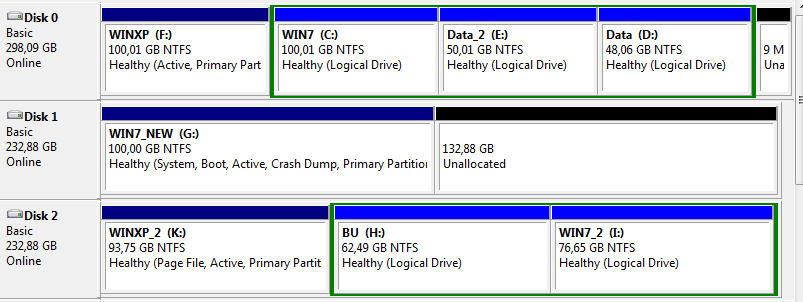
Before I booted, my partitions were like this:

disks9.jpg


I booted from the SSD and selected the new startup entry I had created for WIN7_NEW.
But I got "BOOTMGR is missing".
I rebooted to WIN7 and now my partitions are like this:

disks10.jpg


It seems tha imaging instead of cloning did not solve the problem.
Am I right?
 

My Computer My Computer

At a glance

Windows 7 Professional 342it
Computer type
PC/Desktop
OS
Windows 7 Professional 342it
I tried it again:

I booted from the HD to WIN7_NEW (remember that now it is an image, not a clone).
WIN7_NEW was not C.

Using EasyBCD I deleted the entry I had added for the ssd and I added a new entry for WIN7_NEW.
I booted from the SSD to WIN7_NEW.
I got "BOOTMGR is missing".
 

My Computer My Computer

At a glance

Windows 7 Professional 342it
Computer type
PC/Desktop
OS
Windows 7 Professional 342it
I tried it again:

I booted from the HD to WIN7_NEW (remember that now it is an image, not a clone).
WIN7_NEW was not C.

Using EasyBCD I deleted the entry I had added for the ssd and I added a new entry for WIN7_NEW.
I booted from the SSD to WIN7_NEW.
I got "BOOTMGR is missing".
I didn't see where you placed Boot Manager in the Win7_New partition using EasyBCD.

That's the "backup/repair" button in EasyBCD, and the "change boot drive" function. It will plant Boot Manager and boot menu in the partition you specify, i.e. Win7_New... if you'd done it, but I think you unwittingly overlooked that step.

Remember, your existing boot partition (where Boot Manager and the boot menu lives, and which is marked "active") is WinXP on the spinner. You never had your Win7 partition on the spinner marked "active" and containing Boot Manager and the boot menu.

So when you copied Win7 into Win7_New on the SSD (no matter "cloning" or "system image" backup to an intermediate .MRIMG file and then restore to the SSD), you still don't have Boot Manager in the now "active" Win7_New partition on the SSD.

Just put the BIOS back again to have spinner first in the boot sequence, boot to the original Win7, use EasyBCD to "change boot drive" to the SSD, and now you should be able to again set the BIOS to boot from the SSD... and it should now work fine, since Boot Manager has now been planted in the Win7_New partition by EasyBCD.

But I don't understand why you want to or need to boot from the SSD. You said you wanted to retain the ability to boot to WinXP, and presumably the old Win7 on the spinner as well just for backup purposes until you're satisfied with the new setup and will likely delete this partition and re-purpose it for "data", in addition to Win7_New on the SSD (which will be your new default). So why not just keep booting from the spinner, which already has all three OS's on its boot menu I believe?

If you boot from the Win7_New partition on the SSD you're going to have to add back the WinXP partition on the spinner to the Win7_New boot menu anyway (using EasyBCD). So what difference does it make which drive you actually have Boot Manager in? It's the boot menu that provides the ability to choose any Windows on any drive to actually then boot to.

I'd just keep things simple. Keep the spinner as drive #1 in the BIOS boot sequence, and forget about needing Boot Manager added to Win7_New via EasyBCD. Boot menu in the WinXP partition is satisfactory right now, to let you boot to any Windows you want to. Why change that??
 

My Computer My Computer

At a glance

Windows 7 Pro x64 (1), Win7 Pro X64 (2)i5-3350p 3.1Ghz/6MB-cache (1); E8400 3.0Ghz/6...8GB PC3-12800 DDR3 (1); 4GB PC3-10600 DDR3 (2)ATI HD7750 (1), (see TV cards); ATI R7 250 (2)
Computer type
PC/Desktop
Computer Manufacturer/Model Number
Home-built, two systems (1) and (2)
OS
Windows 7 Pro x64 (1), Win7 Pro X64 (2)
CPU
i5-3350p 3.1Ghz/6MB-cache (1); E8400 3.0Ghz/6MB-cache (2)
Motherboard
ASUS P8Z77-V Pro (1); ASUS P5Q3 (2)
Memory
8GB PC3-12800 DDR3 (1); 4GB PC3-10600 DDR3 (2)
Graphics Card(s)
ATI HD7750 (1), (see TV cards); ATI R7 250 (2)
Sound Card
Realtek ALC892 HD Audio (1); Realtek ALC1200 HD Audio (2)
Monitor(s) Displays
Eizo HD2441W LCD, Eizo S2433W (1); Eizo 24" S2433W (2)
Screen Resolution
1920x1200, 1920x1200 (1); 1920x1200 (2)
Hard Drives
(1) 1TB SATA-II (7200RPM), 2x2TB SATA-III (7200RPM), 250GB SATA-III (10000RPM) for OS; 2x2TB external USB 3.0

(2) 320GB SATA-II (7200RPM), 750GB SATA-II (7200RPM), 150GB SATA-II (10000RPM) for OS; 2TB external USB 3.0
PSU
Nesteq ECS-6001 600W (1); Nesteq ECS-5001 500W (2)
Case
Acousti-Case 360 (1) and (2)
Cooling
Noctua NH-U12P SE2 for CPU, 2x120mm case fans (1) and (2)
Keyboard
IBM PS/2 (1) and (2)
Mouse
Logitech MX Revolution wireless (1); Microsoft wired (2)
Internet Speed
100mbps down / 10mbps up
Antivirus
Microsoft Security Essentials; Malwarebyte Anti-Malware Pro
Browser
Firefox
Other Info
Ceton InfiniTV 4-tuner cablecard-enabled TV card as well as Hauppauge HVR-2250 OTA/ATSC 2-tuner TV card in (1), running under Win7 WMC
You are right I hadn't used the "change boot drive" function. I did that (before reading the rest of your post).

I'd just keep things simple. Keep the spinner as drive #1 in the BIOS boot sequence, and forget about needing Boot Manager added to Win7_New via EasyBCD. Boot menu in the WinXP partition is satisfactory right now, to let you boot to any Windows you want to. Why change that??

But I already tried that and could not boot to WIN7_NEW with the correct letter (C).
So, what now?
 

My Computer My Computer

At a glance

Windows 7 Professional 342it
Computer type
PC/Desktop
OS
Windows 7 Professional 342it
I used the "change boot drive" function and saw "EasyBCD has successfully made drive G: the new boot partition".
I booted from HD to WIN7_NEW, but WIN7_NEW is still G and not C.
 

My Computer My Computer

At a glance

Windows 7 Professional 342it
Computer type
PC/Desktop
OS
Windows 7 Professional 342it
I also booted from the SSD to WIN7_NEW, but again WIN7_NEW is G and not C.
 

My Computer My Computer

At a glance

Windows 7 Professional 342it
Computer type
PC/Desktop
OS
Windows 7 Professional 342it
I booted from the SSD to WIN7_NEW.
%windir% goes to G:\Windows
Things are now like this:


disks11.jpg


easybcd.jpg
 

My Computer My Computer

At a glance

Windows 7 Professional 342it
Computer type
PC/Desktop
OS
Windows 7 Professional 342it
Theoretically, at this point you should be able to uncable both the original 300GB spinner as well as the other 250GB spinner, leaving only the SSD seen by the BIOS.

And you now have a Boot Manager planted in Win7_New on the SSD, and that partition is a "primary" partition and is marked as "active". So the SSD by itself should be usable to boot from, with neither of your other two drives connected.

Let's try that, and see what happens. When the other two drives disappear, the BIOS should automatically promote the SSD as first/only in the boot sequence, but you should get into the BIOS just to confirm that.

With only the SSD present, I can't imagine Win7_New being anything other than C. This is a significant test to perform, with only the SSD connected and the other two drives disconnected.


I still have an uneasy feeling about the fact that your original Win7 partition was logical rather than primary, when you copied it to the SSD... where you then changed it to primary (using Partition Wizard). I also am uneasy about the third drive, with its own copies of WinXP and Win7.

Anyway, please report the results of the SSD-only experiment. Does it boot successfully, or complain? If it does boot, is Win7_New shown as C or not?
 

My Computer My Computer

At a glance

Windows 7 Pro x64 (1), Win7 Pro X64 (2)i5-3350p 3.1Ghz/6MB-cache (1); E8400 3.0Ghz/6...8GB PC3-12800 DDR3 (1); 4GB PC3-10600 DDR3 (2)ATI HD7750 (1), (see TV cards); ATI R7 250 (2)
Computer type
PC/Desktop
Computer Manufacturer/Model Number
Home-built, two systems (1) and (2)
OS
Windows 7 Pro x64 (1), Win7 Pro X64 (2)
CPU
i5-3350p 3.1Ghz/6MB-cache (1); E8400 3.0Ghz/6MB-cache (2)
Motherboard
ASUS P8Z77-V Pro (1); ASUS P5Q3 (2)
Memory
8GB PC3-12800 DDR3 (1); 4GB PC3-10600 DDR3 (2)
Graphics Card(s)
ATI HD7750 (1), (see TV cards); ATI R7 250 (2)
Sound Card
Realtek ALC892 HD Audio (1); Realtek ALC1200 HD Audio (2)
Monitor(s) Displays
Eizo HD2441W LCD, Eizo S2433W (1); Eizo 24" S2433W (2)
Screen Resolution
1920x1200, 1920x1200 (1); 1920x1200 (2)
Hard Drives
(1) 1TB SATA-II (7200RPM), 2x2TB SATA-III (7200RPM), 250GB SATA-III (10000RPM) for OS; 2x2TB external USB 3.0

(2) 320GB SATA-II (7200RPM), 750GB SATA-II (7200RPM), 150GB SATA-II (10000RPM) for OS; 2TB external USB 3.0
PSU
Nesteq ECS-6001 600W (1); Nesteq ECS-5001 500W (2)
Case
Acousti-Case 360 (1) and (2)
Cooling
Noctua NH-U12P SE2 for CPU, 2x120mm case fans (1) and (2)
Keyboard
IBM PS/2 (1) and (2)
Mouse
Logitech MX Revolution wireless (1); Microsoft wired (2)
Internet Speed
100mbps down / 10mbps up
Antivirus
Microsoft Security Essentials; Malwarebyte Anti-Malware Pro
Browser
Firefox
Other Info
Ceton InfiniTV 4-tuner cablecard-enabled TV card as well as Hauppauge HVR-2250 OTA/ATSC 2-tuner TV card in (1), running under Win7 WMC
I uncabled the HDDs and booted from the SSD to WIN7_NEW.
I saw a windows screen "Preparing your desktop".
I then saw just a blue screen (my windows copy IS genuine, despite what it says at the bottom right corner).
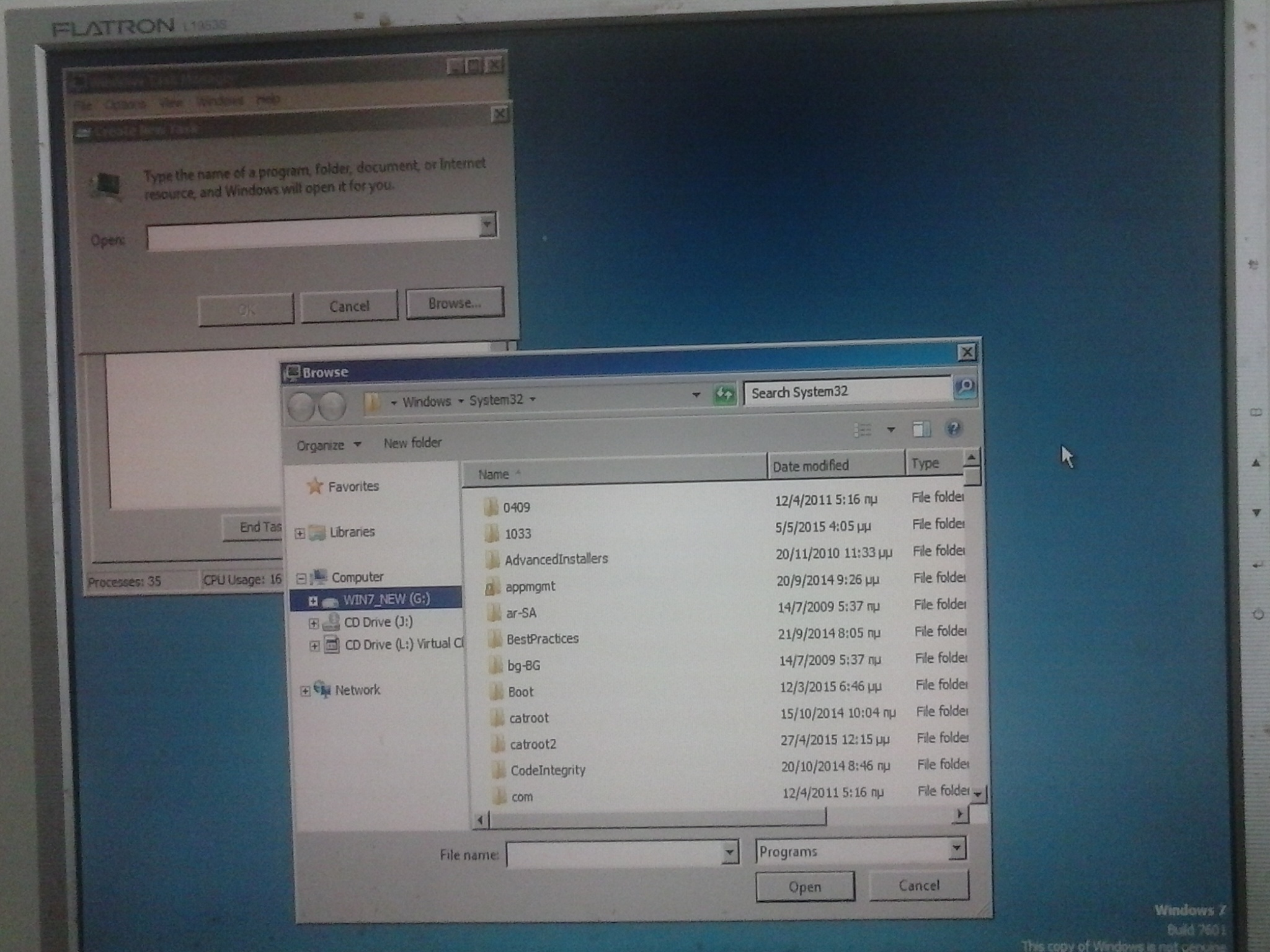
Nothing was happening. I opened Task Manager and I saw that windows had the letter G!

newWin2.jpg
 

My Computer My Computer

At a glance

Windows 7 Professional 342it
Computer type
PC/Desktop
OS
Windows 7 Professional 342it
Back
Top