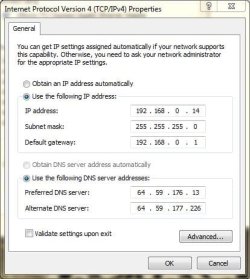
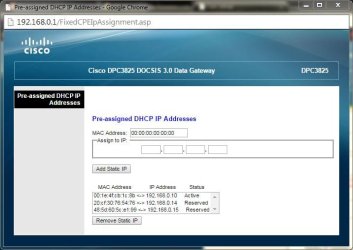
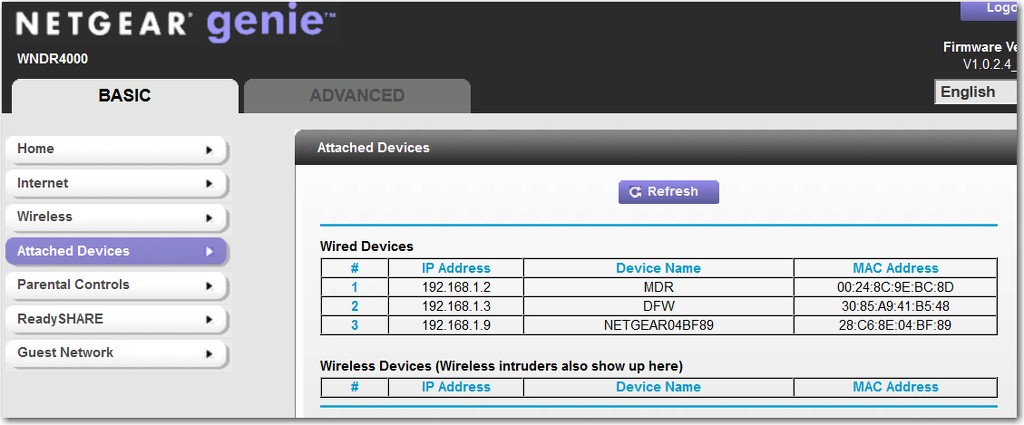
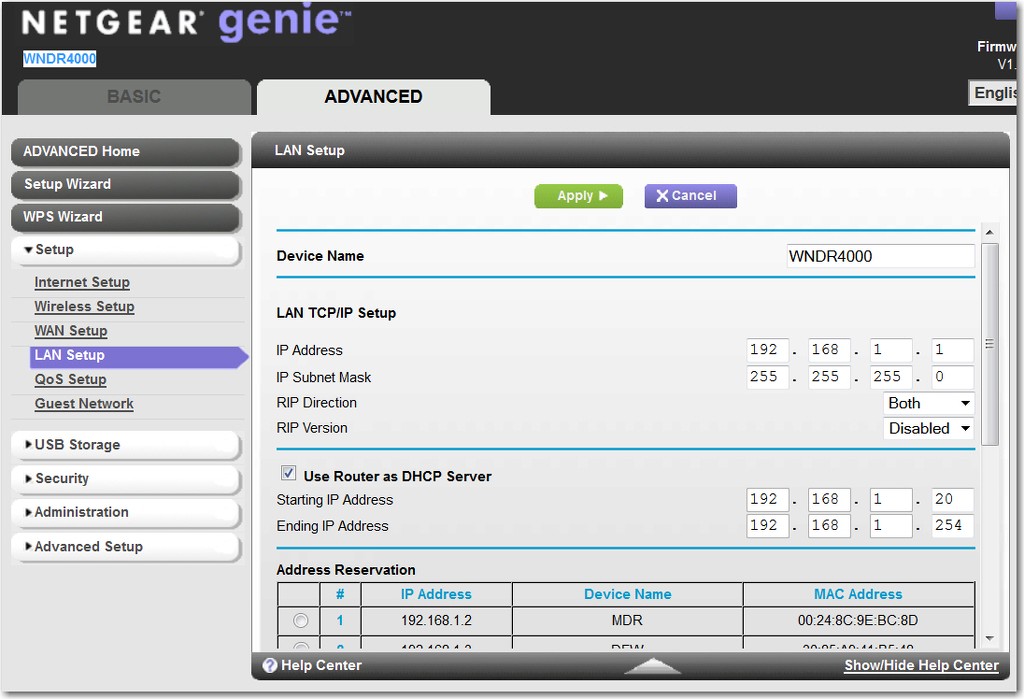
my laptop is 192.168.0.14 (wired) and 192.168.0.15 (wireless). desktop is 192.168.0.13 (set automatically using dhcp).
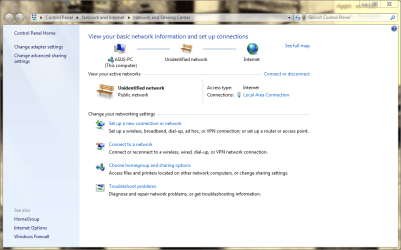
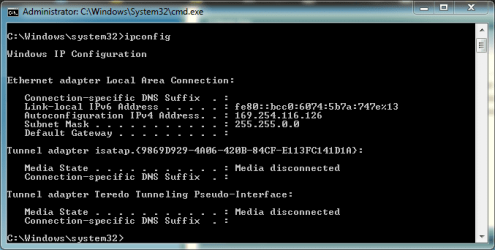
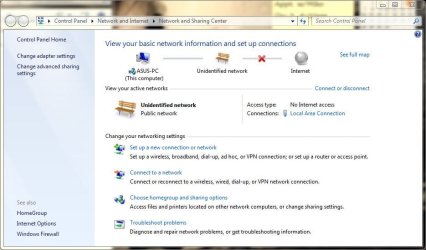
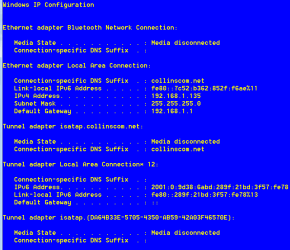
that unidentified public network and ipconfig.jpeg (i never set that ip address 169.254...myself) is what i get when i try using dhcp (automatic in windows adapter properties) on my laptop. there is no internet connection, however. when i set static ip i connect to local area home network and it works fine.
Let's sort this out...
(1) Your desktop is wired connected to your router, and is configured for obtaining its IP address via "automatic DHCP". The router assigns 192.168.0.13 to your desktop. So the DHCP server functionality of your router must be enabled and working properly.
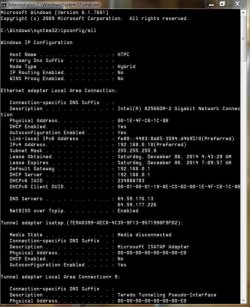
(2) You haven't confirmed that your router is 192.168.0.1, but I'm guessing it is. If you do IPCONFIG on your desktop machine, you will probably see "TCPIP IPv4 Address" of 192.168.0.13 and a "default gateway" address of 192.168.0.1. Yes??
EDIT: corrected default gateway address for typo.
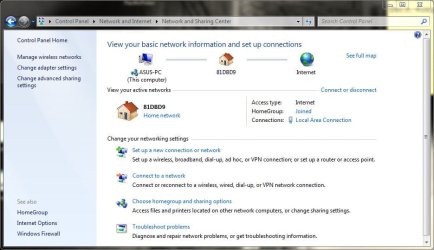
(3) You say that when you manually set the IP address of the ASUS laptop's wired ethernet connection to 192.168.0.14, and manually set the IP address of the ASUS laptop's wireless connection to 192.168.0.15, that you now have Internet access through both of these networks? Can you please post a screenshot from Network and Sharing Center with these two manual IP address settings in effect.
Normally, there would be no reason to have both wired and wireless connections to your router from your laptop. If you have wired, that's sufficient and preferable. I normally disable wireless on my own laptop when I'm at home (there's a slide switch on my Lenovo W530 that turns off wireless radio) and connected wired to my router. I also use wired whenever possible when I'm away from home, using wireless only when necessary (by pushing the slide switch back to "on").
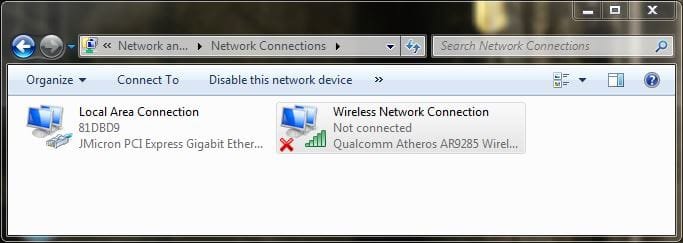
Anyway, from Network and Sharing Center, if you click on the "change adapter settings" link in the upper-left of the window, you'll get the Network Connections dialog. You should see both your wireless and wired connections and both will probably show a status of ENABLED, and a network name as they are both enabled and active (when you're manually setting the IP addresses).
If you then select each of the two network adapter objects and right-click and select DISABLE, to disable both wired and wireless. You should get a red "X" in the network icon in the system tray for each.
Then select the wired network adapter object, and right-click, and select Properties. Then select the Internet Protocol Version 4 item, and push the Properties button, and reset your manually assigned IP address back to "obtain IP address automatically" for both the PC and DNS server addresses. Push OK, to get back to the Network Connections view.
Now again right-click on the wired network adapter object, and select ENABLE. In a few seconds the red "X" should disappear (hopefully), wired handshake conversation with the router should occur to obtain a DHCP address, and hopefully you might now actually be connected... but just through wired, not wireless which you've previously DISABLE'd.
Yes??
What do things look like now? Same as before when you tried DHCP, or different? What does Network and Sharing Center show? Do you have a DHCP-assigned IP address, and do you have Internet access? Or still not working??
And what does IPCONFIG now show?