Can't delete partition.

gmatting

New member
Local time
5:00 AM
Messages
17
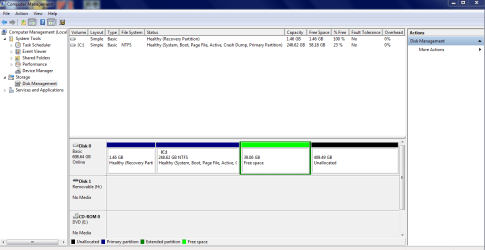
Trying to extend my primary partition. I had a second OS on another partition. I deleted it but instead of reverting to unallocated space, it says "free space." When I try to delete it, I get the message "This is an extended partition. The partition will become inaccessible if you delete it." What? It becomes inaccessible forever? I can't extend my primary partition into this space?
 

My Computer

Computer Manufacturer/Model Number
Toshiba Satellite C655
OS
Windows 7 Home Premium 64bit
CPU
Pentium(R) Dual-Core CPU T4500 @ 2.30GHz
Memory
4.00 GB
Can you please post a screenshot from DISKMGMT.MSC, in full-screen mode. And please spread the columns (especially "status") first so that all of the text in the cells is visible in the screenshot.

Your easiest solution here is to use MiniTool Partition Wizard (free home edition) to accomplish the partition changes you want to accomplish. Partition Wizard can make most changes while the program is running under Windows. Partition add/delete, resize/move, re-label, FORMAT, etc.

To make changes to the Windows C-partition itself you should boot to the Partition Wizard standalone boot CD, which you can download as an ISO and then burn to CD. Then, while booted to this standalone CD, you will be able to reconfigure your hard drive, including C, with no limitations.

But before doing anything, let us see the screenshot of your current system from DISKMGMT.MSC.
 

My Computer

Computer type
PC/Desktop
Computer Manufacturer/Model Number
Home-built, two systems (1) and (2)
OS
Windows 7 Pro x64 (1), Win7 Pro X64 (2)
CPU
i5-3350p 3.1Ghz/6MB-cache (1); E8400 3.0Ghz/6MB-cache (2)
Motherboard
ASUS P8Z77-V Pro (1); ASUS P5Q3 (2)
Memory
8GB PC3-12800 DDR3 (1); 4GB PC3-10600 DDR3 (2)
Graphics Card(s)
ATI HD7750 (1), (see TV cards); ATI R7 250 (2)
Sound Card
Realtek ALC892 HD Audio (1); Realtek ALC1200 HD Audio (2)
Monitor(s) Displays
Eizo HD2441W LCD, Eizo S2433W (1); Eizo 24" S2433W (2)
Screen Resolution
1920x1200, 1920x1200 (1); 1920x1200 (2)
Hard Drives
(1) 1TB SATA-II (7200RPM), 2x2TB SATA-III (7200RPM), 250GB SATA-III (10000RPM) for OS; 2x2TB external USB 3.0

(2) 320GB SATA-II (7200RPM), 750GB SATA-II (7200RPM), 150GB SATA-II (10000RPM) for OS; 2TB external USB 3.0
PSU
Nesteq ECS-6001 600W (1); Nesteq ECS-5001 500W (2)
Case
Acousti-Case 360 (1) and (2)
Cooling
Noctua NH-U12P SE2 for CPU, 2x120mm case fans (1) and (2)
Keyboard
IBM PS/2 (1) and (2)
Mouse
Logitech MX Revolution wireless (1); Microsoft wired (2)
Internet Speed
100mbps down / 10mbps up
Antivirus
Microsoft Security Essentials; Malwarebyte Anti-Malware Pro
Browser
Firefox
Other Info
Ceton InfiniTV 4-tuner cablecard-enabled TV card as well as Hauppauge HVR-2250 OTA/ATSC 2-tuner TV card in (1), running under Win7 WMC
Here's the screenshot. The free space partition is effectively blocking me from using the entire disk.
 

Attachments

  • Disk Management Screenshot.PNG
    Disk Management Screenshot.PNG
    27 KB · Views: 4

My Computer

Computer Manufacturer/Model Number
Toshiba Satellite C655
OS
Windows 7 Home Premium 64bit
CPU
Pentium(R) Dual-Core CPU T4500 @ 2.30GHz
Memory
4.00 GB
You're fine.

If you use Partition Wizard and boot to the standalone CD, you'll be able to "consolidate" the two essentially free areas to the right of C, and do whatever you want. You will be able delete that "free space" (which is actually free inside of the "extended partition", inside of which one or more "logical" partitions could theoretically be sub-defined, and where your former second OS once resided in one) so that it then becomes automatically incorporated into the "unallocated primary space" to its right making one large unallocated area eligible for allocation as one or more primary partitions (up to the maximum total of four primary partitions on the drive).

Or, if you want, you can incorporate that dark blue "unallocated primary space" to the far right into the bright green "extended partition" to its left, thus making it all part of one large "extended partition" which would then be usable to create any number of logical partitions inside of it. There would be no dark blue primary unallocated space, but instead there would be bright green logical free space. Same difference.

And you'll also be able to extend C into that "unallocated" (or "logical free space") area by as much as you want, and do whatever you want with the remaining unused space to the right. You can allocate another "primary" partition, or you can allocate one or more "logical" partitions, or you can just leave it unallocated for some potential future use. Partition Wizard can "slide the boundaries of dissimilar things" which Windows disk management cannot.

The basic principle here is that a hard drive can have up to a max of FOUR "primary" partitions. If you want to have more than four partitions total, you need to give up one of the four to be used as what's called the "extended partition" (of which there can only be one on a drive) inside of which any number of "logical" partitions can then be sub-defined. So now we have an actual max of THREE usable "primary" partitions, and one "extended partition" inside of which can be any number of "logical" partitions can exist.

The only restriction on primary vs. logical partitions is that the one "active partition" (which is where the BIOS goes to start the boot process, and where Boot Manager lives) on hard drive #1 in the BIOS boot sequence MUST be "primary". Other than that, there is no law requiring even one primary partition on a drive. If there is no "active" partition on a drive (e.g. on a second hard drive) then the entire drive can be allocated as one "extended partition" (i.e. there are no true "primary" partitions allocated on the drive), and then you can then allocate any number of logical partitions inside of the "extended partition" thus using the entire drive for any number of logical partitions.

Or, you can allocate up to four primary partitions on any drive if that's what you want to do. Or mix primary and logical (inside the "extended" partition).

But other than that one rule regarding an "active" partition which MUST BE PRIMARY, any other partition on any drive can be "primary" or logical" with no consideration (other than location on the drive and max of four primary partitions on a drive). Both types of partition are functionally identical and functionally interchangeable, other than that (a) the one "active" partition MUST BE PRIMARY, and (2) there cannot be more than four primary partitions on a drive or three primary partitions and one "extended partition".

Obviously making all of your other partitions "logical" (i.e. the entire rest of the drive aside from the one "active" primary partition is one large "extended partition" holding any number of "logical partitions") completely eliminates any considerations regarding maximum number of partitions on the drive. There simply are none, if you only use logical partitions

Within the one "extended partition" any area that is not allocated to a "logical partition" is simply considered "logical free space" within the "extended partition" (which is what is showing as bright green in your screenshot). In your case it was once where your second bootable OS lived (apparently installed in a logical partition though you might not have realized it, which is perfectly acceptable), but when you deleted that OS/partition it simply got returned to the "extended partition" as "logical free space", hence now appearing as part of the bright green area.

And at the moment just because of where your second OS used to reside its now free space is physically located in between the C primary partition to its left and the primary unallocated space to its right. Windows has a problem extending C into the "extended partition", but Partition Wizard has no problem sliding things around and re-configuring the partition table on the drive to end up with whatever you want. You simply prescribe the sequence of steps you want it to perform in order to end up with whatever partition size and arrangement you want to end up with.

Outside of the one "extended partition", any other area on the drive that is not allocated to a primary partition is simply considered "primary unallocated", and that shows as dark blue on your screenshot. And of course depending on where you placed your primary and logical partitions, and/or free space and/or unallocated space, you simply have considerations and consequences as to where and how you can combine things into new partitions, logical or primary.

With Partition Wizard, you can do anything you want, moving/resizing things, and deleting/consolidating partitions and both types of free space (i.e. "logical free space" and "primary unallocated space"), as long as they're adjacent. You'll be able to configure things however you want.

Again, since you're re-sizing C, you need to boot to the standalone Partition Wizard CD. Otherwise all functions of Partition Wizard for other partitions and other hard drives are available when you run the program while booted normally to Windows.
 

My Computer

Computer type
PC/Desktop
Computer Manufacturer/Model Number
Home-built, two systems (1) and (2)
OS
Windows 7 Pro x64 (1), Win7 Pro X64 (2)
CPU
i5-3350p 3.1Ghz/6MB-cache (1); E8400 3.0Ghz/6MB-cache (2)
Motherboard
ASUS P8Z77-V Pro (1); ASUS P5Q3 (2)
Memory
8GB PC3-12800 DDR3 (1); 4GB PC3-10600 DDR3 (2)
Graphics Card(s)
ATI HD7750 (1), (see TV cards); ATI R7 250 (2)
Sound Card
Realtek ALC892 HD Audio (1); Realtek ALC1200 HD Audio (2)
Monitor(s) Displays
Eizo HD2441W LCD, Eizo S2433W (1); Eizo 24" S2433W (2)
Screen Resolution
1920x1200, 1920x1200 (1); 1920x1200 (2)
Hard Drives
(1) 1TB SATA-II (7200RPM), 2x2TB SATA-III (7200RPM), 250GB SATA-III (10000RPM) for OS; 2x2TB external USB 3.0

(2) 320GB SATA-II (7200RPM), 750GB SATA-II (7200RPM), 150GB SATA-II (10000RPM) for OS; 2TB external USB 3.0
PSU
Nesteq ECS-6001 600W (1); Nesteq ECS-5001 500W (2)
Case
Acousti-Case 360 (1) and (2)
Cooling
Noctua NH-U12P SE2 for CPU, 2x120mm case fans (1) and (2)
Keyboard
IBM PS/2 (1) and (2)
Mouse
Logitech MX Revolution wireless (1); Microsoft wired (2)
Internet Speed
100mbps down / 10mbps up
Antivirus
Microsoft Security Essentials; Malwarebyte Anti-Malware Pro
Browser
Firefox
Other Info
Ceton InfiniTV 4-tuner cablecard-enabled TV card as well as Hauppauge HVR-2250 OTA/ATSC 2-tuner TV card in (1), running under Win7 WMC
Thank you for your very comprehensive reply. My intent is to have the entire drive as a primary partition (Windows 7 64 bit) and then create a second partition for another bootable OS (Vista). I use the second OS to run some old favorite software programs that won't run on Windows 7 but primarily as a "lifeboat" in case the primary OS goes belly up. In fact, this hard drive is a replacement for a previous drive that became corrupted in the middle of an important business trip. Because I had a second OS, I was able to boot up and pull needed documents and continue working during the trip. With this new drive, I should have allocated the entire drive as primary and then created a second partition for the Vista backup OS. My mistake was to partition the drive for the second OS before allocating all the available space. Now that I want to add the unallocated space to the primary partition I find I have painted myself into a box by having the second partition acting as a block between the primary and unallocated partition. My second mistake was thinking I could simply deleted the second OS partition, allocate the whole drive, and then recreate the second OS partition. Live and learn.

I am not familiar with Partition Wizard, although I have seen its advertisements. If, as you suggest, I combine the unallocated and extended partitions together, will Partition Wizard then allow me to expand the primary partition to take up all but about 50GB of the drive - which would allow me to install my backup OS in the remaining extended partition? Is that workable? Do I need Partition Wizard to do that or will Disk Management allow me to do so?
 

My Computer

Computer Manufacturer/Model Number
Toshiba Satellite C655
OS
Windows 7 Home Premium 64bit
CPU
Pentium(R) Dual-Core CPU T4500 @ 2.30GHz
Memory
4.00 GB
I just did the very thing that you are trying to do over the weekend. When you boot with Partition Wizard, you will see on your screen a shot much like the Disk Management that you just posted. You can click on C drive and take your mouse and actually drag the C: drive to the right all or part of the way. There is a big Check Mark to the left of your screen that says "Apply". This makes your changes permanent when you click on that. The process is very easy. == Yes, you should use Partition Wizard for this. Disk Management can not be used for your C: drive. Good luck.
 

My Computer

Computer type
PC/Desktop
Computer Manufacturer/Model Number
Custom Build
OS
Windows 7 Home Premium 32-Bit - Build 7600 SP1
CPU
Intel Core i3-2120 3.30Ghz
Motherboard
Asus P8Z68-V LX Intel Z68 Socket H2 ATX
Memory
Kingston 4 GB DDR3 1333 mhz
Graphics Card(s)
AMD Radeon HD6670
Sound Card
Sound Blaster Audigy SE 24-Bit
Monitor(s) Displays
Asus VE228
Screen Resolution
1440 X 900
Hard Drives
OCZ Vertex 3 120 GB Sata 3 SSD ==
Kingston SH103/S3 120 G Hyper X 120 GB SSD ==
Western Digital 500 GB Caviar Green 7200 RPM ==
PSU
Corsair CX600M == 600 Watt
Case
NZXT Apollo - Silver with Clear Side Panel
Cooling
Three 120 mm Fans
Keyboard
Microsoft Natural 4000
Mouse
Microsoft Custom Optical 3000
Internet Speed
AT&T Fiber Optic Wireless Network
Antivirus
Microsoft Security Essentials
Browser
Chrome
Other Info
120 mm Blue LED Fan -- Three Blue LED Lazer Light Sticks
Thank you for your very comprehensive reply. My intent is to have the entire drive as a primary partition (Windows 7 64 bit) and then create a second partition for another bootable OS (Vista).
I understand your intent, but I think your description needs just a small modification.

You want to end up with two partitions on the drive (other than the small primary recovery partition on the far left of your picture, which remains untouched): (1) Windows 7 primary which you will resize with Partition Wizard to be most (but not all) of the drive, and (2) remaining unallocated space of about 50GB which you will point to as the "target" for the Vista install. The Vista install should actually create a true primary partition out of that originally unallocated space, with the bootable OS going into that partition.

So you should end up with three primary partitions on the drive. And the Vista install should update the Boot Manager menu (currently living in C) to have TWO bootable OS's on the list for you to choose from at boot time.


I am not familiar with Partition Wizard, although I have seen its advertisements. If, as you suggest, I combine the unallocated and extended partitions together, will Partition Wizard then allow me to expand the primary partition to take up all but about 50GB of the drive - which would allow me to install my backup OS in the remaining extended partition?
Partition Wizard is very intuitive. All you need to do is start the program, look at its GUI presentation, and you'll immediately understand how it is to be used. You simply create a sequence of one or more operations you want to perform (you can UNDO or scrap them if you want, before you apply them), and when you're finally satisfied you push the APPLY button. You can do one operation at a time and then APPLY each one if you're a bit timid initially, or you can string multiple operations together and the APPLY will apply them all in sequence.

But yes, you can either (a) add the primary unallocated space on the right to the logical free space to its left, or (b) you can delete the "extended partition" (which is currently all logical free space) which will then automatically get added to the primary unallocated space on the right. Now you can re-size the C partition to make it larger, using up all but 50GB of the unallocated space to the right of C that you just combined (from the two separate free areas).

I believe you don't need to create a partition out of the remaining 50GB, as just pointing to that space during the Vista install will automatically create a partition out of it (and it will be a primary partition if the initial free area was "primary unallocated", or it will be a logical partition if the initial free area was "logical free space").

NOTE: although I have 100% confidence in Partition Wizard, it's always prudent to take appropriate backups (e.g. "system image" to an external backup drive) of your current C-partition before you begin fooling around with partition adjustments. Better safe than sorry.
 

My Computer

Computer type
PC/Desktop
Computer Manufacturer/Model Number
Home-built, two systems (1) and (2)
OS
Windows 7 Pro x64 (1), Win7 Pro X64 (2)
CPU
i5-3350p 3.1Ghz/6MB-cache (1); E8400 3.0Ghz/6MB-cache (2)
Motherboard
ASUS P8Z77-V Pro (1); ASUS P5Q3 (2)
Memory
8GB PC3-12800 DDR3 (1); 4GB PC3-10600 DDR3 (2)
Graphics Card(s)
ATI HD7750 (1), (see TV cards); ATI R7 250 (2)
Sound Card
Realtek ALC892 HD Audio (1); Realtek ALC1200 HD Audio (2)
Monitor(s) Displays
Eizo HD2441W LCD, Eizo S2433W (1); Eizo 24" S2433W (2)
Screen Resolution
1920x1200, 1920x1200 (1); 1920x1200 (2)
Hard Drives
(1) 1TB SATA-II (7200RPM), 2x2TB SATA-III (7200RPM), 250GB SATA-III (10000RPM) for OS; 2x2TB external USB 3.0

(2) 320GB SATA-II (7200RPM), 750GB SATA-II (7200RPM), 150GB SATA-II (10000RPM) for OS; 2TB external USB 3.0
PSU
Nesteq ECS-6001 600W (1); Nesteq ECS-5001 500W (2)
Case
Acousti-Case 360 (1) and (2)
Cooling
Noctua NH-U12P SE2 for CPU, 2x120mm case fans (1) and (2)
Keyboard
IBM PS/2 (1) and (2)
Mouse
Logitech MX Revolution wireless (1); Microsoft wired (2)
Internet Speed
100mbps down / 10mbps up
Antivirus
Microsoft Security Essentials; Malwarebyte Anti-Malware Pro
Browser
Firefox
Other Info
Ceton InfiniTV 4-tuner cablecard-enabled TV card as well as Hauppauge HVR-2250 OTA/ATSC 2-tuner TV card in (1), running under Win7 WMC
I did perform a "system image" burn to a backup hard drive. I downloaded Partition Wizard. It recommends creating a bootable disk. I'm not sure of the purpose of the bootable disk. I can launch Partition Wizard from Windows - why would I use the bootable disk instead? When I boot from the bootable disk, the mouse doesn't work. All I can do is scroll through the partitions list with the arrow keys - I can't do anything else because the mouse doesn't work.
 

My Computer

Computer Manufacturer/Model Number
Toshiba Satellite C655
OS
Windows 7 Home Premium 64bit
CPU
Pentium(R) Dual-Core CPU T4500 @ 2.30GHz
Memory
4.00 GB
I did perform a "system image" burn to a backup hard drive.
Good. What did you use to take this "system image"? Windows? Macrium Reflect? Something else?

And have you confirmed you know how to and are actually able to then restore it from this backup if you actually should need to? I'm just saying this because that's the purpose of the backup, to recover from in the event of disaster trying to make the other partition changes.

Anyway, good.


I downloaded Partition Wizard. It recommends creating a bootable disk. I'm not sure of the purpose of the bootable disk. I can launch Partition Wizard from Windows - why would I use the bootable disk instead?
ALL functions can be done while booted to the CD, right then and there.

In contrast, most functions can be done while running under Windows... except for those which manipulate the C-partition itself. These cannot be done while Windows is up and booted and running.

So for those special operations relating to resizing C, you can actually START the operation while still running under Windows, but when it comes time to actually DO the work resizing C, PW will prompt you for a "restart" in order to complete the operation. At re-boot time, before the Windows Welcome screen appears, PW will kick in and take over temporarily, completing the operation on C. And when finished, it will continue on with the rest of the normal boot process and you'll get to the Windows Welcome screen and desktop. And C will have been resized as you wanted.

If you instead boot the standalone CD, you can do this all at once. Just a slightly different approach, as there's no need to trigger the Windows restart to complete the C-related operation. It's more convenient. But truthfully, both of these approaches are functionally equivalent and will both be 100% successful.


When I boot from the bootable disk, the mouse doesn't work. All I can do is scroll through the partitions list with the arrow keys - I can't do anything else because the mouse doesn't work.
Can't explain this. Is it wired? Wireless? USB or PS/2? There's no reason your mouse should not be working. Certainly never had any such failure myself.

Anyway, you can use the above-described Windows-initiated approach to accomplish most of what you need to do, other than re-size C. So finish all of those other parts while still under Windows in preparation, and then as your last step re-size C... which will trigger the "restart to complete the operation" sequence I described.

Once you're back up under Windows you can get back into PW again and do whatever else you want to or need to do.
 

My Computer

Computer type
PC/Desktop
Computer Manufacturer/Model Number
Home-built, two systems (1) and (2)
OS
Windows 7 Pro x64 (1), Win7 Pro X64 (2)
CPU
i5-3350p 3.1Ghz/6MB-cache (1); E8400 3.0Ghz/6MB-cache (2)
Motherboard
ASUS P8Z77-V Pro (1); ASUS P5Q3 (2)
Memory
8GB PC3-12800 DDR3 (1); 4GB PC3-10600 DDR3 (2)
Graphics Card(s)
ATI HD7750 (1), (see TV cards); ATI R7 250 (2)
Sound Card
Realtek ALC892 HD Audio (1); Realtek ALC1200 HD Audio (2)
Monitor(s) Displays
Eizo HD2441W LCD, Eizo S2433W (1); Eizo 24" S2433W (2)
Screen Resolution
1920x1200, 1920x1200 (1); 1920x1200 (2)
Hard Drives
(1) 1TB SATA-II (7200RPM), 2x2TB SATA-III (7200RPM), 250GB SATA-III (10000RPM) for OS; 2x2TB external USB 3.0

(2) 320GB SATA-II (7200RPM), 750GB SATA-II (7200RPM), 150GB SATA-II (10000RPM) for OS; 2TB external USB 3.0
PSU
Nesteq ECS-6001 600W (1); Nesteq ECS-5001 500W (2)
Case
Acousti-Case 360 (1) and (2)
Cooling
Noctua NH-U12P SE2 for CPU, 2x120mm case fans (1) and (2)
Keyboard
IBM PS/2 (1) and (2)
Mouse
Logitech MX Revolution wireless (1); Microsoft wired (2)
Internet Speed
100mbps down / 10mbps up
Antivirus
Microsoft Security Essentials; Malwarebyte Anti-Malware Pro
Browser
Firefox
Other Info
Ceton InfiniTV 4-tuner cablecard-enabled TV card as well as Hauppauge HVR-2250 OTA/ATSC 2-tuner TV card in (1), running under Win7 WMC
I did perform a "system image" burn to a backup hard drive. I downloaded Partition Wizard. It recommends creating a bootable disk. I'm not sure of the purpose of the bootable disk. I can launch Partition Wizard from Windows - why would I use the bootable disk instead? When I boot from the bootable disk, the mouse doesn't work. All I can do is scroll through the partitions list with the arrow keys - I can't do anything else because the mouse doesn't work.

The reason for the bootable disk is that you can't expand your C: drive if that partition has programs running at that time. If you boot with the PW disk, your C: is not being used and you can expand or shrink as you want. My mouse was working over the weekend, but maybe yours won't for some reason. You can still use your touchpad to move around the screen.
 

My Computer

Computer type
PC/Desktop
Computer Manufacturer/Model Number
Custom Build
OS
Windows 7 Home Premium 32-Bit - Build 7600 SP1
CPU
Intel Core i3-2120 3.30Ghz
Motherboard
Asus P8Z68-V LX Intel Z68 Socket H2 ATX
Memory
Kingston 4 GB DDR3 1333 mhz
Graphics Card(s)
AMD Radeon HD6670
Sound Card
Sound Blaster Audigy SE 24-Bit
Monitor(s) Displays
Asus VE228
Screen Resolution
1440 X 900
Hard Drives
OCZ Vertex 3 120 GB Sata 3 SSD ==
Kingston SH103/S3 120 G Hyper X 120 GB SSD ==
Western Digital 500 GB Caviar Green 7200 RPM ==
PSU
Corsair CX600M == 600 Watt
Case
NZXT Apollo - Silver with Clear Side Panel
Cooling
Three 120 mm Fans
Keyboard
Microsoft Natural 4000
Mouse
Microsoft Custom Optical 3000
Internet Speed
AT&T Fiber Optic Wireless Network
Antivirus
Microsoft Security Essentials
Browser
Chrome
Other Info
120 mm Blue LED Fan -- Three Blue LED Lazer Light Sticks
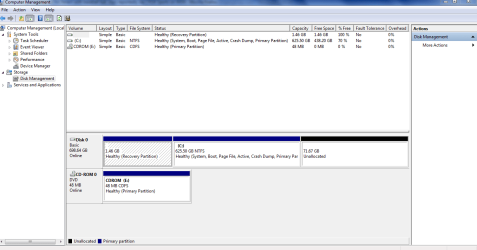
Wow! I'm now a believer in Partition Wizard. The "extend partition" function was truly a one step process. Using the bootable disk eliminated the restart step. See the screenshot. Took me days and days to get up the nerve to do it - took about 45 seconds to actually accomplish. Amazing. The issue with the mouse was due to my using a wireless mouse. I hooked up a USB mouse and everything worked fine.

I'm now ready to reinstall Vista to the unallocated space. If I read your earlier comment correctly, I don't have to make the unallocated space into a partition - I can just load to that space and it will automatically become a partition?
 

Attachments

  • Disk Management Screenshot 2.PNG
    Disk Management Screenshot 2.PNG
    27.4 KB · Views: 2

My Computer

Computer Manufacturer/Model Number
Toshiba Satellite C655
OS
Windows 7 Home Premium 64bit
CPU
Pentium(R) Dual-Core CPU T4500 @ 2.30GHz
Memory
4.00 GB
Wow! I'm now a believer in Partition Wizard.
Aren't we all!


The "extend partition" function was truly a one step process. Using the bootable disk eliminated the restart step. See the screenshot. Took me days and days to get up the nerve to do it - took about 45 seconds to actually accomplish. Amazing.
Correct. Terrific product.


The issue with the mouse was due to my using a wireless mouse. I hooked up a USB mouse and everything worked fine.
Interesting. Most wireless mice/receiver combos work transparently exactly as if they were standard USB wired. No special drivers needed.

This is similar to how video cards work, which ALL are required to be usable straight VGA-mode (i.e. to allow the BIOS to display out to a monitor without any special drivers, before getting to Windows where the vendor-provided driver gets loaded to provide enhanced functionality operation mode.

Anyway, as long as you had a regular USB mouse and got past this issue, great.


I'm now ready to reinstall Vista to the unallocated space. If I read your earlier comment correctly, I don't have to make the unallocated space into a partition - I can just load to that space and it will automatically become a partition?
Yes. I've never installed Vista, but I've installed every other kind of Windows. You can just point to the target unallocated space and it will go there.

Furthermore, the installer detects that you already have an existing Windows installed (your C-partition) and that is also the ACTIVE partition (where the BIOS goes on that drive, to initiate the Boot Manager process). Normally, on a "clean install" of Win7 you'd see (a) "system reserved" 100MB partition marked ACTIVE, with (b) C-partition for Windows. The Win7 installer placed Boot Manager and a 1-OS boot menu into "system reserved". But somehow, in your case your C-partition is also "active" (maybe you upgraded from a WinXP system, where C was already ACTIVE?).

Nevertheless I'm sure the Vista installer will recognize your existing Boot Manager location and contents, and will install Vista to the specified target unallocated space, and will add Vista to the existing Boot Manager menu in C. So following the completion of the Vista install (probably will be seen at the first re-boot), your Boot Manager menu will now present TWO bootable OS's , Win7 and Vista. I don't know which one will be marked "default" at this point but you just use the arrow key to navigate up/down to the right one and then press ENTER.

If you want to manipulate your Boot Manager menu (say, to change which OS is the default, or how long is the time delay before auto-boot to the default OS, or renaming the OS's on the menu, etc.) I recommend you install EasyBCD. You won't need it very often, but when you do its intuitive GUI is very easy to use.


Again, word to the wise: it is highly recommended that you take an appropriate backup of your existing system (in a format suitable for quick restore, e.g. "system image" to an external USB drive) before doing anything that may unintentionally make your system unusable, perhaps through accidental or improper use of a wrong parameter or a wrong command.

Better safe than sorry, even if you don't need to make use of the "system image" backup. It's better to have one (say created by Macrium Reflect Free) than not.

 

My Computer

Computer type
PC/Desktop
Computer Manufacturer/Model Number
Home-built, two systems (1) and (2)
OS
Windows 7 Pro x64 (1), Win7 Pro X64 (2)
CPU
i5-3350p 3.1Ghz/6MB-cache (1); E8400 3.0Ghz/6MB-cache (2)
Motherboard
ASUS P8Z77-V Pro (1); ASUS P5Q3 (2)
Memory
8GB PC3-12800 DDR3 (1); 4GB PC3-10600 DDR3 (2)
Graphics Card(s)
ATI HD7750 (1), (see TV cards); ATI R7 250 (2)
Sound Card
Realtek ALC892 HD Audio (1); Realtek ALC1200 HD Audio (2)
Monitor(s) Displays
Eizo HD2441W LCD, Eizo S2433W (1); Eizo 24" S2433W (2)
Screen Resolution
1920x1200, 1920x1200 (1); 1920x1200 (2)
Hard Drives
(1) 1TB SATA-II (7200RPM), 2x2TB SATA-III (7200RPM), 250GB SATA-III (10000RPM) for OS; 2x2TB external USB 3.0

(2) 320GB SATA-II (7200RPM), 750GB SATA-II (7200RPM), 150GB SATA-II (10000RPM) for OS; 2TB external USB 3.0
PSU
Nesteq ECS-6001 600W (1); Nesteq ECS-5001 500W (2)
Case
Acousti-Case 360 (1) and (2)
Cooling
Noctua NH-U12P SE2 for CPU, 2x120mm case fans (1) and (2)
Keyboard
IBM PS/2 (1) and (2)
Mouse
Logitech MX Revolution wireless (1); Microsoft wired (2)
Internet Speed
100mbps down / 10mbps up
Antivirus
Microsoft Security Essentials; Malwarebyte Anti-Malware Pro
Browser
Firefox
Other Info
Ceton InfiniTV 4-tuner cablecard-enabled TV card as well as Hauppauge HVR-2250 OTA/ATSC 2-tuner TV card in (1), running under Win7 WMC
Back
Top