Can't extend hard drive partition

JJD

New member
Local time
12:24 AM
Messages
12
Hey all, let me say this forums has been a great tool whenever I have problems with my win7 PC and I finally decided to register. I recently bought a Windows 7 Home laptop from an online retailer and decided to install Windows 7 Ultimate x64 on a new partition. A few weeks later, I decided to delete the old Win 7 Home partition, but I can't allocate the unused space to my Windows 7 Ultimate partition.

partf.png
 

My Computer

OS
Windows 7 Ultimate
is there anything else I can do besides that? I really don't want to have to do that over again.
 

My Computer

OS
Windows 7 Ultimate
JJD,

Actually, there is:

  1. Make yourself a System Repair Disk
  2. Use Windows Backup and Restore to create a system image of your E drive on an external USB drive.
  3. Boot from the system repair disk
  4. Go to a command prompt
  5. Run DiskPart and the Clean All command
  6. exit out of diskpart
  7. Shutdown your system
  8. Boot from the system repair disk
  9. Choose the option to install a previous system image
  10. Connect your external usb drive
  11. Tell the system image repair program where the image is.
  12. Let system restore.

Procedure is actually quite simple.

I've done this before myself a couple of times.

Here are some "how-to" infos
[FONT=&quot]CREATE A SYSTEM REPAIR DISK[/FONT]
START | type System Repair | Enter key | Create Disk button

CREATE A SYSTEM IMAGE BACKUP
· START | type Backup your computer | Enter key
· In left-hand pane, select Create a System Image
· select where you want to save the backup | Next
· Select the drives you want to backup | Next
· Start Backup button
· Finish button after completion


GO TO A COMMAND PROMPT USING A SYSTEM REPAIR DISK & clean a drive


1) Make a System Repair Disk (WIN key| type Create System Repair Disk | ENTER key)
2) Insert System Repair Disk into optical reader.
3) Shutdown your computer.
4) Boot up your computer from the System Repair Disk (if needed, Power on button, immediately hit F2 key, change boot order to have boot from cd/dvd first).
5) Wait while a mini-version of Windows is loaded and finally the System Recovery Options dialog appears.
6) SYSTEM RECOVERY OPTIONS dialog |
will show Select a keyboard input method |
NEXT button
7) SYSTEM RECOVERY OPTIONS dialog
will search your system for installed versions of Windows.
8) SYSTEM RECOVERY OPTIONS dialog |
select the Use recovery tools that can help fix problems starting Windows radio button |
NEXT button
9) SYSTEM RECOVERY OPTIONS |
will show Choose a recovery tool and list the following |
System Repair
System Restore
System Image Recovery
Windows Memory Diagnostic
Command Prompt

10) Click on command prompt

11)


[FONT=&quot]WIPE A DISK CLEAN[/FONT]

· type DiskPart, Enter key
· type List disk, Enter key
note the numeral of the disk you want to clean
for example purposes, I’ll be using the numeral 0
· type Select disk 0, Enter key
· type Detail disk, Enter key
this info will let you know if you selected correctly
· type Clean ALL, Enter key
your entire disk is being overwritten with zeros.
This can take a considerable amount of time
· type EXIT, Enter key (only after Clean is finished)
· type EXIT, Enter key (this gets you back where you were)

12) SHUTDOWN button

Now you can boot backup from that repair disk and do the actual restore.


Hope you manage to follow all of my cut/paste operations.

It's easier and quicker to do all of this and it is to document such.

 

My Computer

Computer Manufacturer/Model Number
Toshiba Satellite S875D-S7239 laptop
OS
MS Windows 7 Ultimate SP1 64-bit
CPU
AMD A10-4600M
Motherboard
AMD Pumori (Socket FT1)
Memory
6.00 GB Dual-Channel DDR3 @ 798MHz (11-11-12-28)
Graphics Card(s)
AMD Radeon HD 7660G
Sound Card
High Definition Audio Device
Monitor(s) Displays
Generic PnP Monitor (1600x900@60Hz)
Screen Resolution
1600x900@60Hz
Hard Drives
SSD 119GB Corsair CSSD-V128GB2 ATA Device
Keyboard
Standard PS/2 Keyboard
Mouse
HP Wireless Optical Mobile Mouse Model FHA-3410
Internet Speed
What the local pub, local coffee shop offers.
Other Info
Optical Drive:MATSHITA BD-CMB UJ160B ATA Device


Also have an Asus ha1002xp netbook with Win 7 Ultimate installed.
alright thanks! I'll try this when I get my enclosure
 

My Computer

OS
Windows 7 Ultimate
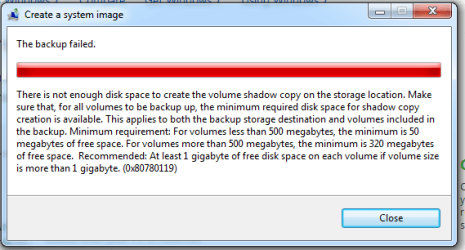
I tried the second step (create system image) but it gave me the error that I attached a screenshot of that the drive didn't have enough space even though it was an empty 500GB that I formatted before doing it. It's actually a 3.5 I stuck in an enclosure, would that matter? Also what settings should I be using to format?
 

Attachments

  • backup error.png
    backup error.png
    11.2 KB · Views: 20

My Computer

OS
Windows 7 Ultimate
To extend into space to the left you need to use free Partition Wizard bootable CD, which has has been used to do this very operation hundreds of times here.

If you do not use Bitlocker then you should also delete the 100mb System Reserved partition which was created by 32 bit Win7 and thus the necessary MBR repair may not work with 64 bit Startup Repair.

The MBR must be recovered into the 64 bit Win7 partition by marking partition Active and then booting the Win7 DVD REpair console or 64 bit Repair CD to run Startup Repair up to 3 separate times with reboots until Win7 starts.

Follow the steps in Option One shown in this new tutorial with screenshots: http://www.sevenforums.com/tutorials/93322-partition-wizard-use-bootable-cd.html

http://www.sevenforums.com/tutorials/2083-system-repair-disc-create.html
 
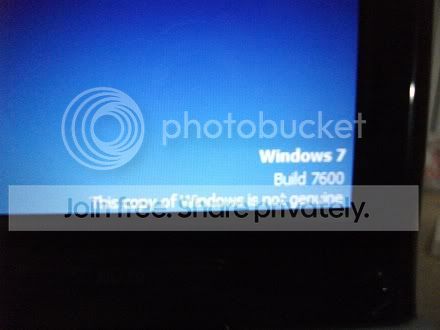
Ok, so I tried everything greg said. and after doing startup repair the second time, I got windows to successfully boot. But everytime I login, it takes me to a blank blue screen and the build 7600 - windows is not genuine is the only thing showing in the bottom left corner and the curser - no desktop, start menu, taskbar, nada.

DSCF0712.jpg


DSCF0713.jpg


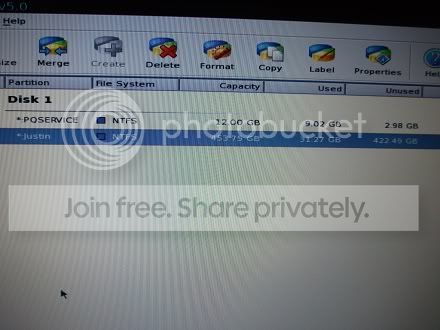
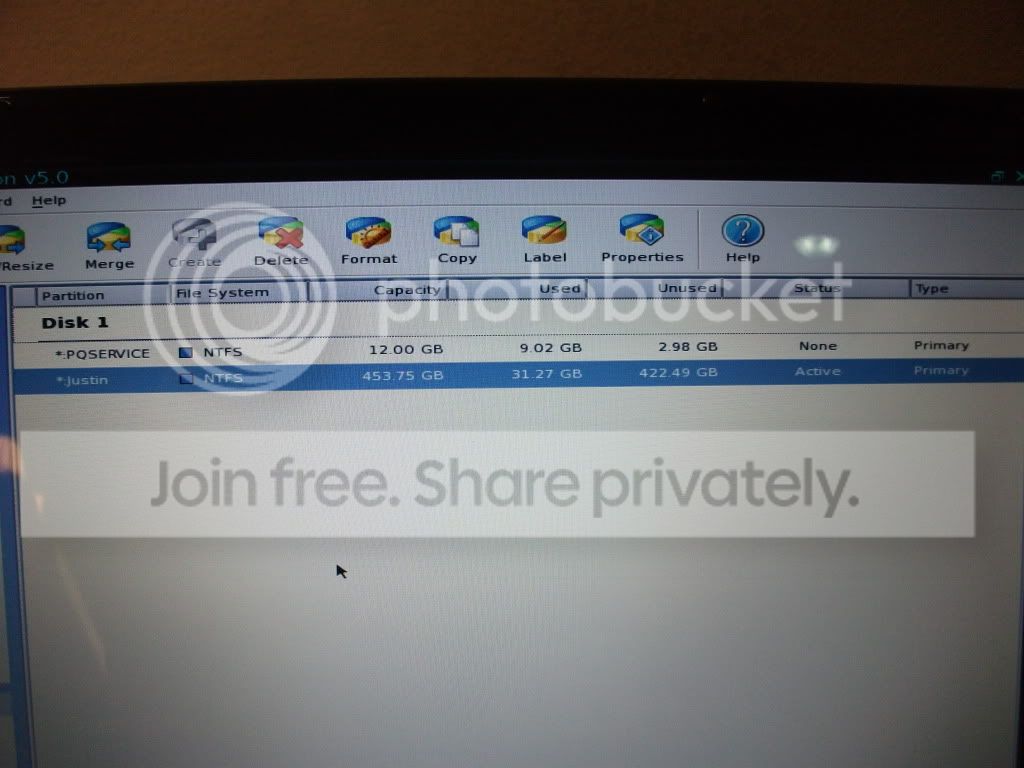
I tried looking up the partition in partition manager after rebooting with the disc inside and it seems like all the data is still there, since about 31GB are used up, but it just won't load the desktop. I've tried restarting it several times and ran startup repair once (it found no problems) to no avail.

DSCF0709.jpg


I'm thinking I should pop in my original install disc and run the repair installation function on the installation menu. Any suggestions would be appreciated.
 

My Computer

OS
Windows 7 Ultimate
There is another way.

download ubuntu Download | Ubuntu
burn the iso file to a cd or dvd or use unetbootin UNetbootin - Homepage and Downloads
to install to a freshly formatted 1GB or larger flash drive (recommended cause it's faster that way)
reboot at the prompt and boot into ubuntu.
at the top left corner are the dropdown menus. go to system>administration>gparted
from there you can move your system partition to the right and expand it to fill all of your free space.
It will take a long time to do so, and there's maybe < 1% chance of errors.. but when it's done, reboot... I use gparted all the time and you can download just the gparted application, but the version that comes with ubuntu has better support for NTFS and other file systems
 
There is another way.

download ubuntu Download | Ubuntu
burn the iso file to a cd or dvd or use unetbootin UNetbootin - Homepage and Downloads
to install to a freshly formatted 1GB or larger flash drive (recommended cause it's faster that way)
reboot at the prompt and boot into ubuntu.
at the top left corner are the dropdown menus. go to system>administration>gparted
from there you can move your system partition to the right and expand it to fill all of your free space.
It will take a long time to do so, and there's maybe < 1% chance of errors.. but when it's done, reboot... I use gparted all the time and you can download just the gparted application, but the version that comes with ubuntu has better support for NTFS and other file systems

I already got the partition to expand, but now I can't log into Windows. See my post above.
 

My Computer

OS
Windows 7 Ultimate
Sry.. didn't see that post..
Now it's time to call Microsoft and start yelling at people.. WAT killed your system and I don't know of any way to fix it other than to save your files to another HDD, wipe the HDD and start over.. but don't jump on that right away because there's probably someone else here who does know how to get it working again
 
WAT? Please explain? Also, when I allocated the empty space to my hard drive, it chagned the drive letter from E to F and I didn't notice so I think that's probably a big issue. Anyone know how to change it back? I tried partition manager but it doesn't seem to be able to change the drive letters.

EDIT: found out what WAT was. I don't think that was an issue because I wasn't even connected to the internet and why would it happen specifically after I changed the partition?

I found a solution HERE:
http://social.microsoft.com/Forums/en-US/genuinewindows7/thread/d76c8e5e-44ca-4823-9c59-7b24c03f834f
but I can't open regedit
 

My Computer

OS
Windows 7 Ultimate
can you get task manager to open? you should be able to open regedit by clicking the new task button on the applications tab
 
Nope. I can get explorer.exe and notepad to open but not regeit even though they're all in the same folder.
 

My Computer

OS
Windows 7 Ultimate
Rarely the drive letters will slip (change) during reimage or repartitioning.

Use free Paragon Rescue CD to change slipped drive letters: http://www.sevenforums.com/installa...in7-partition-another-drive-2.html#post484430 It can also attempt to rescue your partition and copy out your files.

Since you have a camera can you post back a snip of the drive map from free Partition Wizard bootable CD? It can also attempt to rescue the partition.

I would run Startup Repair repeatedly after making sure Win7 partition is marked Active, then copy out my files using Repair CD if it won't start: http://www.sevenforums.com/tutorials/93347-copy-paste-windows-recovery-console.html

I will be online most all day Wednesday to help.
 
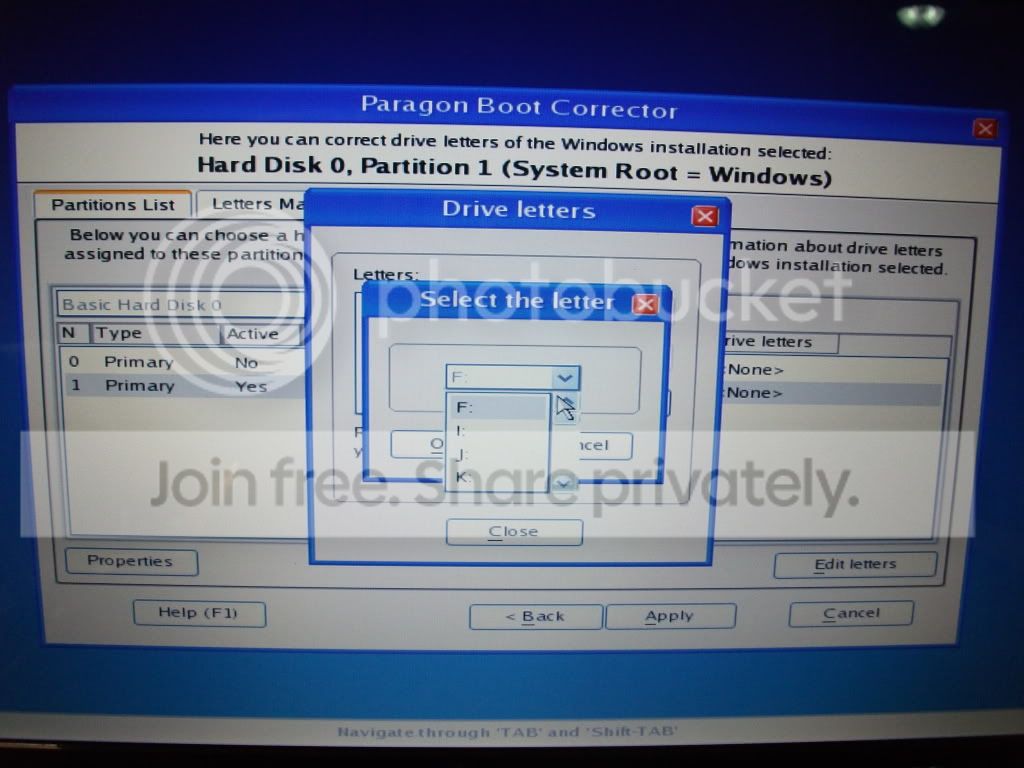
I tried the paragon disc, but it won't let me choose the E drive that I installed it to,only F, I, J, K, .... and so on.

DSCF0716.jpg
 

My Computer

OS
Windows 7 Ultimate
Choose the other partition shown in screenshot to see if it is holding E and change or remove it's drive letter to free up E. Likewise any other HD's.

Diskpart can also reveal which HD/partition is holding E: Boot Win7 DVD or Repair CD, press Shift F10 to open command line, type:
DISKPART
LIST DISK
SELECT DISK # (do each disk in order)
DETAIL DISK

One other thing to try is to insert Win7 DVD, attempt to boot Win7, press Cntrl Alt Delete to open Task Manager, on first tab hold Cntrl Shift (runs as Admin) then click New Task, then run D:sources (replace D with DVD drive letter) to start a repair install.

Need the Partition Wizard screenshot.

Do you have files needing retrieval if it's necessary to wipe the HD and clean reinstall?
http://www.sevenforums.com/tutorials/93347-copy-paste-windows-recovery-console.html

http://www.sevenforums.com/tutorials/91339-ssd-optimize-windows-re-installation.html
 
Last edited:
Have you run Startup Repair from booted Win7 DVD Repair console or Repair CD up to 3 separate times with reboots, regardless of what messages it gives you?

Otherwise you'll need to find what is holding E: then release it so you can restore it to Win7 partition with Paragon Rescue, or run a Repair Install using steps given below.

Choose the other partition shown in screenshot using Paragon Rescue to see if it is holding E then change or remove it's drive letter to free up E. Likewise any other HD's.

Diskpart can also reveal which HD/partition is holding E: Boot Windows 7 DVD or Repair CD, press Shift F10 to open command line, type:
DISKPART
LIST DISK
SELECT DISK # (do each disk in order)
DETAIL DISK

One other thing to try is to insert Windows 7 DVD, attempt to boot Windows 7, press Cntrl Alt Delete to open Task Manager, on first tab hold Cntrl Shift (runs as Admin) then click New Task, then run D:sources (replacing D with DVD drive letter) to start a Repair Install.

If all of these fail after full attempts are made and confirmed complete, then you'll need to copy out files, wipe the HD using tutorial linked, then clean reinstall. It's regrettable however drive letter slippage has only happened about 4-5 times out of 200+ of these repartitioning and reimaging operations we have helped with here.
 
Thanks gregrocker and everyone else for all your help. I ran up paragon rescue again and found out that the E and C drives were locked even though they were both disconnected. I released E and set it to my Windows 7 partition and everything works (I'm typing from it now). Once again thanks!
 

My Computer

OS
Windows 7 Ultimate
Back
Top