Can't reboot repair or restore aft aborted Avast uninstall Oxc 000000f

gigtime

New member
Local time
5:57 PM
Messages
16
I was having problems with Avast free edition. It was detecting a problem when doing a root scan but wouldn't allow me to see the results. After doing a search, it appeared that I just had a corrupt Avast install and it was recommended that I uninstall it via the control panel, reboot in safe mode and run their second uninstall program that's supposed to make sure everything is removed, and then reinstall Avast. The uninstall proceeded to where the progress bar appeared to show it was complete but it seemed stuck on finishing the final step so I foolishly did a forced reboot. I assumed that anything that was missed would be taken care of with the second uninstall program.

Unfortunately, the system will not reboot. Win 7 Home Premium gives error Oxc 000000f Boot Selection Failed Required Device Inaccessible. When I tried to reboot in Safe mode, I'm instructed to insert my Install DVD and run a repair. I did but the repair wouldn't work. I tried to do a System Restore from the System Recovery Options but it says no restore points exist.

Looking at the logs from the attempted Startup Repair, I see, "Root cause found: Boot critical file D:\Windows\system32\drivers\ACPI.sys is corrupt. Also,
Repair Action: File Repair
Result: Failed. Error Code = 0x2
Time taken: 4181ms

Repair Action: System files integrity check and repair
Result: Failed. Error Code = 0x2
Time taken: 3354 ms

Is there anything I can do besides a clean install? I've got a lot of software and don't want to have to spend a couple of days restoring this machine, if possible.

Any help will be greatly appreciated.

Bill
 
Last edited:

My Computer My Computer

At a glance

Windows 7 Home PremiumIntel Core TM 2 Quad CUP Q6600 @ 2.40 GHz
Computer type
PC/Desktop
Computer Manufacturer/Model Number
Custom Build
OS
Windows 7 Home Premium
CPU
Intel Core TM 2 Quad CUP Q6600 @ 2.40 GHz
Motherboard
P5KC
Monitor(s) Displays
Dual
Antivirus
Avast
Browser
Chrome, Safari, IE
1. Via the F8 Advanced Boot Options menu, choose the "Last Known Good Configuration" option to attempt to return the machine to a working state. This is a quick operation that is often useful when non-booting is due to a recent system change.

This just sends the computer into install mode. When choosing repair, the message comes up, "Startup Repair cannot repair this computer automatically."

2. Boot into System Recovery Options via the F8 Advanced Boot Options menu or disk as shown in blue link tutorial, open a Command Line to run a full Disk Check (chkdsk /f) on both the System partition and Windows partition (if they're not one and the same).

Scan completed and I see, "Windows has checked the file system and found no problems." But the final line says, "Failed to transfer logged messages to the event log with status 50." I'm not positive what that means but one of the issues Avast was having was showing a problem detected during a scan but clicking on the "Show Results" button didn't work. Checking Avast's logs said no virus found. Maybe no relation to this issue but I thought I'd point it out.

3. The BIOS detects the Windows drive. I also removed another drive from the system so there would be no confusion over which to boot.

4. Startup repairs have failed multiple times. Chkdsk results the same as in step 2. But I don't know how to isolate the System partition and Win 7 partition and that wasn't covered in the linked page.

5. The Bootrec commands in the startup prompt all completed successfully. However, rebooting lead me right back to the original Windows failed to start error.

6. Next, I ran all the commands in Bootrec.exe tool. THey executed successfully but the reboot produced the same old 'failed to start' error.

7. I cannot boot the system into Safe Mode. Same Boot Manager error as before.

8. I believe we already know the reason for the computer not starting, my premature reboot while uninstalling avast.

Honestly steps 9 on are a bit too technical for me. I'm reading the suggested pages but there are assumptions that we know, for example, what an MBR install is as well as some of the language about reserved partitions. I'm typing this on an Asus laptop with no CD/DVD drive and the flash boot drive doesn't make a lot of sense to me.

I understand that forums like these want everyone to try the standard list of repairs to attempt fixes and provide details. I'm hoping that in this case, since I know the exact cause of the problem and have already mentioned above the file that's either missing or corrupted that there might be some other way to recover it. If not, I guess I'm going with a clean install. Hopefully someone has seen this before and knows a fix.
 

My Computer My Computer

At a glance

Windows 7 Home PremiumIntel Core TM 2 Quad CUP Q6600 @ 2.40 GHz
Computer type
PC/Desktop
Computer Manufacturer/Model Number
Custom Build
OS
Windows 7 Home Premium
CPU
Intel Core TM 2 Quad CUP Q6600 @ 2.40 GHz
Motherboard
P5KC
Monitor(s) Displays
Dual
Antivirus
Avast
Browser
Chrome, Safari, IE
The boot files are corrupt. There are multiple ways to try to repair them all of which are dealt with in the tutorial.

Did you export and then Rebuild the BCD following Bootrec.exe Tool - How to Use in Windows Recovery Environment - Windows 7 Help Forums?

If we could see a picture of Partition Wizard boot CD output we might be able to spot the problem directly. We need to know for sure which partition is marked Active. There are other repairs given that PW can also perform in Step 9.

Manually this can be determined by following he prompts in Mark Partition Active Option Two Steps 1-5 but instead of typing Active in Step 6, type Detail for each partition to see which one lists in its details that it is Active. It should be either the 100mb System Partition or Win7 partition. If not try marking each of those Active to run Startup Repair - Run 3 Separate Times to see if you can either activate the boot files on that partition or move them to the other partition.

Finally there is Step 10 which almost always works for me when all others fail: to create, or delete and then recreate, the System Reserved partition and let the installer rewrite the boot files to it and make it bootable. This wipes out the corrupt file(s) to replace with a new set of boot files and makes them bootable.

If you need further help I can walk you through these steps as needed. If you want to know you've tried everything you can go on to Step 11 if 9 and 10 don't work and seek help for that one from its expert paul1149

And of course you can always skip to rescuiing your files and then doing a perfect Clean Reinstall Windows 7 which if followed closely always results in a perfect install which will stay that way for as long as you stick with the tools and methods suggested.
 
Thanks for the quick response!

The boot files are corrupt. There are multiple ways to try to repair them all of which are dealt with in the tutorial.

Did you export and then Rebuild the BCD following Bootrec.exe Tool - How to Use in Windows Recovery Environment - Windows 7 Help Forums?

Yes, the commands executed and found one install of Windows. However, I still get the same Failed to Start Error.

If we could see a picture of Partition Wizard boot CD output we might be able to spot the problem directly. We need to know for sure which partition is marked Active. There are other repairs given that PW can also perform in Step 9.

The challenge with the Boot CD solution is my laptop doesn't have a a CD or DVD drive. I'll see what I can do about getting on another machine.
 

My Computer My Computer

At a glance

Windows 7 Home PremiumIntel Core TM 2 Quad CUP Q6600 @ 2.40 GHz
Computer type
PC/Desktop
Computer Manufacturer/Model Number
Custom Build
OS
Windows 7 Home Premium
CPU
Intel Core TM 2 Quad CUP Q6600 @ 2.40 GHz
Motherboard
P5KC
Monitor(s) Displays
Dual
Antivirus
Avast
Browser
Chrome, Safari, IE
Thanks, Greg. I downloaded the partition wizard software but see nothing there that shows me how to create a bootable CD. Instead, it directs me to download a MiniTool Partition Wizard. The instructions say...

To see a picture of your drive map with listings, boot free Partition Wizard bootable CD or flash stick to Explore C to see if your files are intact and post back a camera snap of drive map here for more help since often the problem is obvious to us. Screenshots and Files - Upload and Post in Seven Forums - Windows 7 Forums

Make sure in a normal MBR install that the 100mb System Reserved partition (preferred if you have it) or Win7 partition (if you don't) is marked Active: How to Set Active/Inactive partition -Partition Wizard Video Help. A UEFI install will have an EFI System partition on a GPT formatted disk and no Active flag.

For MBR install, click on Disk # to highlight it, from Disk tab select Rebuild MBR, then Apply: Partition Wizard Rebuild MBR - Video Help.

If Windows 7 doesn't start run Startup Repair 3 Separate Times. If marking 100mb Active fails to Repair x3, then mark Win7 partition itself Active and try above steps again.

Without the Partition Wizard CD you would Mark Partition Active (Method Two) from DVD/Repair CD System Recovery Options then run the 3 Startup Repairs.

Sometimes a deleted/missing partition can be restored by PW Partition Recovery Wizard.

Yet, there's very little on how to actually do that, especially if you don't know the terminology. I had to Google MBR to know it means Master Boot Record but still, I'm not even sure if that's what I'm doing. 'marking 100b Active' Not sure what how to do that at all.

What I do know how to do is to reinstall Windows 7. It's going to take 2 days with all the updates and finding and reinstalling programs but at least I know exactly what I'm doing.

Thanks for your help and, can I ask, what AV program do you recommend to replace Avast?
 

My Computer My Computer

At a glance

Windows 7 Home PremiumIntel Core TM 2 Quad CUP Q6600 @ 2.40 GHz
Computer type
PC/Desktop
Computer Manufacturer/Model Number
Custom Build
OS
Windows 7 Home Premium
CPU
Intel Core TM 2 Quad CUP Q6600 @ 2.40 GHz
Motherboard
P5KC
Monitor(s) Displays
Dual
Antivirus
Avast
Browser
Chrome, Safari, IE
I'll try to reword the step to explain that you Download the Partition Wizard CD version for Win7 then burn to CD using WIndows Image Burner which is built into Win7. If you want to use a flash stick I posted the illustrated steps for that above.

The difference between an MBR and EFI install is explained in Step 2, particularly where it explains how to discern if you have an EFI install. I'm not sure how that could be explained better but if you have a suggestion then it may help others understand it better too.

The blue links which did not come through in your quote above are illustrated tutorials showing how to perform steps. You can always ask for help in the tutorial comments or your own thread.

Everything that works best for Win7 is compiled in Clean Reinstall Windows 7. If you have a question for any or all steps, feel free to ask back here or in the tutorial comments section for quick response.
 
I've got so much on this computer that it will take a week to reinstall everything so I'm trying it your way. :-)

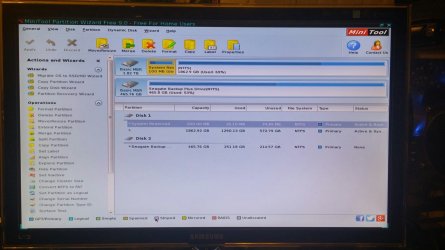
Right now, I've managed to get the MiniTool Partition Wizard onto a disc and booted up on my problem PC. I'm going to assume by 'camera snap' you mean literally take a photo and there's no capture function in the MiniTool. See the attachment.

From looking at the screen, Disk1 has a 100mb partition C and the rest of the drive is D although it doesn't show the letters here. Disk 2 is a backup USB drive I attached to try to backup some files.

I'll keep working on the other steps. Let me know if anything jumps out regarding the camera shot.

Regarding wording the docs more clearly...

One thing that was confusing initially is the partition wizard software suggestion. The 12 step document refers to download free Partition Wizard bootable CD but there is a similarly named free program up top and you have to scroll down the page to download the right software. Sounds obvious but when you're jumping through a lot of hoops, it's easy to miss.

Also, the 12 steps are a bit jumbled. Notice there is no Step 6 and two Step 12's? Oops, but an easy fix.

Now for someone without a ton of experience following the steps and being instructed as follows...


On a Legacy install to MBR disk, confirm the Partition Marked Active is the 100mb System Reserved (preferred if you have it) or Windows 7 partition (if you don't), run Startup Repair repeatedly up to 3 separate times with reboots in between each - no matter what it reports. If both the System Active and Win7 partitions are on the same hard drive then unplug all other drives to do these repairs.

On some PC's the Recovery partition or an earlier installed OS used in a Dual Boot will hold the Active flag. If another partition than System Reserved or C holds the Active flag and you know this is how it was set up, then go ahead with the repairs. If not skip to Step 9 to get more help since Win7 will not repair unless the correct partition is Set Active. Only the System partition booting the OS should be marked Active.

A UEFI install to GPT disk must have its installation media or Repair CD booted as a UEFI device. A UEFI install has a EFI System partition instead of System Reserved, and a (hidden) MSR partition, can only boot from a GPT disk. Confirm using Diskpart commands or free Partition Wizard CD that these partitions are intact and run Disk Check on all of them including Win7 partition. Then from System Recovery Options run Startup Repair and if necessary System Restore.

The challenge here is this. I'm no coder. Not even close. I built my current machine and have built several others. I build websites and such. But I have absolutely no idea what a Legacy Install to MBR disk means nor do I know what a UEFI install to GPT disk is. So the instructions just say what to for for each type but don't provide any clue on how to tell which you have? Perhaps linking those out to deeper definitions would help. You're saying they're in step 2 but if so, it's not obvious. You have to remember, you're knee deep in this every day. And please, I'm in no way trying to be critical. You guys kick ass. Hopefully this helps because the more problems get solved with the document, the less you have to solve them individually. Screen shots would probably help quite a bit, too. I use them a lot for my clients. Ditto for screen capture videos.
 

Attachments

  • SpeedScreen.jpg
    SpeedScreen.jpg
    187.5 KB · Views: 5

My Computer My Computer

At a glance

Windows 7 Home PremiumIntel Core TM 2 Quad CUP Q6600 @ 2.40 GHz
Computer type
PC/Desktop
Computer Manufacturer/Model Number
Custom Build
OS
Windows 7 Home Premium
CPU
Intel Core TM 2 Quad CUP Q6600 @ 2.40 GHz
Motherboard
P5KC
Monitor(s) Displays
Dual
Antivirus
Avast
Browser
Chrome, Safari, IE
Why is the Seagate backup drive plugged in? All other disks are to be unplugged during repairs as stated in the tutorial.

I don't know how both System Reserved and C can be Active. Only one partition per drive should be allowed to be Active at a time. So rightclick C to Modify>Set Inactive, click OK, Apply step.

Then highlight Disk 1 label, from Disk tab select Rebuild MBR, OK, Apply.

Then boot into Win7 disk to run Startup Repair - Run 3 Separate Times .

If that fails test the hard drive with the maker's HD Diagnostic extended CD scan, or if there isn't one use the PW Surface scan from the Disk tab. There could be serious disk problems if it allows two Active partitions.

Next I'd do the Bootrec commands from tutorial again to export and RebuildBCD.

If that fails delete and recreate the 100mb System Reserved partition from Step 10 in Troubleshooting Windows 7 Failure to Start
 
I tried everything in Step 9 (except the last one "Sometimes a deleted/missing partition can be restored by PW Partition Recovery Wizard. " to no avail.

When I tried Step 10, it seemed to be making headway but after the third system repair, I removed the install DVD and rebooted and got this error: NTLDR is missing. Press CTRL+Alt+Del to restart.

I'm going to go back and try that one piece from Step 9 and wait to hear back from you.
 

My Computer My Computer

At a glance

Windows 7 Home PremiumIntel Core TM 2 Quad CUP Q6600 @ 2.40 GHz
Computer type
PC/Desktop
Computer Manufacturer/Model Number
Custom Build
OS
Windows 7 Home Premium
CPU
Intel Core TM 2 Quad CUP Q6600 @ 2.40 GHz
Motherboard
P5KC
Monitor(s) Displays
Dual
Antivirus
Avast
Browser
Chrome, Safari, IE
A final note. Running the Partition Recovery Wizard on the 100mb partition didn't seem to do anything other than render the section as unallocated. The video linked from the 12 steps page goes to, apparently, an outdated version of the software but I found the Partition Recovery Wizard and ran it as suggested.

I'm not sure what to do next so I'll wait to hear from you.
 

My Computer My Computer

At a glance

Windows 7 Home PremiumIntel Core TM 2 Quad CUP Q6600 @ 2.40 GHz
Computer type
PC/Desktop
Computer Manufacturer/Model Number
Custom Build
OS
Windows 7 Home Premium
CPU
Intel Core TM 2 Quad CUP Q6600 @ 2.40 GHz
Motherboard
P5KC
Monitor(s) Displays
Dual
Antivirus
Avast
Browser
Chrome, Safari, IE
One final note. I went in with the miniboot cd and changed the windows partition to active (rather than the 100mb section) and ran repair three times. Back to the same result. Startup Repair (without the install DVD) can't repair it and the logs still show the root cause as Boot Critical file C:\Windows\system32\drivers\ACPI.sys is corrupt. So, still have the same issue and I'm not sure why this file remains corrupted.
 

My Computer My Computer

At a glance

Windows 7 Home PremiumIntel Core TM 2 Quad CUP Q6600 @ 2.40 GHz
Computer type
PC/Desktop
Computer Manufacturer/Model Number
Custom Build
OS
Windows 7 Home Premium
CPU
Intel Core TM 2 Quad CUP Q6600 @ 2.40 GHz
Motherboard
P5KC
Monitor(s) Displays
Dual
Antivirus
Avast
Browser
Chrome, Safari, IE
The NTLDR Missing error can only be for XP, meaning possibly there is XP boot code left on the drive which is interfering. This is why it's always best to wipe a drive that had an older OS boot code on it before installing. If you think you never had XP on there then some XP boot command was inadvertantly applied - nt56 instead of nt60. There is no other explanation why an XP boot loader error message would appear on a Win7 drive as it can't just happen.

You dont' have any missing partitions, do you? Then there's no need for PW Partition Recovery Wizard.

Have you yet tried Step 10 to delete the System Reserved partition using PW, to create a new Primary partition there marked Active, run 3 repairs?

If that fails extract and copy the boot files from link below into the partition then run the Repairs.
 

Why is the Seagate backup drive plugged in? All other disks are to be unplugged during repairs as stated in the tutorial.

It wasn't for most of the repairs. I plugged it in to backup files when I was about to give up and do a fresh install. It's unplugged now.

I don't know how both System Reserved and C can be Active. Only one partition per drive should be allowed to be Active at a time. So rightclick C to Modify>Set Inactive, click OK, Apply step.

It ceased to be active after it was deleted and re-added per, I believe, step 10.

Then highlight Disk 1 label, from Disk tab select Rebuild MBR, OK, Apply.

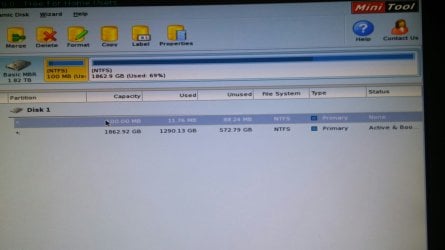
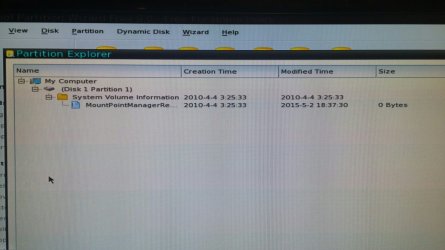
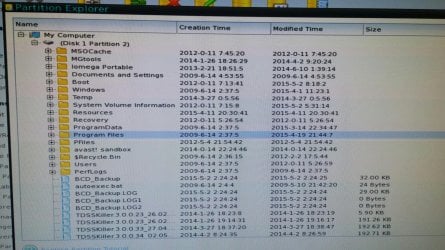
Not an option. The Rebuild MBR is greyed out. Probably because the data was removed during things tried in steps 9 and 10. See the attached images.

Then boot into Win7 disk to run Startup Repair - Run 3 Separate Times .

If that fails test the hard drive with the maker's HD Diagnostic extended CD scan, or if there isn't one use the PW Surface scan from the Disk tab. There could be serious disk problems if it allows two Active partitions.

Although I did run chkdisk earlier, I'll try this. Keep in mind, the issues I'm having are from me forcing a restart before Avast uninstall completed and all reports keep pointing back to a corrupt driver. (ACPI.sys). The scan is running now through PW. It's estimated to take four hours.

Next I'd do the Bootrec commands from tutorial again to export and RebuildBCD.

If that fails delete and recreate the 100mb System Reserved partition from Step 10 in Troubleshooting Windows 7 Failure to Start

The NTLDR Missing error can only be for XP, meaning possibly there is XP boot code left on the drive which is interfering. This is why it's always best to wipe a drive that had an older OS boot code on it before installing. If you think you never had XP on there then some XP boot command was inadvertantly applied - nt56 instead of nt60. There is no other explanation why an XP boot loader error message would appear on a Win7 drive as it can't just happen.

This machine had XP Pro at one time. I don't recall if it was this same drive. The NTLDR error never appeared until late last night running all these steps.

You dont' have any missing partitions, do you? Then there's no need for PW Partition Recovery Wizard.

Not that I'm aware of. I just tried the recovery wizard because it was mentioned in the steps.

Have you yet tried Step 10 to delete the System Reserved partition using PW, to create a new Primary partition there marked Active, run 3 repairs?

Yes, it didn't work.

If that fails extract and copy the boot files from link below into the partition then run the Repairs.

Into the System reserved partition?
 

Attachments

  • 1-screen.jpg
    1-screen.jpg
    108.3 KB · Views: 11
  • 2-screen.jpg
    2-screen.jpg
    310.7 KB · Views: 0
  • 3-screen.jpg
    3-screen.jpg
    347.2 KB · Views: 0
Last edited:

My Computer My Computer

At a glance

Windows 7 Home PremiumIntel Core TM 2 Quad CUP Q6600 @ 2.40 GHz
Computer type
PC/Desktop
Computer Manufacturer/Model Number
Custom Build
OS
Windows 7 Home Premium
CPU
Intel Core TM 2 Quad CUP Q6600 @ 2.40 GHz
Motherboard
P5KC
Monitor(s) Displays
Dual
Antivirus
Avast
Browser
Chrome, Safari, IE
If you deleted System Reserved to recreate it then you didn't follow the step to mark active as C is still active.

Try it again and this time don't miss any steps.
 
If you deleted System Reserved to recreate it then you didn't follow the step to mark active as C is still active.

Try it again and this time don't miss any steps.

If you see the images I provided, the MiniTool doesn't even label my drives or the partitions by letters. It shows Disk 1 and the partitions aren't named. The MiniTool provides the option to label partitions and choose drive letters but they don't allow you to actually type anything or actually make a choice. Maybe unique to my machine. In my system, within Windows, the System Reserve is C.

I spent about 17 hours straight working on this machine yesterday. I'm not aware of missing any steps.

Right now, it's finished up the Surface Test after 5 hours. 0 Errors found. So the HD is fine.

I went in and followed the steps for Step 10. When I went to reboot with Win 7 DVD to begin the 3 repairs, I get the NTLDR is missing error. So now I can't access the machine via Win 7 DVD at all. Booting from the HD brings the same result. The only access at all is via the MiniTool.

Now what? Is there a way to copy the boot files you uploaded via the MiniTool?
 
Last edited:

My Computer My Computer

At a glance

Windows 7 Home PremiumIntel Core TM 2 Quad CUP Q6600 @ 2.40 GHz
Computer type
PC/Desktop
Computer Manufacturer/Model Number
Custom Build
OS
Windows 7 Home Premium
CPU
Intel Core TM 2 Quad CUP Q6600 @ 2.40 GHz
Motherboard
P5KC
Monitor(s) Displays
Dual
Antivirus
Avast
Browser
Chrome, Safari, IE
I'm not referring to labeling anything. The small 100mb partition shown here is obviously the System Reserved partition. I only said that if you performed Step 10 to delete it and then recreate it as a Primary partition marked Active, that it does not show in the Status column on the right that the partition is marked Active. In fact if you look in Status column you will see that the large Win7 partition is the Active partition. Did you miss the step to mark the recreated System Reserved partition Active? That's all I asked.

361191d1433262984-cant-reboot-repair-restore-aft-aborted-avast-uninstall-oxc-000000f-1-screen.jpg


Errors at boot such as the NTLDR XP boot error do not stop a disk from booting and only mean that the boot media has been bypassed and the hard drive is already trying to boot. You'll need to find out why your media is not booting. Are you using the one-time BIOS Boot menu key at boot? When you select the DVD drive does it prompt to "Press any key to boot disk?" If not the disk is not being read. Will another bootable disk still boot in the PC?

The installer should write the Boot files to the Active partition during 3 Startup Repairs but if not you can extract the boot files to a flash stick, plug it in, then from the booted Win7 disk browse to the stick to copy the files to the Active partition following Copy & Paste - in Windows Recovery Console. I do not see the boot files on the System Reserved partition now, however if you recreated it and did not mark it Active all the installer will do during repairs is write them again to the Win7 partition which is marked Active.
 
Thanks. I either didn't hit apply to make it a primary/active partition or I took that snapshot after the last part of step 9 where you try the Windows partition if the system reserved partition didn't work. In any case, I tried step 10 again to no avail. I was able to boot into the Win 7 DVD although it wasn't working earlier. Then I uploaded the boot files you provided and did three repairs again. Most of the time Windows Repair couldn't find the problem after the first restart.

Now, when I boot up without the Win7 DVD, I get the NTLDR is missing error.

I've put a MiniMint setup on a flash drive and have started backing up my files. Given that I've probably got 40 programs or more on this PC and 600GB of software and data, I was hoping to avoid a destructive install of Win 7 but it looks like I'm running out of options.

Any other suggestions?
 

My Computer My Computer

At a glance

Windows 7 Home PremiumIntel Core TM 2 Quad CUP Q6600 @ 2.40 GHz
Computer type
PC/Desktop
Computer Manufacturer/Model Number
Custom Build
OS
Windows 7 Home Premium
CPU
Intel Core TM 2 Quad CUP Q6600 @ 2.40 GHz
Motherboard
P5KC
Monitor(s) Displays
Dual
Antivirus
Avast
Browser
Chrome, Safari, IE
If you completed all the steps fully then I don't know of anything else to do except that you could shrink C using Partition Wizard Resize Partition - Video Help. Then install a new Win7 to that space you shrunk, which should configure the old OS into a Dual Boot.

If not you have the new install to set up; we'll help you remove the old Win7.

If so then you can boot into the old OS and delete the new one in Disk Mgmt since the System boot files will be refreshed on the System REserved partition if it is still Active.

As long as you don't touch the old partition during then the files should be intact after install as there's no way for the new install to affect another OS partition.
 
Back
Top