Check Disk (chkdsk) - Read Event Viewer Log

How to Read the Event Viewer Log for Check Disk (chkdsk) in Vista, Windows 7, and Windows 8

   Information
This will show you how to read the Event Viewer log to see the scan results of Check Disk (chkdsk) in Vista, Windows 7, and Windows 8.


OPTION ONE

To Read chkdsk Results Log Directly in Event Viewer


NOTE: You must be logged in as administrator to be able to open Event Viewer.
1. If you have not already, you will need to have ran Check Disk (chkdsk) in Vista/Windows 7 or Windows 8 prior before it will be in the Event Viewer System log.

2. Press the Windows + R keys to open the Run dialog, type eventvwr.msc, and press Enter.

3. If prompted by UAC, then click on Yes (Windows 7/8) or Continue (Vista).

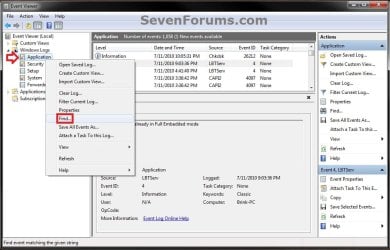
4. In the left pane of Event Viewer, double click on Windows Logs to expand it, click on Application to select it, then right click on Application and click on Find. (see screenshot below)
Step1.jpg
5. Copy and paste Chkdsk into the line, and click on Find Next. (see screenshot below)
NOTE: You can continue to click on Find Next to search for other older application logs (if available) for Check Disk (chkdsk) to see them as well.

Step2.jpg
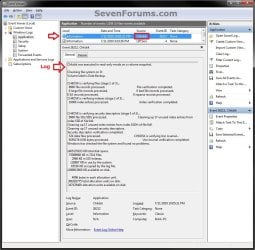
6. You will now see the system log for the scan results of Check Disk (chkdsk). (see screenshot below)
NOTE: The log will have the Chkdsk tag if Check Disk is ran only from within Windows.
Step3.jpg
7. Go back to the top of the log file list in the middle pane of Event Viewer, then copy and paste Wininit into the line, and click on Find Next. (see screenshot below step 5)
NOTE: You can continue to click on Find Next to search for other older application logs (if available) for Check Disk (chkdsk) to see them as well.

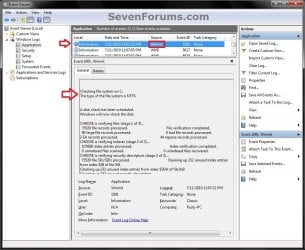
8. You will now see the system log for the scan results of Check Disk (Wininit). (see screenshot below)
NOTE: The log will have the Wininit tag if the computer has to restart to run Check Disk at startup instead of within Windows.
Wininit.jpg
9. When finished searching for Check Disk (chkdsk) application logs, you can close the Find window. (see screenshot below step 5)

10. When finished, you can close Event Viewer.


OPTION TWO

To Create .txt file on Desktop with chkdsk Results Log


   Note
This option is not available in Vista.


1. Press the Windows + R keys to open the Run dialog, type powershell.exe, and press Enter.

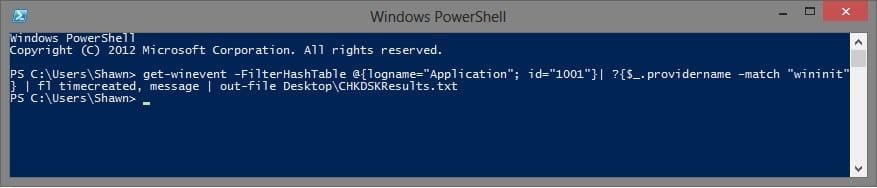
2. In PowerShell, copy and paste the command below, and press Enter. (see screenshot below)
NOTE: To paste the copied command into PowerShell, you will just need to right click in PowerShell.

Code:
[COLOR=black]get-winevent -FilterHashTable @{logname="Application"; id="1001"}| ?{$_.providername –match "wininit"} | fl timecreated, message | out-file Desktop\CHKDSKResults.txt[/COLOR]
PowerShell.jpg
3. You will now have a CHKDSKResults.txt file created on your desktop that is the log file of your chkdsk scan results from Event Viewer.
That's it,
Shawn


Last edited:
Regarding running chkdsk on sdd, it is ok (sometimes even recommended) as long as you don't use the /r flag.
Shawn, could you change your warning to "recommended to not run 'chkdsk /r' on an SSD"?
 

My Computer My Computer

Computer type
PC/Desktop
Computer Manufacturer/Model Number
custom
OS
Win7 pro x64
Hello and welcome Pete well I have run the chkdsk with both the / f and /r switche on my SSD's with no ill effect mind you Shawn might have a different angle on that :)
 

My Computer My Computer

Computer type
PC/Desktop
Computer Manufacturer/Model Number
Own build (new) Desk1 / Asus ROG Win 7 / Desk2 1st build
OS
Desk1 7 Home Prem / Desk2 10 Pro / Main lap Asus ROG 10 Pro 2 laptop Toshiba 7 Pro Asus P2520 7 & 10
CPU
Desk1 i5 3750K / Laptop i7 GTX 860M / Desk2 i5 2500
Motherboard
Desk1 Asus P877-V / Desk2 Gigabyte H67 UD3H / Laptop ?
Memory
Desk1 8GB (1866) / Desk2 16GB (1333) / Laptop 8Gb DDR3
Graphics Card(s)
Desk 1& 2NVidia GTX 650 & Laptops on board Intel
Sound Card
Desk 1 & 2 -XONAR DG Realtek High Def audio Laptop
Monitor(s) Displays
Desk 1 Benq HD 2450 / Desk2 Philips 24" / Laptop 17.5"
Screen Resolution
1920x1080 D1 & D2 & Laptop 1
Hard Drives
Desk1 Samsung 120GB 830 SSD
Asus ROG 256GB 850 Pro SSD
Desk2 Samsung 840 256 SSD
Toshiba 120GB EVO
PSU
Desk 1 Corsair HX 1050/ Laptop ? / Desk 2 Corsair HX 650
Case
Desk 1 Cooler HAF XM ? Toshiba laptop / Desk2 Coolermaster
Cooling
Fans on all Desk1 -2 Desk2 - all Coolermasters 5 Laptop ?
Keyboard
Desk 1 MS Sidewinder X6 Desk 2 MS Sidewinder X 4
Mouse
Desk 1&2 - Gigabyte MS 900 gamer - laptop - Logitec wireless
Internet Speed
ADSL2+
Other Info
One other Desktop (tester) and spare Toshba laptop both with SSD's
Running Kaspersky 2016 ISS on all machines config'd identically
Logitec audio stereo systems on each machine (x3)
Canon MG5250MFC
Router/modem TP-Link running WPA2SK
I don't think /r will damage your ssd. It tries to detect bad sectors which, iirc, is something that an SSD does itself. Shawm mentions that ("SSD's automatically remap worn bits using wear leveling technology"), but forgets to mention that it only applies to the /r switch.

Also:
Yes, it's safe to run CHKDSK on a SSD drive. You just do not want to defrag a SSD though.

Hope this helps,
Shawn
;)
 

My Computer My Computer

Computer type
PC/Desktop
Computer Manufacturer/Model Number
custom
OS
Win7 pro x64
Yes Pete look I have run the /r switch quite a few times on my SSD's and there has never been a problem that I know of. In fact I run sfc and chkdsk if I even suspect something has gone awry - mind you I also mostly use the Samsung brand and of course the Magician (first) along with the usual TRIM stuff etc.

Personally I have never read anything anywhere that says the chkdsk is bad for SSD's see this (and the notation from Microsoft - heavy stuff and other links )
windows 8 - The value of running CHKDSK on an SSD? - Super User
 

My Computer My Computer

Computer type
PC/Desktop
Computer Manufacturer/Model Number
Own build (new) Desk1 / Asus ROG Win 7 / Desk2 1st build
OS
Desk1 7 Home Prem / Desk2 10 Pro / Main lap Asus ROG 10 Pro 2 laptop Toshiba 7 Pro Asus P2520 7 & 10
CPU
Desk1 i5 3750K / Laptop i7 GTX 860M / Desk2 i5 2500
Motherboard
Desk1 Asus P877-V / Desk2 Gigabyte H67 UD3H / Laptop ?
Memory
Desk1 8GB (1866) / Desk2 16GB (1333) / Laptop 8Gb DDR3
Graphics Card(s)
Desk 1& 2NVidia GTX 650 & Laptops on board Intel
Sound Card
Desk 1 & 2 -XONAR DG Realtek High Def audio Laptop
Monitor(s) Displays
Desk 1 Benq HD 2450 / Desk2 Philips 24" / Laptop 17.5"
Screen Resolution
1920x1080 D1 & D2 & Laptop 1
Hard Drives
Desk1 Samsung 120GB 830 SSD
Asus ROG 256GB 850 Pro SSD
Desk2 Samsung 840 256 SSD
Toshiba 120GB EVO
PSU
Desk 1 Corsair HX 1050/ Laptop ? / Desk 2 Corsair HX 650
Case
Desk 1 Cooler HAF XM ? Toshiba laptop / Desk2 Coolermaster
Cooling
Fans on all Desk1 -2 Desk2 - all Coolermasters 5 Laptop ?
Keyboard
Desk 1 MS Sidewinder X6 Desk 2 MS Sidewinder X 4
Mouse
Desk 1&2 - Gigabyte MS 900 gamer - laptop - Logitec wireless
Internet Speed
ADSL2+
Other Info
One other Desktop (tester) and spare Toshba laptop both with SSD's
Running Kaspersky 2016 ISS on all machines config'd identically
Logitec audio stereo systems on each machine (x3)
Canon MG5250MFC
Router/modem TP-Link running WPA2SK
When right-clicking, "Find" is blanked out

When right-clicking, "Find" is blanked out. Any other methods for Vista? I just paste the line in for my 7 machine.

UPDATE: Please ignore post. Found it in eventviewer by scrolling.
 
Last edited:

My Computer My Computer

Computer Manufacturer/Model Number
HP Pavilion p6745f
OS
Microsoft Windows 7 Home Premium 64-bit 7601 Multiprocessor Free Service Pack 1
CPU
Intel(R) Core(TM) i5-2300 CPU @ 2.80GHz
Motherboard
PEGATRON CORPORATION 2AB6
Memory
6 GB
Graphics Card(s)
Radeon 6750 1gb
Sound Card
(1) IDT High Definition Audio CODEC (2) Intel(R) Display A
Monitor(s) Displays
Acer x193w
Hard Drives
(1) WDC WD15EARS-60MVWB0 (2) Generic- Compact Flash USB Device (3) Generic- MS/MS-Pro USB Device (4) Generic- SD/MMC USB Device (5) Generic- SM/xD-Picture USB Device (6) WD My Book 1110 USB Device
PSU
Internal 500W (100V-240V)
Case
Mid-size ATX
Cooling
unknown
Keyboard
HP usb multimedia keyboard
Mouse
HP usb compliant mouse
Internet Speed
256 kbps
Other Info
Ver: CHI_713.bin vCHI7.13
:thumbsup:
 

My Computer My Computer

Computer type
PC/Desktop
Computer Manufacturer/Model Number
Self built custom
OS
64-bit Windows 11 Pro for Workstations
CPU
Intel i7-8700K OC'd to 5 GHz
Motherboard
ASUS ROG Maximus XI Formula Z390
Memory
64 GB (4x16GB) G.SKILL TridentZ RGB DDR4 3600 MHz
Graphics Card(s)
ASUS ROG-STRIX-GTX1080TI-O11G-GAMING
Sound Card
Integrated
Monitor(s) Displays
2 x Samsung Odyssey G7 27"
Screen Resolution
2560x1440
Hard Drives
1TB Samsung 990 PRO M.2,
4TB Samsung 990 PRO PRO M.2,
TerraMaster F8 SSD Plus NAS
PSU
Seasonic Prime Titanium 850W
Case
Thermaltake Core P3
Cooling
Corsair Hydro H115i
Keyboard
Logitech wireless K800
Mouse
Logitech MX Master 4
Internet Speed
2 Gb/s Download and 100 Mb/s Upload
Antivirus
Malwarebyte Anti-Malware Premium
Browser
Google Chrome
Other Info
Logitech Z625 speaker system,
Logitech BRIO 4K Pro webcam,
HP Color LaserJet Pro MFP M477fdn,
APC SMART-UPS RT 1000 XL - SURT1000XLI,
Galaxy S23 Plus phone
Brink,

Step 4 probably needs to change a bit:

In the left pane of Event Viewer,
double click on Windows Logs to expand it,
click on Application to select it
then right click on Application
and click on Find.

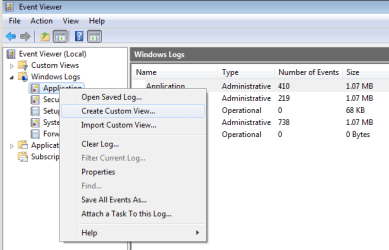
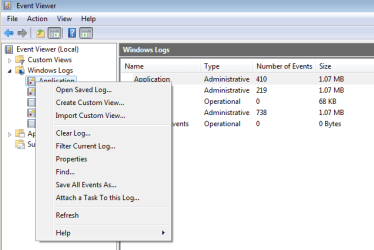
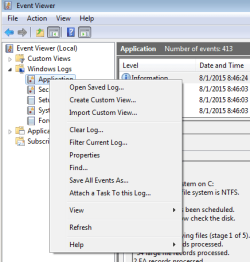
Your screenshot for step 4 shows that Application was selected before the right click was done.


If you do exactly as step 4 currently says, the center pane should be a list of the event logs and their sizes. Right clicking on Application without selecting it first should give you a context menu where "Find..." is greyed out.

event logs1.PNG

This is what post #84 in your tut thread was talking about.
But it was this post that lead me to look closely at this tut.


In my testing...
...I followed step 4 in the tut exactly as written
...I saw that "Find..." was not enabled
...I selected Application...
...then right clicked on Application
...I saw that "Find..." was enabled.

Now I wanted a screenshot to post with "Find..." greyed out.
I repeated step 4 in the tut exactly as written...
...but now "Find..." was enabled
...and yet - selecting "Find..." failed to produce a search window.

event logs2.PNG

It seems that once "Find..." has been painted as enabled, it will be painted that way on subsequent context menus. But "Find..." is still non-functional until Application is selected prior to right clicking on Application.

event logs3.PNG

You can also see that "Refresh" has been added to the context menu for that second screenshot. "Refresh" is also shown in the context menu in the screenshot under step 4 of this tut. Basically, you can never repeat the context menu shown in my first screenshot once you have created the context menu shown in the second screenshot. You have to exit Event Viewer to get that first screenshot. It took me a while to figure that out.
 
Last edited:

My Computer My Computer

Computer type
Laptop
Computer Manufacturer/Model Number
Employer provided Dell Latitude
OS
W7 Pro SP1 64bit
CPU
i7
Memory
8GB
Graphics Card(s)
Intel HD Graphics
Hard Drives
crappy SSD
Antivirus
Employer mandated Symantec Endpoint Protection
Browser
Pale Moon 64bit, IE11 64bit & Chrome 64bit
Thank you UNI. Updated. :)
 

My Computer My Computer

Computer type
PC/Desktop
Computer Manufacturer/Model Number
Self built custom
OS
64-bit Windows 11 Pro for Workstations
CPU
Intel i7-8700K OC'd to 5 GHz
Motherboard
ASUS ROG Maximus XI Formula Z390
Memory
64 GB (4x16GB) G.SKILL TridentZ RGB DDR4 3600 MHz
Graphics Card(s)
ASUS ROG-STRIX-GTX1080TI-O11G-GAMING
Sound Card
Integrated
Monitor(s) Displays
2 x Samsung Odyssey G7 27"
Screen Resolution
2560x1440
Hard Drives
1TB Samsung 990 PRO M.2,
4TB Samsung 990 PRO PRO M.2,
TerraMaster F8 SSD Plus NAS
PSU
Seasonic Prime Titanium 850W
Case
Thermaltake Core P3
Cooling
Corsair Hydro H115i
Keyboard
Logitech wireless K800
Mouse
Logitech MX Master 4
Internet Speed
2 Gb/s Download and 100 Mb/s Upload
Antivirus
Malwarebyte Anti-Malware Premium
Browser
Google Chrome
Other Info
Logitech Z625 speaker system,
Logitech BRIO 4K Pro webcam,
HP Color LaserJet Pro MFP M477fdn,
APC SMART-UPS RT 1000 XL - SURT1000XLI,
Galaxy S23 Plus phone
Hi, One more nice tutorial by you, Brink

I found find in the right click application is greyed.
But i used your powershell, technique to get the log i wanted.
What is meant by some 168 unindexed files cleared ...in ...
Would you give the link of usefulness of powershell. Is it dos commands? I only knew from this post about existing of this tool.
This message is often there, whenever i attempt chkdsk /f/r after my computer hangs stand still, wherein i could not use keyboard, mouse, ctrl alt del,tab etc..
Wonderful thinking on your part to include this in the tutorial.
 

My Computer My Computer

Computer type
PC/Desktop
Computer Manufacturer/Model Number
custom build
OS
Microsoft Windows 7 Ultimate 64-bit 7601 Multiprocessor Free Service Pack 1
CPU
Intel(R) Core(TM)2 Duo CPU E7200 @ 2.53GHz
Motherboard
To be filled by O.E.M. To be filled by O.E.M.
Memory
4.00 GB
Graphics Card(s)
NVIDIA GeForce 210
Sound Card
(1) NVIDIA High Definition Audio (2) Realtek High Definiti
Screen Resolution
1920 x 1080 x 32 bits (4294967296 colors) @ 60 Hz
Hard Drives
ST3500312CS ATA Device
Hello jraju, :)

Yes, that log would be from running chkdsk for clearing unindexed (orphaned) files. This usually indicates drive corruption.

Windows PowerShell is a new Windows command-line shell designed especially for system administrators. Windows PowerShell includes an interactive prompt and a scripting environment that can be used independently or in combination.

https://technet.microsoft.com/en-us/library/dn425048.aspx
 

My Computer My Computer

Computer type
PC/Desktop
Computer Manufacturer/Model Number
Self built custom
OS
64-bit Windows 11 Pro for Workstations
CPU
Intel i7-8700K OC'd to 5 GHz
Motherboard
ASUS ROG Maximus XI Formula Z390
Memory
64 GB (4x16GB) G.SKILL TridentZ RGB DDR4 3600 MHz
Graphics Card(s)
ASUS ROG-STRIX-GTX1080TI-O11G-GAMING
Sound Card
Integrated
Monitor(s) Displays
2 x Samsung Odyssey G7 27"
Screen Resolution
2560x1440
Hard Drives
1TB Samsung 990 PRO M.2,
4TB Samsung 990 PRO PRO M.2,
TerraMaster F8 SSD Plus NAS
PSU
Seasonic Prime Titanium 850W
Case
Thermaltake Core P3
Cooling
Corsair Hydro H115i
Keyboard
Logitech wireless K800
Mouse
Logitech MX Master 4
Internet Speed
2 Gb/s Download and 100 Mb/s Upload
Antivirus
Malwarebyte Anti-Malware Premium
Browser
Google Chrome
Other Info
Logitech Z625 speaker system,
Logitech BRIO 4K Pro webcam,
HP Color LaserJet Pro MFP M477fdn,
APC SMART-UPS RT 1000 XL - SURT1000XLI,
Galaxy S23 Plus phone
Command version can be fixed for Powershell 2.0

Hmm, method two works great for my Windows 7 machine but doesn't for the Vista machine. I get this message in powershell (image included, couldn't copy/paste.

Hello,

I'm afraid that command requires at least PowerShell 4.0, and it doesn't appear to support Vista. :(

Download Windows Management Framework 4.0 from Official Microsoft Download Center

I, too, discovered that the command did not work for me in Win 7 sp1 64bit, under Powershell 2.0. The problem is that "Desktop" cannot be used as is.

However, it is possible to fix it to work thus:

Code:
PS C:\> get-winevent -FilterHashTable @{logname="Application"; id="1001"}| ?{$_.
providername -match "wininit"} | fl timecreated, message | out-file $env:UserPro
file\desktop\CHKDSKResults.txt
This of course depends on the env variable existing and one's desktop actually being in the user folder, and not somewhere else.

It is probably also possible to use

Code:
[Environment]::GetFolderPath("Desktop")
which returns the correct path for me, but I haven't figured out how to use it in the Powershell command. That would be a better solution, since it would still work if the desktop had been relocated.

--peter
 

My Computer My Computer

Computer type
Laptop
Computer Manufacturer/Model Number
Lenovo T61p
OS
win 7 pro x64
CPU
T7700 Intel
Memory
4GB
A couple more comments on the Powershell command method.

1. Why even bother with figuring out where the desktop is? Why not just redirect the output to a file you actually want it in:

Code:
get-winevent -FilterHashTable @{logname="Application"; id="1001"}| ?{$_. providername -match "wininit"} | fl timecreated, message >> path-of-where-I-want-to-put-it.txt
That way, we don't care how to find the desktop.

2. Usually, one only wants the last chkdsk result, but the command returns multiple ones. It's not clear to me how to have it spit out only the last one?
 

My Computer My Computer

Computer type
Laptop
Computer Manufacturer/Model Number
Lenovo T61p
OS
win 7 pro x64
CPU
T7700 Intel
Memory
4GB
Oh, and yet another comment. The log file that is produced with the command version is in unicode, which is double the size actually needed, unless there are actual unicode characters, and is not very readable with an editor that does not understand unicode. The easiest way I have found to convert a unicode file to an ascii file is the windows shell command:

Code:
type existing-unicode-filename > new-ascii-filename
 

My Computer My Computer

Computer type
Laptop
Computer Manufacturer/Model Number
Lenovo T61p
OS
win 7 pro x64
CPU
T7700 Intel
Memory
4GB
Back
Top