Clean Restore Windows 7 On My XPS 8100 Desktop?

paulyjames

New member
Member
VIP
Local time
8:37 PM
Messages
657
I have an old dell xps 8100 desktop bought back in 2010. Back then it was very fast and i haven't used it in a while. It does not have an ssd and only 4gb of ram. I do have an extra ssd as well but did not put it there.


I want to do a clean reinstall of windows 7 on this desktop and make it like if its a new computer. I have done this a few years ago but the issue is i did it incorrectly because it still has old files because when i click on local disk it shows 416gb free of 465gb free. So basically i did clean reinstall but i didn't wipe everything out.


Can someone tell me how i can do this? Also i do not have the old windows 7 cd or anything like that. I do have the product key sticker, service tag and express service code. I also bought a usb wifi adapter tp link recently because i cannot connect this to the modem for wired internet because this desktop is in the 1st floor whereas the modem is in the 2nd floor. So is there any steps on how i can do this? How long would the process be and if you do it correctly, it should be pretty fast? Right now its lagging a lot when clicking on things.
 

My Computer My Computer

At a glance

Windows 10 Pro
Computer type
Laptop
OS
Windows 10 Pro
Hi paulyjames,

I have an old dell xps 8100 desktop bought back in 2010. Back then it was very fast and I haven't used it in a while.

I want to do a clean reinstall of windows 7 on this desktop and make it like if its a new computer.

I do not have the old windows 7 cd or anything like that. I do have the product key sticker, service tag and express service code.

So is there any steps on how I can do this?
How long would the process be and if you do it correctly, it should be pretty fast?

Have you still got the recovery partition [reset to factory]?

Restore Factory Image From The Recovery Partition [Dell Computer]

IMPORTANT: Using the Factory Tools or Backup and Recovery Manager software will restore your computer back to its factory default settings. During this process, it will delete EVERYTHING on the HDD [files, folders, programs, drivers, photos, music etc]. Therefore it is imperative that you backup anything that you want to keep BEFORE you continue.

[01] Power off the computer and remove any attached devices [scanners, printers, external HDD’s, USB’s etc]. If the computer is a desktop, then obviously leave the keyboard and mouse attached.
[02] Boot the computer.
[03] When the Dell logo appears, continually press the F8 key to boot into the Advanced Boot Options menu.
[04] Use the arrow keys to navigate to the Repair Your Computer option, and then press Enter. The System Recovery Options screen will now open.
[05] Select your keyboard layout, and then click Next. The Administrator login prompt will now be displayed.
[06] Login as Administrator [or as a local user with administrative rights], and then click OK.

NOTE: Use the drop down menu to the right of Username: to select the local user or the Administrator account and enter the password for that account. If you have not set up a password on the local user account then leave the password space empty and click OK.

[07] Depending on your model configuration, you will either need to click the Dell Factory Image Restore option, or, click Dell Factory Tools and then click Dell Factory Image Restore from the Dell Factory Tools menu. Click Next. The Confirm Data Deletion screen will now be displayed.
[08] Click the check box for, Yes. Reformat Hard Drive and Restore System Software to Factory Condition., and then click Next.

NOTE: The restore to factory condition process will now begin. When the process is complete [it will take several minutes], a message will appear saying that the process was successful. The OS and factory-installed applications are now in the exact same OOBE [Out Of Box Experience] state as they were when it was brand new.

[09] Click Finish to reboot the computer.

That’s it!
 

My Computer My Computer

At a glance

Win 7 HP SP1 64-bit Vista HB SP2 32-bit Linux...Intel(R) Pentium(R) CPU P6200 @ 2.13GHz4.00 GBIntel(R) Graphics Media Accelerator HD
Computer type
Laptop
Computer Manufacturer/Model Number
Fujitsu LIFEBOOK
OS
Win 7 HP SP1 64-bit Vista HB SP2 32-bit Linux Mint 18.3
CPU
Intel(R) Pentium(R) CPU P6200 @ 2.13GHz
Motherboard
FUJITSU FJNBB06
Memory
4.00 GB
Graphics Card(s)
Intel(R) Graphics Media Accelerator HD
Sound Card
[1] Realtek High Definition Audio [2] Intel(R) Display Audio
Screen Resolution
1366 x 768 x 32 bits (4294967296 colors) @ 59 Hz
Hard Drives
TOSHIBA MK5076GSX
Antivirus
AVG FREE
By the recovery partition you mean this thing i downloaded to my usb drive? If so i did download something like that a while back


I dont believe i have the windows 7 cd.


The thing is this. Last time i did clean reinstall a few times. What i messed up each time was when it ask me to delete partition or something like that, im sure i followed the instructions but what then happened was everything was not completely wiped off my computer which is what i want. Is that why my desktop windows 7 lags so much? It not only lags it freezes a lot when i click on things. Now it doesn't have ssd installed and only has 4gb ram and a 500gb hard drive, but back then when i used it all the way in 2010, it was not this slow when i got it new.
 

My Computer My Computer

At a glance

Windows 10 Pro
Computer type
Laptop
OS
Windows 10 Pro
Hi paulyjames,

By the recovery partition you mean this thing I downloaded to my usb drive?

The recovery partition [reset to factory] is a seperate partition on your HDD. If you still have it, you can access it and do a clean install from it. You computer will be like you have just bought it!

What exactly did you download and where did you download it from?

Please do the following.

Disk Management

Can you post a screenshot of the Disk Management please => Click Start => right-click Computer => click Manage => click Disk Management.

Screenshots And Files - Upload And Post In SevenForums

This tutorial [Published by Brink] will show you how to upload the file => Screenshots and Files - Upload and Post in SevenForums.

I hope this helps!
 

My Computer My Computer

At a glance

Win 7 HP SP1 64-bit Vista HB SP2 32-bit Linux...Intel(R) Pentium(R) CPU P6200 @ 2.13GHz4.00 GBIntel(R) Graphics Media Accelerator HD
Computer type
Laptop
Computer Manufacturer/Model Number
Fujitsu LIFEBOOK
OS
Win 7 HP SP1 64-bit Vista HB SP2 32-bit Linux Mint 18.3
CPU
Intel(R) Pentium(R) CPU P6200 @ 2.13GHz
Motherboard
FUJITSU FJNBB06
Memory
4.00 GB
Graphics Card(s)
Intel(R) Graphics Media Accelerator HD
Sound Card
[1] Realtek High Definition Audio [2] Intel(R) Display Audio
Screen Resolution
1366 x 768 x 32 bits (4294967296 colors) @ 59 Hz
Hard Drives
TOSHIBA MK5076GSX
Antivirus
AVG FREE
I downloaded the drivers? This was many years ago back in 2014 i believe. I remember someone said to download certain drivers and put it on usb drive. It was under 4gb i recalled. Then when i did the clean reinstall of windows 7, i installed something with that usb?


Again this was a while back. So is it different now?
 

My Computer My Computer

At a glance

Windows 10 Pro
Computer type
Laptop
OS
Windows 10 Pro
Okay i will post a screenshot of it.
 

My Computer My Computer

At a glance

Windows 10 Pro
Computer type
Laptop
OS
Windows 10 Pro
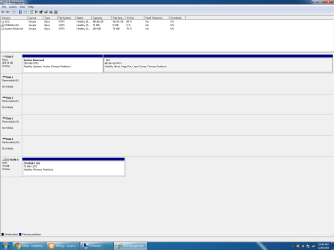
okay here it is. I am posting this from the windows 7 desktop computer. Previously i was posting from my dell laptop.
 

Attachments

  • disk management picture.png
    disk management picture.png
    40.2 KB · Views: 4

My Computer My Computer

At a glance

Windows 10 Pro
Computer type
Laptop
OS
Windows 10 Pro
Hi paulyjames,

I am posting this from the windows 7 desktop computer. Previously I was posting from my dell laptop.

[1] Is that a screenshot of the Disk Management for the old dell xps 8100 desktop?
[2] Did you try the Restore Factory Image From The Recovery Partition [Dell Computer] in post #2?
[3] What is on D:\CD449A4?
 

My Computer My Computer

At a glance

Win 7 HP SP1 64-bit Vista HB SP2 32-bit Linux...Intel(R) Pentium(R) CPU P6200 @ 2.13GHz4.00 GBIntel(R) Graphics Media Accelerator HD
Computer type
Laptop
Computer Manufacturer/Model Number
Fujitsu LIFEBOOK
OS
Win 7 HP SP1 64-bit Vista HB SP2 32-bit Linux Mint 18.3
CPU
Intel(R) Pentium(R) CPU P6200 @ 2.13GHz
Motherboard
FUJITSU FJNBB06
Memory
4.00 GB
Graphics Card(s)
Intel(R) Graphics Media Accelerator HD
Sound Card
[1] Realtek High Definition Audio [2] Intel(R) Display Audio
Screen Resolution
1366 x 768 x 32 bits (4294967296 colors) @ 59 Hz
Hard Drives
TOSHIBA MK5076GSX
Antivirus
AVG FREE
1. Yes that is. I was on the windows 7 dell xps 8100 desktop when i posted that screenshot. I took a picture of it and pasted it then posted it.


2. No i did not because you wanted me to send pic of the disk management first so i didnt do that yet.


3. Oh. That is because i had a tp link cd rom in it because i installed a usb wifi adapter to it because im using wifi to connect via desktop. Reason because modem is on 2nd floor and the desktop is on the 1st floor.
 

My Computer My Computer

At a glance

Windows 10 Pro
Computer type
Laptop
OS
Windows 10 Pro
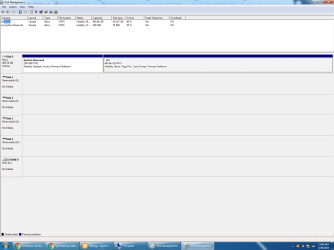
Here is the disk management now after i took out that cd.
 

Attachments

  • disk management 2.png
    disk management 2.png
    38.8 KB · Views: 2

My Computer My Computer

At a glance

Windows 10 Pro
Computer type
Laptop
OS
Windows 10 Pro
Hi paulyjames,

2. No I did not because you wanted me to send pic of the disk management first so I didn't do that yet.

OK. Try and do the above because it might be on a hidden partition. If that doesn't work then you can download the ISO, burn it to a DVD/USB and clean install. What version and bit type of Win 7 do you have for the Product Key?
 

My Computer My Computer

At a glance

Win 7 HP SP1 64-bit Vista HB SP2 32-bit Linux...Intel(R) Pentium(R) CPU P6200 @ 2.13GHz4.00 GBIntel(R) Graphics Media Accelerator HD
Computer type
Laptop
Computer Manufacturer/Model Number
Fujitsu LIFEBOOK
OS
Win 7 HP SP1 64-bit Vista HB SP2 32-bit Linux Mint 18.3
CPU
Intel(R) Pentium(R) CPU P6200 @ 2.13GHz
Motherboard
FUJITSU FJNBB06
Memory
4.00 GB
Graphics Card(s)
Intel(R) Graphics Media Accelerator HD
Sound Card
[1] Realtek High Definition Audio [2] Intel(R) Display Audio
Screen Resolution
1366 x 768 x 32 bits (4294967296 colors) @ 59 Hz
Hard Drives
TOSHIBA MK5076GSX
Antivirus
AVG FREE
Windows 7 Home Premium 64 Bit.


I have product key, service tag, express service code sticker on it.
 

My Computer My Computer

At a glance

Windows 10 Pro
Computer type
Laptop
OS
Windows 10 Pro
Okay so just to confirm, if i do the above, then that would do a clean reinstall of windows 7 for me? Should i download the iso file into a usb hard drive right now just in case?


Also do you know how long it would take for the entire process to do the clean reinstall? What concerns me is if when i do it, then i don't completely wipe everything. Like if you look at the disk management, you notice how my hard drive is used up a bit? Reason is because i didnt wipe everything in my hard drive. I did a clean reinstall at least twice a while back and each time it didn't wipe everything. So if it it did not, that mean there is a chance if i had a virus or malware or anything like that on it, there still is a chance its on it now right? Because if its wiped fully clean and deleted everything it should be something like


440gb free of 465gb right as oppose to what i have now 413gb of 465gb?
 

My Computer My Computer

At a glance

Windows 10 Pro
Computer type
Laptop
OS
Windows 10 Pro
Hi paulyjames,

Windows 7 Home Premium 64 Bit.
I have product key, service tag, express service code sticker on it.

With the information you have got, then try and do the following...

Reinstall Microsoft Windows On Your Dell

[A] How to Download and Use the Dell OS Recovery Image in Microsoft Windows

How to Download and Use the Dell OS Recovery Image in Microsoft Windows.

This will tell you:

[1] What you will need.
[2] How to create the USB recovery media.
[3] How to use the USB recovery media to install Microsoft Windows 7.

Reinstall Microsoft Windows - Need to reinstall your PC's operating system?

Click here => Reinstall Microsoft Windows.

[1] Download the Dell OS Recovery Tool.
[2] How it works.
[3] You will also need to click on View requirements and full instructions.
[4] Drivers & Downloads...

Click here => Drivers & Downloads.

This is where you identify your product to get the latest available software and drivers updates by entering your Dell Service Tag, Dell EMC Product ID, or Model to get all the latest and updated software and drivers.

That’s it!

If not, then we will do what I mentioned in my previous post!
 
Last edited:

My Computer My Computer

At a glance

Win 7 HP SP1 64-bit Vista HB SP2 32-bit Linux...Intel(R) Pentium(R) CPU P6200 @ 2.13GHz4.00 GBIntel(R) Graphics Media Accelerator HD
Computer type
Laptop
Computer Manufacturer/Model Number
Fujitsu LIFEBOOK
OS
Win 7 HP SP1 64-bit Vista HB SP2 32-bit Linux Mint 18.3
CPU
Intel(R) Pentium(R) CPU P6200 @ 2.13GHz
Motherboard
FUJITSU FJNBB06
Memory
4.00 GB
Graphics Card(s)
Intel(R) Graphics Media Accelerator HD
Sound Card
[1] Realtek High Definition Audio [2] Intel(R) Display Audio
Screen Resolution
1366 x 768 x 32 bits (4294967296 colors) @ 59 Hz
Hard Drives
TOSHIBA MK5076GSX
Antivirus
AVG FREE
One other thing i want to ask before i do this.


How do i even check what files i have in the 413gb of 465gb used? Thus i have about 30gb that i still have right? How do i view those files? Reason being maybe i have some files there that i dont have now and want to save it onto a usb?


I recalled years ago before i did the clean reinstall, someone told me there was a way to view old files/pictures i deleted. Can you tell me what program i need for this etc? Because i want to do this before i wipe it fully clean. The thing is are these 30gb in files that i still have, i assume those are programs as opposed to say documents/pictures right? Because i dont find any when i view docs or pictures? Or its there but i have to look in a special folder? I also want to view old pictures/links that i have visited years ago. Is it still possible to do this since i have 413gb of 465gb available on my hard drive at the moment? I want to do this before i do a clean reinstall. Because a while back, i recalled i found some old links to picture or picture that i saw from years ago.
 

My Computer My Computer

At a glance

Windows 10 Pro
Computer type
Laptop
OS
Windows 10 Pro
Hi paulyjames,

Okay so just to confirm, if I do the above, then that would do a clean reinstall of windows 7 for me?
If you still have that option available then yes.

[1] Also do you know how long it would take for the entire process to do the clean reinstall?
[2] What concerns me is if when I do it, then I don't completely wipe everything. Like if you look at the disk management, you notice how my hard drive is used up a bit? Reason is because I didnt wipe everything in my hard drive. I did a clean reinstall at least twice a while back and each time it didn't wipe everything. So if it it did not, that mean there is a chance if I had a virus or malware or anything like that on it, there still is a chance its on it now right?

[3] How do I even check what files I have in the 413gb of 465gb used? Thus I have about 30gb that I still have right? How do I view those files? Reason being maybe I have some files there that I dont have now and want to save it onto a usb?

I recalled years ago before I did the clean reinstall, someone told me there was a way to view old files/pictures I deleted. Can you tell me what program I need for this etc? Because I want to do this before I wipe it fully clean. The thing is are these 30gb in files that I still have, I assume those are programs as opposed to say documents/pictures right? Because I dont find any when I view docs or pictures? Or its there but I have to look in a special folder? I also want to view old pictures/links that I have visited years ago. Is it still possible to do this since I have 413gb of 465gb available on my hard drive at the moment? I want to do this before I do a clean reinstall. Because a while back, I recalled I found some old links to picture or picture that I saw from years ago.

[1] It shouldn't take too long to do the actual installation. The most time taken will be doing ALL the WU [Windows Updates], but there is a quick and easy method of achieving this when you get to that stage [I will post the method]. Re-installing the programs and changing the settings to your preffered settings will also take some time!

[2] During the installation process you can delete ALL the partions leaving a single partition of unallocated space which Windows will format and install the OS onto. I assume that is what you want?

[3] You will obviously have to re-install any programs that you use! You can copy any data files to an external HDD or USB that you want to keep. By what you have said I strongly suggest that you...

IMPORTANT: Make sure that you backup ALL your essential files to an external HDD or USB BEFORE you start the clean install. This is because during the clean install process, ALL your User Accounts, Folders, Files, Documents, Pictures, Music, Videos, Data Files, Icons, and any installed programs will be erased and become irretrievable. It is also still strongly advised that you create a system image as a secondary precaution. This way, if things go wrong in the future, you will be able to restore your OS back to the exact same state that it was when the system image was made in a very short time. There are two imaging programs which are very popular among members here, the first is AOMEI Backupper Standard [FREE], and the second is Macrium Reflect [FREE].

I hope this helps!
 

My Computer My Computer

At a glance

Win 7 HP SP1 64-bit Vista HB SP2 32-bit Linux...Intel(R) Pentium(R) CPU P6200 @ 2.13GHz4.00 GBIntel(R) Graphics Media Accelerator HD
Computer type
Laptop
Computer Manufacturer/Model Number
Fujitsu LIFEBOOK
OS
Win 7 HP SP1 64-bit Vista HB SP2 32-bit Linux Mint 18.3
CPU
Intel(R) Pentium(R) CPU P6200 @ 2.13GHz
Motherboard
FUJITSU FJNBB06
Memory
4.00 GB
Graphics Card(s)
Intel(R) Graphics Media Accelerator HD
Sound Card
[1] Realtek High Definition Audio [2] Intel(R) Display Audio
Screen Resolution
1366 x 768 x 32 bits (4294967296 colors) @ 59 Hz
Hard Drives
TOSHIBA MK5076GSX
Antivirus
AVG FREE
1. I think when last time i did the wiping and reinstalling, it took like 1 hour 30 minute or so. Is that about right?


2. I basically want the computer to be like brand new as i bought it. I dont really understand the partition. I will say that last time i did this clean reinstall, i followed directions from either someone or a post and had issues because one part of the delete/installation ask me about the delete partition and each time i did the clean reinstall, it did not wipe it fully. I always had like 413gb available out of 465gb total each time it happened so everytime i did it previously, it was not correct. But i was pretty sure i clicked the right thing. So is what you said what i want? I want it brand new like when i first got it back in 2010.


3. The thing is this. Is there a way for me now to view my old files? I have no idea where to view the 30gb of things i have saved on my desktop. I recalled there was a folder to find this. Do you know where i do that? Also back then when i did the reinstall, i previously was able to view old pictures/links i viewed from years ago. I know i did this before i did the clean reinstall. But do you know how i can do this? Because there are many videos/pictures that i had on this computer that i deleted probably many years ago that might still be viewable right now because my hard drive shows 413gb free of 465gb available? Because if there are old pics i deleted that i want to keep a copy of, i like to do that now before i do the clean reinstall right?


Do you know what program or etc i can use for this? Would i be able to view deleted items i deleted back in say 2013 or even older than that?
 

My Computer My Computer

At a glance

Windows 10 Pro
Computer type
Laptop
OS
Windows 10 Pro
Hi paulyjames,

1. I think when last time i did the wiping and reinstalling, it took like 1 hour 30 minute or so. Is that about right?
For a clean install I would expect it to be around that sort of time.

2. I basically want the computer to be like brand new as i bought it. So is what you said what i want? I want it brand new like when i first got it back in 2010.
It will be after the clean install.

3. The thing is this. Is there a way for me now to view my old files? I have no idea where to view the 30gb of things i have saved on my desktop. I recalled there was a folder to find this. Do you know where i do that? Also back then when i did the reinstall, i previously was able to view old pictures/links i viewed from years ago. I know i did this before i did the clean reinstall. But do you know how i can do this? Because there are many videos/pictures that i had on this computer that i deleted probably many years ago that might still be viewable right now because my hard drive shows 413gb free of 465gb available? Because if there are old pics i deleted that i want to keep a copy of, i like to do that now before i do the clean reinstall right?

Do you know what program or etc i can use for this? Would i be able to view deleted items i deleted back in say 2013 or even older than that?

Depending on what programs you have run since 2013 [that is 6 years], like disk cleanup, CCleaner, Glary Utilities etc, I would say no. But, you could try retrieving the files [if they are still available and haven't been written over with new data] using Recuva [FREE]...

Recuva - Recover Deleted Files

It will depend on how long ago you deleted the files as to whether or not you will be able to recover all of them. When a file gets deleted, that part of the disk that the file occupies is then made available for new files to be written to!

A favourite among members here, myself included, is Recuva => Recuva. The wizard will help you a lot when it comes to recovering your files.

I hope this helps!
 

My Computer My Computer

At a glance

Win 7 HP SP1 64-bit Vista HB SP2 32-bit Linux...Intel(R) Pentium(R) CPU P6200 @ 2.13GHz4.00 GBIntel(R) Graphics Media Accelerator HD
Computer type
Laptop
Computer Manufacturer/Model Number
Fujitsu LIFEBOOK
OS
Win 7 HP SP1 64-bit Vista HB SP2 32-bit Linux Mint 18.3
CPU
Intel(R) Pentium(R) CPU P6200 @ 2.13GHz
Motherboard
FUJITSU FJNBB06
Memory
4.00 GB
Graphics Card(s)
Intel(R) Graphics Media Accelerator HD
Sound Card
[1] Realtek High Definition Audio [2] Intel(R) Display Audio
Screen Resolution
1366 x 768 x 32 bits (4294967296 colors) @ 59 Hz
Hard Drives
TOSHIBA MK5076GSX
Antivirus
AVG FREE
Hi thanks for the response. So i will download that. Then i see if i could view any old files. Well the thing is i used this desktop from around 2010 to like 2014 or so. I stopped using it much afterwards as i used a laptop mostly after that.


But i recalled in 2014 i downloaded some program to view old photos/links etc and was able to find certain things. But the danger of this is when i view old files/pictures, i open myself up to possible virus/malware if i click on those old photos that i can possibly view and sites and links right? However, since im planning to do a clean reinstall of windows 7 afterwards, thats no big deal then right since it would wipe everything new?


Do you know where i can check for files i have in my computer now where my data shows 413gb free of 465gb? Windows 7 uses about 20gb so that means i have about 30gb of data that i saved previously from an external hard drive correct?
 

My Computer My Computer

At a glance

Windows 10 Pro
Computer type
Laptop
OS
Windows 10 Pro
Hi paulyjames,

But i recalled in 2014 i downloaded some program to view old photos/links etc and was able to find certain things. But the danger of this is when i view old files/pictures, i open myself up to possible virus/malware if i click on those old photos that i can possibly view and sites and links right?

You have three options available...

[1] Scan the photos/links etc with an AV BEFORE you transfer them to an external HDD or USB.
[2] Scan the photos/links etc with an AV AFTER you transfer them to an external HDD or USB.
[3] Scan the photos/links etc with an AV BEFORE AND AFTER [recommended for double security] you transfer them to an external HDD or USB.

I hope this helps!
 

My Computer My Computer

At a glance

Win 7 HP SP1 64-bit Vista HB SP2 32-bit Linux...Intel(R) Pentium(R) CPU P6200 @ 2.13GHz4.00 GBIntel(R) Graphics Media Accelerator HD
Computer type
Laptop
Computer Manufacturer/Model Number
Fujitsu LIFEBOOK
OS
Win 7 HP SP1 64-bit Vista HB SP2 32-bit Linux Mint 18.3
CPU
Intel(R) Pentium(R) CPU P6200 @ 2.13GHz
Motherboard
FUJITSU FJNBB06
Memory
4.00 GB
Graphics Card(s)
Intel(R) Graphics Media Accelerator HD
Sound Card
[1] Realtek High Definition Audio [2] Intel(R) Display Audio
Screen Resolution
1366 x 768 x 32 bits (4294967296 colors) @ 59 Hz
Hard Drives
TOSHIBA MK5076GSX
Antivirus
AVG FREE
Back
Top