Clonezilla Open-Source Image Backup

iseeuu

New member
Guru
VIP
Local time
11:23 AM
Messages
2,736
I need to back-up my Windows 7 Home Premium retail upgrade as soon as I have completed its setup.

I will be using the RC (Release Candidate) I downloaded from Microsoft as the OS I upgrade from. The problem is, as has been reported here on Windows Seven Forums, that if the hard drive crashes and I am unable to recover my Windows 7 OS, after June 2010 (hourly reboots start March 2010), I will no longer be able to install the RC, activate it, and upgrade to the retail 7.

To avoid this issue I want a backup that will install without any activation issues. One solution is to create an "image" of the hard drive with the complete Windows 7 OS that can be restored. I plan to do this with the open-source software "Clonezilla" as an alternative to the Windows 7 Imaging Utility.

Before posting here, I took an old orphaned computer,
Specs:
Custom
Windows 7 x64 RC
AMD Athlon 64 3400+
Gigabyte GA-K8N Pro-SLI
4 X 1GB OCZ Platinum DDR 400
2 X BFG GeForce 6800GT 256MB PCIe x16 SLI
WD 1600LS 149GB
Enermax EG565AX-VEFMA2.0-SLI
Lian Li PC-7 B Plus Aluminum Case
installed 7 RC, imaged the OS with "Clonezilla", and restored the OS successfully.

As there are already tutorials on using "Clonezilla", I only want to describe how I accomplished this step by step, not all the possibilities. Here are the steps I took to get my image:
1. Prepare a place for the image. What is the size of the data on the partition to be imaged? Clonezilla does not save empty space. If you are saving an activated install of a RC or retail upgrade, 12GB to 13GB, then 10GB (or less) will hold the image you create. If you are saving your current working computer, 60GB to 80GB, then you will need 50GB to 70GB for your image. Moving files like pictures and video to a seperate storage device and backing up seperately will reduce the size needed for the image. You can use (create) a seperate partition on your internal hard drive, a second internal hard drive, or an external or USB drive to hold the image.

As I anticipate installing the Windows 7 Home Premium Upgrade, I want a separate 20GB partition (NTFS) to hold the "image". After it has been created there, I can choose to store the "image" externally to my home network or another storage device. On my experimental computer, I left 20 GB of space unused when creating the partition to install Windows 7. It is possible to "shrink" the "C" drive in Windows 7 to create the "unallocated" space that can then be turned into your "backup" partition.

After installing 7 RC, Windows Live, and all my other programs I had used 12.5GB. I then used the Windows built-in "Disk Management" utility to create and format the 20GB NTFS partition.

2. Download Clonezilla from the website and burn the iso to a CD. Reboot the computer to the CD. It is a "live" CD in that the program runs off of the CD and does not install anything to the hard drive.

3. Select the screen resolution you wish to use.
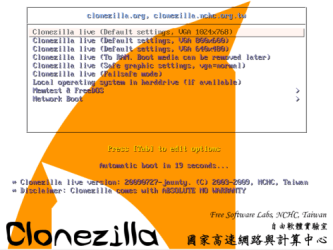

cloneZ_01.png

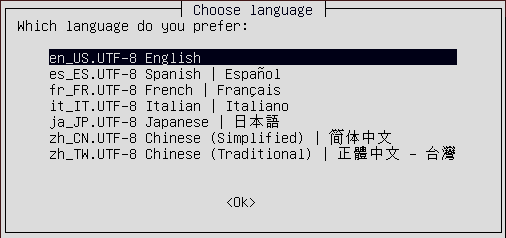
4. Select your language.


cloneZ_02.png

5. Keep or change your keyboard layout.
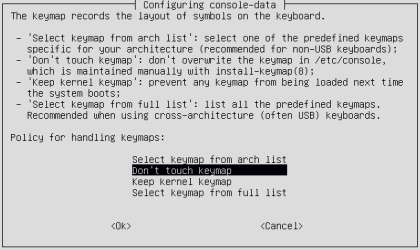
cloneZ_03.png

6. Start Clonezilla

cloneZ_04.png
7. Select "device-image" to save the image, "device-device" to move a partition to another drive.
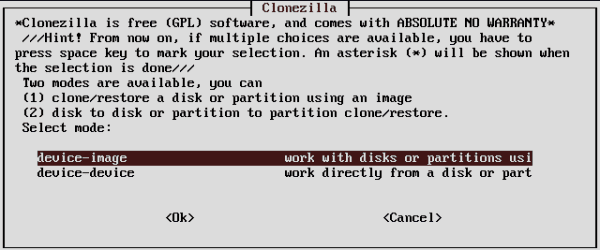
cloneZ_05.png

8. Select to use a local device (hard drive) or a network source.
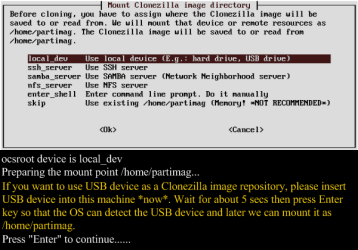
cloneZ_06.png

NOTE: After selecting "local_dev" you are given the option of inserting a USB drive.
9. Press Enter to continue
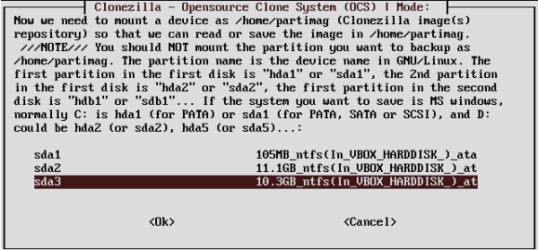
Linux names hard drives "hda#" or in my case "sda1, 2, and 3". The 105MB boot partition is sda1, the Windows partition is sda2. Clonezilla wants to mount the partition where it is going to put the image, in my case sda3, a backup partition I created.
10. Select: sda3

cloneZ_07.png

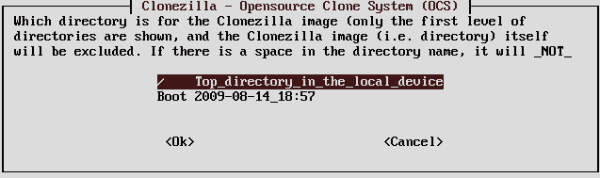
11. Select Top_directory

cloneZ_08.png

12. Now you get to see some info, press enter to continue.
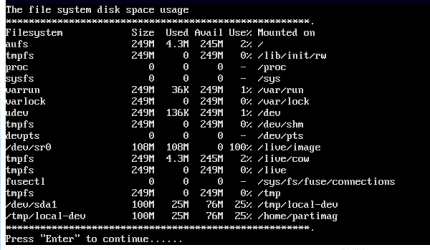
cloneZ_09.png

13. Select Beginner for Default options
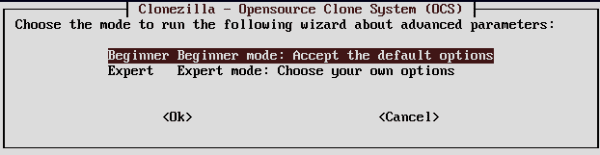
cloneZ_10.png

14. Select "saveparts" to image your boot and windows partitions.

cloneZ_11.png

NOTE: It is at this point that you would also choose to restore the partitions (restore parts) later.
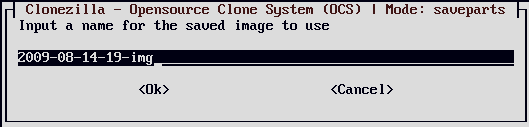
15. Accept the default file name or create one of your choice.

cloneZ_12.png

16. Select: both sda1 and sda2. When you restore to a new hard drive, you will have your boot partition as well.

cloneZ_13.png

17. You will get a message about using command line. Press ENTER to continue, then type "y" and ENTER.

cloneZ_14.png

18. You will see a message when the image is finished, press enter to continue
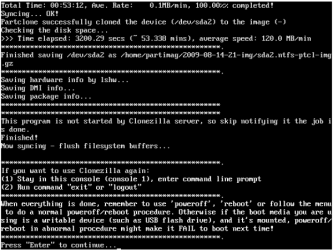
cloneZ_15.png]

19. Make a selection from the menu and press enter.
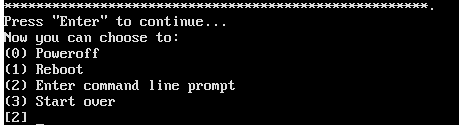
cloneZ_16.png

20. The CD tray will open so you can remove the CD, then close the CD tray, press enter, and reboot into Windows.
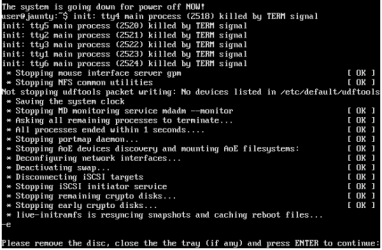
cloneZ_17.png

Clonezilla saved my 12.5GB Windows partition to 6.78GB and the 105MB boot partition to 9.75MB. As Windows grows so will the size of the saved image and the partition to save it in.

It is not reccommended to keep backup files or images on the internal hard drive with the Operating System. Should the hard drive crash, you will have lost the files needed to restore your computer. However, even if you initially save the image to an internal partition on your C: drive, like I have, you can now move the "image" files to the external media of your choice.
Restoring the Image to a New Hard Drive

You can easily restore your computer with a new hard drive, your 7 DVD, and Clonezilla. Put the new hard drive in the computer. Use the 7 DVD to install 7 but do not activate. Use 7 to create the internal partition if that is how you saved your image. Use Clonezilla to restore the saved image to the partitions 7 created during the install. Boot to Windows 7.

I will most likely use another computer in my home network to create the needed partitions and copy the saved image, then use Clonezilla to restore my activated copy of Windows 7 Home Premium. As part of a regular backup strategy, I intend to create a new image monthly.

Conclusion:

Windows 7 users have many choices on how to backup their systems. How you decide to do so depends on your circumstances. All computer users should back-up their computers regularly; however few actually do.
 
Last edited:

My Computer

OS
...
I added some screenshots to my post. Hope it makes it easier to follow.

To clarify one point: Clonezilla is capable of restoring to a blank hard drive, no other software, OS or otherwise is required. The "image" to be restored just needs to be available, on a second hard drive or an external USB drive. Boot to the CD and restore the "image" from storage to the blank hard drive and boot to windows.

As I do not have a USB drive large enough (not yet - money is tight), I have not done the USB thing. However, shortly I plan to thoroughly test the USB function as I have restoring from an internal partition.

Robert
 
Last edited:

My Computer

OS
...
This was useful to me, thanks. I cloned my desktop after a fresh install so I have the RC ready with everything installed and set up if I screw it up again.
 

My Computer

Computer Manufacturer/Model Number
Acer 5720z laptop
OS
win7 home premium 64bit
this is great software...
used it clone a WinSer2008 to another drive (one of the drives partions were acting up which i sent back to manufacturer) and it went work on the drive and it work as a charm...:))
no activation needed (which i love) and it was setup the way had it....
this should be made an official tutorial...;)
 

My Computer

Computer Manufacturer/Model Number
Tx2500z Tablet Pc/Homemade Server
OS
Windows 7 Ult x64(x2), HomePrem x32(x4), Server 08 (+VM), 08 R2 (VM) , SuSe 11.2 (VM), XP 32 (VM)
CPU
Turion X2 ultra (oh well came with laptop)/P4 @3.2 (yes P4)
Motherboard
IDK HP Motherboard / Intel DG965SS
Memory
OCZ Dual Channel 4GB kit/ 1gb Dual Channel
Graphics Card(s)
HD 3200 graphics /GMA x3100 (yay for intergrated!!)
Sound Card
Realtek HD Audio(mic working, well sort of)/Siig IC-70012
Monitor(s) Displays
built-in Hp 12" laptop screen/ Acer 19"
Screen Resolution
1280x800 /1440x900
Cooling
All Air Cooled
Mouse
Logi MX Rev. /MS Wheel Optical 1.1A /Logitech Optical Mouse
Internet Speed
College baby but its still routed through vpn to 1536k...
Other Info
love my wacom pen and pressure sensitivity...
wished it worked in 7, SUSE for that matter though
This was useful to me, thanks. I cloned my desktop after a fresh install so I have the RC ready with everything installed and set up if I screw it up again.
Thank you for the feedback! This does make it more convenient for those of us who like to experiment as it makes it possible to put everything back with little additional effort.

Robert
 

My Computer

OS
...
this is great software...
used it clone a WinSer2008 to another drive (one of the drives partions were acting up which i sent back to manufacturer) and it went work on the drive and it work as a charm...:))
no activation needed (which i love) and it was setup the way had it....
this should be made an official tutorial...;)
Thanks for bringing that up! Although I did not include drive to drive cloning in my original post, it is a feature of Clonezilla and something I have done many times.

Thanks again!
Robert
 

My Computer

OS
...
Hi @ll!

I have a Problem with restore an Image and Clonezilla.
I made an Image from the whole Harddisk and Windows 7 Ultimate.

My System runs on an 500GB Samsung HDD, the Backup is on an 500GB Samsung HDD and i want to restore on another 500GB Samsung HDD.

The HDDs are all three the same model.

But when i want to restore i always get an error (see pic)
015.JPG
Is it important to install win 7 again and then restore the image or not?
Because the threadstarter wrote yes, in the second post there is a no.

I hope somebody can help me!

thanks
sony
 

Attachments

  • 015.JPG
    015.JPG
    152.7 KB · Views: 1,651

My Computer

Computer Manufacturer/Model Number
By myself
OS
Windows 7 Ultimate
CPU
Intel E2140@stock
Motherboard
Gigabyte GA-33 DS3R
Memory
1x1GB Aeneon 1x2GB Aeneon
Graphics Card(s)
ATI Asus 4350
Sound Card
Onboard
Monitor(s) Displays
Dell 2407wpf
Screen Resolution
1920x1200
Hard Drives
3xSamsung HD501LJ 500GB
PSU
Antec Earthwatt 380W
Case
Lian Li V2000
Cooling
Air
Keyboard
Logitech G15
Mouse
Razer Copperhead
Internet Speed
3Mbit Cable
Here is an Screen from my Image, can anybody tell me if 2 Partitions are saved? The 100MB and the OS itself?
 

Attachments

  • img.jpg
    img.jpg
    140.3 KB · Views: 957

My Computer

Computer Manufacturer/Model Number
By myself
OS
Windows 7 Ultimate
CPU
Intel E2140@stock
Motherboard
Gigabyte GA-33 DS3R
Memory
1x1GB Aeneon 1x2GB Aeneon
Graphics Card(s)
ATI Asus 4350
Sound Card
Onboard
Monitor(s) Displays
Dell 2407wpf
Screen Resolution
1920x1200
Hard Drives
3xSamsung HD501LJ 500GB
PSU
Antec Earthwatt 380W
Case
Lian Li V2000
Cooling
Air
Keyboard
Logitech G15
Mouse
Razer Copperhead
Internet Speed
3Mbit Cable
Here is an Screen from my Image, can anybody tell me if 2 Partitions are saved? The 100MB and the OS itself?
Hello sony, and welcome to Windows Seven Forums.

The image you posted shows two partitions: sdb1 and sdb2, sdb1 is probably the 100 MB boot partition leaving sdb2 as the Windows OS partition.

No you do not have to reinstall Windows 7 first, but it can avoid the kind of problems you have experienced here if you do. The image you save MUST be the same size or smaller than the hard drive space you are going to restore to. It saves time if you shrink the Windows 7 partition before you make an image of it, and also assures it will fit onto the hard drive of your choice.

Without more details about the hard drives you are using, I can't say for certain but I would suggest you remove any partitions created on the third hard drive leaving it blank before restoring your saved image to that hard drive.

The advantage of installing Windows first and then restoring the image is that you can create the exact partition sizes of the image you saved. Say you shrink your Windows 7 partition to 40GB? You can create a 40GB partition on your blank drive and when you install 7, you will have the 100MB and 40GB partitions matching exactly the image you save. Restoring the image should go with no problems.

If you are just unable to restore the image you created, I suggest you shrink the Windows partition and create a new image and restore the new image.

Cheers!

Robert
 

My Computer

OS
...
Thank you for your answer.

All three Harddrives are Samsung HD501LJ 500GB.
I compared, the number of cylinders are the same at both: 60801.
But there is a small differnce in the physikal sector.

The next time i should inform me before i'll do something :)


Because it is not easy for me now, i made the image from my system when it was "clean" and "fresh" and now it isn't, so i don't want to do an image now.

So do you think it could work on a bigger HDD or is there no chance?

If i choose "only restore partition" it is working but only the 100MB Partition. I can't choose the "os partition".

Sorry for my bad english, I'm from Austria.

thx sony
 

My Computer

Computer Manufacturer/Model Number
By myself
OS
Windows 7 Ultimate
CPU
Intel E2140@stock
Motherboard
Gigabyte GA-33 DS3R
Memory
1x1GB Aeneon 1x2GB Aeneon
Graphics Card(s)
ATI Asus 4350
Sound Card
Onboard
Monitor(s) Displays
Dell 2407wpf
Screen Resolution
1920x1200
Hard Drives
3xSamsung HD501LJ 500GB
PSU
Antec Earthwatt 380W
Case
Lian Li V2000
Cooling
Air
Keyboard
Logitech G15
Mouse
Razer Copperhead
Internet Speed
3Mbit Cable
Thank you for your answer.

All three Harddrives are Samsung HD501LJ 500GB.
I compared, the number of cylinders are the same at both: 60801.
But there is a small differnce in the physikal sector.

The next time i should inform me before i'll do something :)


Because it is not easy for me now, i made the image from my system when it was "clean" and "fresh" and now it isn't, so i don't want to do an image now.

So do you think it could work on a bigger HDD or is there no chance?

If i choose "only restore partition" it is working but only the 100MB Partition. I can't choose the "os partition".

Sorry for my bad english, I'm from Austria.

thx sony
In the first place, your English is not that bad, and since my German only consists of a few phrases I am both jealous of you and admire you for knowing two languages when I do not. ;)

We at Windows Seven Forums (and Eight Forums and Vista Forums) are just here to help if we can, but your thanks is appreciated.

The simple answer to your two questions above is yes, the image should restore to a larger than 500 GB hard drive. And you should be able to select only the OS partition to restore ie: sdb2.

I would say you have several options and although it may seem like a lot of work, you have the chance to practice using this software (and other software options if you wish) when it is not at a critical time. So you can do so safely without the danger of losing your data, teach yourself, and have experience when there is a critical time and you need to save your data.

The first option that comes to mind is to restore the image you created to the hard drive it came from. That means you need to move the OS that is there now to another location. So you could do as I suggested earlier and shrink the Windows 7 partition, make your image, and restore it to the third hard drive. Make sure the OS is working completely so you will not lose any data before restoring the original image you made to the hard drive it came from. Once that OS (the fresh one) is working OK you can shrink the Windows 7 partition and make a new smaller image of your "fresh" OS that will restore easier.

Second, you can move the files the image made from the second hard drive, the backup, to the first hard drive, either to the C: drive or create a small partition that will hold the files temporarily. Once the backup hard drive is empty, you can try to restore the image to the backup hard drive. If it is identical to the original hard drive you imaged, you should be able to restore the image there and have your "fresh" OS to work with.

Having three hard drives is very nice and makes it easier to move stuff around to finally get it the way you want. Use them to your advantage! Now if you have two identical OSs on two hard drives, you will not be able to access both at the same time. You must boot to the hard drive that has the OS you want to work with. You can change this behavior by having Windows create the "dual boot" configuration. If you simply wish to experiment with 7, then you do not need the dual boot, but that is up to you.

Cheers!

Robert
 

My Computer

OS
...
Thank you very much Robert. Your answer is perfect.

Because of my Girlfriend my time is always very short with my PC :D

but i will try the things you suggested.

There are not very important data on the Harddisk, but i was a lot of work to set up the PC like i want it.

Alright again thank you very much for your help.

btw very nice forum

greets Marcel
 

My Computer

Computer Manufacturer/Model Number
By myself
OS
Windows 7 Ultimate
CPU
Intel E2140@stock
Motherboard
Gigabyte GA-33 DS3R
Memory
1x1GB Aeneon 1x2GB Aeneon
Graphics Card(s)
ATI Asus 4350
Sound Card
Onboard
Monitor(s) Displays
Dell 2407wpf
Screen Resolution
1920x1200
Hard Drives
3xSamsung HD501LJ 500GB
PSU
Antec Earthwatt 380W
Case
Lian Li V2000
Cooling
Air
Keyboard
Logitech G15
Mouse
Razer Copperhead
Internet Speed
3Mbit Cable
Alright i solved the problem like this:

The first option that comes to mind is to restore the image you created to the hard drive it came from. That means you need to move the OS that is there now to another location. So you could do as I suggested earlier and shrink the Windows 7 partition, make your image, and restore it to the third hard drive. Make sure the OS is working completely so you will not lose any data before restoring the original image you made to the hard drive it came from. Once that OS (the fresh one) is working OK you can shrink the Windows 7 partition and make a new smaller image of your "fresh" OS that will restore easier.

Thank you very much for your help, hope to see you soon in this oder theeightsforum :) nice greets from Austria sony
 

My Computer

Computer Manufacturer/Model Number
By myself
OS
Windows 7 Ultimate
CPU
Intel E2140@stock
Motherboard
Gigabyte GA-33 DS3R
Memory
1x1GB Aeneon 1x2GB Aeneon
Graphics Card(s)
ATI Asus 4350
Sound Card
Onboard
Monitor(s) Displays
Dell 2407wpf
Screen Resolution
1920x1200
Hard Drives
3xSamsung HD501LJ 500GB
PSU
Antec Earthwatt 380W
Case
Lian Li V2000
Cooling
Air
Keyboard
Logitech G15
Mouse
Razer Copperhead
Internet Speed
3Mbit Cable
Alright i solved the problem like this:

The first option that comes to mind is to restore the image you created to the hard drive it came from. That means you need to move the OS that is there now to another location. So you could do as I suggested earlier and shrink the Windows 7 partition, make your image, and restore it to the third hard drive. Make sure the OS is working completely so you will not lose any data before restoring the original image you made to the hard drive it came from. Once that OS (the fresh one) is working OK you can shrink the Windows 7 partition and make a new smaller image of your "fresh" OS that will restore easier.
Thank you very much for your help, hope to see you soon in this oder theeightsforum :) nice greets from Austria sony
That is great news! Glad you found a solution that worked for you. Yes, I saw you at The Eight Forums. Not much happening there as we are just laying the groundwork for the next Windows OS. But when the 8 Beta is released, we will be waiting at the door for our copy!! See you there.

Robert
 

My Computer

OS
...
I have a few questions about selecting partitions... OK first I have two hard drives one sata and an old IDE for back up image. When selecting primary sata HDD witch is partition into 3 show up as sdb1,2,3,4 and the IDE HDD as sda1. Shouldn't the sata HDD be sda and the IDE be sdb? Also do I have to back up the small 105mb partition with the main OS? I did a back up with of my OS and software install and the back up image came out to 14gb, does that sound about right with the compressing clonezilla uses?

btw nice tutoriat!:thumbsup:
 

My Computer

OS
Win7Pro
I have a few questions about selecting partitions... OK first I have two hard drives one sata and an old IDE for back up image. When selecting primary sata HDD witch is partition into 3 show up as sdb1,2,3,4 and the IDE HDD as sda1. Shouldn't the sata HDD be sda and the IDE be sdb? Also do I have to back up the small 105mb partition with the main OS? I did a back up with of my OS and software install and the back up image came out to 14gb, does that sound about right with the compressing clonezilla uses?

btw nice tutoriat!:thumbsup:
raiderkeek7; Thank you for your kind words!

The position of the hard drives, ie sda, sdb, is controlled by the motherboard and the bios. For example if you remove the old IDE drive, the SATA drive would most likely be positioned as sda. For whatever reason, when you add the IDE drive, the BIOS puts it before the SATA drive making it sda.

The 100MB partition is not essential. That said, 7 has been designed to use this feature and creates the 100MB partition during installation. Including it when you save your drive image makes restoration easier. If you need to, you can use the install DVD, install a fresh 7, and then restore the drive image you saved. Accomplishes the same thing with a little more work.

14GB seems to be about right for a new 7 installation including other programs.

Thanks again!
Robert
 

My Computer

OS
...
I use Clonezilla to clone my drives once a week. If anything happens I have a back up. Just plug and go.
 

My Computer

Computer Manufacturer/Model Number
Built by Mark
OS
Windows 7 x64
CPU
Intel Core i7 930
Motherboard
Gigabyte GA-X58A-UD3R Bios F5
Memory
OCZ 6GBkit OCZ3G1600LV6GK 8-8-8-24-2T 1.65V
Graphics Card(s)
(2) HIS ATI Radeon HD 5770 CROSSFIRE (H577QT1GD)
Sound Card
On board Realtek HD
Monitor(s) Displays
Samsung SyncMaster 2343 22" Wide Screen
Screen Resolution
2048x1152
Hard Drives
Two Western Digital 320 Gig Blue series WDC WD3200AAKS-00L9A0
PSU
Corsiar 750 watts TX750W
Case
Antec NINE Hundred Two (air filters & adjustable fan speed)
Cooling
Cooler Master Hyper 212 Plus CPU cooler
Keyboard
Logitech
Mouse
Logitech MX310
Internet Speed
20 meg down/ 5 meg up
Other Info
Hewlett Packard Deskjet 932C printer
Epson 4990 Photo scanner
I use Clonezilla to clone my drives once a week. If anything happens I have a back up. Just plug and go.
belikexp;

Thanks for the input. Clonezilla is so easy to use, yet few can be bothered with backing up their data.

Just curious: Where do you put your backup file? How do you manage your weekly files?

Happy surfing!
Robert
 

My Computer

OS
...
Update - Nov 2009

As an update to this thread, I have received my retail copy of 7 Home Premium, installed it on my Dell 505 laptop (least used and smallest data size), backed up with both Clonezilla and the 7 backup utility, and restored successfully with both methods. So I have no worries if I ever find myself needing to reinstall my 7 upgrade.

My upgrade (both the download from MS and the retail box) would not activate unless I started the upgrade from my activated 7 RC, as expected. I could even delete the 7 partitions and reinstall fresh as long as I started the upgrade in Windows.

Restoration was flawless, however I am having issues copying/moving the 7 backup and image (not the clonezilla image) to a different location. Not sure what that is about. As soon as I get my external USB hard drive setup, I plan to save the Windows backup externally.

Cheers to all!
Robert
 

My Computer

OS
...
Restore Image to different PC

I have been using Clonezilla regularly for a while now for my XP machines and its worked great. I have been working in the IT field for 5 years or so and over this time friends and family have found out that they can get cheap PC help/repair out of me. My question about Clonezilla is this, if I create an image of say an XP media center edition version of windows on a Gateway laptop. Is it possible to restore that image to a separate say Dell inspiron laptop. I'm just trying to find a more efficient way of reloading friends laptops rather than reformatting the HD and starting with a barebone installation, applying updates, install freeware application and so on.

Thanks,
 

My Computer

OS
Windows7
Back
Top