Cloning with Macrium free

meganfurley

New member
Local time
3:33 PM
Messages
3
Hi
I have a 280gb drive and wanted to upgrade to a 1tb sshd.
So I cloned my drive using Macriumfree as advised by them.
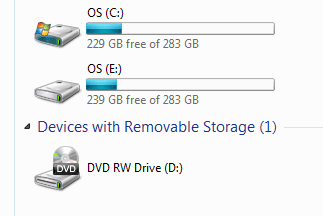
But now the new cloned drive seems to have a capacity of only 280gb as well. Where has the free space vanished?
I have attached two images which show the free space as seen on Macrium and another one of the drive E which shows the reduced free space.

PS; I Followed the instructions given here - How to Upgrade Your Existing Hard Drive in Under an Hour

I also did that bit where it says 'When you’re done, there’s one thing you’ll likely notice immediately: the partition copied in a 1-to-1 ratio to the new disk which means if you’re upgrading from a 120GB SSD to a 512GB SSD there will be a whole lot of unused space. Don’t worry, we can fix that easily enough. Simply click on the “Cloned Partition Properties” beneath your freshly cloned disk.There you can click the “Maximum Size” button to automatically resize the existing partition to utilize the full amount of available disk space.'


Can someone help me;I know I have goofed somewhere!
 

Attachments
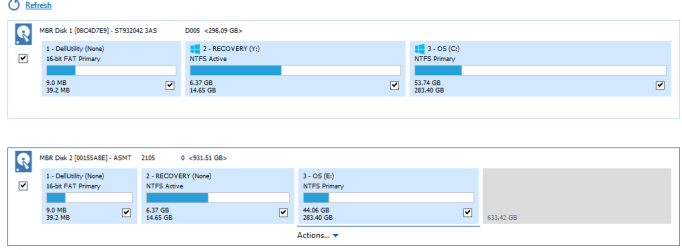
  • Disk in Macrium.PNG
    Disk in Macrium.PNG
    8.3 KB · Views: 0
  • 1.PNG
    1.PNG
    5 KB · Views: 22

My Computer

Computer type
Laptop
Computer Manufacturer/Model Number
dell
OS
windows 7 64 bit
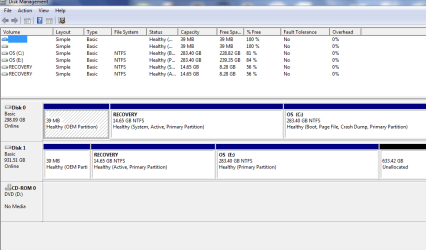
We need a pic of Windows Disk Management.

Type "Disk Management" into the start button search box and follow the link. Take a screen shot showing the new SSD.

Most likely, you just have a bunch of unallocated space that can be easily corrected, but the pic is needed to confirm.
 

My Computer

Computer type
PC/Desktop
Computer Manufacturer/Model Number
Ignatz Special; 4 speed manual gearbox; factory air conditioning; one of one
OS
Windows 7 Home Premium SP1, 64-bit
CPU
Intel Skylake i5-6600K, not overclocked
Motherboard
AsRock Z170M Extreme 4, micro ATX
Memory
8 GB HyperX DDR4-2666 (2 x 4 GB)
Graphics Card(s)
none; graphics are integrated on CPU
Sound Card
onboard: Realtek ALC1150; external: USB Behringer UF0-202
Monitor(s) Displays
Dell S2340M 23 inch IPS
Screen Resolution
1600 x 900
Hard Drives
System: Crucial MX100 series SSD, 128 GB;
Data: Samsung Spinpoint 103SJ, 1 TB;
Backup: WD Caviar Green WD30EZRX-00D8PB0, 3 TB
PSU
Rosewill SilentNight 500 watt fanless, semi-modular
Case
Antec Solo II
Cooling
Noctua NH-U12S; Noctua F12 intake, Noctua S12A exhaust
Keyboard
Microsoft 200 6JH-00001 USB
Mouse
Dell or Microsoft optical wired; USB
Antivirus
Microsoft Security Essentials and Malwarebytes Premium
Browser
Pale Moon
Other Info
All fans PWM; speeds at idle: CPU circa 500 rpm; intake circa 600 rpm; exhaust circa 600 rpm; CPU temps 27 idle and 47 C load in a warm room (27 C/81 F) when running Intel Extreme Tuning Utility stress test.
image enclosed

Hi
Thanks for that.
I have enclosed the image.
Hope it helps.:)
 

Attachments

  • 3.PNG
    3.PNG
    19.3 KB · Views: 1

My Computer

Computer type
Laptop
Computer Manufacturer/Model Number
dell
OS
windows 7 64 bit
That looks as expected. You've got a bunch of unallocated space.

Go back to Disk Management.

Select the E partition in the bottom section.

Go to action menu, then all tasks, then extend volume.

Extend it to take up all of that unallocated space. Let it complete. Then take a new picture and post it.
 

My Computer

Computer type
PC/Desktop
Computer Manufacturer/Model Number
Ignatz Special; 4 speed manual gearbox; factory air conditioning; one of one
OS
Windows 7 Home Premium SP1, 64-bit
CPU
Intel Skylake i5-6600K, not overclocked
Motherboard
AsRock Z170M Extreme 4, micro ATX
Memory
8 GB HyperX DDR4-2666 (2 x 4 GB)
Graphics Card(s)
none; graphics are integrated on CPU
Sound Card
onboard: Realtek ALC1150; external: USB Behringer UF0-202
Monitor(s) Displays
Dell S2340M 23 inch IPS
Screen Resolution
1600 x 900
Hard Drives
System: Crucial MX100 series SSD, 128 GB;
Data: Samsung Spinpoint 103SJ, 1 TB;
Backup: WD Caviar Green WD30EZRX-00D8PB0, 3 TB
PSU
Rosewill SilentNight 500 watt fanless, semi-modular
Case
Antec Solo II
Cooling
Noctua NH-U12S; Noctua F12 intake, Noctua S12A exhaust
Keyboard
Microsoft 200 6JH-00001 USB
Mouse
Dell or Microsoft optical wired; USB
Antivirus
Microsoft Security Essentials and Malwarebytes Premium
Browser
Pale Moon
Other Info
All fans PWM; speeds at idle: CPU circa 500 rpm; intake circa 600 rpm; exhaust circa 600 rpm; CPU temps 27 idle and 47 C load in a warm room (27 C/81 F) when running Intel Extreme Tuning Utility stress test.
ignatzatsonic - Thanks Heaps!

Hi ignatzatsonic,
I have done as you have suggested and it looks like I have got my free space back! Thank you so much for the help. :)
Is it now ready to be swapped for the old hard drive?


The latest image is enclosed.
 

Attachments

  • 4.PNG
    4.PNG
    18.6 KB · Views: 0

My Computer

Computer type
Laptop
Computer Manufacturer/Model Number
dell
OS
windows 7 64 bit
Hi ignatzatsonic,

Is it now ready to be swapped for the old hard drive?

No. The only reason your PC still starts is because the old drive is still connected. You need to get to where it will start with the old drive disconnected.

Notice in your last picture: the recovery partition on the old drive is marked "active". The recovery partition on the new drive is NOT marked active.

Also notice in your last picture: the recovery partition on your old disk is marked "system", but the recovery partition on the new disk is NOT marked system. This means that your boot files are still on the old disk. You won't be able to boot from the new disk UNTIL the boot files are on the new disk.

So--you need to remove the active flag from the old recovery partition, mark the new recovery partition as active, and then get the boot files onto the new SSD.

There are a couple of ways to do this.

I assume you do NOT have a standard Windows installation disc. Correct me if you do.

Assuming you don't: you can disconnect the old drive (literally, disconnect the two cables plugged into it), then try to start the PC and press the F8 key repeatedly as it tries to start. That should bring up a menu of advanced boot options. Choose "repair your computer" and then look for "startup repair". The PC may restart as the repair is underway. You may have to run through this procedure up to 3 times.

That should get the system files onto the new SSD.

Then you'd need to go back to Windows Disk Management (with the old drive still disconnected) and check things out. The new SSD should be marked as "active" and "system" on some partition.

Post a picture of what you see in Disk Management then.

Here's a couple of tutorials that walk you through it.

http://www.sevenforums.com/tutorials/666-advanced-boot-options.html

http://www.sevenforums.com/tutorials/668-system-recovery-options.html

If the above fails, you might have to use an application called "EasyBCD" to copy the boot files to the new drive, but try the above first.
 

My Computer

Computer type
PC/Desktop
Computer Manufacturer/Model Number
Ignatz Special; 4 speed manual gearbox; factory air conditioning; one of one
OS
Windows 7 Home Premium SP1, 64-bit
CPU
Intel Skylake i5-6600K, not overclocked
Motherboard
AsRock Z170M Extreme 4, micro ATX
Memory
8 GB HyperX DDR4-2666 (2 x 4 GB)
Graphics Card(s)
none; graphics are integrated on CPU
Sound Card
onboard: Realtek ALC1150; external: USB Behringer UF0-202
Monitor(s) Displays
Dell S2340M 23 inch IPS
Screen Resolution
1600 x 900
Hard Drives
System: Crucial MX100 series SSD, 128 GB;
Data: Samsung Spinpoint 103SJ, 1 TB;
Backup: WD Caviar Green WD30EZRX-00D8PB0, 3 TB
PSU
Rosewill SilentNight 500 watt fanless, semi-modular
Case
Antec Solo II
Cooling
Noctua NH-U12S; Noctua F12 intake, Noctua S12A exhaust
Keyboard
Microsoft 200 6JH-00001 USB
Mouse
Dell or Microsoft optical wired; USB
Antivirus
Microsoft Security Essentials and Malwarebytes Premium
Browser
Pale Moon
Other Info
All fans PWM; speeds at idle: CPU circa 500 rpm; intake circa 600 rpm; exhaust circa 600 rpm; CPU temps 27 idle and 47 C load in a warm room (27 C/81 F) when running Intel Extreme Tuning Utility stress test.
Back
Top