
How to Change Your "Computer Description" in Windows 7 and Windows 8
Information
The computer description is a short explanation of the computer.
This tutorial will show you how to change your computer description to what you want in Windows 7 and Windows 8.
You must be logged in as an administrator to be able to change the computer description.
This tutorial will show you how to change your computer description to what you want in Windows 7 and Windows 8.
You must be logged in as an administrator to be able to change the computer description.
Note
The Computer description is not the same thing as the computer name (Windows 7) or PC name (Windows 8).
The Server service needs to be set to Started and Automatic to be able to change the computer description. It is set this way by default in Windows.
The Server service needs to be set to Started and Automatic to be able to change the computer description. It is set this way by default in Windows.
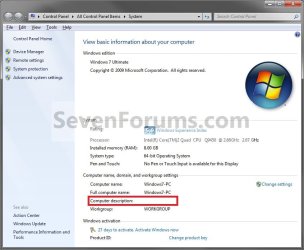
EXAMPLE: Computer Description in System
NOTE: This will be under the Computer name, domain, and workgroup settings section in System from the Control Panel.
OPTION ONE
To Change your Computer Description in System Properties
1. Open the Control Panel (icons view) in Windows 7 or Windows 8, and click/tap on the System icon.
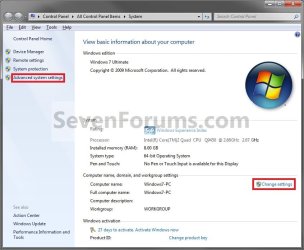
2. Click/tap on either the Change settings or Advanced system settings link. (see screenshot below)
3. If prompted by UAC, then click/tap on Yes.
4. Type in a Computer description that you want for your computer, and click/tap on OK. (see screenshot below)
NOTE: You can leave this field blank if you do not want a computer description. By default, the computer description is blank.

5. You will now noticed the computer description displayed in System under the Computer name, domain, and workgroup settings section. (see screenshot below)

6. When finished, you can close the System window if you like.
OPTION TWO
To Change your Computer Description in Registry Editor
1. Press the Windows + R keys to open the Run dialog, type regedit, and press Enter.
2. If prompted by UAC, then click/tap on Yes.
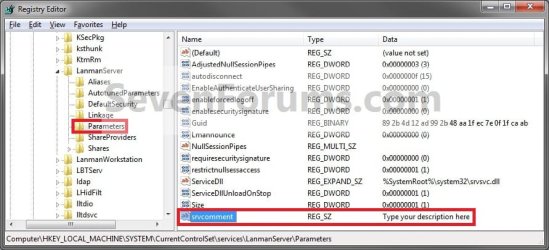
3. In regedit, navigate to the location below. (See screenshot below)
HKEY_LOCAL_MACHINE\SYSTEM\CurrentControlSet\services\LanmanServer\Parameters
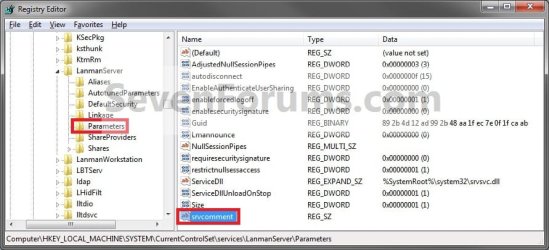
4. In the right pane of Parameters, double click/tap on srvcomment to modify it. (See screenshot above)
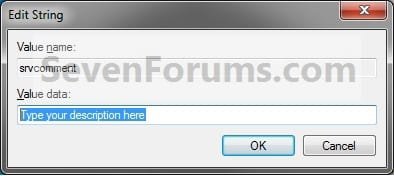
5. Type in a Computer description that you want for your computer, and click/tap on OK. (See screenshot below)
NOTE: You can leave this field blank if you do not want a computer description. By default, the computer description is blank.
6. Close regedit. (See screenshot below)
That's it,
Shawn
Last edited:


