Computer - Pin to Taskbar

How to Pin Computer to the Windows 7 Taskbar

   Information
This will show you how to pin Computer to the Windows 7 taskbar as a separate icon instead of it being pinned as a Jump list item in the default pinned Window Explorer taskbar icon.

Default.jpg

   Note
When you have both the default Windows Explorer icon to the left and this Computer icon to the right of it, then each time you click on the Computer icon on the taskbar it will open another separate new window of Computer. Clicking on the Windows Explorer icon will only open the one window instance.

   Warning
To avoid issues with other pinned "explorer" type shortcuts from displaying their opened windows in the thumbnail previews of whatever pinned "explorer" type shortcut is on the farthest left of the taskbar, be sure that the default pinned Windows Explorer taskbar icon is dragged to the left of this pinned Computer icon on the taskbar, and that any other pinned "explorer" type icon is dragged to the right of this Computer icon.

EXAMPLE: Computer Unpinned and Pinned from the Taskbar
attachment.php


attachment.php

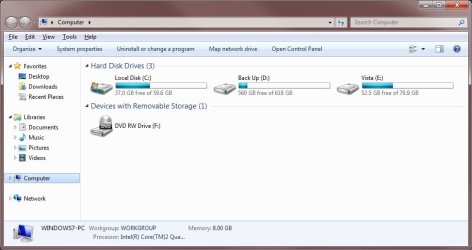
EXAMPLE: Computer window
Computer.jpg


OPTION ONE

To Download the "Computer" Shortcut


1. If you have not already, then uncheck the default Computer shortcut from the Desktop Icon Settings window.

2. Click on the Download button below to download the Computer.zip file below.

Download


3. Click on Save, and save the .zip file to the desktop.

4. Open the .zip file and extract the Computer shortcut to the desktop.

5. Right click on the Computer shortcut and click on Properties, General tab, and the Unblock button. (see screenshot below)
NOTE: If the unblock button is not there, then the shortcut is already set to be unblocked. Continue on to step 6.
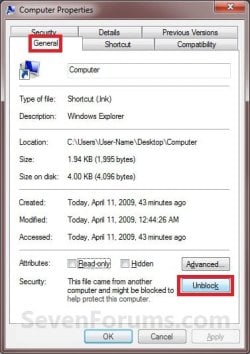
Blocked.jpg
6. Drag the Computer shortcut onto the taskbar until you see the Pin to Taskbar pop-up and drop it. (see screenshot below)
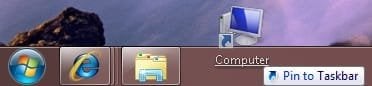
Pin.jpg
7. Computer is now pinned to the taskbar. (see screenshot below)
NOTE: If you ever wish to remove the pinned Computer icon from the taskbar, right click on it and click on Unpin this program from the Taskbar.
Taskbar-2.jpg
8. When done, you can delete the downloaded Computer shortcut and .zip files on the desktop if you like.


OPTION TWO

To Manually Create the "Computer" Shortcut


1. If you have not already, then uncheck the default Computer shortcut from the Desktop Icon Settings window.

2. Right click on a empty space on the desktop and click on New and Shortcut.

3. Copy and past either location below into the location area and click on the Next button. (see screenshot below)
explorer.exe ,0

OR

%SystemRoot%\explorer.exe shell:MyComputerFolder

OR

%windir%\explorer.exe shell:MyComputerFolder

OR

%windir%\explorer.exe /e,::{20D04FE0-3AEA-1069-A2D8-08002B30309D}
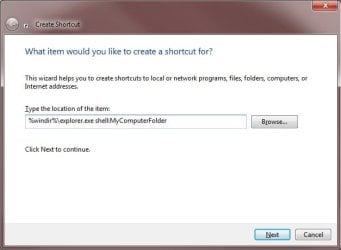
Step1.jpg
4. For the name, type Computer and click on the Finish button. (see screenshot below)
Step2.jpg
5. Right click on the new Computer shortcut on the desktop and click on Properties.

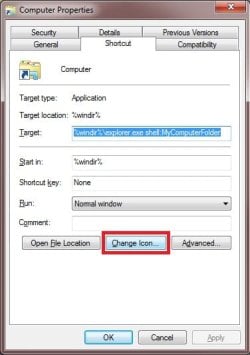
6. Under the Shortcut tab, click on the Change Icon button. (see screenshot below)
Step3.jpg
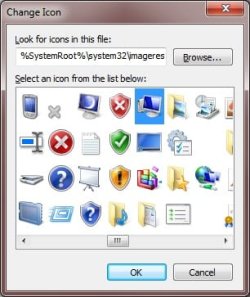
7. In the "Look for icons..." line, copy and paste the path below and press enter. (see screenshot below)
%SystemRoot%\system32\imageres.dll
Step4.jpg
8. Select the Computer icon and click on OK. (see screenshot above)

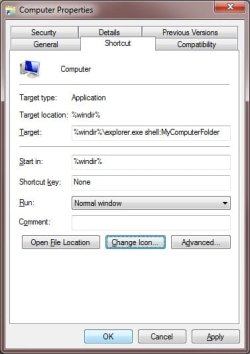
9. Click on OK. (see screenshot below)
Step5.jpg
10. Drag the new Computer shortcut onto the taskbar until you see the Pin to Taskbar pop-up and drop it. (see screenshot below)
Pin.jpg
11. Computer is now pinned to the taskbar. (see screenshot below)
NOTE: If you ever wish to remove the pinned Computer icon from the taskbar, right click on it and click on Unpin this program from the Taskbar.
Taskbar-2.jpg
12. You can now delete the Computer shortcut on the desktop.
That's it,
Shawn


Attachments

  • Taskbar-1.jpg
    Taskbar-1.jpg
    10 KB · Views: 131,584
  • Computer.zip
    Computer.zip
    800 bytes · Views: 11,336
Last edited:
Still no joy.

I've tried the download and making my own using all three different shortcuts and they all fail to open a new folder as soon as they're pinned to the taskbar, if I double click them from the desktop they're fine though.

:cry:
 

My Computer

OS
Windows 7
Hitcher,

Strange, I just can't reproduce what you are seeing. :confused:

As a test, you might see how it behaves in a new administrator account to see if it may be something in that user account.
 

My Computer

Computer type
PC/Desktop
Computer Manufacturer/Model Number
Self built custom
OS
64-bit Windows 11 Pro for Workstations
CPU
Intel i7-8700K OC'd to 5 GHz
Motherboard
ASUS ROG Maximus XI Formula Z390
Memory
64 GB (4x16GB) G.SKILL TridentZ RGB DDR4 3600 MHz
Graphics Card(s)
ASUS ROG-STRIX-GTX1080TI-O11G-GAMING
Sound Card
Integrated
Monitor(s) Displays
2 x Samsung Odyssey G7 27"
Screen Resolution
2560x1440
Hard Drives
1TB Samsung 990 PRO M.2,
4TB Samsung 990 PRO PRO M.2,
TerraMaster F8 SSD Plus NAS
PSU
Seasonic Prime Titanium 850W
Case
Thermaltake Core P3
Cooling
Corsair Hydro H115i
Keyboard
Logitech wireless K800
Mouse
Logitech MX Master 4
Internet Speed
2 Gb/s Download and 100 Mb/s Upload
Antivirus
Malwarebyte Anti-Malware Premium
Browser
Google Chrome
Other Info
Logitech Z625 speaker system,
Logitech BRIO 4K Pro webcam,
HP Color LaserJet Pro MFP M477fdn,
APC SMART-UPS RT 1000 XL - SURT1000XLI,
Galaxy S23 Plus phone
Thanks!

Hey, I walked through your manual instructions and they worked perfectly.

Thanks so much for posting this!
 

My Computer

OS
Windows 7
You're most welcome JMF, and welcome to Seven Forums. :)
 

My Computer

Computer type
PC/Desktop
Computer Manufacturer/Model Number
Self built custom
OS
64-bit Windows 11 Pro for Workstations
CPU
Intel i7-8700K OC'd to 5 GHz
Motherboard
ASUS ROG Maximus XI Formula Z390
Memory
64 GB (4x16GB) G.SKILL TridentZ RGB DDR4 3600 MHz
Graphics Card(s)
ASUS ROG-STRIX-GTX1080TI-O11G-GAMING
Sound Card
Integrated
Monitor(s) Displays
2 x Samsung Odyssey G7 27"
Screen Resolution
2560x1440
Hard Drives
1TB Samsung 990 PRO M.2,
4TB Samsung 990 PRO PRO M.2,
TerraMaster F8 SSD Plus NAS
PSU
Seasonic Prime Titanium 850W
Case
Thermaltake Core P3
Cooling
Corsair Hydro H115i
Keyboard
Logitech wireless K800
Mouse
Logitech MX Master 4
Internet Speed
2 Gb/s Download and 100 Mb/s Upload
Antivirus
Malwarebyte Anti-Malware Premium
Browser
Google Chrome
Other Info
Logitech Z625 speaker system,
Logitech BRIO 4K Pro webcam,
HP Color LaserJet Pro MFP M477fdn,
APC SMART-UPS RT 1000 XL - SURT1000XLI,
Galaxy S23 Plus phone
Still no joy.

I've tried the download and making my own using all three different shortcuts and they all fail to open a new folder as soon as they're pinned to the taskbar, if I double click them from the desktop they're fine though.

:cry:

Hitcher,

I ran across something that may help with this. Make sure that you still have the default Windows Explorer shortcut pinned to the taskbar, but make sure that it is positioned (dragged) to the left of this pinned Computer shortcut. Afterwards you should be able have a new Computer window open each time you click on it. :)
 

My Computer

Computer type
PC/Desktop
Computer Manufacturer/Model Number
Self built custom
OS
64-bit Windows 11 Pro for Workstations
CPU
Intel i7-8700K OC'd to 5 GHz
Motherboard
ASUS ROG Maximus XI Formula Z390
Memory
64 GB (4x16GB) G.SKILL TridentZ RGB DDR4 3600 MHz
Graphics Card(s)
ASUS ROG-STRIX-GTX1080TI-O11G-GAMING
Sound Card
Integrated
Monitor(s) Displays
2 x Samsung Odyssey G7 27"
Screen Resolution
2560x1440
Hard Drives
1TB Samsung 990 PRO M.2,
4TB Samsung 990 PRO PRO M.2,
TerraMaster F8 SSD Plus NAS
PSU
Seasonic Prime Titanium 850W
Case
Thermaltake Core P3
Cooling
Corsair Hydro H115i
Keyboard
Logitech wireless K800
Mouse
Logitech MX Master 4
Internet Speed
2 Gb/s Download and 100 Mb/s Upload
Antivirus
Malwarebyte Anti-Malware Premium
Browser
Google Chrome
Other Info
Logitech Z625 speaker system,
Logitech BRIO 4K Pro webcam,
HP Color LaserJet Pro MFP M477fdn,
APC SMART-UPS RT 1000 XL - SURT1000XLI,
Galaxy S23 Plus phone
You're welcome Hitcher. I'm glad that got it sorted for you. :)
 

My Computer

Computer type
PC/Desktop
Computer Manufacturer/Model Number
Self built custom
OS
64-bit Windows 11 Pro for Workstations
CPU
Intel i7-8700K OC'd to 5 GHz
Motherboard
ASUS ROG Maximus XI Formula Z390
Memory
64 GB (4x16GB) G.SKILL TridentZ RGB DDR4 3600 MHz
Graphics Card(s)
ASUS ROG-STRIX-GTX1080TI-O11G-GAMING
Sound Card
Integrated
Monitor(s) Displays
2 x Samsung Odyssey G7 27"
Screen Resolution
2560x1440
Hard Drives
1TB Samsung 990 PRO M.2,
4TB Samsung 990 PRO PRO M.2,
TerraMaster F8 SSD Plus NAS
PSU
Seasonic Prime Titanium 850W
Case
Thermaltake Core P3
Cooling
Corsair Hydro H115i
Keyboard
Logitech wireless K800
Mouse
Logitech MX Master 4
Internet Speed
2 Gb/s Download and 100 Mb/s Upload
Antivirus
Malwarebyte Anti-Malware Premium
Browser
Google Chrome
Other Info
Logitech Z625 speaker system,
Logitech BRIO 4K Pro webcam,
HP Color LaserJet Pro MFP M477fdn,
APC SMART-UPS RT 1000 XL - SURT1000XLI,
Galaxy S23 Plus phone
I have 2 hard drives C:\ and G:\, I would like to pin G:\ to the taskbar.
How would you go about pinning it?
 

My Computer

Computer Manufacturer/Model Number
None
OS
Windows 7 Professional x64
CPU
Intel(R) Core(TM) 2 Duo 2.53GHz
Motherboard
ASUA P5N-D
Memory
6GB 2x2GB 2x1GB
Graphics Card(s)
8800GT
Sound Card
Realtek HD
Keyboard
Z-MERC
Mouse
Razer Deathadder
Internet Speed
7MB

My Computer

Computer type
PC/Desktop
Computer Manufacturer/Model Number
Self built custom
OS
64-bit Windows 11 Pro for Workstations
CPU
Intel i7-8700K OC'd to 5 GHz
Motherboard
ASUS ROG Maximus XI Formula Z390
Memory
64 GB (4x16GB) G.SKILL TridentZ RGB DDR4 3600 MHz
Graphics Card(s)
ASUS ROG-STRIX-GTX1080TI-O11G-GAMING
Sound Card
Integrated
Monitor(s) Displays
2 x Samsung Odyssey G7 27"
Screen Resolution
2560x1440
Hard Drives
1TB Samsung 990 PRO M.2,
4TB Samsung 990 PRO PRO M.2,
TerraMaster F8 SSD Plus NAS
PSU
Seasonic Prime Titanium 850W
Case
Thermaltake Core P3
Cooling
Corsair Hydro H115i
Keyboard
Logitech wireless K800
Mouse
Logitech MX Master 4
Internet Speed
2 Gb/s Download and 100 Mb/s Upload
Antivirus
Malwarebyte Anti-Malware Premium
Browser
Google Chrome
Other Info
Logitech Z625 speaker system,
Logitech BRIO 4K Pro webcam,
HP Color LaserJet Pro MFP M477fdn,
APC SMART-UPS RT 1000 XL - SURT1000XLI,
Galaxy S23 Plus phone
When I tried to do this on my computer (x64), the My Computer taskbar icon works for a while when I boot up my machine, but then it always unexpectedly crashes (Windows Explorer has stopped working...) and won't open again. When I looked in the event log, I had the following message. Does anyone know what might be causing this? I have tried disabling all of the software I can think of on my computer and disabled all the nonstandard services, but the problem persists.

Faulting application name: explorer.exe, version: 6.1.7600.16450, time stamp: 0x4aebab8d
Faulting module name: comctl32.dll, version: 6.10.7600.16385, time stamp: 0x4a5bde67
Exception code: 0xc000041d
Fault offset: 0x0000000000079ddc
Faulting process id: 0x1bcc
Faulting application start time: 0x01caa3b83aae9e0c
Faulting application path: C:\Windows\explorer.exe
Faulting module path: C:\Windows\WinSxS\amd64_microsoft.windows.common-controls_6595b64144ccf1df_6.0.7600.16385_none_fa645303170382f6\comctl32.dll
Report Id: 78702073-0fab-11df-82f1-001fc6ecd6c7
 

My Computer

OS
Windows 7
Hello Hsrstud,

This is a unrelated Windows Explorer error that just happens to affect this since this is what the shortcut opens. You might consider doing a repair install to fix this. Afterwards, you should be able to use the shortcut as well.

Hope this helps,
Shawn
 

My Computer

Computer type
PC/Desktop
Computer Manufacturer/Model Number
Self built custom
OS
64-bit Windows 11 Pro for Workstations
CPU
Intel i7-8700K OC'd to 5 GHz
Motherboard
ASUS ROG Maximus XI Formula Z390
Memory
64 GB (4x16GB) G.SKILL TridentZ RGB DDR4 3600 MHz
Graphics Card(s)
ASUS ROG-STRIX-GTX1080TI-O11G-GAMING
Sound Card
Integrated
Monitor(s) Displays
2 x Samsung Odyssey G7 27"
Screen Resolution
2560x1440
Hard Drives
1TB Samsung 990 PRO M.2,
4TB Samsung 990 PRO PRO M.2,
TerraMaster F8 SSD Plus NAS
PSU
Seasonic Prime Titanium 850W
Case
Thermaltake Core P3
Cooling
Corsair Hydro H115i
Keyboard
Logitech wireless K800
Mouse
Logitech MX Master 4
Internet Speed
2 Gb/s Download and 100 Mb/s Upload
Antivirus
Malwarebyte Anti-Malware Premium
Browser
Google Chrome
Other Info
Logitech Z625 speaker system,
Logitech BRIO 4K Pro webcam,
HP Color LaserJet Pro MFP M477fdn,
APC SMART-UPS RT 1000 XL - SURT1000XLI,
Galaxy S23 Plus phone
You're welcome Hrstud. :)
 

My Computer

Computer type
PC/Desktop
Computer Manufacturer/Model Number
Self built custom
OS
64-bit Windows 11 Pro for Workstations
CPU
Intel i7-8700K OC'd to 5 GHz
Motherboard
ASUS ROG Maximus XI Formula Z390
Memory
64 GB (4x16GB) G.SKILL TridentZ RGB DDR4 3600 MHz
Graphics Card(s)
ASUS ROG-STRIX-GTX1080TI-O11G-GAMING
Sound Card
Integrated
Monitor(s) Displays
2 x Samsung Odyssey G7 27"
Screen Resolution
2560x1440
Hard Drives
1TB Samsung 990 PRO M.2,
4TB Samsung 990 PRO PRO M.2,
TerraMaster F8 SSD Plus NAS
PSU
Seasonic Prime Titanium 850W
Case
Thermaltake Core P3
Cooling
Corsair Hydro H115i
Keyboard
Logitech wireless K800
Mouse
Logitech MX Master 4
Internet Speed
2 Gb/s Download and 100 Mb/s Upload
Antivirus
Malwarebyte Anti-Malware Premium
Browser
Google Chrome
Other Info
Logitech Z625 speaker system,
Logitech BRIO 4K Pro webcam,
HP Color LaserJet Pro MFP M477fdn,
APC SMART-UPS RT 1000 XL - SURT1000XLI,
Galaxy S23 Plus phone
is there a way to make it when you click on it the folder that opens doesnt overide the icon. In other words once I click it I would be able to click it again to open another folder. Possible?
 

My Computer

Computer Manufacturer/Model Number
acer timeline 3810t
OS
Windows 7 64-bit Windows 7 32-bit
CPU
Intel Core 2 Solo (1.4 GHz)
Memory
4 GB DDR3 SDRAM - 1066 MHz SO DIMM 204-pin
Graphics Card(s)
Intel GMA 4500MHD Dynamic Video Memory Technology 5.0
Monitor(s) Displays
Widescreen 13.3 in TFT active matrix
Hard Drives
# 250 GB - Serial ATA-150 - 5400 rpm
Case
# Ultraportable (Under 4 lbs.) , Budget
Hello Kookster,

Yes. Having this Computer shortcut pinned (dragged) to the right of the default pinned Windows Explorer icon on the taskbar will allow you to open a new Computer window for each time you click on it. :)
 

My Computer

Computer type
PC/Desktop
Computer Manufacturer/Model Number
Self built custom
OS
64-bit Windows 11 Pro for Workstations
CPU
Intel i7-8700K OC'd to 5 GHz
Motherboard
ASUS ROG Maximus XI Formula Z390
Memory
64 GB (4x16GB) G.SKILL TridentZ RGB DDR4 3600 MHz
Graphics Card(s)
ASUS ROG-STRIX-GTX1080TI-O11G-GAMING
Sound Card
Integrated
Monitor(s) Displays
2 x Samsung Odyssey G7 27"
Screen Resolution
2560x1440
Hard Drives
1TB Samsung 990 PRO M.2,
4TB Samsung 990 PRO PRO M.2,
TerraMaster F8 SSD Plus NAS
PSU
Seasonic Prime Titanium 850W
Case
Thermaltake Core P3
Cooling
Corsair Hydro H115i
Keyboard
Logitech wireless K800
Mouse
Logitech MX Master 4
Internet Speed
2 Gb/s Download and 100 Mb/s Upload
Antivirus
Malwarebyte Anti-Malware Premium
Browser
Google Chrome
Other Info
Logitech Z625 speaker system,
Logitech BRIO 4K Pro webcam,
HP Color LaserJet Pro MFP M477fdn,
APC SMART-UPS RT 1000 XL - SURT1000XLI,
Galaxy S23 Plus phone
Ok i got it to work without any other folder being pinned to the taskbar, using Jump List Launcher. All you have to do is:

1. Open up "JumplistLauncher.exe"
2. Drag and drop "Computer.lnk" that you downloaded from this tutorial into it
3. Select the check box next to "explorer"
4. Click "update Jumplist", this is like the save button
5. Right click on "JumplistLauncher.exe" select "create shortcut"
6. Right click on your new shortcut, select properties
7. Select "Change icon..."
8. Browse for your desired icon
Default icon directory:
%SystemRoot%\system32\SHELL32.dll
9. Select your icon, select "OK", select "OK"
10. Pin your new shortcut to the taskbar.

Brink you could add this to other methods if you like?
 

My Computer

Computer Manufacturer/Model Number
acer timeline 3810t
OS
Windows 7 64-bit Windows 7 32-bit
CPU
Intel Core 2 Solo (1.4 GHz)
Memory
4 GB DDR3 SDRAM - 1066 MHz SO DIMM 204-pin
Graphics Card(s)
Intel GMA 4500MHD Dynamic Video Memory Technology 5.0
Monitor(s) Displays
Widescreen 13.3 in TFT active matrix
Hard Drives
# 250 GB - Serial ATA-150 - 5400 rpm
Case
# Ultraportable (Under 4 lbs.) , Budget
uh-oh

Ok this works for me as described, but not like it used to...

I updated from the RC version of Win 7 to Win7 Pro x64 this morning, and I used this tute as I have before, and it works in that it launches a win explorer window to Computer rather than Librarys, which is good, but when I have used it before it has changed the way it launches (bare with me, this might get a little confusing)

I have a few of things pinned to my quick launch, but the two that concern this are Firefox and Explorer. Both of these programs launch and change the icon for the program into the title for it on the task bar (as is expected). The problem being that if I have explorer on the left, and Firefox on the right, when I launch a few windows of explorer my Firefox shortcut moves along the task bar and I have to go searching for it.
for example,
[Explorer window][Explorer window][Explorer window][Firefox shortcut]

Previously when using this tute it caused explorer to launch but left the shortcut where it was.
for example,
[Explorer shortcut][Firefox shortcut][Explorer window][Explorer window]

If I reverse the order of the shortcuts then I still have the same problem, but with the explorer shortcut moving rather than the Firefox shortcut moving.

Any idea how I can get it like the second example again?
 

My Computer

OS
|Windows 7 x64| |Windows XP Pro x64|
CPU
Intel Core i7 920
Motherboard
Gigabyte GA-EX58-Extreme
Memory
G.Skill Tri-Channel, 2GB X3
Graphics Card(s)
Zotac Nvidia GeForce GTX 275
Monitor(s) Displays
Benq 24" High Definition
Screen Resolution
1920 x 1080
Hard Drives
WD 320GB Caviar Blue
WD 1TB Caviar Green
WD 1TB MyBook USB
Hello Karl,

Have you considered using the Always combine, hide labels option for the tasbar to have the buttons grouped instead? This way you would avoid them moving around on you.

Hope this helps,
Shawn
 

My Computer

Computer type
PC/Desktop
Computer Manufacturer/Model Number
Self built custom
OS
64-bit Windows 11 Pro for Workstations
CPU
Intel i7-8700K OC'd to 5 GHz
Motherboard
ASUS ROG Maximus XI Formula Z390
Memory
64 GB (4x16GB) G.SKILL TridentZ RGB DDR4 3600 MHz
Graphics Card(s)
ASUS ROG-STRIX-GTX1080TI-O11G-GAMING
Sound Card
Integrated
Monitor(s) Displays
2 x Samsung Odyssey G7 27"
Screen Resolution
2560x1440
Hard Drives
1TB Samsung 990 PRO M.2,
4TB Samsung 990 PRO PRO M.2,
TerraMaster F8 SSD Plus NAS
PSU
Seasonic Prime Titanium 850W
Case
Thermaltake Core P3
Cooling
Corsair Hydro H115i
Keyboard
Logitech wireless K800
Mouse
Logitech MX Master 4
Internet Speed
2 Gb/s Download and 100 Mb/s Upload
Antivirus
Malwarebyte Anti-Malware Premium
Browser
Google Chrome
Other Info
Logitech Z625 speaker system,
Logitech BRIO 4K Pro webcam,
HP Color LaserJet Pro MFP M477fdn,
APC SMART-UPS RT 1000 XL - SURT1000XLI,
Galaxy S23 Plus phone
@KarlLabrada I know exactly what you mean!!! That's why i did what I did in the post above you. You should give it a try.
To sum it up it creates a shortcut to whatever folder you want (Computer, C:, Documents, Whatever). When you click on it will open that folder furthest to the right on your taskbar, or right next to any other folders you have opened already.
If you give it a try, let me know what you think and how it works.
 

My Computer

Computer Manufacturer/Model Number
acer timeline 3810t
OS
Windows 7 64-bit Windows 7 32-bit
CPU
Intel Core 2 Solo (1.4 GHz)
Memory
4 GB DDR3 SDRAM - 1066 MHz SO DIMM 204-pin
Graphics Card(s)
Intel GMA 4500MHD Dynamic Video Memory Technology 5.0
Monitor(s) Displays
Widescreen 13.3 in TFT active matrix
Hard Drives
# 250 GB - Serial ATA-150 - 5400 rpm
Case
# Ultraportable (Under 4 lbs.) , Budget
Back
Top