
How to Change the Default Control Panel Icon in Windows 7
Information
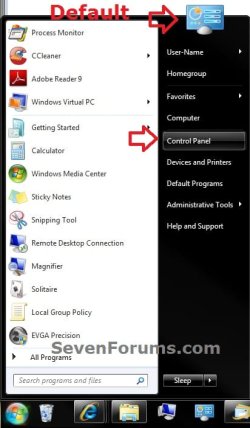
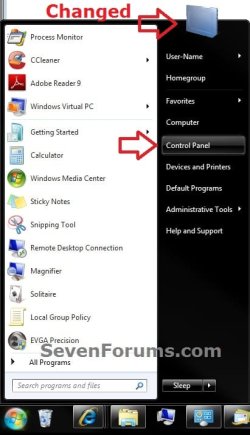
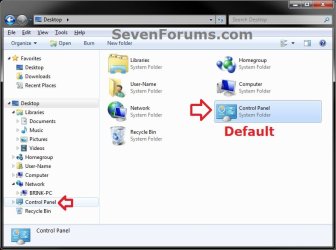
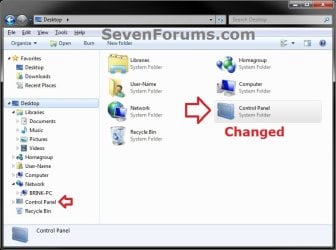
This will show you how to change the default Control Panel icon in the Windows 7 Start Menu, Desktop icon, and navigation pane to be a icon of your choice.
You should use a 256x256 pixel .ico (icon) file to have the best support for all icon view sizes.
You should use a 256x256 pixel .ico (icon) file to have the best support for all icon view sizes.
EXAMPLE: Default and Changed Control Panel Icon
OPTION ONE
To Change Control Panel Icon for Current User Only
NOTE: This option will only change the default icon for the user account that you are currently logged in, and will override the icon from OPTION TWO below for only this user account. This option will not change the icon for all users like OPTION TWO below, but only for the current user.
1. To Change the Control Panel Icon for Current User
A) Click on the Download button below to download the file below.
Add_Default_Control_Panel_Icon_Entries.reg
Download
B) Save the .reg file to the desktop.
C) Right click the downloaded .reg file on the Desktop and click on Merge.
D) Click on Run, Yes (UAC), Yes, and OK when prompted.
E) Open the Start Menu, then type regedit in the search box and press Enter.
F) If prompted by UAC, then click on Yes (administrator) or enter administrator's password (standard user).
G) In regedit, navigate to the location below. (see screenshot below)
NOTE: This will be the registry locations added from steps A to D.
Code:
HKEY_CURRENT_USER\Software\Microsoft\Windows\CurrentVersion\Explorer\CLSID\{26EE0668-A00A-44D7-9371-BEB064C98683}\DefaultIcon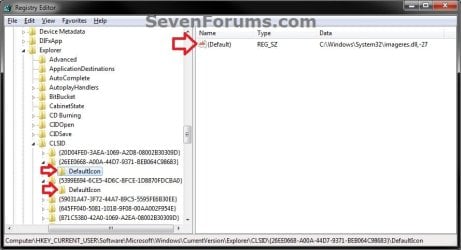
H) In the right pane of DefaultIcon, right click on (Default) and click on Modify. (see screenshot above)
I) Do either step J or K below.
J) To Use another Windows 7 Icon
J1) Download and install the free program IconViewer to add the Icons tab in the screenshot below step J2.
NOTE: Be sure to download the correct 32-bit or 64-bit version for your Windows 7.
J2) In Windows Explorer navigate to the .exe (ex: for program icons) or .dll (ex: Windows 7 icons) file that contains the icon that you want to use, right click on the file, click on Properties, and the Icons tab. (see screenshot below)
NOTE: The most common Windows 7 icons come from the C:\Windows\System32\imageres.dll file.
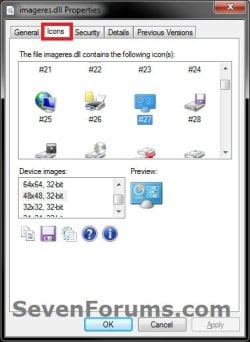
J3) Make note of the icon number for the icon that you want to use instead. (see screenshot above)
NOTE: For example, the default Control Panel icon number is 27.
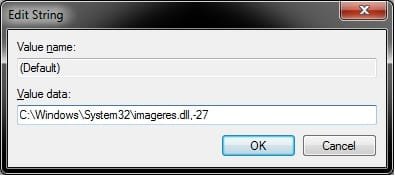
J4) In the Modify window from regedit, type in the full path of the .exe or .dll file followed by ,-icon# (full path,-####) and click on OK. (see screenshot below)
NOTE: For example, if I wanted to use the path (step J2) and the 27 icon (step J3), I would type:
%SystemRoot%\system32\imageres.dll,-27
OR
C:\Windows\System32\imageres.dll,-27
J5) Go to step L below.
K) To Use a Custom Icon of Your Own
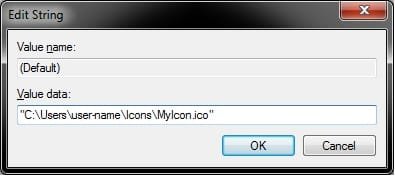
K1) In the Modify window from regedit, type in the full path of where the custom icon (.ico) file is saved at with the file extension in quotes, then click on OK. (see screenshot below)
WARNING: You will need to use a 256x256 pixel icon that was made for Windows 7 and Vista for them to display properly at all of the available icon view sizes in Windows 7. You will also need to leave the icon (.ico file) saved at the exact location you typed below for it to continue to work. If you delete or move this icon, then it will no longer be displayed.
L) In regedit, navigate to the location below.
NOTE: This will be the registry locations added from steps A to D.
Code:
HKEY_CURRENT_USER\Software\Microsoft\Windows\CurrentVersion\Explorer\CLSID\{5399E694-6CE5-4D6C-8FCE-1D8870FDCBA0}\DefaultIconN) Do either step J or K above, and use the same icon you used at step G above. When finished, go to step 3.
2. To Restore the Default Control Panel Icon for Current User Only
NOTE: This will undo the changes made to the icon in OPTION ONE for only the current user, and restore the icon back to what the icon is set as in OPTION TWO below.
A) Click on the Download button below to download the file below.
Restore_Default_Current_User_Control_Panel_Icon.reg
Download
B) Save the .reg file to the desktop.
C) Right click the downloaded .reg file on the Desktop and click on Merge.
D) Click on Run, Yes (UAC), Yes, and OK when prompted.
3. Log off and log on, or restart the computer to apply.
4. When done, you can delete the downloaded .reg file if you like.
OPTION TWO
To Change Control Panel Icon for All Users
NOTE: This option will change the default icon for all users on the computer. You will need to be logged in as an administrator to be able to do this option. OPTION ONE above will override this option's changed icon only in the user account that OPTION ONE was applied in.
1. To Change the Control Panel Icon for All Users
A) Open the Start Menu, then type regedit in the search box and press Enter.
B) If prompted by UAC, then click on Yes.
C) In regedit, navigate to the location below. (see screenshot below)
Code:
HKEY_CLASSES_ROOT\CLSID\{26EE0668-A00A-44D7-9371-BEB064C98683}\DefaultIcon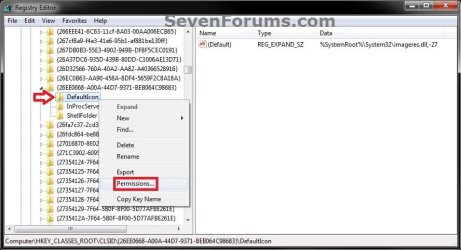
D) In the left pane, right click on DefaultIcon, click on Permissions. (see screenshot above)
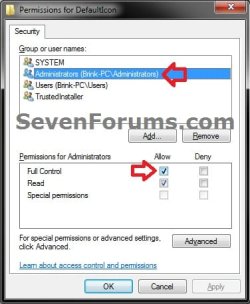
E) Select your Administrators account, check the Allow box for Full Control, then click on OK. (see screenshot below)
F) In the right pane of DefaultIcon, right click on (Default) and click on Modify. (see screenshot below step 1C)
G) Do either step H or I below.
H) To Use another Windows 7 Icon
H1) Download and install the free program IconViewer to add the Icons tab in the screenshot below step H2.
NOTE: Be sure to download the correct 32-bit or 64-bit version for your Windows 7.
H2) In Windows Explorer navigate to the .exe (ex: for program icons) or .dll (ex: Windows 7 icons) file that contains the icon that you want to use, then right click on the file, click on Properties, and the Icons tab. (see screenshot below)
NOTE: The most common Windows 7 icons come from the C:\Windows\System32\imageres.dll file.
H3) Make note of the icon number for the icon that you want to use instead. (see screenshot above)
NOTE: For example, the default Control Panel icon number is 27.
H4) In the Modify window from regedit, type in the full path of the .exe or .dll file followed by ,-icon# (full path,-####) and click on OK. (see screenshot below)
NOTE: For example, if I wanted to use the path (step H2) and the 27 icon (step H3), I would type:
%SystemRoot%\system32\imageres.dll,-27
OR
C:\Windows\System32\imageres.dll,-27
H5) Go to step J below.
I) To Use a Custom Icon of Your Own
I1) In the Modify window from regedit, type in the full path of where the custom icon (.ico) file is saved at with the file extension in quotes, then click on OK. (see screenshot below)
WARNING: You will need to use a 256x256 pixel icon that was made for Windows 7 and Vista for them to display properly at all of the available icon view sizes in Windows 7. The icon will need to be saved in a location that all users have access to. For example, in a C:\Users\Public folder. You will also need to leave the icon (.ico file) saved at the exact location you typed below for it to continue to work. If you delete or move this icon, then it will no longer be displayed.
J) In regedit, navigate to the location below.
NOTE: This will be the registry locations added from steps A to D.
Code:
HKEY_CLASSES_ROOT\CLSID\{5399E694-6CE5-4D6C-8FCE-1D8870FDCBA0}\DefaultIconL) Do either step H or I above, and use the same icon you used at step C above. When finished, go to step 3.
2. To Restore the Default Control Panel Icon for All Users
NOTE: This will restore the default icon for your user account and all users except the user accounts that had applied OPTION ONE above.
A) Click on the Download button below to download the file below.
Restore_All_Users_Default_Control_Panel_Icon.reg
Download
B) Save the .reg file to the desktop.
C) Right click the downloaded .reg file on the Desktop and click on Merge.
D) Click on Run, Yes (UAC), Yes, and OK when prompted.
3. Log off and log on, or restart the computer to apply.
4. When done, you can delete the downloaded .reg file if you like.
That's it,
Shawn
Related Tutorials
- How to Change the Default Icons in the Windows 7 Control Panel
- How to Add or Remove Control Panel from the Windows 7 Navigation Pane
- How to Set a Default Control Panel View in Windows 7 and Windows 8
- How to Change or Restore Default Windows 7 Desktop Icons
- How to Rename "Control Panel" in the Windows 7 Explorer Navigation Pane
- How to Enable or Disable the Control Panel in Vista and Windows 7
- How to Hide or Show a Control Panel Icon in Vista and Windows 7
- How to Change the Default "Help and Support" Icon in the Windows 7 Start Menu
- How to Change the Default "Default Programs" Icon in the Windows 7 Start Menu
- How to Change the Default "Connect To" Icon in the Windows 7 Start Menu
- How to Change the Default "Run" Icon in the Windows 7 Start Menu
- How to Change the Default "HomeGroup" Icon in Windows 7
- How to Change the Default "Devices and Printers" Icon in the Windows 7 Start Menu
- How to Change the Default "Games" Explorer Icon in the Windows 7 Start Menu
- How to Change or Restore Default Windows 7 Desktop Icons
- How to Change the Default "Recent Items" Icon in the Windows 7 Start Menu
Attachments
Last edited:


