Control Panel - Change Default Icon

How to Change the Default Control Panel Icon in Windows 7


   Information
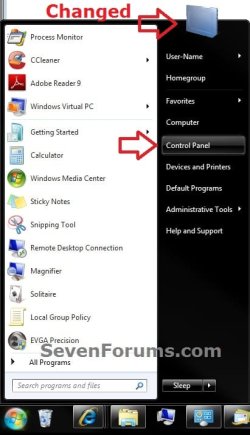
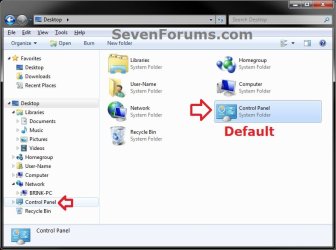
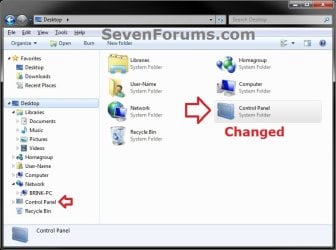
This will show you how to change the default Control Panel icon in the Windows 7 Start Menu, Desktop icon, and navigation pane to be a icon of your choice.

You should use a 256x256 pixel .ico (icon) file to have the best support for all icon view sizes.

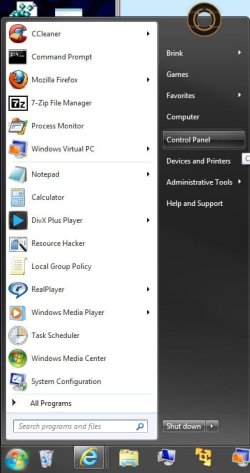
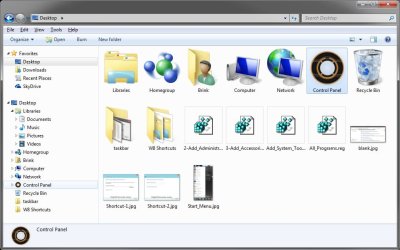
EXAMPLE: Default and Changed Control Panel Icon
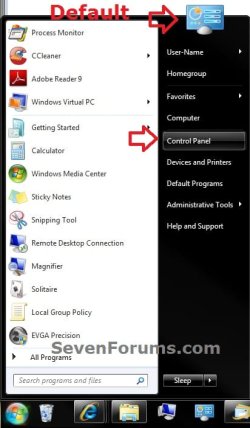
Start_Menu_Example_Default.jpgStart_Menu_Example_Changed.jpg
Example-2.jpg

Example-1.jpg


OPTION ONE

To Change Control Panel Icon for Current User Only


NOTE: This option will only change the default icon for the user account that you are currently logged in, and will override the icon from OPTION TWO below for only this user account. This option will not change the icon for all users like OPTION TWO below, but only for the current user.
1. To Change the Control Panel Icon for Current User
A) Click on the Download button below to download the file below.
Add_Default_Control_Panel_Icon_Entries.reg

Download


B) Save the .reg file to the desktop.

C) Right click the downloaded .reg file on the Desktop and click on Merge.

D) Click on Run, Yes (UAC), Yes, and OK when prompted.

E) Open the Start Menu, then type regedit in the search box and press Enter.

F) If prompted by UAC, then click on Yes (administrator) or enter administrator's password (standard user).

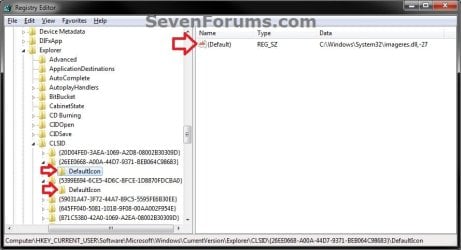
G) In regedit, navigate to the location below. (see screenshot below)
NOTE: This will be the registry locations added from steps A to D.

Code:
HKEY_CURRENT_USER\Software\Microsoft\Windows\CurrentVersion\Explorer\CLSID\{26EE0668-A00A-44D7-9371-BEB064C98683}\DefaultIcon
Reg_Current_User.jpg
H) In the right pane of DefaultIcon, right click on (Default) and click on Modify. (see screenshot above)

I) Do either step J or K below.

J) To Use another Windows 7 Icon
J1) Download and install the free program IconViewer to add the Icons tab in the screenshot below step J2.
NOTE: Be sure to download the correct 32-bit or 64-bit version for your Windows 7.

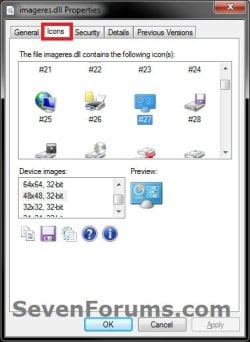
J2) In Windows Explorer navigate to the .exe (ex: for program icons) or .dll (ex: Windows 7 icons) file that contains the icon that you want to use, right click on the file, click on Properties, and the Icons tab. (see screenshot below)
NOTE: The most common Windows 7 icons come from the C:\Windows\System32\imageres.dll file.
Icons.jpg
J3) Make note of the icon number for the icon that you want to use instead. (see screenshot above)
NOTE: For example, the default Control Panel icon number is 27.

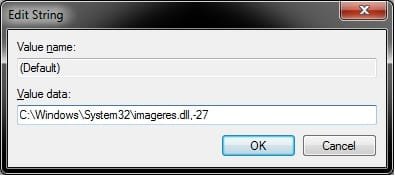
J4) In the Modify window from regedit, type in the full path of the .exe or .dll file followed by ,-icon# (full path,-####) and click on OK. (see screenshot below)
NOTE: For example, if I wanted to use the path (step J2) and the 27 icon (step J3), I would type:

%SystemRoot%\system32\imageres.dll,-27

OR

C:\Windows\System32\imageres.dll,-27
Modify.jpg
J5) Go to step L below.
K) To Use a Custom Icon of Your Own
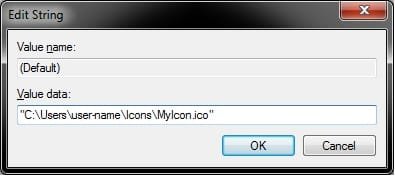
K1) In the Modify window from regedit, type in the full path of where the custom icon (.ico) file is saved at with the file extension in quotes, then click on OK. (see screenshot below)
WARNING: You will need to use a 256x256 pixel icon that was made for Windows 7 and Vista for them to display properly at all of the available icon view sizes in Windows 7. You will also need to leave the icon (.ico file) saved at the exact location you typed below for it to continue to work. If you delete or move this icon, then it will no longer be displayed.
Modify_Custom.jpg
L) In regedit, navigate to the location below.
NOTE: This will be the registry locations added from steps A to D.

Code:
HKEY_CURRENT_USER\Software\Microsoft\Windows\CurrentVersion\Explorer\CLSID\{5399E694-6CE5-4D6C-8FCE-1D8870FDCBA0}\DefaultIcon
M) In the right pane of DefaultIcon, right click on (Default) and click on Modify. (see screenshot above)

N) Do either step J or K above, and use the same icon you used at step G above. When finished, go to step 3.
2. To Restore the Default Control Panel Icon for Current User Only
NOTE: This will undo the changes made to the icon in OPTION ONE for only the current user, and restore the icon back to what the icon is set as in OPTION TWO below.
A) Click on the Download button below to download the file below.
Restore_Default_Current_User_Control_Panel_Icon.reg

Download


B) Save the .reg file to the desktop.

C) Right click the downloaded .reg file on the Desktop and click on Merge.

D) Click on Run, Yes (UAC), Yes, and OK when prompted.
3. Log off and log on, or restart the computer to apply.

4. When done, you can delete the downloaded .reg file if you like.


OPTION TWO

To Change Control Panel Icon for All Users


NOTE: This option will change the default icon for all users on the computer. You will need to be logged in as an administrator to be able to do this option. OPTION ONE above will override this option's changed icon only in the user account that OPTION ONE was applied in.
1. To Change the Control Panel Icon for All Users
A) Open the Start Menu, then type regedit in the search box and press Enter.

B) If prompted by UAC, then click on Yes.

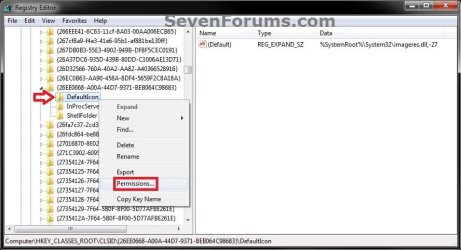
C) In regedit, navigate to the location below. (see screenshot below)

Code:
HKEY_CLASSES_ROOT\CLSID\{26EE0668-A00A-44D7-9371-BEB064C98683}\DefaultIcon
Reg-1_All_Users.jpg
D) In the left pane, right click on DefaultIcon, click on Permissions. (see screenshot above)

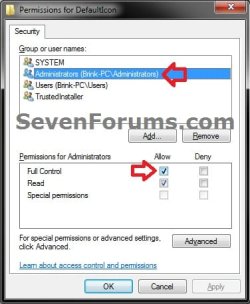
E) Select your Administrators account, check the Allow box for Full Control, then click on OK. (see screenshot below)
Permissions.jpg
F) In the right pane of DefaultIcon, right click on (Default) and click on Modify. (see screenshot below step 1C)

G) Do either step H or I below.

H) To Use another Windows 7 Icon
H1) Download and install the free program IconViewer to add the Icons tab in the screenshot below step H2.
NOTE: Be sure to download the correct 32-bit or 64-bit version for your Windows 7.

H2) In Windows Explorer navigate to the .exe (ex: for program icons) or .dll (ex: Windows 7 icons) file that contains the icon that you want to use, then right click on the file, click on Properties, and the Icons tab. (see screenshot below)
NOTE: The most common Windows 7 icons come from the C:\Windows\System32\imageres.dll file.
Icons.jpg
H3) Make note of the icon number for the icon that you want to use instead. (see screenshot above)
NOTE: For example, the default Control Panel icon number is 27.

H4) In the Modify window from regedit, type in the full path of the .exe or .dll file followed by ,-icon# (full path,-####) and click on OK. (see screenshot below)
NOTE: For example, if I wanted to use the path (step H2) and the 27 icon (step H3), I would type:

%SystemRoot%\system32\imageres.dll,-27

OR

C:\Windows\System32\imageres.dll,-27
Modify.jpg
H5) Go to step J below.
I) To Use a Custom Icon of Your Own
I1) In the Modify window from regedit, type in the full path of where the custom icon (.ico) file is saved at with the file extension in quotes, then click on OK. (see screenshot below)
WARNING: You will need to use a 256x256 pixel icon that was made for Windows 7 and Vista for them to display properly at all of the available icon view sizes in Windows 7. The icon will need to be saved in a location that all users have access to. For example, in a C:\Users\Public folder. You will also need to leave the icon (.ico file) saved at the exact location you typed below for it to continue to work. If you delete or move this icon, then it will no longer be displayed.
Modify_Custom.jpg
J) In regedit, navigate to the location below.
NOTE: This will be the registry locations added from steps A to D.

Code:
HKEY_CLASSES_ROOT\CLSID\{5399E694-6CE5-4D6C-8FCE-1D8870FDCBA0}\DefaultIcon
K) In the right pane of DefaultIcon, right click on (Default) and click on Modify.

L) Do either step H or I above, and use the same icon you used at step C above. When finished, go to step 3.
2. To Restore the Default Control Panel Icon for All Users
NOTE: This will restore the default icon for your user account and all users except the user accounts that had applied OPTION ONE above.
A) Click on the Download button below to download the file below.
Restore_All_Users_Default_Control_Panel_Icon.reg

Download


B) Save the .reg file to the desktop.

C) Right click the downloaded .reg file on the Desktop and click on Merge.

D) Click on Run, Yes (UAC), Yes, and OK when prompted.
3. Log off and log on, or restart the computer to apply.

4. When done, you can delete the downloaded .reg file if you like.
That's it,
Shawn


Attachments

Last edited:
Thank you Shawn :) had a little problem at first, but dubble checked and tripple checked ur guide :)

Works a 100% :)
 

My Computer

Computer Manufacturer/Model Number
LG Notebook
OS
Windows 7 Ultimate x64
CPU
2.1Ghz
Motherboard
N/A
Memory
3Gb
Graphics Card(s)
nVidia 8600M GT
Sound Card
Realtek HD Audio
Monitor(s) Displays
17.1" TFT ( WSXGA+ ) - Glare
Screen Resolution
17.1"
Hard Drives
320Gig disc
PSU
N/A
Case
Laptop Case =)
Cooling
Laptop again xD
Keyboard
Builtin @ Laptop =)
Mouse
Razer Copperhead
Internet Speed
100/100Mb :) Swe Connection =D
Other Info
i eat metal :D
You're most welcome xTL. Thank you for posting back with your results. :)
 

My Computer

Computer type
PC/Desktop
Computer Manufacturer/Model Number
Self built custom
OS
64-bit Windows 11 Pro for Workstations
CPU
Intel i7-8700K OC'd to 5 GHz
Motherboard
ASUS ROG Maximus XI Formula Z390
Memory
64 GB (4x16GB) G.SKILL TridentZ RGB DDR4 3600 MHz
Graphics Card(s)
ASUS ROG-STRIX-GTX1080TI-O11G-GAMING
Sound Card
Integrated
Monitor(s) Displays
2 x Samsung Odyssey G7 27"
Screen Resolution
2560x1440
Hard Drives
1TB Samsung 990 PRO M.2,
4TB Samsung 990 PRO PRO M.2,
TerraMaster F8 SSD Plus NAS
PSU
Seasonic Prime Titanium 850W
Case
Thermaltake Core P3
Cooling
Corsair Hydro H115i
Keyboard
Logitech wireless K800
Mouse
Logitech MX Master 4
Internet Speed
2 Gb/s Download and 100 Mb/s Upload
Antivirus
Malwarebyte Anti-Malware Premium
Browser
Google Chrome
Other Info
Logitech Z625 speaker system,
Logitech BRIO 4K Pro webcam,
HP Color LaserJet Pro MFP M477fdn,
APC SMART-UPS RT 1000 XL - SURT1000XLI,
Galaxy S23 Plus phone
so far every singel tutorial here has worked for me :) really happy :D
 

My Computer

Computer Manufacturer/Model Number
LG Notebook
OS
Windows 7 Ultimate x64
CPU
2.1Ghz
Motherboard
N/A
Memory
3Gb
Graphics Card(s)
nVidia 8600M GT
Sound Card
Realtek HD Audio
Monitor(s) Displays
17.1" TFT ( WSXGA+ ) - Glare
Screen Resolution
17.1"
Hard Drives
320Gig disc
PSU
N/A
Case
Laptop Case =)
Cooling
Laptop again xD
Keyboard
Builtin @ Laptop =)
Mouse
Razer Copperhead
Internet Speed
100/100Mb :) Swe Connection =D
Other Info
i eat metal :D
Hi there...
the tutorial is great, but for some reason, the only icon that doesnt change is the icon in the start menu...
following the steps in the tutorial, the icon changed in every location apart from the start menu one.
Please see attached images.

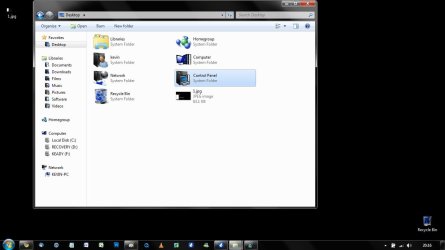
Image 1 - this shows the icon still at its original state

1.jpg


Image 2 - this shows the icon in its changed state

2.jpg


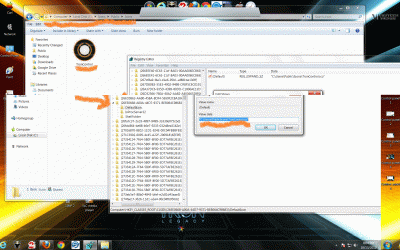
Image 3 - this shows the regedit key entered

3.jpg


Please advise!!
thanks!
 

My Computer

OS
windows 7 home premium
Hello Kevin,

Have you already restarted the computer afterwards to see if that may have been the issue?

If you did, then also do OPTION ONE to see if it will change afterwards.

Hope this helps,
Shawn
 

My Computer

Computer type
PC/Desktop
Computer Manufacturer/Model Number
Self built custom
OS
64-bit Windows 11 Pro for Workstations
CPU
Intel i7-8700K OC'd to 5 GHz
Motherboard
ASUS ROG Maximus XI Formula Z390
Memory
64 GB (4x16GB) G.SKILL TridentZ RGB DDR4 3600 MHz
Graphics Card(s)
ASUS ROG-STRIX-GTX1080TI-O11G-GAMING
Sound Card
Integrated
Monitor(s) Displays
2 x Samsung Odyssey G7 27"
Screen Resolution
2560x1440
Hard Drives
1TB Samsung 990 PRO M.2,
4TB Samsung 990 PRO PRO M.2,
TerraMaster F8 SSD Plus NAS
PSU
Seasonic Prime Titanium 850W
Case
Thermaltake Core P3
Cooling
Corsair Hydro H115i
Keyboard
Logitech wireless K800
Mouse
Logitech MX Master 4
Internet Speed
2 Gb/s Download and 100 Mb/s Upload
Antivirus
Malwarebyte Anti-Malware Premium
Browser
Google Chrome
Other Info
Logitech Z625 speaker system,
Logitech BRIO 4K Pro webcam,
HP Color LaserJet Pro MFP M477fdn,
APC SMART-UPS RT 1000 XL - SURT1000XLI,
Galaxy S23 Plus phone
Hi there...
the tutorial is great, but for some reason, the only icon that doesnt change is the icon in the start menu...
following the steps in the tutorial, the icon changed in every location apart from the start menu one.
Please see attached images.

Image 1 - this shows the icon still at its original state

View attachment 117310


Image 2 - this shows the icon in its changed state

View attachment 117311


Image 3 - this shows the regedit key entered

View attachment 117313


Please advise!!
thanks!


Kevin,

After following Brink's advice to restart the computer, this problem was resolved on my system. Should work for all other users too.

Another thing I have discovered is that when accessing the control panel in the 'Large Icons' or 'Small icons' view modes, the taskbar icon remains unchanged along with the small icon to the immediate left of the URL bar. Viewing in 'Category' mode resolves this issue.

[hint] Perhaps further tweaking can resolve this minor problem! [\hint]

A well written tutorial nonetheless. Back to further customising my Windows 7.
 

My Computer

OS
Windows 7 Professional 32 bit
Control Panel Icon Changing

My Control panel Icon does not change.

I went through all the steps and restarted my computer often.

/image
5ZUjc.gif

This is how my computer currently looks.

I went back and tried both methods.

I even went to the different registry files and changed them both.

I used the registry merge app as well.
sESJk.gif


KPSv2.gif


AXDUd.gif


nAzWu.gif


In Summary, it seems like my computer feels like she is married to the wrong person. Am I begin strong armed here or what?
 

My Computer

OS
Windows 7 Ultimate x64
CPU
AMD Phenom IIx4 920 2.81 GHZ
Motherboard
Formula Crosshar II
Memory
4GB
Graphics Card(s)
Nvidia 9800GTX+
Hello Carl, and welcome to Seven Forums.

If you would, please ZIP your icon and upload it here. I'll be happy to test it on my system to see what the issue may be.

In addition, could you also post screenshots of your registry for the locations in OPTION ONE to see what they look like. :)
 

My Computer

Computer type
PC/Desktop
Computer Manufacturer/Model Number
Self built custom
OS
64-bit Windows 11 Pro for Workstations
CPU
Intel i7-8700K OC'd to 5 GHz
Motherboard
ASUS ROG Maximus XI Formula Z390
Memory
64 GB (4x16GB) G.SKILL TridentZ RGB DDR4 3600 MHz
Graphics Card(s)
ASUS ROG-STRIX-GTX1080TI-O11G-GAMING
Sound Card
Integrated
Monitor(s) Displays
2 x Samsung Odyssey G7 27"
Screen Resolution
2560x1440
Hard Drives
1TB Samsung 990 PRO M.2,
4TB Samsung 990 PRO PRO M.2,
TerraMaster F8 SSD Plus NAS
PSU
Seasonic Prime Titanium 850W
Case
Thermaltake Core P3
Cooling
Corsair Hydro H115i
Keyboard
Logitech wireless K800
Mouse
Logitech MX Master 4
Internet Speed
2 Gb/s Download and 100 Mb/s Upload
Antivirus
Malwarebyte Anti-Malware Premium
Browser
Google Chrome
Other Info
Logitech Z625 speaker system,
Logitech BRIO 4K Pro webcam,
HP Color LaserJet Pro MFP M477fdn,
APC SMART-UPS RT 1000 XL - SURT1000XLI,
Galaxy S23 Plus phone
Okay, so I went through step one again and took a screenshot of that location and the new path I made to the new Icon.

Control panel6.gif


Also, I double checked the icon in gimp, it was 256x256 and I uploaded it here in a zip.View attachment TronControl.zip
 

My Computer

OS
Windows 7 Ultimate x64
CPU
AMD Phenom IIx4 920 2.81 GHZ
Motherboard
Formula Crosshar II
Memory
4GB
Graphics Card(s)
Nvidia 9800GTX+
Carl,

I just used OPTION TWO with your icon saved at the same location, and it's working fine for me after logging off and on.

Use step 2 in OPTION TWO to reset everything back to default, log off and on, and try OPTION TWO again double checking for any small possible mistake being made to see how it goes this time.

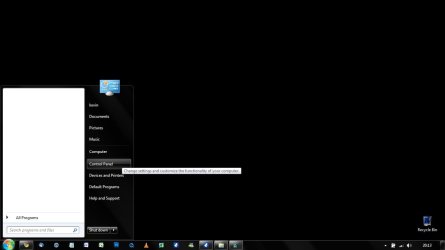
Start_Menu.jpg Explorer.jpg
 

My Computer

Computer type
PC/Desktop
Computer Manufacturer/Model Number
Self built custom
OS
64-bit Windows 11 Pro for Workstations
CPU
Intel i7-8700K OC'd to 5 GHz
Motherboard
ASUS ROG Maximus XI Formula Z390
Memory
64 GB (4x16GB) G.SKILL TridentZ RGB DDR4 3600 MHz
Graphics Card(s)
ASUS ROG-STRIX-GTX1080TI-O11G-GAMING
Sound Card
Integrated
Monitor(s) Displays
2 x Samsung Odyssey G7 27"
Screen Resolution
2560x1440
Hard Drives
1TB Samsung 990 PRO M.2,
4TB Samsung 990 PRO PRO M.2,
TerraMaster F8 SSD Plus NAS
PSU
Seasonic Prime Titanium 850W
Case
Thermaltake Core P3
Cooling
Corsair Hydro H115i
Keyboard
Logitech wireless K800
Mouse
Logitech MX Master 4
Internet Speed
2 Gb/s Download and 100 Mb/s Upload
Antivirus
Malwarebyte Anti-Malware Premium
Browser
Google Chrome
Other Info
Logitech Z625 speaker system,
Logitech BRIO 4K Pro webcam,
HP Color LaserJet Pro MFP M477fdn,
APC SMART-UPS RT 1000 XL - SURT1000XLI,
Galaxy S23 Plus phone
Yes! It worked this time. Perhaps something crashed when I logged out. For some reason my computer crashes when i log out. Thanks though!
 

My Computer

OS
Windows 7 Ultimate x64
CPU
AMD Phenom IIx4 920 2.81 GHZ
Motherboard
Formula Crosshar II
Memory
4GB
Graphics Card(s)
Nvidia 9800GTX+
Carl,

I'm happy to here that your Control Panel icon is changed to how you wanted now. :)

If you like, please create a new thread with any related details you can think of about your computer crashing when you log out, and we'll be happy to see what we may be able to do to help. It wouldn't hurt to see the link below, and include the report with the post to hopefully help with finding the cause.

http://www.sevenforums.com/crashes-debugging/96879-blue-screen-death-bsod-posting-instructions.html
 

My Computer

Computer type
PC/Desktop
Computer Manufacturer/Model Number
Self built custom
OS
64-bit Windows 11 Pro for Workstations
CPU
Intel i7-8700K OC'd to 5 GHz
Motherboard
ASUS ROG Maximus XI Formula Z390
Memory
64 GB (4x16GB) G.SKILL TridentZ RGB DDR4 3600 MHz
Graphics Card(s)
ASUS ROG-STRIX-GTX1080TI-O11G-GAMING
Sound Card
Integrated
Monitor(s) Displays
2 x Samsung Odyssey G7 27"
Screen Resolution
2560x1440
Hard Drives
1TB Samsung 990 PRO M.2,
4TB Samsung 990 PRO PRO M.2,
TerraMaster F8 SSD Plus NAS
PSU
Seasonic Prime Titanium 850W
Case
Thermaltake Core P3
Cooling
Corsair Hydro H115i
Keyboard
Logitech wireless K800
Mouse
Logitech MX Master 4
Internet Speed
2 Gb/s Download and 100 Mb/s Upload
Antivirus
Malwarebyte Anti-Malware Premium
Browser
Google Chrome
Other Info
Logitech Z625 speaker system,
Logitech BRIO 4K Pro webcam,
HP Color LaserJet Pro MFP M477fdn,
APC SMART-UPS RT 1000 XL - SURT1000XLI,
Galaxy S23 Plus phone
It turns out that I only had a log off problem during the process of changing my icon. Now I can log off without the computer freezing.
 

My Computer

OS
Windows 7 Ultimate x64
CPU
AMD Phenom IIx4 920 2.81 GHZ
Motherboard
Formula Crosshar II
Memory
4GB
Graphics Card(s)
Nvidia 9800GTX+
Odd, but I'm glad to hear everything is fine now. :)
 

My Computer

Computer type
PC/Desktop
Computer Manufacturer/Model Number
Self built custom
OS
64-bit Windows 11 Pro for Workstations
CPU
Intel i7-8700K OC'd to 5 GHz
Motherboard
ASUS ROG Maximus XI Formula Z390
Memory
64 GB (4x16GB) G.SKILL TridentZ RGB DDR4 3600 MHz
Graphics Card(s)
ASUS ROG-STRIX-GTX1080TI-O11G-GAMING
Sound Card
Integrated
Monitor(s) Displays
2 x Samsung Odyssey G7 27"
Screen Resolution
2560x1440
Hard Drives
1TB Samsung 990 PRO M.2,
4TB Samsung 990 PRO PRO M.2,
TerraMaster F8 SSD Plus NAS
PSU
Seasonic Prime Titanium 850W
Case
Thermaltake Core P3
Cooling
Corsair Hydro H115i
Keyboard
Logitech wireless K800
Mouse
Logitech MX Master 4
Internet Speed
2 Gb/s Download and 100 Mb/s Upload
Antivirus
Malwarebyte Anti-Malware Premium
Browser
Google Chrome
Other Info
Logitech Z625 speaker system,
Logitech BRIO 4K Pro webcam,
HP Color LaserJet Pro MFP M477fdn,
APC SMART-UPS RT 1000 XL - SURT1000XLI,
Galaxy S23 Plus phone
First of all, really thanks for this tutorial.
I have just 2 problems with my custom control panel icon: first in the taskbar...there the icon showed is the default...i tried to change even the System.AppUserModel.RelaunchIconResource but without success.
The second problem is in the control panel; there in the address bar(or omnibox-i don't know the right name) the icon showed is my custom one with the category view but when i switch in the icons view(big and small) it return the default one.
2akhen5.jpg

Anyone can halp me?
 

My Computer

Computer type
PC/Desktop
OS
Windows 7 Ultimate 32bit
Hello Eosim, and welcome to Seven Forums.

See if doing both OPTION ONE and OPTION TWO may sort this for you. Be sure to set the icon at all registry locations.

Hope this helps for now, :)
Shawn
 

My Computer

Computer type
PC/Desktop
Computer Manufacturer/Model Number
Self built custom
OS
64-bit Windows 11 Pro for Workstations
CPU
Intel i7-8700K OC'd to 5 GHz
Motherboard
ASUS ROG Maximus XI Formula Z390
Memory
64 GB (4x16GB) G.SKILL TridentZ RGB DDR4 3600 MHz
Graphics Card(s)
ASUS ROG-STRIX-GTX1080TI-O11G-GAMING
Sound Card
Integrated
Monitor(s) Displays
2 x Samsung Odyssey G7 27"
Screen Resolution
2560x1440
Hard Drives
1TB Samsung 990 PRO M.2,
4TB Samsung 990 PRO PRO M.2,
TerraMaster F8 SSD Plus NAS
PSU
Seasonic Prime Titanium 850W
Case
Thermaltake Core P3
Cooling
Corsair Hydro H115i
Keyboard
Logitech wireless K800
Mouse
Logitech MX Master 4
Internet Speed
2 Gb/s Download and 100 Mb/s Upload
Antivirus
Malwarebyte Anti-Malware Premium
Browser
Google Chrome
Other Info
Logitech Z625 speaker system,
Logitech BRIO 4K Pro webcam,
HP Color LaserJet Pro MFP M477fdn,
APC SMART-UPS RT 1000 XL - SURT1000XLI,
Galaxy S23 Plus phone
Thank you for your answer, Brink.
Yesterday i changed all the default icon keys find in this tutorial, the 2 under CLSD and the other 2 under explorer and that was the outcome :(
Today i have change directly the icon in the imageres.dll (27) and the control.exe icon...but still have the dafault one in taskbar and in the address bar of control panel in the icons view (big and small)...maybe there is other files with that default control panel icon?
between sorry for my bad english

edit:
now is perfect...i just follow your guide http://www.sevenforums.com/tutorials/49819-icon-cache-rebuild.html and it work...before i just delete the iconchace manually under appdata\local...
Really thanks
 
Last edited:

My Computer

Computer type
PC/Desktop
OS
Windows 7 Ultimate 32bit
Great news Eosim. :)
 

My Computer

Computer type
PC/Desktop
Computer Manufacturer/Model Number
Self built custom
OS
64-bit Windows 11 Pro for Workstations
CPU
Intel i7-8700K OC'd to 5 GHz
Motherboard
ASUS ROG Maximus XI Formula Z390
Memory
64 GB (4x16GB) G.SKILL TridentZ RGB DDR4 3600 MHz
Graphics Card(s)
ASUS ROG-STRIX-GTX1080TI-O11G-GAMING
Sound Card
Integrated
Monitor(s) Displays
2 x Samsung Odyssey G7 27"
Screen Resolution
2560x1440
Hard Drives
1TB Samsung 990 PRO M.2,
4TB Samsung 990 PRO PRO M.2,
TerraMaster F8 SSD Plus NAS
PSU
Seasonic Prime Titanium 850W
Case
Thermaltake Core P3
Cooling
Corsair Hydro H115i
Keyboard
Logitech wireless K800
Mouse
Logitech MX Master 4
Internet Speed
2 Gb/s Download and 100 Mb/s Upload
Antivirus
Malwarebyte Anti-Malware Premium
Browser
Google Chrome
Other Info
Logitech Z625 speaker system,
Logitech BRIO 4K Pro webcam,
HP Color LaserJet Pro MFP M477fdn,
APC SMART-UPS RT 1000 XL - SURT1000XLI,
Galaxy S23 Plus phone
Hi Brink,

I was having some frustration trying to get the Control Panel icon to change. As it turns out, you have to replace the original path with your new icon in additional places in the registry, especially if you have a 64-bit Windows. I just found this out a few minutes ago by searching for imageres.dll,-27 throughout the registry and replacing it with my new icon.

I'm posting a list of places where Control Panel looks for its icons, which I found need to be updated to reflect the path of your icon. Turns out there are quite a few of them, if you're changing the value for all users (a dozen for 32-bit, plus 10 additional for 64-bit, makes 22 in total!), which makes me wonder if a find-and-replace program for the registry would be most helpful for this task.

Keys that I did not find in the original tutorial are highlighted in bold green. The full list is as follows:

32-bit all-users keys in HKEY_CLASSES_ROOT:

  • HKEY_CLASSES_ROOT\CLSID\{21EC2020-3AEA-1069-A2DD-08002B30309D}\DefaultIcon (is mentioned at this link)
  • HKEY_CLASSES_ROOT\CLSID\{26EE0668-A00A-44D7-9371-BEB064C98683}\DefaultIcon
  • HKEY_CLASSES_ROOT\CLSID\{328B0346-7EAF-4BBE-A479-7CB88A095F5B}\DefaultIcon
  • HKEY_CLASSES_ROOT\CLSID\{5399E694-6CE5-4D6C-8FCE-1D8870FDCBA0}\DefaultIcon
  • HKEY_CLASSES_ROOT\CLSID\{ED7BA470-8E54-465E-825C-99712043E01C}\DefaultIcon
64-bit all-users keys in HKEY_CLASSES_ROOT:

  • HKEY_CLASSES_ROOT\Wow6432Node\CLSID\{21EC2020-3AEA-1069-A2DD-08002B30309D}\DefaultIcon
  • HKEY_CLASSES_ROOT\Wow6432Node\CLSID\{26EE0668-A00A-44D7-9371-BEB064C98683}\DefaultIcon
  • HKEY_CLASSES_ROOT\Wow6432Node\CLSID\{328B0346-7EAF-4BBE-A479-7CB88A095F5B}\DefaultIcon
  • HKEY_CLASSES_ROOT\Wow6432Node\CLSID\{5399E694-6CE5-4D6C-8FCE-1D8870FDCBA0}\DefaultIcon
  • HKEY_CLASSES_ROOT\Wow6432Node\CLSID\{ED7BA470-8E54-465E-825C-99712043E01C}\DefaultIcon
32-bit all-users keys in HKEY_LOCAL_MACHINE:

  • HKEY_LOCAL_MACHINE\SOFTWARE\Classes\CLSID\{21EC2020-3AEA-1069-A2DD-08002B30309D}\DefaultIcon
  • HKEY_LOCAL_MACHINE\SOFTWARE\Classes\CLSID\{26EE0668-A00A-44D7-9371-BEB064C98683}\DefaultIcon
  • HKEY_LOCAL_MACHINE\SOFTWARE\Classes\CLSID\{328B0346-7EAF-4BBE-A479-7CB88A095F5B}\DefaultIcon
  • HKEY_LOCAL_MACHINE\SOFTWARE\Classes\CLSID\{5399E694-6CE5-4D6C-8FCE-1D8870FDCBA0}\DefaultIcon
  • HKEY_LOCAL_MACHINE\SOFTWARE\Classes\CLSID\{ED7BA470-8E54-465E-825C-99712043E01C}\DefaultIcon
64-bit all-users keys in HKEY_LOCAL_MACHINE:

  • HKEY_LOCAL_MACHINE\SOFTWARE\Classes\Wow6432Node\CLSID\{21EC2020-3AEA-1069-A2DD-08002B30309D}\DefaultIcon
  • HKEY_LOCAL_MACHINE\SOFTWARE\Classes\Wow6432Node\CLSID\{26EE0668-A00A-44D7-9371-BEB064C98683}\DefaultIcon
  • HKEY_LOCAL_MACHINE\SOFTWARE\Classes\Wow6432Node\CLSID\{328B0346-7EAF-4BBE-A479-7CB88A095F5B}\DefaultIcon
  • HKEY_LOCAL_MACHINE\SOFTWARE\Classes\Wow6432Node\CLSID\{5399E694-6CE5-4D6C-8FCE-1D8870FDCBA0}\DefaultIcon
  • HKEY_LOCAL_MACHINE\SOFTWARE\Classes\Wow6432Node\CLSID\{ED7BA470-8E54-465E-825C-99712043E01C}\DefaultIcon
32-bit and 64-bit per-user keys in HKEY_CURRENT_USER (note there is no 64-bit per-user key by itself):

  • HKEY_CURRENT_USER\Software\Microsoft\Windows\CurrentVersion\Explorer\CLSID\{26EE0668-A00A-44D7-9371-BEB064C98683}\DefaultIcon
  • HKEY_CURRENT_USER\Software\Microsoft\Windows\CurrentVersion\Explorer\CLSID\{5399E694-6CE5-4D6C-8FCE-1D8870FDCBA0}\DefaultIcon
It is not necessary (and as I discovered, not possible) to change the value in the string:

System.AppUserModel.RelaunchIconResource

which can be found under the keys

HKEY_CLASSES_ROOT\CLSID\{26EE0668-A00A-44D7-9371-BEB064C98683}

and

HKEY_CLASSES_ROOT\CLSID\{26EE0668-A00A-44D7-9371-BEB064C98683} (if on a 64-bit system).

Changing the string values in the rest of the keys works fine. At least it did for me, and I have proof:

2py2mn5.png


Yes, Virginia, that is on a Windows 7 system! :D

Thanks to you, Brink, for the original tutorial. I couldn't have come this far without you.
 
Last edited:

My Computer

Computer type
Laptop
Computer Manufacturer/Model Number
HP ProBook 4540s
OS
Windows 7 Professional x64 SP1
CPU
Intel Core i3-3110M @ 2.40GHz
Motherboard
HP 17F6-KBC v58.20 | BIOS rev. F43
Memory
4GB SODIMM 1600MHz
Graphics Card(s)
Intel HD Graphics 4000
Sound Card
Intel Display Audio | IDT High Definition Audio Codec
Monitor(s) Displays
Intel HD Graphics 4000
Screen Resolution
1366x768
Hard Drives
500GB Hitachi GST SATA OEM
Keyboard
IBM Enhanced (101- or 102-key) Keyboard
Mouse
Synaptics PS/2 Port TouchPad
Internet Speed
Verizon DSL 1.5M/768K
Antivirus
MS Security Essentials, Spybot Search & Destroy
Browser
Mozilla Firefox and derivatives (Pale Moon, Waterfox)
Other Info
Printers:
HP Deskjet 3050A J611 series
HP Photosmart C309a series AIO
HP PSC 1210 Printer/Scanner/Copier
Back
Top