Control Panel View - Category or Icons

How to Set a Default Control Panel View in Windows 7 and Windows 8

   Information
This tutorial will show you how to set the Control Panel to always open by default with a Category, Small icons, or Large icons view for all or specific users in Windows 7 and Windows 8.

This only affects what view the Control Panel opens to by default. All users will still be able to change the Control Panel view to what they like in the Control Panel.


OPTION ONE

Set Default Control Panel View in the Control Panel


NOTE: This option will only affect your user account.
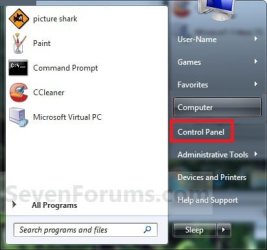
1. Open the Control Panel in Windows 7 or Windows 8.

2. Do step 3, 4, or 5 below for what you would like to do.

3. To Have the Control Panel with the Category View
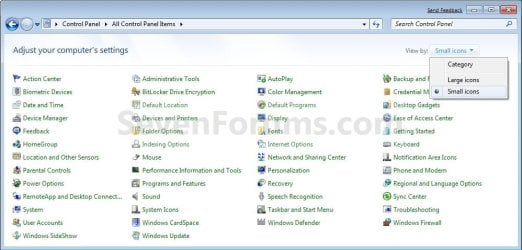
A) Click/tap on the View by drop down menu arrow, select (dot) Category, and go to step 6 below. (see screenshot above)
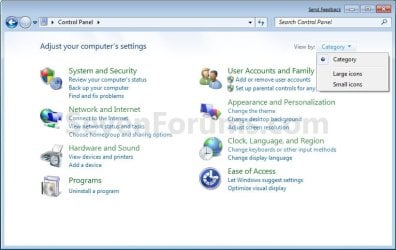
Category.jpg
4. For All Control Panel Items with Large Icons View
A) Click/tap on the View by drop down menu arrow, select (dot) Large icons, and go to step 6 below. (see screenshot above)
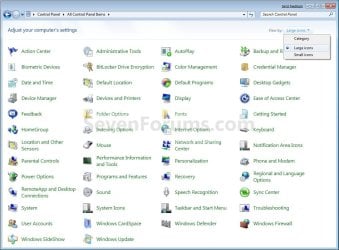
Large_Icons.jpg
5. For All Control Panel Items with Small Icons View
A) Click/tap on the View by drop down menu arrow, elect (dot) Small icons, and go to step 6 below. (see screenshot above)
Small_Icons.jpg
6. Close the Control Panel when done.
NOTE: The Control Panel will open to the same view as it was in when last closed by default.


OPTION TWO

Set Default Control Panel View in Group Policy


NOTE: This option requires that you are logged in as an administrator to do. You can apply this option to all or specific users.
1. Open the all users, specific users or groups, or all users except administrators Local Group Policy Editor for how you want this policy applied.

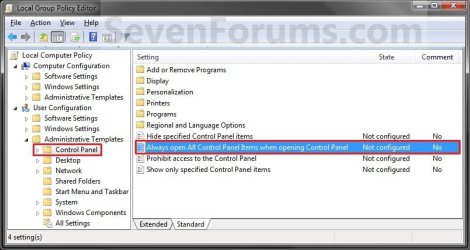
2. In the left pane, click/tap on to expand User Configuration, Administrative Templates, and Control Panel.
Group_Policy.jpg
3. In the right pane of Control Panel, double click/tap on Always open All Control Panel Items when opening the Control Panel to edit it. (see screenshot above)

4. Do step 5, 6, or 7 below for what you would like to set.

5. To Force Icons as the Default Control Panel View
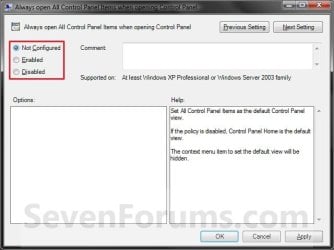
A) Select (dot) Enabled, and go to step 8 below. (see screenshot below step 8)
6. To Force Category as the Default Control Panel View
A) Select (dot) Disabled, and go to step 8 below. (see screenshot below step 8)
7. To Unforce All Views as the Default Control Panel View
NOTE: This is the default setting.
A) Select (dot) Not Configured, and go to step 8 below. (see screenshot below step 8)
8. Click/tap on OK. (see screenshot below)
Properties.jpg
9. You can now close the Local Group Policy Editor if you like.

10. If open, close and reopen Control Panel to see changes.


OPTION THREE

Set Default Control Panel View using a REG File Download


NOTE: This option requires that you are logged in as an administrator to do. This option will be applied to all users on the computer.
1. Do step 2, 3, or 4 below for what you would like to do.

2. To Force Icons as the Default Control Panel View
A) Click/tap on the Download button below to download the file below, and go to step 5 below.
Force_Control_Panel_Icons_View.reg

Download


3. To Force Category as the Default Control Panel View
A) Click/tap on the Download button below to download the file below, and go to step 5 below.
Force_Control_Panel_Category_View.reg

Download


4. To Unforce All Views as the Default Control Panel View
NOTE: This is the default setting.
A) Click/tap on the Download button below to download the file below, and go to step 5 below.
Unforce_Control_Panel_View.reg

Download


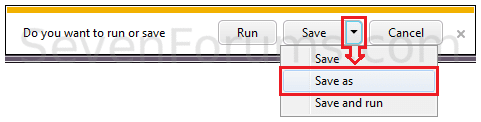
5. Save the .reg file to your desktop.

6. Double click/tap on the downloaded .reg file to merge it.

7. Click on Run, Yes (UAC), Yes, and OK when prompted.

8. If open, close and reopen Control Panel to see changes.

9. When done, you can delete the downloaded .reg file if you like.


OPTION FOUR

Set Default Control Panel View in Registry Editor


NOTE: This option requires that you are logged in as an administrator to do. This option will be applied to all users on the computer.
1. Press the Windows + R keys to open the Run dialog, type regedit, and press Enter.

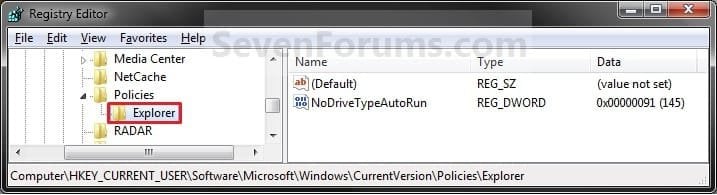
2. In regedit, navigate to the location below. (see screenshot below)
HKEY_CURRENT_USER\Software\Microsoft\Windows\CurrentVersion\Policies\Explorer
Reg1.jpg
3. Do step 4, 5, or 6 below for what you would like to do.

4. To Force Icons as the Default Control Panel View
A) In the right pane of Explorer, right click on a empty area and click on New and DWORD (32-bit) Value. (see screenshot above)
NOTE: If you already have the ForceClassicControlPanel DWORD entry, then go to step 4C instead.

B) Type ForceClassicControlPanel and press Enter. (see screenshot below)
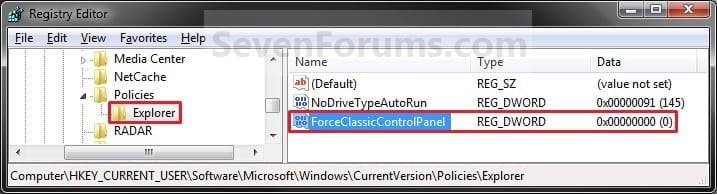
Reg2.jpg
C) Right click on ForceClassicControlPanel and click on Modify. (see screenshot above)

D) Type 1 and click on OK. (see screenshot below)
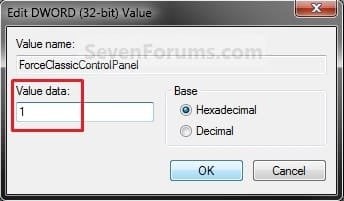
Modify.jpg
E) The registry will now look like this. (see screenshot below)
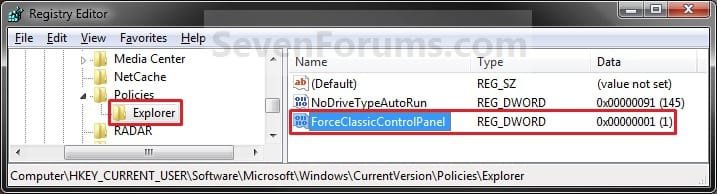
Reg3.jpg
F) Go to step 7 below.
5. To Force Category as the Default Control Panel View
A) In the right pane of Explorer, right click on a empty area and click on New and DWORD (32-bit) Value. (see screenshot above)
NOTE: If you already have the ForceClassicControlPanel DWORD entry, then go to step 5C instead.

B) Type ForceClassicControlPanel and press Enter. (see screenshot below)
Reg2.jpg
C) Double click/tap on ForceClassicControlPanel to modify it. (see screenshot above)

D) Type 0 and click/tap on OK. (see screenshot below)
Modify.jpg
E) The registry will now look like this. (see screenshot below)
Reg3.jpg
F) Go to step 7 below.
6. To Unforce All Views as the Default Control Panel View
NOTE: This is the default setting.
A) In the right pane of Explorer, right click on ForceClassicControlPanel and click/tap on Delete. (see screenshot above)

B) Click/tap on Yes to confirm deletion, and go to step 7 below.
7. Close Regedit.

8. If open, close and reopen Control Panel to see changes.
That's it,
Shawn


Attachments

  • Force_Control_Panel_Icons_View.reg
    Force_Control_Panel_Icons_View.reg
    334 bytes · Views: 14,094
  • Force_Control_Panel_Category_View.reg
    Force_Control_Panel_Category_View.reg
    334 bytes · Views: 8,526
  • Unforce_Control_Panel_View.reg
    Unforce_Control_Panel_View.reg
    536 bytes · Views: 6,963
  • Start_Menu.jpg
    Start_Menu.jpg
    43.2 KB · Views: 5,996
  • 7372.png
    7372.png
    269 bytes · Views: 0
  • 7373.png
    7373.png
    564 bytes · Views: 1
  • 7374.png
    7374.png
    128 bytes · Views: 0
  • 7378.png
    7378.png
    12.3 KB · Views: 0
  • 7380.png
    7380.png
    16 KB · Views: 0
  • 7381.png
    7381.png
    14.7 KB · Views: 0
  • 7382.png
    7382.png
    14.6 KB · Views: 0
  • 7439.png
    7439.png
    599 bytes · Views: 0
  • 7442.png
    7442.png
    5.9 KB · Views: 0
  • 7453.png
    7453.png
    184 bytes · Views: 0
Last edited:
Thanks davehc for finding this
To Make All Control Panel Items the Default View -
A) Right click on a empty space in the Control Panel.
B) Select (check) Set as Default Control Panel View.
 

My Computer

Computer Manufacturer/Model Number
HP Compaq Presario/SR5113WM
OS
Windows 7 Ultimate x64/ Windows Vista Ultimate x64
CPU
AMD Athlon 64 X2 3600+ 1.9Ghz
Motherboard
Asus M2N68-LA
Memory
PNY Optima Memory DDR2 2GB 2x1 kit
Graphics Card(s)
PNY Nvidia 8400 GS 256MB
Sound Card
On board RealTek
Monitor(s) Displays
Acer X163W LCD
Screen Resolution
1366x768
Hard Drives
Western Digital 160 GB SATA 3G (3.0Gb/sec)
7200 rpm
Western Digital 160 GB IDE
PSU
Dynex 400w
Case
Nothin Special
Cooling
Stock
Keyboard
Standard 102 key with volume and sleep buttons
Mouse
Wireless Logitech LX7
Internet Speed
Comcrap 10mb cable
Other Info
Insignia 2.1 speakers, wireless Xbox 360 controller w/plug n play charger, Belkin wireless G + mimo usb network adapter.
This option is not working with window 7 build 6956...anyone got another idea?
 

My Computer

Computer Manufacturer/Model Number
Thinkpad T60
OS
Windows 7 build 6956
CPU
Core Duo 2Ghz
Memory
2GB
Graphics Card(s)
ATI Mobility x1400
Monitor(s) Displays
15''
Internet Speed
20 - 100megabyte/s
Hello Natri,

Thank you for reminding me of this. In build 6956, Option One (step 5) is no longer there. Instead, Windows 7 will reopen the Control Panel to whichever view you had open when you last closed the Control Panel.

Hope this helps,
Shawn
 

My Computer

Computer type
PC/Desktop
Computer Manufacturer/Model Number
Self built custom
OS
64-bit Windows 11 Pro for Workstations
CPU
Intel i7-8700K OC'd to 5 GHz
Motherboard
ASUS ROG Maximus XI Formula Z390
Memory
64 GB (4x16GB) G.SKILL TridentZ RGB DDR4 3600 MHz
Graphics Card(s)
ASUS ROG-STRIX-GTX1080TI-O11G-GAMING
Sound Card
Integrated
Monitor(s) Displays
2 x Samsung Odyssey G7 27"
Screen Resolution
2560x1440
Hard Drives
1TB Samsung 990 PRO M.2,
4TB Samsung 990 PRO PRO M.2,
TerraMaster F8 SSD Plus NAS
PSU
Seasonic Prime Titanium 850W
Case
Thermaltake Core P3
Cooling
Corsair Hydro H115i
Keyboard
Logitech wireless K800
Mouse
Logitech MX Master 4
Internet Speed
2 Gb/s Download and 100 Mb/s Upload
Antivirus
Malwarebyte Anti-Malware Premium
Browser
Google Chrome
Other Info
Logitech Z625 speaker system,
Logitech BRIO 4K Pro webcam,
HP Color LaserJet Pro MFP M477fdn,
APC SMART-UPS RT 1000 XL - SURT1000XLI,
Galaxy S23 Plus phone
I think it is a forgetful omission. It was really useful and will ceratinly be resinstated - I think?
Fwiw. I notice that they have also dropped the Menu Classic view. PIty, it was very popular in Vista and 6801.

Ok. I,ve found a compromise. If you would rather it opened ALWAYS in the Full View, with the option to switch to the other view.
Open GPedit.msc - User Configuration.
Open Administartive Templates - Control Panel
Enable the item "Always Open All Control Panel items.....

Maybe worth incorporating into the Tutorials?
 

My Computer

Computer Manufacturer/Model Number
Three desktops and one laptop with good specs..
OS
Vista and now 7 in 32 and 64 bit.
Thank you Dave. Done.
 

My Computer

Computer type
PC/Desktop
Computer Manufacturer/Model Number
Self built custom
OS
64-bit Windows 11 Pro for Workstations
CPU
Intel i7-8700K OC'd to 5 GHz
Motherboard
ASUS ROG Maximus XI Formula Z390
Memory
64 GB (4x16GB) G.SKILL TridentZ RGB DDR4 3600 MHz
Graphics Card(s)
ASUS ROG-STRIX-GTX1080TI-O11G-GAMING
Sound Card
Integrated
Monitor(s) Displays
2 x Samsung Odyssey G7 27"
Screen Resolution
2560x1440
Hard Drives
1TB Samsung 990 PRO M.2,
4TB Samsung 990 PRO PRO M.2,
TerraMaster F8 SSD Plus NAS
PSU
Seasonic Prime Titanium 850W
Case
Thermaltake Core P3
Cooling
Corsair Hydro H115i
Keyboard
Logitech wireless K800
Mouse
Logitech MX Master 4
Internet Speed
2 Gb/s Download and 100 Mb/s Upload
Antivirus
Malwarebyte Anti-Malware Premium
Browser
Google Chrome
Other Info
Logitech Z625 speaker system,
Logitech BRIO 4K Pro webcam,
HP Color LaserJet Pro MFP M477fdn,
APC SMART-UPS RT 1000 XL - SURT1000XLI,
Galaxy S23 Plus phone
When i type in gpedit.msc in build 6956 i cant locate the file. is there something im missing here?
 

My Computer

OS
XP,Vista, Windows 7
Buckeye25 follow step 5 in method 1

5. To Make All Control Panel Items the Default View -
NOTE: Special thanks to our member davehc for finding this option. In Windows 7 build 6956, this option is no longer available. Instead, Windows 7 build 6956 will automatically reopen the Control Panel to whichever view (Home or All Items) you had open when you last closed the Control Panel.

A) Right click on a empty space in the Control Panel. (See screenshot above)
B) Select (check) Set as Default Control Panel View. (See screenshot above)

6. Close the Control Panel when done.
 

My Computer

Computer Manufacturer/Model Number
HP Compaq Presario/SR5113WM
OS
Windows 7 Ultimate x64/ Windows Vista Ultimate x64
CPU
AMD Athlon 64 X2 3600+ 1.9Ghz
Motherboard
Asus M2N68-LA
Memory
PNY Optima Memory DDR2 2GB 2x1 kit
Graphics Card(s)
PNY Nvidia 8400 GS 256MB
Sound Card
On board RealTek
Monitor(s) Displays
Acer X163W LCD
Screen Resolution
1366x768
Hard Drives
Western Digital 160 GB SATA 3G (3.0Gb/sec)
7200 rpm
Western Digital 160 GB IDE
PSU
Dynex 400w
Case
Nothin Special
Cooling
Stock
Keyboard
Standard 102 key with volume and sleep buttons
Mouse
Wireless Logitech LX7
Internet Speed
Comcrap 10mb cable
Other Info
Insignia 2.1 speakers, wireless Xbox 360 controller w/plug n play charger, Belkin wireless G + mimo usb network adapter.
When i type in gpedit.msc in build 6956 i cant locate the file. is there something im missing here?

Hello Buckeye25,

The location for that file is at C:\Windows\System32\gpedit.msc. However, any of the other methods will work just as well to. ;)

Hope this helps,
Shawn
 

My Computer

Computer type
PC/Desktop
Computer Manufacturer/Model Number
Self built custom
OS
64-bit Windows 11 Pro for Workstations
CPU
Intel i7-8700K OC'd to 5 GHz
Motherboard
ASUS ROG Maximus XI Formula Z390
Memory
64 GB (4x16GB) G.SKILL TridentZ RGB DDR4 3600 MHz
Graphics Card(s)
ASUS ROG-STRIX-GTX1080TI-O11G-GAMING
Sound Card
Integrated
Monitor(s) Displays
2 x Samsung Odyssey G7 27"
Screen Resolution
2560x1440
Hard Drives
1TB Samsung 990 PRO M.2,
4TB Samsung 990 PRO PRO M.2,
TerraMaster F8 SSD Plus NAS
PSU
Seasonic Prime Titanium 850W
Case
Thermaltake Core P3
Cooling
Corsair Hydro H115i
Keyboard
Logitech wireless K800
Mouse
Logitech MX Master 4
Internet Speed
2 Gb/s Download and 100 Mb/s Upload
Antivirus
Malwarebyte Anti-Malware Premium
Browser
Google Chrome
Other Info
Logitech Z625 speaker system,
Logitech BRIO 4K Pro webcam,
HP Color LaserJet Pro MFP M477fdn,
APC SMART-UPS RT 1000 XL - SURT1000XLI,
Galaxy S23 Plus phone
You're welcome Marco.
 

My Computer

Computer type
PC/Desktop
Computer Manufacturer/Model Number
Self built custom
OS
64-bit Windows 11 Pro for Workstations
CPU
Intel i7-8700K OC'd to 5 GHz
Motherboard
ASUS ROG Maximus XI Formula Z390
Memory
64 GB (4x16GB) G.SKILL TridentZ RGB DDR4 3600 MHz
Graphics Card(s)
ASUS ROG-STRIX-GTX1080TI-O11G-GAMING
Sound Card
Integrated
Monitor(s) Displays
2 x Samsung Odyssey G7 27"
Screen Resolution
2560x1440
Hard Drives
1TB Samsung 990 PRO M.2,
4TB Samsung 990 PRO PRO M.2,
TerraMaster F8 SSD Plus NAS
PSU
Seasonic Prime Titanium 850W
Case
Thermaltake Core P3
Cooling
Corsair Hydro H115i
Keyboard
Logitech wireless K800
Mouse
Logitech MX Master 4
Internet Speed
2 Gb/s Download and 100 Mb/s Upload
Antivirus
Malwarebyte Anti-Malware Premium
Browser
Google Chrome
Other Info
Logitech Z625 speaker system,
Logitech BRIO 4K Pro webcam,
HP Color LaserJet Pro MFP M477fdn,
APC SMART-UPS RT 1000 XL - SURT1000XLI,
Galaxy S23 Plus phone
Thanks for this tip, it was driving me nuts :confused: everytime I opened Control Panel it would open in the Category View.

FYI - If you create a desktop shortcut to Control Panel when it is in Category View and then change it to All Items by any method the shortcut will still open in Category View. You have to delete the shortcut and create a new one to have it open correctly.

Wierd.
 

My Computer

OS
Win 7 64-bit/32-bit/XP
You're welcome Ivan.

Strange, when I open the Control Panel and pin it to the taskbar, it will open the same way as it was last closed. You might see if that may work better for you.
 

My Computer

Computer type
PC/Desktop
Computer Manufacturer/Model Number
Self built custom
OS
64-bit Windows 11 Pro for Workstations
CPU
Intel i7-8700K OC'd to 5 GHz
Motherboard
ASUS ROG Maximus XI Formula Z390
Memory
64 GB (4x16GB) G.SKILL TridentZ RGB DDR4 3600 MHz
Graphics Card(s)
ASUS ROG-STRIX-GTX1080TI-O11G-GAMING
Sound Card
Integrated
Monitor(s) Displays
2 x Samsung Odyssey G7 27"
Screen Resolution
2560x1440
Hard Drives
1TB Samsung 990 PRO M.2,
4TB Samsung 990 PRO PRO M.2,
TerraMaster F8 SSD Plus NAS
PSU
Seasonic Prime Titanium 850W
Case
Thermaltake Core P3
Cooling
Corsair Hydro H115i
Keyboard
Logitech wireless K800
Mouse
Logitech MX Master 4
Internet Speed
2 Gb/s Download and 100 Mb/s Upload
Antivirus
Malwarebyte Anti-Malware Premium
Browser
Google Chrome
Other Info
Logitech Z625 speaker system,
Logitech BRIO 4K Pro webcam,
HP Color LaserJet Pro MFP M477fdn,
APC SMART-UPS RT 1000 XL - SURT1000XLI,
Galaxy S23 Plus phone
You're welcome Ivan.

Strange, when I open the Control Panel and pin it to the taskbar, it will open the same way as it was last closed. You might see if that may work better for you.

Thanks. Yes, that worked too.
 

My Computer

OS
Win 7 64-bit/32-bit/XP
You're welcome. I'm happy that will work for you. :)
 

My Computer

Computer type
PC/Desktop
Computer Manufacturer/Model Number
Self built custom
OS
64-bit Windows 11 Pro for Workstations
CPU
Intel i7-8700K OC'd to 5 GHz
Motherboard
ASUS ROG Maximus XI Formula Z390
Memory
64 GB (4x16GB) G.SKILL TridentZ RGB DDR4 3600 MHz
Graphics Card(s)
ASUS ROG-STRIX-GTX1080TI-O11G-GAMING
Sound Card
Integrated
Monitor(s) Displays
2 x Samsung Odyssey G7 27"
Screen Resolution
2560x1440
Hard Drives
1TB Samsung 990 PRO M.2,
4TB Samsung 990 PRO PRO M.2,
TerraMaster F8 SSD Plus NAS
PSU
Seasonic Prime Titanium 850W
Case
Thermaltake Core P3
Cooling
Corsair Hydro H115i
Keyboard
Logitech wireless K800
Mouse
Logitech MX Master 4
Internet Speed
2 Gb/s Download and 100 Mb/s Upload
Antivirus
Malwarebyte Anti-Malware Premium
Browser
Google Chrome
Other Info
Logitech Z625 speaker system,
Logitech BRIO 4K Pro webcam,
HP Color LaserJet Pro MFP M477fdn,
APC SMART-UPS RT 1000 XL - SURT1000XLI,
Galaxy S23 Plus phone
Thanks for this Shawn.
Continue to amaze me with the work done.

Have a great day (or night) and regards :)
 

My Computer

Computer Manufacturer/Model Number
Custom
OS
Win7 HP (x64)/Win7 Ultimate (x64)
CPU
Core i7 920
Motherboard
Intel X58
Memory
6 x 2GB Corsair XMS3
Graphics Card(s)
CF HD4890
Sound Card
Asus Xonar
Monitor(s) Displays
Dell 2408WFP
Screen Resolution
1920 x 1200
Hard Drives
2 x 150GB WDC Velociraptors (Raid 0)
1 x 1TB Seagate
1 x 1.5TB Seagate
PSU
Corsair HX1000W
Case
Antec 1200
Keyboard
Razer Lycosa/N52te
Mouse
Razer Lachesis
You're most welcome Lomai, and thank you. :)
 

My Computer

Computer type
PC/Desktop
Computer Manufacturer/Model Number
Self built custom
OS
64-bit Windows 11 Pro for Workstations
CPU
Intel i7-8700K OC'd to 5 GHz
Motherboard
ASUS ROG Maximus XI Formula Z390
Memory
64 GB (4x16GB) G.SKILL TridentZ RGB DDR4 3600 MHz
Graphics Card(s)
ASUS ROG-STRIX-GTX1080TI-O11G-GAMING
Sound Card
Integrated
Monitor(s) Displays
2 x Samsung Odyssey G7 27"
Screen Resolution
2560x1440
Hard Drives
1TB Samsung 990 PRO M.2,
4TB Samsung 990 PRO PRO M.2,
TerraMaster F8 SSD Plus NAS
PSU
Seasonic Prime Titanium 850W
Case
Thermaltake Core P3
Cooling
Corsair Hydro H115i
Keyboard
Logitech wireless K800
Mouse
Logitech MX Master 4
Internet Speed
2 Gb/s Download and 100 Mb/s Upload
Antivirus
Malwarebyte Anti-Malware Premium
Browser
Google Chrome
Other Info
Logitech Z625 speaker system,
Logitech BRIO 4K Pro webcam,
HP Color LaserJet Pro MFP M477fdn,
APC SMART-UPS RT 1000 XL - SURT1000XLI,
Galaxy S23 Plus phone
Thanks for another great tip Brink. I went months with the CP holding my icon view, then just lately it kept wanting to open with category view, strange. Anyways, tried your gpedit.msc tip first and it's holding strong so far. Thanks again!:cool:
 

My Computer

OS
Windows 7 Home Premium
CPU
i7 920
Memory
6 Gigs 1067MHz DDR3 Tri Channe
Graphics Card(s)
ATI HD 4670
You're most welcome Paralyzer. :)
 

My Computer

Computer type
PC/Desktop
Computer Manufacturer/Model Number
Self built custom
OS
64-bit Windows 11 Pro for Workstations
CPU
Intel i7-8700K OC'd to 5 GHz
Motherboard
ASUS ROG Maximus XI Formula Z390
Memory
64 GB (4x16GB) G.SKILL TridentZ RGB DDR4 3600 MHz
Graphics Card(s)
ASUS ROG-STRIX-GTX1080TI-O11G-GAMING
Sound Card
Integrated
Monitor(s) Displays
2 x Samsung Odyssey G7 27"
Screen Resolution
2560x1440
Hard Drives
1TB Samsung 990 PRO M.2,
4TB Samsung 990 PRO PRO M.2,
TerraMaster F8 SSD Plus NAS
PSU
Seasonic Prime Titanium 850W
Case
Thermaltake Core P3
Cooling
Corsair Hydro H115i
Keyboard
Logitech wireless K800
Mouse
Logitech MX Master 4
Internet Speed
2 Gb/s Download and 100 Mb/s Upload
Antivirus
Malwarebyte Anti-Malware Premium
Browser
Google Chrome
Other Info
Logitech Z625 speaker system,
Logitech BRIO 4K Pro webcam,
HP Color LaserJet Pro MFP M477fdn,
APC SMART-UPS RT 1000 XL - SURT1000XLI,
Galaxy S23 Plus phone
Option 3, Number 3. Killer. Thanks
 

My Computer

Computer Manufacturer/Model Number
Clone
OS
Windows 7 Home Premiun 64bit
CPU
Intel Core i3-2100 301Ghz
Motherboard
Asus P8H61-M Rev 3.0
Memory
6 gig
Graphics Card(s)
Onboard
Sound Card
Onboard
Monitor(s) Displays
HP w1858
Hard Drives
WD Sata 500 Gig
Back
Top