Copying Windows files hanging at 0% on Lenovo v570

NeverShoutNick

New member
Local time
2:01 PM
Messages
12
Hello all,

About a week ago my Lenovo v570 began acting up. Long story short, as a last resort (last meaning I was pricing replacement hard drives), I wiped my entire hard drive, hidden partitions and all. I have spent countless hours working to get this thing back in working order and I may, after 30+ hours, be on the right track.

After doing a lot of research and reading a lot of threads, this is where I'm at:

As I mentioned, I completely wiped the hard drive, I created a 100GB partition to install Windows 7 Home Premium 64bit (which is the same OS that was pre-loaded) and have left the other 650GB unallocated for now. I formatted the new partition and began to install Windows, which, after all the trouble I've gone through, even getting to this point was a huge step.

Well, as the title suggests, the install hangs at 0% at step 1 of the installation process. I have tried both DVDs as well as using a flash drive (that is already formatted to NTFS) which I used the Windows 7 Download Tool to create. I have gone to the BIOS and mixed and matched nearly every plausible option, without luck. I disabled USB legacy at times, switched from ACHI to Compatibility, disabled the wireless option via BIOS, unplugged all USB devices (unless using the USB install method) and everything else I could possibly think of.

Even before I was forced to completely wipe the hard drive and was trying to salvage my information, I did an install which made it further along (before ultimately getting an error which lead to me completely wipe the hard drive) than this particular install.

My apologies for such a long write-up, just wanted to make it clear the thinks I've done so far as to not waste anyone else's time, but also to make everyone aware of some solutions maybe I have NOT thought of or come across.

Apparently Lenovo is infamous for making such installs difficult, but my hope is that with the help of this community, I can resolve this issue without having to go to them.

Note: I don't consider myself to be a 'rookie' when it comes to working on and diagnosing computer problems, but I am far, far from an expert (such as flashing the BIOS), particularly with any OS post-XP, so please be patient and understanding in your replies.

Thank you all so much! :)
 

My Computer My Computer

At a glance

Windows 7 Home Premium 64 bit
OS
Windows 7 Home Premium 64 bit
Enter BIOS setup to see if there are any listings to indicate you have an EFI mobo. If so, you'll need to follow special steps to reinstall: UEFI (Unified Extensible Firmware Interface) - Install Windows 7 with - Windows 7 Forums

If not we need to first confirm the installer. Where did you get Win7? Is this a known-good DVD which has installed before? If not confirm the installer ISO or download another from the official download link given in these steps to get a perfect Clean Reinstall Windows 7 Factory OEM.

If a confirmed ISO DVD burned with MS tool or ImgBurn at 4x speed fails, next write to flash stick using MS tool or Universal USB Installer with Win7 in dropdown menu. Boot using one-time BIOS Boot menu key under USB, Removable or HD's.

If it fails, unplug the DVD drive as well as all other HD's and peripherals to try again.

Next check the Lenovo Support Downloads webpage for your model for newer BIOS version update. Read the download info or the Read Me file in download to see if it might apply. If not, reset BIOS to defaults: Clear CMOS - 3 Ways to Clear the CMOS - Reset BIOS. While in BIOS setup set SATA controller to AHCI to try install, then IDE mode if it fails.

Next test your RAM and HD from these troubleshooting steps.

Report back results for more steps, including possible installing in another machine to moved HD: SysPrep to move HD to another computer
 
Thank you very much for such a thorough response. My laptop is actually tied up in DiskPart right now and most likely will be into tomorrow. Once it finishes I'll be sure to follow up on the information you've given me and report back with any progress or setbacks! Thanks again!
 

My Computer My Computer

At a glance

Windows 7 Home Premium 64 bit
OS
Windows 7 Home Premium 64 bit
If you're using Diskpart Clean All command it isn't necessary for any installation or other issues except to wipe data so that it can't be recovered by most recovery software.

For the purposes of wiping the HD to give a cleaner slate for install then Diskpart Clean Command is all that's needed since it wipes the boot sector where corruption occurs that can stall install, repairs or booting.
 
Hello Greg,

Sorry for the slow response time, been extremely busy and not much time to focus on my laptop. I wrote a rather lengthy reply but lost it before I was able to post. I'll sum things up as quickly as possible.

- I ran the 'Clean' command, fixed the MBR, downloaded the ISO you provided, created a new partition, formatted it, went to install Windows 7 HP. Install hung at 0%, restarted, tried again, same thing over and over.

Went to Western Digital's site and noticed they had some diagnostic tools, downloaded the one I needed, burnt it, ran it..

WD Support / Downloads / WD Scorpio & AV-25 / WD Scorpio Blue

During boot, the tool tells me there's no disk. Gives me a 1020 error (I'd give the exact terminology but it won't even show up now, regardless of whether BIOS is set to ACHI or IDE) and that's that.

The HDD shows up in BIOS, model number and size, shows up in GPARTED along with partitions (when I had them and any other information). However in GPARTED I am told to run CHKDSK /f which I did numerous times, all with no luck.

I'm about ready to throw in the towel, fill out an RMA and hope that WD will send me a replacement (this laptop is 5 months old). Would rather not, but as much as I've been working on this, the number of times I've had to run things, partition, and format, I'm starting to believe I'm just burying myself a hole and throwing nothing but time into it.

Open to any other thoughts or ideas.

And once again, thank you.
 

My Computer My Computer

At a glance

Windows 7 Home Premium 64 bit
OS
Windows 7 Home Premium 64 bit
If you burned the DOS CD ISO as an image to CD, booted it and it couldn't find a HD, then I'd burn another using ImgBUrn at 4x speed to be sure it isn't the disk or burn. Did you get the Main Menu to choose Extended Scan at all?

What do you mean Disk Check would not run? Are you following the steps to run it from Command Line which you're accessing from System Recovery Options?

If it won't run then boot free Partition Wizard bootable CD to create one Primary NTFS partition for the whole HD, give it a letter so it will run Check File System which is the same thing. If it passes I'd mark the partition Active and try install again.

Did you burn the Win7 installer ISO to DVD using WIndows tool or ImgBurn at 4x speed? Cross check it isn't the installer here by writing the ISO to flash stick using Universal USB Installer with Win7 in dropdown menu, boot under USB, Removable or HD's.

Did you reset BIOS to defaults, set SATA controller to AHCI, check in BIOS if there are EFI settings in the Boot Order, as it should not be selected.
 
Greg,

- I burned it at the slowest possible speed, but the burning software I have doesn't burn at 4x, so I'll give ImgBurn a shot.

- No, I didn't get to any screen at all, period. If I switched from IDE from ACHI I initially got the 'No Disc' error, but now the CD boots to DOS, then the screen is black and that's it.

- Sorry for the confusion, but Check Disk does run, but when I ran /f, nothing came of it. I'll have to re-run it to give you a more detailed summary of what happens.

- I have been using the Command Prompt on the Windows 7 recovery disk as you suggested.

- Initially I was used Gparted to create my primary partition without any problems, but now when it boots, I get a large number of errors as spits out it's usual code, which never happened before, and once I finally get into the part of the program I need, it takes a ridiculous amount of time to find my HDD, but won't let me delete, format or create partitions like it was even last week. That is where I was being told to run CHKDSK /f, which has done nothing. Simply tells me I have 0 bad sectors. Either way, I'll make a Partition Wizard disk and see what happens.

- I put the new ISO file with Windows 7 HP on a bootable flash drive. The drive is brand new, I formatted and created the bootable drive using the Windows Download Tool, and have my doubts that there is an issue with that aspect of things.

- Finally, I have been switching between ACHI and IDE ('Compatible' is the alternative option to ACHI in my BIOS). I tend to make more progress when I have it switched to Compatible opposed to ACHI.


Here are my current BIOS settings:

USB Legacy - Disabled
Wireless - Disabled
SATA Controller working mode (currently Compatible, I'll switch to ACHI after making the new discs)
Power Beep - Disabled
Intel Virtual Technology - Disabled

Boot order:
1. DVD Drive/(Flash drive when attempting to boot Windows for fresh install)
2. Flash drive/DVD
3. USB FDD
4. ATA SSD
5. ATA HDD (my hard drive)
6. USB CD
7. PCI LAN: Realtek PXE B02 D00

I see absolutely nothing in my BIOS about EFI settings.

I'll re-burn the WC Diagnostics ISO and download Partition Wizard and see if I make any progress.
 

My Computer My Computer

At a glance

Windows 7 Home Premium 64 bit
OS
Windows 7 Home Premium 64 bit
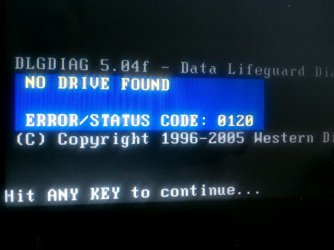
The bootable diagnostic disc gives me the following error:

'NO DRIVE FOUND

ERROR/STATUS CODE: 0120'
 

My Computer My Computer

At a glance

Windows 7 Home Premium 64 bit
OS
Windows 7 Home Premium 64 bit
I downloaded Partition Manager, wiped the disk overnight, created a partition as you suggested yet when I run the WC Diagnostic Tool, I receive the same 0120 error code stating the disk cannot be found.
 

My Computer My Computer

At a glance

Windows 7 Home Premium 64 bit
OS
Windows 7 Home Premium 64 bit
Error message..
 

Attachments

  • uploadfromtaptalk1332077473731.jpg
    uploadfromtaptalk1332077473731.jpg
    66.9 KB · Views: 11

My Computer My Computer

At a glance

Windows 7 Home Premium 64 bit
OS
Windows 7 Home Premium 64 bit
I don't think you can rely on WD at this point if disk will pass Disk Check and PW Check File System on one large lettered partition. You can also run HD Surface Test using PW CD.

I think you need to confirm the ISO integrity or download another, then burn to DVD using ImgBurn at 4x speed which never fails. If the problem continues write to flash stick using Universal USB Installer with Win7 in dropdown menu which also never fails. Cross-checking one with the other will confirm installer. Enable USB legacy in BIOS.

Test your RAM - Test with Memtest86+ . Remove all but 2gb RAM to try install.

Confirm you reset BIOS to defaults. Set HD first to boot, then use one-time BIOS Boot Menu to trigger DVD or flash stick.

As a last resort, move HD to another computer plugged in alone, try install. If it works, SysPrep before returning to problem machine: SysPrep to move HD to another computer
 
Greg,

Quick update: read everything you had to say, decided to run a surface test using PW..

It reached .04% after about 15 minutes, found an error, hasn't moved any further along and it's been 2:30+ hours.

Previous to that, I went through the install process but when I selected the newly created partition, I got a message that said something along the lines of (paraphrasing): "Windows cannot find a disk" even though the partition clearly shows up and is able to be selected. It's once I hit 'Next' I get the error.

Quite convinced at this point that I may have done something to the hard drive over the course of trying to fix my original problem.
 

My Computer My Computer

At a glance

Windows 7 Home Premium 64 bit
OS
Windows 7 Home Premium 64 bit
By the way, I've used run the Memtest86+ already (sometime last week) and the test found no errors so we can scratch that off the list. I've swapped both sticks of RAM and both work fine and are recognized in the BIOS.
 

My Computer My Computer

At a glance

Windows 7 Home Premium 64 bit
OS
Windows 7 Home Premium 64 bit
It's too bad WD Data Lifeguard won't run as it can sometimes repair the HD enough to use it, although I wouldn't much count on it as before. If you want to try one other thing I'd try Seagate SeaTools which works on most makes. Otherwise I concur you need to replace the HD. Do you have another one around to stick in there to see if it will install?
 
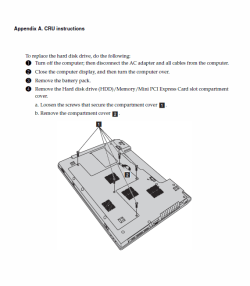
Yeah, that's what I was afraid of. Just seems like a stroke of bad luck. The only other hard drives I have are the one in this little Acer One netbook. Unfortunately, I can't get the hard drive out of my Lenovo. All I have to do is remove one screw and pull up on a 'tab' on the hard drive, yet as hard as I pull up on the tab, the HDD will not come out for whatever reason. I'll try the Seagate tool tomorrow, say a prayer and hope for the best.
 

My Computer My Computer

At a glance

Windows 7 Home Premium 64 bit
OS
Windows 7 Home Premium 64 bit
Hello Greg,

My apologies for going MIA, got swamped with work and am in the last few weeks of my undergraduate and really have hadn't had much (any) time to focus on fixing my laptop, not to mention the stress of trying to do so. I ended up ordering a replacement hard drive today, same one (Scorpio Blue 750GB). Any tips as far as installing Windows on a brand new hard drive? Want to make sure I do this right the first time and you're the first person I thought to ask. I'm sticking with my original OS, Home Premium.

Thanks!
 

My Computer My Computer

At a glance

Windows 7 Home Premium 64 bit
OS
Windows 7 Home Premium 64 bit
Hello Greg,

Well, definitely was the hard drive as I typing this message out on my Lenovo. What programs do you suggest I download in order to keep my laptop running at max proficiency?
 

My Computer My Computer

At a glance

Windows 7 Home Premium 64 bit
OS
Windows 7 Home Premium 64 bit
Back
Top