Solved Corrupt Album Art Cache

Just one more set of "power user" tips for MP3Tag to make it even more powerful and yet easier for you to accomplish mass-updates intelligently and efficiently...


(1) You don't have to use the tag-field pane, make your changes (or specify "< blank >" or "< keep >") and then push the "save" icon button at the left side of the toolbar, although you can do things this way.

Much easier is to simply overtype the field(s) that you want to change in a given row, and then use the TAB key to move to the next field. With the proper program setting this action will accomplish a combined "apply my field change, and SAVE".

If you then modify the next field and again TAB, you will have repeated the "apply my field change, and SAVE", etc., etc.

If you simply hit TAB on a field to skip to the next field without change, then there will be no "apply my field change" but there will be a SAVE (so the date/time in the file will be updated).

If you don't want to change a field that you land on with TAB, but you simply want to exit the updating process of that row, just hit the ESC key.

NOTE: the correct setting to enable this TAB function is Tools -> Options -> General, and CHECK the "auto-completion at selection boxes" item. To prevent this TAB function from auto-saving at each TAB key use, you UNCHECK and then you MUST use the "save" icon button to do the SAVE. This latter approach allows you to defer the SAVE function (or decide you don't want to actually permanently apply any updates you may have applied so far). It's up to you, but I myself use the TAB as auto-save approach to save time and make my life easier.
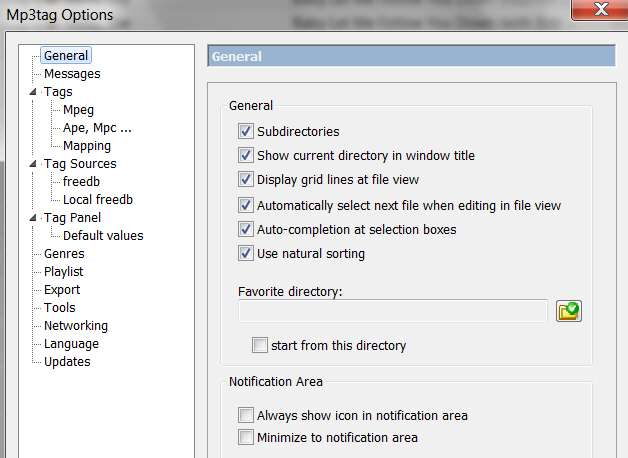
mp3taggeneral.jpg


(2) In order to make the TAB (to the next field) even more efficient, you can select the columns whose values you plan to overtype most commonly and rearrange the order of those columns as presented by MP3Tag. And you can even hide columns whose data values you're not ever interested in seeing to "reduce clutter" on the screen, or show columns whose data values may not be selected by default but for which you would like to be able to view and edit those tag field values.

This is accomplished by right-clicking on the column heading bar and then selecting "customize columns...", and then checking or un-checking and using the "move up/down" button.
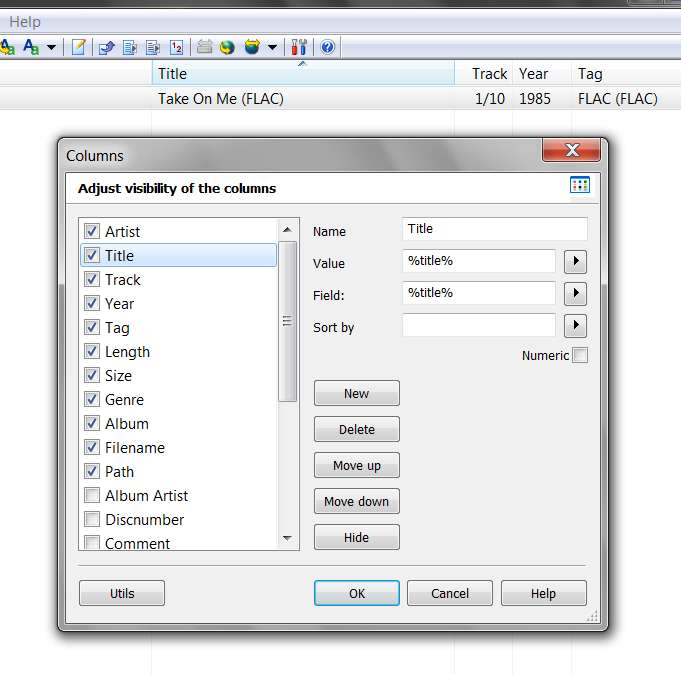
mp3tagcolumns.jpg


(3) At the bottom of the MP3Tag screen there is a "filter" line. You can do a HELP search on "filter" to learn how to specify the filter syntax, but the effect is as you'd imagine... to filter a subset of rows from the complete set of rows that would otherwise be displayed. If you are recursing through your entire music collection (e.g. for me, at \Music) then the "filter" will display not everything in your collection but only those files which satisfy your filter specification.

At the extreme right of this line there is a right-arrow button. If you click on that right-arrow button you will get a popup menu that provides "filter values" that can be inserted into the "filter" line area.

mp3tagfilter3.jpg


Some of the additional filter items available to you are further imbedded, in the "extended fields", "information fields", and "functions". If you select those items in the first popup menu you'll get a second menu next to it, and you can continue selecting items, etc.

You can specify the filter value using expected AND and OR relation separators as you'd expect. You specify values within quotes ("value"). Filter items are specified within "%" (e.g. "%artist%"). You specify tests most commonly as HAS/IS/GREATER/LESS/EQUAL/MATCHES.

For example, when positioning at my highest-level parent folder (i.e. the main folder of my entire music collection), MP3Tag reads all files in all lower-level folders and determines that there are 6668 files whose tags must be read:
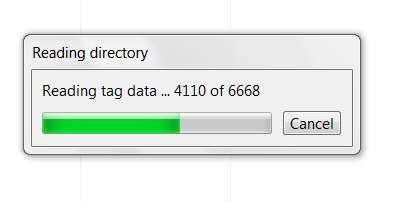
mp3tagscan.jpg


Then, I click on the "filter" button and select the "artist" item. This causes "%artist%" to be populated at the left side of the filter area.

I then manually type in the filter area (after this now-present "%artist%") the string IS "Band, The" because I want to filter out and display all files in my music collection whose artist is equal to "Band, The"... no matter what album those tracks might be on.

I then again click on the "filter" button and select the "information fields" item to get the second menu, and then from the second menu list I select the "extension" item. This causes "%extension%" to be populated after what's already now in the filter area.

mp3tagfilter4.jpg


I then manually type in the filter area "flac", because I want to display all files by "Band, The" whose file extension is FLAC.

mp3tagfilter5.jpg


And the result is now whittled down to exactly what I'm looking for:

mp3tagfilter2.jpg


I just present this "filter" tutorial to acquaint you with what can be done. And once you learn the few filter values you may use along with the IS, AND and OR relations, you don't really need use the button to populate the fields in the filter area. You can just manually type the expression yourself.

Using the "recurse directories" option, plus filters, may make it easier and faster for you to pass through your collection and make any of the changes you find are necessary to the tags. For example, you might use filter to find all files that have a particular characteristic (say something that is wrong, in common with multiple files), so that the list of tracks shown is just those defective files... allowing you to fix all of these "broken" files using the simple list presented by use of the filter that found them all.


Again... the goal is to use Jaangle as your music player/organizer. And your ideal and simplest arrangement is to have \Music\Artist\Album organization, with "cover.jpg" album art in each album folder.

MP3Tag is your friend for this effort.


I might recommend two other very useful programs (i.e. general purpose Windows file managers, to supplement Windows Explorer which is really not terribly powerful or friendly) that I also use:

(a) Free Commander (which is free)

(b) Beyond Compare (which costs $30)
 
Last edited:

My Computer My Computer

Computer type
PC/Desktop
Computer Manufacturer/Model Number
Home-built, two systems (1) and (2)
OS
Windows 7 Pro x64 (1), Win7 Pro X64 (2)
CPU
i5-3350p 3.1Ghz/6MB-cache (1); E8400 3.0Ghz/6MB-cache (2)
Motherboard
ASUS P8Z77-V Pro (1); ASUS P5Q3 (2)
Memory
8GB PC3-12800 DDR3 (1); 4GB PC3-10600 DDR3 (2)
Graphics Card(s)
ATI HD7750 (1), (see TV cards); ATI R7 250 (2)
Sound Card
Realtek ALC892 HD Audio (1); Realtek ALC1200 HD Audio (2)
Monitor(s) Displays
Eizo HD2441W LCD, Eizo S2433W (1); Eizo 24" S2433W (2)
Screen Resolution
1920x1200, 1920x1200 (1); 1920x1200 (2)
Hard Drives
(1) 1TB SATA-II (7200RPM), 2x2TB SATA-III (7200RPM), 250GB SATA-III (10000RPM) for OS; 2x2TB external USB 3.0

(2) 320GB SATA-II (7200RPM), 750GB SATA-II (7200RPM), 150GB SATA-II (10000RPM) for OS; 2TB external USB 3.0
PSU
Nesteq ECS-6001 600W (1); Nesteq ECS-5001 500W (2)
Case
Acousti-Case 360 (1) and (2)
Cooling
Noctua NH-U12P SE2 for CPU, 2x120mm case fans (1) and (2)
Keyboard
IBM PS/2 (1) and (2)
Mouse
Logitech MX Revolution wireless (1); Microsoft wired (2)
Internet Speed
100mbps down / 10mbps up
Antivirus
Microsoft Security Essentials; Malwarebyte Anti-Malware Pro
Browser
Firefox
Other Info
Ceton InfiniTV 4-tuner cablecard-enabled TV card as well as Hauppauge HVR-2250 OTA/ATSC 2-tuner TV card in (1), running under Win7 WMC
I'm printing this tut for future reference, but guess what? I got it to recognize my entire music library and I breezed right through it. Everything in my library was okay except for the artwork, which, thanks to you, is pristine now! I can't believe I did over 800 albums in a couple yours. Thanks for all your help, and I do mean that!

BTW, my husband said I'm not allowed to marry you....
 

My Computer My Computer

OS
Windows 7 Home Premium, 64 bit, SP1
I got it to recognize my entire music library and I breezed right through it. Everything in my library was okay except for the artwork, which, thanks to you, is pristine now! I can't believe I did over 800 albums in a couple yours. Thanks for all your help, and I do mean that!
Excellent. The right tool, for the right job.

Now, did you also get your "cover.jpg" album art images stored as single external JPG files into each of your album folders properly? You'll want that for Jaangle, to make it look pretty when you browse your collection and play music.


BTW, my husband said I'm not allowed to marry you....
:D
 

My Computer My Computer

Computer type
PC/Desktop
Computer Manufacturer/Model Number
Home-built, two systems (1) and (2)
OS
Windows 7 Pro x64 (1), Win7 Pro X64 (2)
CPU
i5-3350p 3.1Ghz/6MB-cache (1); E8400 3.0Ghz/6MB-cache (2)
Motherboard
ASUS P8Z77-V Pro (1); ASUS P5Q3 (2)
Memory
8GB PC3-12800 DDR3 (1); 4GB PC3-10600 DDR3 (2)
Graphics Card(s)
ATI HD7750 (1), (see TV cards); ATI R7 250 (2)
Sound Card
Realtek ALC892 HD Audio (1); Realtek ALC1200 HD Audio (2)
Monitor(s) Displays
Eizo HD2441W LCD, Eizo S2433W (1); Eizo 24" S2433W (2)
Screen Resolution
1920x1200, 1920x1200 (1); 1920x1200 (2)
Hard Drives
(1) 1TB SATA-II (7200RPM), 2x2TB SATA-III (7200RPM), 250GB SATA-III (10000RPM) for OS; 2x2TB external USB 3.0

(2) 320GB SATA-II (7200RPM), 750GB SATA-II (7200RPM), 150GB SATA-II (10000RPM) for OS; 2TB external USB 3.0
PSU
Nesteq ECS-6001 600W (1); Nesteq ECS-5001 500W (2)
Case
Acousti-Case 360 (1) and (2)
Cooling
Noctua NH-U12P SE2 for CPU, 2x120mm case fans (1) and (2)
Keyboard
IBM PS/2 (1) and (2)
Mouse
Logitech MX Revolution wireless (1); Microsoft wired (2)
Internet Speed
100mbps down / 10mbps up
Antivirus
Microsoft Security Essentials; Malwarebyte Anti-Malware Pro
Browser
Firefox
Other Info
Ceton InfiniTV 4-tuner cablecard-enabled TV card as well as Hauppauge HVR-2250 OTA/ATSC 2-tuner TV card in (1), running under Win7 WMC
Yes, each music folder has a Folder.jpg and no other images! Uh oh, should I have named them cover.jpg? I do have each Folder.jpg stored in a separate file in My Pictures but using album name instead. Should I go into each folder and rename folder.jpg to cover.jpg?
 

My Computer My Computer

OS
Windows 7 Home Premium, 64 bit, SP1
Yes, each music folder has a Folder.jpg and no other images! Uh oh, should I have named them cover.jpg? I do have each Folder.jpg stored in a separate file in My Pictures but using album name instead. Should I go into each folder and rename folder.jpg to cover.jpg?
Depends on what you're going to use this for.

Certainly Winamp can recognize both cover.jpg as well as folder.jpg. So if your music collection was only going to be used on your PC, and Winamp was your player, you could leave everything just as it is.

I suspect (but don't know for sure) that Jaangle as well as many other PC media player programs can also support both cover.jpg and folder.jpg.

However I do know that my Cowon J3 portable music player does NOT support folder.jpg but rather only supports cover.jpg. This is why I myself went with cover.jpg universally.


As far as having the original album art JPG files in a second "master" location (i.e. My Pictures) and named as the albums, well that's perfectly normal and understandable. I have my own similar "master" folder for album art as part of my "CD Database" management program, where the file names here are purely numeric... not even album names! I manually copied each of those master album art images into the target music collection album folders, naming them "cover.jpg" as part of the copy process.

This copy/rename process for 1100 albums from my one master album art folder into the individual music collection album folders was a painstaking one-time effort, but it's now done. You've now clearly done the same thing, except you chose "folder.jpg".

Again, depending on your use and media player being used, you can continue with "folder.jpg" or do a "mass-rename" to "cover.jpg". There are many free utility programs out there that can do "mass-rename" with trivial setup.
 

My Computer My Computer

Computer type
PC/Desktop
Computer Manufacturer/Model Number
Home-built, two systems (1) and (2)
OS
Windows 7 Pro x64 (1), Win7 Pro X64 (2)
CPU
i5-3350p 3.1Ghz/6MB-cache (1); E8400 3.0Ghz/6MB-cache (2)
Motherboard
ASUS P8Z77-V Pro (1); ASUS P5Q3 (2)
Memory
8GB PC3-12800 DDR3 (1); 4GB PC3-10600 DDR3 (2)
Graphics Card(s)
ATI HD7750 (1), (see TV cards); ATI R7 250 (2)
Sound Card
Realtek ALC892 HD Audio (1); Realtek ALC1200 HD Audio (2)
Monitor(s) Displays
Eizo HD2441W LCD, Eizo S2433W (1); Eizo 24" S2433W (2)
Screen Resolution
1920x1200, 1920x1200 (1); 1920x1200 (2)
Hard Drives
(1) 1TB SATA-II (7200RPM), 2x2TB SATA-III (7200RPM), 250GB SATA-III (10000RPM) for OS; 2x2TB external USB 3.0

(2) 320GB SATA-II (7200RPM), 750GB SATA-II (7200RPM), 150GB SATA-II (10000RPM) for OS; 2TB external USB 3.0
PSU
Nesteq ECS-6001 600W (1); Nesteq ECS-5001 500W (2)
Case
Acousti-Case 360 (1) and (2)
Cooling
Noctua NH-U12P SE2 for CPU, 2x120mm case fans (1) and (2)
Keyboard
IBM PS/2 (1) and (2)
Mouse
Logitech MX Revolution wireless (1); Microsoft wired (2)
Internet Speed
100mbps down / 10mbps up
Antivirus
Microsoft Security Essentials; Malwarebyte Anti-Malware Pro
Browser
Firefox
Other Info
Ceton InfiniTV 4-tuner cablecard-enabled TV card as well as Hauppauge HVR-2250 OTA/ATSC 2-tuner TV card in (1), running under Win7 WMC
I'm off to get Jaangle, I'll let you know if my folder.jpgs work...will go a mass rename if I have to.
 

My Computer My Computer

OS
Windows 7 Home Premium, 64 bit, SP1
Okay, so Jaangle is pretty cool, I'm having fun configuring. And Jaangle is using my Folder.jpg files. (I had a little problem converting to Cover so went back to Folder.) But, here's my only problem:

There are 5 cd's that won't display artwork. I feel like I've tried everything. I "ran" them thru MP3Tag, restarted Jaangle, but still won't show the artwork. So, I deleted the 5 cd's from my harddrive and re-ripped them so that I could get a fresh start. I reopened Jaangle and still, the same 5 cd's won't display artwork.

View attachment 169752

Any thoughts?
 

My Computer My Computer

OS
Windows 7 Home Premium, 64 bit, SP1
Okay, so Jaangle is pretty cool, I'm having fun configuring. And Jaangle is using my Folder.jpg files. (I had a little problem converting to Cover so went back to Folder.)
I don't use folder.jpg and didn't have time to try it myself. But both folder.jpg and cover.jpg are almost universally acceptable by PC media player/organizers, so I was virtually certain Jaangle would handle folder.jpg just fine.

Glad it worked out for you. Just remember if you have a portable music player you might not be so lucky (as I am not, since my Cowon J3 only accepts "cover.jpg" for album art).


There are 5 cd's that won't display artwork. I feel like I've tried everything. I "ran" them thru MP3Tag, restarted Jaangle, but still won't show the artwork. So, I deleted the 5 cd's from my harddrive and re-ripped them so that I could get a fresh start. I reopened Jaangle and still, the same 5 cd's won't display artwork.
Your attachment seems broken. 404. So I can't see what you were trying to show. Please re-post the attachment.

I suspect that the tags for the music files from these 5 CD's probably have an "artist and album" name that does not match the folder structure you created to hold all of the music files for those albums. Use MP3Tag to double-check what you have for "artist" and "album" in the tag fields, and then see if those are the names of the folder(s) in which the music files live for those CD's.

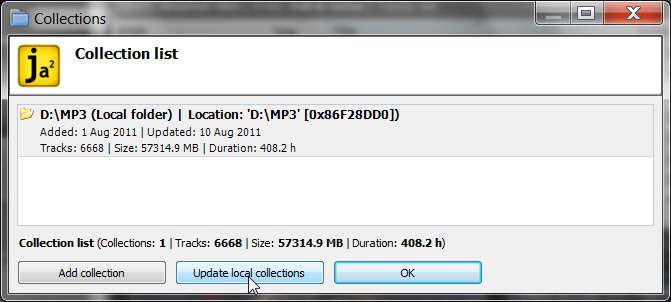
Anyway, in order to reflect any changes to your collection (including adding, deleting, or changing files, either music or folder.jpg art) you need to use the "update local collections" function. You can either (a) click on the down-arrow next to the "collections" item on the menu bar and then select "update local collections", or (b) click on the "collections" item and then push the "update local collections" at the bottom of the window.

jaangle5.jpg


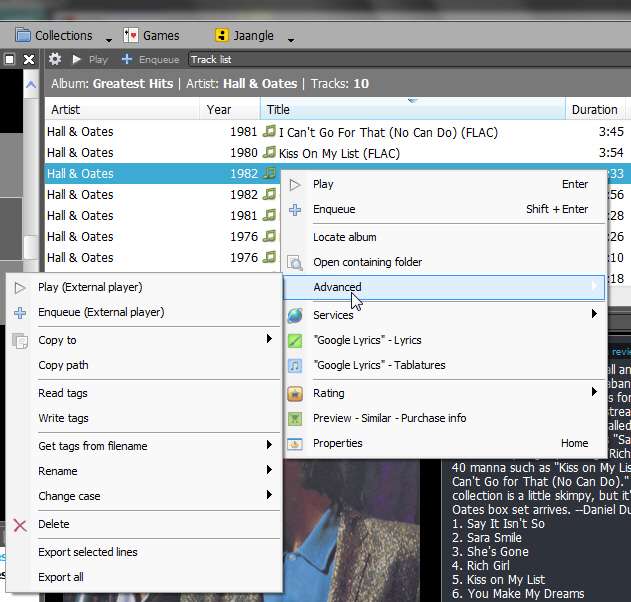
If you make updates to the tags in files, it seems to me that this "update local collections" function does not reflect the tag changes. Apparently in this case you need to "read tags" for the selected files to get them updated properly. After selecting the one or more tracks that you want to re-read tags for, right-click and then select Advanced -> read tags, and that should do it.

jaangle7.jpg


Just to coordinate my settings with yours, in case you haven't discovered them yet, each pane has a little "gear" icon to invoke the settings dialog for that pane.

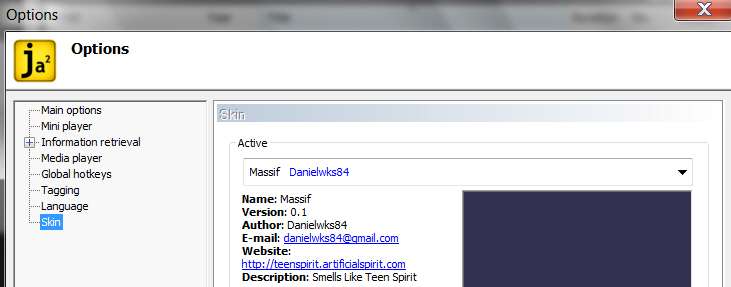
(1) I've selected the "Massif" skin. I like it's black background and white text appearance.

jaangle6.jpg


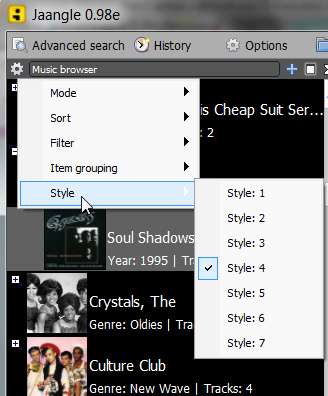
(2) I've selected "style 4" in the artist/album pane. I like the larger text font size, and the larger and square-shaped art.

jaangle2.jpg


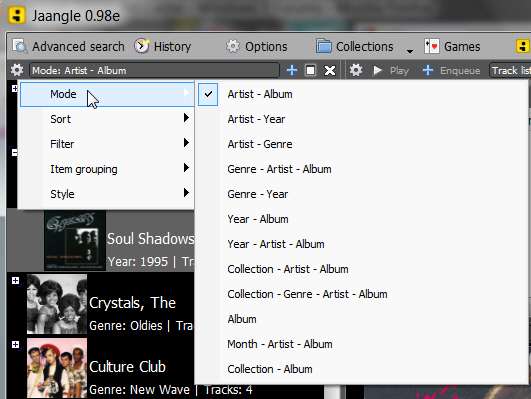
(3) I've selected mode "artist - album" for my general presentation sequence in the artist/album pane (also selecting "sort by name", for both artists and albums) which gives me what I want to see.

jaangle1.jpg


jaangle4.jpg
 

My Computer My Computer

Computer type
PC/Desktop
Computer Manufacturer/Model Number
Home-built, two systems (1) and (2)
OS
Windows 7 Pro x64 (1), Win7 Pro X64 (2)
CPU
i5-3350p 3.1Ghz/6MB-cache (1); E8400 3.0Ghz/6MB-cache (2)
Motherboard
ASUS P8Z77-V Pro (1); ASUS P5Q3 (2)
Memory
8GB PC3-12800 DDR3 (1); 4GB PC3-10600 DDR3 (2)
Graphics Card(s)
ATI HD7750 (1), (see TV cards); ATI R7 250 (2)
Sound Card
Realtek ALC892 HD Audio (1); Realtek ALC1200 HD Audio (2)
Monitor(s) Displays
Eizo HD2441W LCD, Eizo S2433W (1); Eizo 24" S2433W (2)
Screen Resolution
1920x1200, 1920x1200 (1); 1920x1200 (2)
Hard Drives
(1) 1TB SATA-II (7200RPM), 2x2TB SATA-III (7200RPM), 250GB SATA-III (10000RPM) for OS; 2x2TB external USB 3.0

(2) 320GB SATA-II (7200RPM), 750GB SATA-II (7200RPM), 150GB SATA-II (10000RPM) for OS; 2TB external USB 3.0
PSU
Nesteq ECS-6001 600W (1); Nesteq ECS-5001 500W (2)
Case
Acousti-Case 360 (1) and (2)
Cooling
Noctua NH-U12P SE2 for CPU, 2x120mm case fans (1) and (2)
Keyboard
IBM PS/2 (1) and (2)
Mouse
Logitech MX Revolution wireless (1); Microsoft wired (2)
Internet Speed
100mbps down / 10mbps up
Antivirus
Microsoft Security Essentials; Malwarebyte Anti-Malware Pro
Browser
Firefox
Other Info
Ceton InfiniTV 4-tuner cablecard-enabled TV card as well as Hauppauge HVR-2250 OTA/ATSC 2-tuner TV card in (1), running under Win7 WMC
an easier way to load albums into mp3tag is to right click the folder of the specific album and select mp3tag from the context menu, if you dont see it in context menu reinstall mp3tag and carefully select the context menu checkbox in the setup, then it easy .
 

My Computer My Computer

Computer Manufacturer/Model Number
Hewlett packard/p6512uk
OS
Microsoft Windows 7 Home Premium 64-bit 7600
CPU
IIx4 amd athelon 635 processor
Motherboard
FOXCONN 2AA9
Memory
2x2gb
Graphics Card(s)
ati radeon HD 5450
Sound Card
(1) Realtek High Definition Audio (2) AMD High Definition
Monitor(s) Displays
samsung lcd tv 32"
Screen Resolution
1360x 768
Hard Drives
(1) WDC WD10 01FAES-60Z2A0 SATA Disk Device (2) Maxtor OneTouch USB Device (3) ST310003 33AS USB Device (4) WD My Book 1111 USB Device
PSU
?
Cooling
air!
Keyboard
wireless hp
Mouse
wireless Hp,optical
Internet Speed
1.10mb/s
Antivirus
MSE
Browser
Firefox
I managed to get them all fixed but one and whatever worked for the other 4 is not working for this one!

The artist, album, song title, everything is fine but I can't get it to show the folder.jpg. In MP3Tag, I can add the pic to the file, but it won't show in Jaangle.

ex1.JPG

Yes, I found the update collection and "read tags" and that fixed the other four.

Yep, I found the gears and am having fun with the panes. I wasn't too crazy about any of the skins but I tried the one you're using and it's pretty cool.

So, once I get this last stinking album done, my music library will be sweeeeet! (And perfect--I like things perfect!)

P.S. Still want to marry you. Stupid husband, anyway....
 

My Computer My Computer

OS
Windows 7 Home Premium, 64 bit, SP1
Here's what my Jaangle looks like now--emulating you!
screenshot.jpg
 

My Computer My Computer

OS
Windows 7 Home Premium, 64 bit, SP1
an easier way to load albums into mp3tag is to right click the folder of the specific album and select mp3tag from the context menu, if you dont see it in context menu reinstall mp3tag and carefully select the context menu checkbox in the setup, then it easy .

Thanks for the tip!
 

My Computer My Computer

OS
Windows 7 Home Premium, 64 bit, SP1
OMG, got that album fixed. I clicked on something that asked me if I wanted to import picture, I clicked yes, went to folder, clicked on it and set as default. It happened so fast I don't even know where to find this option again, but it worked. My world is perfect now. Happily skipping off into the sunshine, humming something sweet....
 

My Computer My Computer

OS
Windows 7 Home Premium, 64 bit, SP1
OMG, got that album fixed. I clicked on something that asked me if I wanted to import picture, I clicked yes, went to folder, clicked on it and set as default. It happened so fast I don't even know where to find this option again, but it worked.
I suspect you clicked on the album square in the artist/album pane (upper-left, pane #1) which was currently just black (with no album art associated).

Then you must have right-clicked, and selected "Amazon - album picture". It went up to Amazon, found the associated album art, downloaded it, and associated it with your album in the database.

jaangle8.jpg


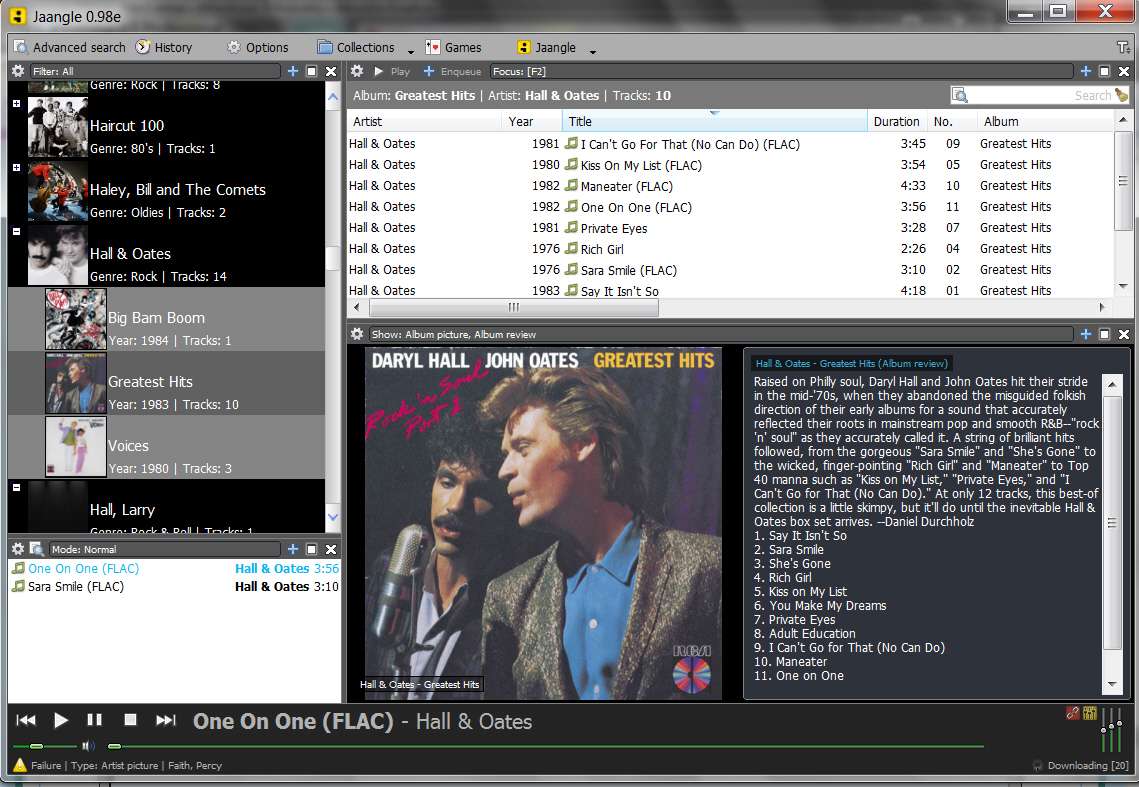
Note that if you left-click on an album, and then wait a few seconds, Jaangle will AUTOMATICALLY go up to Amazon to try and get the "album review". You don't actually need to right-click and select "Amazon - album review" since if you're patient that will happen automatically. Or, if you're impatient you can right-clcik and select "Amazon - album review" to make it happen faster.

Mostly the "album review" is nothing more than the tracklist (which is still nice to see), but sometimes there's actually a review along with the tracklist. See in my screenshot above that the "Flashdance (soundtrack)" album in selected on the left, and in the INFO pane (lower-right) you see the album art (which is my high-quality 500x500 "cover.jpg" in this case) and the "album review" (if available from Amazon). In the case of the "Flashdance" album, the album review is nothing more than the tracklist.

If there is no album review or tracklist available from Amazon, Jaangle will simply present the "artist biography" information in the info pane area... assuming you've clicked on the artist square in the artist/album pane and waited a few seconds. If you click on the artist square, Jaangle will automatically retrieve artist art/bio from LastFM if you just wait a few seconds. But again, if you're impatient you can right-click on the artist and then select either "LastFM - artist biography" or "LastFM - artist picture". It is this artist picture and bio that is presented in the Info pane when you select the artist square in the artist/album pane.


However, I still would like to get to the bottom of why this one final album did not show its own "folder.jpg" album art, as the rest of your collection except this one album do.

Can you please provide the fully-qualified EXTERNAL path/filename of the album folder in which the music files and "folder.jpg" (which did not display) live. Also, can you provide a screenshot of MP3Tag navigated to that folder, showing the tag contents of the music files in that folder.

There has to be some explanation for why this particular folder.jpg didn't work, whereas your other 800 did.
 

My Computer My Computer

Computer type
PC/Desktop
Computer Manufacturer/Model Number
Home-built, two systems (1) and (2)
OS
Windows 7 Pro x64 (1), Win7 Pro X64 (2)
CPU
i5-3350p 3.1Ghz/6MB-cache (1); E8400 3.0Ghz/6MB-cache (2)
Motherboard
ASUS P8Z77-V Pro (1); ASUS P5Q3 (2)
Memory
8GB PC3-12800 DDR3 (1); 4GB PC3-10600 DDR3 (2)
Graphics Card(s)
ATI HD7750 (1), (see TV cards); ATI R7 250 (2)
Sound Card
Realtek ALC892 HD Audio (1); Realtek ALC1200 HD Audio (2)
Monitor(s) Displays
Eizo HD2441W LCD, Eizo S2433W (1); Eizo 24" S2433W (2)
Screen Resolution
1920x1200, 1920x1200 (1); 1920x1200 (2)
Hard Drives
(1) 1TB SATA-II (7200RPM), 2x2TB SATA-III (7200RPM), 250GB SATA-III (10000RPM) for OS; 2x2TB external USB 3.0

(2) 320GB SATA-II (7200RPM), 750GB SATA-II (7200RPM), 150GB SATA-II (10000RPM) for OS; 2TB external USB 3.0
PSU
Nesteq ECS-6001 600W (1); Nesteq ECS-5001 500W (2)
Case
Acousti-Case 360 (1) and (2)
Cooling
Noctua NH-U12P SE2 for CPU, 2x120mm case fans (1) and (2)
Keyboard
IBM PS/2 (1) and (2)
Mouse
Logitech MX Revolution wireless (1); Microsoft wired (2)
Internet Speed
100mbps down / 10mbps up
Antivirus
Microsoft Security Essentials; Malwarebyte Anti-Malware Pro
Browser
Firefox
Other Info
Ceton InfiniTV 4-tuner cablecard-enabled TV card as well as Hauppauge HVR-2250 OTA/ATSC 2-tuner TV card in (1), running under Win7 WMC
Here's what my Jaangle looks like now--emulating you!
Not quite. I see four very significant differences, which you either customized to look that way because you wanted it to look that way, or you didn't customize at all and just got the presentation to look the way it is.

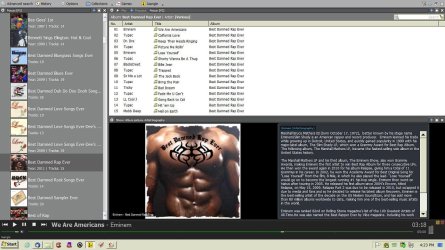
(1) You have no "playlist" pane, which is in the lower-left (pane #3). In your case, your artist/album pane (which for me is in the upper-left (pane #1) extends the complete height of the left side of the program window.

In my case, I have that playlist pane showing. It contains whatever tracks you've selected from your detail tracks pane (upper-right, pane #2) and then right-clicked and selected either PLAY (to replace the existing playlist) or ENQUEUE (to add to the existing playlist).

jaangle10.jpg


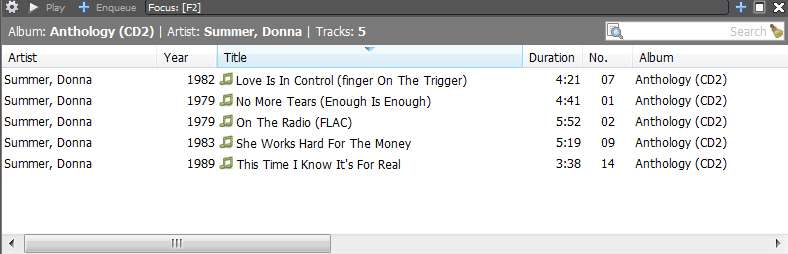
(2) Your detail tracks pane has very few columns of information showing. I mentioned earlier that you can customize the particular columns shown and their order, by right-clicking on the column headings bar and then selecting "customize columns...".

In my case, I have more information columns shown, and the arrangement of columns differs from yours. In fact, I have enough columns that the horizontal scrollbar is needed to see the second "page" of columns. But I really do want to be able to see things like bitrate, file size, etc.

jaangle11.jpg


jaangle12.jpg


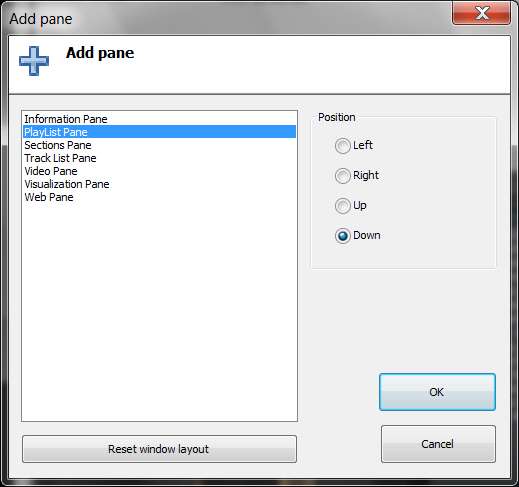
(3) To get the playlist pane to appear in your setup (assuming you want it to appear, as opposed to having consciously clicked on its "X" to close the playlist pane because you really didn't want it) you need to click on the "+" at the top of the artist/album pane. That will reveal the "Add Pane" dialog.

From the list of available panes, check the "playlist pane" item. Then on the right side, in the group of Position radio buttons, check the "down" radio button to put the playlist pane (#3) at the bottom of the artist/album pane (#1), as I have.

jaangle9.jpg


(4) My presentation in the artist/album pane (#1) is "artist - album". Yours appears to be "collection - album". Is that how you wanted it?

So mine has grouped all albums by an artist. The primary list is alphabetical by artist (with the artist picture from LastFM), with the "+" next to each artist. If you click on the "+" it expands that artist, showing the one or more albums by that artist indented (and each with their own album art, either your folder.jpg or in worst case from Amazon), and the "+" changes to a "-".

Note that this "artist - album" organization is by tags, so an album shown isn't necessarily a single-artist album by that artist. It could be a compilation album on which there is at least one track by that artist. So for example, in my screenshot above with my difference (1), you see that there is Donna Summer expanded. The "Anthology CD1/2" albums are certainly hers. But the other two, one a disco compilation and the other the "Flashdance" soundtrack, were "compilations" on which Donna Summer had at least one track.

Jaangle understands all of this because it analyzed the tags, and presents all four albums grouped under Donna Summer because that's what I wanted... the ability to see ALL MUSIC BY DONNA SUMMER in one place. If I select the artist square on the left (with the artist picture) I will see ALL TRACKS BY DONNA SUMMER in the track details pane, and the artist picture and artist bio in the info pane. If I select any of the individual albums I will see just the tracks of that album in the track details pane, and the album art picture and album review/tracklist in the info pane.

That's exactly what I myself want in an "organizer"... because that's really how I browse through my collection. I am looking for an artist, not an album. Once I locate the artist (either by scrolling the artist/album pane or by doing a "search", either simple or advanced) I either click on the "+" to select a specific album, or just click on the artist to get ALL TRACKS FOR THAT ARTIST shown in the track details pane.
 

My Computer My Computer

Computer type
PC/Desktop
Computer Manufacturer/Model Number
Home-built, two systems (1) and (2)
OS
Windows 7 Pro x64 (1), Win7 Pro X64 (2)
CPU
i5-3350p 3.1Ghz/6MB-cache (1); E8400 3.0Ghz/6MB-cache (2)
Motherboard
ASUS P8Z77-V Pro (1); ASUS P5Q3 (2)
Memory
8GB PC3-12800 DDR3 (1); 4GB PC3-10600 DDR3 (2)
Graphics Card(s)
ATI HD7750 (1), (see TV cards); ATI R7 250 (2)
Sound Card
Realtek ALC892 HD Audio (1); Realtek ALC1200 HD Audio (2)
Monitor(s) Displays
Eizo HD2441W LCD, Eizo S2433W (1); Eizo 24" S2433W (2)
Screen Resolution
1920x1200, 1920x1200 (1); 1920x1200 (2)
Hard Drives
(1) 1TB SATA-II (7200RPM), 2x2TB SATA-III (7200RPM), 250GB SATA-III (10000RPM) for OS; 2x2TB external USB 3.0

(2) 320GB SATA-II (7200RPM), 750GB SATA-II (7200RPM), 150GB SATA-II (10000RPM) for OS; 2TB external USB 3.0
PSU
Nesteq ECS-6001 600W (1); Nesteq ECS-5001 500W (2)
Case
Acousti-Case 360 (1) and (2)
Cooling
Noctua NH-U12P SE2 for CPU, 2x120mm case fans (1) and (2)
Keyboard
IBM PS/2 (1) and (2)
Mouse
Logitech MX Revolution wireless (1); Microsoft wired (2)
Internet Speed
100mbps down / 10mbps up
Antivirus
Microsoft Security Essentials; Malwarebyte Anti-Malware Pro
Browser
Firefox
Other Info
Ceton InfiniTV 4-tuner cablecard-enabled TV card as well as Hauppauge HVR-2250 OTA/ATSC 2-tuner TV card in (1), running under Win7 WMC
I managed to get them all fixed but one and whatever worked for the other 4 is not working for this one!

The artist, album, song title, everything is fine but I can't get it to show the folder.jpg. In MP3Tag, I can add the pic to the file, but it won't show in Jaangle.

View attachment 169771
I don't follow what point this screenshot shows. It's four albums, so I assume it's the working 4.

Are the album titles the external album folder names, or the internal "album" tag field value common to all music tracks within each album folder?

And what is the 5th problem album... name please? And does the external album foldr name match the internal "album" tag field value for each of it tracks? And you have one "folder.jpg" in that album folder?


What if you change your Music Browser pane mode (click on gear and expand the "mode" choices) to be "artist - album" like mine?

Do you now have the problem album showing up under a blank artist art? Or do you see artist art on the artist row but a blank album art underneath, when you expand the "+" next to artist?

I'm still trying to understand more about this problem album, both its name, the artist name, the external album folder name, and the "album" field in the internal tags in the contained music files of that folder.
 

My Computer My Computer

Computer type
PC/Desktop
Computer Manufacturer/Model Number
Home-built, two systems (1) and (2)
OS
Windows 7 Pro x64 (1), Win7 Pro X64 (2)
CPU
i5-3350p 3.1Ghz/6MB-cache (1); E8400 3.0Ghz/6MB-cache (2)
Motherboard
ASUS P8Z77-V Pro (1); ASUS P5Q3 (2)
Memory
8GB PC3-12800 DDR3 (1); 4GB PC3-10600 DDR3 (2)
Graphics Card(s)
ATI HD7750 (1), (see TV cards); ATI R7 250 (2)
Sound Card
Realtek ALC892 HD Audio (1); Realtek ALC1200 HD Audio (2)
Monitor(s) Displays
Eizo HD2441W LCD, Eizo S2433W (1); Eizo 24" S2433W (2)
Screen Resolution
1920x1200, 1920x1200 (1); 1920x1200 (2)
Hard Drives
(1) 1TB SATA-II (7200RPM), 2x2TB SATA-III (7200RPM), 250GB SATA-III (10000RPM) for OS; 2x2TB external USB 3.0

(2) 320GB SATA-II (7200RPM), 750GB SATA-II (7200RPM), 150GB SATA-II (10000RPM) for OS; 2TB external USB 3.0
PSU
Nesteq ECS-6001 600W (1); Nesteq ECS-5001 500W (2)
Case
Acousti-Case 360 (1) and (2)
Cooling
Noctua NH-U12P SE2 for CPU, 2x120mm case fans (1) and (2)
Keyboard
IBM PS/2 (1) and (2)
Mouse
Logitech MX Revolution wireless (1); Microsoft wired (2)
Internet Speed
100mbps down / 10mbps up
Antivirus
Microsoft Security Essentials; Malwarebyte Anti-Malware Pro
Browser
Firefox
Other Info
Ceton InfiniTV 4-tuner cablecard-enabled TV card as well as Hauppauge HVR-2250 OTA/ATSC 2-tuner TV card in (1), running under Win7 WMC
I suspect you clicked on the album square in the artist/album pane (upper-left, pane #1) which was currently just black (with no album art associated).

Then you must have right-clicked, and selected "Amazon - album picture". It went up to Amazon, found the associated album art, downloaded it, and associated it with your album in the database...

Not Amazon, it's my own artwork for a mix cd.


However, I still would like to get to the bottom of why this one final album did not show its own "folder.jpg" album art, as the rest of your collection except this one album do.

Can you please provide the fully-qualified EXTERNAL path/filename of the album folder in which the music files and "folder.jpg" (which did not display) live. Also, can you provide a screenshot of MP3Tag navigated to that folder, showing the tag contents of the music files in that folder.

There has to be some explanation for why this particular folder.jpg didn't work, whereas your other 800 did

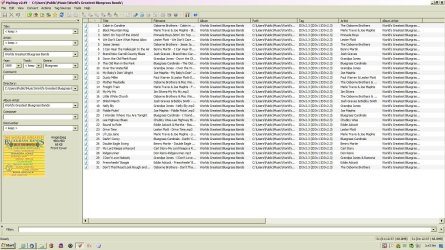
Not sure if this is what you're asking for but here it is:

C:\Users\Public\Music\World's Greatest Bluegrass Bands

scshot.jpg
 

My Computer My Computer

OS
Windows 7 Home Premium, 64 bit, SP1
Looks to me like you have an "album" value inside the tags of the music file that specifies: Worlds Greatest Bluegrass Bands. Note that there is NO APOSTROPHE in the word "Worlds".

However your folder name is: World's Greatest Bluegrass Bands. This HAS AN APOSTROPHE in the word "World's".

You need to make both values consistent and the same, either by renaming the folder to eliminate the apostrophe on "World's" so that it matches the internal tag "album" value, or vice versa.

I'm sure that's your problem as to why your folder.jpg album art didn't show up for this particular album.

---------------------------------------------------------------------------------

Also, I'm puzzled as to why there is an album art picture shown in the tag pane, even though I thought you had removed all imbedded album art. Plus, there's no file selected, so I don't even know where that album art is coming from...

Maybe this is how "folder.jpg" works. I know I don't see any album art using my "cover.jpg" in each album folder when I navigate to that folder with MP3Tag.


Finally, if \Music\World's Greatest Music Bands is supposed to be an "album folder", then I suppose this means your music collection does NOT have an "artist" level above albums.

Granted, you've shown a "compilation" album as an example so maybe that's different. You didn't show an example of a "single-artist" album, and whether or not you also have an artist folder level in your collection when single-artist albums are involved.

But in my own personal collection I have single-artist albums organized underneath a folder level for that artist.

For example: D:\Music\The Beatles\Rubber Soul with all the tracks from "Rubber Soul" in that particular album. All of the other albums by The Beatles are similarly structures, e.g. D:\Music\The Beatles\Abbey Road, etc. The "cover.jpg" album art is stored in that lowest-level folder, i.e. the album folder.

I use "artist - album" as my "mode" setting for Jaangle, because I browse music [tags] to play by artist and then album (really, that's also why my music collection is physically structured the same way, since it makes intuitive sense to me).

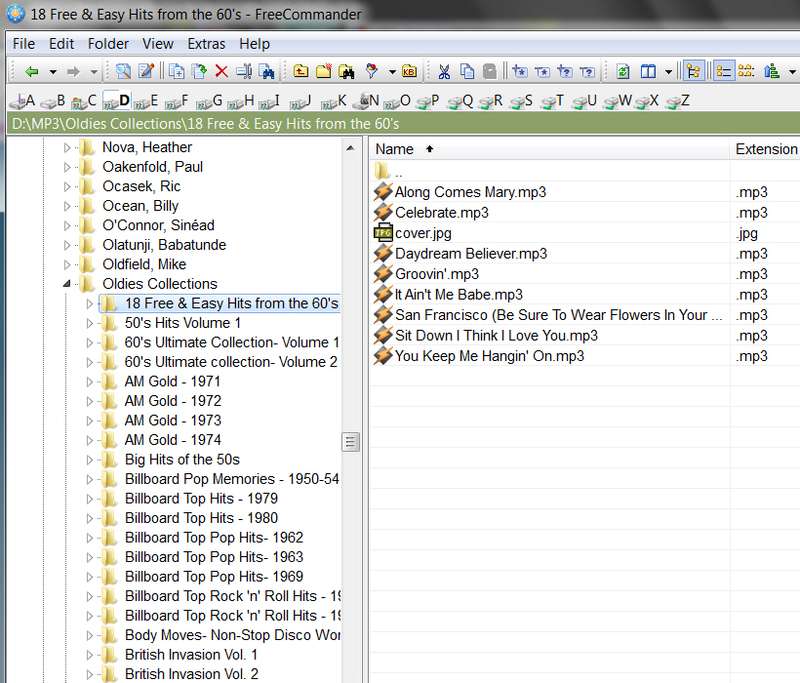
As far as the handling of "multi-artist compilations" in my own collection, I have invented a pseudo-artist named "Oldies Collections", to be consistent with my overall \Music\Artist\Album design. So it looks like \Music\Oldies Collections. And then underneath this pseudo-artist of "Oldies Collections" I have placed all of my compilations.

oldiesr.jpg


And like you, within each tag of each file in each compilation, I have the true artist for that song. I don't use the "album artist" tag, as this is more of an indicative field to organizer programs like Jaangle. In fact, within Jaangle the "artist" item (e.g. in the various "Mode" choices) is the "artist" field in tags, not the "album artist" field.

oldiestags.jpg


Note that the above handling of "multi-artist compilations" with (like you've done) the proper artist specified in the tag for each track of the compilation, this facilitates each of these tracks showing up in MODE = "artist - album" Jaangle under each of the artists, with the same compilation album name then indented under each of them. And since the single cover.jpg album art for that single compilation album is in that single album folder, the same single cover.jpg shows up for EVERY artist/album in Jaangle just as it should.

In other words, "artist - album" works perfectly and is visibly just as I want it, no matter whether the albums are single-artist albums or multi-artist compilations. The fact that the tags are correctly built, with each track having the proper "artist" and "album" value, this is what ensures that Jaangle will display things properly.

So even though there may only be one track in my entire collection by an artist found on one of these multi-artist compilations, but it will still display in Jaangle as (a) that artist, high-level, and then (b) the compilation album/art indented under it... simply showing just one track inside that album.

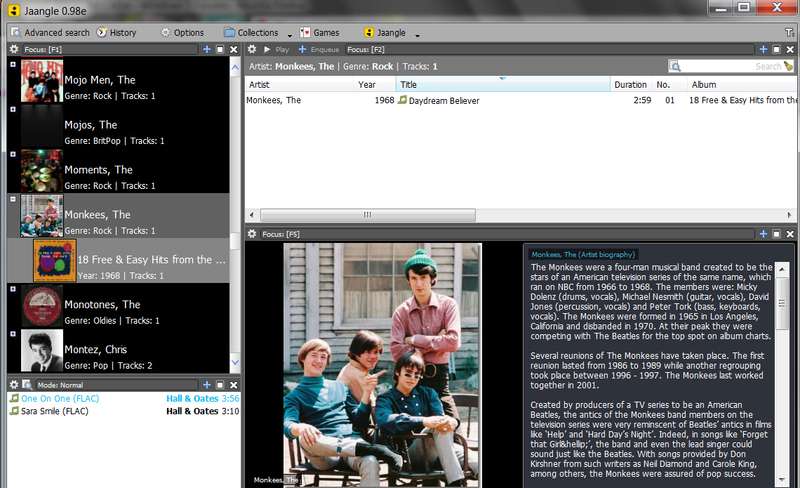
For example, the above screenshot of that first compilation album in "Oldies Collections" shows a track by The Monkees. Here's what "The Monkees" looks like in Jaangle, showing both the artist level and then, indented, that one compilation album with proper art.

oldiesjaangle.jpg


That's why I specify "artist - album" for my MODE setting in Jaangle.
 

My Computer My Computer

Computer type
PC/Desktop
Computer Manufacturer/Model Number
Home-built, two systems (1) and (2)
OS
Windows 7 Pro x64 (1), Win7 Pro X64 (2)
CPU
i5-3350p 3.1Ghz/6MB-cache (1); E8400 3.0Ghz/6MB-cache (2)
Motherboard
ASUS P8Z77-V Pro (1); ASUS P5Q3 (2)
Memory
8GB PC3-12800 DDR3 (1); 4GB PC3-10600 DDR3 (2)
Graphics Card(s)
ATI HD7750 (1), (see TV cards); ATI R7 250 (2)
Sound Card
Realtek ALC892 HD Audio (1); Realtek ALC1200 HD Audio (2)
Monitor(s) Displays
Eizo HD2441W LCD, Eizo S2433W (1); Eizo 24" S2433W (2)
Screen Resolution
1920x1200, 1920x1200 (1); 1920x1200 (2)
Hard Drives
(1) 1TB SATA-II (7200RPM), 2x2TB SATA-III (7200RPM), 250GB SATA-III (10000RPM) for OS; 2x2TB external USB 3.0

(2) 320GB SATA-II (7200RPM), 750GB SATA-II (7200RPM), 150GB SATA-II (10000RPM) for OS; 2TB external USB 3.0
PSU
Nesteq ECS-6001 600W (1); Nesteq ECS-5001 500W (2)
Case
Acousti-Case 360 (1) and (2)
Cooling
Noctua NH-U12P SE2 for CPU, 2x120mm case fans (1) and (2)
Keyboard
IBM PS/2 (1) and (2)
Mouse
Logitech MX Revolution wireless (1); Microsoft wired (2)
Internet Speed
100mbps down / 10mbps up
Antivirus
Microsoft Security Essentials; Malwarebyte Anti-Malware Pro
Browser
Firefox
Other Info
Ceton InfiniTV 4-tuner cablecard-enabled TV card as well as Hauppauge HVR-2250 OTA/ATSC 2-tuner TV card in (1), running under Win7 WMC
I fixed the album title with the apostrophe. As far as the album artwork, I found how I did it: I right-clicked on the pane where it should have appeared and it gave me options to add one. When I did that it appeared over the picture of the generic disc in the left pane too.

The rest of your post: If I only have one album by an artist, the tracks and folder.jpg are stored in a folder under artist's name. If I have more than one album by an artist, each album is contained in their own folder within the artist folder. Is that what you're aksing?

As far as Jaangle skin goes, I know I don't have mine exactly like yours, I'm still playing with the "gears", etc. Just wanted to show you that I'm using the same skin.

I like mine arranged by album as that is what I look for.

I'll keep playing with it--lots of fun!
 

My Computer My Computer

OS
Windows 7 Home Premium, 64 bit, SP1
I fixed the album title with the apostrophe. As far as the album artwork, I found how I did it: I right-clicked on the pane where it should have appeared and it gave me options to add one. When I did that it appeared over the picture of the generic disc in the left pane too.
I think you must have actually imbedded that album art into each track of this album, when you were trying to work around the real problem which wasn't understood until now.

But now that you've corrected the underlying problem, I would expect this final album to behave just as all your other albums behave. So you shouldn't have to do anything special, other than put folder.jpg for this album in the album folder and then it should display properly... just as all your other album art displays.

I would select the tracks of this album folder individually, to confirm or deny that you actually do currently have imbedded album art in the tags... which is what you DON'T want. You simply want the single external folder.jpg, in a properly and consistently named album folder like you now have. So if you do actually have imbedded art right now, I would again remove it from these tracks.


However I'm still puzzled, as to how your other albums display in MP3Tag. Unless you have an imbedded album art inside a tag for a track, you should NOT see album art in the tag pane whenever you select an individual track.

Do your other albums show album art, or not?? They should NOT, if there's no imbedded art in the tags.


The rest of your post: If I only have one album by an artist, the tracks and folder.jpg are stored in a folder under artist's name. If I have more than one album by an artist, each album is contained in their own folder within the artist folder. Is that what you're asking?
I don't know why you wouldn't have the same album folder under the artist folder with the tracks of that album under the album folder from which those tracks come, all the time? Why only if you have two or more albums by an artist?

I would think that there would be a problem displaying album art in Jaangle, which I had thought looked for folder.jpg in the folder matching the "album" tag field value of a track. I didn't think it used folder.jpg in whatever current physical folder the music file was found in, but I may be wrong about that.

In my case, there's never any ambiguity, since "album" tag field is always 100% the same as the [album] folder in which the track lives, so there can never be any ambiguity or confusion or error. Cover.jpg is ALWAYS in the ALBUM FOLDER, and I ALWAYS HAVE AN ALBUM FOLDER even if the artist only has one album.

In your case, the folder containing folder.jpg for an artist who only has a single album would be the artist's name, and not the album's name. So the "album" tag in the tracks does not match the containing folder name, and if Jaangle looks for folder.jpg in the "album" folder then it wouldn't find one. This might have prompted you to imbed album art into these tracks as your way of producing visible album art in Jaangle, into these special case situations where you only had one album for an artist and thus didn't create an album folder under the artist folder.

Only if Jaangle looks for folder.jpg in whatever is the physcial folder that contains the track would your approach work (of not imbedding art, but simply putting folder.jpg into that artist folder)... unless you overcome this organizational defect by imbedding album art into each of these special-case artist/one-album tracks that live in an "artist folder" instead of living in an "album folder".

On the other hand, if (like me) you strictly adhere to a \Music\Artist\Album organizational structure no matter whether you have one or more albums by an artist... then you can always browse your folders externally using Windows Explorer and you'll always be able to see both your artist collection as well as your album collection, without using a tags-based program like MP3Tag or Jaangle. Seems like that would be useful and informative.

It also would reflect consistency in the implementation of tags and folder.jpg for individual albums. You would always have an "album folder" for an album, and you would always have "folder.jpg" for that album stored in that album's folder, and the "album" tag field for each track from that album names that album folder... no matter whether this is the only album for an artist or just one of many albums for an artist.

And there would never be any problem or confusion or ambiguity about where Jaangle is looking to locate folder.jpg, no matter whether it was looking using (a) the "album" tag value folder name for folder.jpg, or (b) used the current host folder that physically containst the music track. It would always be the same result for where it was looked for and where it was located... namely in the ALBUM folder, which would always exist even if it was the only album for the artist.

Why differentiate in your collection's organization between (a) one album for an artist, vs. (b) two or more albums for an artist? What benefit or advantage does your current arrangement buy you?

I myself would want organizational consistency, no matter how many albums I had for an artist. My collection should always look like \Music\Artist\Album or \Music\Oldies Collections\Album.


But obviously, you're free to build your environment however you want.
 

My Computer My Computer

Computer type
PC/Desktop
Computer Manufacturer/Model Number
Home-built, two systems (1) and (2)
OS
Windows 7 Pro x64 (1), Win7 Pro X64 (2)
CPU
i5-3350p 3.1Ghz/6MB-cache (1); E8400 3.0Ghz/6MB-cache (2)
Motherboard
ASUS P8Z77-V Pro (1); ASUS P5Q3 (2)
Memory
8GB PC3-12800 DDR3 (1); 4GB PC3-10600 DDR3 (2)
Graphics Card(s)
ATI HD7750 (1), (see TV cards); ATI R7 250 (2)
Sound Card
Realtek ALC892 HD Audio (1); Realtek ALC1200 HD Audio (2)
Monitor(s) Displays
Eizo HD2441W LCD, Eizo S2433W (1); Eizo 24" S2433W (2)
Screen Resolution
1920x1200, 1920x1200 (1); 1920x1200 (2)
Hard Drives
(1) 1TB SATA-II (7200RPM), 2x2TB SATA-III (7200RPM), 250GB SATA-III (10000RPM) for OS; 2x2TB external USB 3.0

(2) 320GB SATA-II (7200RPM), 750GB SATA-II (7200RPM), 150GB SATA-II (10000RPM) for OS; 2TB external USB 3.0
PSU
Nesteq ECS-6001 600W (1); Nesteq ECS-5001 500W (2)
Case
Acousti-Case 360 (1) and (2)
Cooling
Noctua NH-U12P SE2 for CPU, 2x120mm case fans (1) and (2)
Keyboard
IBM PS/2 (1) and (2)
Mouse
Logitech MX Revolution wireless (1); Microsoft wired (2)
Internet Speed
100mbps down / 10mbps up
Antivirus
Microsoft Security Essentials; Malwarebyte Anti-Malware Pro
Browser
Firefox
Other Info
Ceton InfiniTV 4-tuner cablecard-enabled TV card as well as Hauppauge HVR-2250 OTA/ATSC 2-tuner TV card in (1), running under Win7 WMC
Back
Top