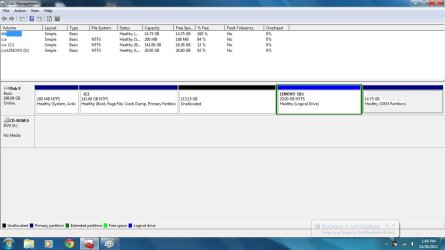
Sorry I wasn't too clear. With the PW boot cd, when I right click, Create is available, but in the next menu Logical Partition is greyed out, if I recall correctly.
If I can drag the D partition to include the unallocated space, that would be fine I think. I am just looking to create a partition to use for the User folders.
To clarify your situation...
Your drive setup right now already has FOUR primary partitions, which is the maximum allowed. And you already DO have the one allowed "extended partition" (which itself IS a primary partition) defined, inside of which at the moment is just one "logical" partition D:
(1)
primary 200MB (active) - "system reserved" for Win7 Boot Manager files
(2)
primary 141GB - C - Win7 system partition
(3) unallocated 113GB
(4)
primary 29GB - "extended partition" - currently containing only one "logical" partition D
(5)
primary 14GB - OEM
So you already DO have the one "extended partition" defined, which currently is only 29GB in size and contains just one "logical" partition inside of it, your D partition.
You can thus already sub-define any number of additional "logical" partitions inside of that existing "extended partition", but you'll need to make room for the additional partitions. This can be accomplished in either of two ways:
(a) resize D to make it even smaller than the 29GB it already is, and allocate a second (or more) additional "logical" partition(s) in the very tiny "logical unallocated" space which would result from the shrinkage of D. This is obviously a crazy idea.
(b) resize D, expanding it to the left to include all of the 113GB currently unallocated space to its left. What you're actually also simultaneously expanding is the "extended partition" which includes "logical" D inside of it. So if you use PW to drag the left edge of D to the left... all the way to the left of that currently unallocated space... you have now just enlarged BOTH (1) D, which will now be 29GB+113GB=142GB, and (2) the enclosing "extended partition" which is what D is really living inside of. PW actually redraws and enlarges the boundary of that "extended partition to include the now larger D "logical" partition inside of it.
So now you will no longer have any unallocated space. And that third primary ("extended partition") will now be 142GB, and inside of it D will be 142GB.
And now you can once again resize D, by dragging its new left edge to the right, or its far right edge to the left, thus revealing some new "logical unallocated" space inside of the already enlarged and newly sized 142GB "extended partition". And in that new "logical unallocated" space which will be either to the left or right of the now once-again resized D you can now define your new second (or more) "logical" partition(s).
And that will accomplish your goal of making use of that current 113GB unallocated space... and either (a) adding it to D to make it larger, or (b) using it for the allocation of a second "logical" partition. Either of these is possible, but you must first extend that left edge of D all the way to the left of the current unallocated space, in order to accomplish either of these.
Is this more clear now? Are there still questions I can answer?
When you're done you will then have:
(1)
primary 200MB (active) - "system reserved" for Win7 Boot Manager files
(2)
primary 141GB - C - Win7 system partition
(3)
primary 142GB - "extended partition" - containing say "logical" partition D 29GB (if you don't change its size from current) and new "logical" partition E (or any letter you assign it using either PW or DISKMGMT.MSC) 113GB, or any other combination of multiple "logical" partitions and their sizes that you care to sub-define. It's all done by PW's RESIZE function, and then CHANGE DRIVE LETTER to fit your desires.
(4)
primary 14GB - OEM
One more note here... the drive letter you assign to any new partition you create does not need to be in "alphabetically ascending" sequence to the physical left-to-right arrangement of the partitions. In other words, if in my step (b) above performing that second re-size of "logical" D to make room for your new "logical" E inside of the now enlarged "extended partition", if you do drag that left edge of D back to the right, to create the "logical unallocated" space to its left where you create your new "logical" partition", you can still assign ANY drive letter (e.g. E) you want to the newly created partition. In this example you'll end up with say E to the left of D, but that matters ZERO.
--> You can letter any partition (other than C) ANYTHING YOU WANT. Their physical order on the disk has nothing to do with the logical drive letter you assign to them.
The D drive right now has two folders of applications that Lenovo installed. Will making the partition larger with the unallocated space affect the performance of those applications?
Not really.
The whole partition is physically "to the right" of C, and that means the disk arm needs to move a bit to physically get there. The steps I detailed above to get you either (a) larger D or (b) resized/relocated D and a new second "logical" partition, perhaps the physical location of the Lenovo folders is a bit different from where they were originally. But in the grand scheme of things the net difference in "performance" (i.e. in loading the programs from disk into memory) is probably zero. Certainly you will never ever notice it.