
How to Set the Cursor Blink Rate in Vista, Windows 7, and Windows 8
Information
This will show you how to specify how much time in milliseconds you would like to elapse between each blink of the selection cursor in Vista, Windows 7, and Windows 8.
OPTION ONE
To Set Cursor Blink Rate in Keyboard Properties
1. Open the Control Panel (icons view), click on the Keyboard icon, and close the Control Panel.
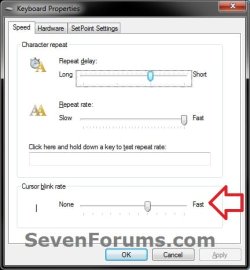
2. In the Speed tab, adjust the Cursor blink rate slider for how fast in you want the cursor blink rate to be, and click/tap on OK. (see screenshot below)
NOTE: This shows the default setting.
OPTION TWO
To Set Cursor Blink Rate in Registry Editor
1. Press the Windows + R keys to open the Run dialog, type regedit, and press Enter.
2. If prompted by UAC, then click on Yes (Windows 7/8) or Continue (Vista).
3. In regedit, navigate to the location below. (see screenshot below)
HKEY_CURRENT_USER\Control Panel\Desktop
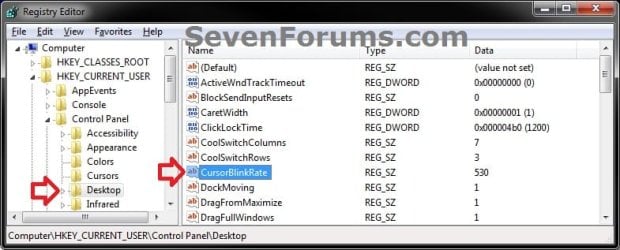
4. In the right pane of Desktop, double click/tap on CursorBlinkRate to modify it. (see screenshot above)
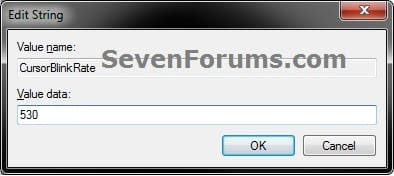
5. Type in a number between 200 and 1200 for how fast in milliseconds you want the cursor blink rate to be, and click/tap on OK. (see screenshot below)
NOTE: Setting it to -1 will give you no cursor blink. The default cursor blink rate is 530 milliseconds.
6. Close regedit.
7. Log off and log on, or restart the computer to apply.
That's it,
Shawn
Last edited:

