How to Remove a Listed Program in Default Programs for Windows 7 and Vista
Information
By default, you would normally uninstall a program to remove it from the list of programs in Set Default Programs. This will show you how to remove your choice of any program listed in the Windows 7 and Vista Set Default Programs window without having to uninstall the program instead.
You must be logged in as an administrator to be able to do this tutorial.
You must be logged in as an administrator to be able to do this tutorial.
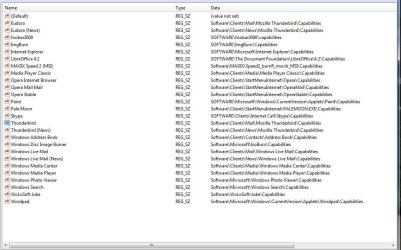
Note
This can be handy if you uninstalled a program and it was not removed from the list in Set Default Programs, or you just did not want the program to be listed in Set Default Programs.
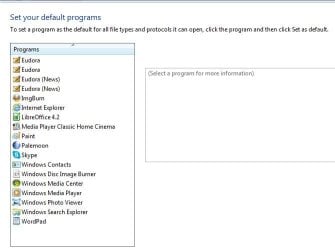
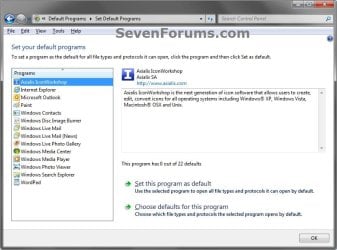
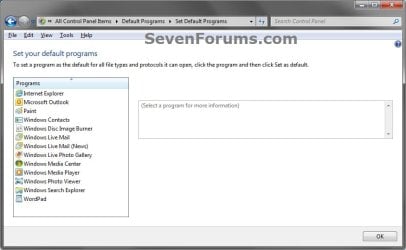
EXAMPLE: Set Default Programs
NOTE: Notice the program (ex: Axialis IconWorkshop) now removed in the left screenshot without having to uninstall it.
OPTION ONE
To Backup and Remove a Program Listed in Default Programs
1. Open the Start Menu, then type regedit in the search box and press Enter.
2. If prompted by UAC, click on Yes (Windows 7) or Continue (Vista).
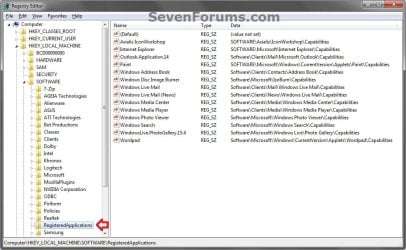
3. In regedit, navigate to the location below. (see screenshot below)
HKEY_LOCAL_MACHINE\SOFTWARE\RegisteredApplications
4. To Backup the List of Programs in Default Programs
NOTE: It is highly recommended that you do this to backup your list of default programs so you will be able to restore any program(s) in OPTION TWO below that you delete.
A) In the left pane of regedit, right click on RegisteredApplications, and click on Export. (see screenshot above)
B) Type in a name (ex: Default_Programs-RegisteredApplications.reg), and save this to your Desktop. (see screenshot below)
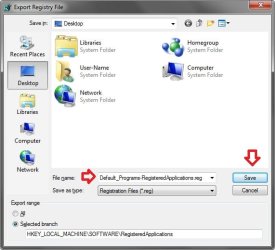
C) Move this exported REG file to where you will like to keep it saved it. This will be your only backup of the listed programs in Default Programs before you delete any of them below.
5. In the right pane of RegisteredApplications, right click on the program (ex: Axialis IconWorkshop) that you want removed from the list in Default Programs and click on Delete. (see screenshot below)

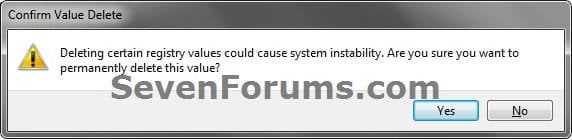
6. Click on Yes to confirm the deletion. (see screenshot below)
7. Repeat steps 5 and 6 for any other program you want to be removed from the list in Default Programs.
8. Close regedit when finished.
9. If open, close and reopen Default Programs to see the change. (see example screenshots at top of tutorial)
OPTION TWO
To Restore Backup of Listed Programs in Default Programs
NOTE: You will only be able to do this if you did step 4 in OPTION ONE above.
1. Double click on the exported REG file that you exported in step 4 of OPTION ONE above, and approve the merge when prompted.
2. If open, close and reopen Default Programs to see the change. (see example screenshots at top of tutorial)
That's it,
Shawn
Related Tutorials
- How to Set Default Associations for a Program in Windows 7
- How to Create a Default Programs Shortcut in Windows 7
- How to Clean Up and Remove Programs from the "Open with" Context Menu
- How to Restore or Remove "Windows Media Center" from Default Programs
- How to Restore or Remove "Internet Explorer" from Default Programs
- How to Restore or Remove "Windows Media Player" from Default Programs
- How to Add a Program to "Open with" in Windows 7
Last edited: