I had the exact same issue with one of my computers that I custom built. It took about a year and a half for me to finally figure out that the hard drive was faulty, although you can still store information on it. If this is indeed the same issue, at some point within the next year, the computer will crash more and more often, until the computer will no longer be able to boot. Here is what you will need to do at that time.
WARNING! THE FOLLOWING INSTRUCTIONS WILL VOID YOUR WARRANTY!
WARNING! THE FOLLOWING INSTRUCTIONS REQUIRE YOU TO HAVE IN-DEPTH KNOWLEDGE OF THE INNER WORKINGS OF A COMPUTER!
DISCLAIMER: I cannot be held responsible for you breaking your computer if this does not work. You are solely responsible for your own computer.
This solution will use a linux to help repair your computer, but in the end you will have exactly the same OS on your computer that you had before. You may need to reactivate windows when you are finished.
1. Get a new hard drive for your computer that is the same size or larger than the one you currently have. IT MUST BE AT LEAST THE SAME SIZE OR YOU WILL RUN INTO PROBLEMS! The same brand is preferable, but not absolutely necessary.
1.1. Get a blank 2GB or more Flash drive.
1.2. And a computer that you can plug both hard drives into simultaneously. Your desktop should probably do the trick.
1.3. Have a Phillips screwdriver on hand.
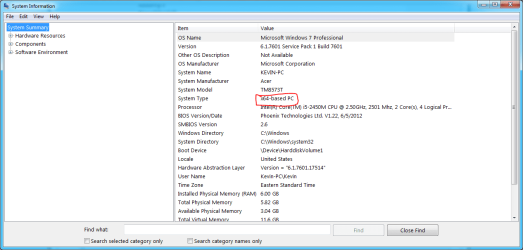
2. Find out if you have x86 or an x64 based computer by opening 'system information' on your computer, and write it down.
View attachment 293353
3.Download and install LiLi USB creator
Here
3.1. Download Clonezilla as an iso for the architecture you noted in step 2
here, and note the location
4. Plug the flash drive into your computer, and MAKE SURE IT IS BLANK.
4.1. Use LiLi USB Creator to install Clonezilla onto your flash drive.
4.2. Once Clonezilla is on the flash drive, remove the drive from your computer, and shut down the computer. Remove the battery. Unplug the computer. Press the power button to discharge any remaining power in the computer.
4.3. Turn off the desktop, unplug it, and if the power supply has a power switch, set it to O. Depress the power button to discharge any remaining electricity.
5. Unplug the hard drive from the desktop. (We are doing this to prevent accidents)
5.1. Plug in both the new and old hard drives from the laptop into the desktop.
5.2. Plug the flash drive into a USB port on the desktop.
5.3. Restore power to the desktop, and turn it on.
5.4. Activate the boot menu (usually F12)
5.5. Select the Flash drive as the boot media.
6. Follow the instructions for cloning a disk
here
7. Follow step 4.3 again.
7.1. Remove the hard drives from the desktop.
7.2. Put the desktop back the way it was. We are done with it.
7.3. Put the new hard drive in the laptop, and reassemble it.
7.4. Turn your laptop back on. It should boot normally now, if you did everything right.
I have done this several times for various reasons in the past, and it has never failed to work. I even cloned from a HDD to an SSD! Let me know if you have any questions about the process.
Your old Hard Drive will still work for general storage purposes, however, the error it has will prevent it from acting as a master drive (it will not be able to contain a stable operating system)
Good Luck!