Desktop Background - Change

How to Change the Windows 7 Desktop Background

   Information
This will show you how to change your desktop background to either a wallpaper picture (image), solid color, or slideshow of you choice in Windows 7.

   Note
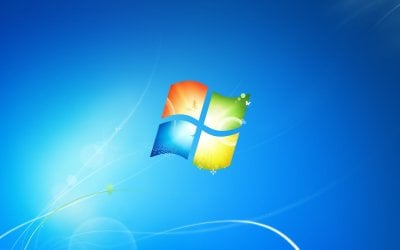
The default Windows 7 desktop background image is located in the folder below. If you had deleted it by mistake, you can click on the Download button below to download it in a ZIP file. See example screeenshot below.

C:\Windows\Web\Wallpaper\Windows\img0.jpg.


Download


   Tip

   Warning
The Windows 7 Starter edition does not include the Personalization features such as the change desktop background option.

Lets talk about Windows 7 Starter - Windows 7 Team Blog - The Windows Blog

The Windows 7 Home Basic edition does not have the Personalization feature either, and will only allow you to change the desktop background by right clicking on a image and clicking on Set as desktop background.

You can use the tutorial at the link below to be able to change the desktop background like in Personalization in the Windows 7 Starter and Home Basic editions.

How to Change the Desktop Background in Windows 7 Starter and Home Basic Editions


EXAMPLE: Default Windows 7 Desktop Background img0.jpg


OPTION ONE

To Change Desktop Background Wallpaper from Context Menu of Image
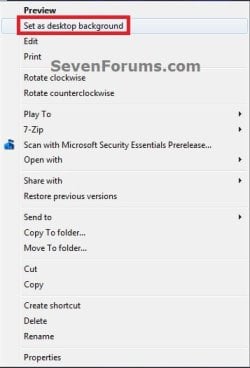
1. Right click on the image you want as your wallpaper, and click on Set as desktop background. (see screenshot below) Context-Menu.jpg


OPTION TWO

To Change Desktop Background Wallpaper in "Personalization" Settings

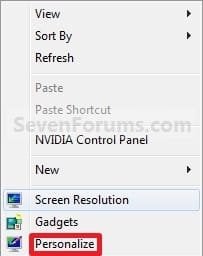
1. Right click on a empty space on the desktop and click on Personalize. (see screenshot below)
173d1230590219-desktop-background-change-right_click.jpg

2. Click on the Desktop Background link at the bottom of the window. (see screenshot below)
NOTE: The name in gray under Desktop Background is the current desktop background file name. Personalize.jpg
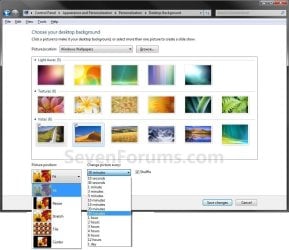
3. Select a Picture Location A) Click on the drop down arrow menu to select from the list of available picture folder locations, or click on the Browse button to navigate to the picture folder location. (see screenshot below step 7)
NOTE: To use another regional wallpaper, see the yellow TIP box at the top of the tutorial. To remove a folder from the Picture location, see How to Remove the Windows 7 Desktop Background Picture Location History.
B) Select the picture folder and click on Select Folder.
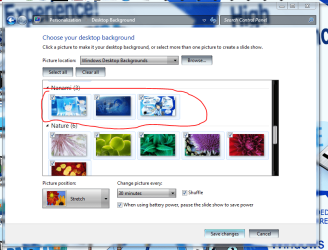
4. Select a Desktop Background A) Right click on an available picture, or click (check) on the box in the upper left corner of the picture, to select it. (see screenshot below step 7)
NOTE: You can continue to right click on the images to see it previewed on your desktop until you decide which one you like best.
5. Select the Picture Position A) Click on the drop down arrow menu, and click on the picture position you want for the desktop background. (see bottom of screenshot below step 7)
6. For a Desktop SlideShow A) For how, see: How to Create a Desktop Slideshow in Windows 7
7. Click on Save changes to apply the changes. (see screenshots below) change-2.jpg
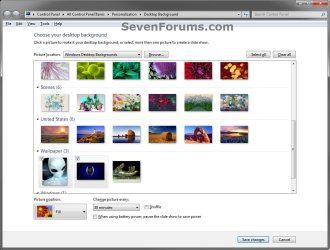
Desktop_Background.jpg

8. Close the Personalize window when done. (see screenshot below step 2)


OPTION THREE

To Change Desktop Background Wallpaper Manually in Registry Editor

1. Open the Start Menu, type regedit in the search box and press Enter.

2. If prompted by UAC, then click on Yes.

3. In regedit, navigate to the location below. (see screenshot below) HKEY_CURRENT_USER\Control Panel\Desktop

REG-1.jpg
4. In the right pane of the Desktop key in regedit, right click on the Wallpaper string value and click on Modify. (see screenshot above)

5. Type in the full path of the image file (ex: .jpg or .bmp), and click on OK. (see screenshot below)
NOTE: Be sure that the name of the image file does not contain any spaces in it. If it does, rename the image file first so that it doesn't. If you use a image file name with a space in it's name, then you would just get a solid black desktop background instead. Reg-2.jpg
6. Close regedit.

7. log off and log on to apply.
That's it,
Shawn


Attachments

  • Right_Click.jpg
    Right_Click.jpg
    7.6 KB · Views: 1,179,689
  • img0.zip
    img0.zip
    621.3 KB · Views: 99,391
Last edited:
I hope this is an okay place for this question. When I save a themepack or "run" it. I cannot find the pictures for the desktop background. Where are they going? I can't seem to find where they are going. I know where they are supposed to go but could this just be a poorly made themepack? or am I missing something here?
 

My Computer

Computer Manufacturer/Model Number
Keeps changing - (Custom)
OS
Windows 7 Professional x64
CPU
Intel Core i7 860
Motherboard
Gigabyte GA-P55-UD4P
Memory
4GB DDR3 Mushkin 1600Mhz @ 7-8-7-20
Graphics Card(s)
MSI GTS250 1GB DDR3 Twin Frozr
Sound Card
Onboard realtek
Monitor(s) Displays
Samsung SyncMaster 24" P2450 + Samsung 20" 2033
Screen Resolution
1920 X 1080 and 1600 X 900 (#2 system 1440 X 900)
Hard Drives
Patriot Inferno 120GB SSD + 3 WD Blue 640GB drives
PSU
Corsair 750 HX Modular
Case
Lancool PC-K62
Cooling
Cooler Master TX3 CPU cooler and 4-140mm and 1-120mm case
Keyboard
Gigabyte USB keyboard
Mouse
Microsoft wireless laser mouse 5000
Internet Speed
7 Mb down 1.5 up
Other Info
System #2: AMD Phenom II X6 1055T (Freezer 7 Pro cooler) - Gigabyte 880GMA-UD2H - WD 500GB Black - 9500GT (1GB) 500W OCZ modular PSU - Antec 200 case. System #3 (LapTop) Core 2 Duo T6670 - 320GB 7200RPM HD - 4GB DDR3 RAM.
Hi Nate,

Strange, you should still see the default wallpapers from the C:\Windows\Web\Wallpaper location even if the new themepack did not include one. Could you post a screen of this area?
 

My Computer

Computer type
PC/Desktop
Computer Manufacturer/Model Number
Self built custom
OS
64-bit Windows 11 Pro for Workstations
CPU
Intel i7-8700K OC'd to 5 GHz
Motherboard
ASUS ROG Maximus XI Formula Z390
Memory
64 GB (4x16GB) G.SKILL TridentZ RGB DDR4 3600 MHz
Graphics Card(s)
ASUS ROG-STRIX-GTX1080TI-O11G-GAMING
Sound Card
Integrated
Monitor(s) Displays
2 x Samsung Odyssey G7 27"
Screen Resolution
2560x1440
Hard Drives
1TB Samsung 990 PRO M.2,
4TB Samsung 990 PRO PRO M.2,
TerraMaster F8 SSD Plus NAS
PSU
Seasonic Prime Titanium 850W
Case
Thermaltake Core P3
Cooling
Corsair Hydro H115i
Keyboard
Logitech wireless K800
Mouse
Logitech MX Master 4
Internet Speed
2 Gb/s Download and 100 Mb/s Upload
Antivirus
Malwarebyte Anti-Malware Premium
Browser
Google Chrome
Other Info
Logitech Z625 speaker system,
Logitech BRIO 4K Pro webcam,
HP Color LaserJet Pro MFP M477fdn,
APC SMART-UPS RT 1000 XL - SURT1000XLI,
Galaxy S23 Plus phone
Yea, thanks Brink. I have a theme called nuclear blasts. I got it from a place called RapidShare. I don't know this place...maybe it a bad Themepack but if you want it..here it is. (I love nuclear blasts)

http://rapidshare.com/files/210151065/NuclearBlast.themepack

As you can see...there is no "nuclear blasts" wallpaper here. I made the "China" one. I put Korea and China in "China" so I kinda know how to arrange wallpaper.
:confused:

View attachment 8351
 
Last edited:

My Computer

Computer Manufacturer/Model Number
Keeps changing - (Custom)
OS
Windows 7 Professional x64
CPU
Intel Core i7 860
Motherboard
Gigabyte GA-P55-UD4P
Memory
4GB DDR3 Mushkin 1600Mhz @ 7-8-7-20
Graphics Card(s)
MSI GTS250 1GB DDR3 Twin Frozr
Sound Card
Onboard realtek
Monitor(s) Displays
Samsung SyncMaster 24" P2450 + Samsung 20" 2033
Screen Resolution
1920 X 1080 and 1600 X 900 (#2 system 1440 X 900)
Hard Drives
Patriot Inferno 120GB SSD + 3 WD Blue 640GB drives
PSU
Corsair 750 HX Modular
Case
Lancool PC-K62
Cooling
Cooler Master TX3 CPU cooler and 4-140mm and 1-120mm case
Keyboard
Gigabyte USB keyboard
Mouse
Microsoft wireless laser mouse 5000
Internet Speed
7 Mb down 1.5 up
Other Info
System #2: AMD Phenom II X6 1055T (Freezer 7 Pro cooler) - Gigabyte 880GMA-UD2H - WD 500GB Black - 9500GT (1GB) 500W OCZ modular PSU - Antec 200 case. System #3 (LapTop) Core 2 Duo T6670 - 320GB 7200RPM HD - 4GB DDR3 RAM.
Interesting, when you get to step 7 above, what does it show as the Picture Location when you are using the "Nuclear Blasts" theme?
 

My Computer

Computer type
PC/Desktop
Computer Manufacturer/Model Number
Self built custom
OS
64-bit Windows 11 Pro for Workstations
CPU
Intel i7-8700K OC'd to 5 GHz
Motherboard
ASUS ROG Maximus XI Formula Z390
Memory
64 GB (4x16GB) G.SKILL TridentZ RGB DDR4 3600 MHz
Graphics Card(s)
ASUS ROG-STRIX-GTX1080TI-O11G-GAMING
Sound Card
Integrated
Monitor(s) Displays
2 x Samsung Odyssey G7 27"
Screen Resolution
2560x1440
Hard Drives
1TB Samsung 990 PRO M.2,
4TB Samsung 990 PRO PRO M.2,
TerraMaster F8 SSD Plus NAS
PSU
Seasonic Prime Titanium 850W
Case
Thermaltake Core P3
Cooling
Corsair Hydro H115i
Keyboard
Logitech wireless K800
Mouse
Logitech MX Master 4
Internet Speed
2 Gb/s Download and 100 Mb/s Upload
Antivirus
Malwarebyte Anti-Malware Premium
Browser
Google Chrome
Other Info
Logitech Z625 speaker system,
Logitech BRIO 4K Pro webcam,
HP Color LaserJet Pro MFP M477fdn,
APC SMART-UPS RT 1000 XL - SURT1000XLI,
Galaxy S23 Plus phone
It does not show them at all. Maybe I will have to create one and post it in the "themes" thread. I don't know what happened to those pictures. Maybe a poorly created theme?
 

My Computer

Computer Manufacturer/Model Number
Keeps changing - (Custom)
OS
Windows 7 Professional x64
CPU
Intel Core i7 860
Motherboard
Gigabyte GA-P55-UD4P
Memory
4GB DDR3 Mushkin 1600Mhz @ 7-8-7-20
Graphics Card(s)
MSI GTS250 1GB DDR3 Twin Frozr
Sound Card
Onboard realtek
Monitor(s) Displays
Samsung SyncMaster 24" P2450 + Samsung 20" 2033
Screen Resolution
1920 X 1080 and 1600 X 900 (#2 system 1440 X 900)
Hard Drives
Patriot Inferno 120GB SSD + 3 WD Blue 640GB drives
PSU
Corsair 750 HX Modular
Case
Lancool PC-K62
Cooling
Cooler Master TX3 CPU cooler and 4-140mm and 1-120mm case
Keyboard
Gigabyte USB keyboard
Mouse
Microsoft wireless laser mouse 5000
Internet Speed
7 Mb down 1.5 up
Other Info
System #2: AMD Phenom II X6 1055T (Freezer 7 Pro cooler) - Gigabyte 880GMA-UD2H - WD 500GB Black - 9500GT (1GB) 500W OCZ modular PSU - Antec 200 case. System #3 (LapTop) Core 2 Duo T6670 - 320GB 7200RPM HD - 4GB DDR3 RAM.
Could be. :confused:
 

My Computer

Computer type
PC/Desktop
Computer Manufacturer/Model Number
Self built custom
OS
64-bit Windows 11 Pro for Workstations
CPU
Intel i7-8700K OC'd to 5 GHz
Motherboard
ASUS ROG Maximus XI Formula Z390
Memory
64 GB (4x16GB) G.SKILL TridentZ RGB DDR4 3600 MHz
Graphics Card(s)
ASUS ROG-STRIX-GTX1080TI-O11G-GAMING
Sound Card
Integrated
Monitor(s) Displays
2 x Samsung Odyssey G7 27"
Screen Resolution
2560x1440
Hard Drives
1TB Samsung 990 PRO M.2,
4TB Samsung 990 PRO PRO M.2,
TerraMaster F8 SSD Plus NAS
PSU
Seasonic Prime Titanium 850W
Case
Thermaltake Core P3
Cooling
Corsair Hydro H115i
Keyboard
Logitech wireless K800
Mouse
Logitech MX Master 4
Internet Speed
2 Gb/s Download and 100 Mb/s Upload
Antivirus
Malwarebyte Anti-Malware Premium
Browser
Google Chrome
Other Info
Logitech Z625 speaker system,
Logitech BRIO 4K Pro webcam,
HP Color LaserJet Pro MFP M477fdn,
APC SMART-UPS RT 1000 XL - SURT1000XLI,
Galaxy S23 Plus phone
Replace default Windows Desktop Backgrounds

Dont know if this is cool, but here is the tutorial anyways.

First navigate to: %SystemRoot%\Web\Wallpaper

Thats pretty much it, place your wallpapers there, create new folders etc, and they will show in the Windows Desktop Backgrounds menu in wallpaper selection :)

attachment.php


This can also be done with Sounds :o
Just navigate to: %SystemRoot%\Media
 

Attachments

  • 144.PNG
    144.PNG
    74.2 KB · Views: 1,153,435
Still Confused

Ah, I still need some help.
I just got my new Windows 7 Mini Netbook, and I am not all that sure if the tutorial you posted works on my computer. Help please?
 

My Computer

OS
Windows 7
Hello DJ, welcome to the Seven Forums.

What version of Win7 you have? Some netbooks have Windows 7 Starter Edition, which does not allow you to change the desktop wallpaper.

Kari
 

My Computer

Computer type
Laptop
Computer Manufacturer/Model Number
HP ENVY 17-1150eg
OS
Windows 10 Pro x64 EN-GB
CPU
1.6 GHz Intel Core i7-720QM Processor
Memory
6 GB
Graphics Card(s)
ATI Mobility Radeon HD 5850 Graphics
Sound Card
Beats sound system with integrated subwoofer
Monitor(s) Displays
17" laptop display, 22" LED and 32" Full HD TV through HDMI
Screen Resolution
1600*900 (1), 1920*1080 (2&3)
Hard Drives
Internal: 2 x 500 GB SATA Hard Disk Drive 7200 rpm
External: 2TB for backups, 3TB USB3 network drive for media
Cooling
As Envy runs a bit warm, I have it on a Cooler Master pad
Keyboard
Logitech diNovo Media Desktop Laser (bluetooth)
Mouse
Logitech Performance Mouse MX
Internet Speed
50/10 Mbps VDSL
Antivirus
Windows Defender 4.3.9431.0
Browser
Maxthon 3.5.2., IE11
Ah, I still need some help.
I just got my new Windows 7 Mini Netbook, and I am not all that sure if the tutorial you posted works on my computer. Help please?

Hello DJ,

If it's a Windows 7 Starter edition, then you will not be able to change the desktop background since that feature is not included in that Windows 7 edition. :(
 

My Computer

Computer type
PC/Desktop
Computer Manufacturer/Model Number
Self built custom
OS
64-bit Windows 11 Pro for Workstations
CPU
Intel i7-8700K OC'd to 5 GHz
Motherboard
ASUS ROG Maximus XI Formula Z390
Memory
64 GB (4x16GB) G.SKILL TridentZ RGB DDR4 3600 MHz
Graphics Card(s)
ASUS ROG-STRIX-GTX1080TI-O11G-GAMING
Sound Card
Integrated
Monitor(s) Displays
2 x Samsung Odyssey G7 27"
Screen Resolution
2560x1440
Hard Drives
1TB Samsung 990 PRO M.2,
4TB Samsung 990 PRO PRO M.2,
TerraMaster F8 SSD Plus NAS
PSU
Seasonic Prime Titanium 850W
Case
Thermaltake Core P3
Cooling
Corsair Hydro H115i
Keyboard
Logitech wireless K800
Mouse
Logitech MX Master 4
Internet Speed
2 Gb/s Download and 100 Mb/s Upload
Antivirus
Malwarebyte Anti-Malware Premium
Browser
Google Chrome
Other Info
Logitech Z625 speaker system,
Logitech BRIO 4K Pro webcam,
HP Color LaserJet Pro MFP M477fdn,
APC SMART-UPS RT 1000 XL - SURT1000XLI,
Galaxy S23 Plus phone
Background position

So it lets me change the background picture when I go to change my background, but I made the background picture myself and it's a little too small to be stretched. It wont let me change the picture position to anything but stretch nor will it let me change the background color... I'm probably just doing something stupid but it's starting to bother me. Can anyone help?
 

My Computer

OS
windows 7
Hello Cirux, and welcome to Seven Forums.

You might see if you can create a larger image of it, or if enlarging the image with something like Paint may allow it to work properly afterwards.

Hope this helps,
Shawn
 

My Computer

Computer type
PC/Desktop
Computer Manufacturer/Model Number
Self built custom
OS
64-bit Windows 11 Pro for Workstations
CPU
Intel i7-8700K OC'd to 5 GHz
Motherboard
ASUS ROG Maximus XI Formula Z390
Memory
64 GB (4x16GB) G.SKILL TridentZ RGB DDR4 3600 MHz
Graphics Card(s)
ASUS ROG-STRIX-GTX1080TI-O11G-GAMING
Sound Card
Integrated
Monitor(s) Displays
2 x Samsung Odyssey G7 27"
Screen Resolution
2560x1440
Hard Drives
1TB Samsung 990 PRO M.2,
4TB Samsung 990 PRO PRO M.2,
TerraMaster F8 SSD Plus NAS
PSU
Seasonic Prime Titanium 850W
Case
Thermaltake Core P3
Cooling
Corsair Hydro H115i
Keyboard
Logitech wireless K800
Mouse
Logitech MX Master 4
Internet Speed
2 Gb/s Download and 100 Mb/s Upload
Antivirus
Malwarebyte Anti-Malware Premium
Browser
Google Chrome
Other Info
Logitech Z625 speaker system,
Logitech BRIO 4K Pro webcam,
HP Color LaserJet Pro MFP M477fdn,
APC SMART-UPS RT 1000 XL - SURT1000XLI,
Galaxy S23 Plus phone
Thank you :)
I tried that, I ended up just giving it a much bigger border and painting it black so it would fill my desktop. I played around with it for a bit and tried changing the size of it to make it much smaller and larger, I also used a couple different images to see if maybe it was just mine. It still wouldn't let me change the picture position to tile or anything, it would just default back to stretch. I'll live with it for now though, thanks for the help Shawn
-Amanda
 

My Computer

OS
windows 7
Amanda,

Did you try making one that was the same size as your screen resolution?
 

My Computer

Computer type
PC/Desktop
Computer Manufacturer/Model Number
Self built custom
OS
64-bit Windows 11 Pro for Workstations
CPU
Intel i7-8700K OC'd to 5 GHz
Motherboard
ASUS ROG Maximus XI Formula Z390
Memory
64 GB (4x16GB) G.SKILL TridentZ RGB DDR4 3600 MHz
Graphics Card(s)
ASUS ROG-STRIX-GTX1080TI-O11G-GAMING
Sound Card
Integrated
Monitor(s) Displays
2 x Samsung Odyssey G7 27"
Screen Resolution
2560x1440
Hard Drives
1TB Samsung 990 PRO M.2,
4TB Samsung 990 PRO PRO M.2,
TerraMaster F8 SSD Plus NAS
PSU
Seasonic Prime Titanium 850W
Case
Thermaltake Core P3
Cooling
Corsair Hydro H115i
Keyboard
Logitech wireless K800
Mouse
Logitech MX Master 4
Internet Speed
2 Gb/s Download and 100 Mb/s Upload
Antivirus
Malwarebyte Anti-Malware Premium
Browser
Google Chrome
Other Info
Logitech Z625 speaker system,
Logitech BRIO 4K Pro webcam,
HP Color LaserJet Pro MFP M477fdn,
APC SMART-UPS RT 1000 XL - SURT1000XLI,
Galaxy S23 Plus phone
Ok so that didn't help with picture position problem but it definitely helped make it so the picture wasn't stretched. Even when I was messing with the size, because it wasn't the same as my screen resolution it was still stretching the picture out a little. So at least now I'm able to center the picture enough and scale it right to make me happy. Thanks again Shawn :)
-Amanda
 

My Computer

OS
windows 7
You're welcome Amanda. Do you have this problem with all images used for the background. What type (ex: BMP, JPG, etc....) of file is it? What edition (ex: Home Premium, Ultimate) of Windows 7 do you have?
 

My Computer

Computer type
PC/Desktop
Computer Manufacturer/Model Number
Self built custom
OS
64-bit Windows 11 Pro for Workstations
CPU
Intel i7-8700K OC'd to 5 GHz
Motherboard
ASUS ROG Maximus XI Formula Z390
Memory
64 GB (4x16GB) G.SKILL TridentZ RGB DDR4 3600 MHz
Graphics Card(s)
ASUS ROG-STRIX-GTX1080TI-O11G-GAMING
Sound Card
Integrated
Monitor(s) Displays
2 x Samsung Odyssey G7 27"
Screen Resolution
2560x1440
Hard Drives
1TB Samsung 990 PRO M.2,
4TB Samsung 990 PRO PRO M.2,
TerraMaster F8 SSD Plus NAS
PSU
Seasonic Prime Titanium 850W
Case
Thermaltake Core P3
Cooling
Corsair Hydro H115i
Keyboard
Logitech wireless K800
Mouse
Logitech MX Master 4
Internet Speed
2 Gb/s Download and 100 Mb/s Upload
Antivirus
Malwarebyte Anti-Malware Premium
Browser
Google Chrome
Other Info
Logitech Z625 speaker system,
Logitech BRIO 4K Pro webcam,
HP Color LaserJet Pro MFP M477fdn,
APC SMART-UPS RT 1000 XL - SURT1000XLI,
Galaxy S23 Plus phone
Well I made it in gimp so it was originally a xcf but I converted it to a jpg so it would be compatible... I also tried a png image i got off the internet which didn't work either, after you asked that i went back in and tried using the original jpg image before i edited it in gimp. I have home premium, I know the starter edition doesn't allow you to change the background but I figured if they didn't allow you to change something like that in home premium they'd take away the option. It just makes me a little confused, maybe there's a setting somewhere I need to change.. If I ever figure it out I'll probably feel pretty dumb for not getting it right away
 

My Computer

OS
windows 7
Amanda,

As a test create a new administrator account, and see how it works in it.
 

My Computer

Computer type
PC/Desktop
Computer Manufacturer/Model Number
Self built custom
OS
64-bit Windows 11 Pro for Workstations
CPU
Intel i7-8700K OC'd to 5 GHz
Motherboard
ASUS ROG Maximus XI Formula Z390
Memory
64 GB (4x16GB) G.SKILL TridentZ RGB DDR4 3600 MHz
Graphics Card(s)
ASUS ROG-STRIX-GTX1080TI-O11G-GAMING
Sound Card
Integrated
Monitor(s) Displays
2 x Samsung Odyssey G7 27"
Screen Resolution
2560x1440
Hard Drives
1TB Samsung 990 PRO M.2,
4TB Samsung 990 PRO PRO M.2,
TerraMaster F8 SSD Plus NAS
PSU
Seasonic Prime Titanium 850W
Case
Thermaltake Core P3
Cooling
Corsair Hydro H115i
Keyboard
Logitech wireless K800
Mouse
Logitech MX Master 4
Internet Speed
2 Gb/s Download and 100 Mb/s Upload
Antivirus
Malwarebyte Anti-Malware Premium
Browser
Google Chrome
Other Info
Logitech Z625 speaker system,
Logitech BRIO 4K Pro webcam,
HP Color LaserJet Pro MFP M477fdn,
APC SMART-UPS RT 1000 XL - SURT1000XLI,
Galaxy S23 Plus phone
Of course, but...

It took me just a few moments to execute the steps so vividly pictured above, but what I wanted to know was if there was any step beyond for stabilizing the, well, for me it concerns the 'stretch' option.

You see, whereas my former Windows XP didn't give me any problem with my Webshots desktop background, I now need to stretch the image to fit my wide screen (and by the way, I really dislike this current vogue of wide-screen monitors). "Okay nice," I first thought when reaching your finely illustrated plateau, until I found that the screen-image reverted to a 'centered' image when the next daily Webshots image went up.

What I'd like to do (and does anyone have any knowledge or idea about this?) is to render a permanent setting of the 'stretch' option to save me the daily chore of re-setting it.
 

My Computer

OS
Window 7 Ultimate
Back
Top