
Desktop Background - Specify and Prevent Change

How to Specify a Desktop Background for Users in Windows

   Information
This tutorial will show you how to specify a BMP or JPG image of your choice as the default desktop background wallpaper for all or specific users in Vista, Windows 7, and Windows 8.

You will also be able to specify that the wallpaper image position to have the center, fill, fit, tile, or stretch style on the desktop. The options to change the desktop background in personalization will not be grayed out, but users will not be able to change anything after you have specified a desktop background in this tutorial.

You must be logged in as an administrator to be able to do the steps in this tutorial.

   Note
When you specify a desktop background, it will disable the Set as desktop background (image on PC) and Set as Background (image in web browser) context menu items. They will still be there and not grayed out, but they will not work.

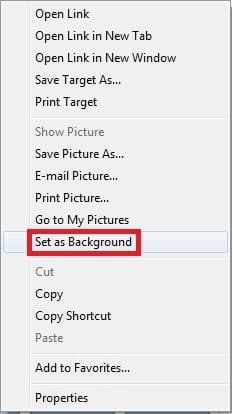
Set-as-desktop-background.jpgSet-as-Background.jpg

   Warning
This does not apply to guest accounts.

While guest accounts will still be able to change their desktop background wallpaper.


OPTION ONE

To Specify Default Desktop Background using Group Policy


1. Open the all users, specific users or groups, or all users except administrators Local Group Policy Editor for how you want this policy applied.

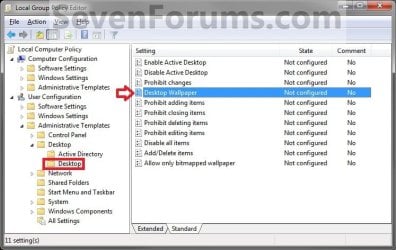
2. In the left pane, click on to expand User Configuration, Administrative Templates, Desktop, and Desktop. (See screenshot below)
Group_Policy.jpg
3. In the right pane, double click/tap on Desktop Wallpaper. (See screenshot above)

4. To Not Specify a Desktop Background
NOTE: This is the default setting to allow users to change their own desktop backgrounds instead.
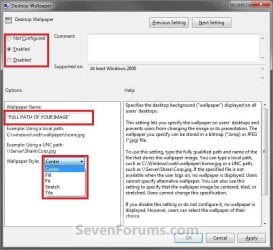
A) Select (dot) Disabled or Not Configured, click/tap on OK, and go to step 6 below. (See screenshot below)
NOTE: Not Configured is the default setting.
Edit.jpg
5. To Specify a Desktop Background and Prevent Changing it
A) Select (dot) Enabled. (See screenshot above)

B) In the Wallpaper Name: box, type in the full path of a BMP or JPG image not in quotes that you want displayed as a wallpaper for all users. (See screenshot below step 3A)
NOTE: If you just want a blank wallpaper, you can enter a invalid path (EX: C:\ ), or place the path within quotes.
   Warning
Be sure to have the wallpaper that you want to be displayed for all users saved in either one of the C:\Users\Public folders, or in the C:\Windows\Web\Wallpaper system folder.

If you save the wallpaper in one of your user account's C:\Users\(user-name) folders, then the other users will not have access permission to see it and will only see a blank wallpaper instead.

C) In the Wallpaper Style: drop down menu box, select if you want the wallpaper to be the Center, Fill, Fit, Stretch, or Tile style on the desktop. (See screenshot below step 2)

D) Click/tap on OK, and go to step 6 below. (See screenshot below step 2)
6. Close the Local Group Policy Editor window.

7. Restart the computer to fully apply.


OPTION TWO

To Specify Default Desktop Background in Registry Editor


1. Press the Windows + R keys to open the Run dialog, type regedit.exe, and press Enter.

2. If prompted by UAC, then click/tap on Yes (Windows 7/8) or Continue (Vista).

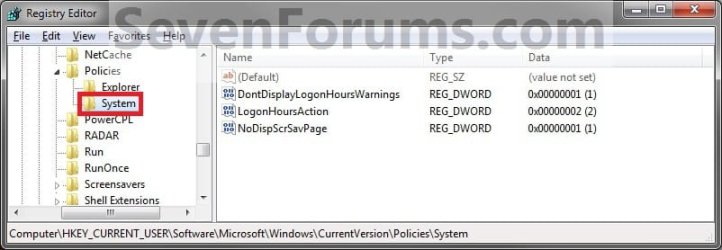
3. In Regedit, go to the location below: (See screenshot below)
HKEY_CURRENT_USER\Software\Microsoft\Windows\CurrentVersion\Policies\System
Reg1.jpg
4. To Specify a Desktop Background and Prevent Changing it for Only Current User
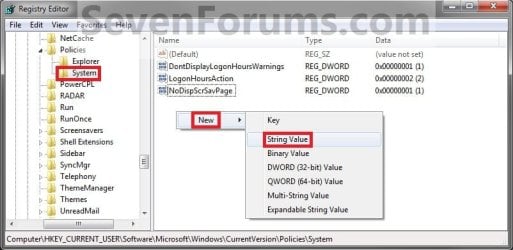
A) In the right pane of System, right click on an empty area and click on New and String Value. (See screenshot below)
NOTE: If you do not have System, then right click on Policies, click on New and Key, type System, and press Enter.
Reg2.jpg
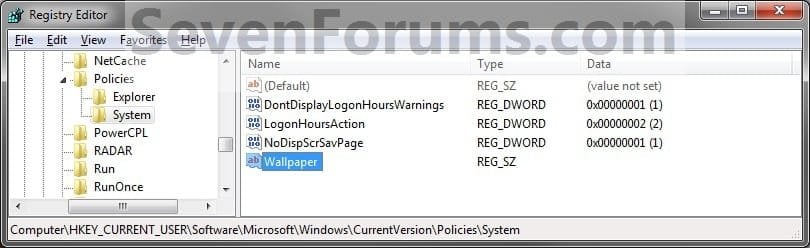
B) Type Wallpaper and press enter, then double click/tap on Wallpaper to modify it. (See screenshot below)
Reg3.jpg
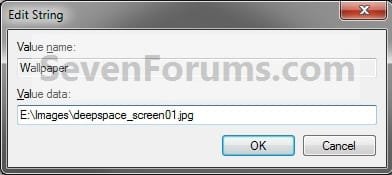
C) Type in the full path of a BMP or JPG image not in quotes that you want displayed as a wallpaper for all users. (See screenshot below)
NOTE: If you just want a blank wallpaper, you can enter a invalid path. (EX: C:\ )
   Warning
Be sure to have the wallpaper that you want to be displayed for all users saved in either one of the C:\Users\Public folders, or in the C:\Windows\Web\Wallpaper system folder.

If you save the wallpaper in one of your user account's C:\Users\(user-name) folders, then the other users will not have access permission to see it and will only see a blank wallpaper instead.
Reg4.jpg
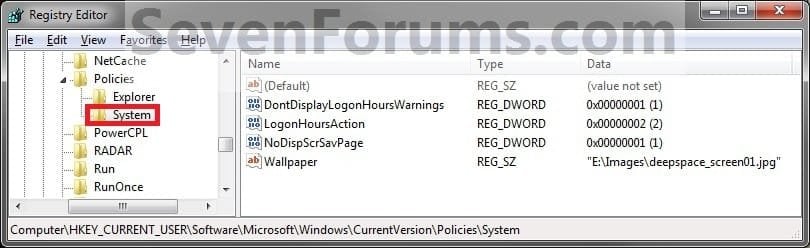
D) In the right pane of System, right click on an empty area, and click on New and String Value. (See screenshot below)
Reg5B.jpg
E) Type WallpaperSyle and press enter, then double click/tap on WallpaperStyle to modify it. (See screenshot below)
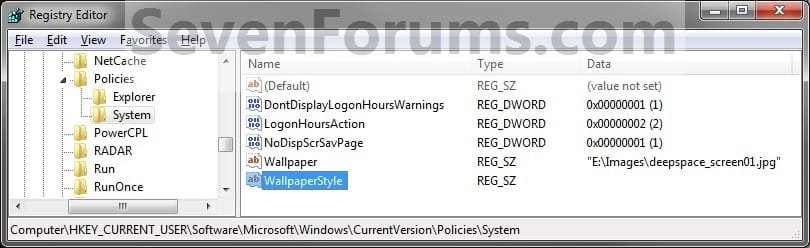
Reg5.jpg

F) Type in a number below for the wallpaper to be the Center, Fill, Fit, Stretch, or Tile style on the desktop, and click/tap on OK. (See screenshot below)
  • Type 0 to Center the wallpaper on the desktop.
  • Type 1 to Tile the wallpaper on the desktop.
  • Type 2 to Stretch the wallpaper to fit the desktop.
  • Type 3 to Fit the wallpaper to the desktop.
  • Type 4 to Fill the wallpaper on the desktop.
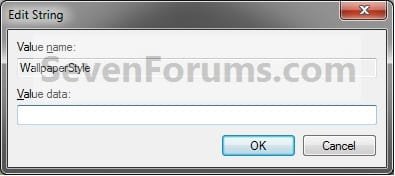
Reg6.jpg
G) Go to step 6 below.
5. To Not Specify a Desktop Background for Only Current User
NOTE: This is the default setting to allow users to change their own desktop backgrounds instead.
A) In the right pane of System, right click on Wallpaper, and click on Delete. (See screenshot below)
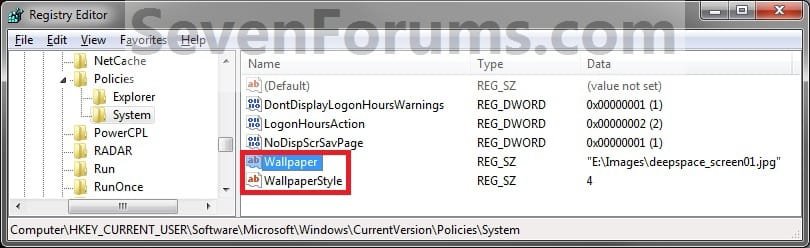
Reg7.jpg
B) Click/tap on Yes to confirm deletion. (See screenshot below)
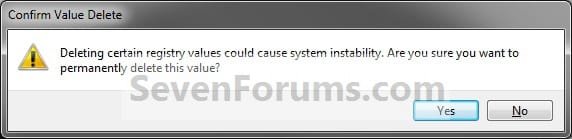
Reg8-9.jpg
C) In the right pane of System, right click on WallpaperStyle, and click on Delete. (See screenshot below step 5A)

D) Click/tap on Yes to confirm deletion. (See screenshot below step 5B)
6. Close regedit.

7. Restart the computer to fully apply.
That's it,
Shawn


Last edited:
Hello VailVeix,

I have added a note under step 4A (Option Two) to help with this for you. :)

Hope this helps,
Shawn
 

My Computer

Computer type
PC/Desktop
Computer Manufacturer/Model Number
Self built custom
OS
64-bit Windows 11 Pro for Workstations
CPU
Intel i7-8700K OC'd to 5 GHz
Motherboard
ASUS ROG Maximus XI Formula Z390
Memory
64 GB (4x16GB) G.SKILL TridentZ RGB DDR4 3600 MHz
Graphics Card(s)
ASUS ROG-STRIX-GTX1080TI-O11G-GAMING
Sound Card
Integrated
Monitor(s) Displays
2 x Samsung Odyssey G7 27"
Screen Resolution
2560x1440
Hard Drives
1TB Samsung 990 PRO M.2,
4TB Samsung 990 PRO PRO M.2,
TerraMaster F8 SSD Plus NAS
PSU
Seasonic Prime Titanium 850W
Case
Thermaltake Core P3
Cooling
Corsair Hydro H115i
Keyboard
Logitech wireless K800
Mouse
Logitech MX Master 4
Internet Speed
2 Gb/s Download and 100 Mb/s Upload
Antivirus
Malwarebyte Anti-Malware Premium
Browser
Google Chrome
Other Info
Logitech Z625 speaker system,
Logitech BRIO 4K Pro webcam,
HP Color LaserJet Pro MFP M477fdn,
APC SMART-UPS RT 1000 XL - SURT1000XLI,
Galaxy S23 Plus phone
i am using windows 7 professional and i followed the steps above. i tried the GP edit first: that produce a black screen when i go to personalized the wall paper shows black but with the correct file name. i did the registry edit and got the same result. am i missing some thing. can this be done on a domain PC can the gpedit and registry edit be used at the ame time
 

My Computer

OS
Windows 7 Professional
Hello Bobby, and welcome to Seven Forums.

I've never tried this on a domain PC, so I'm not sure how it will work or not on it. I would imagine that it would have to be done on the domain administrator's system though if it will work.
 

My Computer

Computer type
PC/Desktop
Computer Manufacturer/Model Number
Self built custom
OS
64-bit Windows 11 Pro for Workstations
CPU
Intel i7-8700K OC'd to 5 GHz
Motherboard
ASUS ROG Maximus XI Formula Z390
Memory
64 GB (4x16GB) G.SKILL TridentZ RGB DDR4 3600 MHz
Graphics Card(s)
ASUS ROG-STRIX-GTX1080TI-O11G-GAMING
Sound Card
Integrated
Monitor(s) Displays
2 x Samsung Odyssey G7 27"
Screen Resolution
2560x1440
Hard Drives
1TB Samsung 990 PRO M.2,
4TB Samsung 990 PRO PRO M.2,
TerraMaster F8 SSD Plus NAS
PSU
Seasonic Prime Titanium 850W
Case
Thermaltake Core P3
Cooling
Corsair Hydro H115i
Keyboard
Logitech wireless K800
Mouse
Logitech MX Master 4
Internet Speed
2 Gb/s Download and 100 Mb/s Upload
Antivirus
Malwarebyte Anti-Malware Premium
Browser
Google Chrome
Other Info
Logitech Z625 speaker system,
Logitech BRIO 4K Pro webcam,
HP Color LaserJet Pro MFP M477fdn,
APC SMART-UPS RT 1000 XL - SURT1000XLI,
Galaxy S23 Plus phone
Desktop background COLOR change

I'm playing around with the Group Policy way to do this, but I can't figure out how to change the background color to black through the Group Policy. Is there a way to do this, so it can change background color on multiple machines on my network?

Thanks in advance!

Mark
 

My Computer

OS
Windows 7 Enterprise, 32 bit
Hello Mark, and welcome to Seven Forums.

The easiest way would be to create a solid 1600x1200 (or size you want) black image in Paint (mspaint.exe) and use it.

Hope this helps,
Shawn
 

My Computer

Computer type
PC/Desktop
Computer Manufacturer/Model Number
Self built custom
OS
64-bit Windows 11 Pro for Workstations
CPU
Intel i7-8700K OC'd to 5 GHz
Motherboard
ASUS ROG Maximus XI Formula Z390
Memory
64 GB (4x16GB) G.SKILL TridentZ RGB DDR4 3600 MHz
Graphics Card(s)
ASUS ROG-STRIX-GTX1080TI-O11G-GAMING
Sound Card
Integrated
Monitor(s) Displays
2 x Samsung Odyssey G7 27"
Screen Resolution
2560x1440
Hard Drives
1TB Samsung 990 PRO M.2,
4TB Samsung 990 PRO PRO M.2,
TerraMaster F8 SSD Plus NAS
PSU
Seasonic Prime Titanium 850W
Case
Thermaltake Core P3
Cooling
Corsair Hydro H115i
Keyboard
Logitech wireless K800
Mouse
Logitech MX Master 4
Internet Speed
2 Gb/s Download and 100 Mb/s Upload
Antivirus
Malwarebyte Anti-Malware Premium
Browser
Google Chrome
Other Info
Logitech Z625 speaker system,
Logitech BRIO 4K Pro webcam,
HP Color LaserJet Pro MFP M477fdn,
APC SMART-UPS RT 1000 XL - SURT1000XLI,
Galaxy S23 Plus phone
Thank you!

This will work for now, but I guess I didn't explain my full situation. I want to put the company logo as the desktop picture (which was the easy part) of people's machines here, but the picture's size is only so big. I can personally change my desktop background to match the existing background color of the picture, but I don't want to do that for all the domain computers.
 

My Computer

OS
Windows 7 Enterprise, 32 bit
Oh, ok. That's not a problem. You could copy the company logo in the center of the black background in Paint and save it. While doing the tutorial, you can use the Fill option at step 4C in Option One, or one of the other options if looks better, to have it fill the screen no matter the resolution the computer is set to.
 

My Computer

Computer type
PC/Desktop
Computer Manufacturer/Model Number
Self built custom
OS
64-bit Windows 11 Pro for Workstations
CPU
Intel i7-8700K OC'd to 5 GHz
Motherboard
ASUS ROG Maximus XI Formula Z390
Memory
64 GB (4x16GB) G.SKILL TridentZ RGB DDR4 3600 MHz
Graphics Card(s)
ASUS ROG-STRIX-GTX1080TI-O11G-GAMING
Sound Card
Integrated
Monitor(s) Displays
2 x Samsung Odyssey G7 27"
Screen Resolution
2560x1440
Hard Drives
1TB Samsung 990 PRO M.2,
4TB Samsung 990 PRO PRO M.2,
TerraMaster F8 SSD Plus NAS
PSU
Seasonic Prime Titanium 850W
Case
Thermaltake Core P3
Cooling
Corsair Hydro H115i
Keyboard
Logitech wireless K800
Mouse
Logitech MX Master 4
Internet Speed
2 Gb/s Download and 100 Mb/s Upload
Antivirus
Malwarebyte Anti-Malware Premium
Browser
Google Chrome
Other Info
Logitech Z625 speaker system,
Logitech BRIO 4K Pro webcam,
HP Color LaserJet Pro MFP M477fdn,
APC SMART-UPS RT 1000 XL - SURT1000XLI,
Galaxy S23 Plus phone
Hi Brink, I tried modify the registry as you mentioned (as administrator and guest) but I cannot force any picture as wallpaper. The only thing I can change is the color of the background.
Thanks for your help
 

My Computer

Computer Manufacturer/Model Number
Gateway/ PEW91
OS
Windows 7 Home Premium 64bit
CPU
Intel Pentium Processor P6100
Memory
4GB DDR3 memory
Graphics Card(s)
Intel HD
Hello Aphine, and welcome to Seven Forums.

Where do you have the wallpaper saved at that you are using?

If it was in say one of your administrator's account user folders before, then the other user would not have had permission to access it leaving them a blank wallpaper instead.


Try having it saved in a C:\Users\Public folder instead, and use that path in the tutorial.

Hope this helps,
Shawn
 

My Computer

Computer type
PC/Desktop
Computer Manufacturer/Model Number
Self built custom
OS
64-bit Windows 11 Pro for Workstations
CPU
Intel i7-8700K OC'd to 5 GHz
Motherboard
ASUS ROG Maximus XI Formula Z390
Memory
64 GB (4x16GB) G.SKILL TridentZ RGB DDR4 3600 MHz
Graphics Card(s)
ASUS ROG-STRIX-GTX1080TI-O11G-GAMING
Sound Card
Integrated
Monitor(s) Displays
2 x Samsung Odyssey G7 27"
Screen Resolution
2560x1440
Hard Drives
1TB Samsung 990 PRO M.2,
4TB Samsung 990 PRO PRO M.2,
TerraMaster F8 SSD Plus NAS
PSU
Seasonic Prime Titanium 850W
Case
Thermaltake Core P3
Cooling
Corsair Hydro H115i
Keyboard
Logitech wireless K800
Mouse
Logitech MX Master 4
Internet Speed
2 Gb/s Download and 100 Mb/s Upload
Antivirus
Malwarebyte Anti-Malware Premium
Browser
Google Chrome
Other Info
Logitech Z625 speaker system,
Logitech BRIO 4K Pro webcam,
HP Color LaserJet Pro MFP M477fdn,
APC SMART-UPS RT 1000 XL - SURT1000XLI,
Galaxy S23 Plus phone
Thanks a lot for the prompt and accurate answer! It worked! You were right. I was trying to access with the admin account a directory from the guest.
You have one more fan now.
 

My Computer

Computer Manufacturer/Model Number
Gateway/ PEW91
OS
Windows 7 Home Premium 64bit
CPU
Intel Pentium Processor P6100
Memory
4GB DDR3 memory
Graphics Card(s)
Intel HD
You're most welcome Aphine. I'm happy to hear that it's working now. :)
 

My Computer

Computer type
PC/Desktop
Computer Manufacturer/Model Number
Self built custom
OS
64-bit Windows 11 Pro for Workstations
CPU
Intel i7-8700K OC'd to 5 GHz
Motherboard
ASUS ROG Maximus XI Formula Z390
Memory
64 GB (4x16GB) G.SKILL TridentZ RGB DDR4 3600 MHz
Graphics Card(s)
ASUS ROG-STRIX-GTX1080TI-O11G-GAMING
Sound Card
Integrated
Monitor(s) Displays
2 x Samsung Odyssey G7 27"
Screen Resolution
2560x1440
Hard Drives
1TB Samsung 990 PRO M.2,
4TB Samsung 990 PRO PRO M.2,
TerraMaster F8 SSD Plus NAS
PSU
Seasonic Prime Titanium 850W
Case
Thermaltake Core P3
Cooling
Corsair Hydro H115i
Keyboard
Logitech wireless K800
Mouse
Logitech MX Master 4
Internet Speed
2 Gb/s Download and 100 Mb/s Upload
Antivirus
Malwarebyte Anti-Malware Premium
Browser
Google Chrome
Other Info
Logitech Z625 speaker system,
Logitech BRIO 4K Pro webcam,
HP Color LaserJet Pro MFP M477fdn,
APC SMART-UPS RT 1000 XL - SURT1000XLI,
Galaxy S23 Plus phone

My Computer

OS
Windows 7 Ultimate 32bit
CPU
AMD Phenom II x4 965 3.4GHz
Motherboard
Gigabyte GA-890FXA-UD5 rev2.0
Memory
G.SKILL F3-16000CL8D-4GBPIS (2GBx2)
Graphics Card(s)
Inno3d GTX480 1.5GB GDDR5
Monitor(s) Displays
LG FLATRON W2486L
Screen Resolution
1920x1080@60Hz
Hard Drives
Western Digital Caviar Black WD1002FAEX 1TB 64MB 7200RPM Sata III x3
PSU
Enermax MODU82+ 625W
Case
Thermaltake Element G Middle Tower
Hello Need4steer,

There's no need to since this tutorial also prevents the desktop background from being changed when enabled.

The other tutorial is to just "allow or prevent" changing, while this one is to "specify and prevent". I had only left them separate since one may prefer one over the other, but they can both be used together as well. :)
 
Last edited:

My Computer

Computer type
PC/Desktop
Computer Manufacturer/Model Number
Self built custom
OS
64-bit Windows 11 Pro for Workstations
CPU
Intel i7-8700K OC'd to 5 GHz
Motherboard
ASUS ROG Maximus XI Formula Z390
Memory
64 GB (4x16GB) G.SKILL TridentZ RGB DDR4 3600 MHz
Graphics Card(s)
ASUS ROG-STRIX-GTX1080TI-O11G-GAMING
Sound Card
Integrated
Monitor(s) Displays
2 x Samsung Odyssey G7 27"
Screen Resolution
2560x1440
Hard Drives
1TB Samsung 990 PRO M.2,
4TB Samsung 990 PRO PRO M.2,
TerraMaster F8 SSD Plus NAS
PSU
Seasonic Prime Titanium 850W
Case
Thermaltake Core P3
Cooling
Corsair Hydro H115i
Keyboard
Logitech wireless K800
Mouse
Logitech MX Master 4
Internet Speed
2 Gb/s Download and 100 Mb/s Upload
Antivirus
Malwarebyte Anti-Malware Premium
Browser
Google Chrome
Other Info
Logitech Z625 speaker system,
Logitech BRIO 4K Pro webcam,
HP Color LaserJet Pro MFP M477fdn,
APC SMART-UPS RT 1000 XL - SURT1000XLI,
Galaxy S23 Plus phone
Doesn't work that way for me.

I specify the desktop image to be at a network location, it shows, but then is overwritten by the active desktop image, which is still changeable via the right-click set as desktop background.

By itself, the Desktop Wallpaper does NOT prevent the right-click change from taking place. Its the ONLY setting set on the ONLY gpo, on a new win 7 test box.
 

My Computer

OS
64 win7 enterprise
Hello 1134, and welcome to Seven Forums.

How does it work if the image is saved at a local location, and is done as outlined in the tutorial instead?
 

My Computer

Computer type
PC/Desktop
Computer Manufacturer/Model Number
Self built custom
OS
64-bit Windows 11 Pro for Workstations
CPU
Intel i7-8700K OC'd to 5 GHz
Motherboard
ASUS ROG Maximus XI Formula Z390
Memory
64 GB (4x16GB) G.SKILL TridentZ RGB DDR4 3600 MHz
Graphics Card(s)
ASUS ROG-STRIX-GTX1080TI-O11G-GAMING
Sound Card
Integrated
Monitor(s) Displays
2 x Samsung Odyssey G7 27"
Screen Resolution
2560x1440
Hard Drives
1TB Samsung 990 PRO M.2,
4TB Samsung 990 PRO PRO M.2,
TerraMaster F8 SSD Plus NAS
PSU
Seasonic Prime Titanium 850W
Case
Thermaltake Core P3
Cooling
Corsair Hydro H115i
Keyboard
Logitech wireless K800
Mouse
Logitech MX Master 4
Internet Speed
2 Gb/s Download and 100 Mb/s Upload
Antivirus
Malwarebyte Anti-Malware Premium
Browser
Google Chrome
Other Info
Logitech Z625 speaker system,
Logitech BRIO 4K Pro webcam,
HP Color LaserJet Pro MFP M477fdn,
APC SMART-UPS RT 1000 XL - SURT1000XLI,
Galaxy S23 Plus phone
I could be wrong but...

Regarding steps for "Specify Default Desktop Background Using Registry Editor"
Would this not only change the background Image for the currently logged in user.

Considering the key you are modifying is "HKEY_CURRENT_USER"

I would think you would have to modify the Default user Hive in c:\users\default\ntuser.dat , and that would only apply the change for new users after the change is made... would not affect currently existing user accounts.

Again I could be wrong.
 

My Computer

Computer Manufacturer/Model Number
Dell 8100XPS
OS
Windows 8 CP x64
CPU
Core i7
Motherboard
Who knows with a Dell
Memory
8GB
Graphics Card(s)
ATI Radeon HD 5700
Sound Card
Nothing Special
Monitor(s) Displays
27",21"
Hard Drives
1TBx2
Case
Dell
Cooling
Jet Engine fan
Hello Lopan, and welcome to Seven Forums.

Option One and Option Two makes changes to the group policy setting in the registry, so it will affect all users (new and existing) on the computer. :)

That's correct, anything changed in the C:\Users\Default folder is applied to new user accounts when they are created. It will not afffect currently existing accounts.
 

My Computer

Computer type
PC/Desktop
Computer Manufacturer/Model Number
Self built custom
OS
64-bit Windows 11 Pro for Workstations
CPU
Intel i7-8700K OC'd to 5 GHz
Motherboard
ASUS ROG Maximus XI Formula Z390
Memory
64 GB (4x16GB) G.SKILL TridentZ RGB DDR4 3600 MHz
Graphics Card(s)
ASUS ROG-STRIX-GTX1080TI-O11G-GAMING
Sound Card
Integrated
Monitor(s) Displays
2 x Samsung Odyssey G7 27"
Screen Resolution
2560x1440
Hard Drives
1TB Samsung 990 PRO M.2,
4TB Samsung 990 PRO PRO M.2,
TerraMaster F8 SSD Plus NAS
PSU
Seasonic Prime Titanium 850W
Case
Thermaltake Core P3
Cooling
Corsair Hydro H115i
Keyboard
Logitech wireless K800
Mouse
Logitech MX Master 4
Internet Speed
2 Gb/s Download and 100 Mb/s Upload
Antivirus
Malwarebyte Anti-Malware Premium
Browser
Google Chrome
Other Info
Logitech Z625 speaker system,
Logitech BRIO 4K Pro webcam,
HP Color LaserJet Pro MFP M477fdn,
APC SMART-UPS RT 1000 XL - SURT1000XLI,
Galaxy S23 Plus phone
Hi Brink, I'm afraid I have to follow Lopan. I was trying OPTION 2 by editing the register, but as Lopan mentioned in CURRENT USER you only change it for the user with wich you are currently logged on. This does not work for other users or new users who will log-on in the future.
I tried the same tutorial in LOCAL MACHINE but this does not work either.

I'm applying this on Windows 7 Pro 64bit in our company domain. I saved the wallpaper in "C:\Users\Public\Public Documents" but it keeps showing the default WIN7 wallpaper. I already changed the wallpaper at log-in screen (which is actually in LOCAL MACHINE) and this works fine.
 

My Computer

OS
Windows 7 Professional 64bit
Back
Top