
Icon Cache Size - Change in Windows

How to Change the Icon Cache Size in Vista, Windows 7, and Windows 8

   Information
When an icon is loaded for the first time it is cached in the iconcache.db file. The cached icons load faster than icons loaded directly from the source resource files. If the limit of the cache file is reached and overridden, you could experience incorrect or corrupted icons. Increasing the icon cache size helps to prevent icons from reloading from the source or being corrupted.

This tutorial will show you how to change the maximum size of the icon cache (iconcache.db) file to be more or less than it's default 500KB size for all users in Vista, Windows 7, and Windows 8.

You must be logged in as an administrator to be able to do the steps in this tutorial.

   Note
The icon cache is located at the hidden system folder location below for each user:

C:\Users\User-Name\AppData\Local\IconCache.db


OPTION ONE

To Automatically Reset or Change Icon Cache Size using VBS File


1. Click/tap on the Download button below to download the file below.
Change_Icon_Cache_Size.vbs


Download


2. Save the .vbs file to your Desktop.

3. Double click/tap on the downloaded .vbs file to run it.

4. Click/tap on Open and Yes (UAC) when prompted.
NOTE: If you like, you can stop getting the Open prompt by unblocking the downloaded .vbs file.

5. Follow the instructions in the prompts by the VBS file for what you would like to do. (see screenshots below)
A) To Set a Custom Icon Cache Size
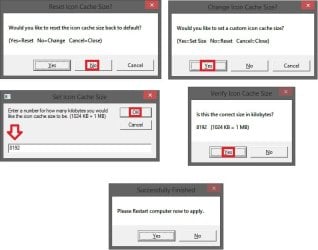
Change_Icon_Cache_Size_VBS.jpg
B) To Reset Icon Cache Size Back to Default
NOTE: This restores the default 500KB icon cache size.
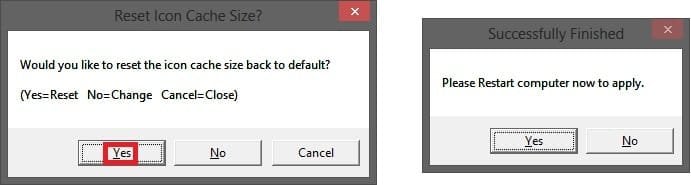
Reset_Icon_Cache_Size_to_Default_VBS.jpg
6. Be sure to restart the computer to apply.

7. When finished, you can now delete the downloaded .vbs file if you like.


OPTION TWO

To Manually Reset or Change Icon Cache Size using Registry Editor


1. Press the Windows+R keys to open the Run dialog, type regedit, and click/tap on OK.

2. If prompted by UAC, then click/tap on Yes (Windows 7/8) or Continue (Vista).

3. In regedit, navigate to the location below. (see screenshot below)
HKEY_LOCAL_MACHINE\SOFTWARE\Microsoft\Windows\CurrentVersion\Explorer
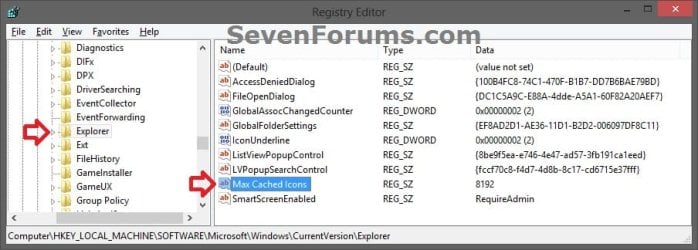
Icon_Cache_Size_Registry-1.jpg
4. Do step 5 or 6 below for what you would like to do.

5. To Set a Custom Icon Cache Size
A) If you have not already, in the right pane of Explorer, right click or press and hold on an empty area, click/tap on New and String Value, type Max Cached Icons, and press Enter. (see screenshot below step 3)

B) Double click/tap on Max Cached Icons to modify it. (see screenshot below step 3)

C) Type in a number for how many kilobytes (KB) you want the maximum icon cache size to be, and click/tap on OK. (see screenshot below)
NOTE: (1024KB = 1 MB) Setting this to 8192 KB (8 MB) gives good results. Your millage may vary, but you can always adjust the size to your needs at anytime.
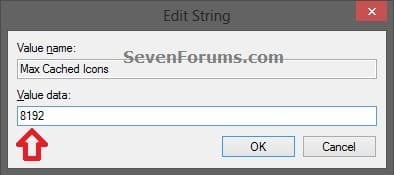
Icon_Cache_Size_Registry-2.jpg
D) Go to step 7 below.
6. To Reset Icon Cache Size Back to Default
NOTE: This restores the default 500KB icon cache size.
A) In the right pane of Explorer, right click on Max Cached Icons and click/tap on Delete. (see screenshot below step 3)

B) Click/tap on Yes. (see screenshot below)
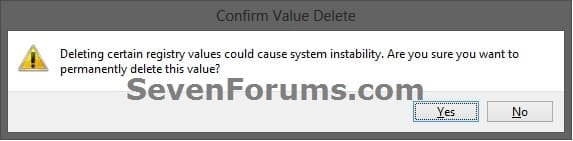
Icon_Cache_Size_Registry-3.jpg
C) Go to step 7 below.
7. Close regedit, and restart the computer to apply.
That's it,
Shawn


Attachments

Last edited:
:) thanks a lot it worked just great
 

My Computer My Computer

Computer type
PC/Desktop
Computer Manufacturer/Model Number
custom
OS
Windows 7 Ultimate x64
Motherboard
intel
Memory
4
Does this apply to the IconCache.db or the IconCache_XX.db files? or both? I am on Windows 10 and i have been working with a lot of icons the past day and half so i wanted to clean everything up now that i am done. I am seeing the IconCache_48.db is 136MBs, so that is why i am asking. It seems that if this max size applies to the XX files as well then it would actually limit the system instead of adding more if that makes sense

Sorry to bring up an old thread. Just curious
 

My Computer My Computer

Computer type
PC/Desktop
Computer Manufacturer/Model Number
Custom build
OS
Windows 10 Home x64
CPU
Intel i5 6600k
Motherboard
MSI Z-170a Krait Gaming
Memory
16GB Kingstong
Graphics Card(s)
EVGA GTX 1070
Hard Drives
Samsung 850 EVO 500GB
WD 2TB
WD 1TB
Antivirus
Comodo Free Internet Security
Browser
Chrome

My Computer My Computer

Computer type
PC/Desktop
Computer Manufacturer/Model Number
Self built custom
OS
64-bit Windows 11 Pro for Workstations
CPU
Intel i7-8700K OC'd to 5 GHz
Motherboard
ASUS ROG Maximus XI Formula Z390
Memory
64 GB (4x16GB) G.SKILL TridentZ RGB DDR4 3600 MHz
Graphics Card(s)
ASUS ROG-STRIX-GTX1080TI-O11G-GAMING
Sound Card
Integrated
Monitor(s) Displays
2 x Samsung Odyssey G7 27"
Screen Resolution
2560x1440
Hard Drives
1TB Samsung 990 PRO M.2,
4TB Samsung 990 PRO PRO M.2,
TerraMaster F8 SSD Plus NAS
PSU
Seasonic Prime Titanium 850W
Case
Thermaltake Core P3
Cooling
Corsair Hydro H115i
Keyboard
Logitech wireless K800
Mouse
Logitech MX Master 4
Internet Speed
2 Gb/s Download and 100 Mb/s Upload
Antivirus
Malwarebyte Anti-Malware Premium
Browser
Google Chrome
Other Info
Logitech Z625 speaker system,
Logitech BRIO 4K Pro webcam,
HP Color LaserJet Pro MFP M477fdn,
APC SMART-UPS RT 1000 XL - SURT1000XLI,
Galaxy S23 Plus phone
Hi,
This trick should help to speed up also moving icons on desktop? :confused:

I am not experiencing slowness of icons rendering.

But in my Windows 7 x64 Sp1 Ultimate running 12 GB RAM with about 30% free, on a desktop spanning over 6 screens, when certain software are open, simply moving the icons over the desktop could be quite slow.

Overall I would say that globally Windows Explorer becomes slow.
For example: right-click a desktop in order to create a new folder is very, very slow. Explorer sometimes locks itself.

CPU is i7 860 OCed @3.7 Ghz, CPU % is less than 50% on all of the 8 cores and onboard there is also 500 GB Sata SSD.
 

My Computer My Computer

Computer type
PC/Desktop
OS
Windows 7 Ultimate x64
Hello entib, :-)

This wouldn't affect the speed of moving icons on your desktop.

You might look through the tutorial below to pick and choose items you want that may help improve the performance of your Windows 7.

:ar: Optimize Windows 7
 

My Computer My Computer

Computer type
PC/Desktop
Computer Manufacturer/Model Number
Self built custom
OS
64-bit Windows 11 Pro for Workstations
CPU
Intel i7-8700K OC'd to 5 GHz
Motherboard
ASUS ROG Maximus XI Formula Z390
Memory
64 GB (4x16GB) G.SKILL TridentZ RGB DDR4 3600 MHz
Graphics Card(s)
ASUS ROG-STRIX-GTX1080TI-O11G-GAMING
Sound Card
Integrated
Monitor(s) Displays
2 x Samsung Odyssey G7 27"
Screen Resolution
2560x1440
Hard Drives
1TB Samsung 990 PRO M.2,
4TB Samsung 990 PRO PRO M.2,
TerraMaster F8 SSD Plus NAS
PSU
Seasonic Prime Titanium 850W
Case
Thermaltake Core P3
Cooling
Corsair Hydro H115i
Keyboard
Logitech wireless K800
Mouse
Logitech MX Master 4
Internet Speed
2 Gb/s Download and 100 Mb/s Upload
Antivirus
Malwarebyte Anti-Malware Premium
Browser
Google Chrome
Other Info
Logitech Z625 speaker system,
Logitech BRIO 4K Pro webcam,
HP Color LaserJet Pro MFP M477fdn,
APC SMART-UPS RT 1000 XL - SURT1000XLI,
Galaxy S23 Plus phone
Thanks for your reply.
I performed those optimization years ago (including a regular disk cleanup) and also I remember to have disabled the Windows Search service.

But what I have just discovered is Windows Search service is no more listed.... it is disappeared :(


https://i.postimg.cc/cHdBSc35/2019-04-05-17-47-08.jpg

sfc /scannow says everything is fine.

Any idea, please?
 

My Computer My Computer

Computer type
PC/Desktop
OS
Windows 7 Ultimate x64
It's normal. No need to worry.
 

My Computer My Computer

Computer type
PC/Desktop
Computer Manufacturer/Model Number
Self built custom
OS
64-bit Windows 11 Pro for Workstations
CPU
Intel i7-8700K OC'd to 5 GHz
Motherboard
ASUS ROG Maximus XI Formula Z390
Memory
64 GB (4x16GB) G.SKILL TridentZ RGB DDR4 3600 MHz
Graphics Card(s)
ASUS ROG-STRIX-GTX1080TI-O11G-GAMING
Sound Card
Integrated
Monitor(s) Displays
2 x Samsung Odyssey G7 27"
Screen Resolution
2560x1440
Hard Drives
1TB Samsung 990 PRO M.2,
4TB Samsung 990 PRO PRO M.2,
TerraMaster F8 SSD Plus NAS
PSU
Seasonic Prime Titanium 850W
Case
Thermaltake Core P3
Cooling
Corsair Hydro H115i
Keyboard
Logitech wireless K800
Mouse
Logitech MX Master 4
Internet Speed
2 Gb/s Download and 100 Mb/s Upload
Antivirus
Malwarebyte Anti-Malware Premium
Browser
Google Chrome
Other Info
Logitech Z625 speaker system,
Logitech BRIO 4K Pro webcam,
HP Color LaserJet Pro MFP M477fdn,
APC SMART-UPS RT 1000 XL - SURT1000XLI,
Galaxy S23 Plus phone
Is it normal losing a Windows service totally and getting slow desktop performance? :confused:
 

My Computer My Computer

Computer type
PC/Desktop
OS
Windows 7 Ultimate x64

My Computer My Computer

Computer type
PC/Desktop
Computer Manufacturer/Model Number
Self built custom
OS
64-bit Windows 11 Pro for Workstations
CPU
Intel i7-8700K OC'd to 5 GHz
Motherboard
ASUS ROG Maximus XI Formula Z390
Memory
64 GB (4x16GB) G.SKILL TridentZ RGB DDR4 3600 MHz
Graphics Card(s)
ASUS ROG-STRIX-GTX1080TI-O11G-GAMING
Sound Card
Integrated
Monitor(s) Displays
2 x Samsung Odyssey G7 27"
Screen Resolution
2560x1440
Hard Drives
1TB Samsung 990 PRO M.2,
4TB Samsung 990 PRO PRO M.2,
TerraMaster F8 SSD Plus NAS
PSU
Seasonic Prime Titanium 850W
Case
Thermaltake Core P3
Cooling
Corsair Hydro H115i
Keyboard
Logitech wireless K800
Mouse
Logitech MX Master 4
Internet Speed
2 Gb/s Download and 100 Mb/s Upload
Antivirus
Malwarebyte Anti-Malware Premium
Browser
Google Chrome
Other Info
Logitech Z625 speaker system,
Logitech BRIO 4K Pro webcam,
HP Color LaserJet Pro MFP M477fdn,
APC SMART-UPS RT 1000 XL - SURT1000XLI,
Galaxy S23 Plus phone
Back
Top