
Devices - Allow or Prevent to Wake Up Computer

How to Allow or Prevent Devices to Wake Up Computer

   Information
This will show you how to allow or prevent devices installed on your computer to be able to wake up your computer from sleep in Vista, Windows 7, and Windows 8.

You will need to be logged in as an administrator to be able to do this tutorial.


OPTION ONE

Using Device Manager

1. Open the Control Panel (icons view), and click/tap on the Device Manager icon.

2. To Prevent a Device from Waking up the Computer A) Check and see a list of your installed devices that are able to wake up the computer to help know what devices to set in Device Manager. (see screenshot below) CMD-1.jpg
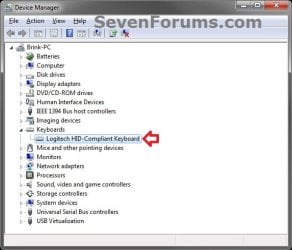
B) In Device Manager, expand the category (ex: Keyboards) that the device is under, then double click on the device (ex: Logitech HID-Compliant Keyboard). (see screenshot below) Device_Manager-1.jpg
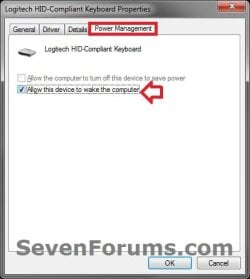
C) Click/tap on the Power Management tab, uncheck the Allow this device to wake the computer box, and click/tap on OK. (see screenshot below) Device_Manager-2.jpg
D) Close the command prompt.
3. To Allow a Device to Wake up the Computer A) In Device Manager, expand the category (ex: Keyboards) that the device is under, then double click on the device (ex: Logitech HID-Compliant Keyboard). (see screenshot below step 2B)

C) Click/tap on the Power Management tab, check the Allow this device to wake the computer box, and click/tap on OK. (see screenshot below step 2C)
4. When finished, close Device Manager.


OPTION TWO

Using an Elevated Command Prompt

1. Open an elevated command prompt in Vista, Windows 7, or Windows 8.

2. To Prevent a Device from Waking up the Computer A) Check to see a list of your installed devices that are able to wake up the computer to help know the device name (ex: Logitech HID-Compliant Keyboard) to use in the command below. (see screenshot below) CMD-1.jpg
B) In the elevated command prompt, type in the command below and press enter.
:warn:WARNING: Be sure to write this device name down in case you want to be able to enable it again in step 3. Once you disable it, it will not be listed again in step 2A until enabled again. powercfg -devicedisablewake "exact name of device listed in step 2A"

For example, for the Logitech HID-Compliant Keyboard device listed in step 2A, I would type this command below exactly and press enter.

Code:
powercfg -devicedisablewake "Logitech HID-Compliant Keyboard"
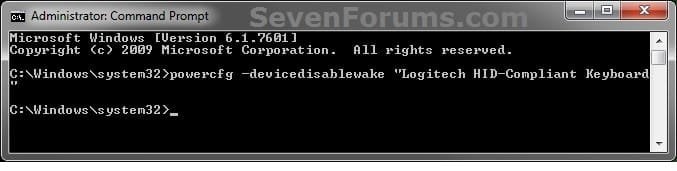
CMD_Prevent.jpg
3. To Allow a Device to Wake up the Computer A) If you did not write down the device name (ex: Logitech HID-Compliant Keyboard) from step 2 that you disabled, then you can also look in Device Manager to see the name of the device. (see screenshot below) Device_Manager-1.jpg
B) In the elevated command prompt, type in the command below and press enter. powercfg -deviceenablewake "exact name of device listed in step 2A or Device Manger"

For example, for the Logitech HID-Compliant Keyboard device, I would type this command below exactly and press enter.

Code:
powercfg -deviceenablewake "Logitech HID-Compliant Keyboard"
CMD-Allow.jpg
C) If opened from step 3A, you can close Device Manager now.
4. When finished, close the elevated command prompt.
That's it,
Shawn


Last edited:
Brink I have a question about this:
When I remove the Allow this device to wake the computer checkbox from a keyboard and I remove the keyboard and connect it to a different usb port, it is once again set to wake the computer unless I put it back in the original port.

It seems like this setting is configured on a 'port'-basis rather then (just) a 'device'-basis and it's default configuration is to 'allow' the wake up.

Should I connect it to all of the ports and disable all of them, or is there a general setting for this? Is there a way to change this default behaviour? As this would be way faster.
 

My Computer My Computer

Computer Manufacturer/Model Number
Asus X70VR
OS
Windows 7 x64
CPU
Intel dualcore P8400 @ 2.26 GHz
Motherboard
64-0100-000001-00101111-072208-Cantiga$M70VX2
Memory
4G DDR2 SDRAM
Graphics Card(s)
ATI Mobility Radeon HD 3400 Series
Sound Card
Realtek ALC663 @ Intel 82801IB ICH9
Monitor(s) Displays
LG Philips LP171WP4-TLN1 (or television using HDMI Cable)
Screen Resolution
1440x900
Hard Drives
Hard Disk Name: Momentus 5400.5 320320
Interface: SATA-II
Formatted Capacity: 320 GB
Max. Internal Data Rate: 490.4 Mbit/s
Buffer Size: 8 MB
Hello Sjoerd,

You might also check your BIOS settings to see if it may have an option to disable allowing the keyboard to wake the system to see if that may apply it universally.

If not, then you may need to connect it to each port to wash, rinse, and repeat.
 

My Computer My Computer

Computer type
PC/Desktop
Computer Manufacturer/Model Number
Self built custom
OS
64-bit Windows 11 Pro for Workstations
CPU
Intel i7-8700K OC'd to 5 GHz
Motherboard
ASUS ROG Maximus XI Formula Z390
Memory
64 GB (4x16GB) G.SKILL TridentZ RGB DDR4 3600 MHz
Graphics Card(s)
ASUS ROG-STRIX-GTX1080TI-O11G-GAMING
Sound Card
Integrated
Monitor(s) Displays
2 x Samsung Odyssey G7 27"
Screen Resolution
2560x1440
Hard Drives
1TB Samsung 990 PRO M.2,
4TB Samsung 990 PRO PRO M.2,
TerraMaster F8 SSD Plus NAS
PSU
Seasonic Prime Titanium 850W
Case
Thermaltake Core P3
Cooling
Corsair Hydro H115i
Keyboard
Logitech wireless K800
Mouse
Logitech MX Master 4
Internet Speed
2 Gb/s Download and 100 Mb/s Upload
Antivirus
Malwarebyte Anti-Malware Premium
Browser
Google Chrome
Other Info
Logitech Z625 speaker system,
Logitech BRIO 4K Pro webcam,
HP Color LaserJet Pro MFP M477fdn,
APC SMART-UPS RT 1000 XL - SURT1000XLI,
Galaxy S23 Plus phone
Windows 7, standard PS/2 keyboard, usb wireless mouse
HID mouse driver Power Management wake up event turn off didn't work.
The usb wireless dongle has also a keyboard HID driver (even if a wireless keyboard isn't present).
Solution: Device Manager > Keyboards has two devices:
HID Keyboard device
Standard PS/2 Keyboard
Turn off Power Management wake up event for the HID Keyboard device. (The HID mouse turned off also)
 

My Computer My Computer

Computer type
PC/Desktop
OS
windows 7 64 bit
Just wanted to say thanks for the tutorial! Option One, Step 2 helped me to discover and correct the cause of my Win 7 PC intermittently freezing when manually going to S3 sleep (monitor goes to standby, fans and power keep running, need to hard reset).

This issue that was described by the last poster turned out to be my problem as well.

Windows 7, standard PS/2 keyboard, usb wireless mouse
HID mouse driver Power Management wake up event turn off didn't work.
The usb wireless dongle has also a keyboard HID driver (even if a wireless keyboard isn't present).
Solution: Device Manager > Keyboards has two devices:HID Keyboard deviceStandard PS/2 Keyboard
Turn off Power Management wake up event for the HID Keyboard device. (The HID mouse turned off also)

Sleep has always worked reliably for me until I had recently replaced a wired mouse with a Logitech M510 wireless mouse. I kept my wired keyboard in place. The M510 comes with a wireless USB unified transceiver capable of supporting a wireless keyboard and mouse, but no wireless keyboard accompanied the mouse.

What I did not know until using your tutorial, was that the wireless USB dongle also installs a "HID Keyboard Device" driver anyway, and by default it is set to "Allow this device to wake the computer". I had turned this off on the mouse, but did not notice the additional phantom keyboard until running the powercfg command.

Unchecking "Allow this device to wake the computer" has solved this issue for me.
 

My Computer My Computer

Computer type
PC/Desktop
Computer Manufacturer/Model Number
custom home build
OS
Windows 7 Pro (x86)
CPU
Intel Core i3-3240
Motherboard
Asus
Memory
4GB Crucial DDR3-1600
Graphics Card(s)
Intel HD 2500
I'm glad it could help zzzoom, and welcome to Seven Forums. :)
 

My Computer My Computer

Computer type
PC/Desktop
Computer Manufacturer/Model Number
Self built custom
OS
64-bit Windows 11 Pro for Workstations
CPU
Intel i7-8700K OC'd to 5 GHz
Motherboard
ASUS ROG Maximus XI Formula Z390
Memory
64 GB (4x16GB) G.SKILL TridentZ RGB DDR4 3600 MHz
Graphics Card(s)
ASUS ROG-STRIX-GTX1080TI-O11G-GAMING
Sound Card
Integrated
Monitor(s) Displays
2 x Samsung Odyssey G7 27"
Screen Resolution
2560x1440
Hard Drives
1TB Samsung 990 PRO M.2,
4TB Samsung 990 PRO PRO M.2,
TerraMaster F8 SSD Plus NAS
PSU
Seasonic Prime Titanium 850W
Case
Thermaltake Core P3
Cooling
Corsair Hydro H115i
Keyboard
Logitech wireless K800
Mouse
Logitech MX Master 4
Internet Speed
2 Gb/s Download and 100 Mb/s Upload
Antivirus
Malwarebyte Anti-Malware Premium
Browser
Google Chrome
Other Info
Logitech Z625 speaker system,
Logitech BRIO 4K Pro webcam,
HP Color LaserJet Pro MFP M477fdn,
APC SMART-UPS RT 1000 XL - SURT1000XLI,
Galaxy S23 Plus phone
Doesn't work for me.

Alas, although I can get this to work for a USB mouse, it won't work for the exact same model mouse connected to a PS/2 port, even though device manager does present the wake checkbox. Also, using powercfg from the command line does not work either, although it looks like it has. This is for win 7 64 bit. An Intel chipset on a 2012 HP 6300 machine.

Does this sound like (a) bug in chipset driver, (b) hardware bug, (c) I'm doing something wrong.

If (c), note that I have admin privilege and powercfg behaves as expected, but the mouse always will bring the machine out of sleep. All works just fine with the USB mouse. Also, failure to work even after reboot.

Any ideas?

--peter
 

My Computer My Computer

Computer type
Laptop
Computer Manufacturer/Model Number
Lenovo T61p
OS
win 7 pro x64
CPU
T7700 Intel
Memory
4GB
Hey Peter, :)

In addition, check you BIOS settings to see if it may have an option to disable for wake by mouse.
 

My Computer My Computer

Computer type
PC/Desktop
Computer Manufacturer/Model Number
Self built custom
OS
64-bit Windows 11 Pro for Workstations
CPU
Intel i7-8700K OC'd to 5 GHz
Motherboard
ASUS ROG Maximus XI Formula Z390
Memory
64 GB (4x16GB) G.SKILL TridentZ RGB DDR4 3600 MHz
Graphics Card(s)
ASUS ROG-STRIX-GTX1080TI-O11G-GAMING
Sound Card
Integrated
Monitor(s) Displays
2 x Samsung Odyssey G7 27"
Screen Resolution
2560x1440
Hard Drives
1TB Samsung 990 PRO M.2,
4TB Samsung 990 PRO PRO M.2,
TerraMaster F8 SSD Plus NAS
PSU
Seasonic Prime Titanium 850W
Case
Thermaltake Core P3
Cooling
Corsair Hydro H115i
Keyboard
Logitech wireless K800
Mouse
Logitech MX Master 4
Internet Speed
2 Gb/s Download and 100 Mb/s Upload
Antivirus
Malwarebyte Anti-Malware Premium
Browser
Google Chrome
Other Info
Logitech Z625 speaker system,
Logitech BRIO 4K Pro webcam,
HP Color LaserJet Pro MFP M477fdn,
APC SMART-UPS RT 1000 XL - SURT1000XLI,
Galaxy S23 Plus phone
Thanks. I had checked the bios, and I did not find any such setting. I suspect it is a chipset driver bug, or maybe a bios bug. Probably this feature is not exercised often and therefore did not get attention. I'll have to look around and see if I can find a newer chipset driver(s). There is a newer version of bios that I will have to flash at some point.
 

My Computer My Computer

Computer type
Laptop
Computer Manufacturer/Model Number
Lenovo T61p
OS
win 7 pro x64
CPU
T7700 Intel
Memory
4GB
I dont have permissions?

It says i dont have permissions to do it. And in device manager theres no power management tab.I should be an administrator. I am confused i made another user and checked administrator box or what it was and its not working there eighter.
 

My Computer My Computer

Computer type
Laptop
Computer Manufacturer/Model Number
HP
OS
64bit
Memory
4gb
It says i dont have permissions to do it. And in device manager theres no power management tab.I should be an administrator. I am confused i made another user and checked administrator box or what it was and its not working there eighter.

Hello ilailioa, and welcome to Seven Forums. :-)

You can use option 1 in the tutorial below in Windows 7 to verify if your account is an administrator.

Determine Account Type in Windows 10 | Tutorials

In addition, be sure you opened an elevated command prompt. (right click on cmd.exe and click on "Run as administrator.)
 

My Computer My Computer

Computer type
PC/Desktop
Computer Manufacturer/Model Number
Self built custom
OS
64-bit Windows 11 Pro for Workstations
CPU
Intel i7-8700K OC'd to 5 GHz
Motherboard
ASUS ROG Maximus XI Formula Z390
Memory
64 GB (4x16GB) G.SKILL TridentZ RGB DDR4 3600 MHz
Graphics Card(s)
ASUS ROG-STRIX-GTX1080TI-O11G-GAMING
Sound Card
Integrated
Monitor(s) Displays
2 x Samsung Odyssey G7 27"
Screen Resolution
2560x1440
Hard Drives
1TB Samsung 990 PRO M.2,
4TB Samsung 990 PRO PRO M.2,
TerraMaster F8 SSD Plus NAS
PSU
Seasonic Prime Titanium 850W
Case
Thermaltake Core P3
Cooling
Corsair Hydro H115i
Keyboard
Logitech wireless K800
Mouse
Logitech MX Master 4
Internet Speed
2 Gb/s Download and 100 Mb/s Upload
Antivirus
Malwarebyte Anti-Malware Premium
Browser
Google Chrome
Other Info
Logitech Z625 speaker system,
Logitech BRIO 4K Pro webcam,
HP Color LaserJet Pro MFP M477fdn,
APC SMART-UPS RT 1000 XL - SURT1000XLI,
Galaxy S23 Plus phone
Back
Top