Directory Username Problem

Happyman7

New member
Local time
5:10 PM
Messages
9
Hey all,

So I got my nice new Toshiba Laptop on Christmas and it is just wonderful to use, especially with Windows 7! But when I got it the first thing I did was change the user from "owner" to <my name>. And added one other user for the rest of the family (although their not going to get a look in :geek:). And finally, I just left the already-activated guest account activated

So the the problem is that, even though the Start Menu, Log-In screen, and control panel say my name, in the C:\Users directory it still says "owner" like it did when I first got it. Here is a screenshot for a better understanding:
picturek.png
So how do I fix this so it is my displayed username?
 

My Computer

Computer Manufacturer/Model Number
Toshiba
OS
Windows 7 Home Premium
CPU
Core 2 Duo
Graphics Card(s)
128 MB (I think)
Other Info
It's a laptop :D
Here is a link on how to make the change on the Professional version. I thought that the change you want cannot be made on Home Premium or lower versions., but I could be mistaken. Read this from MS, give it a try. If it does not work it means that the change cannot be made on your version.

How to change user name in windows 7 professional?
 

My Computer

Computer type
PC/Desktop
Computer Manufacturer/Model Number
Dell XPS 420
OS
Windows 10, Home Clean Install
CPU
Intel Core2 processsor Q8200(2.33Ghz 1333FSB) Quad Core Tech
Motherboard
Dell
Memory
6 gb
Graphics Card(s)
ATI Radeon 256MB HD3650
Sound Card
Intergrated 7.1 Channel Audio
Monitor(s) Displays
Dell SP2009W 20"
Hard Drives
640 GB Serial ATA Hard drive
Cooling
Fan
Keyboard
Dell USB Keyboard
Mouse
Dell Premium Optical USB
Internet Speed
DSL 2.85
Hey all,

So I got my nice new Toshiba Laptop on Christmas and it is just wonderful to use, especially with Windows 7! But when I got it the first thing I did was change the user from "owner" to <my name>. And added one other user for the rest of the family (although their not going to get a look in :geek:). And finally, I just left the already-activated guest account activated

So the the problem is that, even though the Start Menu, Log-In screen, and control panel say my name, in the C:\Users directory it still says "owner" like it did when I first got it. Here is a screenshot for a better understanding:
So how do I fix this so it is my displayed username?
Hello Happyman7, and welcome to Windows Seven Forums!

One way to get around this limitation is to create a new user account (now you will have to rename this one back to the original) and copy the user files into the new user account.

Cheers!
Robert
 

My Computer

OS
...
Can I just access the file system from Linux (Ubuntu to be exact) and change the folder name directly, or will this cause problems Windows? I really don't want to move all the files to another user. It's around 19 GB at least...
 

My Computer

Computer Manufacturer/Model Number
Toshiba
OS
Windows 7 Home Premium
CPU
Core 2 Duo
Graphics Card(s)
128 MB (I think)
Other Info
It's a laptop :D
Was I correct, the method to make the change did not work for your edition?
 

My Computer

Computer type
PC/Desktop
Computer Manufacturer/Model Number
Dell XPS 420
OS
Windows 10, Home Clean Install
CPU
Intel Core2 processsor Q8200(2.33Ghz 1333FSB) Quad Core Tech
Motherboard
Dell
Memory
6 gb
Graphics Card(s)
ATI Radeon 256MB HD3650
Sound Card
Intergrated 7.1 Channel Audio
Monitor(s) Displays
Dell SP2009W 20"
Hard Drives
640 GB Serial ATA Hard drive
Cooling
Fan
Keyboard
Dell USB Keyboard
Mouse
Dell Premium Optical USB
Internet Speed
DSL 2.85
Can I just access the file system from Linux (Ubuntu to be exact) and change the folder name directly, or will this cause problems Windows? I really don't want to move all the files to another user. It's around 19 GB at least...
I wouldn't choose to try to edit from Linux (I don't have anything against Linux, use Ubuntu). It is just a quick copy / paste. You are not actually moving anything. Just rearranging the file system on the same hard drive. Shouldn't take more than 10 minutes?

Cheers!
Robert
 

My Computer

OS
...
It's slower moving files for me. So that would be very tedious...
Wait...
I can only put this in an example:
Imagine that every user is an upside-down cup, and under those cups is the users' files. And what your trying to say is that the only thing that is being moved is the cu;: Lifting a cup one set of files and putting on a new cup? Is that what your trying to say? Kind of...
 

My Computer

Computer Manufacturer/Model Number
Toshiba
OS
Windows 7 Home Premium
CPU
Core 2 Duo
Graphics Card(s)
128 MB (I think)
Other Info
It's a laptop :D
It's slower moving files for me. So that would be very tedious...
Wait...
I can only put this in an example:
Imagine that every user is an upside-down cup, and under those cups is the users' files. And what your trying to say is that the only thing that is being moved is the cu;: Lifting a cup one set of files and putting on a new cup? Is that what your trying to say? Kind of...
Your analogy is a good one.

Here is what I did on my test box:

Go to "User Accounts" in Control Panel

copy_new_user_01.png

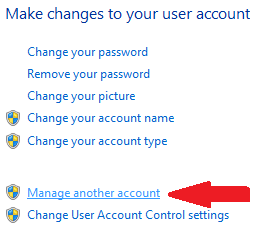
Clicked on "Manage another account"

copy_new_user_02.png

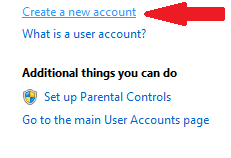
"Create a new account" (You might need two new Administrator accounts. The new account you want to keep, and one to use to copy the files between the other two. You can't copy files that are in use!)

copy_new_user_03.png

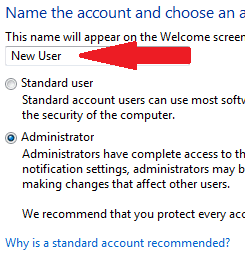
Create the Administrator account with the name you want to use. (You will have to rename the original account to free up the name you chose to use.)

copy_new_user_04.png

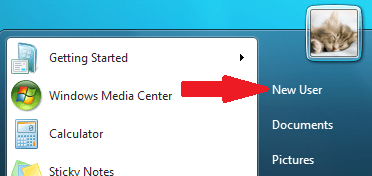
Login to the new user account.

copy_new_user_05.png

Then logout, and login to the neutral Administrator account. Use the Organize, Folder Options to show hidden files and untic "Hide protected files".

copy_new_user_06.png

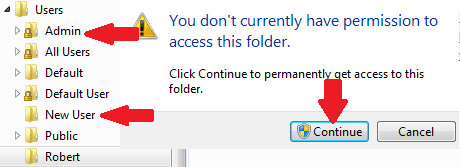
When you click on the user account folders, you will have to get permission to access them. Just click continue.

copy_new_user_07.png

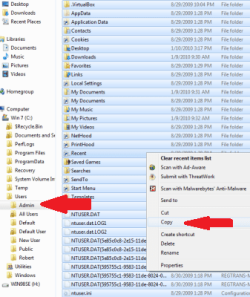
Highlight and copy the files here:

copy_new_user_08.png

And paste them in the new user account you want to keep.

copy_new_user_09.png

This is a slow machine ... 30 GB took about 30 minutes. Very little interaction, had to tell Windows to go ahead a couple of times. Not tedious at all, if you ask me.

Cheers!
Robert
 

My Computer

OS
...
Ok thanks! So I am guessing that I am sliding my files under another cup instead of just moving another cup over the files and removing the old "owner" cup?

I have 33 GB of files...

cup= User
italicized= Part of my previous analogy
 
Last edited:

My Computer

Computer Manufacturer/Model Number
Toshiba
OS
Windows 7 Home Premium
CPU
Core 2 Duo
Graphics Card(s)
128 MB (I think)
Other Info
It's a laptop :D
I've just found this thread. :). A friend of mine has just received his new PC - the supplier had created a User Account for him, but misspelled his name :(

Can I propose that iseeuu's reply is reposted as a "User Accounts" Tutorial?

One question - when the files from the old (wrongly-named) account are pasted into the new (correctly-named) account would the file access permissions need to be changed?
 

My Computer

Computer type
PC/Desktop
Computer Manufacturer/Model Number
Scan 3XS P55 liteDAW
OS
Windows Home Premium (64)
CPU
Intel Core i7 860
Motherboard
Gigabyte GA-P55A-UD4
Memory
8GB (4x2GB) Corsair TwinX XMS3
Graphics Card(s)
1GB Gainward 9500 GT
Sound Card
M-Audio Delta 66
Monitor(s) Displays
Acer v223wBBd
Screen Resolution
1680 x 1050
Hard Drives
1 x 500 GB WD Barracuda (OS+Docs)
2 x 1TB Samsung Spinpoint F3 (Data)
PSU
Enermax EMD625AWT II - 625W Enermax Modu82+ II
Case
Fractal Design Define R2 Black
Cooling
Prolima Megahalems Super 6 Heatpipe Tower Cooler
Keyboard
Microsoft Digital Media Pro
Mouse
Belkin Optical Ergo
Internet Speed
8 Mbps nominal (14.9 achieved !)
Other Info
Digital Audio Workstation
hi Darkstar, well, when i do this (in a wierd roundabout way as ill explain below) it works like this:

basically, all my files are on a sperate partition, labelled D:\Music, D:\Pictures etc.

when i had to reinstall technically it was a different user accessing those folders, so the first time i accessed them it asked for permission, after that everything worked fine.

to use the OP's analogy, i replaced the old cup with my own cup but had to give windows permission to do so first

generally, permissions are done on a per folder basis, not a per file, so if the original files are moved to a folder that you have permission to access there should be no issues, you may just need to provide permission to access the original (wrongly named) folder to start off with

hope thats clear enough....
 

My Computer

Computer type
PC/Desktop
Computer Manufacturer/Model Number
Medion Erazer (note to self: insert model number) - with custom additions
OS
Windows 10 Pro x64
CPU
Intel Core i5 7400 @ 3.00GHz
Motherboard
OEM supllied with PC
Memory
8GB 2133Mhz DDR4 (OEM supplied)
Graphics Card(s)
Gygabyte Windforce GTX 1050Ti (Factory Overclocked)
Sound Card
Realtek
Monitor(s) Displays
Acer Al1980 + HKC
Screen Resolution
1360*768(HKC) / 1280*1024(Acer)
Hard Drives
1TB Toshiba
1TB WD Caviar Green
120GB Samsung Evo 840
PSU
OEM supplied (no power rating on case)
Case
OEM Supplied
Cooling
Stock
Keyboard
Logitech Wireless
Mouse
Logitect Wireless
Internet Speed
40Mb/s Down 10Mb/s Up
Antivirus
Defender
Browser
Firefox
:thumbsup: "My cup runneth over"
 

My Computer

Computer type
PC/Desktop
Computer Manufacturer/Model Number
Scan 3XS P55 liteDAW
OS
Windows Home Premium (64)
CPU
Intel Core i7 860
Motherboard
Gigabyte GA-P55A-UD4
Memory
8GB (4x2GB) Corsair TwinX XMS3
Graphics Card(s)
1GB Gainward 9500 GT
Sound Card
M-Audio Delta 66
Monitor(s) Displays
Acer v223wBBd
Screen Resolution
1680 x 1050
Hard Drives
1 x 500 GB WD Barracuda (OS+Docs)
2 x 1TB Samsung Spinpoint F3 (Data)
PSU
Enermax EMD625AWT II - 625W Enermax Modu82+ II
Case
Fractal Design Define R2 Black
Cooling
Prolima Megahalems Super 6 Heatpipe Tower Cooler
Keyboard
Microsoft Digital Media Pro
Mouse
Belkin Optical Ergo
Internet Speed
8 Mbps nominal (14.9 achieved !)
Other Info
Digital Audio Workstation
Back
Top