Disk Check

How to Run Disk Check in Windows 7

   Information
This will show you how to run Check Disk or chkdsk in Windows 7 to check a selected hard disk for file system errors and bad sectors on it.

   Note
Running a check disk may take a bit depending on the size of the selected hard disk. For faster and better results, do not use your computer while check disk is checking for errors.


You will have a choice to scan only, scan for and attempt to fix errors, scan for and attempt recovery of bad sectors, or scan for and attempt to fix errors and recovery of bad sectors.


OPTION ONE

To Run Chkdsk from Drive's Properties Page

1. Open the Start Menu and click on the Computer button on the right dark side.

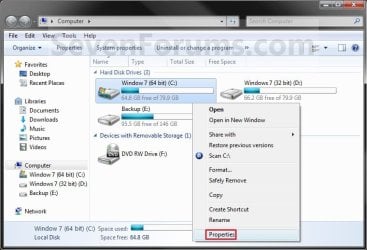
2. Right click the hard disk drive that you want to check, and click on Properties. (see screenshot below) Computer.jpg
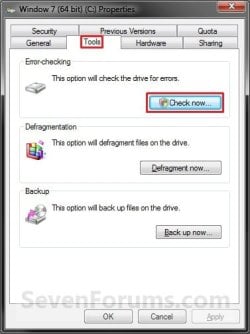
3. Click on the Tools tab, and click on the Check now button under Error-checking. (see screenshot below) Properties.jpg
4. You will now see this window. Do the steps below for what you would like to do. (see screenshot below) Options.jpg
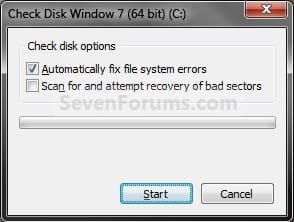
5. To Only Scan the Drive for Errors
NOTE: This will just give you a report if there are any drive errors or not, and will not attempt to fix them. A) Leave both boxes unchecked and click on the Start button. (see screenshot below step 4)
6. To Only Scan and Attempt Recovery of Bad Sectors
NOTE: This scan attempts to find and repair physical errors on the hard disk itself, and it can take much longer to complete. A) uncheck the Automatically fix file system errors box. (see screenshot below step 4)

B) Check the Scan for and attempt recovery of bad sectors box.
7. To Only Scan and Automatically Attempt to Fix Errors
NOTE: This will automatically attempt to repair problems with files and folders that the scan detects. A) Check the Automatically fix file system errors box. (see screenshot below step 4)

B) Uncheck the Scan for and attempt recovery of bad sectors box.
8. To Scan and Automatically Attempt to Fix Errors and Recover Bad Sectors
NOTE: This will scan for both file errors and physical errors (steps 6 and 7). It will then attempt to repair problems with files and folders, and recover physical errors. A) Check the Automatically fix file system errors box. (see screenshot below step 4)

B) Check the Scan for and attempt recovery of bad sectors box.
9. Click on the Start button, and do either step 10 or 11 below depending on if the drive is currently in use or not. (see screenshot below step 4)

10. If the selected hard disk is not in use, then you will see check disk start checking the disk now. (see screenshot below) Step4A.jpg
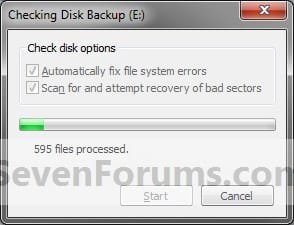
A) When the scan is complete, you will then see
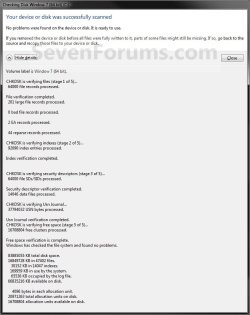
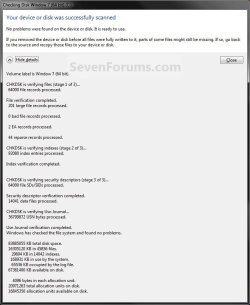
results similar to this. Click on Close. (see screenshots below) Details.jpg
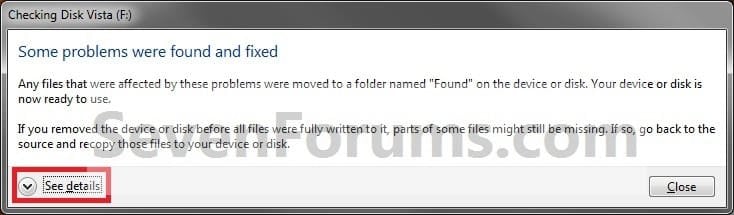
Scan_results2.jpg

B) Click on OK. (see screenshot below step 3)

C) Stop, you're done.
11. If the selected hard disk is in use, then click on the Schedule disk check button. (see screenshot below)
NOTE: If the hard disk that you selected in step 2 is in use (for example, the C: drive or partition that contains Windows 7), you'll be prompted to reschedule the disk check for the next time you restart your computer. Otherwise you will not see this window below. Schedule.jpg
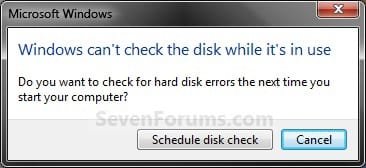
A) Restart the computer.
B) During startup, you will only have 10 seconds to press a key to cancel the Disk Check from steps 7 or 8. (see screenshot below)
   Warning
Once the Disk Check scan starts, DO NOT STOP the scan to prevent possible damage to the data on your hard drive.
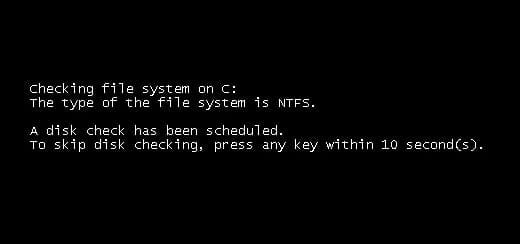
10-Seconds.jpg
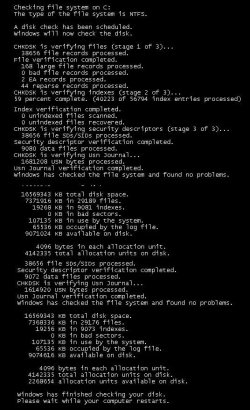
C) When the scan is complete you will see a report similar to this below briefly before the computer automatically restarts. Start-up.jpg


OPTION TWO

To Run Chkdsk from Command Prompt


NOTE: The chkdsk command can be used on a FAT32 or NTFS formatted disk. 1. Open a elevated command prompt or a command prompt at startup.

2. In the command prompt, type in the following command below followed by one or more switches that you would like to use below with a space between each switch and press Enter.
NOTE: For example, the most common command to run chkdsk on your C: drive is: chkdsk C: /F
chkdsk [drive letter]: [switches with space inbetween]


Switches that you can use in the command:
  • /F - Fixes errors on the disk. The disk must be locked. If chkdsk cannot lock the drive, a message appears that asks you if you want to check the drive the next time you restart the computer. For example, on the C: drive.
  • /V - Displays the name of each file in every directory as the disk is checked.
  • /R - Locates bad sectors and recovers readable information. The disk must be locked. /r includes the functionality of /f, with the additional analysis of physical disk errors.
  • /L:[size in KB] - Can only be used with a NTFS disk. Changes the chkdsk log file size to the number size in KB you type. If you omit the size parameter, typing /L by itself will display the current chkdsk log file size. For example, to have the default 65536 KB log file for the C: drive, you would type: chkdsk C: /F /L:65536
  • /X - Forces the volume to dismount first, if necessary. All open handles to the drive are invalidated. /x also includes the functionality of /f.
  • /I - Can only be used with a NTFS disk. Performs a less vigorous check of index entries, which reduces the amount of time required to run chkdsk.
  • /C - Can only be used with a NTFS disk. Does not check cycles within the folder structure, which reduces the amount of time required to run chkdsk.
  • /B - Can only be used with a NTFS disk. Clears the list of bad clusters on the volume and rescans all allocated and free clusters for errors. /b includes the functionality of /r. Use this parameter after imaging a volume to a new hard disk drive.
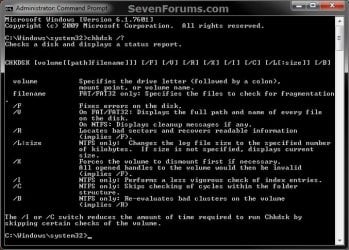
Command.jpg
That's it,
Shawn


Attachments

  • Scan_Results.jpg
    Scan_Results.jpg
    59.7 KB · Views: 786
Last edited:
I couldn't find my win 7 installation dvd to do a repair install to fix my earlier default user junction problem.

I stumbled upon this and was wondering if this could do anything for me. I guess I can just try it and see if it will make "Default User" back to its original state...I mean, it IS a system file right? and a check disk fixes "file system errors", right? I don't see then why this was not recommended to me earlier...

Hello WE,

Sorry, but no this will not help for that. Disk Check is only to repair or mark bad sectors on the hard drive instead. :(

You should keep all posts on that subject in your original post below to get the best possible help for it though. Creating multiple threads will only confuse the issue and make it hard to help. ;)

http://www.sevenforums.com/general-discussion/78804-default-user-junction-point-folder-issue.html
 
Last edited:

My Computer

Computer type
PC/Desktop
Computer Manufacturer/Model Number
Self built custom
OS
64-bit Windows 11 Pro for Workstations
CPU
Intel i7-8700K OC'd to 5 GHz
Motherboard
ASUS ROG Maximus XI Formula Z390
Memory
64 GB (4x16GB) G.SKILL TridentZ RGB DDR4 3600 MHz
Graphics Card(s)
ASUS ROG-STRIX-GTX1080TI-O11G-GAMING
Sound Card
Integrated
Monitor(s) Displays
2 x Samsung Odyssey G7 27"
Screen Resolution
2560x1440
Hard Drives
1TB Samsung 990 PRO M.2,
4TB Samsung 990 PRO PRO M.2,
TerraMaster F8 SSD Plus NAS
PSU
Seasonic Prime Titanium 850W
Case
Thermaltake Core P3
Cooling
Corsair Hydro H115i
Keyboard
Logitech wireless K800
Mouse
Logitech MX Master 4
Internet Speed
2 Gb/s Download and 100 Mb/s Upload
Antivirus
Malwarebyte Anti-Malware Premium
Browser
Google Chrome
Other Info
Logitech Z625 speaker system,
Logitech BRIO 4K Pro webcam,
HP Color LaserJet Pro MFP M477fdn,
APC SMART-UPS RT 1000 XL - SURT1000XLI,
Galaxy S23 Plus phone
I followed this guide and did a scheduled a chkdsk at boot on my SSD and my other HD (both built in). Everything ran fine on boot and there were no errors. Then the computer restarted again and I had to manually stop the scan running again.

Now it runs at every boot, how do I disable this?
 

My Computer

Computer Manufacturer/Model Number
Custom built
OS
Windows 7
CPU
Intel Core i7-920 2.66Ghz Quad Core
Motherboard
Gigabyte X58A UD3R
Memory
6GB
Graphics Card(s)
ATI Radeon HD 5870
Sound Card
Asus Xonar Essence STX
Monitor(s) Displays
Dell 24" and Samsung Syncmaster 920NW
Hard Drives
Intel X25-M MLC 80GB SSD and Western Digital 1TB Caviar Black SATA II
PSU
Seasonic M12-II 620W
Case
Lancool K62-WB
Cooling
Cooler Master Hyper 212 Plus
disc check

Yesterday morning, I noticed wierd error messages and a few programs acted erratically. After running several checks, it said to click on disc scan after restart, like just like what is posted at the beginning of this subject. So I checked the boxs and rebooted. It says " Checking file system on C: The type of file system is NTFS. one of your discs needs to be checked for consistancy. you may cancel the disc check, but it is strongly recommended that you continue. "
I says this twice. and give me 1 second to cancel by hitting a key.
I started this 10 hours ago. The hard drive in use light has a slow flash. I have a 160G bit hard drive. How long does this check take?
Thank you.
 

My Computer

Computer Manufacturer/Model Number
HP Pavillion
OS
Windows 7 64 bit
Yesterday morning, I noticed wierd error messages and a few programs acted erratically. After running several checks, it said to click on disc scan after restart, like just like what is posted at the beginning of this subject. So I checked the boxs and rebooted. It says " Checking file system on C: The type of file system is NTFS. one of your discs needs to be checked for consistancy. you may cancel the disc check, but it is strongly recommended that you continue. "
I says this twice. and give me 1 second to cancel by hitting a key.
I started this 10 hours ago. The hard drive in use light has a slow flash. I have a 160G bit hard drive. How long does this check take?
Thank you.

I can't tell you what the problem is but my 80gb SSD and 1TB HD took about 2 hours in total.

But, I guess you may have major problems on your HD which is causing the slow-down. From what I understand if bad sectors had to be remapped this would take a lot of time, and the more bad sectors you had the more time it would take.
 

My Computer

Computer Manufacturer/Model Number
Custom built
OS
Windows 7
CPU
Intel Core i7-920 2.66Ghz Quad Core
Motherboard
Gigabyte X58A UD3R
Memory
6GB
Graphics Card(s)
ATI Radeon HD 5870
Sound Card
Asus Xonar Essence STX
Monitor(s) Displays
Dell 24" and Samsung Syncmaster 920NW
Hard Drives
Intel X25-M MLC 80GB SSD and Western Digital 1TB Caviar Black SATA II
PSU
Seasonic M12-II 620W
Case
Lancool K62-WB
Cooling
Cooler Master Hyper 212 Plus
Ok. But why does it give the "CHecking Files" message twice? And I would think this should not take this long. What is the risk of shutting down the computer, restarting and run this check again? I recall hitting the Check Disc think twice, thus causing the double message. Could it be trying to do 2 checks at the same time, thus locked up?
 

My Computer

Computer Manufacturer/Model Number
HP Pavillion
OS
Windows 7 64 bit
I followed this guide and did a scheduled a chkdsk at boot on my SSD and my other HD (both built in). Everything ran fine on boot and there were no errors. Then the computer restarted again and I had to manually stop the scan running again.

Now it runs at every boot, how do I disable this?

Hello Abhiroopb,

Go ahead and allow it chkdsk to run to see if it will stop running at each startup afterwards. If it still continues to run at startup, then this may be able to help stop it.

http://www.sevenforums.com/tutorials/56685-check-disk-reset.html

Hope this helps,
Shawn
 

My Computer

Computer type
PC/Desktop
Computer Manufacturer/Model Number
Self built custom
OS
64-bit Windows 11 Pro for Workstations
CPU
Intel i7-8700K OC'd to 5 GHz
Motherboard
ASUS ROG Maximus XI Formula Z390
Memory
64 GB (4x16GB) G.SKILL TridentZ RGB DDR4 3600 MHz
Graphics Card(s)
ASUS ROG-STRIX-GTX1080TI-O11G-GAMING
Sound Card
Integrated
Monitor(s) Displays
2 x Samsung Odyssey G7 27"
Screen Resolution
2560x1440
Hard Drives
1TB Samsung 990 PRO M.2,
4TB Samsung 990 PRO PRO M.2,
TerraMaster F8 SSD Plus NAS
PSU
Seasonic Prime Titanium 850W
Case
Thermaltake Core P3
Cooling
Corsair Hydro H115i
Keyboard
Logitech wireless K800
Mouse
Logitech MX Master 4
Internet Speed
2 Gb/s Download and 100 Mb/s Upload
Antivirus
Malwarebyte Anti-Malware Premium
Browser
Google Chrome
Other Info
Logitech Z625 speaker system,
Logitech BRIO 4K Pro webcam,
HP Color LaserJet Pro MFP M477fdn,
APC SMART-UPS RT 1000 XL - SURT1000XLI,
Galaxy S23 Plus phone
Hello.
I did everything but when i reboot...nothing happens.
It just turns on normally, no disk check no nothing.
help!
because my laptop keeps telling me that my hard drive C has some corrupted files. ):
Thank you!


My Computer

Computer Manufacturer/Model Number
Toshiba Satellite M305-S4910
OS
windows 7 enterprise
colours,

http://www.sevenforums.com/tutorials/682-command-prompt-startup.html

Boot up from you System Repair Disk.

At the first dialog where nomally you would choose NEXT, then
use the SHIFT + F10 key combo.

This will get you to a command prompt.
The prompt will look like X:>

At this point, you can remove the system repair disk.

Now type,
C:\
and hit Enter

type DIR and hit Enter
If the directory listing isn't for the correct drive, then just keep working your way thru the alphabet until you hit the correct letter.

NOW,
type CHKDSK /r C:
and hit enter.

NOTE C: is used as an example. Use the correct drive letter for your system.

When and only when CHKDSK finishes,
type EXIT and hit enter.

Turn off computer.
Turn computer on.


CREATE A SYSTEM REPAIR DISK

START | type System Repair | Enter key | Create Disk button
 
Last edited by a moderator:

My Computer

Computer Manufacturer/Model Number
Toshiba Satellite S875D-S7239 laptop
OS
MS Windows 7 Ultimate SP1 64-bit
CPU
AMD A10-4600M
Motherboard
AMD Pumori (Socket FT1)
Memory
6.00 GB Dual-Channel DDR3 @ 798MHz (11-11-12-28)
Graphics Card(s)
AMD Radeon HD 7660G
Sound Card
High Definition Audio Device
Monitor(s) Displays
Generic PnP Monitor (1600x900@60Hz)
Screen Resolution
1600x900@60Hz
Hard Drives
SSD 119GB Corsair CSSD-V128GB2 ATA Device
Keyboard
Standard PS/2 Keyboard
Mouse
HP Wireless Optical Mobile Mouse Model FHA-3410
Internet Speed
What the local pub, local coffee shop offers.
Other Info
Optical Drive:MATSHITA BD-CMB UJ160B ATA Device


Also have an Asus ha1002xp netbook with Win 7 Ultimate installed.
Thank you for your reply.

I tried to go into the advanced boot options by pressing F8 when my laptop is turning on, but it doesnt work! I tried twice and the windows startup logo still appears.
I cannot get into it.

And also after I tried to get into it, when i logged on, everything seems kind of smaller. That doesnt bother me except for this:
my browser looks funny!
it had this big gray bar stuck on the right side... ):

what did i do wrong?
(i also did make a system repair disk)

thank you!
 

My Computer

Computer Manufacturer/Model Number
Toshiba Satellite M305-S4910
OS
windows 7 enterprise
colours,
Please use the procedure given in my previous post and let me know the results when you follow that procedure.
 

My Computer

Computer Manufacturer/Model Number
Toshiba Satellite S875D-S7239 laptop
OS
MS Windows 7 Ultimate SP1 64-bit
CPU
AMD A10-4600M
Motherboard
AMD Pumori (Socket FT1)
Memory
6.00 GB Dual-Channel DDR3 @ 798MHz (11-11-12-28)
Graphics Card(s)
AMD Radeon HD 7660G
Sound Card
High Definition Audio Device
Monitor(s) Displays
Generic PnP Monitor (1600x900@60Hz)
Screen Resolution
1600x900@60Hz
Hard Drives
SSD 119GB Corsair CSSD-V128GB2 ATA Device
Keyboard
Standard PS/2 Keyboard
Mouse
HP Wireless Optical Mobile Mouse Model FHA-3410
Internet Speed
What the local pub, local coffee shop offers.
Other Info
Optical Drive:MATSHITA BD-CMB UJ160B ATA Device


Also have an Asus ha1002xp netbook with Win 7 Ultimate installed.
But i am unsure how to boot up from the system repair disk.
so i tried to follow the directions given from the link in your post first.

I cannot even access the advanced boot options when i tried.
 

My Computer

Computer Manufacturer/Model Number
Toshiba Satellite M305-S4910
OS
windows 7 enterprise
Ask your system administrator for further help.
 

My Computer

Computer Manufacturer/Model Number
Toshiba Satellite S875D-S7239 laptop
OS
MS Windows 7 Ultimate SP1 64-bit
CPU
AMD A10-4600M
Motherboard
AMD Pumori (Socket FT1)
Memory
6.00 GB Dual-Channel DDR3 @ 798MHz (11-11-12-28)
Graphics Card(s)
AMD Radeon HD 7660G
Sound Card
High Definition Audio Device
Monitor(s) Displays
Generic PnP Monitor (1600x900@60Hz)
Screen Resolution
1600x900@60Hz
Hard Drives
SSD 119GB Corsair CSSD-V128GB2 ATA Device
Keyboard
Standard PS/2 Keyboard
Mouse
HP Wireless Optical Mobile Mouse Model FHA-3410
Internet Speed
What the local pub, local coffee shop offers.
Other Info
Optical Drive:MATSHITA BD-CMB UJ160B ATA Device


Also have an Asus ha1002xp netbook with Win 7 Ultimate installed.
For what it's worth, I contacted HP, concerning my issue. They walked me through removing the second Scan Disc program that was appearing. After it ran, they had me reboot and as it started, they had me tap F11 during rebooting, until I got a screen with several mode choices. I believe one was command prompt. when there, I entered chkntfs /x c: and Enter. Then rebooted. My computer no longer tries Scan Disc on booting.
Hope this helps someone. FYI: I am running Windows 7, 64 bit, Home Premium.
 

My Computer

Computer Manufacturer/Model Number
HP Pavillion
OS
Windows 7 64 bit
ok i got to the advanced boot options screen but it only worked when i didnt have the system repair disc inside my laptop.

i can try to ask my system administrator, so i guess i call...?
sorry i am not used to this kind of thing. =(
thank you!​
 

My Computer

Computer Manufacturer/Model Number
Toshiba Satellite M305-S4910
OS
windows 7 enterprise
Hello, I have a bit of a problem. My laptop is strongly recommending i run disk check, but says it cannot run because of recently installed software and advises that i restore to an earlier point. When I try to restore it says the drive I'm trying to restore has errors and cant be restored. I have no idea what software is to blame because i haven't intentionally installed anything recently. Is there anything i can do?
 

My Computer

OS
7 ultimate
Hello Nsbjsn, and welcome to Seven Forums.

You could use OPTION TWO in the tutorial to run chkdsk from a command prompt at startup to see if it may be able to repair the drive errors. If you do not have a retail Windows 7 installation disc that you can use to boot from to do this with, then you can create a system repair disc to use instead.

Hope this helps,
Shawn
 

My Computer

Computer type
PC/Desktop
Computer Manufacturer/Model Number
Self built custom
OS
64-bit Windows 11 Pro for Workstations
CPU
Intel i7-8700K OC'd to 5 GHz
Motherboard
ASUS ROG Maximus XI Formula Z390
Memory
64 GB (4x16GB) G.SKILL TridentZ RGB DDR4 3600 MHz
Graphics Card(s)
ASUS ROG-STRIX-GTX1080TI-O11G-GAMING
Sound Card
Integrated
Monitor(s) Displays
2 x Samsung Odyssey G7 27"
Screen Resolution
2560x1440
Hard Drives
1TB Samsung 990 PRO M.2,
4TB Samsung 990 PRO PRO M.2,
TerraMaster F8 SSD Plus NAS
PSU
Seasonic Prime Titanium 850W
Case
Thermaltake Core P3
Cooling
Corsair Hydro H115i
Keyboard
Logitech wireless K800
Mouse
Logitech MX Master 4
Internet Speed
2 Gb/s Download and 100 Mb/s Upload
Antivirus
Malwarebyte Anti-Malware Premium
Browser
Google Chrome
Other Info
Logitech Z625 speaker system,
Logitech BRIO 4K Pro webcam,
HP Color LaserJet Pro MFP M477fdn,
APC SMART-UPS RT 1000 XL - SURT1000XLI,
Galaxy S23 Plus phone
How to do a scandisk like windows 98. Manually that is.
 

My Computer

Computer type
Laptop
Computer Manufacturer/Model Number
compaq
OS
windows Ultimate
Hello Rose,

"scandisk" goes by "chkdsk" now, so you can do either option in the tutorial on the first page of this thread to run it manually. Please let me know if you have more question about this. :)

Hope this helps,
Shawn
 

My Computer

Computer type
PC/Desktop
Computer Manufacturer/Model Number
Self built custom
OS
64-bit Windows 11 Pro for Workstations
CPU
Intel i7-8700K OC'd to 5 GHz
Motherboard
ASUS ROG Maximus XI Formula Z390
Memory
64 GB (4x16GB) G.SKILL TridentZ RGB DDR4 3600 MHz
Graphics Card(s)
ASUS ROG-STRIX-GTX1080TI-O11G-GAMING
Sound Card
Integrated
Monitor(s) Displays
2 x Samsung Odyssey G7 27"
Screen Resolution
2560x1440
Hard Drives
1TB Samsung 990 PRO M.2,
4TB Samsung 990 PRO PRO M.2,
TerraMaster F8 SSD Plus NAS
PSU
Seasonic Prime Titanium 850W
Case
Thermaltake Core P3
Cooling
Corsair Hydro H115i
Keyboard
Logitech wireless K800
Mouse
Logitech MX Master 4
Internet Speed
2 Gb/s Download and 100 Mb/s Upload
Antivirus
Malwarebyte Anti-Malware Premium
Browser
Google Chrome
Other Info
Logitech Z625 speaker system,
Logitech BRIO 4K Pro webcam,
HP Color LaserJet Pro MFP M477fdn,
APC SMART-UPS RT 1000 XL - SURT1000XLI,
Galaxy S23 Plus phone
Okay, I tried to post here but accidentally started a new thread by accident. New to the forum, sorry about that.

Anyway, I'm having significant problems running chkdsk. When I restart to try and run chkdsk, it doesn't run at all and the machine boots normally.

I attempted to repair it, using the methods outlined here. I was not able to replace the autochk.exe file as I was denied permission, despite being in the Admin account. I also attempted to use the SFC to repair, but it did not work. I don't know where my W7 install disk is right now.
 

My Computer

Computer Manufacturer/Model Number
Asus
OS
Windows 7 Home Premium x64 bit
Hello YoullNeverCatch, and welcome to Seven Forums.

That tutorial from Vista would never work with Windows 7 anyway since the autochk.exe files in it are Vista versions and not Windows 7 versions.

You could try running chkdsk from a command prompt at startup using a created Windows 7 System Repair Disc to see if it will run for you.

Hope this helps,
Shawn
 

My Computer

Computer type
PC/Desktop
Computer Manufacturer/Model Number
Self built custom
OS
64-bit Windows 11 Pro for Workstations
CPU
Intel i7-8700K OC'd to 5 GHz
Motherboard
ASUS ROG Maximus XI Formula Z390
Memory
64 GB (4x16GB) G.SKILL TridentZ RGB DDR4 3600 MHz
Graphics Card(s)
ASUS ROG-STRIX-GTX1080TI-O11G-GAMING
Sound Card
Integrated
Monitor(s) Displays
2 x Samsung Odyssey G7 27"
Screen Resolution
2560x1440
Hard Drives
1TB Samsung 990 PRO M.2,
4TB Samsung 990 PRO PRO M.2,
TerraMaster F8 SSD Plus NAS
PSU
Seasonic Prime Titanium 850W
Case
Thermaltake Core P3
Cooling
Corsair Hydro H115i
Keyboard
Logitech wireless K800
Mouse
Logitech MX Master 4
Internet Speed
2 Gb/s Download and 100 Mb/s Upload
Antivirus
Malwarebyte Anti-Malware Premium
Browser
Google Chrome
Other Info
Logitech Z625 speaker system,
Logitech BRIO 4K Pro webcam,
HP Color LaserJet Pro MFP M477fdn,
APC SMART-UPS RT 1000 XL - SURT1000XLI,
Galaxy S23 Plus phone
Back
Top