Disk Check

How to Run Disk Check in Windows 7

   Information
This will show you how to run Check Disk or chkdsk in Windows 7 to check a selected hard disk for file system errors and bad sectors on it.

   Note
Running a check disk may take a bit depending on the size of the selected hard disk. For faster and better results, do not use your computer while check disk is checking for errors.


You will have a choice to scan only, scan for and attempt to fix errors, scan for and attempt recovery of bad sectors, or scan for and attempt to fix errors and recovery of bad sectors.


OPTION ONE

To Run Chkdsk from Drive's Properties Page

1. Open the Start Menu and click on the Computer button on the right dark side.

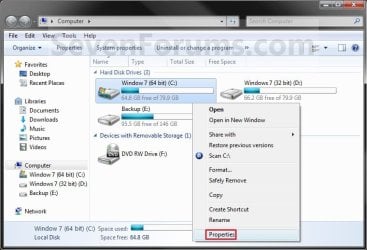
2. Right click the hard disk drive that you want to check, and click on Properties. (see screenshot below) Computer.jpg
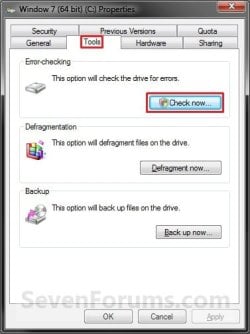
3. Click on the Tools tab, and click on the Check now button under Error-checking. (see screenshot below) Properties.jpg
4. You will now see this window. Do the steps below for what you would like to do. (see screenshot below) Options.jpg
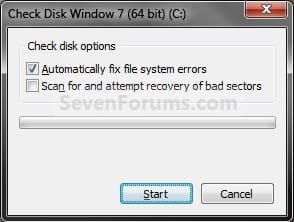
5. To Only Scan the Drive for Errors
NOTE: This will just give you a report if there are any drive errors or not, and will not attempt to fix them. A) Leave both boxes unchecked and click on the Start button. (see screenshot below step 4)
6. To Only Scan and Attempt Recovery of Bad Sectors
NOTE: This scan attempts to find and repair physical errors on the hard disk itself, and it can take much longer to complete. A) uncheck the Automatically fix file system errors box. (see screenshot below step 4)

B) Check the Scan for and attempt recovery of bad sectors box.
7. To Only Scan and Automatically Attempt to Fix Errors
NOTE: This will automatically attempt to repair problems with files and folders that the scan detects. A) Check the Automatically fix file system errors box. (see screenshot below step 4)

B) Uncheck the Scan for and attempt recovery of bad sectors box.
8. To Scan and Automatically Attempt to Fix Errors and Recover Bad Sectors
NOTE: This will scan for both file errors and physical errors (steps 6 and 7). It will then attempt to repair problems with files and folders, and recover physical errors. A) Check the Automatically fix file system errors box. (see screenshot below step 4)

B) Check the Scan for and attempt recovery of bad sectors box.
9. Click on the Start button, and do either step 10 or 11 below depending on if the drive is currently in use or not. (see screenshot below step 4)

10. If the selected hard disk is not in use, then you will see check disk start checking the disk now. (see screenshot below) Step4A.jpg
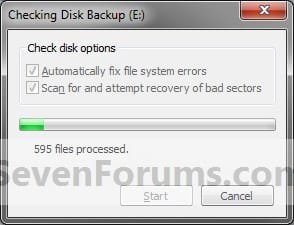
A) When the scan is complete, you will then see
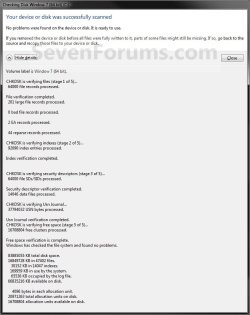
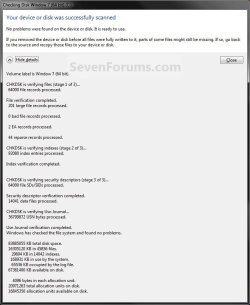
results similar to this. Click on Close. (see screenshots below) Details.jpg
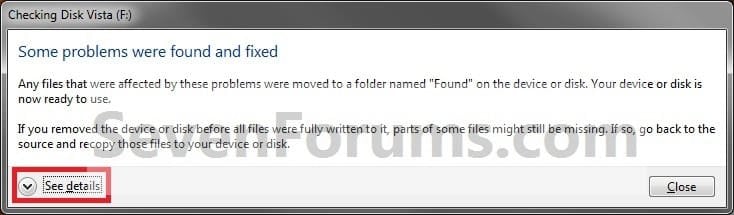
Scan_results2.jpg

B) Click on OK. (see screenshot below step 3)

C) Stop, you're done.
11. If the selected hard disk is in use, then click on the Schedule disk check button. (see screenshot below)
NOTE: If the hard disk that you selected in step 2 is in use (for example, the C: drive or partition that contains Windows 7), you'll be prompted to reschedule the disk check for the next time you restart your computer. Otherwise you will not see this window below. Schedule.jpg
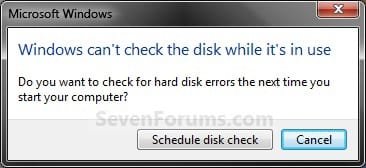
A) Restart the computer.
B) During startup, you will only have 10 seconds to press a key to cancel the Disk Check from steps 7 or 8. (see screenshot below)
   Warning
Once the Disk Check scan starts, DO NOT STOP the scan to prevent possible damage to the data on your hard drive.
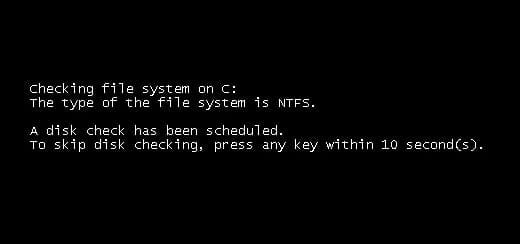
10-Seconds.jpg
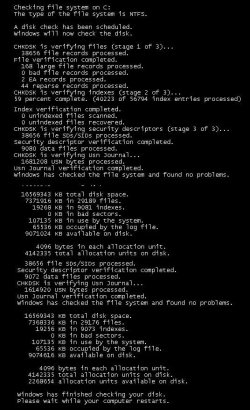
C) When the scan is complete you will see a report similar to this below briefly before the computer automatically restarts. Start-up.jpg


OPTION TWO

To Run Chkdsk from Command Prompt


NOTE: The chkdsk command can be used on a FAT32 or NTFS formatted disk. 1. Open a elevated command prompt or a command prompt at startup.

2. In the command prompt, type in the following command below followed by one or more switches that you would like to use below with a space between each switch and press Enter.
NOTE: For example, the most common command to run chkdsk on your C: drive is: chkdsk C: /F
chkdsk [drive letter]: [switches with space inbetween]


Switches that you can use in the command:
  • /F - Fixes errors on the disk. The disk must be locked. If chkdsk cannot lock the drive, a message appears that asks you if you want to check the drive the next time you restart the computer. For example, on the C: drive.
  • /V - Displays the name of each file in every directory as the disk is checked.
  • /R - Locates bad sectors and recovers readable information. The disk must be locked. /r includes the functionality of /f, with the additional analysis of physical disk errors.
  • /L:[size in KB] - Can only be used with a NTFS disk. Changes the chkdsk log file size to the number size in KB you type. If you omit the size parameter, typing /L by itself will display the current chkdsk log file size. For example, to have the default 65536 KB log file for the C: drive, you would type: chkdsk C: /F /L:65536
  • /X - Forces the volume to dismount first, if necessary. All open handles to the drive are invalidated. /x also includes the functionality of /f.
  • /I - Can only be used with a NTFS disk. Performs a less vigorous check of index entries, which reduces the amount of time required to run chkdsk.
  • /C - Can only be used with a NTFS disk. Does not check cycles within the folder structure, which reduces the amount of time required to run chkdsk.
  • /B - Can only be used with a NTFS disk. Clears the list of bad clusters on the volume and rescans all allocated and free clusters for errors. /b includes the functionality of /r. Use this parameter after imaging a volume to a new hard disk drive.
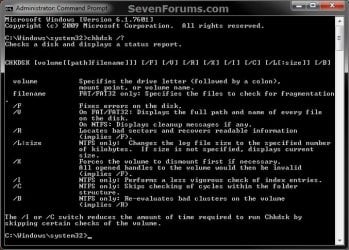
Command.jpg
That's it,
Shawn


Attachments

  • Scan_Results.jpg
    Scan_Results.jpg
    59.7 KB · Views: 786
Last edited:
Okay, I'll look for my Vista install disk and try to find myself a good drive tomorrow. Thank you for all of your help.
 

My Computer

Computer Manufacturer/Model Number
Asus
OS
Windows 7 Home Premium x64 bit
Last edited:

My Computer

Computer type
PC/Desktop
Computer Manufacturer/Model Number
Self built custom
OS
64-bit Windows 11 Pro for Workstations
CPU
Intel i7-8700K OC'd to 5 GHz
Motherboard
ASUS ROG Maximus XI Formula Z390
Memory
64 GB (4x16GB) G.SKILL TridentZ RGB DDR4 3600 MHz
Graphics Card(s)
ASUS ROG-STRIX-GTX1080TI-O11G-GAMING
Sound Card
Integrated
Monitor(s) Displays
2 x Samsung Odyssey G7 27"
Screen Resolution
2560x1440
Hard Drives
1TB Samsung 990 PRO M.2,
4TB Samsung 990 PRO PRO M.2,
TerraMaster F8 SSD Plus NAS
PSU
Seasonic Prime Titanium 850W
Case
Thermaltake Core P3
Cooling
Corsair Hydro H115i
Keyboard
Logitech wireless K800
Mouse
Logitech MX Master 4
Internet Speed
2 Gb/s Download and 100 Mb/s Upload
Antivirus
Malwarebyte Anti-Malware Premium
Browser
Google Chrome
Other Info
Logitech Z625 speaker system,
Logitech BRIO 4K Pro webcam,
HP Color LaserJet Pro MFP M477fdn,
APC SMART-UPS RT 1000 XL - SURT1000XLI,
Galaxy S23 Plus phone
when I run disk check with 2nd method (chkdsk x:/F) I get message

"The type of file system is RAW. CHKDSK is not available for RAW drives."
 

My Computer

Computer Manufacturer/Model Number
Dell Inspirion
OS
Windows 7 Ultimate 32bit
CPU
Intel Core i3 2.2Ghz
It means that Windows thinks the disk is unformatted or has a file system other than NTFS/FAT.
Can you provide more information about what was on the disk?
 

My Computer

Computer type
PC/Desktop
Computer Manufacturer/Model Number
Own build
OS
Windows 7x64 Home Premium SP1
CPU
Intel i7 2600k
Motherboard
ASUS P8Z68 Deluxe
Memory
G.Skill Ripjaws (DDR3-1600) 2x4GB
Graphics Card(s)
Nvidia GeForce GTS 450; Intel HD Graphics 3000(GT2+)
Monitor(s) Displays
Dell Ultrasharp IPS panel U2311H, Samsung SyncMaster P2350
Screen Resolution
1920x1080
Hard Drives
Samsung 850 Pro SSD 256GB, Samsung SSD 840 120GB, Seagates 1TB Barracuda ST31000528AS x2
PSU
Seasonic M12II 520W
Case
Lian Li Lancool PC-K60
Cooling
Case: 1x120mm, 3x140mm CPU: Hyper 212+
Keyboard
Logitech MK520 (wireless)
Mouse
Logitech MK520
Internet Speed
6-7 Mbps
Antivirus
Norton Security Premium, Malwarebytes on 2 (MSE on 3rd PC)
Browser
FireFox
Other Info
Audio: Logitech Z523 2.1
Windows 7 i wanna ask, after scan and attemp recovery of bad sector finish, how to know our harddisk have bad sector or not, if after finish, i run chkdsk at cmd , and there is 0kb in bad sector, is that mean my harddisk don't have any problem?
 

My Computer

OS
Windows 7 Home Premium 64bit
Hello sle3pingz,

That would be correct. "0kb in bad sector" means that the HDD doesn't have any bad sectors, and all is fine with it. :)
 

My Computer

Computer type
PC/Desktop
Computer Manufacturer/Model Number
Self built custom
OS
64-bit Windows 11 Pro for Workstations
CPU
Intel i7-8700K OC'd to 5 GHz
Motherboard
ASUS ROG Maximus XI Formula Z390
Memory
64 GB (4x16GB) G.SKILL TridentZ RGB DDR4 3600 MHz
Graphics Card(s)
ASUS ROG-STRIX-GTX1080TI-O11G-GAMING
Sound Card
Integrated
Monitor(s) Displays
2 x Samsung Odyssey G7 27"
Screen Resolution
2560x1440
Hard Drives
1TB Samsung 990 PRO M.2,
4TB Samsung 990 PRO PRO M.2,
TerraMaster F8 SSD Plus NAS
PSU
Seasonic Prime Titanium 850W
Case
Thermaltake Core P3
Cooling
Corsair Hydro H115i
Keyboard
Logitech wireless K800
Mouse
Logitech MX Master 4
Internet Speed
2 Gb/s Download and 100 Mb/s Upload
Antivirus
Malwarebyte Anti-Malware Premium
Browser
Google Chrome
Other Info
Logitech Z625 speaker system,
Logitech BRIO 4K Pro webcam,
HP Color LaserJet Pro MFP M477fdn,
APC SMART-UPS RT 1000 XL - SURT1000XLI,
Galaxy S23 Plus phone
Hello sle3pingz,

That would be correct. "0kb in bad sector" means that the HDD doesn't have any bad sectors, and all is fine with it. :)

ok, Thanks for you fast reply Brink. . .

Ow yeah Brink , i forget ask 1 more question, if after scan and Harddisk no problem (0kb in badsector), i need recovery or format my OS ? Sorry for the weird question. .
 
Last edited by a moderator:

My Computer

OS
Windows 7 Home Premium 64bit
You're welcome.

No, it's just a scan. You will not have to do anything else. :)
 

My Computer

Computer type
PC/Desktop
Computer Manufacturer/Model Number
Self built custom
OS
64-bit Windows 11 Pro for Workstations
CPU
Intel i7-8700K OC'd to 5 GHz
Motherboard
ASUS ROG Maximus XI Formula Z390
Memory
64 GB (4x16GB) G.SKILL TridentZ RGB DDR4 3600 MHz
Graphics Card(s)
ASUS ROG-STRIX-GTX1080TI-O11G-GAMING
Sound Card
Integrated
Monitor(s) Displays
2 x Samsung Odyssey G7 27"
Screen Resolution
2560x1440
Hard Drives
1TB Samsung 990 PRO M.2,
4TB Samsung 990 PRO PRO M.2,
TerraMaster F8 SSD Plus NAS
PSU
Seasonic Prime Titanium 850W
Case
Thermaltake Core P3
Cooling
Corsair Hydro H115i
Keyboard
Logitech wireless K800
Mouse
Logitech MX Master 4
Internet Speed
2 Gb/s Download and 100 Mb/s Upload
Antivirus
Malwarebyte Anti-Malware Premium
Browser
Google Chrome
Other Info
Logitech Z625 speaker system,
Logitech BRIO 4K Pro webcam,
HP Color LaserJet Pro MFP M477fdn,
APC SMART-UPS RT 1000 XL - SURT1000XLI,
Galaxy S23 Plus phone
Best i do it when in no hurry to go on PC, 1TB HDD:sleepy:
 

My Computer

Computer Manufacturer/Model Number
Scorpion Technology
OS
Windows 7 64 bit Home Premium
CPU
Intel Core Quad i7 870(2.93 Ghz /8MB /Quad Core
Motherboard
Gigabyte GA-P55- USB3 Intel
Memory
Kingston 4 GB Kit (2x2GB) PC-10600 (1333MHz) DDR3
Graphics Card(s)
Gainward Geforce GTS-450 (930Mhz), 1GB GDDDR5 (4000Mhz)
Sound Card
Onboard 7.1 Channel
Screen Resolution
1440x900
Hard Drives
1TB Santa111 64MB Cache 7200 RPM
PSU
Antec 750W
Hi Brink.

I am very impressed by your actively maintained blog—and your timely and polite replies to everyone's questions.

May I ask you a question? Until very recently, I had been using an XP machine. Thanks to a very old and excellent article in Maximum PC, I had got used to using Task Scheduler to perform an automated chkdsk with /f and /r once a week, at night.

It involved creating a batch file with the following commands:
echo y|chkdsk C: /f /r
shutdown /r

With my new computer, I am now getting used to Win 7. Never too late, as they say ;-) Unfortunately, neither the above batch file nor any other instruction I can find from trawling on the internet seems to have been able to achieve the same simple thing I used to be able to do on my computer, ie. create a scheduled task that reboots the computer and then automatically does a chkdsk with the fix and recover options. I have found several solutions on the internet. The trouble is, none of them appears to work :-(

I wondered if you might be able to help??? Hopefully...
 

My Computer

Computer Manufacturer/Model Number
Lenovo Edge 15
OS
Windows 7 Pro x64
Memory
4 GB
Graphics Card(s)
Intel
Sound Card
Realtek
Hard Drives
450 GB
Hello Muddy, and welcome to Seven Forums.

You might see if this may work for you better, but you must right click on it and click on Run as administrator. If you like you could create a shortcut of the BAT, and use OPTION FIVE in the tutorial below to have the shortcut always run as administrator to use in Task Scheduler.

http://www.sevenforums.com/tutorials/11841-run-administrator.html

Code:
echo y|chkdsk C: /f /r
shutdown /r /f /t 00

Hope this helps,
Shawn
 

My Computer

Computer type
PC/Desktop
Computer Manufacturer/Model Number
Self built custom
OS
64-bit Windows 11 Pro for Workstations
CPU
Intel i7-8700K OC'd to 5 GHz
Motherboard
ASUS ROG Maximus XI Formula Z390
Memory
64 GB (4x16GB) G.SKILL TridentZ RGB DDR4 3600 MHz
Graphics Card(s)
ASUS ROG-STRIX-GTX1080TI-O11G-GAMING
Sound Card
Integrated
Monitor(s) Displays
2 x Samsung Odyssey G7 27"
Screen Resolution
2560x1440
Hard Drives
1TB Samsung 990 PRO M.2,
4TB Samsung 990 PRO PRO M.2,
TerraMaster F8 SSD Plus NAS
PSU
Seasonic Prime Titanium 850W
Case
Thermaltake Core P3
Cooling
Corsair Hydro H115i
Keyboard
Logitech wireless K800
Mouse
Logitech MX Master 4
Internet Speed
2 Gb/s Download and 100 Mb/s Upload
Antivirus
Malwarebyte Anti-Malware Premium
Browser
Google Chrome
Other Info
Logitech Z625 speaker system,
Logitech BRIO 4K Pro webcam,
HP Color LaserJet Pro MFP M477fdn,
APC SMART-UPS RT 1000 XL - SURT1000XLI,
Galaxy S23 Plus phone
Hi Shaun, and thank you for such a swift reply.

I have done as you suggested, namely: I have created a shortcut to the batch file. I have told the shortcut to run as administrator. I have added the /f and /t arguments that you suggested to the shutdown command in the batch file. Finally, I have copied the shortcut file name, together with path, to the scripts/programme field in the Actions tab of Task Scheduler.

Result: the task operates seamlessly. Only problem: it doesn’t do a chkdsk!!! It just reboots the computer :cry:.

When I look in the history tab, I see the following entries (and I am translating, roughly, from French):

  • the Task Scheduler launched the instance {de41ac55-dfc6-492b-92ad-f918e9400875} of the task \Check Disk for <Username>
  • the engine for task S-1-5-21-1868736425-1749135435-1172674007-1001:<Computername>\<Username>:S4U:Highest, received a message from Task Scheduler asking to launch the task \Check Disk
  • the task scheduler started the task {de41ac55-dfc6-492b-92ad-f918e9400875}
  • it launched the action (here it quotes the path and filename of my shortcut) in the instance {de41ac55-dfc6-492b-92ad-f918e9400875} of the task \Check Disk
  • it launched the task \Check Disk , instance C:\Windows\System32\cmd.exe, with the ID of Process 5012
  • it terminated the task \Check Disk, instance {de41ac55-dfc6-492b-92ad-f918e9400875}, action C:\Windows\System32\cmd.exe, with a return code of 0
  • it terminated the instance {de41ac55-dfc6-492b-92ad-f918e9400875} of \Check Disk for <Username>.

Which all sounds very fine :p. But as I say, alas, it hasn’t done the ChkDsk :sarc:

Thanks so much for getting me this far.


But what am I still doing wrong???

Keith
 
Last edited:

My Computer

Computer Manufacturer/Model Number
Lenovo Edge 15
OS
Windows 7 Pro x64
Memory
4 GB
Graphics Card(s)
Intel
Sound Card
Realtek
Hard Drives
450 GB

My Computer

Computer type
PC/Desktop
Computer Manufacturer/Model Number
Self built custom
OS
64-bit Windows 11 Pro for Workstations
CPU
Intel i7-8700K OC'd to 5 GHz
Motherboard
ASUS ROG Maximus XI Formula Z390
Memory
64 GB (4x16GB) G.SKILL TridentZ RGB DDR4 3600 MHz
Graphics Card(s)
ASUS ROG-STRIX-GTX1080TI-O11G-GAMING
Sound Card
Integrated
Monitor(s) Displays
2 x Samsung Odyssey G7 27"
Screen Resolution
2560x1440
Hard Drives
1TB Samsung 990 PRO M.2,
4TB Samsung 990 PRO PRO M.2,
TerraMaster F8 SSD Plus NAS
PSU
Seasonic Prime Titanium 850W
Case
Thermaltake Core P3
Cooling
Corsair Hydro H115i
Keyboard
Logitech wireless K800
Mouse
Logitech MX Master 4
Internet Speed
2 Gb/s Download and 100 Mb/s Upload
Antivirus
Malwarebyte Anti-Malware Premium
Browser
Google Chrome
Other Info
Logitech Z625 speaker system,
Logitech BRIO 4K Pro webcam,
HP Color LaserJet Pro MFP M477fdn,
APC SMART-UPS RT 1000 XL - SURT1000XLI,
Galaxy S23 Plus phone
Well, thanks again Shawn (sorry for misspelling your name in my previous post) for a very swift reply.

Unfortunately, after following your suggestion to rebuild the chkdsk scheduled task and then create a shortcut to it as prescribed in your page you directed me to, I still got only a reboot :-(

However, I have noticed that when the cmd.exe window briefly opens to execute my batch file, the ChkDsk question "Would you like to schedule this volume to be checked the next time the system restarts?" is asked three times, each time without a reply. Could this absence of an affirmative reply be the reason why ChkDsk does not execute at restart???

Once again, thanks for all your help, and don't worry should you be unable to help me any further.

Keith :)
 

My Computer

Computer Manufacturer/Model Number
Lenovo Edge 15
OS
Windows 7 Pro x64
Memory
4 GB
Graphics Card(s)
Intel
Sound Card
Realtek
Hard Drives
450 GB
UPDATE!!!

The problem was a really silly thing. The one command I never really understood in my batch file was Echo y|. I've just realised it means give the answer Y to the question "Would you like to schedule this volume to be checked the next time the system restarts?"

My old computer had Windows in English, my new one is in French. The French for Yes is Oui, and so the first two words should read Echo O|.

Silly me! But thanks for all your help.

Keith
 

My Computer

Computer Manufacturer/Model Number
Lenovo Edge 15
OS
Windows 7 Pro x64
Memory
4 GB
Graphics Card(s)
Intel
Sound Card
Realtek
Hard Drives
450 GB
LOL, well I'm happy to hear that it turned out to just be something as simple as that. :party:
 

My Computer

Computer type
PC/Desktop
Computer Manufacturer/Model Number
Self built custom
OS
64-bit Windows 11 Pro for Workstations
CPU
Intel i7-8700K OC'd to 5 GHz
Motherboard
ASUS ROG Maximus XI Formula Z390
Memory
64 GB (4x16GB) G.SKILL TridentZ RGB DDR4 3600 MHz
Graphics Card(s)
ASUS ROG-STRIX-GTX1080TI-O11G-GAMING
Sound Card
Integrated
Monitor(s) Displays
2 x Samsung Odyssey G7 27"
Screen Resolution
2560x1440
Hard Drives
1TB Samsung 990 PRO M.2,
4TB Samsung 990 PRO PRO M.2,
TerraMaster F8 SSD Plus NAS
PSU
Seasonic Prime Titanium 850W
Case
Thermaltake Core P3
Cooling
Corsair Hydro H115i
Keyboard
Logitech wireless K800
Mouse
Logitech MX Master 4
Internet Speed
2 Gb/s Download and 100 Mb/s Upload
Antivirus
Malwarebyte Anti-Malware Premium
Browser
Google Chrome
Other Info
Logitech Z625 speaker system,
Logitech BRIO 4K Pro webcam,
HP Color LaserJet Pro MFP M477fdn,
APC SMART-UPS RT 1000 XL - SURT1000XLI,
Galaxy S23 Plus phone
And thanks again for putting me onto the Run as Administrator thing, and hence the need to use a shortcut to my batch file, with the shortcut set to always Run as Administrator. Problem fixed! :)
 

My Computer

Computer Manufacturer/Model Number
Lenovo Edge 15
OS
Windows 7 Pro x64
Memory
4 GB
Graphics Card(s)
Intel
Sound Card
Realtek
Hard Drives
450 GB
Hello Ken,

That's what the "command prompt at startup" option in step 1 of OPTION TWO is for. :)
 

My Computer

Computer type
PC/Desktop
Computer Manufacturer/Model Number
Self built custom
OS
64-bit Windows 11 Pro for Workstations
CPU
Intel i7-8700K OC'd to 5 GHz
Motherboard
ASUS ROG Maximus XI Formula Z390
Memory
64 GB (4x16GB) G.SKILL TridentZ RGB DDR4 3600 MHz
Graphics Card(s)
ASUS ROG-STRIX-GTX1080TI-O11G-GAMING
Sound Card
Integrated
Monitor(s) Displays
2 x Samsung Odyssey G7 27"
Screen Resolution
2560x1440
Hard Drives
1TB Samsung 990 PRO M.2,
4TB Samsung 990 PRO PRO M.2,
TerraMaster F8 SSD Plus NAS
PSU
Seasonic Prime Titanium 850W
Case
Thermaltake Core P3
Cooling
Corsair Hydro H115i
Keyboard
Logitech wireless K800
Mouse
Logitech MX Master 4
Internet Speed
2 Gb/s Download and 100 Mb/s Upload
Antivirus
Malwarebyte Anti-Malware Premium
Browser
Google Chrome
Other Info
Logitech Z625 speaker system,
Logitech BRIO 4K Pro webcam,
HP Color LaserJet Pro MFP M477fdn,
APC SMART-UPS RT 1000 XL - SURT1000XLI,
Galaxy S23 Plus phone
Hello Shawn,
I read an earlier post of yours where you said that 'scandisk' was now just chkdsk. That is good to know as I was searching for scandisk, and wondered why I could not find it. I also saw that you suggested sfc /scannow Is this not scandisk?

Also relevant here, is that I recently did a chkdsk, on my (now external) xp drive, which advised me that I had no errors, but today I downloaded and used the sysinternals "disk check" which reported 11 errors, including not being able to read the 'system volume information'. I take this as being more accurate, as I have tried 2 different programs to image this xp drive, and both times it has failed to complete either by being unable to read from the disk, or because of a "117 I/O error". I do not know what a 117 error is, and this drive was working perfectly in my xp machine 2 months ago.
This disk check looks to be unable to fix any errors, which makes it rather useless

What can you suggest I use to scan and rectify this? I used to use scandsk /r, but that seems to no longer be an option. What will sfc do?

Thanks
Greg
 

My Computer

OS
windows 7 home 64bit
Back
Top