
Display Settings

Bare Foot Kid

R.I.P. August 13th 2014
SF Team
Local time
7:18 PM
Messages
22,809
Location
The Lowcountry
Read more at the source.

http://www.winsupersite.com/faq/windows_7.asp

Display Settings. Windows 7 will make it easier to work with multiple monitors.
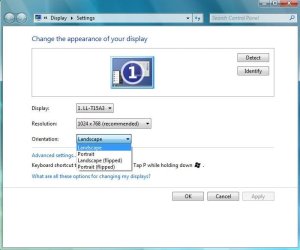
Display Settings_W7.JPG

More granular DPI Scaling control panel. In Windows Vista, it was possible to choose between the default scale (96 DPI) and a larger scale (120 DPI), or use a Custom DPI scale to configure scaling between 100 and 200 percent. In Windows 7, this system is simplified to include presets for Smaller (100 percent), Medium (125 percent), and Larger (150 percent).

Aero themes. Windows 7 will make it easier to match custom Aero window settings with background images, colors, and sounds via a new set of custom Windows themes. You will also be able to create your own themes. (Windows 7 will also support the Windows Basic and Windows Classic themes from Windows Vista.)

Wallpapers. Windows 7 will include new wallpaper background images.


Later :shock: Ted
 

My Computer

Computer Manufacturer/Model Number
* BFK Customs *
OS
W 7 64-bit Ultimate
CPU
Intel Q9550 Yorkfield
Motherboard
ASUS P5Q Pro
Memory
8GB Dominator 8500C5D
Graphics Card(s)
ATI : XFX 5870
Sound Card
Realtek HD Audio 7-1
Monitor(s) Displays
1x 47" LCD HDMI & 3x 26" LCD HDMI
Screen Resolution
1920x1080P & 1920x1200
Hard Drives
1x 80GB Intel X25-M G2 SSD : 1x 500GB & 1x 640GB WD Caviar Black(s)
PSU
Corsair 620HX
Case
Cooler Master RC-690
Cooling
Tuniq Tower 120, 2x 140mm and 3x 120mm case fans
Keyboard
Microsoft 500
Mouse
Razer Diamondback 3G
Internet Speed
14 Mb/s
Other Info
1x Koutech 3Gb/s SATA HDD Hot Swap Rack
"Follow-up on High DPI resolution

We don't have a way of knowing for sure why users adjust their screen resolution down, but many of the comments we’ve seen match our hypothesis that a lot of people do this to because they have difficulty reading default text on high resolutions displays. With that said, some users probably stumble into this configuration by accident; for example due to a mismatched display driver or an application that changed the resolution for some reason but did not change it back. Regardless of why the screen resolution is lower, the result is blurry text that can significantly increase eye fatigue when reading on a PC screen for a long period of time. For LCD displays, much of the blurriness is caused by the fact that they are made up of fixed pixels. In non-native resolution settings, this means that the system must render fractional pixels across fixed units, causing a blurred effect. Another reason for the relative blurriness is that when the display is not set to native resolution, we can’t properly take advantage of our ClearType text rendering technology , which most people (though not all) prefer. It is interesting to note that the loss of fidelity due to changing screen resolution is less pronounced on a CRT display than on an LCD display largely because CRTs don’t have fixed pixels the way that LCDs do. However, because of the advantages in cost and size, and the popularity of the laptop PC, LCD displays are fast gaining market share in the installed base. Another problem with running in a non-native screen resolution is that many users inadvertently configure the display to a non-native aspect ratio as well. This results in an image that is both blurry and skewed! As you can imagine, this further exacerbates the issues with eye strain.

Looking beyond text, in these scenarios the resulting fidelity for media is significantly reduced as well. With the configuration that many users have, even if their hardware is capable, they are not able to see native “high def” 720p or 1080p TV content, which corresponds to 1280x720 and 1920x1080 screen resolutions respectively. The PC monitor has traditionally been the “high definition” display device, but without addressing this problem we would be at risk of trailing the TV industry in this distinction. While it is true that only about 10% of users have a truly 1080p capable PC screen today, as these displays continue to come down in price the installed base is likely to continue to grow. And you can bet that there will be another wave of even higher fidelity content in the future which users will want to take advantage of. As an example, when displays get to 400 DPI they will be almost indistinguishable from looking at printed text on paper. Even the current generation of eBook readers with a DPI of ~170 look very much like a piece of paper behind a piece of glass

From this we see that there is a real end user benefit to tap into here. It turns out that there is existing infrastructure in Windows called “High DPI” which can be used to address this. High DPI is not a new feature for Windows 7, but it was not until Vista that the OS user-interface made significant investments in support for high DPI (beyond the infrastructure present earlier). To try this out in Vista, rt. Click desktop -> personalize and select “Adjust Font Size (DPI)” from the left hand column. Our thinking for Windows 7 was that if we enable high DPI out of the box on capable displays, we will enable users to have a full-fidelity experience and also significantly reduce eye strain for on-screen reading. There is even infrastructure available to us to detect a display’s native DPI so we can do a better job of configuring default settings out of the box. However, doing this will also open up the door to expose some issues with applications which may not be fully compatible with high DPI configurations."

Read more at :-
Engineering Windows 7 : Follow-up on High DPI resolution
 

My Computer

Computer Manufacturer/Model Number
Self Built
OS
Vista X32. Windows 7 32bit
CPU
Intel Quad Core 6600
Motherboard
Asus P5B
Memory
4096 MB Xtreme-Dark 800mhz
Graphics Card(s)
Zotac Amp Edition 8800GT - 512MB DDR3, O/C 700mhz
Monitor(s) Displays
Samsung 206BW
Screen Resolution
1680 X 1024
Hard Drives
4 X Samsung 500GB 7200rpm Serial ATA-II HDD w. 16MB Cache .
PSU
550 w
Case
Thermaltake
Cooling
3 x octua NF-S12-1200 - 120mm 1200RPM Sound Optimised Fans
Keyboard
Microsoft
Mouse
Targus
Internet Speed
1500kbs
Good article, thanks Norm!


Later :shock: Ted
 

My Computer

Computer Manufacturer/Model Number
* BFK Customs *
OS
W 7 64-bit Ultimate
CPU
Intel Q9550 Yorkfield
Motherboard
ASUS P5Q Pro
Memory
8GB Dominator 8500C5D
Graphics Card(s)
ATI : XFX 5870
Sound Card
Realtek HD Audio 7-1
Monitor(s) Displays
1x 47" LCD HDMI & 3x 26" LCD HDMI
Screen Resolution
1920x1080P & 1920x1200
Hard Drives
1x 80GB Intel X25-M G2 SSD : 1x 500GB & 1x 640GB WD Caviar Black(s)
PSU
Corsair 620HX
Case
Cooler Master RC-690
Cooling
Tuniq Tower 120, 2x 140mm and 3x 120mm case fans
Keyboard
Microsoft 500
Mouse
Razer Diamondback 3G
Internet Speed
14 Mb/s
Other Info
1x Koutech 3Gb/s SATA HDD Hot Swap Rack
Nice work will help alot of new users
 

My Computer

Computer Manufacturer/Model Number
Self Built
OS
Windows 7 ultimate 64 bit / XP Home sp3
CPU
intel Core 2 Duo E8400 3.0ghz
Motherboard
Asus P5ND bios 1401
Memory
8 gigs 1066 OCZ Fata1ty
Graphics Card(s)
EVGA GTX 580 Call of Duty Black Ops Edition
Sound Card
Creative Soundblaster Audigy 2zs
Monitor(s) Displays
Asus 24in LCD's 2MS X2
Screen Resolution
1920x1080p @60Hz
Hard Drives
WD Caviar 500 Black/ WD Caviar 200 Blue
PSU
OCZ 700W GameXtreme
Case
NZXT Apollo
Cooling
Corsair H50 CPU/120mm x3 /60mm x2 /Corsair Dominator Ram
Keyboard
Logitech Bluetooth Wireless MX5000
Mouse
Logitech Bluetooth Wireless MX1000
Internet Speed
Download 19.83 Upload 0.97
Other Info
Logitech Z2300 Speakers/ Bose Noise Cancelling Headphones/Avermedia PCI-e Hybrid TV Bravo/Epson NX415 all in one/ 4 Port Powered USB Hub/ LG 10x Bluray Burner /TSST Corp DVDRW External
Back
Top