DNS Error

pychero

New member
Okay, I have a wireless router connected to a cable modem. All devices (Desktop, Tablets, XBOX360, Laptop) connected to the router can communicate with each other. No device connected to the router can access the internet. Direct connection of any device to the modem allows access to the internet. I have swapped out the wireless router for an unused wired router and have the same problem. I have changed the DNS setting on the router to OpenDNS and google's DNS with no change. Flushed DNS on PC. Had no access problems this morning, nothing was altered prior to losing internet. I have also attempted to directly connect to Google's IP address 216.239.51.100 through the router, did not connect which seems to indicate that it is not a DNS error at all.
 

My Computer

Computer type
PC/Desktop
OS
Windows 8 64bit
Surfing to (or pinging) an IP is an excellent test.

For what it is worth: I could not surf to (or ping) 216.239.51.100 either. A whois query does show that IP address as being assigned to Google, but the IP does not seem to be in use at the moment by any of Google's servers.

Try to ping one of Goggle's DNS servers: 8.8.8.8

If the cable modem has a NAT function, you might want to connect to the wireless router's user interface and disable DHCP. Let the cable/modem assign IP addresses to each device on the network.
 

My Computer

Computer type
Laptop
Computer Manufacturer/Model Number
Employer provided Dell Latitude
OS
W7 Pro SP1 64bit
CPU
i7
Memory
8GB
Graphics Card(s)
Intel HD Graphics
Hard Drives
crappy SSD
Antivirus
Employer mandated Symantec Endpoint Protection
Browser
Pale Moon 64bit, IE11 64bit & Chrome 64bit
Have you power cycled ISP modem, router and computer(s) in sequence.

All off
ISP Modem on, wait till stable
Router on, wait till stable
Computer on, test

What does the router show for a WAN IP address (the one it gets from the modem?
 

My Computer

Computer type
PC/Desktop
Computer Manufacturer/Model Number
Lenovo IdeaCenter 450
OS
Windows 10 Pro X64
CPU
Intel Quad Core i7-4770 @ 3.4Ghz
Memory
16.0GB PC3-12800 DDR3 SDRAM 1600 MHz
Graphics Card(s)
Intel Integrated HD Graphics
Sound Card
Realtek HD Audio
Monitor(s) Displays
HP 22" LCD
Screen Resolution
1680 x 1050
Hard Drives
250GB Samsung EVO SATA-3 SSD
2TB Seagate ST2000DM001 SATA-2
1.5TB Seagate ST3150041AS SATA
Keyboard
Dell USB
Mouse
Lenovo USB
Internet Speed
Cable via Road Runner 3MB Upload, 30MB Download
Antivirus
Windows Defender, MBAM Pro, MBAE
Browser
Seamonkey
Other Info
UEFI/GPT
PLDS DVD-RW DH16AERSH
The router is set to automatically obtain IP address from ISP, same with DNS. I attempted to ping www.facebook.com, ping request could not find host name www.facebook.com please check name and try again. ipconfig /all shows IP and DNS obtained automatically which wouldn't account for all devices failing to connect. I tried factory resetting router, didn't fix. DHCP is enabled on the router. If it was the router, replacing the router should have fixed it. If it was the modem, direct connection to the modem shouldn't fix it. If it was the computer settings, all devices shouldn't be affected. I have attempted to cycle power on everything several times, even leaving everything unpowered for 10 minutes. I have changed the DNS settings to google's 8.8.8.8 and 8.8.4.4 as well as OpenDNS 156.154.70.22 and 156.154.71.22, no change.

ipconfig /all

Microsoft Windows [Version 6.3.9600]
(c) 2013 Microsoft Corporation. All rights reserved.
C:\Users\Jo>ipconfig /all
Windows IP Configuration
Host Name . . . . . . . . . . . . : jojo
Primary Dns Suffix . . . . . . . :
Node Type . . . . . . . . . . . . : Hybrid
IP Routing Enabled. . . . . . . . : No
WINS Proxy Enabled. . . . . . . . : No
DNS Suffix Search List. . . . . . : twcny.rr.com
Ethernet adapter Ethernet:
Connection-specific DNS Suffix . : twcny.rr.com
Description . . . . . . . . . . . : Realtek PCIe GBE Family Controller
Physical Address. . . . . . . . . : F8-0F-41-DE-22-3A
DHCP Enabled. . . . . . . . . . . : Yes
Autoconfiguration Enabled . . . . : Yes
IPv6 Address. . . . . . . . . . . : 2604:6000:bfc0:51:5dd3:fdcd:6761:f1fd(Pre
ferred)
Lease Obtained. . . . . . . . . . : Saturday, July 4, 2015 10:07:09 PM
Lease Expires . . . . . . . . . . : Saturday, July 11, 2015 7:02:34 PM
Link-local IPv6 Address . . . . . : fe80::6cf8:b699:6665:9096%3(Preferred)
IPv4 Address. . . . . . . . . . . : 67.246.89.106(Preferred)
Subnet Mask . . . . . . . . . . . : 255.255.248.0
Lease Obtained. . . . . . . . . . : Saturday, July 4, 2015 10:07:08 PM
Lease Expires . . . . . . . . . . : Sunday, July 5, 2015 7:36:14 PM
Default Gateway . . . . . . . . . : fe80::201:5cff:fe31:a81%3
67.246.88.1
DHCP Server . . . . . . . . . . . : 142.254.213.73
DHCPv6 IAID . . . . . . . . . . . : 66588481
DHCPv6 Client DUID. . . . . . . . : 00-01-00-01-1B-F4-CF-74-F8-0F-41-DE-22-3A
DNS Servers . . . . . . . . . . . : 209.18.47.61
209.18.47.62
NetBIOS over Tcpip. . . . . . . . : Enabled
Tunnel adapter Teredo Tunneling Pseudo-Interface:
Connection-specific DNS Suffix . :
Description . . . . . . . . . . . : Teredo Tunneling Pseudo-Interface
Physical Address. . . . . . . . . : 00-00-00-00-00-00-00-E0
DHCP Enabled. . . . . . . . . . . : No
Autoconfiguration Enabled . . . . : Yes

IPv6 Address. . . . . . . . . . . : 2001:0:9d38:90d7:4a8:26d4:bc09:a695(Prefe
rred)
Link-local IPv6 Address . . . . . : fe80::4a8:26d4:bc09:a695%6(Preferred)
Default Gateway . . . . . . . . . :
DHCPv6 IAID . . . . . . . . . . . : 150994944
DHCPv6 Client DUID. . . . . . . . : 00-01-00-01-1B-F4-CF-74-F8-0F-41-DE-22-3A
NetBIOS over Tcpip. . . . . . . . : Disabled
Tunnel adapter isatap.twcny.rr.com:
Media State . . . . . . . . . . . : Media disconnected
Connection-specific DNS Suffix . : twcny.rr.com
Description . . . . . . . . . . . : Microsoft ISATAP Adapter #2
Physical Address. . . . . . . . . : 00-00-00-00-00-00-00-E0
DHCP Enabled. . . . . . . . . . . : No
Autoconfiguration Enabled . . . . : Yes
 
Last edited:

My Computer

Computer type
PC/Desktop
OS
Windows 8 64bit
You seem to be getting an Internet IP, so I guess your routers are in bridge mode. Changing DNS on the router doesn't mean anything.

Change DNS at your PC's connection.

Also, you didn't ping 8.8.8.8 as suggested.
 

My Computer

Computer type
PC/Desktop
Computer Manufacturer/Model Number
Custom Build
OS
Windows 7 Ultimate x64 SP1
CPU
AMD Phenom 2 1090T
Motherboard
Gigabyte GA-890FXA-UD5
Memory
2x8GB Kingston HyperX Fury Black 1600Mhz Unganged
Graphics Card(s)
MSI GTX 970 Gaming 4G
Sound Card
Realtek On-Board HD 7.1 Audio / Logitech G35
Monitor(s) Displays
3xAcer GD245HQ
Screen Resolution
1920x1080
Hard Drives
Samsung 850 Pro 512GB SSD - OS /
WD Caviar Black SATA 3 - 1 TBx2 - Dynamic RAID 0 /
WD Caviar Green SATA 2 - 640GBx2 - Dynamic RAID 0 /
WD Caviar Green SATA 2 - 640GB - Internal Backup /
Seagate Barracude SATA 3 - 3TB - External Backup/ Sync
PSU
HighPower 1000W
Case
Cooler Master HAF 932
Cooling
Noctua NH-D14
Keyboard
Logitech G19
Mouse
Logitech G500
Internet Speed
100/4 Mbit Cable (100GB quota)
Antivirus
ZoneAlarm Extreme Security / MBAM Pro / MBAE Free / SAS Free
Browser
IE 11 - Firefox - Chrome
Other Info
Logitech F710/ G27/ G940/ Z5500 // TrackIR 5 // Nvidia 3D Surround Vision
Changed computer DNS to 8.8.8.8 and 8.8.4.4, no change. Pinged 8.8.8.8, failed. It isn't the computer with the problem, I have two desktops, one connects wirelessly, one is wired, Xbox360 wired, Tablet connected wirelessly and laptop connected wirelessly. None of them are able to connect to the internet through the router. Only by directly connecting one of them to the modem is it able to get internet access. Swapped out the router and was still having the problem. Sorry if I sound like an a$$ but it is really annoying that on every site I have posted this problem, people only seem to read one or two sentences of what's wrong and assume the answer is one thing that completely ignores everything else.
 

My Computer

Computer type
PC/Desktop
OS
Windows 8 64bit
I understand you are frustrated but we are trying to help. A modem can only give 1 Internet IP and your ipconfig shows an Internet IP. That's why I say your router seem to be in bridge mode. Unless you have some unconventional ISP service, they only provide 1 public IP per household.

I would go into the router management page and check to see if it is indeed in bridge mode. Then change to normal or NAT (network address translation) so it starts to route again. You should be getting an IP similar to 192.168.x.x on your machines and the IP in your ipconfig on your router's WAN interface.

Make sure the cable from modem is plugged to WAN port of router (should have a different color) and if it is then just factory reset the router (check manual).
 

My Computer

Computer type
PC/Desktop
Computer Manufacturer/Model Number
Custom Build
OS
Windows 7 Ultimate x64 SP1
CPU
AMD Phenom 2 1090T
Motherboard
Gigabyte GA-890FXA-UD5
Memory
2x8GB Kingston HyperX Fury Black 1600Mhz Unganged
Graphics Card(s)
MSI GTX 970 Gaming 4G
Sound Card
Realtek On-Board HD 7.1 Audio / Logitech G35
Monitor(s) Displays
3xAcer GD245HQ
Screen Resolution
1920x1080
Hard Drives
Samsung 850 Pro 512GB SSD - OS /
WD Caviar Black SATA 3 - 1 TBx2 - Dynamic RAID 0 /
WD Caviar Green SATA 2 - 640GBx2 - Dynamic RAID 0 /
WD Caviar Green SATA 2 - 640GB - Internal Backup /
Seagate Barracude SATA 3 - 3TB - External Backup/ Sync
PSU
HighPower 1000W
Case
Cooler Master HAF 932
Cooling
Noctua NH-D14
Keyboard
Logitech G19
Mouse
Logitech G500
Internet Speed
100/4 Mbit Cable (100GB quota)
Antivirus
ZoneAlarm Extreme Security / MBAM Pro / MBAE Free / SAS Free
Browser
IE 11 - Firefox - Chrome
Other Info
Logitech F710/ G27/ G940/ Z5500 // TrackIR 5 // Nvidia 3D Surround Vision
My router config page doesn't have an option to change anything to NAT. I have already tried cycling the power, several times. I left everything unpowered last night for 8 hours and booted everything sequentially. I have already factory reset the router, twice. No changes were made to anything on the network or the network itself prior to losing internet access and it has been working perfectly fine for the last 6 months. Switching out the wireless router for an unused wired router, which has NAT enabled, I still have the same problem. The ipconfig /all I posted is with the computer connected to the modem. If I connect the computer to the router I get,

Microsoft Windows [Version 6.3.9600]
(c) 2013 Microsoft Corporation. All rights reserved.
C:\Users\Jo>ipconfig /all
Windows IP Configuration
Host Name . . . . . . . . . . . . : jojo
Primary Dns Suffix . . . . . . . :
Node Type . . . . . . . . . . . . : Hybrid
IP Routing Enabled. . . . . . . . : No
WINS Proxy Enabled. . . . . . . . : No
DNS Suffix Search List. . . . . . : Belkin
Ethernet adapter Ethernet:
Connection-specific DNS Suffix . : Belkin
Description . . . . . . . . . . . : Realtek PCIe GBE Family Controller
Physical Address. . . . . . . . . : F8-0F-41-DE-22-3A
DHCP Enabled. . . . . . . . . . . : Yes
Autoconfiguration Enabled . . . . : Yes
Link-local IPv6 Address . . . . . : fe80::6cf8:b699:6665:9096%3(Preferred)
IPv4 Address. . . . . . . . . . . : 192.168.2.2(Preferred)
Subnet Mask . . . . . . . . . . . : 255.255.255.0
Lease Obtained. . . . . . . . . . : Sunday, July 5, 2015 8:18:06 AM
Lease Expires . . . . . . . . . . : Wednesday, August 11, 2151 2:46:36 PM
Default Gateway . . . . . . . . . : 192.168.2.1
DHCP Server . . . . . . . . . . . : 192.168.2.1
DHCPv6 IAID . . . . . . . . . . . : 66588481
DHCPv6 Client DUID. . . . . . . . : 00-01-00-01-1B-F4-CF-74-F8-0F-41-DE-22-3A
DNS Servers . . . . . . . . . . . : 192.168.2.1
NetBIOS over Tcpip. . . . . . . . : Enabled
Tunnel adapter isatap.Belkin:
Media State . . . . . . . . . . . : Media disconnected
Connection-specific DNS Suffix . : Belkin
Description . . . . . . . . . . . : Microsoft ISATAP Adapter
Physical Address. . . . . . . . . : 00-00-00-00-00-00-00-E0
DHCP Enabled. . . . . . . . . . . : No
Autoconfiguration Enabled . . . . : Yes
Tunnel adapter Teredo Tunneling Pseudo-Interface:
Media State . . . . . . . . . . . : Media disconnected
Connection-specific DNS Suffix . :
Description . . . . . . . . . . . : Teredo Tunneling Pseudo-Interface
Physical Address. . . . . . . . . : 00-00-00-00-00-00-00-E0
DHCP Enabled. . . . . . . . . . . : No
Autoconfiguration Enabled . . . . : Yes
 

My Computer

Computer type
PC/Desktop
OS
Windows 8 64bit
Last edited:

My Computer

Computer type
Laptop
Computer Manufacturer/Model Number
Employer provided Dell Latitude
OS
W7 Pro SP1 64bit
CPU
i7
Memory
8GB
Graphics Card(s)
Intel HD Graphics
Hard Drives
crappy SSD
Antivirus
Employer mandated Symantec Endpoint Protection
Browser
Pale Moon 64bit, IE11 64bit & Chrome 64bit
Alright, that makes better sense now.

Factory reset is not power cycling though. Check your router manual for exact procedure. Possibly press and hold a small button at the backof router (or similar). However, 2 routers behaving bad... Up to you.

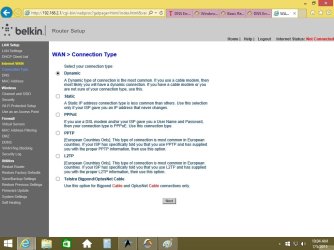
Another thing that makes me wonder is connection type. DSL or cable for example? You may need to change authentication method in router interface. As an example my router doesn't work with a DSL modem because it doesn't support PPPoE or similar methods (it is a cable router).

Connect router to modem again (with the WAN port) and check management page. Possibly a status or connection screen, see if router is getting the Internet IP similar to what your PC gets when connected to modem directly.

Better post some screenshots of the relevant management screens.
 

My Computer

Computer type
PC/Desktop
Computer Manufacturer/Model Number
Custom Build
OS
Windows 7 Ultimate x64 SP1
CPU
AMD Phenom 2 1090T
Motherboard
Gigabyte GA-890FXA-UD5
Memory
2x8GB Kingston HyperX Fury Black 1600Mhz Unganged
Graphics Card(s)
MSI GTX 970 Gaming 4G
Sound Card
Realtek On-Board HD 7.1 Audio / Logitech G35
Monitor(s) Displays
3xAcer GD245HQ
Screen Resolution
1920x1080
Hard Drives
Samsung 850 Pro 512GB SSD - OS /
WD Caviar Black SATA 3 - 1 TBx2 - Dynamic RAID 0 /
WD Caviar Green SATA 2 - 640GBx2 - Dynamic RAID 0 /
WD Caviar Green SATA 2 - 640GB - Internal Backup /
Seagate Barracude SATA 3 - 3TB - External Backup/ Sync
PSU
HighPower 1000W
Case
Cooler Master HAF 932
Cooling
Noctua NH-D14
Keyboard
Logitech G19
Mouse
Logitech G500
Internet Speed
100/4 Mbit Cable (100GB quota)
Antivirus
ZoneAlarm Extreme Security / MBAM Pro / MBAE Free / SAS Free
Browser
IE 11 - Firefox - Chrome
Other Info
Logitech F710/ G27/ G940/ Z5500 // TrackIR 5 // Nvidia 3D Surround Vision
...it is really annoying that on every site I have posted this problem, people only seem to read one or two sentences of what's wrong and assume the answer is one thing that completely ignores everything else.
I do understand. I've asked for help on forums...

I probably should have taken the time to explain why we suggest changing settings in your modem and router. In your first post, you stated that things were working - then they stopped working and that "nothing was altered prior to losing internet." I know that you are saying that you altered nothing; but clearly something has changed and the settings in your networking equipment might need to change too.
 

My Computer

Computer type
Laptop
Computer Manufacturer/Model Number
Employer provided Dell Latitude
OS
W7 Pro SP1 64bit
CPU
i7
Memory
8GB
Graphics Card(s)
Intel HD Graphics
Hard Drives
crappy SSD
Antivirus
Employer mandated Symantec Endpoint Protection
Browser
Pale Moon 64bit, IE11 64bit & Chrome 64bit
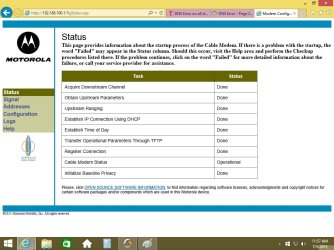
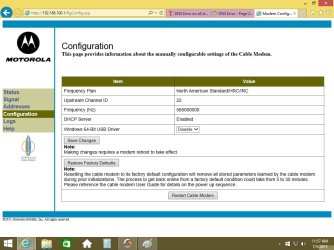
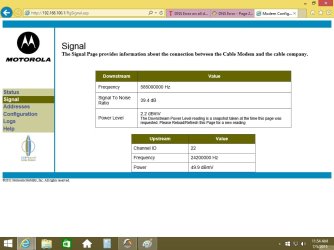
Modem is a Motorola SB5101
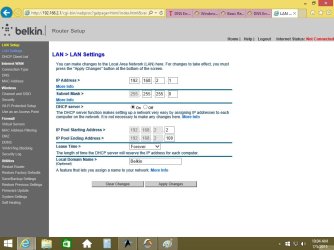
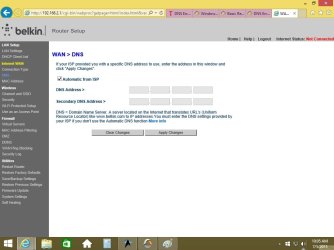
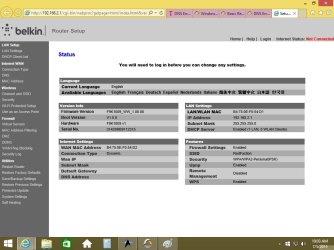
Wireless Router is a Belkin F9K1009v1
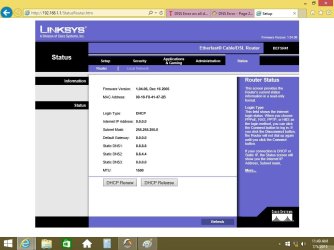
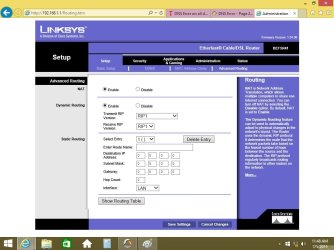
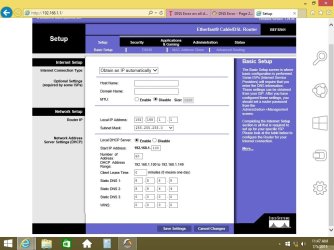
Wired Router is a Linksys BEFSR41 v4.1

When I said I have factory reset the router twice I meant once via the reset button on the back, and once via the internal configuration page.

Screenshots of the routers configuration pages attached
 

Attachments

  • Screenshot1.jpg
    Screenshot1.jpg
    152.2 KB · Views: 2
  • Screenshot2.jpg
    Screenshot2.jpg
    156.1 KB · Views: 0
  • Screenshot3.jpg
    Screenshot3.jpg
    162.9 KB · Views: 0
  • Screenshot4.jpg
    Screenshot4.jpg
    118.5 KB · Views: 1

My Computer

Computer type
PC/Desktop
OS
Windows 8 64bit
Is there any place in the Belkin's interface that tells you what the IP address is coming from the modem? Some info that will answer the question in post #3. If not, try the old Linksys router and look for that IP address.

Reason:
The cable modem might might not be giving the Belkin or the Linksys an IP address.
 

My Computer

Computer type
Laptop
Computer Manufacturer/Model Number
Employer provided Dell Latitude
OS
W7 Pro SP1 64bit
CPU
i7
Memory
8GB
Graphics Card(s)
Intel HD Graphics
Hard Drives
crappy SSD
Antivirus
Employer mandated Symantec Endpoint Protection
Browser
Pale Moon 64bit, IE11 64bit & Chrome 64bit
Linksys and modem screenshots.
 

Attachments

  • Linksys Screenshot2.jpg
    Linksys Screenshot2.jpg
    136.6 KB · Views: 1
  • Linksys Screenshot1.jpg
    Linksys Screenshot1.jpg
    154.1 KB · Views: 1
  • Linksys Screenshot.jpg
    Linksys Screenshot.jpg
    173.2 KB · Views: 0
  • Modem Screenshot1.jpg
    Modem Screenshot1.jpg
    184.3 KB · Views: 0
  • Modem Screenshot2.jpg
    Modem Screenshot2.jpg
    170.5 KB · Views: 0
  • Modem Screenshot3.jpg
    Modem Screenshot3.jpg
    128.2 KB · Views: 0

My Computer

Computer type
PC/Desktop
OS
Windows 8 64bit
That seems to indicate that the Linksys is not getting an IP address from the cable modem.

Plug the computer into the proper jack on the Linksys.

Plug the cable modem into the wrong jack on the Linksys.

See if the computer gets an IP address like the one in post #4. If it does, then the circuits that auto-sense jack types have failed on the modem.
 

My Computer

Computer type
Laptop
Computer Manufacturer/Model Number
Employer provided Dell Latitude
OS
W7 Pro SP1 64bit
CPU
i7
Memory
8GB
Graphics Card(s)
Intel HD Graphics
Hard Drives
crappy SSD
Antivirus
Employer mandated Symantec Endpoint Protection
Browser
Pale Moon 64bit, IE11 64bit & Chrome 64bit
Connected Computer to correct jack, modem to wrong jack, no change in IP
Debating a factory reset to the modem
 

My Computer

Computer type
PC/Desktop
OS
Windows 8 64bit
You might have to turn off DHCP on the Linksys*. I've actually done this "plug it into the wrong jack" thing more than once when working with cable modems. I've got one setup where that is the way we left it.

If you get an "Internet IP", then the modem is probably bad. If you are leasing the modem from TWC, I would ask them before resetting the modem. Once or twice, I've been told that the default settings needed to be tweaked "for stability". Fortunately, the modems connected and the cable company could tweak it from their end.


*If need be, reset the Linksys to get back into the web based user interface. Or set a static IP on the computer.
 

My Computer

Computer type
Laptop
Computer Manufacturer/Model Number
Employer provided Dell Latitude
OS
W7 Pro SP1 64bit
CPU
i7
Memory
8GB
Graphics Card(s)
Intel HD Graphics
Hard Drives
crappy SSD
Antivirus
Employer mandated Symantec Endpoint Protection
Browser
Pale Moon 64bit, IE11 64bit & Chrome 64bit
Hmm, I had the same setup until 2 months ago. The same Motorola modem and a Linksys router (same interface, different model).

- Your modem is working alright as you can get the Internet IP on your PC when you connect to the modem directly.
- As you see, both Linksys and Belkin fail to get an Internet IP address on the WAN port. DHCP and other configuration seem correct. And to be honest, no need to look any further when your two routers fail to get an IP.
- The common point between the two is your cable and (maybe) how you connect the modem and router.
Excuse me if the next 2 steps seems dumb, have to make sure as this is crucial.
-- Looking at Google Images, your Linksys router has it's WAN port labeled as "WAN". Use that port, and not "Uplink" or the numbered ones. And it is upside down with respect to the others.
-- Belkin has it's WAN port colored BLUE (labeled WAN), use that one to connect to modem.
- If you are indeed using the correct WAN ports then change the Ethernet cable between modem and router. Do this regardless of if you get IP when connecting PC through this very same cable.
- You may need to restart Belkin after connecting to modem (should be automatic but never know), Linksys you can just click "DHCP renew" on Status page.

I am holding my idea of factory reset as:
1- You already did twice
2- 2 routers failing same time is slim
 
Last edited:

My Computer

Computer type
PC/Desktop
Computer Manufacturer/Model Number
Custom Build
OS
Windows 7 Ultimate x64 SP1
CPU
AMD Phenom 2 1090T
Motherboard
Gigabyte GA-890FXA-UD5
Memory
2x8GB Kingston HyperX Fury Black 1600Mhz Unganged
Graphics Card(s)
MSI GTX 970 Gaming 4G
Sound Card
Realtek On-Board HD 7.1 Audio / Logitech G35
Monitor(s) Displays
3xAcer GD245HQ
Screen Resolution
1920x1080
Hard Drives
Samsung 850 Pro 512GB SSD - OS /
WD Caviar Black SATA 3 - 1 TBx2 - Dynamic RAID 0 /
WD Caviar Green SATA 2 - 640GBx2 - Dynamic RAID 0 /
WD Caviar Green SATA 2 - 640GB - Internal Backup /
Seagate Barracude SATA 3 - 3TB - External Backup/ Sync
PSU
HighPower 1000W
Case
Cooler Master HAF 932
Cooling
Noctua NH-D14
Keyboard
Logitech G19
Mouse
Logitech G500
Internet Speed
100/4 Mbit Cable (100GB quota)
Antivirus
ZoneAlarm Extreme Security / MBAM Pro / MBAE Free / SAS Free
Browser
IE 11 - Firefox - Chrome
Other Info
Logitech F710/ G27/ G940/ Z5500 // TrackIR 5 // Nvidia 3D Surround Vision
Back
Top