Drive Icon - Change

How to Change a Drive Icon in Vista, Windows 7, and Windows 8


   Information
This tutorial will show you how to change a drive icon for an internal or external drive that has a drive letter in the Computer window to any icon you want for just your or all user accounts in Vista, Windows 7, and Windows 8.

   Tip
If your default drive icon is missing or was changed and you did not do it with the methods below, then look for a hidden (not always hidden though) autorun.inf file (OPTION ONE below) in the root directory of the affected drive, right click on the autorun.inf file, and click on Delete. Next, approve the deletion. If this was an external device, then you may need to disconnect and reconnect the device for the icon to appear afterwards.

   Warning
If you select to use a custom icon of your own, then it must be a 256x256 pixel icon (.ico) file for it to display properly in all icon sizes.


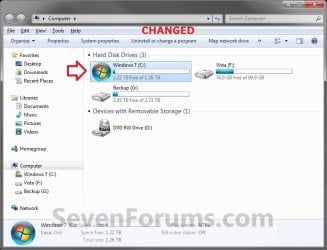
EXAMPLE: C Drive icon - Default and Changed
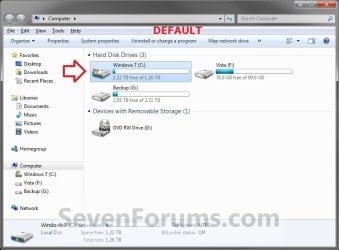
Default.jpg

Changed.jpg


OPTION ONE

Change a Drive Icon using a "autorun.inf" File


NOTE: While this option can be used for any drive, it is really useful for external drives like a USB flash drive.
1. Set your known file extentions to no longer be hidden.
NOTE: This way you will be able to rename the file extension in step 3 below.

2. Connect and/or open the drive that you want to change the icon of.

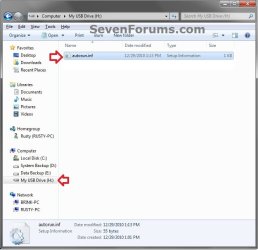
3. In the root of the drive that you want to change the icon of, right click or press and hold on an empty space, and click/tap on New and Text Document. Rename this .txt file to autorun.inf, and press Enter. (see screenshots below)
NOTE: If you already have a autorun.inf file in the root of this drive, then skip this step and proceed to step 4.
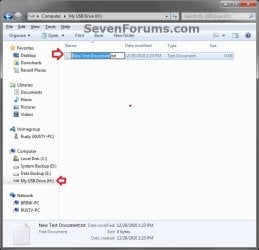
Step1.jpg

Step2.jpg

4. Copy the icon .ico file (ex: Thumb_Drive.ico) that you want to use to the root of the drive that you want to change the icon of. (see right screenshot below)
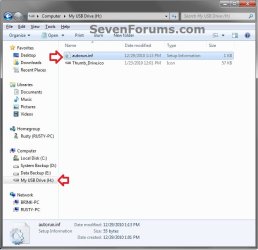
Step3.jpg
5. If this is a New autorun.inf File
A) Open the autorun.inf file, then type each line below followed by pressing enter. (see screenshot below)
NOTE: Substitute icon file name with the actual name of your icon file (ex: Thumb_Drive.ico) from step 4.
Code:
[autorun]
icon="[B][COLOR=red]icon file name[/COLOR][/B].ico"
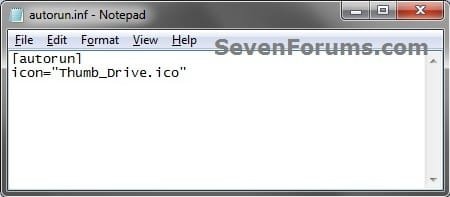
Icon.jpg
B) Click/tap on File (menu bar) and Save, then close the autorun.inf file. (see screenshot above)
6. If you already have an autorun.inf File
NOTE: Be sure that you also check the Show hidden files, folders, and drives option in Folder Options in case the existing autorun.inf file (if there) may have been hidden.
A) Open the autorun.inf file, then add or change the icon= line below. (see screenshots below)
NOTE: Substitute icon file name with the actual name of your icon file (ex: Thumb_Drive.ico) from step 4.
Code:
[autorun]
[B]icon="[COLOR=red]icon file name[/COLOR].ico"[/B]
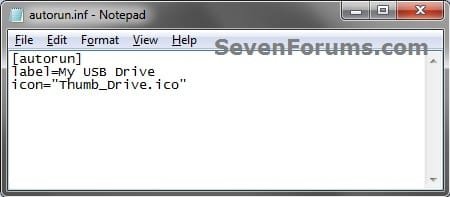
Icon.jpg

TXT_file.jpg

B) Click/tap on File (menu bar) and Save, then close the autorun.inf file. (see screenshots above)
7. If this is for an Internal or eSATA Dive
A) Restart the computer to apply.
8. If this is for an External Dive
A) Unplug and plug in the drive to apply.
9. Open the Computer window to see the changes.

   Note
To Restore the Default Icon


You would just need to do either option below and repeat steps 7 to 9 above.
  • Delete the autorun.inf and .ico file.
OR

  • If you have other lines (ex: label=) in the autorun.inf while editing it that you wish to continue using, then remove the icon= line entry for the drive, and save the changes.


OPTION TWO

Change a Drive Icon in Registry Editor for Current User Account Only


1. If you did OPTION ONE previously, then you will need to either remove the icon=icon file name.ico entry from the autorun.inf file, or delete the autorun.inf file in the root of the drive that you want to change the icon of.

2. Press the Windows + R keys to open the Run dialog, type regedit, and press Enter.

3. If prompted by UAC, then click/tap on Yes (Windows 7/8) or Continue (Vista).

4. In regedit, navigate to the location below. (see screenshot below)
HKEY_CURRENT_USER\Software\Classes
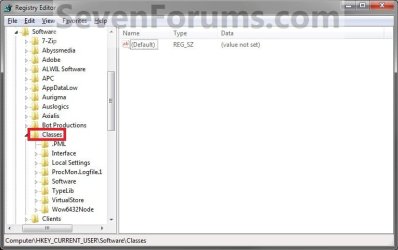
Current_Step1.jpg
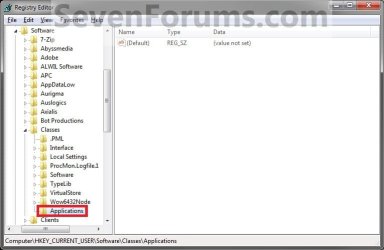
5. In the left pane, right click on Classes, click/tap on New and Key, type Applications, and press Enter.
NOTE: If you already have the Applications key under Classes, then go to step 6. (see screenshot above and below)
Current_Step2.jpg
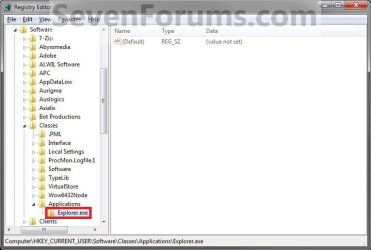
6. In the left pane, right click on Applications, click/tap on New and Key, type Explorer.exe, and press Enter.
NOTE: If you already have the Explorer.exe key under Applications, then go to step 7. (see screenshot above and below)
Current_Step3.jpg
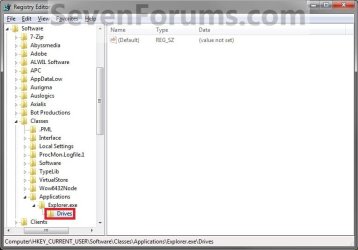
7. In the left pane, right click on Explorer.exe, click/tap on New and Key, type Drives, and press Enter.
NOTE: If you already have the Drives key under Explorer.exe, then go to step 8. (see screenshot above and below)
Current_Step4.jpg
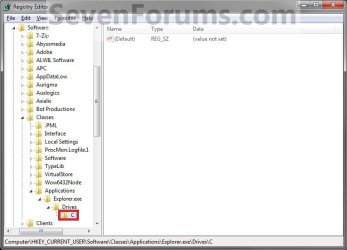
8. In the left pane, right click on Drives, click/tap on New and Key, type the drive letter (ex: C ) that you want to change the icon for, and press Enter.
NOTE: If you already have the drive letter (ex: C ) key under Drives, then go to step 9. (see screenshot above and below)
Current_Step5.jpg
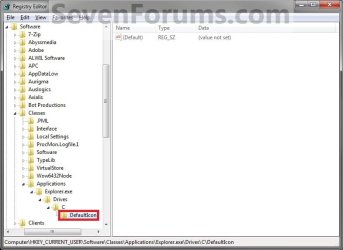
9. In the left pane, right click on the drive letter (ex: C ), click/tap on New and Key, type DefaultIcon, and press Enter.
NOTE: If you already have the DefaultIcon key under the drive letter (ex: C ), then go to step 10, 11, or 12. (see screenshot above and below)
Current_Step6.jpg
10. To Restore the Default Drive Icon
A) Right click on the drive letter (ex: C ) from step 8 above that you want to restore, and click/tap on Delete and Yes. (see screenshot below step 8)

B) Go to step 14.
11. To Use a Custom Icon of Your Own
A) Make sure that the icon is unblocked if not already.

B) Make sure that the icon is located in a folder where you have access permission rights. The icon will need to stay here for as long as you are using it for the drive icon, otherwise it will break the link and no longer display as the drive's icon.

C) In the right pane of DefaultIcon, double click/tap on (Default) to modify it. (see screenshot below step 9)

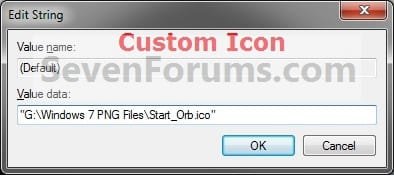
D) In the Modify window, type this below, and click/tap on OK. (see screenshot below)
NOTE: Substitute with your icons full path and name with file extension in quotes instead.

Code:
"[B][COLOR=red]full path of the icon file with file extension[/COLOR][/B]"
FOR EXAMPLE:
Code:
"G:\Windows 7 PNG Files\Start_Orb.ico"
Current_Step7.jpg
E) Go to step 13.
12. To Use another Icon Included in Windows 7
A) Download and install the free program IconViewer for your 32-bit or 64-bit Windows 7.
NOTE: This program will add a Icons tab to files (ex: imageres.dll) that contain a icon library in them so you can see the icons available in it.

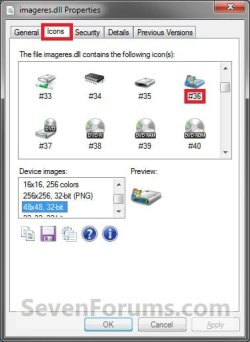
B) In Windows Explorer, navigate to C:\Windows\System32\imageres.dll and right click on imageres.dll, click on Properties, and click on the Icons tab.
NOTE: You can use any of the Windows 7 files that include icons in them that you want though. This is just the most common one.

C) Scroll through the icons and make note of the icon number of the one you want to use to replace the default file extension icon with, then close the properties window. (see screenshot below)
NOTE: For example, icon number 36 for the default C drive icon.
Icon_Viewer.jpg
D) In the right pane of DefaultIcon, double click/tap on (Default) to modify it. (see screenshot below step 9)

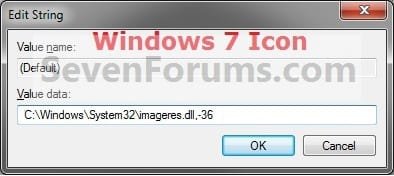
E) In the Modify window, type in the location below, and click/tap on OK. (see screenshot below)

Code:
[B][COLOR=red](full path of the Windows 7 file with file extension)[/COLOR][/B],-[B][COLOR=red]####[/COLOR][/B]
FOR EXAMPLE:
Code:
C:\Windows\System32\imageres.dll,-36
Windows7_Icon.jpg
13. The registry should look similar to this now depending on the icon path you entered in either step 11 or 12. (see screenshot below)
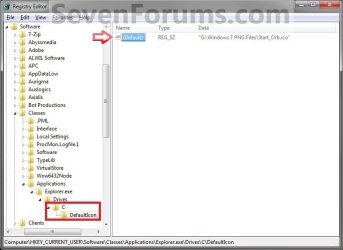
Current_Step8.jpg
12. Close Regedit.

13. The changes should be immediate, but in some cases you may need to restart the computer to apply the changes. If the drive icon does not change for you using this option, then try OPTION ONE or OPTION THREE to change it instead.


OPTION THREE

Change a Drive Icon in Registry Editor for All User Accounts


NOTE: You must be logged in as an administrator to be able to do this option.
1. If you did OPTION ONE previously, then you will need to either remove the icon=icon file name.ico entry from the autorun.inf file, or delete the autorun.inf file in the root of the drive that you want to change the icon of.

2. Press the Windows + R keys to open the Run dialog, type regedit, and press Enter.

3. If prompted by UAC, then click/tap on Yes (Windows 7/8) or Continue (Vista).

4. In regedit, navigate to the location below. (see screenshot below)
HKEY_LOCAL_MACHINE\SOFTWARE\Microsoft\Windows\CurrentVersion\Explorer
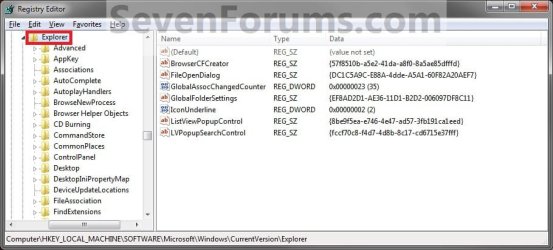
All_Step1.jpg
5. In the left pane, right click on Explorer, click/tap on New and Key, type DriveIcons, and press Enter.
NOTE: If you already have the DriveIcons key under Explorer, then go to step 6. (see screenshot above and below)
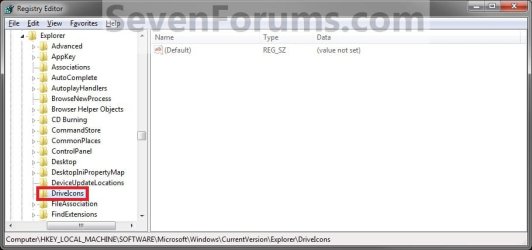
All_Step2.jpg
6. In the left pane, right click on DriveIcons and click/tap on New and Key, type the drive letter (ex: C ) that you want to change the icon for, and press Enter.
NOTE: If you already have the drive letter (ex: C ) key under DriveIcons, then go to step 7. (see screenshot above and below)
All_Step3.jpg
7. In the left pane, right click on the drive letter (ex: C ), click/tap on New and Key, type DefaultIcon, and press Enter.
NOTE: If you already have the DefaultIcon key under the drive letter (ex: C ), then go to step 8, 9, or 10. (see screenshot above and below)
All_Step4.jpg
8. To Restore the Default Drive Icon
A) Right click on the drive letter (ex: C ) from step 6 above that you want to restore, and click/tap on Delete and Yes. (see screenshot below step 6)

B) Go to step 12.
9. To Use a Custom Icon of Your Own
A) Make sure that the icon is unblocked if not already.

B) Make sure that the icon is located in a folder (ex: a C:\Users\Public folder) where all users (everyone) have access permission rights. The icon will need to stay here for as long as you are using it for the drive icon, otherwise it will break the link and no longer display as the drive's icon.

C) In the right pane of DefaultIcon, double click/tap on (Default) to modify it. (see screenshot below step 7)

D) In the Modify window, type this below, and click/tap on OK. (see screenshot below)
NOTE: Substitute with your icons full path and name with file extension in quotes instead.

Code:
"[B][COLOR=red]full path of the icon file with file extension[/COLOR][/B]"
FOR EXAMPLE:
Code:
"G:\Windows 7 PNG Files\Start_Orb.ico"
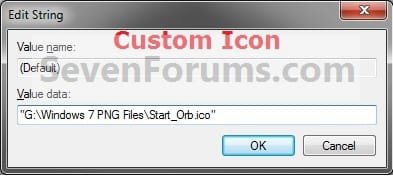
All_Step5.jpg
   Warning
The custom icon file that you are using must be saved at a location that can be accessed by all user accounts for it to be displayed in all user accounts. For example, in the C:\Users\Public folder.


E) Go to step 11.
10. To Use another Icon Included in Windows 7
A) Download and install the free program IconViewer for your 32-bit or 64-bit Windows 7.
NOTE: This program will add a Icons tab to files (ex: imageres.dll) that contain a icon library in them so you can see the icons available in it.

B) In Windows Explorer, navigate to C:\Windows\System32\imageres.dll and right click on imageres.dll, click on Properties, and click on the Icons tab.
NOTE: You can use any of the Windows 7 files that include icons in them that you want though. This is just the most common one.

C) Scroll through the icons and make note of the icon number of the one you want to use to replace the default file extension icon with, then close the properties window. (see screenshot below)
NOTE: For example, icon number 36 for the default C drive icon.
Icon_Viewer.jpg
D) In the right pane of DefaultIcon, double click/tap on (Default) to modify it. (see screenshot below step 7)

E) In the Modify window, type in the location below, and click/tap on OK. (see screenshot below)

Code:
[B][COLOR=red](full path of the Windows 7 file with file extension)[/COLOR][/B],-[B][COLOR=red]####[/COLOR][/B]
FOR EXAMPLE:
Code:
C:\Windows\System32\imageres.dll,-36
Windows7_Icon.jpg
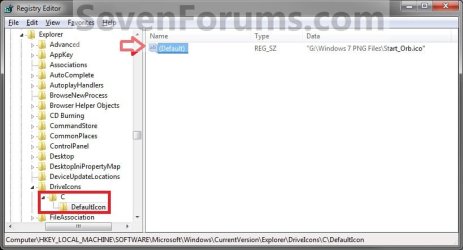
11. The registry should look similar to this now depending on the icon path you entered in either step 9 or 10. (see screenshot below)
All_Step6.jpg
12. Close Regedit.

13. The changes should be immediate, but in some cases you may need to restart the computer to apply the changes.
That's it,
Shawn


Last edited:
My autorun.inf files stopped working... any idea why?

Hello Caspid,

Do you still have the .ico file referenced in the autorun.inf file still on the drive?

If so, then you might try one of the other options to see if may work better for your setup.
 

My Computer

Computer type
PC/Desktop
Computer Manufacturer/Model Number
Self built custom
OS
64-bit Windows 11 Pro for Workstations
CPU
Intel i7-8700K OC'd to 5 GHz
Motherboard
ASUS ROG Maximus XI Formula Z390
Memory
64 GB (4x16GB) G.SKILL TridentZ RGB DDR4 3600 MHz
Graphics Card(s)
ASUS ROG-STRIX-GTX1080TI-O11G-GAMING
Sound Card
Integrated
Monitor(s) Displays
2 x Samsung Odyssey G7 27"
Screen Resolution
2560x1440
Hard Drives
1TB Samsung 990 PRO M.2,
4TB Samsung 990 PRO PRO M.2,
TerraMaster F8 SSD Plus NAS
PSU
Seasonic Prime Titanium 850W
Case
Thermaltake Core P3
Cooling
Corsair Hydro H115i
Keyboard
Logitech wireless K800
Mouse
Logitech MX Master 4
Internet Speed
2 Gb/s Download and 100 Mb/s Upload
Antivirus
Malwarebyte Anti-Malware Premium
Browser
Google Chrome
Other Info
Logitech Z625 speaker system,
Logitech BRIO 4K Pro webcam,
HP Color LaserJet Pro MFP M477fdn,
APC SMART-UPS RT 1000 XL - SURT1000XLI,
Galaxy S23 Plus phone
@BRINK

Nice Tutorial!! I tried this it worked, bt i hav little problem. The problem is when i change the view of Drive icons to "Large" or "Extra Large". My new icon is working properly.... bt when i change the view to "small"/"medium"/"tile"/"content"/"Details"/"List" it shows the old icon again. i'm confused.. hw's this happening.???? :(
Also, i wanna know how to change icon of more than one drives ..as this trcick is for only 1 drive.
Suggestions Appreciated
 

My Computer

OS
Windows 7 Home Basic 64-bit
Hello Shanucyborg, and welcome to Seven Forums. :)

What icon or .ico file did you use for the drive?

If .ico file, is it a 256x256 Vista styled icon?
 

My Computer

Computer type
PC/Desktop
Computer Manufacturer/Model Number
Self built custom
OS
64-bit Windows 11 Pro for Workstations
CPU
Intel i7-8700K OC'd to 5 GHz
Motherboard
ASUS ROG Maximus XI Formula Z390
Memory
64 GB (4x16GB) G.SKILL TridentZ RGB DDR4 3600 MHz
Graphics Card(s)
ASUS ROG-STRIX-GTX1080TI-O11G-GAMING
Sound Card
Integrated
Monitor(s) Displays
2 x Samsung Odyssey G7 27"
Screen Resolution
2560x1440
Hard Drives
1TB Samsung 990 PRO M.2,
4TB Samsung 990 PRO PRO M.2,
TerraMaster F8 SSD Plus NAS
PSU
Seasonic Prime Titanium 850W
Case
Thermaltake Core P3
Cooling
Corsair Hydro H115i
Keyboard
Logitech wireless K800
Mouse
Logitech MX Master 4
Internet Speed
2 Gb/s Download and 100 Mb/s Upload
Antivirus
Malwarebyte Anti-Malware Premium
Browser
Google Chrome
Other Info
Logitech Z625 speaker system,
Logitech BRIO 4K Pro webcam,
HP Color LaserJet Pro MFP M477fdn,
APC SMART-UPS RT 1000 XL - SURT1000XLI,
Galaxy S23 Plus phone
If you like, go ahead and ZIP the .ico file and upload it here. I'll be happy to test it on my system to help see what the issue may be. :)

Which option did you use in the tutorial?
 

My Computer

Computer type
PC/Desktop
Computer Manufacturer/Model Number
Self built custom
OS
64-bit Windows 11 Pro for Workstations
CPU
Intel i7-8700K OC'd to 5 GHz
Motherboard
ASUS ROG Maximus XI Formula Z390
Memory
64 GB (4x16GB) G.SKILL TridentZ RGB DDR4 3600 MHz
Graphics Card(s)
ASUS ROG-STRIX-GTX1080TI-O11G-GAMING
Sound Card
Integrated
Monitor(s) Displays
2 x Samsung Odyssey G7 27"
Screen Resolution
2560x1440
Hard Drives
1TB Samsung 990 PRO M.2,
4TB Samsung 990 PRO PRO M.2,
TerraMaster F8 SSD Plus NAS
PSU
Seasonic Prime Titanium 850W
Case
Thermaltake Core P3
Cooling
Corsair Hydro H115i
Keyboard
Logitech wireless K800
Mouse
Logitech MX Master 4
Internet Speed
2 Gb/s Download and 100 Mb/s Upload
Antivirus
Malwarebyte Anti-Malware Premium
Browser
Google Chrome
Other Info
Logitech Z625 speaker system,
Logitech BRIO 4K Pro webcam,
HP Color LaserJet Pro MFP M477fdn,
APC SMART-UPS RT 1000 XL - SURT1000XLI,
Galaxy S23 Plus phone
There's nothing wrong with the icon. Give OPTION THREE for all users a try with it instead to see how it works then. That option tends to work best. :)
 

My Computer

Computer type
PC/Desktop
Computer Manufacturer/Model Number
Self built custom
OS
64-bit Windows 11 Pro for Workstations
CPU
Intel i7-8700K OC'd to 5 GHz
Motherboard
ASUS ROG Maximus XI Formula Z390
Memory
64 GB (4x16GB) G.SKILL TridentZ RGB DDR4 3600 MHz
Graphics Card(s)
ASUS ROG-STRIX-GTX1080TI-O11G-GAMING
Sound Card
Integrated
Monitor(s) Displays
2 x Samsung Odyssey G7 27"
Screen Resolution
2560x1440
Hard Drives
1TB Samsung 990 PRO M.2,
4TB Samsung 990 PRO PRO M.2,
TerraMaster F8 SSD Plus NAS
PSU
Seasonic Prime Titanium 850W
Case
Thermaltake Core P3
Cooling
Corsair Hydro H115i
Keyboard
Logitech wireless K800
Mouse
Logitech MX Master 4
Internet Speed
2 Gb/s Download and 100 Mb/s Upload
Antivirus
Malwarebyte Anti-Malware Premium
Browser
Google Chrome
Other Info
Logitech Z625 speaker system,
Logitech BRIO 4K Pro webcam,
HP Color LaserJet Pro MFP M477fdn,
APC SMART-UPS RT 1000 XL - SURT1000XLI,
Galaxy S23 Plus phone
Shanucyborg,

Did that work ok for you?
 

My Computer

Computer type
PC/Desktop
Computer Manufacturer/Model Number
Self built custom
OS
64-bit Windows 11 Pro for Workstations
CPU
Intel i7-8700K OC'd to 5 GHz
Motherboard
ASUS ROG Maximus XI Formula Z390
Memory
64 GB (4x16GB) G.SKILL TridentZ RGB DDR4 3600 MHz
Graphics Card(s)
ASUS ROG-STRIX-GTX1080TI-O11G-GAMING
Sound Card
Integrated
Monitor(s) Displays
2 x Samsung Odyssey G7 27"
Screen Resolution
2560x1440
Hard Drives
1TB Samsung 990 PRO M.2,
4TB Samsung 990 PRO PRO M.2,
TerraMaster F8 SSD Plus NAS
PSU
Seasonic Prime Titanium 850W
Case
Thermaltake Core P3
Cooling
Corsair Hydro H115i
Keyboard
Logitech wireless K800
Mouse
Logitech MX Master 4
Internet Speed
2 Gb/s Download and 100 Mb/s Upload
Antivirus
Malwarebyte Anti-Malware Premium
Browser
Google Chrome
Other Info
Logitech Z625 speaker system,
Logitech BRIO 4K Pro webcam,
HP Color LaserJet Pro MFP M477fdn,
APC SMART-UPS RT 1000 XL - SURT1000XLI,
Galaxy S23 Plus phone
Hello,
I did everything in option two and it worked fine, but when I turned on my PC the next day, all icons were changed back to default.

In Registry Editor, everything in "HKEY_CURRENT_USER\Software\Classes\Applications\Explorer.exe" was deleted, so I repeated option two again and successfully changed my icons, but after restart they were again changed to default and there was nothing in "Explorer.exe".

I tried to do it in Safe Mode and also I set permission on Explorer.exe to "read only", but neither of them worked.


I don't know what am I doing wrong and why the Registry Editor won't keep my changes after restart...

Could someone help me?
 

My Computer

OS
Windows 7 Home Premium 64bit
Hello Kaldarien, and welcome to Seven Forums.

Looks like you will need to do OPTION ONE or OPTION THREE instead to make the icons stick.

Hope this helps. :)
 

My Computer

Computer type
PC/Desktop
Computer Manufacturer/Model Number
Self built custom
OS
64-bit Windows 11 Pro for Workstations
CPU
Intel i7-8700K OC'd to 5 GHz
Motherboard
ASUS ROG Maximus XI Formula Z390
Memory
64 GB (4x16GB) G.SKILL TridentZ RGB DDR4 3600 MHz
Graphics Card(s)
ASUS ROG-STRIX-GTX1080TI-O11G-GAMING
Sound Card
Integrated
Monitor(s) Displays
2 x Samsung Odyssey G7 27"
Screen Resolution
2560x1440
Hard Drives
1TB Samsung 990 PRO M.2,
4TB Samsung 990 PRO PRO M.2,
TerraMaster F8 SSD Plus NAS
PSU
Seasonic Prime Titanium 850W
Case
Thermaltake Core P3
Cooling
Corsair Hydro H115i
Keyboard
Logitech wireless K800
Mouse
Logitech MX Master 4
Internet Speed
2 Gb/s Download and 100 Mb/s Upload
Antivirus
Malwarebyte Anti-Malware Premium
Browser
Google Chrome
Other Info
Logitech Z625 speaker system,
Logitech BRIO 4K Pro webcam,
HP Color LaserJet Pro MFP M477fdn,
APC SMART-UPS RT 1000 XL - SURT1000XLI,
Galaxy S23 Plus phone
Help me fix this error
420344_518493428200985_202310294_n.jpg
 

My Computer

OS
Windows 7 Ultimate x32
Hello ngoctraiden, and welcome to Seven Forums.

You might first see if rebuilding the icon cache may help.

If not, then you could use OPTION THREE in the tutorial on the first page to change the icon to be this below at step 10 that should restore it.

C:\Windows\System32\imageres.dll,-36

Hope this helps, :)
Shawn
 

My Computer

Computer type
PC/Desktop
Computer Manufacturer/Model Number
Self built custom
OS
64-bit Windows 11 Pro for Workstations
CPU
Intel i7-8700K OC'd to 5 GHz
Motherboard
ASUS ROG Maximus XI Formula Z390
Memory
64 GB (4x16GB) G.SKILL TridentZ RGB DDR4 3600 MHz
Graphics Card(s)
ASUS ROG-STRIX-GTX1080TI-O11G-GAMING
Sound Card
Integrated
Monitor(s) Displays
2 x Samsung Odyssey G7 27"
Screen Resolution
2560x1440
Hard Drives
1TB Samsung 990 PRO M.2,
4TB Samsung 990 PRO PRO M.2,
TerraMaster F8 SSD Plus NAS
PSU
Seasonic Prime Titanium 850W
Case
Thermaltake Core P3
Cooling
Corsair Hydro H115i
Keyboard
Logitech wireless K800
Mouse
Logitech MX Master 4
Internet Speed
2 Gb/s Download and 100 Mb/s Upload
Antivirus
Malwarebyte Anti-Malware Premium
Browser
Google Chrome
Other Info
Logitech Z625 speaker system,
Logitech BRIO 4K Pro webcam,
HP Color LaserJet Pro MFP M477fdn,
APC SMART-UPS RT 1000 XL - SURT1000XLI,
Galaxy S23 Plus phone
ngoctraiden,

That's a .png file. You will need to use an .ico file instead. I created one for you from the PNG file, and uploaded it in a ZIP file below for you.

You would just need to extract (drag and drop) the .ico file from the ZIP, unblock the .ico, move the .ico to where you like to keep it, then just use the path to this .ico file instead. :)
 

Attachments

My Computer

Computer type
PC/Desktop
Computer Manufacturer/Model Number
Self built custom
OS
64-bit Windows 11 Pro for Workstations
CPU
Intel i7-8700K OC'd to 5 GHz
Motherboard
ASUS ROG Maximus XI Formula Z390
Memory
64 GB (4x16GB) G.SKILL TridentZ RGB DDR4 3600 MHz
Graphics Card(s)
ASUS ROG-STRIX-GTX1080TI-O11G-GAMING
Sound Card
Integrated
Monitor(s) Displays
2 x Samsung Odyssey G7 27"
Screen Resolution
2560x1440
Hard Drives
1TB Samsung 990 PRO M.2,
4TB Samsung 990 PRO PRO M.2,
TerraMaster F8 SSD Plus NAS
PSU
Seasonic Prime Titanium 850W
Case
Thermaltake Core P3
Cooling
Corsair Hydro H115i
Keyboard
Logitech wireless K800
Mouse
Logitech MX Master 4
Internet Speed
2 Gb/s Download and 100 Mb/s Upload
Antivirus
Malwarebyte Anti-Malware Premium
Browser
Google Chrome
Other Info
Logitech Z625 speaker system,
Logitech BRIO 4K Pro webcam,
HP Color LaserJet Pro MFP M477fdn,
APC SMART-UPS RT 1000 XL - SURT1000XLI,
Galaxy S23 Plus phone
ngoctraiden,

That's a .png file. You will need to use an .ico file instead. I created one for you from the PNG file, and uploaded it in a ZIP file below for you.

You would just need to extract (drag and drop) the .ico file from the ZIP, unblock the .ico, move the .ico to where you like to keep it, then just use the path to this .ico file instead. :)
Thank u so much
My problem is solved
 

My Computer

OS
Windows 7 Ultimate x32
You're most welcome. :)
 

My Computer

Computer type
PC/Desktop
Computer Manufacturer/Model Number
Self built custom
OS
64-bit Windows 11 Pro for Workstations
CPU
Intel i7-8700K OC'd to 5 GHz
Motherboard
ASUS ROG Maximus XI Formula Z390
Memory
64 GB (4x16GB) G.SKILL TridentZ RGB DDR4 3600 MHz
Graphics Card(s)
ASUS ROG-STRIX-GTX1080TI-O11G-GAMING
Sound Card
Integrated
Monitor(s) Displays
2 x Samsung Odyssey G7 27"
Screen Resolution
2560x1440
Hard Drives
1TB Samsung 990 PRO M.2,
4TB Samsung 990 PRO PRO M.2,
TerraMaster F8 SSD Plus NAS
PSU
Seasonic Prime Titanium 850W
Case
Thermaltake Core P3
Cooling
Corsair Hydro H115i
Keyboard
Logitech wireless K800
Mouse
Logitech MX Master 4
Internet Speed
2 Gb/s Download and 100 Mb/s Upload
Antivirus
Malwarebyte Anti-Malware Premium
Browser
Google Chrome
Other Info
Logitech Z625 speaker system,
Logitech BRIO 4K Pro webcam,
HP Color LaserJet Pro MFP M477fdn,
APC SMART-UPS RT 1000 XL - SURT1000XLI,
Galaxy S23 Plus phone
Hi Shawn,

just changed my drive icons using "autorun.inf" files. Nice to get rid of
six boring grey generic drive icons plus one for the system drive,
the "Windows Orb" :orb: is much more impressive than the one Windows used.

And "Surprise, Surprise", the icons in the navigation pane changed also !!
I didn't expected that, thinking about it, it's logical, but it's Windows ... :p

Reading the posts here, it seems that Forum Rule No. 1 is
"Whatever can go wrong will go wrong." (aka Murphy's Law)


Thanks for this tutorial,
Tom
 

My Computer

Computer type
PC/Desktop
Computer Manufacturer/Model Number
Custom Build
OS
Windows 7 Ultimate x64
CPU
Intel Sandy Bridge i5 2500K
Motherboard
ASUS P8 H67-M Pro Rev. 3
Memory
16 GB
Graphics Card(s)
Intel internal HD 3000
Sound Card
Realtek internal High Def Audio
Monitor(s) Displays
ViewSonic 24"
Case
Cooler Master - HAF 932 (Big Tower)
Cooling
CPU: EKL AG "Alpenfohn Brocken"
Mouse
SteelSeries Sensei
Antivirus
Kaspersky Internet Security
Browser
Avant (Tri-Core: IE, FireFox & Chrome Engine)
:thumbsup:
 

My Computer

Computer type
PC/Desktop
Computer Manufacturer/Model Number
Self built custom
OS
64-bit Windows 11 Pro for Workstations
CPU
Intel i7-8700K OC'd to 5 GHz
Motherboard
ASUS ROG Maximus XI Formula Z390
Memory
64 GB (4x16GB) G.SKILL TridentZ RGB DDR4 3600 MHz
Graphics Card(s)
ASUS ROG-STRIX-GTX1080TI-O11G-GAMING
Sound Card
Integrated
Monitor(s) Displays
2 x Samsung Odyssey G7 27"
Screen Resolution
2560x1440
Hard Drives
1TB Samsung 990 PRO M.2,
4TB Samsung 990 PRO PRO M.2,
TerraMaster F8 SSD Plus NAS
PSU
Seasonic Prime Titanium 850W
Case
Thermaltake Core P3
Cooling
Corsair Hydro H115i
Keyboard
Logitech wireless K800
Mouse
Logitech MX Master 4
Internet Speed
2 Gb/s Download and 100 Mb/s Upload
Antivirus
Malwarebyte Anti-Malware Premium
Browser
Google Chrome
Other Info
Logitech Z625 speaker system,
Logitech BRIO 4K Pro webcam,
HP Color LaserJet Pro MFP M477fdn,
APC SMART-UPS RT 1000 XL - SURT1000XLI,
Galaxy S23 Plus phone
Addition

Seems that Option One with the "autorun.inf" doesn't work, if the drive
is a "True Crypt" volume (a completely encrypted partition).

So I tried Option Three instead.

Shawn: "13. The changes should be immediate ..."
Windows and no reboot ?? :sarc:
Oh YEAH, Shawn, you're right, sweet ! :cool:


Regards,
Tom
 

My Computer

Computer type
PC/Desktop
Computer Manufacturer/Model Number
Custom Build
OS
Windows 7 Ultimate x64
CPU
Intel Sandy Bridge i5 2500K
Motherboard
ASUS P8 H67-M Pro Rev. 3
Memory
16 GB
Graphics Card(s)
Intel internal HD 3000
Sound Card
Realtek internal High Def Audio
Monitor(s) Displays
ViewSonic 24"
Case
Cooler Master - HAF 932 (Big Tower)
Cooling
CPU: EKL AG "Alpenfohn Brocken"
Mouse
SteelSeries Sensei
Antivirus
Kaspersky Internet Security
Browser
Avant (Tri-Core: IE, FireFox & Chrome Engine)
Back
Top