Drive Letter - Add, Change, or Remove in Windows

How to Add, Change, or Remove a Drive Letter in Vista, Windows 7, and Windows 8


   Information
This will show you how to add, change, or remove a drive letter for any drive installed or connected to the computer in Vista, Windows 7, and Windows 8.
   Note

  • You can only assign the letters D to Z to each drive on your computer.
  • The letters A and B are usually reserved for floppy disk drives. If you do not have a floppy disk drive installed, then you could assign A and B to a drive, partition, or volume if you like. However, it's not recommended to assign A and B to anything other than a floppy or floppy substitute.
  • The letter C is reserved for the drive or partition that the operating system (Windows 7 or Vista) is installed on. If you multi boot operating systems, then whatever OS that you happen to startup in will always show as the C drive by default. You do not want to change or remove the C: drive letter.
  • If you change or remove a drive letter of a drive, partition, or volume that a shortcut or installed program references as their target location, then that shortcut or program may not work afterwards since it can no longer find that drive letter.


OPTION ONE

To Change, Add, or Remove Drive Letter in Disk Management


1. Press the Windows + R keys to open the Run dialog, type compmgmt.msc OR diskmgmt.msc, and press Enter.

2. If prompted by UAC, then click on Yes.

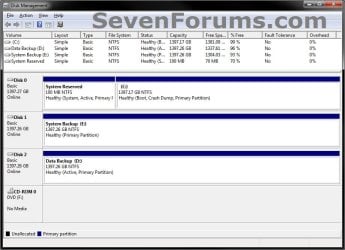
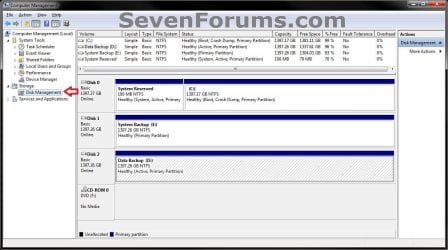
3. In the left pane of Computer Management, click/tap on Disk Management under Storage. (see screenshots below)
Computer_Management.jpg

Disk_Management.jpg

4. Do step 5, 6, or 7 for what you would like to do.

5. To Change a Drive Letter
NOTE: You cannot change a drive letter if the drive is either a system partition or a boot partition, like the partition or drive that Windows 7 is installed on. If you get an error, the partition or drive you are trying to change might be in use. Close any program or window that is using the partition or drive and try again.
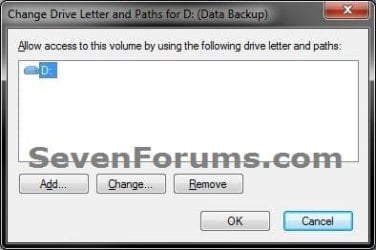
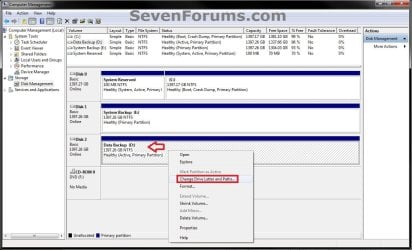
A) Right click on a listed drive, partition, or volume letter that you want to change the drive letter of, and click on Change Drive Letter and Paths. (see screenshot below)
Step-2_Change-Remove.jpg
B) Click/tap on the Change button. (see screenshot below)
Step-2_Change-Remove.jpg
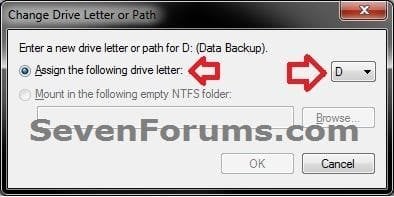
C) Select (dot) Assign the following drive letter, then select an available drive letter from the drop down box, and click/tap on OK. (see screenshot below)
Change-2.jpg
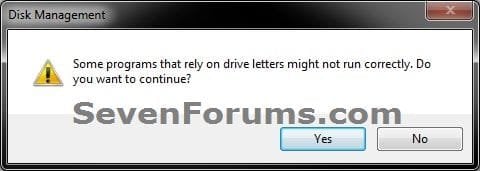
D) Click/tap on Yes to confirm changing the drive letter. (see screenshot below)
Change-3.jpg
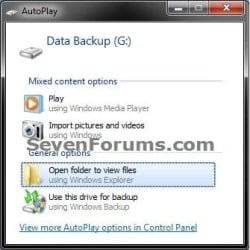
E) If you get a AutoPlay pop-up window afterwards, then you can just close this. It indicates that the drive, partition, or volume has been assigned the drive letter. (see screenshot below)
Change-4.jpg
F) Go to step 8.
6. To Add a Drive Letter
NOTE: This is to assign a drive letter to a drive, partition, or volume if a drive letter has been removed or does not already have one assigned to it.
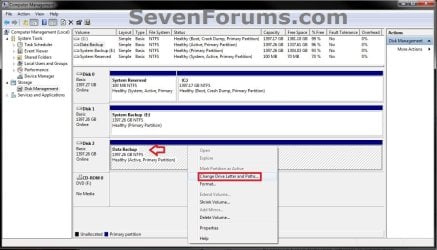
A) Right click on a listed drive, partition, or volume that does not have a driver letter that you want to add one to, and click/tap on Change Drive Letter and Paths. (see screenshot below step 5A)
Add.jpg
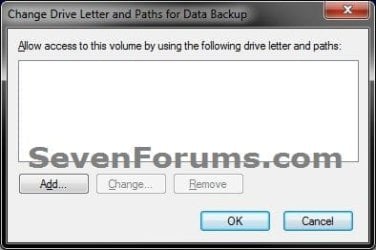
B) Click/tap on the Add button. (see screenshot below)
Add-1.jpg
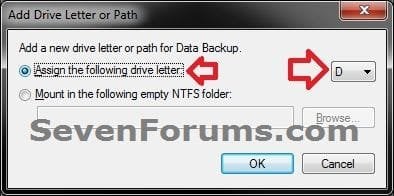
C) Select (dot) Assign the following drive letter, then select an available drive letter from the drop down box, and click/tap on OK. (see screenshot below)
Add-2.jpg
D) Go to step 8.
7. To Remove a Drive Letter
NOTE: This will only remove the drive letter and not the drive, partition, or volume. This can be useful if you are getting a low disk space warning for this drive letter.
A) Right click on a listed drive, partition, or volume letter that you want to remove the drive letter of, and click/tap on Change Drive Letter and Paths.
Step1.jpg
B) Click/tap on the Remove button. (see screenshot below)
Step-2_Change-Remove.jpg
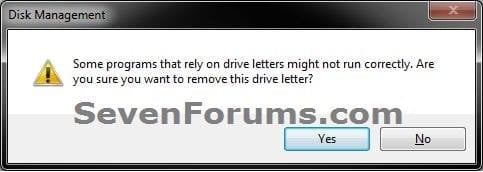
C) Click/tap on Yes to confirm removing the drive letter. (see screenshot below)
Remove-2.jpg
8. Close the Computer Management or Disk Management window.

9. Open the Computer window to confirm the changes.


OPTION TWO

To Change or Remove Drive Letter Manually in Registry Editor


1. Press the Windows + R keys to open the Run dialog, type regedit in the search box, and press Enter.

2. If prompted by UAC, then click on Yes.

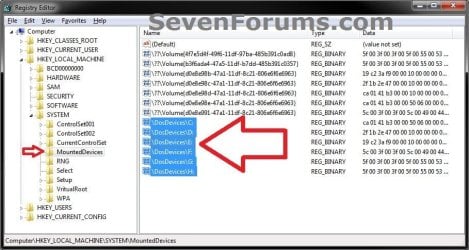
3. In regedit, navigate to the location below, and do step 4 or 5 below for what you would like to do.. (see screenshot below)
HKEY_LOCAL_MACHINE\SYSTEM\MountedDevices
Reg1.jpg
4. To Change a Drive Letter
WARNING: Do not change the C: drive letter.
A) Right click on a listed /DosDevices\(drive letter) (Ex: /DosDevices\D: ) that you want to change the drive letter of, then click on Rename. (see screenshot above)

B) Rename it with a drive letter that you want to use, and is not already listed here, and press enter. (see screenshot above)
For Example: If I wanted to change it from D: to K: , then I would rename it to /DosDevices\K: instead.
5. To Remove a Drive Letter
WARNING: Do not remove the C: drive letter.
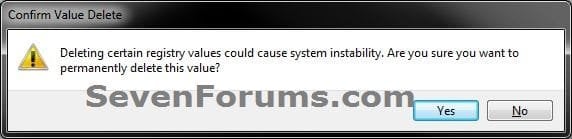
A) Right click on a listed /DosDevices\(drive letter) (Ex: /DosDevices\D: ) that you want to remove the drive letter of, then click on Delete. (see screenshot above)

B) Click/tap on Yes to confirm the deletion. (see screenshot below)
Reg_Remove.jpg
6. Close regedit.

7. Log off and log on, or restart the computer to apply the changes.


OPTION THREE

To Add, Change, or Remove a Drive Letter in Command Prompt


1. Open either an elevated command prompt in Windows 7 or Windows 8, or a command prompt at boot for Windows 7 or Windows 8.
NOTE: Changing the drive letter at boot will not always result in having the same drive letter in Windows. Changing the drive letter while in Windows is preferred.

2. In the command prompt, type diskpart and press Enter. (see screenshot below step 6)

3. In the command prompt, type list volume and press Enter. (see screenshot below step 6)
NOTE: Make note of what the volume # is for the drive label/size that you wanted to add or change the drive letter of.

4. In the command prompt, type select volume # and press Enter. (see screenshot below step 6)
NOTE: Substitute # in the command with the volume number from step 3 that you wanted to add or change the drive letter of.
For example: If I wanted to add or change the drive letter of my listed volume 1 for my I: System Back drive, I would type the command below exactly and press Enter.
select volume 1
5. Do step 6 or 7 below for what you would like to do.

6. To Add or Change a Drive Letter
A) In the command prompt, type assign letter=letter and press Enter, and go to step 8 below. (see screenshot below)
NOTE: Substitute the second letter in the command with the drive letter that you wanted to add or change the drive from step 4 to.
For example: If I wanted to add or change the drive letter of my listed volume 1 for my I: System Back drive from I to E, I would type the command below exactly and press Enter.
assign letter=E
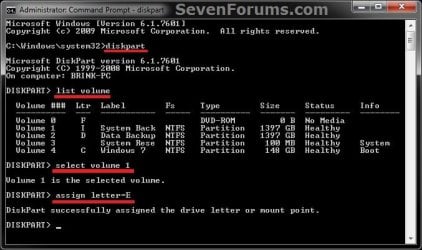
CMD.jpg
7. To Remove a Drive Letter
A) In the command prompt, type remove letter=letter and press Enter, and go to step 8 below.
NOTE: Substitute the second letter in the command with the drive letter that you wanted to remove the drive from step 4.
For example: If I wanted to remove the drive letter of my listed volume 1 for my I: System Back drive, I would type the command below exactly and press Enter.
remove letter=E
8. When successful, you're done. Close the elevated command prompt, or close the command prompt at boot and restart the computer.
That's it,
Shawn


Last edited:
Could you post a new updated screenshot of your Disk Management window showing all details for the HDD's?

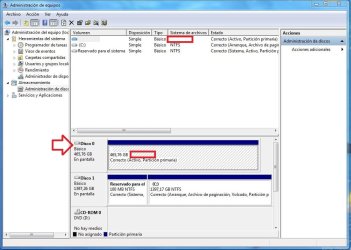
The one that you have posted above, and copied below, shows Disco 0 has not being formated as NTFS. If you look at Disco 1 in the screenshot, you'll notice how it has NTFS listed for each partition on it indicating that it has been formated as NTFS where Disco 0 doesn't have this as marked in red below.

Captura.JPG
 

My Computer My Computer

At a glance

64-bit Windows 11 Pro for WorkstationsIntel i7-8700K OC'd to 5 GHz64 GB (4x16GB) G.SKILL TridentZ RGB DDR4 3600...ASUS ROG-STRIX-GTX1080TI-O11G-GAMING
Computer type
PC/Desktop
Computer Manufacturer/Model Number
Self built custom
OS
64-bit Windows 11 Pro for Workstations
CPU
Intel i7-8700K OC'd to 5 GHz
Motherboard
ASUS ROG Maximus XI Formula Z390
Memory
64 GB (4x16GB) G.SKILL TridentZ RGB DDR4 3600 MHz
Graphics Card(s)
ASUS ROG-STRIX-GTX1080TI-O11G-GAMING
Sound Card
Integrated
Monitor(s) Displays
2 x Samsung Odyssey G7 27"
Screen Resolution
2560x1440
Hard Drives
1TB Samsung 990 PRO M.2,
4TB Samsung 990 PRO PRO M.2,
TerraMaster F8 SSD Plus NAS
PSU
Seasonic Prime Titanium 850W
Case
Thermaltake Core P3
Cooling
Corsair Hydro H115i
Keyboard
Logitech wireless K800
Mouse
Logitech MX Master 4
Internet Speed
2 Gb/s Download and 100 Mb/s Upload
Antivirus
Malwarebyte Anti-Malware Premium
Browser
Google Chrome
Other Info
Logitech Z625 speaker system,
Logitech BRIO 4K Pro webcam,
HP Color LaserJet Pro MFP M477fdn,
APC SMART-UPS RT 1000 XL - SURT1000XLI,
Galaxy S23 Plus phone
This helped me a lot. I thought my drives get wiped due to that damn 'clean' command. It didnt go complete, my luck, got my valuable data back.

Thank you Brink for your help.
 

My Computer My Computer

At a glance

Windows 7 Ultimate 32bitPentium Dual-Core E5500 @2.88Ghz2 GB (1GB+1GB)256 MB Intel HD Graphics Card (In-Built :()
Computer Manufacturer/Model Number
Assembled it myself.
OS
Windows 7 Ultimate 32bit
CPU
Pentium Dual-Core E5500 @2.88Ghz
Motherboard
PSI-Express
Memory
2 GB (1GB+1GB)
Graphics Card(s)
256 MB Intel HD Graphics Card (In-Built :()
Sound Card
In-Built
Monitor(s) Displays
HD
Screen Resolution
1280X1024p
Hard Drives
250 GB
40 GB
Case
FronTech (Old)
Cooling
In-Built Fan
Keyboard
iBall Classuque
Mouse
HCL USB Mouse
Internet Speed
2 Mbps
You're most welcome Selena. I'm glad that it was able to help. :)
 

My Computer My Computer

At a glance

64-bit Windows 11 Pro for WorkstationsIntel i7-8700K OC'd to 5 GHz64 GB (4x16GB) G.SKILL TridentZ RGB DDR4 3600...ASUS ROG-STRIX-GTX1080TI-O11G-GAMING
Computer type
PC/Desktop
Computer Manufacturer/Model Number
Self built custom
OS
64-bit Windows 11 Pro for Workstations
CPU
Intel i7-8700K OC'd to 5 GHz
Motherboard
ASUS ROG Maximus XI Formula Z390
Memory
64 GB (4x16GB) G.SKILL TridentZ RGB DDR4 3600 MHz
Graphics Card(s)
ASUS ROG-STRIX-GTX1080TI-O11G-GAMING
Sound Card
Integrated
Monitor(s) Displays
2 x Samsung Odyssey G7 27"
Screen Resolution
2560x1440
Hard Drives
1TB Samsung 990 PRO M.2,
4TB Samsung 990 PRO PRO M.2,
TerraMaster F8 SSD Plus NAS
PSU
Seasonic Prime Titanium 850W
Case
Thermaltake Core P3
Cooling
Corsair Hydro H115i
Keyboard
Logitech wireless K800
Mouse
Logitech MX Master 4
Internet Speed
2 Gb/s Download and 100 Mb/s Upload
Antivirus
Malwarebyte Anti-Malware Premium
Browser
Google Chrome
Other Info
Logitech Z625 speaker system,
Logitech BRIO 4K Pro webcam,
HP Color LaserJet Pro MFP M477fdn,
APC SMART-UPS RT 1000 XL - SURT1000XLI,
Galaxy S23 Plus phone
Hi Brink,

I'm having a very similar issue. I got given two internal 1tb SATA drives from a friend, however Windows will only recognise one.

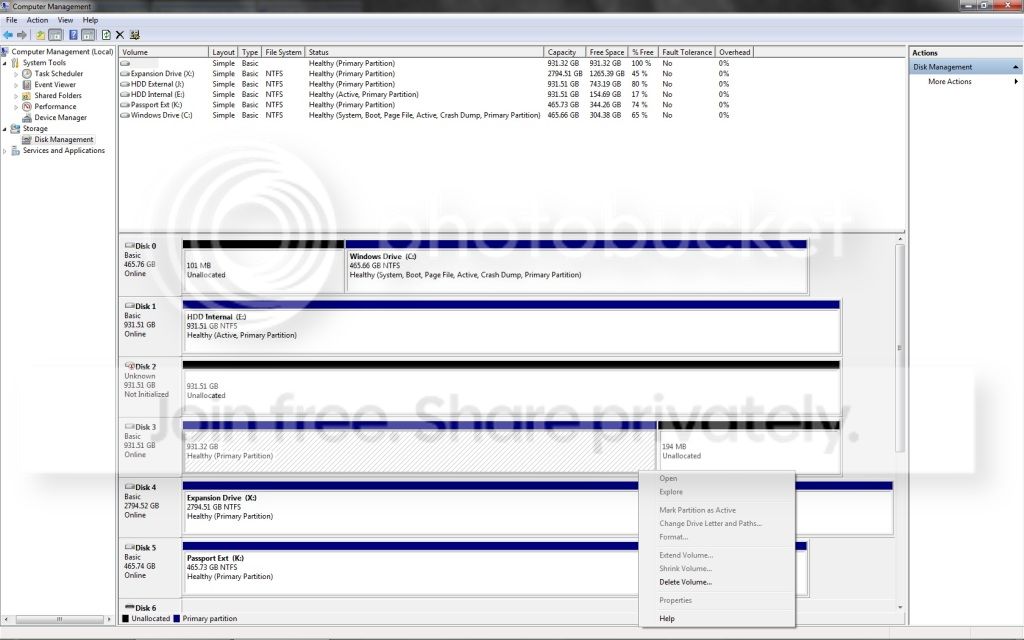
Disk Management tells me it's 100% empty, however will not allow me to assign a drive letter. I'm unsure of how to format the drive to NTFS, if it's not already in that format.

I've attached a screenshot of Disk Management

HDDIssue.jpg
 

My Computer My Computer

At a glance

Windows 7 Home Premium x64
OS
Windows 7 Home Premium x64
Hello oxygenthief, and welcome to Seven Forums.

I can't see all of the information. Which Disk # is this for, and could you please post back with another screenshot of your Disk Management showing the full layout, and what it shows when you right click on the HDD at the bottom half? :)
 

My Computer My Computer

At a glance

64-bit Windows 11 Pro for WorkstationsIntel i7-8700K OC'd to 5 GHz64 GB (4x16GB) G.SKILL TridentZ RGB DDR4 3600...ASUS ROG-STRIX-GTX1080TI-O11G-GAMING
Computer type
PC/Desktop
Computer Manufacturer/Model Number
Self built custom
OS
64-bit Windows 11 Pro for Workstations
CPU
Intel i7-8700K OC'd to 5 GHz
Motherboard
ASUS ROG Maximus XI Formula Z390
Memory
64 GB (4x16GB) G.SKILL TridentZ RGB DDR4 3600 MHz
Graphics Card(s)
ASUS ROG-STRIX-GTX1080TI-O11G-GAMING
Sound Card
Integrated
Monitor(s) Displays
2 x Samsung Odyssey G7 27"
Screen Resolution
2560x1440
Hard Drives
1TB Samsung 990 PRO M.2,
4TB Samsung 990 PRO PRO M.2,
TerraMaster F8 SSD Plus NAS
PSU
Seasonic Prime Titanium 850W
Case
Thermaltake Core P3
Cooling
Corsair Hydro H115i
Keyboard
Logitech wireless K800
Mouse
Logitech MX Master 4
Internet Speed
2 Gb/s Download and 100 Mb/s Upload
Antivirus
Malwarebyte Anti-Malware Premium
Browser
Google Chrome
Other Info
Logitech Z625 speaker system,
Logitech BRIO 4K Pro webcam,
HP Color LaserJet Pro MFP M477fdn,
APC SMART-UPS RT 1000 XL - SURT1000XLI,
Galaxy S23 Plus phone
HDDIssue2jpg.jpg


Thanks Brink, I hope this is better. This issue pertains to Disk 3.

Unfortunately in the last half an hour, Disk 2 went haywire after a reboot and refuses to initialize :/ I have a feeling it's going to be an expensive day :(

Oh I also attempted to assign a number through DISKPART with an elevated CMD, no dice. Also not able to perform a clean or full clean on Disk's 2 & 3
 
Last edited by a moderator:

My Computer My Computer

At a glance

Windows 7 Home Premium x64
OS
Windows 7 Home Premium x64
On Disk 2, does it give you any messages when you try to intialize/Online or clean it?

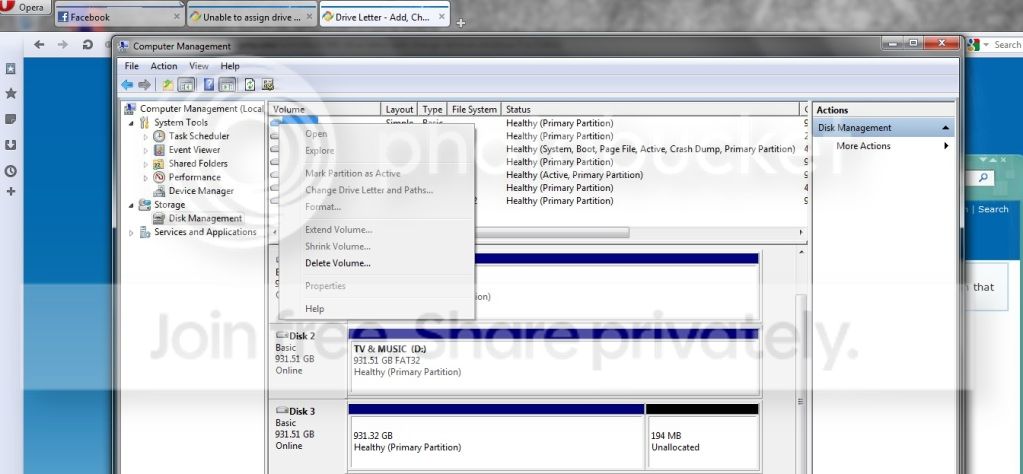
On Disk 3, are you able to use "Delete Volume" on the 931.32 GB partition to make Disk 3 all "unallocted", then hopefully be able to format it to get a drive letter?

What brand and model are these HDDs? I'll see if I can't find their recommended HDD test program at their manufacturer's website for you to use to check if the HDDs may be bad.
 

My Computer My Computer

At a glance

64-bit Windows 11 Pro for WorkstationsIntel i7-8700K OC'd to 5 GHz64 GB (4x16GB) G.SKILL TridentZ RGB DDR4 3600...ASUS ROG-STRIX-GTX1080TI-O11G-GAMING
Computer type
PC/Desktop
Computer Manufacturer/Model Number
Self built custom
OS
64-bit Windows 11 Pro for Workstations
CPU
Intel i7-8700K OC'd to 5 GHz
Motherboard
ASUS ROG Maximus XI Formula Z390
Memory
64 GB (4x16GB) G.SKILL TridentZ RGB DDR4 3600 MHz
Graphics Card(s)
ASUS ROG-STRIX-GTX1080TI-O11G-GAMING
Sound Card
Integrated
Monitor(s) Displays
2 x Samsung Odyssey G7 27"
Screen Resolution
2560x1440
Hard Drives
1TB Samsung 990 PRO M.2,
4TB Samsung 990 PRO PRO M.2,
TerraMaster F8 SSD Plus NAS
PSU
Seasonic Prime Titanium 850W
Case
Thermaltake Core P3
Cooling
Corsair Hydro H115i
Keyboard
Logitech wireless K800
Mouse
Logitech MX Master 4
Internet Speed
2 Gb/s Download and 100 Mb/s Upload
Antivirus
Malwarebyte Anti-Malware Premium
Browser
Google Chrome
Other Info
Logitech Z625 speaker system,
Logitech BRIO 4K Pro webcam,
HP Color LaserJet Pro MFP M477fdn,
APC SMART-UPS RT 1000 XL - SURT1000XLI,
Galaxy S23 Plus phone
Disk 2 gives a 'The request could not be performed because of an I/O device error'.
It shows up within DISKPART, but it and Disk 3 don't have a volume.

I'm not sure how to format a drive without it being recognised. I was able to use the 'Delete Volume' feature successfully however.

What I now have is this:

HDDIssue3.jpg


hddissue4.jpg


Through Device Manager, the drives are as follows:

SAMSUNG HD103UI ATA (Disk 2) and;

ST31000520AS ATA (Disk 3)


Thank you so much for your assistance
 

My Computer My Computer

At a glance

Windows 7 Home Premium x64
OS
Windows 7 Home Premium x64

My Computer My Computer

At a glance

64-bit Windows 11 Pro for WorkstationsIntel i7-8700K OC'd to 5 GHz64 GB (4x16GB) G.SKILL TridentZ RGB DDR4 3600...ASUS ROG-STRIX-GTX1080TI-O11G-GAMING
Computer type
PC/Desktop
Computer Manufacturer/Model Number
Self built custom
OS
64-bit Windows 11 Pro for Workstations
CPU
Intel i7-8700K OC'd to 5 GHz
Motherboard
ASUS ROG Maximus XI Formula Z390
Memory
64 GB (4x16GB) G.SKILL TridentZ RGB DDR4 3600 MHz
Graphics Card(s)
ASUS ROG-STRIX-GTX1080TI-O11G-GAMING
Sound Card
Integrated
Monitor(s) Displays
2 x Samsung Odyssey G7 27"
Screen Resolution
2560x1440
Hard Drives
1TB Samsung 990 PRO M.2,
4TB Samsung 990 PRO PRO M.2,
TerraMaster F8 SSD Plus NAS
PSU
Seasonic Prime Titanium 850W
Case
Thermaltake Core P3
Cooling
Corsair Hydro H115i
Keyboard
Logitech wireless K800
Mouse
Logitech MX Master 4
Internet Speed
2 Gb/s Download and 100 Mb/s Upload
Antivirus
Malwarebyte Anti-Malware Premium
Browser
Google Chrome
Other Info
Logitech Z625 speaker system,
Logitech BRIO 4K Pro webcam,
HP Color LaserJet Pro MFP M477fdn,
APC SMART-UPS RT 1000 XL - SURT1000XLI,
Galaxy S23 Plus phone
My apologies, but how do I format the Disk without having an assigned drive number? It no longer appears in the top menu of Disk Management.
 

My Computer My Computer

At a glance

Windows 7 Home Premium x64
OS
Windows 7 Home Premium x64
Last edited:

My Computer My Computer

At a glance

64-bit Windows 11 Pro for WorkstationsIntel i7-8700K OC'd to 5 GHz64 GB (4x16GB) G.SKILL TridentZ RGB DDR4 3600...ASUS ROG-STRIX-GTX1080TI-O11G-GAMING
Computer type
PC/Desktop
Computer Manufacturer/Model Number
Self built custom
OS
64-bit Windows 11 Pro for Workstations
CPU
Intel i7-8700K OC'd to 5 GHz
Motherboard
ASUS ROG Maximus XI Formula Z390
Memory
64 GB (4x16GB) G.SKILL TridentZ RGB DDR4 3600 MHz
Graphics Card(s)
ASUS ROG-STRIX-GTX1080TI-O11G-GAMING
Sound Card
Integrated
Monitor(s) Displays
2 x Samsung Odyssey G7 27"
Screen Resolution
2560x1440
Hard Drives
1TB Samsung 990 PRO M.2,
4TB Samsung 990 PRO PRO M.2,
TerraMaster F8 SSD Plus NAS
PSU
Seasonic Prime Titanium 850W
Case
Thermaltake Core P3
Cooling
Corsair Hydro H115i
Keyboard
Logitech wireless K800
Mouse
Logitech MX Master 4
Internet Speed
2 Gb/s Download and 100 Mb/s Upload
Antivirus
Malwarebyte Anti-Malware Premium
Browser
Google Chrome
Other Info
Logitech Z625 speaker system,
Logitech BRIO 4K Pro webcam,
HP Color LaserJet Pro MFP M477fdn,
APC SMART-UPS RT 1000 XL - SURT1000XLI,
Galaxy S23 Plus phone
Thanks. It's listed as formatting now, I'll assume it will take some time.

What do you suggest for Disk 2?
 

My Computer My Computer

At a glance

Windows 7 Home Premium x64
OS
Windows 7 Home Premium x64

My Computer My Computer

At a glance

64-bit Windows 11 Pro for WorkstationsIntel i7-8700K OC'd to 5 GHz64 GB (4x16GB) G.SKILL TridentZ RGB DDR4 3600...ASUS ROG-STRIX-GTX1080TI-O11G-GAMING
Computer type
PC/Desktop
Computer Manufacturer/Model Number
Self built custom
OS
64-bit Windows 11 Pro for Workstations
CPU
Intel i7-8700K OC'd to 5 GHz
Motherboard
ASUS ROG Maximus XI Formula Z390
Memory
64 GB (4x16GB) G.SKILL TridentZ RGB DDR4 3600 MHz
Graphics Card(s)
ASUS ROG-STRIX-GTX1080TI-O11G-GAMING
Sound Card
Integrated
Monitor(s) Displays
2 x Samsung Odyssey G7 27"
Screen Resolution
2560x1440
Hard Drives
1TB Samsung 990 PRO M.2,
4TB Samsung 990 PRO PRO M.2,
TerraMaster F8 SSD Plus NAS
PSU
Seasonic Prime Titanium 850W
Case
Thermaltake Core P3
Cooling
Corsair Hydro H115i
Keyboard
Logitech wireless K800
Mouse
Logitech MX Master 4
Internet Speed
2 Gb/s Download and 100 Mb/s Upload
Antivirus
Malwarebyte Anti-Malware Premium
Browser
Google Chrome
Other Info
Logitech Z625 speaker system,
Logitech BRIO 4K Pro webcam,
HP Color LaserJet Pro MFP M477fdn,
APC SMART-UPS RT 1000 XL - SURT1000XLI,
Galaxy S23 Plus phone
Disk 3 formatted and is now perfectly operational, thank you so much.

I'm downloading SeaTools for Disk 2. Again, thank you for your help
 

My Computer My Computer

At a glance

Windows 7 Home Premium x64
OS
Windows 7 Home Premium x64
It just never ends :/ SeaTools won't work without an updated .net 4.0 Framework installed.

I downloaded that from the Microsoft website but when I tried to install it, it just did nothing. Task Manager showed the process was running, but it just sat there -__-
 

My Computer My Computer

At a glance

Windows 7 Home Premium x64
OS
Windows 7 Home Premium x64
Great news for Disk 3. :party:

Give SeaTools for Dos a try to create a bootable DVD/USB with the downloaded .iso file to see if running SeaTools at boot will work for you.
 

My Computer My Computer

At a glance

64-bit Windows 11 Pro for WorkstationsIntel i7-8700K OC'd to 5 GHz64 GB (4x16GB) G.SKILL TridentZ RGB DDR4 3600...ASUS ROG-STRIX-GTX1080TI-O11G-GAMING
Computer type
PC/Desktop
Computer Manufacturer/Model Number
Self built custom
OS
64-bit Windows 11 Pro for Workstations
CPU
Intel i7-8700K OC'd to 5 GHz
Motherboard
ASUS ROG Maximus XI Formula Z390
Memory
64 GB (4x16GB) G.SKILL TridentZ RGB DDR4 3600 MHz
Graphics Card(s)
ASUS ROG-STRIX-GTX1080TI-O11G-GAMING
Sound Card
Integrated
Monitor(s) Displays
2 x Samsung Odyssey G7 27"
Screen Resolution
2560x1440
Hard Drives
1TB Samsung 990 PRO M.2,
4TB Samsung 990 PRO PRO M.2,
TerraMaster F8 SSD Plus NAS
PSU
Seasonic Prime Titanium 850W
Case
Thermaltake Core P3
Cooling
Corsair Hydro H115i
Keyboard
Logitech wireless K800
Mouse
Logitech MX Master 4
Internet Speed
2 Gb/s Download and 100 Mb/s Upload
Antivirus
Malwarebyte Anti-Malware Premium
Browser
Google Chrome
Other Info
Logitech Z625 speaker system,
Logitech BRIO 4K Pro webcam,
HP Color LaserJet Pro MFP M477fdn,
APC SMART-UPS RT 1000 XL - SURT1000XLI,
Galaxy S23 Plus phone
Fantastic tutorial

Absolutely a fantastic help to 30 year software development veterans like me who occasionally forget about why USB drives are mysteriously no longer recognized because no drive letter is assigned.

Overnight backup software users beware: a family member may perform an orderly PC shutdown, turn off the power, while you are sleeping. Next morning you discover your USB drives (2.0 and 3.0) are no longer recognized.

My main point: this tutorial is great. Thanks! :D
 

My Computer My Computer

At a glance

Windows 7 Home Premium 32bit
OS
Windows 7 Home Premium 32bit
You're most welcome CWP, and welcome to Seven Forums. I'm glad it was able to help. :)
 

My Computer My Computer

At a glance

64-bit Windows 11 Pro for WorkstationsIntel i7-8700K OC'd to 5 GHz64 GB (4x16GB) G.SKILL TridentZ RGB DDR4 3600...ASUS ROG-STRIX-GTX1080TI-O11G-GAMING
Computer type
PC/Desktop
Computer Manufacturer/Model Number
Self built custom
OS
64-bit Windows 11 Pro for Workstations
CPU
Intel i7-8700K OC'd to 5 GHz
Motherboard
ASUS ROG Maximus XI Formula Z390
Memory
64 GB (4x16GB) G.SKILL TridentZ RGB DDR4 3600 MHz
Graphics Card(s)
ASUS ROG-STRIX-GTX1080TI-O11G-GAMING
Sound Card
Integrated
Monitor(s) Displays
2 x Samsung Odyssey G7 27"
Screen Resolution
2560x1440
Hard Drives
1TB Samsung 990 PRO M.2,
4TB Samsung 990 PRO PRO M.2,
TerraMaster F8 SSD Plus NAS
PSU
Seasonic Prime Titanium 850W
Case
Thermaltake Core P3
Cooling
Corsair Hydro H115i
Keyboard
Logitech wireless K800
Mouse
Logitech MX Master 4
Internet Speed
2 Gb/s Download and 100 Mb/s Upload
Antivirus
Malwarebyte Anti-Malware Premium
Browser
Google Chrome
Other Info
Logitech Z625 speaker system,
Logitech BRIO 4K Pro webcam,
HP Color LaserJet Pro MFP M477fdn,
APC SMART-UPS RT 1000 XL - SURT1000XLI,
Galaxy S23 Plus phone
Woke up, drive letter changed

Hi everyone:

First-time poster, and I hope this isn’t considered thread hijacking.

I woke up this morning and my external 1 Tbyte drive, which had always been J since I bought the system in January 2012, is now K.

Going into Disk Management, there is no way to turn it back to J: it’s not a letter that’s among the options. It’s also (AFAIK) not assigned to anything else.

It’s been my back-up drive so I’m concerned that Windows 7 no longer knows where to put that.

Would more experienced Windows 7 users be able to point me in the right direction, please?

Regards,

Jack
 
Last edited:

My Computer My Computer

At a glance

Windows 7 Home Premium 64-bitIntel Core i5-2500 at 3·3 GHz8 GbyteNvidia GeForce GTX550Ti
Computer type
PC/Desktop
Computer Manufacturer/Model Number
Custom build with Asus motherboard
OS
Windows 7 Home Premium 64-bit
CPU
Intel Core i5-2500 at 3·3 GHz
Memory
8 Gbyte
Graphics Card(s)
Nvidia GeForce GTX550Ti
Browser
Firefox 20
Fixed

Hi everyone:

It’s OK, I fixed the above. J wound up being a ‘Removable, no media’ non-existent drive on my system. I changed that to F (another empty letter), which freed J up, and I could turn K back into J.

I thought I’d leave my query above in case anyone else has the same problem.

Regards,

Jack
 

My Computer My Computer

At a glance

Windows 7 Home Premium 64-bitIntel Core i5-2500 at 3·3 GHz8 GbyteNvidia GeForce GTX550Ti
Computer type
PC/Desktop
Computer Manufacturer/Model Number
Custom build with Asus motherboard
OS
Windows 7 Home Premium 64-bit
CPU
Intel Core i5-2500 at 3·3 GHz
Memory
8 Gbyte
Graphics Card(s)
Nvidia GeForce GTX550Ti
Browser
Firefox 20
Back
Top