Driver won't delete on restart

petitfez

New member
Local time
10:48 PM
Messages
2
Wondering if anybody can help me?

I am using Windows XP Mode within Windows 7 Professional. I have been trying to de-install and then reinstall some software (ProTools 7.3, though this is probably not relevant to my question).

When I go to reinstall the software, I get a message saying "A restart is needed before this installer can proceed because the DigiFilter driver is currently marked for deletion upon restart."

When I exit XP Mode (goes in to hibernation) and then completely shut down and restart under Windows 7, I still get this message upon trying to reinstall the software.

I have manually located the drivers and deleted them, but the message still continues.

Is anybody able to give me some guidance on how to stop this message coming up (I guess clearing the marked for deletion files)?


Many Thanks in advance.

Andrew. :)
 

My Computer

Computer Manufacturer/Model Number
Dell Vostro 3500
OS
Windows 7 Professional 32bit
CPU
i5
Memory
4GB

Attachments

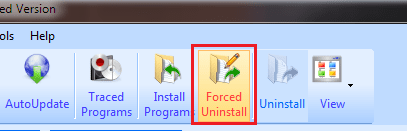
  • Capture.PNG
    Capture.PNG
    8 KB · Views: 6

My Computer

Computer type
PC/Desktop
Computer Manufacturer/Model Number
Custom Build
OS
Windows 10 Pro x64, Arch Linux
CPU
Intel Core 2 Quad Q8200 OC'd 3.08GHz
Motherboard
Asus Rampage formula LGA775
Memory
8GB DDR2 900Mhz
Graphics Card(s)
MSI GT730 2GB GDDR5 (Kepler)
Sound Card
Supreme FX2
Monitor(s) Displays
Samsung LS22F350 LED
Screen Resolution
1080P
Hard Drives
Kingston SSDNow UV400 120GB, 500GB Hitachi, 2TB Samsung, 500GB Seagate FreeAgent, 640GB Samsung, 160GB Toshiba (Arch)
PSU
AeroCool 500W Bronze
Cooling
Cooler Master V6 + 3X fans
Keyboard
Prolink keyboard
Mouse
Logitech M705
Internet Speed
1MiB/s
Browser
Chrome Beta
Check all the RunOnce entries in HKLM/Software and HKCU/Software. Chances are that's where you'll find your problem
 
I think your problem is the XP Mode's hibernation.

Two ways to restart XP Mode.

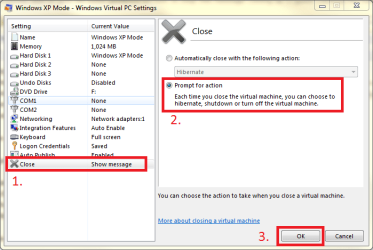
  1. Shut down and reboot
    • Go to XP Mode's settings
    • Choose Close from the right pane
    • Choose Prompt for action in the left pane

      XPMode_shutdown.png
      .
    • Click OK to save settings, boot XP Mode
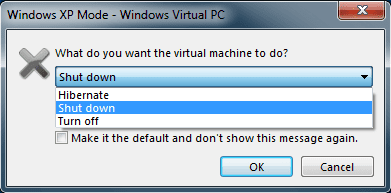
    • When closing the XP Mode windows, choose Shut down from drop down menu and click OK

      XPMode_shutdown_2.png
      .
      NOTICE! Choose Turn Off only in emergency situations. It acts as holding the power button down for a few seconds in a real computer, powering off the machine without saving anything (hard reset)

  2. Restart
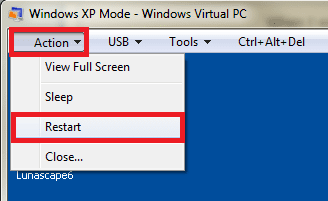
    • Open Action menu in XP Mode's main window
    • Choose Restart

      XPMode_restart.png
From Action menu you can also choose sleep mode. In Virtual PC it is IMO totally useless feature; it does not free any resources on host, only difference for normal mode being grayed out and locked XP Mode desktop.

Choosing Close from Action menu is the same than clicking the Close button top right; if you have chosen automatic hibernation (or shut down), this menu option does that. If you have chosen Prompt for action, choosing this menu option opens the normal shut down dialog.

Kari
 

My Computer

Computer type
Laptop
Computer Manufacturer/Model Number
HP ENVY 17-1150eg
OS
Windows 10 Pro x64 EN-GB
CPU
1.6 GHz Intel Core i7-720QM Processor
Memory
6 GB
Graphics Card(s)
ATI Mobility Radeon HD 5850 Graphics
Sound Card
Beats sound system with integrated subwoofer
Monitor(s) Displays
17" laptop display, 22" LED and 32" Full HD TV through HDMI
Screen Resolution
1600*900 (1), 1920*1080 (2&3)
Hard Drives
Internal: 2 x 500 GB SATA Hard Disk Drive 7200 rpm
External: 2TB for backups, 3TB USB3 network drive for media
Cooling
As Envy runs a bit warm, I have it on a Cooler Master pad
Keyboard
Logitech diNovo Media Desktop Laser (bluetooth)
Mouse
Logitech Performance Mouse MX
Internet Speed
50/10 Mbps VDSL
Antivirus
Windows Defender 4.3.9431.0
Browser
Maxthon 3.5.2., IE11
Thank you so much for your reply. Kari, this worked perfectly. Appreciate your assistance! I had tried the CTRL-ALT-DEL combination manually, but that took me back to Windows 7. The CTRL-ALT-DEL menu at the top of XP Mode had the option I needed too.

Regards,

Andrew.
 

My Computer

Computer Manufacturer/Model Number
Dell Vostro 3500
OS
Windows 7 Professional 32bit
CPU
i5
Memory
4GB
Good to know you got it working.
 

My Computer

Computer type
Laptop
Computer Manufacturer/Model Number
HP ENVY 17-1150eg
OS
Windows 10 Pro x64 EN-GB
CPU
1.6 GHz Intel Core i7-720QM Processor
Memory
6 GB
Graphics Card(s)
ATI Mobility Radeon HD 5850 Graphics
Sound Card
Beats sound system with integrated subwoofer
Monitor(s) Displays
17" laptop display, 22" LED and 32" Full HD TV through HDMI
Screen Resolution
1600*900 (1), 1920*1080 (2&3)
Hard Drives
Internal: 2 x 500 GB SATA Hard Disk Drive 7200 rpm
External: 2TB for backups, 3TB USB3 network drive for media
Cooling
As Envy runs a bit warm, I have it on a Cooler Master pad
Keyboard
Logitech diNovo Media Desktop Laser (bluetooth)
Mouse
Logitech Performance Mouse MX
Internet Speed
50/10 Mbps VDSL
Antivirus
Windows Defender 4.3.9431.0
Browser
Maxthon 3.5.2., IE11
Back
Top