Dual Boot - Delete a OS

How to Properly Delete a OS in a Dual Boot

   Information
Deleting a double booted OS may seem simple - you just delete the partition with the OS you want to get rid of and you are done. Well, it is not that easy. With said approach you may get yourself into a lot of trouble. This tutorial describes a safe way how to properly delete a double booted OS.


Step 1 - Check where the bootmgr resides
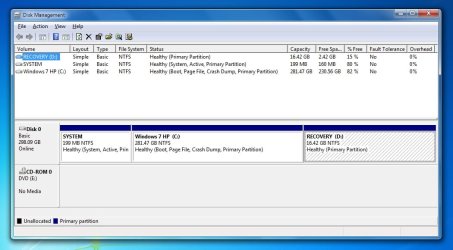
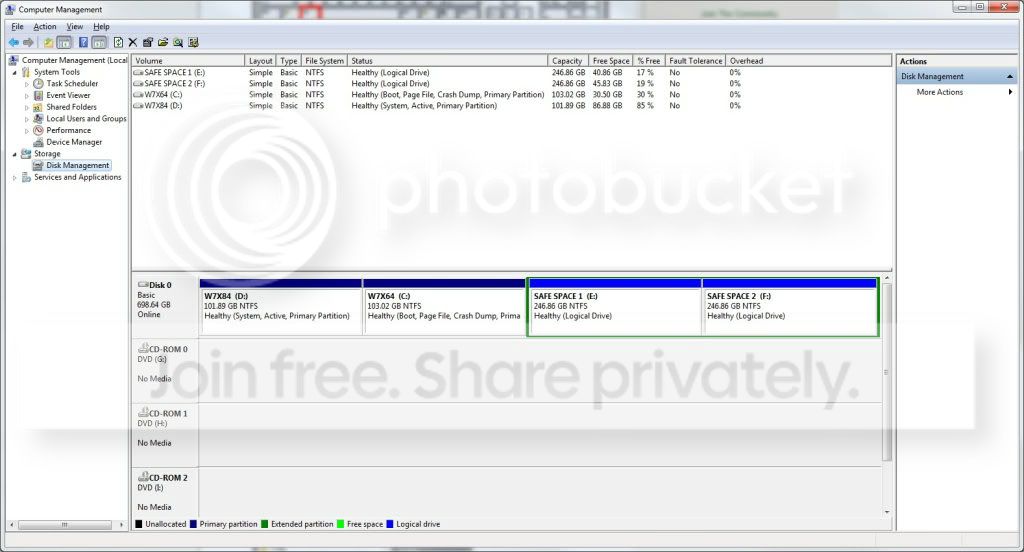
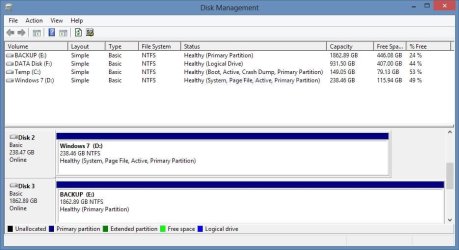
Open Disk Management and find the partition that is marked "active". That is the partition that contains the bootmgr. If there are several active partitions, you have to look for the system flag - best seen in Computer.

The active partition is usually from the OS that was on the system first - e.g. if you installed Windows 7 on an XP system, the XP system would be the active partition. But there are also other cases.

If Windows 7 was the first OS on the system, then your bootmgr resides most likely in a separate system partition which is usually small.

If you installed Windows 7 as first OS to a disk that was not attached to the Sata port0, it can very well be that the bootmgr resides on an arbitrary partition on the disk that is attached to port0.

If you have e.g. a Dell system, your bootmgr may be on the recovery partition. Other OEMs may do the same, but I was not able to verify that.

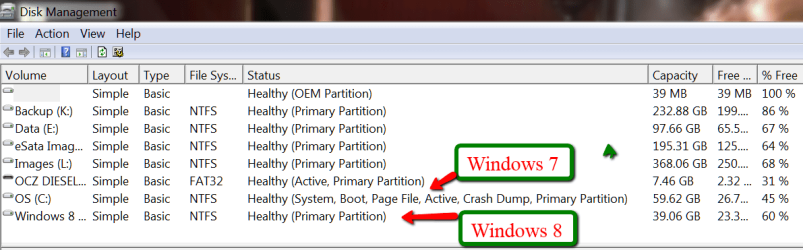
This is the example of my current system. Note the two last partitions which are Windows 7 and Windows 8. The Windows 7 partition is marked as active. You also see that I have no small system partition because I have eliminated that partition after I moved the bootmgr from that small system partition to the Windows 7 partition.

pic 1.png

If I would delete the Windows 7 partition, my Windows 8 would not boot any more because it would have lost it's bootmgr that is in cohabitation with the Windows7 bootmgr.

In order to avoid such an unfortunate situation, we launch the system that we want to retain and move the bootmgr to that system's OS partition. Here is how.
Step 2 - Delete the unwanted OS partition and reuse the space (Optional)
Stay in the OS that you want to keep and open Disk Management. Right click on the partition that contains the OS you want to delete and Delete Volume. Then right click on the deleted volume and Delete Partition. Now you should have "Freespace" where this partition originally was.

With Disk Management, you can define a new partition in that freespace or you can add it to the partition that shows to the left of that freespce. Just click on the partition which is to the left and Extend Volume.

If, however, you want to add that freespace to a partition that is to the right of the freespace, then you have to use an external tool. I suggest the bootable CD of Partition Wizard. Here is how.

A word of caution: before you manipulate partitions with Partition Wizard, make an image of all partitions on that disk. I once lost all my partitions on a disk because I made a small mistake manipulating one partition with Partition Wizard. For imaging I recommend Free Macrium. Here is how.
Step 3 - Cleanup the bootmgr
Now that we removed one OS, we have a surplus entry in the bootmgr. We will remove this entry with EasyBCD. As you can see in the picture, the operation takes only 4 clicks.

EasyBCD is a very handy tool for a variety of operations on the bootmgr. You should have that in your toolkit anyhow.
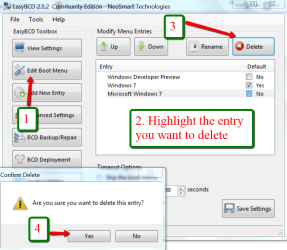

pic 2.png


If you stop at this step, the MBR is still in a double boot configuration and when you boot, the BIOS will present you the black screen where you have to choose the operating sytem - although only one operating system is present. This is not a disaster, but it is an unnecessary step that requires your intervention.

The next two steps will reset the MBR to your current OS and then your system will automatically boot into that.

Important: You absolutely have to execute both Steps 4 and Step 5. If you only do Step 4, your system will not boot any more.

Step 4 - Clean the MBR
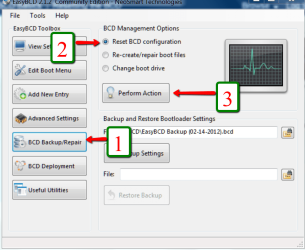
Pic 3.png


Step 5 - Reset MBR with the entry of the current OS
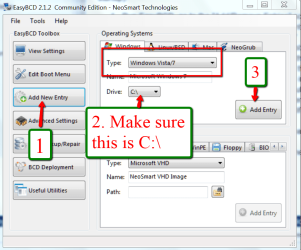
Pic 4.png


Last edited:
You do such friendly tutorials.:)
 

My Computers My Computers

System One System Two

  • Computer type
    PC/Desktop
    OS
    7 X64
    CPU
    i5 8400
    Motherboard
    gigabyte b365m ds3h
    Memory
    2x8gb 3200mhz
    Hard Drives
    various
    PSU
    pure power 11 400w cm
    Case
    Coolermaster
    Cooling
    cryorig m9i
  • Computer type
    PC/Desktop
    OS
    7x64
    CPU
    g5400
    Motherboard
    ga b365m ds3h
    Memory
    8gb ddr4 2400
    PSU
    xfx pro 450w
I am a friendly person. ;)
 

My Computer My Computer

Computer Manufacturer/Model Number
HP, Dell, Gateway, Toshiba - 4 laptops and 2 desktops
OS
Vista, Windows7, Mint Mate, Zorin, Windows 8
CPU
from 1.6GHz Duo to i7
Monitor(s) Displays
2x HP w2207
Hard Drives
5x HDD, 7x SSD, 12x Externals
Keyboard
with trackball - no mices
Mouse
Trackball mice
Internet Speed
DSL 6000
Thanks for this easy to follow tutorial but Im a bit confused with this;

If Windows 7 was the first OS on the system, then your bootmgr resides most likely in a separate system partition which is usually small.
I want to install XP on another new partition on my Windows 7 HP laptop, Id check the disk management and the boot was in C:

ScreenShot00138.jpg

so, if I delete XP I'll just delete the new partition where XP was installed and remove the boot menu entry via EasyBCD? is that okay?
 

My Computer My Computer

Computer Manufacturer/Model Number
HP G62-340US Notebook
OS
Win7 Pro SP1 x64
CPU
AMD K10 Athlon(tm) II P340 Dual-Core Processor ~2.2GHz
Motherboard
Hewlett-Packard 1444 69.37/AMD 785GX/BIOS F29
Memory
DDR3 4.0GB (3.74 Usable)
Graphics Card(s)
AMD M880G with ATI Mobility Radeon HD 4250 256MB Video
Sound Card
ATI RS785/RS880 - High Definition Audio Controller
Monitor(s) Displays
SAMSUNG 156AT09-H04
Screen Resolution
1366x768 - 344 x 194 mm, Pixel Clock 69.30 MHz
Hard Drives
WDC WD3200BEVT-60A23T0 320GB
Other Info
Bought on July 03, 2011
1. The OS into which you boot will always assume C for the OS partition, regartdles which OS it is.

2. If you install XP, the XP bootmgr will land in the 100MB active partition where the Win7 bootmgr already is.

3. Yes, the day you want to remove XP, you delete the XP volume and partition and cleanup the bootmgr with EasyBCD.
 

My Computer My Computer

Computer Manufacturer/Model Number
HP, Dell, Gateway, Toshiba - 4 laptops and 2 desktops
OS
Vista, Windows7, Mint Mate, Zorin, Windows 8
CPU
from 1.6GHz Duo to i7
Monitor(s) Displays
2x HP w2207
Hard Drives
5x HDD, 7x SSD, 12x Externals
Keyboard
with trackball - no mices
Mouse
Trackball mice
Internet Speed
DSL 6000
If I would delete the Windows 7 partition, my Windows 8 would not boot any more because it would have lost it's bootmgr that is in cohabitation with the Windows7 bootmgr.

Just a small note:

There is no Windows 7 boot manager and Windows 8 boot manager "cohabitation" !

If you can boot Windows 8 then ONLY Windows 8 boot manager is present on active partition. Windows 7 boot manager was replaced by Windows 8 boot manager during Windows 8 installation. (The file name for both is bootmgr and the file can be found on active partition in root folder).

Always the latest boot manager is in control of the booting in a dual or multi boot system based on Vista and later Windows versions.
Every Windows boot manager can boot earlier Windows systems - the oposite is not possible.
 

My Computer My Computer

Computer Manufacturer/Model Number
Acer Notebook
OS
Win 8 RP, Win 7, XP
CPU
Intel
Delete Non Active OS from Dual Boot

Hello

Currently I have Windows 7 Ultimate 32bit and 64 bit in a dual boot configuration. I installed the 32bit version first therefore under disk management it is marked as the active OS.

I want to delete the 32 bit version and keep the 64 bit version of Windows 7. I am very leery of errors and want to avoid the "BOOTMGR IS MISSING CTRL-ALT-DELETE TO RESET".

My question is.... Can I delete the 64 bit OS which is not marked as active, then boot into my 32 bit OS and install Windows 7 64 bit over the 32bit so that I end up with just Windows 7 64 bit as my main OS?

To install the Windows 64 bit over the 32 bit version I would just install the 64 bit version and then run windows cleanup to erase the 32 bit version. This way I would not have to format the partition with win7 32 bit and therefore reduce my chances of getting the BOOTMGR error described above.

Sorry if this is difficult to understand but I tried...

Here is a screen shot of my disk management for reference.
PS: I was logged into the 64bit partition when I took the screen shot.


DiskManagment.jpg


If any of you could please help me out or give insightful advice as to what I should or should not do please let me know.

Thanks!
 
Last edited by a moderator:

My Computer My Computer

Computer Manufacturer/Model Number
Custom Built
OS
Windows 7 Ultimate 64 Bit
CPU
AMD 965 Black Edition
Motherboard
Gigabyte GA-790xta-ud4
Memory
DDR3 GSkill Ripjaws 2x2GB 1600 mhz
Graphics Card(s)
Zotac GTX 460 768MB
Sound Card
Integrated on Motherboard
Monitor(s) Displays
LG FLATRON L227WTG
Hard Drives
Western Digital Cavier Black
750GB 32MB Cache
PSU
850W Dynamo
Case
XCLIO A380
Keyboard
Saitek Eclipse II
Mouse
Logitech M305

My Computer My Computer

Computer Manufacturer/Model Number
HP, Dell, Gateway, Toshiba - 4 laptops and 2 desktops
OS
Vista, Windows7, Mint Mate, Zorin, Windows 8
CPU
from 1.6GHz Duo to i7
Monitor(s) Displays
2x HP w2207
Hard Drives
5x HDD, 7x SSD, 12x Externals
Keyboard
with trackball - no mices
Mouse
Trackball mice
Internet Speed
DSL 6000
Windows 8 does not boot without old Windows 7

Hi there,
I moved the BCD to the Windows 8 drive. I have now two active drives, the one with Windows 8 on it is the boot disk and one with Windows 7.
Disk mamagement.JPG

If I disable the Windows 7 drive in Bios, I get a disk read error when booting up. I am also unable to delete the old drive.
I am a bit stuck here and don't know how to (safely) proceed.

Hope someone can help, thanks.
 

My Computer My Computer

OS
Windows 8 pro
It is apparently looking for the bootmgr on the Win7 disk. How did you 'move' the BCD?
 

My Computer My Computer

Computer Manufacturer/Model Number
HP, Dell, Gateway, Toshiba - 4 laptops and 2 desktops
OS
Vista, Windows7, Mint Mate, Zorin, Windows 8
CPU
from 1.6GHz Duo to i7
Monitor(s) Displays
2x HP w2207
Hard Drives
5x HDD, 7x SSD, 12x Externals
Keyboard
with trackball - no mices
Mouse
Trackball mice
Internet Speed
DSL 6000
Thanks for another good tutorial WHS! EasyBCD is most definitely a handle tool to have on hand.
 

My Computer My Computer

Computer Manufacturer/Model Number
Customized build from CyberPower
OS
Windows 7 Home Premium 64bit SP 1
CPU
Intel i5 2500k
Motherboard
Asus P8P67 Deluxe
Memory
8 gigabytes Corsair PC3-12800 DDR3
Graphics Card(s)
EVGA GeForce GTX 460 superclocked
Sound Card
Integrated
Monitor(s) Displays
ViewSonic 23" LCD
Screen Resolution
1980 x 1080
Hard Drives
120 Gb Samsung 840 Pro SSD
120 Gb Kingston Hyper X SSD
1 Tb WD Caviar Black HDD
PSU
Coolermaster 1000 watt modular
Case
Coolermaster HAF X full tower
Cooling
Coolermaster Hyper 212 plus
Keyboard
Logitech USB
Mouse
Microsoft 3 button
Internet Speed
download 1.5 Mb/sec upload 300Kb/sec
You are welcome
 

My Computer My Computer

Computer Manufacturer/Model Number
HP, Dell, Gateway, Toshiba - 4 laptops and 2 desktops
OS
Vista, Windows7, Mint Mate, Zorin, Windows 8
CPU
from 1.6GHz Duo to i7
Monitor(s) Displays
2x HP w2207
Hard Drives
5x HDD, 7x SSD, 12x Externals
Keyboard
with trackball - no mices
Mouse
Trackball mice
Internet Speed
DSL 6000
I used EasyBCD as described in step 1
 

My Computer My Computer

OS
Windows 8 pro
Just noticed when I unplug a disk which is not related to Windows (e.g. MyDocuments), Bios is still pointing to the right boot disk, I get also an read error and Windows does not start. That means if I have to change my disks at some stage, Windows won't boot anymore...
 

My Computer My Computer

OS
Windows 8 pro
Just noticed when I unplug a disk which is not related to Windows (e.g. MyDocuments), Bios is still pointing to the right boot disk, I get also an read error and Windows does not start. That means if I have to change my disks at some stage, Windows won't boot anymore...
It is possible that the bootmgr is on the wrong disk. Post a full picture of your Disk Management and we'll have a look.
 

My Computer My Computer

Computer Manufacturer/Model Number
HP, Dell, Gateway, Toshiba - 4 laptops and 2 desktops
OS
Vista, Windows7, Mint Mate, Zorin, Windows 8
CPU
from 1.6GHz Duo to i7
Monitor(s) Displays
2x HP w2207
Hard Drives
5x HDD, 7x SSD, 12x Externals
Keyboard
with trackball - no mices
Mouse
Trackball mice
Internet Speed
DSL 6000
That's an interesting thought! How can I find out where the bootmgr is located?

Capture.JPG
 

My Computer My Computer

OS
Windows 8 pro
I think you are OK in this regard. The bootmgr is on C (active partition). D is also an active partition, but the current bootmgr is most likely not there.
 

My Computer My Computer

Computer Manufacturer/Model Number
HP, Dell, Gateway, Toshiba - 4 laptops and 2 desktops
OS
Vista, Windows7, Mint Mate, Zorin, Windows 8
CPU
from 1.6GHz Duo to i7
Monitor(s) Displays
2x HP w2207
Hard Drives
5x HDD, 7x SSD, 12x Externals
Keyboard
with trackball - no mices
Mouse
Trackball mice
Internet Speed
DSL 6000
can someone help me, I did step 4 but when I try step 5 the program hangs and says not responding. now I dont have windows 7 listed to boot so I can't restart!
 

My Computer My Computer

Computer Manufacturer/Model Number
h8-1240t
OS
windows 7 home premium 64bit
CPU
i7-2600 @ 3.4 ghz
Memory
8gb
That is worst case. Apparently your system was failing.

Try to rebuild the MBR with the bootable CD of Partition Wizard (last entry on the webpage). Burn this .iso to CD (e.g. with ImgBurn) and boot the system with the CD.
 

My Computer My Computer

Computer Manufacturer/Model Number
HP, Dell, Gateway, Toshiba - 4 laptops and 2 desktops
OS
Vista, Windows7, Mint Mate, Zorin, Windows 8
CPU
from 1.6GHz Duo to i7
Monitor(s) Displays
2x HP w2207
Hard Drives
5x HDD, 7x SSD, 12x Externals
Keyboard
with trackball - no mices
Mouse
Trackball mice
Internet Speed
DSL 6000
Back
Top