Dual Boot Installation with Windows 7 and XP

How to Setup a Dual Boot Installation with Windows 7 and XP


   Information
This will show you how to install Windows 7 and XP to dual boot with when you already have either Windows 7 or XP installed first.
   Note
With a dual boot installaton, you will have two operating systems (OS) installed. When you start the computer, you will have the choice to choose which OS you would like to start up to. This method is the easiest way of doing a dual boot with these two operating systems.
   Tip
When dual booting with another OS (ex: Vista or XP), you may not always have that OS partition show up in Computer with a driver letter in Windows 7. If this happens, then you will just need to add a drive letter to the OS (ex: Vista or XP) partition in Windows 7 Disk Management for it to show up in Computer with a driver letter.
   Warning
To stop XP from deleting your Windows 7 System Restore Points everytime XP is started, then see System Restore Points - Stop XP Dual Boot Delete to hide Windows 7 from XP.

Windows 7 Minimum Hardware Requirements


NOTE: For more information on this, see: Windows 7 system requirements
  • 1 GHz 32-bit or 64-bit processor
  • 1 GB RAM for 32-bit Windows 7 OR 2 GB RAM for 64-bit Windows 7
  • 16 GB available disk space 32-bit Windows 7 OR 20 GB for 64-bit Windows 7
  • Support for DirectX 9 graphics with 128 MB memory (in order to enable Aero theme)
  • DVD-R/W Drive
  • Internet or phone access to activate Windows 7.
Windows XP Minimum Hardware Requirements

NOTE: For more information on this, see: System requirements for Windows XP operating systems
  • PC with 300 megahertz (MHz) or higher processor clock speed recommended; 233-MHz minimum required;* Intel Pentium/Celeron family, AMD K6/Athlon/Duron family, or compatible processor recommended
  • 128 megabytes (MB) of RAM or higher recommended (64 MB minimum supported; may limit performance and some features)
  • 1.5 gigabyte (GB) of available hard disk space.*
  • Super VGA (800 × 600) or higher resolution video adapter and monitor
  • CD-ROM or DVD drive
  • Keyboard and Microsoft Mouse or compatible pointing device
EXAMPLE: Windows Boot Manager
NOTE: This is the boot screen where you select what operating system that you would like to start. By default, you have 30 seconds to choose another operating system before the default operating system will start automatically.
Example.jpg


OPTION ONE

When XP is Installed First


NOTE: If you have a RAID setup, you will need to have the Windows 7 RAID drivers on a USB flash drive available to select and load while installing Windows 7.
1. Do step 2 or 3 below for where you wanted to install Windows 7 at.

2. To Create a New Partition from the XP Hard Disk Drive
A) With your Windows 7 installation disc boot into the Command Prompt from the System Recovery Options screen.
NOTE: Make sure that the CD/DVD drive is selected first in the boot order in the BIOS.

B) In the command prompt, select and shrink the XP volume by how many MB (1024 MB = 1 GB) you want to have for this Windows 7 partition. (See screenshot below)
NOTE: You would do steps 2 to 9 in METHOD TWO at that link. Windows 7 will need a minimum of 16 GB (16384 MB).

XP-W7_1.jpg
C) Click on the X at the top right corner to close the command prompt. (See screenshot above)

D) Click on the X at the top right corner to close System Recovery Options. (See screenshot below)
XP-W7_2.jpg
E) Go to step 4.
3. To Use a Separate Hard Disk Drive than the XP Drive
A) Boot from your Windows 7 installation disc.
NOTE: Make sure that the CD/DVD drive is selected first in the boot order in the BIOS.
4. Click on the Install now button. (See screenshot below)

XP-W7_3.jpg
5. When you get to this point, select the partition (step 2) or hard drive to install Windows 7 on. (See screenshot below)

XP-W7_4.jpg
6. Finish installing Windows 7.
NOTE: You would start at step 9 in that link to finish installing Windows 7.

7. When finished, restart the computer to have the option to boot from XP (Earlier Verision of Windows) or Windows 7. (See screenshot below)

   Note
If you are only booting into Windows 7 and do not have XP listed in the Windows Boot Manager, then you can install only EasyBCD (step 8 Option Two below) to add XP (or Windows 7) while started in Windows 7 the same way to the boot list.

Example.jpg


OPTION TWO

When Windows 7 is Installed First


   Warning

1. To Create a New Partition from the Windows 7 Hard Disk Drive
NOTE: If you want to install XP on a separate internal hard drive instead, then skip this step and go to step 2.
A) In Windows 7, select and shrink the Windows 7 volume in Disk Management by how many MB (1024 MB = 1 GB) you want to have for this XP partition. (See screenshots below)
NOTE: You would do all of Method One at that link.

W7-XP-1.jpg

W7-XP-2.jpg

W7-XP-3.jpg
2. Insert your XP installation disc, then restart the computer and press any key to boot from it when prompted. (See screenshot below)
NOTE: Make sure that the CD/DVD drive is selected first in the boot order in the BIOS.

Step1.jpg
3. From XP Setup, Press Enter. (See screenshot below)


   Warning

W7-XP-4.jpg
4. Press F8. (See screenshot below)
NOTE: On some multimedia keyboards, you may need to press the F-Lock or Function key before pressing F8.
W7-XP-5.jpg
5. Select the partition (step 1) or hard drive that you want to install XP on using the arrow keys and press Enter.

W7-XP-6.jpg
6. Finish installing XP.


   Tip
If you get Error loading Operating System after XP restarts:
  • Using your Windows 7 installation disc, boot to the command prompt at startup.
  • Type in these comands below, and press enter after each one.
    • bootrec /FixMbr
    • bootrec /FixBoot
    • bootrec /RebuildBcd
  • Exit the command prompt and restart the computer.
  • At this point, Windows 7 should boot up the same way before trying to install XP.
  • Continue to step 8 below and run EasyBCD from Windows 7 instead.

7. In XP, download and install .Net Framework 2.0 (32-bit) version or .Net Framework 2.0 (64-bit) version first, and EasyBCD (free version) for your 32-bit (x86) or 64-bit (x86) XP.
NOTE: In XP, Net Framework is required to be installed to run EasyBCD. After you click on Register (at bottom of link) for the free EasyBCD, registration is not required to download it.

8. Run EasyBCD (free version).
NOTE: This is required to repair the Windows 7 boot file and add XP to the Windows Boot Manager list.

9. On the left side of EasyBCD, click on the Add New Entry button. (See screenshot below)
A) In the top section under Operating Systems, click on the Windows tab. (See screenshot below)
B) To the right of Type, select Windows NT/2k/XP/2k3 from the drop down menu. (See screenshot below)
:warn:WARNING: Be sure to leave the Automatically detect correct drive box checked.

C) To the right of Name, you can leave the default Microsoft Windows XP as the name to be displayed in the Windows Boot Manager, or you can type whatever name you would like to have instead. (See screenshot below)
D) Click on the Add Entry button. (See screenshot below)
W7-XP-7.jpg
10. On the left side of EasyBCD, click on the BCD Deployment button, select (dot) the Install the Windows Vista/7 bootloader to the MBR option, and click on the Write MBR button. (See screenshot below)

W7-XP-9.jpg
11. Close EasyBCD.

12. Restart the computer to have the option to boot from Microsoft Windows XP or Windows 7. (See screenshot below)

Example2.jpg
   Tip
If Windows 7 will not start up when selected, then use your Windows 7 installation DVD to do a Startup Repair.

That's it,
Shawn


Last edited:
I suggest you get 7 up and running. Then add XP as an option in the 7 boot menu.

To do that, boot the 7 dvd and run startup repair 3 times.

Then boot into 7, download Easybcd 2.0 - under Add/Remove Entires , select XP in the drop down , click Add entry - let Easy autoconfigure.

Download Easybcd 2.0

XP probably does not contain the drivers needed for your hardware.

From within 7, browse to the mfr websites and d/l the drivers for XP for each needed device.

Boot into XP and install the drivers there.
 

My Computers My Computers

  • At a glance

    7 X64i5 84002x8gb 3200mhz
    Computer type
    PC/Desktop
    OS
    7 X64
    CPU
    i5 8400
    Motherboard
    gigabyte b365m ds3h
    Memory
    2x8gb 3200mhz
    Hard Drives
    various
    PSU
    pure power 11 400w cm
    Case
    Coolermaster
    Cooling
    cryorig m9i
  • At a glance

    7x64g54008gb ddr4 2400
    Computer type
    PC/Desktop
    OS
    7x64
    CPU
    g5400
    Motherboard
    ga b365m ds3h
    Memory
    8gb ddr4 2400
    PSU
    xfx pro 450w
Hi- I'm back. still trying to instsall XP on my second partition (see previous). tried to update dvd driver through Toshiba and am told I am up to date. went to the Device Manager, found my DVD/CD drive, clicked 'Details' tab, then 'property', looked at the 'No Install Class' and found it set to <true>. might this be my problem?? (prevents an install from the DVD/CD drive (I have no install disk with this computer)) and if so how woulld I change it? thanks, john ( btw I also copied my disk to USB drive and tried to install that way, but computer would not accept that choice to start up even though offered)
 

My Computer My Computer

At a glance

windows 7 & XP pro
OS
windows 7 & XP pro
Thanks! This tutorial was a real life saver for me. No matter what I tried I couldn't get them both working at the same time. Now I know why.
 

My Computer My Computer

At a glance

Windows 8 Pro x64Intel Core i7 92012GB (2GB x6) Triple Channel DDR3 1333 MHzATI Radeon HD 4870 X2 2GB GDDR5
Computer Manufacturer/Model Number
iBuyPower Chimera X58
OS
Windows 8 Pro x64
CPU
Intel Core i7 920
Motherboard
Asus P6T Deluxe V2
Memory
12GB (2GB x6) Triple Channel DDR3 1333 MHz
Graphics Card(s)
ATI Radeon HD 4870 X2 2GB GDDR5
Sound Card
Integrated Digital HD 7.1 Surround Sound
Monitor(s) Displays
24.6-inch ASUS VW246H 20000:1 Contrast, 2 ms response time,
Screen Resolution
1920x1080
Hard Drives
1 TB 7200 RPM SATA II 3 GBps 16MB cache
PSU
NZXT 800W Gaming Series
Case
Guardian Inferno (Custom Painted NZXT Guardian 921)
Cooling
Thermaltake V1 Fan Cooling System OC Proof
Keyboard
Razer Lycosa
Mouse
iBuyPower Ergonomical Internet Mouse
Internet Speed
11 MBps High-speed Cable
Hi ramdib,

I can't understand your previous post.

What is the problem , exactly?

Does the XP cd boot ?

Here are the default settings for MS 7 x64 cdrom drive :

View attachment CDROMDRIVE_7x64{4D36E965-E325-11CE-BFC1-08002BE10318}.reg


Hi- I'm back. still trying to instsall XP on my second partition (see previous). tried to update dvd driver through Toshiba and am told I am up to date. went to the Device Manager, found my DVD/CD drive, clicked 'Details' tab, then 'property', looked at the 'No Install Class' and found it set to <true>. might this be my problem?? (prevents an install from the DVD/CD drive (I have no install disk with this computer)) and if so how woulld I change it? thanks, john ( btw I also copied my disk to USB drive and tried to install that way, but computer would not accept that choice to start up even though offered)
 

My Computers My Computers

  • At a glance

    7 X64i5 84002x8gb 3200mhz
    Computer type
    PC/Desktop
    OS
    7 X64
    CPU
    i5 8400
    Motherboard
    gigabyte b365m ds3h
    Memory
    2x8gb 3200mhz
    Hard Drives
    various
    PSU
    pure power 11 400w cm
    Case
    Coolermaster
    Cooling
    cryorig m9i
  • At a glance

    7x64g54008gb ddr4 2400
    Computer type
    PC/Desktop
    OS
    7x64
    CPU
    g5400
    Motherboard
    ga b365m ds3h
    Memory
    8gb ddr4 2400
    PSU
    xfx pro 450w
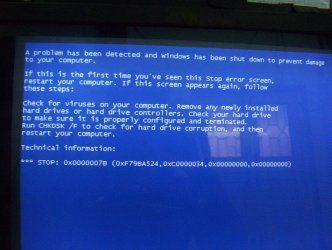
I'm sorry. see post 390 of 3 days ago. I get the blue screen of death after step 3 of Method Two of the tutorial. I just downloaded the link you gave me, but it's too scary for me to play with...

now I'm thinking that problem is not at the CD, but at the hard drive, because after I tell it to boot from the disk, there is much activity, with the message line at the bottom of the screen telling me that it is loading this that and the other thing, then there is a pause, as if it is trying to write to the hard drive, then I get the BSOD. when should it ask me which partition to use??
 
Last edited:

My Computer My Computer

At a glance

windows 7 & XP pro
OS
windows 7 & XP pro
Hi
Currently I am having windows 7 installed and now I am trying to install windows xp
I followed all the steps in the tutorial But when I booted my system with XP CD and trying to install XP I get this screen..

please help me
 

Attachments

  • 100_2002.JPG
    100_2002.JPG
    261 KB · Views: 790

My Computer My Computer

At a glance

windows 7
OS
windows 7
For Creative Hacker and Ramdib

Hi Creative Hacker and Ramdib,
I'm only one step ahead of you but it sounds to me like you are having the same problem I did--namely an old copy of XP that doesn't have the drivers for your new hard drive. I suggest you try the following which was post #394 above. It worked for me. I may still have the product key problem SIW2 cited below but that's in the future. Good luck! :shock:


Might be it doesn't have the correct drivers for the HD controller - is it an old install cd?

You might not have that problem with an XP cd that has SP3 integrated.

In any case - if you could get it to install - you would need to activate - I doubt you can do it with your product key - it is probably only for the machine it was originally installed on.

I think you will need an up to date XP install cd - and the appropriate product key.

You could try this- but would still have the product key conundrum:

maxEasyGuide: A) Slipstreaming SATA driver into WinXp boot cd using nLite

Standard XP SATA driver d/l here
 

My Computer My Computer

At a glance

Windows 7 HomeIntel Q83008 GB
Computer Manufacturer/Model Number
HP/p6267c
OS
Windows 7 Home
CPU
Intel Q8300
Memory
8 GB
Thanks you Kirb. I have tried what you suggested and ended up in the same place: BSOD. I will try it again as I had some trouble following: "2) Extracted SATA drivers(if you are using Intel chipset Intel 82801GR/GH, 631xESB/632xESB, 82801GHM, ICH8R/ICH9R, 82801HEM SATA RAID Controller, get the drivers from here)" The 'here' doesn't get to the drivers, but I think i got what you wanted but I will try it again. It is an old install cd (labeled November 2004) but it's twin brother was used on a new desk top computer in Jan 2009. The copy I am using on this computer has been used on two other laptops (both dead) and I was under the impression that I could use it on many computers, but never two at the same time. incorrect?? How would I get an "up to date XP install cd - and the appropriate product key" short of (god forbid) actually buying one!??
 

My Computer My Computer

At a glance

windows 7 & XP pro
OS
windows 7 & XP pro
I suggest you get 7 up and running. Then add XP as an option in the 7 boot menu.

To do that, boot the 7 dvd and run startup repair 3 times.

Then boot into 7, download Easybcd 2.0 - under Add/Remove Entires , select XP in the drop down , click Add entry - let Easy autoconfigure.

Download Easybcd 2.0

XP probably does not contain the drivers needed for your hardware.

From within 7, browse to the mfr websites and d/l the drivers for XP for each needed device.

Boot into XP and install the drivers there.

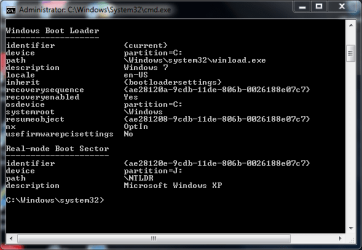
I followed these guidelines and now I get a Windows Boot Manager screen and can boot into Windows 7 just fine. But when I try to boot into XP I get the following screen:
After running EasyBCD I now get to Window Boot Manager and have the choice of booting into Windows 7 or Windows XP. Booting into Windows 7 works fine but when I try to boot in XP I get the following screen:

Windows Boot Manager
Windows failed to start. A recent hardware or software change might be the cause. To fix the problem:
1. Insert your Windows installation disc and restart your computer.
2. Choose your language settings, and then click "Next."
3. Click "Repair your computer."

If you do not have this disc, contact your system administrator or computer manufacturer for assistance.

File: \NTLDR

status: 0xc000000f

Info: The selected entry could not be loaded because the application is missing or corrupt.


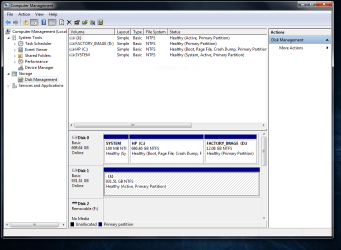
Here are some relevant (I think) screen shots:


In comparing my Disk Management shot with others on this forum, it looks like HP has set this system up so it boots from the SYSTEM partition (which I don't seem to be able to access). The Windows 7 files are on the C drive and XP is on J. I cannot find ntldr, ntdetect.com, boot.ini, bootmgr or the boot folder anywhere. Any suggestions?
 

Attachments

  • BCDEdit snip.PNG
    BCDEdit snip.PNG
    15.6 KB · Views: 642
  • Disk management snip.PNG
    Disk management snip.PNG
    43.3 KB · Views: 395

My Computer My Computer

At a glance

Windows 7 HomeIntel Q83008 GB
Computer Manufacturer/Model Number
HP/p6267c
OS
Windows 7 Home
CPU
Intel Q8300
Memory
8 GB
Hi,

The ntldr entry should not be pointing at J.

It should be pointing at the 100 mb partition.

Rt click the 100mb partition in Disk Management and give it drive letter S.

Use Easy Add/Remove entries to remove the existing XP entry.

Add a new XP entry - don't try and point Easy at a Drive letter, let Easy do it automatically and autoconfigure for you.

Hope it helps.
 

My Computers My Computers

  • At a glance

    7 X64i5 84002x8gb 3200mhz
    Computer type
    PC/Desktop
    OS
    7 X64
    CPU
    i5 8400
    Motherboard
    gigabyte b365m ds3h
    Memory
    2x8gb 3200mhz
    Hard Drives
    various
    PSU
    pure power 11 400w cm
    Case
    Coolermaster
    Cooling
    cryorig m9i
  • At a glance

    7x64g54008gb ddr4 2400
    Computer type
    PC/Desktop
    OS
    7x64
    CPU
    g5400
    Motherboard
    ga b365m ds3h
    Memory
    8gb ddr4 2400
    PSU
    xfx pro 450w
Hi,
Sorry if you've answered this already but there are so many pages to read through I might have missed it.

I have four drives, C, D, E and K. Windows 7 Home installed on C.

I decided to install XP SP2 on the D drive, and so put the CD in and started it off, leaving the drive as it was (no format). It copied files, then tries to restart to complete install, but then runs into problems.

If I boot from CD - it tries to start the XP install from scratch.

If I boot from C drive - it says "Error loading operating system" (not looking good for using Windows 7 until this is fixed!)

If I switch boot order and make D drive first in list - it says NTLDR missing.

Any ideas what might be wrong here? Looks like the XP install failed to put a boot sector on my D drive in my amateur opinion...

Thanks in advance

I've solved this, but as nobody was interested, I doubt they'll be interested in my solution either.

Tara
 

My Computer My Computer

At a glance

Windows 7
OS
Windows 7
Is that aquote from a previous post of yours?

I don't recall seeing it.

Do post your solution.

Interested to see how you decided to go about it.
 

My Computers My Computers

  • At a glance

    7 X64i5 84002x8gb 3200mhz
    Computer type
    PC/Desktop
    OS
    7 X64
    CPU
    i5 8400
    Motherboard
    gigabyte b365m ds3h
    Memory
    2x8gb 3200mhz
    Hard Drives
    various
    PSU
    pure power 11 400w cm
    Case
    Coolermaster
    Cooling
    cryorig m9i
  • At a glance

    7x64g54008gb ddr4 2400
    Computer type
    PC/Desktop
    OS
    7x64
    CPU
    g5400
    Motherboard
    ga b365m ds3h
    Memory
    8gb ddr4 2400
    PSU
    xfx pro 450w
Hi,

The ntldr entry should not be pointing at J.

It should be pointing at the 100 mb partition.

Rt click the 100mb partition in Disk Management and give it drive letter S.

Use Easy Add/Remove entries to remove the existing XP entry.

Add a new XP entry - don't try and point Easy at a Drive letter, let Easy do it automatically and autoconfigure for you.

Hope it helps.

OK, that worked like a charm. Thanks. Now I just need to talk Microsoft into letting me use my old copy of XP.:eek:
 

My Computer My Computer

At a glance

Windows 7 HomeIntel Q83008 GB
Computer Manufacturer/Model Number
HP/p6267c
OS
Windows 7 Home
CPU
Intel Q8300
Memory
8 GB
I finally beat the blue screen of death! Now I have another problem, but first for others trying to install an old copy of XP on a new computer: I went to the device manager and looked under the IDE ATA/ATAPI controllers and found that I have an "ICH9M-E/M SATA AHCI" controller. Googled that baby and found a link where I could download that driver for XP. Then used the maxEasyGuide mentioned below to create a new boot disk which then installed XP on my D drive as outlined in the tutorial. (the link in the guide for drivers didn't include my driver) THANKS ALL FOR THE HELP!

q.gif
Quote: Originally Posted by SIW2
Might be it doesn't have the correct drivers for the HD controller - is it an old install cd?

You might not have that problem with an XP cd that has SP3 integrated.

In any case - if you could get it to install - you would need to activate - I doubt you can do it with your product key - it is probably only for the machine it was originally installed on.

I think you will need an up to date XP install cd - and the appropriate product key.

You could try this- but would still have the product key conundrum:

maxEasyGuide: A) Slipstreaming SATA driver into WinXp boot cd using nLite

Standard XP SATA driver d/l here


----------------
Now for my new problem: I can only boot XP. I think that I understand that I have to change the boot manager in XP, but I can't get to the internet because XP doesn't recognize my network adapter and the new computer did not come with a boot/recovery disk so I can't boot from that to get into Windows7.

Any ideas??
 

My Computer My Computer

At a glance

windows 7 & XP pro
OS
windows 7 & XP pro
Hi ramdib,

Great - you got it working.

You can either install easybcd on XP and reinstate 7 bootmanagement system - adding an entry for XP (see the tutorial - Method Two Step 9 onward).

Or use the 7 dvd /recovery disc and run startup repair -that will get you booting back into7 - then add XP entry to 7 bcd with Easybcd , or bcdedit.

Gizmodo
 

My Computers My Computers

  • At a glance

    7 X64i5 84002x8gb 3200mhz
    Computer type
    PC/Desktop
    OS
    7 X64
    CPU
    i5 8400
    Motherboard
    gigabyte b365m ds3h
    Memory
    2x8gb 3200mhz
    Hard Drives
    various
    PSU
    pure power 11 400w cm
    Case
    Coolermaster
    Cooling
    cryorig m9i
  • At a glance

    7x64g54008gb ddr4 2400
    Computer type
    PC/Desktop
    OS
    7x64
    CPU
    g5400
    Motherboard
    ga b365m ds3h
    Memory
    8gb ddr4 2400
    PSU
    xfx pro 450w
Hi,

The ntldr entry should not be pointing at J.

It should be pointing at the 100 mb partition.

Rt click the 100mb partition in Disk Management and give it drive letter S.

Use Easy Add/Remove entries to remove the existing XP entry.

Add a new XP entry - don't try and point Easy at a Drive letter, let Easy do it automatically and autoconfigure for you.

Hope it helps.

OK, that worked like a charm. Thanks. Now I just need to talk Microsoft into letting me use my old copy of XP.:eek:
Everything works great except for a few cleanup issues I still need help on:
1. I have 8 GB of RAM in Windows 7 but XP only says I have 3.25 GB. How can I get access to the rest?
2. I found drivers and got all of the "Other Devices" which weren't working in XP up and running except the SM Bus Controller. In Win7 I see that the SM Bus Controller hardware is identified as Intel ICH9 Family and doesn't require a driver. What is the SM Bus Controller used for and how can I get it working?
3. As you figured SIW2, Microsoft says that I can't transfer my OEM copy of XP Home to my new computer even though I won't be running it on my old computer anymore, they don't sell XP any more and their recommended reseller, NewEgg.com, only sells the OEM version which NewEgg doesn't recommend for me. Grrr. I'd appreciate any suggestions here. What happens after my 30 day XP activation period expires if I don't (can't) activate?
 

My Computer My Computer

At a glance

Windows 7 HomeIntel Q83008 GB
Computer Manufacturer/Model Number
HP/p6267c
OS
Windows 7 Home
CPU
Intel Q8300
Memory
8 GB
1. I have 8 GB of RAM in Windows 7 but XP only says I have 3.25 GB. How can I get access to the rest?

As far as I know - you can't.:(


2. I found drivers and got all of the "Other Devices" which weren't working in XP up and running except the SM Bus Controller. In Windows 7 I see that the SM Bus Controller hardware is identified as Intel ICH9 Family and doesn't require a driver. What is the SM Bus Controller used for and how can I get it working?

Intel SM Bus drivers for Legacy Windows

3. As you figured SIW2, Microsoft says that I can't transfer my OEM copy of XP Home to my new computer even though I won't be running it on my old computer anymore, they don't sell XP any more and their recommended reseller, NewEgg.com, only sells the OEM version which NewEgg doesn't recommend for me. Grrr. I'd appreciate any suggestions here. What happens after my 30 day XP activation period expires if I don't (can't) activate?

If you don't activate within 30 days, it will start shutting down.

No idea why they don't want you to buy the oem key - except, as you discovered, once you install the XP oem key on that machine - that's it. You can't move it to another machine.:(
 

My Computers My Computers

  • At a glance

    7 X64i5 84002x8gb 3200mhz
    Computer type
    PC/Desktop
    OS
    7 X64
    CPU
    i5 8400
    Motherboard
    gigabyte b365m ds3h
    Memory
    2x8gb 3200mhz
    Hard Drives
    various
    PSU
    pure power 11 400w cm
    Case
    Coolermaster
    Cooling
    cryorig m9i
  • At a glance

    7x64g54008gb ddr4 2400
    Computer type
    PC/Desktop
    OS
    7x64
    CPU
    g5400
    Motherboard
    ga b365m ds3h
    Memory
    8gb ddr4 2400
    PSU
    xfx pro 450w
1. I have 8 GB of RAM in Windows 7 but XP only says I have 3.25 GB. How can I get access to the rest?

As far as I know - you can't.:(


2. I found drivers and got all of the "Other Devices" which weren't working in XP up and running except the SM Bus Controller. In Windows 7 I see that the SM Bus Controller hardware is identified as Intel ICH9 Family and doesn't require a driver. What is the SM Bus Controller used for and how can I get it working?

Intel SM Bus drivers for Legacy Windows

3. As you figured SIW2, Microsoft says that I can't transfer my OEM copy of XP Home to my new computer even though I won't be running it on my old computer anymore, they don't sell XP any more and their recommended reseller, NewEgg.com, only sells the OEM version which NewEgg doesn't recommend for me. Grrr. I'd appreciate any suggestions here. What happens after my 30 day XP activation period expires if I don't (can't) activate?

If you don't activate within 30 days, it will start shutting down.

No idea why they don't want you to buy the oem key - except, as you discovered, once you install the XP oem key on that machine - that's it. You can't move it to another machine.:(
Do you understand what constitutes "another machine"? Is it the processor, the motherboard, the hard drive or the box? Or something else? If you replace whatever that key component is does that mean you've lost your OEM key?
 

My Computer My Computer

At a glance

Windows 7 HomeIntel Q83008 GB
Computer Manufacturer/Model Number
HP/p6267c
OS
Windows 7 Home
CPU
Intel Q8300
Memory
8 GB
Typically, it is the mobo. If your mobo dies and you have to replace it - a call to MS free activation line to explain may result in them giving you new key.
 

My Computers My Computers

  • At a glance

    7 X64i5 84002x8gb 3200mhz
    Computer type
    PC/Desktop
    OS
    7 X64
    CPU
    i5 8400
    Motherboard
    gigabyte b365m ds3h
    Memory
    2x8gb 3200mhz
    Hard Drives
    various
    PSU
    pure power 11 400w cm
    Case
    Coolermaster
    Cooling
    cryorig m9i
  • At a glance

    7x64g54008gb ddr4 2400
    Computer type
    PC/Desktop
    OS
    7x64
    CPU
    g5400
    Motherboard
    ga b365m ds3h
    Memory
    8gb ddr4 2400
    PSU
    xfx pro 450w
I have seen a lot about dual booting Win XP and Windows 7 on a single drive but nothing for dual booting the same on 2 HDD's (XP on disk-0 and Win 7 disk-1 ). Is any info on this set-up available?
Thanks,
Stash
 

My Computer My Computer

At a glance

XPPentium 4 dual chanel2 GB dual channelNVIDIA GeForce 6200
Computer Manufacturer/Model Number
home-built
OS
XP
CPU
Pentium 4 dual chanel
Motherboard
GA-8I865GME-775-RH
Memory
2 GB dual channel
Graphics Card(s)
NVIDIA GeForce 6200
Monitor(s) Displays
20" LCD Wide Screen
Hard Drives
Internal 37.27 GB (with Win XP), 232.88 GB (files), 465.76 GB (exterenal back-up)
Back
Top