Dual Boot Installation with Windows 7 and XP

How to Setup a Dual Boot Installation with Windows 7 and XP


   Information
This will show you how to install Windows 7 and XP to dual boot with when you already have either Windows 7 or XP installed first.
   Note
With a dual boot installaton, you will have two operating systems (OS) installed. When you start the computer, you will have the choice to choose which OS you would like to start up to. This method is the easiest way of doing a dual boot with these two operating systems.
   Tip
When dual booting with another OS (ex: Vista or XP), you may not always have that OS partition show up in Computer with a driver letter in Windows 7. If this happens, then you will just need to add a drive letter to the OS (ex: Vista or XP) partition in Windows 7 Disk Management for it to show up in Computer with a driver letter.
   Warning
To stop XP from deleting your Windows 7 System Restore Points everytime XP is started, then see System Restore Points - Stop XP Dual Boot Delete to hide Windows 7 from XP.

Windows 7 Minimum Hardware Requirements


NOTE: For more information on this, see: Windows 7 system requirements
  • 1 GHz 32-bit or 64-bit processor
  • 1 GB RAM for 32-bit Windows 7 OR 2 GB RAM for 64-bit Windows 7
  • 16 GB available disk space 32-bit Windows 7 OR 20 GB for 64-bit Windows 7
  • Support for DirectX 9 graphics with 128 MB memory (in order to enable Aero theme)
  • DVD-R/W Drive
  • Internet or phone access to activate Windows 7.
Windows XP Minimum Hardware Requirements

NOTE: For more information on this, see: System requirements for Windows XP operating systems
  • PC with 300 megahertz (MHz) or higher processor clock speed recommended; 233-MHz minimum required;* Intel Pentium/Celeron family, AMD K6/Athlon/Duron family, or compatible processor recommended
  • 128 megabytes (MB) of RAM or higher recommended (64 MB minimum supported; may limit performance and some features)
  • 1.5 gigabyte (GB) of available hard disk space.*
  • Super VGA (800 × 600) or higher resolution video adapter and monitor
  • CD-ROM or DVD drive
  • Keyboard and Microsoft Mouse or compatible pointing device
EXAMPLE: Windows Boot Manager
NOTE: This is the boot screen where you select what operating system that you would like to start. By default, you have 30 seconds to choose another operating system before the default operating system will start automatically.
Example.jpg


OPTION ONE

When XP is Installed First


NOTE: If you have a RAID setup, you will need to have the Windows 7 RAID drivers on a USB flash drive available to select and load while installing Windows 7.
1. Do step 2 or 3 below for where you wanted to install Windows 7 at.

2. To Create a New Partition from the XP Hard Disk Drive
A) With your Windows 7 installation disc boot into the Command Prompt from the System Recovery Options screen.
NOTE: Make sure that the CD/DVD drive is selected first in the boot order in the BIOS.

B) In the command prompt, select and shrink the XP volume by how many MB (1024 MB = 1 GB) you want to have for this Windows 7 partition. (See screenshot below)
NOTE: You would do steps 2 to 9 in METHOD TWO at that link. Windows 7 will need a minimum of 16 GB (16384 MB).

XP-W7_1.jpg
C) Click on the X at the top right corner to close the command prompt. (See screenshot above)

D) Click on the X at the top right corner to close System Recovery Options. (See screenshot below)
XP-W7_2.jpg
E) Go to step 4.
3. To Use a Separate Hard Disk Drive than the XP Drive
A) Boot from your Windows 7 installation disc.
NOTE: Make sure that the CD/DVD drive is selected first in the boot order in the BIOS.
4. Click on the Install now button. (See screenshot below)

XP-W7_3.jpg
5. When you get to this point, select the partition (step 2) or hard drive to install Windows 7 on. (See screenshot below)

XP-W7_4.jpg
6. Finish installing Windows 7.
NOTE: You would start at step 9 in that link to finish installing Windows 7.

7. When finished, restart the computer to have the option to boot from XP (Earlier Verision of Windows) or Windows 7. (See screenshot below)

   Note
If you are only booting into Windows 7 and do not have XP listed in the Windows Boot Manager, then you can install only EasyBCD (step 8 Option Two below) to add XP (or Windows 7) while started in Windows 7 the same way to the boot list.

Example.jpg


OPTION TWO

When Windows 7 is Installed First


   Warning

1. To Create a New Partition from the Windows 7 Hard Disk Drive
NOTE: If you want to install XP on a separate internal hard drive instead, then skip this step and go to step 2.
A) In Windows 7, select and shrink the Windows 7 volume in Disk Management by how many MB (1024 MB = 1 GB) you want to have for this XP partition. (See screenshots below)
NOTE: You would do all of Method One at that link.

W7-XP-1.jpg

W7-XP-2.jpg

W7-XP-3.jpg
2. Insert your XP installation disc, then restart the computer and press any key to boot from it when prompted. (See screenshot below)
NOTE: Make sure that the CD/DVD drive is selected first in the boot order in the BIOS.

Step1.jpg
3. From XP Setup, Press Enter. (See screenshot below)


   Warning

W7-XP-4.jpg
4. Press F8. (See screenshot below)
NOTE: On some multimedia keyboards, you may need to press the F-Lock or Function key before pressing F8.
W7-XP-5.jpg
5. Select the partition (step 1) or hard drive that you want to install XP on using the arrow keys and press Enter.

W7-XP-6.jpg
6. Finish installing XP.


   Tip
If you get Error loading Operating System after XP restarts:
  • Using your Windows 7 installation disc, boot to the command prompt at startup.
  • Type in these comands below, and press enter after each one.
    • bootrec /FixMbr
    • bootrec /FixBoot
    • bootrec /RebuildBcd
  • Exit the command prompt and restart the computer.
  • At this point, Windows 7 should boot up the same way before trying to install XP.
  • Continue to step 8 below and run EasyBCD from Windows 7 instead.

7. In XP, download and install .Net Framework 2.0 (32-bit) version or .Net Framework 2.0 (64-bit) version first, and EasyBCD (free version) for your 32-bit (x86) or 64-bit (x86) XP.
NOTE: In XP, Net Framework is required to be installed to run EasyBCD. After you click on Register (at bottom of link) for the free EasyBCD, registration is not required to download it.

8. Run EasyBCD (free version).
NOTE: This is required to repair the Windows 7 boot file and add XP to the Windows Boot Manager list.

9. On the left side of EasyBCD, click on the Add New Entry button. (See screenshot below)
A) In the top section under Operating Systems, click on the Windows tab. (See screenshot below)
B) To the right of Type, select Windows NT/2k/XP/2k3 from the drop down menu. (See screenshot below)
:warn:WARNING: Be sure to leave the Automatically detect correct drive box checked.

C) To the right of Name, you can leave the default Microsoft Windows XP as the name to be displayed in the Windows Boot Manager, or you can type whatever name you would like to have instead. (See screenshot below)
D) Click on the Add Entry button. (See screenshot below)
W7-XP-7.jpg
10. On the left side of EasyBCD, click on the BCD Deployment button, select (dot) the Install the Windows Vista/7 bootloader to the MBR option, and click on the Write MBR button. (See screenshot below)

W7-XP-9.jpg
11. Close EasyBCD.

12. Restart the computer to have the option to boot from Microsoft Windows XP or Windows 7. (See screenshot below)

Example2.jpg
   Tip
If Windows 7 will not start up when selected, then use your Windows 7 installation DVD to do a Startup Repair.

That's it,
Shawn


Last edited:
AstaLaVista said:
If I choose the the 160GB Raptor as a first boot option in my Bios, I get on Win XP but don't have an option to even choose Windows 7 and this is where I am now.

My understanding from the above quote, was that you had XP only available after a botched repair job? Or rather an incomplete one :) As I said, steps 7-12 of "With Win 7 installed first" will work, needs to be done from XP though (which I thought was your only option)

Having said that, Gregs advice about booting from BIOS is a damn good one. I just find it... inconveniant to have to always switch BIOS order.
Windows XP was my first install on the 160GB raptor, I had another 74GB raptor gathering dust and I came up with the idea of using Windows 7 + XP mode so I decided to dual boot while I get this working.

I went to the Bios, switch boot priorities so the 74GB would be first thinking that this way, I wouldn't botch the installation of windows 7 and then, use EasyBCD to dual boot.

Once I was done installing Win 7 + EasyBCD I went to test whether I was able to boot with both options and I found that, 1.- I was able to boot to Win 7 but, 2.- if I tried to boot with XP I would get the error.

I figured that the boot manager had gotten corrupted or something like that so I decided to use the XP CD to repair that issue but I ended up loosing the right or option to boot with Windows 7 altogether but I got it back using the Win 7 repair tool but I got the error back if I try to use Win XP.

Pheeeeewww, quiet the tongue twister ain't it? ;)
 

My Computer My Computer

At a glance

Windows 7 x64 (Ultimate)Intel i5-4670K8GBs Ripjaws 2133MhzAsus GTX660 (2GBs)
Computer type
PC/Desktop
Computer Manufacturer/Model Number
Custom Built... Intel/Nvidia/ASRock
OS
Windows 7 x64 (Ultimate)
CPU
Intel i5-4670K
Motherboard
ASRock Z87 Extreme 6
Memory
8GBs Ripjaws 2133Mhz
Graphics Card(s)
Asus GTX660 (2GBs)
Sound Card
Onboard Realtek HD
Monitor(s) Displays
Acer AL2216W
Screen Resolution
1680 x 1050
Hard Drives
Samsung 840 SSD 120GBs
Samsung 750GB 32MB cache
1.5 TB
PSU
PC Cooling 750w Silencer
Case
Thermaltake Spedo Advance
Cooling
Std Cooler
Keyboard
Logitech G15
Mouse
Logitech G9
Internet Speed
Comcast 20Mbit
Antivirus
Avast
Browser
Firefox
Check what HD is set to boot first in BIOS setup now. Try setting XP first if it is not set first now, reboot to see what happens.

Check also on first boot screen for the key given to press for the one-time BIOS Boot menu, also known as BBS (BIOS Boot Screen).

Your System boot files for both OS's are now on XP partition which is how Win7 will configure a Dual Boot when it is installed last with both HD's plugged in. But you'd need to have XP HD set to boot first to get it to boot to the Dual Boot menu, which may have been the problem.

If this doesn't solve the problem, then we may need to repair Win7 by rewriting it's System boot files to it's partition, then boot via BIOS Boot Order or one-time BIOS Boot Menu key, or install EasyBCD 2.02 to Win7 to add XP which works better.
 
gregrocker, thank you, that made more sense to me and I will try that tomorrow when I get to the office and reply back.

Thanks a lot
 

My Computer My Computer

At a glance

Windows 7 x64 (Ultimate)Intel i5-4670K8GBs Ripjaws 2133MhzAsus GTX660 (2GBs)
Computer type
PC/Desktop
Computer Manufacturer/Model Number
Custom Built... Intel/Nvidia/ASRock
OS
Windows 7 x64 (Ultimate)
CPU
Intel i5-4670K
Motherboard
ASRock Z87 Extreme 6
Memory
8GBs Ripjaws 2133Mhz
Graphics Card(s)
Asus GTX660 (2GBs)
Sound Card
Onboard Realtek HD
Monitor(s) Displays
Acer AL2216W
Screen Resolution
1680 x 1050
Hard Drives
Samsung 840 SSD 120GBs
Samsung 750GB 32MB cache
1.5 TB
PSU
PC Cooling 750w Silencer
Case
Thermaltake Spedo Advance
Cooling
Std Cooler
Keyboard
Logitech G15
Mouse
Logitech G9
Internet Speed
Comcast 20Mbit
Antivirus
Avast
Browser
Firefox
Check what HD is set to boot first in BIOS setup now. Try setting XP first if it is not set first now, reboot to see what happens.
OK, after checking the BIOS, I can safely say that the XP drive is set to boot first.

Check also on first boot screen for the key given to press for the one-time BIOS Boot menu, also known as BBS (BIOS Boot Screen).
The key is ESC and selection is as follows:
  • CD/DVD
  • SATA WDC 160GB (XP boot)
  • SATA WDC 74GB (Win 7 Boot)
Your System boot files for both OS's are now on XP partition which is how Win7 will configure a Dual Boot when it is installed last with both HD's plugged in. But you'd need to have XP HD set to boot first to get it to boot to the Dual Boot menu, which may have been the problem.
As is stands right now, if I just restart the computer and I don't choose an option in the BBS, XP starts on its own. Now, if I do go into the BBS and Choose Windws 7, I am taken to the Easy BCD Screen where it lets me choose whether I want to start with Win 7 or Win XP.

If I choose Win 7 I go in like you normally would... I did not test for XP as I know I can get it from the other option in the BBS if I need to.

If this doesn't solve the problem, then we may need to repair Win7 by rewriting it's System boot files to it's partition, then boot via BIOS Boot Order or one-time BIOS Boot Menu key, or install EasyBCD 2.02 to Win7 to add XP which works better.
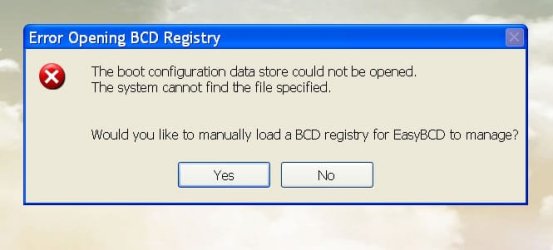
The only problem I have now is that, if I install EasyBCD on Windows XP, I get an error when I try to open it (see attached) and I don't know how to proceed from there.

EasyBCD is install correctly on Windows 7 but it doesn't appear to have done its job. What I am going to do is try to uninstall it and install it again to see if I can make it work now, I probably didn't follow the correct guidelines the first time around and now that I found this guide, I may fix the problem. I will come back to edit this post if the need be.

Thanks


EDIT:
Uninstalling/Installing EasyBCD did nothing, unless I choose the Win 7 boot from BBS, XP loads no matter what. It really does not matter, I am only using this method to be able to test Win 7 for a project I am doing so, knowing that I can do so from the BBS option is enough for me.

I will like to thank all of you again for the responses and help and even though I will like to get to the bottom of it, I am glad I found an easy solution.
 

Attachments

  • EasyBCD Error.jpg
    EasyBCD Error.jpg
    22.5 KB · Views: 246
Last edited:

My Computer My Computer

At a glance

Windows 7 x64 (Ultimate)Intel i5-4670K8GBs Ripjaws 2133MhzAsus GTX660 (2GBs)
Computer type
PC/Desktop
Computer Manufacturer/Model Number
Custom Built... Intel/Nvidia/ASRock
OS
Windows 7 x64 (Ultimate)
CPU
Intel i5-4670K
Motherboard
ASRock Z87 Extreme 6
Memory
8GBs Ripjaws 2133Mhz
Graphics Card(s)
Asus GTX660 (2GBs)
Sound Card
Onboard Realtek HD
Monitor(s) Displays
Acer AL2216W
Screen Resolution
1680 x 1050
Hard Drives
Samsung 840 SSD 120GBs
Samsung 750GB 32MB cache
1.5 TB
PSU
PC Cooling 750w Silencer
Case
Thermaltake Spedo Advance
Cooling
Std Cooler
Keyboard
Logitech G15
Mouse
Logitech G9
Internet Speed
Comcast 20Mbit
Antivirus
Avast
Browser
Firefox
i recently bought a compaq presario cq56 laptop preloaded with windows 7 home premium 64 bit preloaded however i want to put windows xp on it to run my autocad applications however when i tried following this tutorial xp setup just gets a blue screen error. I backed up my system in the event i need to reinstall windows. Am i going to have format the whole hard drive and start over again or can i make this setup work to install windows xp? I dont have a windows 7 dvd ether.
 

My Computer My Computer

At a glance

windows 7 home 64 bit
OS
windows 7 home 64 bit
AstaLaVista - Delete the XP listing in Windows 7 EasyBCD program, on the Edit Boot Menu tab. This will take away the unneeded Windows 7 Boot menu so you can start either OS HD directly from BIOS.

If XP boots from the Windows-managed Dual Boot Menu you get when you boot Win7, and you prefer that method of booting, then set Win7 HD as first to boot in BIOS setup.

Oracle12345
- Are you booting the XP Cd to install? At what point does it bluescreen?

If it gets to the drive-selection screen, try creating and full-formatting the partition with XP CD, in space you have pre-shrunk in Win7 Disk Management. Partition or Volume - Shrink

You may need to insert the SATA controller drivers into the XP CD: SATA Drivers - Load in Windows XP Setup on Dual Boot - Windows 7 Forums
SATA Drivers - Slipstream into Windows XP CD - Windows 7 Forums

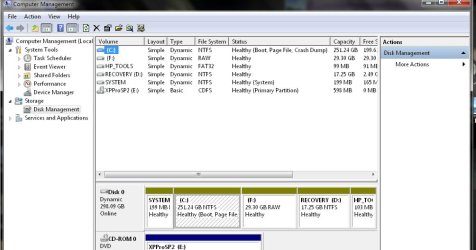
Please post back a screenshot of your maximized full Disk Management drive map with listings, using Snipping Tool in Start Menu. Screen Shots

Have you backed up a System Image as well as files? Backup Complete Computer - Create an Image Backup
 
Hi guys! This tutorial is amazing, and i did it like it said! I apologize for grammatical mistakes. I don't speak english very well.

I first installed windows 7 than on second partition windows xp!

When I in windows 7:
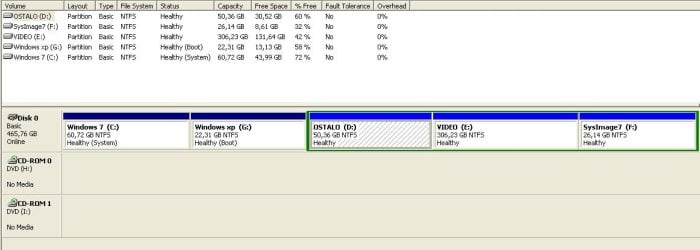
windows 7 32bit is on C:
windows xp pro is on D:

When I in windows xp
windows 7 32bit is on C:
windows xp pro is on G:
I think that is ok, because everything work fine for me

Now I want backup windows 7 partition and windows xp partition with acronis true image. I want to do image of both operating system. So i tried to find some solution on this forum but there is nothing. Maybe i wrong so please help me to find link to that tutorial. I knew it when it was only one operating system but now are two and i want to be sure what am i doing.
For example, in which OS I must install acronis true image...? what problems can occur when I will restore image? I want to be sure when i do it that will be good in future if something go wrong!
Thank You!
 

My Computer My Computer

At a glance

windows 7 ultimate x86
OS
windows 7 ultimate x86
im using th xp cd to run install and blue screens just after its done loading the files and starting windows setup i never get to the welcome screen.
 

Attachments

  • disks.jpg
    disks.jpg
    62.5 KB · Views: 173

My Computer My Computer

At a glance

windows 7 home 64 bit
OS
windows 7 home 64 bit
Oracle - Unfortunately you missed the warning that adding a fourth partition would convert your HD to a Dynamic Disk which you do not want as it is for merging partitions across HD's. The warning is not dire enough so we see this regularly here.

Fortunately there is a freeware tool that can convert your HD back to Basic Disk non-destructively, free Partiiton Wizard version 4.2 (the newer 5.2 version makes this a paid option). partition wizard 4.2 free.zip - Windows Live

Back up your files first, Download and extract files, rightclick PWiz to Run as Admin, Install PW, on Disk tab Convert Disk from Dynamic to Basic.

Let us know how this goes.

cikler - I would install Acronis to Win7, save both partitions along with the MBR and Track 0/1. If you try to later reimage only one partition without the other, if it is not marked System Active in Disk Mgmt then you'll have to mark it Active and repair it to get it to start on its own.
 
Gregrocker, thank you for quick reply.
So you think that is better save it together, and i also. I will do it tomorrow.
I did something before
First, i saved image of "windows 7 C:" with microsoft tools in windows 7, later I wanted to install second OS-windows xp.
Than I installed acronis true image in windows xp my second OS and backup image of only windows xp G:. And than I figured that something wrong when it aksed me if i really want leave system partition windows 7 C: I leave it and I'm not sure it was a good move.
 

Attachments

  • windows 7.JPG
    windows 7.JPG
    58.7 KB · Views: 158
  • windows xp.jpg
    windows xp.jpg
    48.8 KB · Views: 139

My Computer My Computer

At a glance

windows 7 ultimate x86
OS
windows 7 ultimate x86
I would save the existing images you have so you have the ability to reimage either OS independently.

If you want a Dual Boot image of your current install and you have space to save it externally, then you can save that as well.

Your System drive is Win7 which means it can be reimaged and will start up without repair.

XP currently is booting via Win7 partition so will likely have to have its boot files repaired or be Repair Installed once it's reimaged to start on its own without Win7.

It is best to save these images externally so you have them if the HD fails to reimage to a new HD.
 
so i tried your suggestions

so i converted my hd to a basic instead of dynamic and also googled for sata drivers for the laptop but couldnt find any sata drivers for the hard disk. I tried running xp setup from the disc and same thing still happens with blue screen and error code 0x0000007b. any suggestions?
 

My Computer My Computer

At a glance

windows 7 home 64 bit
OS
windows 7 home 64 bit
The drivers needed are for the SATA controller, which is part of the chipset.

Look in Device manager under Storage or IDE/SATA controllers for model number, then check the Support Downloads webpage for your model computer or controller.

If you fill out your System specs more we can help you more.
 

My Computer My Computer

At a glance

windows 7 home 64 bit
OS
windows 7 home 64 bit
device manager is showing amd sata controller and i have been googling that looking for a driver that will work

ill try this driver

Driver Collection: AMD SATA AHCI Controller Driver

First check for all the Win XP drivers for your hardware.
http://welcome.hp.com/country/us/en/support.html
If your Win XP CD, does not support your Sata Controller, you will need to load drivers to uses at F6.
Load Sata Controller drivers with a floppy disk is the best way.
http://www.sevenforums.com/tutorials/66010-sata-drivers-load-windows-xp-setup-dual-boot.html
OR
http://www.sevenforums.com/tutorials/72185-sata-drivers-slipstream-into-windows-xp-cd.html

You can download your F6 Sata Controller drivers from here:
General XP Downgrade Guide for HP Laptops - HP Support Forum
 

My Computer My Computer

At a glance

ME/XP/Vista/Win7
OS
ME/XP/Vista/Win7
hello i have slip the drives on my windows xp cd using nlight

but i still get a bsod i get this error

errords.jpg


why is this? i have out the sata drivers in?
 
Last edited by a moderator:

My Computer My Computer

At a glance

windows 7
OS
windows 7
7b error is inaccessible boot device, so it's likely not reading your SATA controller or you have the wrong one.

How far does it progress before you get the bluescreen?

Did you use text mode when slipstreaming the SATA controller, and are you sure its the correct XP driver for your SATA controller?

First try installing XP programs in XP or earlier Compatibility Mode . You might also try installing free XP mode in Pro or Ultimate, or free Virtual Box, Virtual Player or VM Ware in all other versions to see how you like that.
 
Back
Top