Dual Boot Installation with Windows 7 and XP

How to Setup a Dual Boot Installation with Windows 7 and XP


   Information
This will show you how to install Windows 7 and XP to dual boot with when you already have either Windows 7 or XP installed first.
   Note
With a dual boot installaton, you will have two operating systems (OS) installed. When you start the computer, you will have the choice to choose which OS you would like to start up to. This method is the easiest way of doing a dual boot with these two operating systems.
   Tip
When dual booting with another OS (ex: Vista or XP), you may not always have that OS partition show up in Computer with a driver letter in Windows 7. If this happens, then you will just need to add a drive letter to the OS (ex: Vista or XP) partition in Windows 7 Disk Management for it to show up in Computer with a driver letter.
   Warning
To stop XP from deleting your Windows 7 System Restore Points everytime XP is started, then see System Restore Points - Stop XP Dual Boot Delete to hide Windows 7 from XP.

Windows 7 Minimum Hardware Requirements


NOTE: For more information on this, see: Windows 7 system requirements
  • 1 GHz 32-bit or 64-bit processor
  • 1 GB RAM for 32-bit Windows 7 OR 2 GB RAM for 64-bit Windows 7
  • 16 GB available disk space 32-bit Windows 7 OR 20 GB for 64-bit Windows 7
  • Support for DirectX 9 graphics with 128 MB memory (in order to enable Aero theme)
  • DVD-R/W Drive
  • Internet or phone access to activate Windows 7.
Windows XP Minimum Hardware Requirements

NOTE: For more information on this, see: System requirements for Windows XP operating systems
  • PC with 300 megahertz (MHz) or higher processor clock speed recommended; 233-MHz minimum required;* Intel Pentium/Celeron family, AMD K6/Athlon/Duron family, or compatible processor recommended
  • 128 megabytes (MB) of RAM or higher recommended (64 MB minimum supported; may limit performance and some features)
  • 1.5 gigabyte (GB) of available hard disk space.*
  • Super VGA (800 × 600) or higher resolution video adapter and monitor
  • CD-ROM or DVD drive
  • Keyboard and Microsoft Mouse or compatible pointing device
EXAMPLE: Windows Boot Manager
NOTE: This is the boot screen where you select what operating system that you would like to start. By default, you have 30 seconds to choose another operating system before the default operating system will start automatically.
Example.jpg


OPTION ONE

When XP is Installed First


NOTE: If you have a RAID setup, you will need to have the Windows 7 RAID drivers on a USB flash drive available to select and load while installing Windows 7.
1. Do step 2 or 3 below for where you wanted to install Windows 7 at.

2. To Create a New Partition from the XP Hard Disk Drive
A) With your Windows 7 installation disc boot into the Command Prompt from the System Recovery Options screen.
NOTE: Make sure that the CD/DVD drive is selected first in the boot order in the BIOS.

B) In the command prompt, select and shrink the XP volume by how many MB (1024 MB = 1 GB) you want to have for this Windows 7 partition. (See screenshot below)
NOTE: You would do steps 2 to 9 in METHOD TWO at that link. Windows 7 will need a minimum of 16 GB (16384 MB).

XP-W7_1.jpg
C) Click on the X at the top right corner to close the command prompt. (See screenshot above)

D) Click on the X at the top right corner to close System Recovery Options. (See screenshot below)
XP-W7_2.jpg
E) Go to step 4.
3. To Use a Separate Hard Disk Drive than the XP Drive
A) Boot from your Windows 7 installation disc.
NOTE: Make sure that the CD/DVD drive is selected first in the boot order in the BIOS.
4. Click on the Install now button. (See screenshot below)

XP-W7_3.jpg
5. When you get to this point, select the partition (step 2) or hard drive to install Windows 7 on. (See screenshot below)

XP-W7_4.jpg
6. Finish installing Windows 7.
NOTE: You would start at step 9 in that link to finish installing Windows 7.

7. When finished, restart the computer to have the option to boot from XP (Earlier Verision of Windows) or Windows 7. (See screenshot below)

   Note
If you are only booting into Windows 7 and do not have XP listed in the Windows Boot Manager, then you can install only EasyBCD (step 8 Option Two below) to add XP (or Windows 7) while started in Windows 7 the same way to the boot list.

Example.jpg


OPTION TWO

When Windows 7 is Installed First


   Warning

1. To Create a New Partition from the Windows 7 Hard Disk Drive
NOTE: If you want to install XP on a separate internal hard drive instead, then skip this step and go to step 2.
A) In Windows 7, select and shrink the Windows 7 volume in Disk Management by how many MB (1024 MB = 1 GB) you want to have for this XP partition. (See screenshots below)
NOTE: You would do all of Method One at that link.

W7-XP-1.jpg

W7-XP-2.jpg

W7-XP-3.jpg
2. Insert your XP installation disc, then restart the computer and press any key to boot from it when prompted. (See screenshot below)
NOTE: Make sure that the CD/DVD drive is selected first in the boot order in the BIOS.

Step1.jpg
3. From XP Setup, Press Enter. (See screenshot below)


   Warning

W7-XP-4.jpg
4. Press F8. (See screenshot below)
NOTE: On some multimedia keyboards, you may need to press the F-Lock or Function key before pressing F8.
W7-XP-5.jpg
5. Select the partition (step 1) or hard drive that you want to install XP on using the arrow keys and press Enter.

W7-XP-6.jpg
6. Finish installing XP.


   Tip
If you get Error loading Operating System after XP restarts:
  • Using your Windows 7 installation disc, boot to the command prompt at startup.
  • Type in these comands below, and press enter after each one.
    • bootrec /FixMbr
    • bootrec /FixBoot
    • bootrec /RebuildBcd
  • Exit the command prompt and restart the computer.
  • At this point, Windows 7 should boot up the same way before trying to install XP.
  • Continue to step 8 below and run EasyBCD from Windows 7 instead.

7. In XP, download and install .Net Framework 2.0 (32-bit) version or .Net Framework 2.0 (64-bit) version first, and EasyBCD (free version) for your 32-bit (x86) or 64-bit (x86) XP.
NOTE: In XP, Net Framework is required to be installed to run EasyBCD. After you click on Register (at bottom of link) for the free EasyBCD, registration is not required to download it.

8. Run EasyBCD (free version).
NOTE: This is required to repair the Windows 7 boot file and add XP to the Windows Boot Manager list.

9. On the left side of EasyBCD, click on the Add New Entry button. (See screenshot below)
A) In the top section under Operating Systems, click on the Windows tab. (See screenshot below)
B) To the right of Type, select Windows NT/2k/XP/2k3 from the drop down menu. (See screenshot below)
:warn:WARNING: Be sure to leave the Automatically detect correct drive box checked.

C) To the right of Name, you can leave the default Microsoft Windows XP as the name to be displayed in the Windows Boot Manager, or you can type whatever name you would like to have instead. (See screenshot below)
D) Click on the Add Entry button. (See screenshot below)
W7-XP-7.jpg
10. On the left side of EasyBCD, click on the BCD Deployment button, select (dot) the Install the Windows Vista/7 bootloader to the MBR option, and click on the Write MBR button. (See screenshot below)

W7-XP-9.jpg
11. Close EasyBCD.

12. Restart the computer to have the option to boot from Microsoft Windows XP or Windows 7. (See screenshot below)

Example2.jpg
   Tip
If Windows 7 will not start up when selected, then use your Windows 7 installation DVD to do a Startup Repair.

That's it,
Shawn


Last edited:
Hello, I'm planning on doing a dual-boot so I have 7 for basic browsing and online multiplayer (since World of Warcraft works perfectly for me) and XP for offline gaming (since Fallout 3 and Windows 7 are like water and oil apparently). Does it matter if I rename the drive since I'll more than likely just be using 7 for the most part? And about this SATA business, I have no idea whether or not my HD is SATA, ATA, RAID, IDE whatever it is. Any tips on figuring out what it is without opening her up?
 

My Computer My Computer

At a glance

Windows 7 Home Premium x64Pentium Dual-Core T4500 @2.30GHz4 GBMobile Intel 4 Series Express Chipset Family
Computer Manufacturer/Model Number
Lenovo G550
OS
Windows 7 Home Premium x64
CPU
Pentium Dual-Core T4500 @2.30GHz
Motherboard
No Idea
Memory
4 GB
Graphics Card(s)
Mobile Intel 4 Series Express Chipset Family
Sound Card
Conexant SmartAudio HD
Monitor(s) Displays
Generic PnP Monitor
Screen Resolution
1366x768
Hard Drives
200GB
Keyboard
Standard PS/2 Keyboard
Mouse
Touchpad or Dynex Optical Mouse
Internet Speed
I dunno. What's Roadrunner's speed?
Other Info
It's a notebook. And I'm a gamer. So, I suffer for my joy. Oblivion on its lowest settings? Hey, it's still Oblivion.
I actually didn't even think about doing a virtual install. That would be a lot easier I suppose. But will it allow enough memory for gaming? If so how much memory do I need to allocate for it?
 

My Computer My Computer

At a glance

Windows 7 Home Premium x64Pentium Dual-Core T4500 @2.30GHz4 GBMobile Intel 4 Series Express Chipset Family
Computer Manufacturer/Model Number
Lenovo G550
OS
Windows 7 Home Premium x64
CPU
Pentium Dual-Core T4500 @2.30GHz
Motherboard
No Idea
Memory
4 GB
Graphics Card(s)
Mobile Intel 4 Series Express Chipset Family
Sound Card
Conexant SmartAudio HD
Monitor(s) Displays
Generic PnP Monitor
Screen Resolution
1366x768
Hard Drives
200GB
Keyboard
Standard PS/2 Keyboard
Mouse
Touchpad or Dynex Optical Mouse
Internet Speed
I dunno. What's Roadrunner's speed?
Other Info
It's a notebook. And I'm a gamer. So, I suffer for my joy. Oblivion on its lowest settings? Hey, it's still Oblivion.
I actually didn't even think about doing a virtual install. That would be a lot easier I suppose. But will it allow enough memory for gaming? If so how much memory do I need to allocate for it?

Well, you also have to consider that Virtualization is not ideal for moderate to heavy gaming. I'm unsure if it can make full use of the video card's power.
 

My Computer My Computer

At a glance

Windows 7 Ultimate x64 Service Pack 1AMD Athlon II x4 Propus 2.9 GHz2 x 4GB Corsair XMS 3 DDR3 -1600 CL9AMD Radeon HD 5850 1GB GDDR5
Computer type
PC/Desktop
Computer Manufacturer/Model Number
Custom Build
OS
Windows 7 Ultimate x64 Service Pack 1
CPU
AMD Athlon II x4 Propus 2.9 GHz
Motherboard
ASRock N68C-GS FX
Memory
2 x 4GB Corsair XMS 3 DDR3 -1600 CL9
Graphics Card(s)
AMD Radeon HD 5850 1GB GDDR5
Sound Card
On-board 6-Channel HD Audio
Monitor(s) Displays
18' LG Flatron E1942TC-BN on DVI, 18' Chimei 95ND on HDMI
Screen Resolution
1366 x 768 x 2
Hard Drives
1 x 500 GB Seagate
1 x 1 TB Western Digital Caviar Green
1 x 1 TB Hitachi Touro Mobile USB 3
PSU
Seasonic S12II 520W
Case
Generic with Cable Management
Cooling
Deep Cool Gammaxx 200
Keyboard
Dragonwar Desert Eagle
Mouse
Logitech B85
Internet Speed
5Mb/s DL, 0.9Mb/s UL
Antivirus
ESET Nod32
Browser
Google Chrome 64 Bit
Other Info
LG G4 H818P - Rooted with Xposed Framework
Ah, yeah, Command and Conquer Red Alert would probably run in a virtual install of XP, but I doubt Fallout 3 will. Double boot it is. Thanks for the advice all, I really appreciate it.
 

My Computer My Computer

At a glance

Windows 7 Home Premium x64Pentium Dual-Core T4500 @2.30GHz4 GBMobile Intel 4 Series Express Chipset Family
Computer Manufacturer/Model Number
Lenovo G550
OS
Windows 7 Home Premium x64
CPU
Pentium Dual-Core T4500 @2.30GHz
Motherboard
No Idea
Memory
4 GB
Graphics Card(s)
Mobile Intel 4 Series Express Chipset Family
Sound Card
Conexant SmartAudio HD
Monitor(s) Displays
Generic PnP Monitor
Screen Resolution
1366x768
Hard Drives
200GB
Keyboard
Standard PS/2 Keyboard
Mouse
Touchpad or Dynex Optical Mouse
Internet Speed
I dunno. What's Roadrunner's speed?
Other Info
It's a notebook. And I'm a gamer. So, I suffer for my joy. Oblivion on its lowest settings? Hey, it's still Oblivion.
Ah, yeah, Command and Conquer Red Alert would probably run in a virtual install of XP, but I doubt Fallout 3 will. Double boot it is. Thanks for the advice all, I really appreciate it.

Yes, most probably. Let us know how it goes. Good luck :D
 

My Computer My Computer

At a glance

Windows 7 Ultimate x64 Service Pack 1AMD Athlon II x4 Propus 2.9 GHz2 x 4GB Corsair XMS 3 DDR3 -1600 CL9AMD Radeon HD 5850 1GB GDDR5
Computer type
PC/Desktop
Computer Manufacturer/Model Number
Custom Build
OS
Windows 7 Ultimate x64 Service Pack 1
CPU
AMD Athlon II x4 Propus 2.9 GHz
Motherboard
ASRock N68C-GS FX
Memory
2 x 4GB Corsair XMS 3 DDR3 -1600 CL9
Graphics Card(s)
AMD Radeon HD 5850 1GB GDDR5
Sound Card
On-board 6-Channel HD Audio
Monitor(s) Displays
18' LG Flatron E1942TC-BN on DVI, 18' Chimei 95ND on HDMI
Screen Resolution
1366 x 768 x 2
Hard Drives
1 x 500 GB Seagate
1 x 1 TB Western Digital Caviar Green
1 x 1 TB Hitachi Touro Mobile USB 3
PSU
Seasonic S12II 520W
Case
Generic with Cable Management
Cooling
Deep Cool Gammaxx 200
Keyboard
Dragonwar Desert Eagle
Mouse
Logitech B85
Internet Speed
5Mb/s DL, 0.9Mb/s UL
Antivirus
ESET Nod32
Browser
Google Chrome 64 Bit
Other Info
LG G4 H818P - Rooted with Xposed Framework
hey now I have a problem I mean I have the F8 option in Windows 7 and In Windows XO I dont have it. How can I enable it?
 

My Computer My Computer

At a glance

Windows 7 Ultimate x64Intel Core i5-2500 3.3 GHz6 GB DDR3 RAM Silicon PowerNvidia GeForce GTS 450 2GB DDR3
Computer Manufacturer/Model Number
David's Imperator
OS
Windows 7 Ultimate x64
CPU
Intel Core i5-2500 3.3 GHz
Motherboard
Foxconn P67A-S
Memory
6 GB DDR3 RAM Silicon Power
Graphics Card(s)
Nvidia GeForce GTS 450 2GB DDR3
Sound Card
Realtek HD Audio
Monitor(s) Displays
Philips 226VLA
Screen Resolution
1920x1080
Hard Drives
WD Green 1TB (1000GB)
PSU
250W
Win XP Setup Cant See Partitons

Using method 2, I reached step/screen 5
But It doesn't show me my partitions.

(Note: My Windows Installation is loaded on a USB, through a program called "WinSetupFromUSB". Also When I try to use the Windows Installation from my CD, my PC crashes. " Blue Screen of Death" )

So, while in your tut, you get 3 partitions, I only get 1 ( which is my 4 gig USB)

Anyone please help.
I looked through YouTube, this forum, and many others. And I couldn't find anything to relate to my situation
:/
 

My Computer My Computer

At a glance

Windows 7 Ultimate x64
OS
Windows 7 Ultimate x64
IMPORTANT NOTE TO ALL THOSE HAVING ERRORS WITH DUAL BOOTING

Sorry for caps in title, trying to point out to people

I went to get assistance from a HP's official stores, and I explained to them what I was trying to do.

(Extra Info - My problem was that when I come to choosing were to install windows XP, the setup does not show any partitions.)

The guy said " is your computer i7 ? or i5? " I said its i7. he said straight away " you can totally forget about installing or dual booting windows XP on this Laptop".

( Its a HP Pavilion dv6 - 2.8 Ghz - i7 - 8 Gbs ram - 1 TB hard disk - ATI card - Windows 7 Ultimate 64 bit)

He then explained : " Most new computers ( Desk and Laptops) hard disk's are new, and Windows XP setup can not recognize the hard disk."

Moreover he said : " Those people who keep talking about SATA and RAID setup, still use older computers, and therefore, the SATA/RAID system works for them."


TO SUM UP, IF YOUR COMPUTER IS i5 or i7 - YOU CAN CLOSE THIS THREAD BECAUSE NO MATTER WHAT YOU DO, YOU WILL NOT BE ABLE TO INSTALL/ DUAL BOOT WINDOWS XP.
I know its a big disappointment, but I just thought I might help some one else, before they waste 3 days of their life pointlessly.
 

My Computer My Computer

At a glance

Windows 7 Ultimate x64
OS
Windows 7 Ultimate x64
This is why you need to install the SATA controller drivers, as given in my post just above. These drivers are not in the XP installer because it is too old.

The processor has nothing to do with it other than that it is a newer computer.

Have you tried virtualizing XP using XP Mode in Ultimate or Professional, or freeware like Virtual Box, Virtual Player or VMWare in any edition?
 
This is why you need to install the SATA controller drivers, as given in my post just above. These drivers are not in the XP installer because it is too old.

The processor has nothing to do with it other than that it is a newer computer.

Have you tried virtualizing XP using XP Mode in Ultimate or Professional, or freeware like Virtual Box, Virtual Player or VMWare in any edition?

I tried virtualizing
But my needs were not fulfilled by it, Virtual Machine/PC from Microsoft was quite useless because It wouldn't let me install big programs.

And as I was saying, most hard drives on new computers, are a NEW GENERATION, thats why they don't even accept windows XP - <-- Quoted by HP support assistance official.

I'm not trying to start a debate, I'm just clearing out my case, so that if some one has the same situation as me, wouldn't waste his time running after this whole thingy
 

My Computer My Computer

At a glance

Windows 7 Ultimate x64
OS
Windows 7 Ultimate x64
Sorry for caps in title, trying to point out to people

I went to get assistance from a HP's official stores, and I explained to them what I was trying to do.

(Extra Info - My problem was that when I come to choosing were to install windows XP, the setup does not show any partitions.)

The guy said " is your computer i7 ? or i5? " I said its i7. he said straight away " you can totally forget about installing or dual booting windows XP on this Laptop".

( Its a HP Pavilion dv6 - 2.8 Ghz - i7 - 8 Gbs ram - 1 TB hard disk - ATI card - Windows 7 Ultimate 64 bit)

He then explained : " Most new computers ( Desk and Laptops) hard disk's are new, and Windows XP setup can not recognize the hard disk."

Moreover he said : " Those people who keep talking about SATA and RAID setup, still use older computers, and therefore, the SATA/RAID system works for them."


TO SUM UP, IF YOUR COMPUTER IS i5 or i7 - YOU CAN CLOSE THIS THREAD BECAUSE NO MATTER WHAT YOU DO, YOU WILL NOT BE ABLE TO INSTALL/ DUAL BOOT WINDOWS XP.
I know its a big disappointment, but I just thought I might help some one else, before they waste 3 days of their life pointlessly.

First check for all the Win XP drivers for your hardware.

You can check your HP notebook here:
General XP Downgrade Guide for HP Laptops - HP Support Forum
 

My Computer My Computer

At a glance

ME/XP/Vista/Win7
OS
ME/XP/Vista/Win7
Nearly all modern operating systems designed for Intel® architecture support the Intel® Core™ i7 processor, although some may require specific versions or processor support files. Microsoft Windows Vista* and Microsoft Windows XP* (with SP2) support the Intel Core i7 processor


Intel® Core™ i7 Processor — Integration overview (LGA1366-land package)


If it not possible with HP - then it appears to be something HP have done - not Intel.

It may be that XP drivers are not available for such a recent machine .


most hard drives on new computers, are a NEW GENERATION, thats why they don't even accept windows XP

I assume he means AFD - I don't know much about xp - but i would imagine it would install and run ok -it would be a good idea to align it using Paragon alignment tool.
 
Last edited:

My Computers My Computers

  • At a glance

    7 X64i5 84002x8gb 3200mhz
    Computer type
    PC/Desktop
    OS
    7 X64
    CPU
    i5 8400
    Motherboard
    gigabyte b365m ds3h
    Memory
    2x8gb 3200mhz
    Hard Drives
    various
    PSU
    pure power 11 400w cm
    Case
    Coolermaster
    Cooling
    cryorig m9i
  • At a glance

    7x64g54008gb ddr4 2400
    Computer type
    PC/Desktop
    OS
    7x64
    CPU
    g5400
    Motherboard
    ga b365m ds3h
    Memory
    8gb ddr4 2400
    PSU
    xfx pro 450w
Brink,

Excellent tutorial. Is there a way to boot into XP at will from Windows 7? I don't want to have to choose my OS every time I start my computer. Also, I have a hp pavilion laptop. Does the section about RAID setup and the SATA drive in Windows 7 apply to me (alittle over my head)? Thanks!
 

My Computer My Computer

At a glance

Windows 7
OS
Windows 7
Brink,

Excellent tutorial. Is there a way to boot into XP at will from Windows 7? I don't want to have to choose my OS every time I start my computer. Also, I have a hp pavilion laptop. Does the section about RAID setup and the SATA drive in Windows 7 apply to me (alittle over my head)? Thanks!

First check for all the Win XP drivers for your hardware.

You can check your HP PC here:
General XP Downgrade Guide for HP Laptops - HP Support Forum
 

My Computer My Computer

At a glance

ME/XP/Vista/Win7
OS
ME/XP/Vista/Win7
Least "choosey" method I know of is to set Win7 as default with 5-10 second menu timeout, so that you really don't have to do anything or wait long unless you know you want to boot into XP.

View attachment 153619(click to enlarge)

Hi Greg

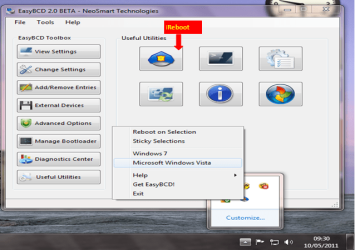
Or the OP can add iReboot to EasyBCD.

iReboot3.png
 

My Computer My Computer

At a glance

ME/XP/Vista/Win7
OS
ME/XP/Vista/Win7

My Computer My Computer

At a glance

Windows 7 Ulti. x64AMD Phenom 8450 triple-core 2.10 ghz4GBATI Radion HD 3200
Computer Manufacturer/Model Number
Gateway GT5692
OS
Windows 7 Ulti. x64
CPU
AMD Phenom 8450 triple-core 2.10 ghz
Memory
4GB
Graphics Card(s)
ATI Radion HD 3200
Monitor(s) Displays
Gateway FPD1775W
Screen Resolution
1280x720
Hard Drives
465.6613 Gibibytes
Back
Top