Dual Boot Installation with Windows 7 and XP

How to Setup a Dual Boot Installation with Windows 7 and XP


   Information
This will show you how to install Windows 7 and XP to dual boot with when you already have either Windows 7 or XP installed first.
   Note
With a dual boot installaton, you will have two operating systems (OS) installed. When you start the computer, you will have the choice to choose which OS you would like to start up to. This method is the easiest way of doing a dual boot with these two operating systems.
   Tip
When dual booting with another OS (ex: Vista or XP), you may not always have that OS partition show up in Computer with a driver letter in Windows 7. If this happens, then you will just need to add a drive letter to the OS (ex: Vista or XP) partition in Windows 7 Disk Management for it to show up in Computer with a driver letter.
   Warning
To stop XP from deleting your Windows 7 System Restore Points everytime XP is started, then see System Restore Points - Stop XP Dual Boot Delete to hide Windows 7 from XP.

Windows 7 Minimum Hardware Requirements


NOTE: For more information on this, see: Windows 7 system requirements
  • 1 GHz 32-bit or 64-bit processor
  • 1 GB RAM for 32-bit Windows 7 OR 2 GB RAM for 64-bit Windows 7
  • 16 GB available disk space 32-bit Windows 7 OR 20 GB for 64-bit Windows 7
  • Support for DirectX 9 graphics with 128 MB memory (in order to enable Aero theme)
  • DVD-R/W Drive
  • Internet or phone access to activate Windows 7.
Windows XP Minimum Hardware Requirements

NOTE: For more information on this, see: System requirements for Windows XP operating systems
  • PC with 300 megahertz (MHz) or higher processor clock speed recommended; 233-MHz minimum required;* Intel Pentium/Celeron family, AMD K6/Athlon/Duron family, or compatible processor recommended
  • 128 megabytes (MB) of RAM or higher recommended (64 MB minimum supported; may limit performance and some features)
  • 1.5 gigabyte (GB) of available hard disk space.*
  • Super VGA (800 × 600) or higher resolution video adapter and monitor
  • CD-ROM or DVD drive
  • Keyboard and Microsoft Mouse or compatible pointing device
EXAMPLE: Windows Boot Manager
NOTE: This is the boot screen where you select what operating system that you would like to start. By default, you have 30 seconds to choose another operating system before the default operating system will start automatically.
Example.jpg


OPTION ONE

When XP is Installed First


NOTE: If you have a RAID setup, you will need to have the Windows 7 RAID drivers on a USB flash drive available to select and load while installing Windows 7.
1. Do step 2 or 3 below for where you wanted to install Windows 7 at.

2. To Create a New Partition from the XP Hard Disk Drive
A) With your Windows 7 installation disc boot into the Command Prompt from the System Recovery Options screen.
NOTE: Make sure that the CD/DVD drive is selected first in the boot order in the BIOS.

B) In the command prompt, select and shrink the XP volume by how many MB (1024 MB = 1 GB) you want to have for this Windows 7 partition. (See screenshot below)
NOTE: You would do steps 2 to 9 in METHOD TWO at that link. Windows 7 will need a minimum of 16 GB (16384 MB).

XP-W7_1.jpg
C) Click on the X at the top right corner to close the command prompt. (See screenshot above)

D) Click on the X at the top right corner to close System Recovery Options. (See screenshot below)
XP-W7_2.jpg
E) Go to step 4.
3. To Use a Separate Hard Disk Drive than the XP Drive
A) Boot from your Windows 7 installation disc.
NOTE: Make sure that the CD/DVD drive is selected first in the boot order in the BIOS.
4. Click on the Install now button. (See screenshot below)

XP-W7_3.jpg
5. When you get to this point, select the partition (step 2) or hard drive to install Windows 7 on. (See screenshot below)

XP-W7_4.jpg
6. Finish installing Windows 7.
NOTE: You would start at step 9 in that link to finish installing Windows 7.

7. When finished, restart the computer to have the option to boot from XP (Earlier Verision of Windows) or Windows 7. (See screenshot below)

   Note
If you are only booting into Windows 7 and do not have XP listed in the Windows Boot Manager, then you can install only EasyBCD (step 8 Option Two below) to add XP (or Windows 7) while started in Windows 7 the same way to the boot list.

Example.jpg


OPTION TWO

When Windows 7 is Installed First


   Warning

1. To Create a New Partition from the Windows 7 Hard Disk Drive
NOTE: If you want to install XP on a separate internal hard drive instead, then skip this step and go to step 2.
A) In Windows 7, select and shrink the Windows 7 volume in Disk Management by how many MB (1024 MB = 1 GB) you want to have for this XP partition. (See screenshots below)
NOTE: You would do all of Method One at that link.

W7-XP-1.jpg

W7-XP-2.jpg

W7-XP-3.jpg
2. Insert your XP installation disc, then restart the computer and press any key to boot from it when prompted. (See screenshot below)
NOTE: Make sure that the CD/DVD drive is selected first in the boot order in the BIOS.

Step1.jpg
3. From XP Setup, Press Enter. (See screenshot below)


   Warning

W7-XP-4.jpg
4. Press F8. (See screenshot below)
NOTE: On some multimedia keyboards, you may need to press the F-Lock or Function key before pressing F8.
W7-XP-5.jpg
5. Select the partition (step 1) or hard drive that you want to install XP on using the arrow keys and press Enter.

W7-XP-6.jpg
6. Finish installing XP.


   Tip
If you get Error loading Operating System after XP restarts:
  • Using your Windows 7 installation disc, boot to the command prompt at startup.
  • Type in these comands below, and press enter after each one.
    • bootrec /FixMbr
    • bootrec /FixBoot
    • bootrec /RebuildBcd
  • Exit the command prompt and restart the computer.
  • At this point, Windows 7 should boot up the same way before trying to install XP.
  • Continue to step 8 below and run EasyBCD from Windows 7 instead.

7. In XP, download and install .Net Framework 2.0 (32-bit) version or .Net Framework 2.0 (64-bit) version first, and EasyBCD (free version) for your 32-bit (x86) or 64-bit (x86) XP.
NOTE: In XP, Net Framework is required to be installed to run EasyBCD. After you click on Register (at bottom of link) for the free EasyBCD, registration is not required to download it.

8. Run EasyBCD (free version).
NOTE: This is required to repair the Windows 7 boot file and add XP to the Windows Boot Manager list.

9. On the left side of EasyBCD, click on the Add New Entry button. (See screenshot below)
A) In the top section under Operating Systems, click on the Windows tab. (See screenshot below)
B) To the right of Type, select Windows NT/2k/XP/2k3 from the drop down menu. (See screenshot below)
:warn:WARNING: Be sure to leave the Automatically detect correct drive box checked.

C) To the right of Name, you can leave the default Microsoft Windows XP as the name to be displayed in the Windows Boot Manager, or you can type whatever name you would like to have instead. (See screenshot below)
D) Click on the Add Entry button. (See screenshot below)
W7-XP-7.jpg
10. On the left side of EasyBCD, click on the BCD Deployment button, select (dot) the Install the Windows Vista/7 bootloader to the MBR option, and click on the Write MBR button. (See screenshot below)

W7-XP-9.jpg
11. Close EasyBCD.

12. Restart the computer to have the option to boot from Microsoft Windows XP or Windows 7. (See screenshot below)

Example2.jpg
   Tip
If Windows 7 will not start up when selected, then use your Windows 7 installation DVD to do a Startup Repair.

That's it,
Shawn


Last edited:
Thank you, Jonathan!

Would you please explain what you mean when you say the language screen? The disc opens with an AutoPlay screen, two choices: Run setup.exe, and Open folder to view files. So far I have only tried the second option, being unsure where Setup.exe might take me.

I am just trying to understand all the steps in the process of making my laptop a dual boot. Item 6 in Method Two says I may need to boot to the command prompt at startup using the Win 7 installation disc.

Lightbulb moment...I tried booting from the Reinstallation DVD, and got the language screen. Shift+F10 resulted in a black screen with this in the top (blue) bar "C:\Administrator:X:\windows\system32\cmd.exe". But the cursor is after this "X:\Sources>" If I type cd\, it changes to X:\. Is that the DVD command prompt?
 
Last edited:

My Computer My Computer

At a glance

Win 7 64-bit
Computer Manufacturer/Model Number
Dell Inspiron 1440
OS
Win 7 64-bit
Simplicity Would Help

Hello Kingism,

I have updated the tutorial to help with this. In METHOD TWO step 10, check to make sure that you select the drive letter that Windows 7 was installed on. Normally this would be C:

Hope this helps,
Shawn

I am 71 years old and have been working with Apple and IBM type computers since 1979. I began with the old Commodore units and as a contracting officer for the government I have probably purchased over a thousand IBM machines. I have been building computers for myself and others for 30 years and have probably built over 100. I used MS DOS since it evolved from PC DOS, and have used Windows since version 2.1.
I am always among the first to have to explore leading edge applications, and have had Windos 7 Professional for several months now. (I must confess that I did skip VISTA.) However, I continue to be dismayed at the failure of you eggheads in your capacity to simplify directions and explain in straight forward, clear terminology things like "Setting up a Dual Boot System". You truly are a bunch of 'Geeks".
Thank you, but I figured it out by myself.
GBalch
 
Last edited:

My Computer My Computer

At a glance

Windows 7Intel I7 92012GBnForce 7950
OS
Windows 7
CPU
Intel I7 920
Motherboard
Asus P6T Deluxe V2
Memory
12GB
Graphics Card(s)
nForce 7950
Sound Card
Integrated - AC97
Monitor(s) Displays
SamSung 260HD TV 26 Inch
Hard Drives
1 ea C Drive 320gb with Windows 7 Pro 64 bit Installed
1 ea D Drive 1TB with Windows XP Pro 32 bt Installed
PSU
600 Watt
Case
Deluxe 7 Fans
Cooling
Deluxe Water Cooling Radiator & Tower for CPU only
I am 71 years old and have been working with Apple and IBM type computers since 1979. I began with the old Commodore units and as a contracting officer for the government I have probably purchased over a thousand IBM machines. I have been building computers for myself and others for 30 years and have probably built over 100. I used MS DOS since it evolved from PC DOS, and have used Windows since version 2.1.
I am always among the first to have to explore leading edge applications, and have had Windos 7 Professional for several months now. (I must confess that I did skip VISTA.) However, I continue to be dismayed at the failure of you eggheads in your capacity to simplify directions and explain in straight forward, clear terminology things like "Setting up a Dual Boot System". You truly are a bunch of 'Geeks".
Thank you, but I figured it out by myself.
GBalch

Hello GBalch,

What was not clear to you so that it can be made to be so??
 

My Computer My Computer

At a glance

64-bit Windows 11 Pro for WorkstationsIntel i7-8700K OC'd to 5 GHz64 GB (4x16GB) G.SKILL TridentZ RGB DDR4 3600...ASUS ROG-STRIX-GTX1080TI-O11G-GAMING
Computer type
PC/Desktop
Computer Manufacturer/Model Number
Self built custom
OS
64-bit Windows 11 Pro for Workstations
CPU
Intel i7-8700K OC'd to 5 GHz
Motherboard
ASUS ROG Maximus XI Formula Z390
Memory
64 GB (4x16GB) G.SKILL TridentZ RGB DDR4 3600 MHz
Graphics Card(s)
ASUS ROG-STRIX-GTX1080TI-O11G-GAMING
Sound Card
Integrated
Monitor(s) Displays
2 x Samsung Odyssey G7 27"
Screen Resolution
2560x1440
Hard Drives
1TB Samsung 990 PRO M.2,
4TB Samsung 990 PRO PRO M.2,
TerraMaster F8 SSD Plus NAS
PSU
Seasonic Prime Titanium 850W
Case
Thermaltake Core P3
Cooling
Corsair Hydro H115i
Keyboard
Logitech wireless K800
Mouse
Logitech MX Master 4
Internet Speed
2 Gb/s Download and 100 Mb/s Upload
Antivirus
Malwarebyte Anti-Malware Premium
Browser
Google Chrome
Other Info
Logitech Z625 speaker system,
Logitech BRIO 4K Pro webcam,
HP Color LaserJet Pro MFP M477fdn,
APC SMART-UPS RT 1000 XL - SURT1000XLI,
Galaxy S23 Plus phone
Frustrated.....

Hello Great tutorial, thank you but am having an issue with booting to my XP drive.

Started out with Windows 7 on C: and spare drive E:

For reasons unknown genuine XP disc would not boot

Disconnected C: and successfully installed XP to what was E:

Have followed all instructions but am now at the point where C: Windows 7 will boot without a problem but if XP is selected at boot screen I get this message

"Could not read from the selected boot disk. Check boot path and disk hardware. Please check the windows documentation blah blah blah"

If I disconnect C: Windows 7 drive XP starts up without a problem.

Here is the EasyBCD settings screen

There are a total of 2 entries listed in the Vista Bootloader.
Bootloader Timeout: 15 seconds.
Default OS: Windows 7

Entry #1

Name: Windows 7
BCD ID: {current}
Drive: C:\
Bootloader Path: \Windows\system32\winload.exe
Windows Directory: \Windows

Entry #2

Name: Windows XP
BCD ID: {a0105d9d-c2df-11de-9abf-001fd0a2c373}
Drive: C:\
Bootloader Path: \NTLDR

any help would be greatly appreciated.
 

My Computer My Computer

At a glance

Windows 7Intel Core 2 Duo E7500 2.93 Ghz4 GBGeForce 9500 GT
OS
Windows 7
CPU
Intel Core 2 Duo E7500 2.93 Ghz
Motherboard
GAEP45DS4
Memory
4 GB
Graphics Card(s)
GeForce 9500 GT
Monitor(s) Displays
32" LG
Hard Drives
1TB Seagate
200GB Maxtor
Case
Thermaltake
You need to copy the 3 hidden XP boot files ntldr, ntdetect.com and boot.ini from the Xp drive onto the Win 7 drive.
 

My Computers My Computers

  • At a glance

    7 X64i5 84002x8gb 3200mhz
    Computer type
    PC/Desktop
    OS
    7 X64
    CPU
    i5 8400
    Motherboard
    gigabyte b365m ds3h
    Memory
    2x8gb 3200mhz
    Hard Drives
    various
    PSU
    pure power 11 400w cm
    Case
    Coolermaster
    Cooling
    cryorig m9i
  • At a glance

    7x64g54008gb ddr4 2400
    Computer type
    PC/Desktop
    OS
    7x64
    CPU
    g5400
    Motherboard
    ga b365m ds3h
    Memory
    8gb ddr4 2400
    PSU
    xfx pro 450w
Thanks SIW2

Did as suggested but still receiving the XP boot error message.

I did notice that when copying the files across to the Win 7 drive it did ask for confirmation to replace existing files. Not sure if that means anything or not.

Should I delete the 3 files from both drives and run EasyBCD again??

Also regarding EasyBCD please confirm tutorial step 10b. when adding XP I am to select drive C: from the drop down menu even though XP is on drive E:
 

My Computer My Computer

At a glance

Windows 7Intel Core 2 Duo E7500 2.93 Ghz4 GBGeForce 9500 GT
OS
Windows 7
CPU
Intel Core 2 Duo E7500 2.93 Ghz
Motherboard
GAEP45DS4
Memory
4 GB
Graphics Card(s)
GeForce 9500 GT
Monitor(s) Displays
32" LG
Hard Drives
1TB Seagate
200GB Maxtor
Case
Thermaltake
Boot into 7.
Look in Disk Management.
Whichever is listed as the system partition is the drive letter you give Easybcd for the XP entry.
 

My Computers My Computers

  • At a glance

    7 X64i5 84002x8gb 3200mhz
    Computer type
    PC/Desktop
    OS
    7 X64
    CPU
    i5 8400
    Motherboard
    gigabyte b365m ds3h
    Memory
    2x8gb 3200mhz
    Hard Drives
    various
    PSU
    pure power 11 400w cm
    Case
    Coolermaster
    Cooling
    cryorig m9i
  • At a glance

    7x64g54008gb ddr4 2400
    Computer type
    PC/Desktop
    OS
    7x64
    CPU
    g5400
    Motherboard
    ga b365m ds3h
    Memory
    8gb ddr4 2400
    PSU
    xfx pro 450w
C: drive is listed as the system drive when logged into Win 7.

Gigabyte motherboard, would there be something in the bios I need to change?
 

My Computer My Computer

At a glance

Windows 7Intel Core 2 Duo E7500 2.93 Ghz4 GBGeForce 9500 GT
OS
Windows 7
CPU
Intel Core 2 Duo E7500 2.93 Ghz
Motherboard
GAEP45DS4
Memory
4 GB
Graphics Card(s)
GeForce 9500 GT
Monitor(s) Displays
32" LG
Hard Drives
1TB Seagate
200GB Maxtor
Case
Thermaltake
Thanks SIW2

Did as suggested but still receiving the XP boot error message.

I did notice that when copying the files across to the Win 7 drive it did ask for confirmation to replace existing files. Not sure if that means anything or not.

Should I delete the 3 files from both drives and run EasyBCD again??

Also regarding EasyBCD please confirm tutorial step 10b. when adding XP I am to select drive C: from the drop down menu even though XP is on drive E:

If your Win XP is installed to E: select E:
 

My Computer My Computer

At a glance

ME/XP/Vista/Win7
OS
ME/XP/Vista/Win7
Hey Guys,

Tested this method on serveral HP/Compaq/Dell PC.

http://h30434.www3.hp.com/t5/Operat...ual-Boot-Windows-7-amp-Windows-XP/td-p/261500

This is the Video Tutorial on How to dual boot in Four Steps!
Install Windows XP on Your Pre-Installed Windows 7.

Step 1: Creating Partition for Windows XP.
Watch Online on YouTube


Step 2: How to integrate Sata Driver onto Windows XP Disk.
Watch Online on YouTube


Step 3: Installing Windows XP on Logical Drive
Watch Online on YouTube


Step 4: Adding Dual Entry Finalizing Installation
Watch Online on YouTube


Softwares Required:- Download links...

Partition Wizard Home Edition Freeware. download links..


Sata_Driver. download link


nlite 1.4.9.1. download link

BootsectGui. download link


EasyBCD 2.0 beta build 93. download link

Regards,
EverWin
 
Last edited by a moderator:

My Computer My Computer

At a glance

Windows 7AMD Phenom II X4 925A-DATA 2GB DDR3ATI 4200 256MB
Computer Manufacturer/Model Number
AMD.ATI.ASUS
OS
Windows 7
CPU
AMD Phenom II X4 925
Motherboard
Asus M4A785T-M
Memory
A-DATA 2GB DDR3
Graphics Card(s)
ATI 4200 256MB
Sound Card
VIA Vinyl HD Audio
Monitor(s) Displays
Samsung 22" 2233
Hard Drives
WD Sata II 500GB X2 (RAID 0)
PSU
VIP 400W Gold
Case
iBall Gamer
Cooling
AMD Cooler
Keyboard
Logitech Wired
Mouse
Logitech Wired
Internet Speed
512kbps Unlimited
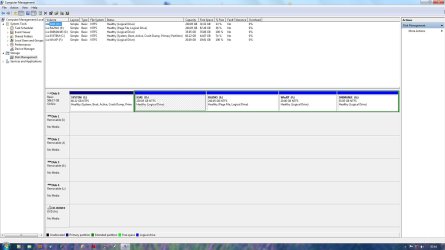
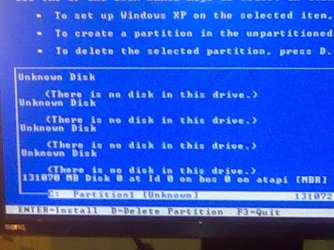
Here we go again. I have 640GB hd and 5 partitions (C,D,E,F and G). on C partition is Windows 7 x64. F partition is empty and formated so it can be installed XP on it. After installing RAID drivers, after loading files it gives mi only one option to pick partition on which XP will be installed, and it is C, and it says that it is 131072 MB. That size, as you can see, have nothing to do with size of any of my partitions. Basicly, I'm stuck at step 5 of method two of your tutorial. This time I'm sending screenshots.
 

Attachments

  • ScreenShot 1.jpg
    ScreenShot 1.jpg
    132.2 KB · Views: 224
  • ScreenShot 2.jpg
    ScreenShot 2.jpg
    81 KB · Views: 229

My Computer My Computer

At a glance

windows7
OS
windows7
dear GladiatorYU

can you tell us motherboard Model?
& AHCI driver you have used?

Regards,
EverWin
 

My Computer My Computer

At a glance

Windows 7AMD Phenom II X4 925A-DATA 2GB DDR3ATI 4200 256MB
Computer Manufacturer/Model Number
AMD.ATI.ASUS
OS
Windows 7
CPU
AMD Phenom II X4 925
Motherboard
Asus M4A785T-M
Memory
A-DATA 2GB DDR3
Graphics Card(s)
ATI 4200 256MB
Sound Card
VIA Vinyl HD Audio
Monitor(s) Displays
Samsung 22" 2233
Hard Drives
WD Sata II 500GB X2 (RAID 0)
PSU
VIP 400W Gold
Case
iBall Gamer
Cooling
AMD Cooler
Keyboard
Logitech Wired
Mouse
Logitech Wired
Internet Speed
512kbps Unlimited
How to obtain the latest Windows XP service pack

48-bit Logical Block Addressing (LBA) support for ATA Packet Interface (ATAPI) disk drives can increase the capacity of your hard disk to more than the current 137 gigabyte (GB) limit.

If you want to use 48-bit LBA support, you must apply Windows XP SP1 or later. Windows XP Media Center Edition and Windows XP Tablet PC Edition already include SP1.

You might want to slipstream SP3 into your XP install media with Slipstream Service Pack 3 into Your Windows XP Installation CD - Customization - Lifehacker
 

My Computers My Computers

  • At a glance

    7 X64i5 84002x8gb 3200mhz
    Computer type
    PC/Desktop
    OS
    7 X64
    CPU
    i5 8400
    Motherboard
    gigabyte b365m ds3h
    Memory
    2x8gb 3200mhz
    Hard Drives
    various
    PSU
    pure power 11 400w cm
    Case
    Coolermaster
    Cooling
    cryorig m9i
  • At a glance

    7x64g54008gb ddr4 2400
    Computer type
    PC/Desktop
    OS
    7x64
    CPU
    g5400
    Motherboard
    ga b365m ds3h
    Memory
    8gb ddr4 2400
    PSU
    xfx pro 450w
Here we go again. I have 640GB hd and 5 partitions (C,D,E,F and G). on C partition is Windows 7 x64. F partition is empty and formated so it can be installed XP on it. After installing RAID drivers, after loading files it gives mi only one option to pick partition on which XP will be installed, and it is C, and it says that it is 131072 MB. That size, as you can see, have nothing to do with size of any of my partitions. Basicly, I'm stuck at step 5 of method two of your tutorial. This time I'm sending screenshots.

Your first 4 Unknown Disk's are most likely your card reader, may be worth removing when installing XP.

Have a read of those tutorials:
http://www.sevenforums.com/tutorials/26829-convert-dynamic-disk-basic-disk.html
http://www.sevenforums.com/tutorials/66010-sata-drivers-load-windows-xp-setup-dual-boot.html
http://www.sevenforums.com/tutorials/72185-sata-drivers-slipstream-into-windows-xp-cd.html
 

My Computer My Computer

At a glance

ME/XP/Vista/Win7
OS
ME/XP/Vista/Win7
After slipstreaming SP3, since tutorial is exelent, everything went fine and now have dual boot. Even last night I suspected that this is the issue but wasn't at home to try it. Thanks everybody for efforts.:D
 

My Computer My Computer

At a glance

windows7
OS
windows7
Dual installation leaves drive letters in a mess

First of all I would apologise for writing here before I managed to read through all the pages written here. I am tired and gave up after page 21 and hope that someone will help me.

I wonder whether I am able to be clear enough about my problem..

First time I installed dual OS - XP & Windows 7 - was last month, after the terrific guide I found here.

I had bought myself a Solid State Drive and did the mistake of using the XP disc's formatting option, as I installed XP first. This made the partitions "unaligned" with the SSD drive, which is bad for the lifespan of a SSD drive. So I decided to reinstall both OS' again but now of course first having to install Windows 7 first and then next XP, as Windows 7s formatting option during installation provides the correct 'alignment' and good partition for the SSD drive.

What I liked so very much about my first installation is that Windows 7 showed up as the C: drive when running that OS, and XP also showed up as C: drive when running XP. And Windows 7s small "System Reserved" partition didn't show up at all under XP and could easily be "de-lettered" under disk management on Windows 7, so further it became easy to maintain order in the drive letters when adding an extra partition for the internal hard drive - which I called "D:", and this internal d: drive was shared by both operative systems which shared certain programs, and also I connected external hard drives which all had the same order (drive letters) regardless to what OS I chose to start up the machine with.

But now.... after trying to install the two different operative systems 6-8 times during the last 24 hours - first using Windows 7 as to get the right 'alignment' for the SSD drive, I cannot achieve the same neat order I had before reinstalling the two OS.

I wonder what I am doing wrong? Is it ok to remove the small "System Reserved" partition from the Windows 7 installation, or deleting it afterwards? That annoying little partition shows up as c: under XP, which again ruins all the other letters.

Or is there a possibility to make order of all this by following a particular installation procedure?

Unfortunately - because of the SSD disk - I can't do the identical installation that I did a month ago with the XP CD first and formatting through that CD, as it will shorten the life span of the SSD disk quite a lot.

So can anyone teach me on how to make order again in the "drive letter mess"? I have tried EasyBCD many times, so if someone could help me - consider me a dummy on this field - I would be grateful if I could receive a thorough receipe on how to achieve order again in the drive letters :geek:

I would think that a neat and tidy dual OS with identical drive letters on both OS would interest other individuals too.

If any of you would help me with this, I must say thanks in advance.

Sincerely,

Alex
 

My Computer My Computer

At a glance

Windows 7 & XP
OS
Windows 7 & XP
Hello Alex,

I do not believe that you will be able to change having the Windows 7 100MB System Reserved partition from showing as the C: drive letter in XP since it is the active system drive when Windows 7 is installed first. :(
 

My Computer My Computer

At a glance

64-bit Windows 11 Pro for WorkstationsIntel i7-8700K OC'd to 5 GHz64 GB (4x16GB) G.SKILL TridentZ RGB DDR4 3600...ASUS ROG-STRIX-GTX1080TI-O11G-GAMING
Computer type
PC/Desktop
Computer Manufacturer/Model Number
Self built custom
OS
64-bit Windows 11 Pro for Workstations
CPU
Intel i7-8700K OC'd to 5 GHz
Motherboard
ASUS ROG Maximus XI Formula Z390
Memory
64 GB (4x16GB) G.SKILL TridentZ RGB DDR4 3600 MHz
Graphics Card(s)
ASUS ROG-STRIX-GTX1080TI-O11G-GAMING
Sound Card
Integrated
Monitor(s) Displays
2 x Samsung Odyssey G7 27"
Screen Resolution
2560x1440
Hard Drives
1TB Samsung 990 PRO M.2,
4TB Samsung 990 PRO PRO M.2,
TerraMaster F8 SSD Plus NAS
PSU
Seasonic Prime Titanium 850W
Case
Thermaltake Core P3
Cooling
Corsair Hydro H115i
Keyboard
Logitech wireless K800
Mouse
Logitech MX Master 4
Internet Speed
2 Gb/s Download and 100 Mb/s Upload
Antivirus
Malwarebyte Anti-Malware Premium
Browser
Google Chrome
Other Info
Logitech Z625 speaker system,
Logitech BRIO 4K Pro webcam,
HP Color LaserJet Pro MFP M477fdn,
APC SMART-UPS RT 1000 XL - SURT1000XLI,
Galaxy S23 Plus phone
Hi Brink,

Thank you for your answer. It felt good that someone at least answered me (that I could receive a little sympathy for this awful disaster :D ).

Then I will learn to live with it. I must manage what's left of the internal harddisk to become the E: drive, and then the external drives after that letter.

So I will just have to get used to C: and D: both being operative systems under XP.

Thanks again and best Sunday wishes to you.

Sincerely,

Alex
 

My Computer My Computer

At a glance

Windows 7 & XP
OS
Windows 7 & XP
Back
Top