Dual Boot Installation with Windows 7 and XP

How to Setup a Dual Boot Installation with Windows 7 and XP


   Information
This will show you how to install Windows 7 and XP to dual boot with when you already have either Windows 7 or XP installed first.
   Note
With a dual boot installaton, you will have two operating systems (OS) installed. When you start the computer, you will have the choice to choose which OS you would like to start up to. This method is the easiest way of doing a dual boot with these two operating systems.
   Tip
When dual booting with another OS (ex: Vista or XP), you may not always have that OS partition show up in Computer with a driver letter in Windows 7. If this happens, then you will just need to add a drive letter to the OS (ex: Vista or XP) partition in Windows 7 Disk Management for it to show up in Computer with a driver letter.
   Warning
To stop XP from deleting your Windows 7 System Restore Points everytime XP is started, then see System Restore Points - Stop XP Dual Boot Delete to hide Windows 7 from XP.

Windows 7 Minimum Hardware Requirements


NOTE: For more information on this, see: Windows 7 system requirements
  • 1 GHz 32-bit or 64-bit processor
  • 1 GB RAM for 32-bit Windows 7 OR 2 GB RAM for 64-bit Windows 7
  • 16 GB available disk space 32-bit Windows 7 OR 20 GB for 64-bit Windows 7
  • Support for DirectX 9 graphics with 128 MB memory (in order to enable Aero theme)
  • DVD-R/W Drive
  • Internet or phone access to activate Windows 7.
Windows XP Minimum Hardware Requirements

NOTE: For more information on this, see: System requirements for Windows XP operating systems
  • PC with 300 megahertz (MHz) or higher processor clock speed recommended; 233-MHz minimum required;* Intel Pentium/Celeron family, AMD K6/Athlon/Duron family, or compatible processor recommended
  • 128 megabytes (MB) of RAM or higher recommended (64 MB minimum supported; may limit performance and some features)
  • 1.5 gigabyte (GB) of available hard disk space.*
  • Super VGA (800 × 600) or higher resolution video adapter and monitor
  • CD-ROM or DVD drive
  • Keyboard and Microsoft Mouse or compatible pointing device
EXAMPLE: Windows Boot Manager
NOTE: This is the boot screen where you select what operating system that you would like to start. By default, you have 30 seconds to choose another operating system before the default operating system will start automatically.
Example.jpg


OPTION ONE

When XP is Installed First


NOTE: If you have a RAID setup, you will need to have the Windows 7 RAID drivers on a USB flash drive available to select and load while installing Windows 7.
1. Do step 2 or 3 below for where you wanted to install Windows 7 at.

2. To Create a New Partition from the XP Hard Disk Drive
A) With your Windows 7 installation disc boot into the Command Prompt from the System Recovery Options screen.
NOTE: Make sure that the CD/DVD drive is selected first in the boot order in the BIOS.

B) In the command prompt, select and shrink the XP volume by how many MB (1024 MB = 1 GB) you want to have for this Windows 7 partition. (See screenshot below)
NOTE: You would do steps 2 to 9 in METHOD TWO at that link. Windows 7 will need a minimum of 16 GB (16384 MB).

XP-W7_1.jpg
C) Click on the X at the top right corner to close the command prompt. (See screenshot above)

D) Click on the X at the top right corner to close System Recovery Options. (See screenshot below)
XP-W7_2.jpg
E) Go to step 4.
3. To Use a Separate Hard Disk Drive than the XP Drive
A) Boot from your Windows 7 installation disc.
NOTE: Make sure that the CD/DVD drive is selected first in the boot order in the BIOS.
4. Click on the Install now button. (See screenshot below)

XP-W7_3.jpg
5. When you get to this point, select the partition (step 2) or hard drive to install Windows 7 on. (See screenshot below)

XP-W7_4.jpg
6. Finish installing Windows 7.
NOTE: You would start at step 9 in that link to finish installing Windows 7.

7. When finished, restart the computer to have the option to boot from XP (Earlier Verision of Windows) or Windows 7. (See screenshot below)

   Note
If you are only booting into Windows 7 and do not have XP listed in the Windows Boot Manager, then you can install only EasyBCD (step 8 Option Two below) to add XP (or Windows 7) while started in Windows 7 the same way to the boot list.

Example.jpg


OPTION TWO

When Windows 7 is Installed First


   Warning

1. To Create a New Partition from the Windows 7 Hard Disk Drive
NOTE: If you want to install XP on a separate internal hard drive instead, then skip this step and go to step 2.
A) In Windows 7, select and shrink the Windows 7 volume in Disk Management by how many MB (1024 MB = 1 GB) you want to have for this XP partition. (See screenshots below)
NOTE: You would do all of Method One at that link.

W7-XP-1.jpg

W7-XP-2.jpg

W7-XP-3.jpg
2. Insert your XP installation disc, then restart the computer and press any key to boot from it when prompted. (See screenshot below)
NOTE: Make sure that the CD/DVD drive is selected first in the boot order in the BIOS.

Step1.jpg
3. From XP Setup, Press Enter. (See screenshot below)


   Warning

W7-XP-4.jpg
4. Press F8. (See screenshot below)
NOTE: On some multimedia keyboards, you may need to press the F-Lock or Function key before pressing F8.
W7-XP-5.jpg
5. Select the partition (step 1) or hard drive that you want to install XP on using the arrow keys and press Enter.

W7-XP-6.jpg
6. Finish installing XP.


   Tip
If you get Error loading Operating System after XP restarts:
  • Using your Windows 7 installation disc, boot to the command prompt at startup.
  • Type in these comands below, and press enter after each one.
    • bootrec /FixMbr
    • bootrec /FixBoot
    • bootrec /RebuildBcd
  • Exit the command prompt and restart the computer.
  • At this point, Windows 7 should boot up the same way before trying to install XP.
  • Continue to step 8 below and run EasyBCD from Windows 7 instead.

7. In XP, download and install .Net Framework 2.0 (32-bit) version or .Net Framework 2.0 (64-bit) version first, and EasyBCD (free version) for your 32-bit (x86) or 64-bit (x86) XP.
NOTE: In XP, Net Framework is required to be installed to run EasyBCD. After you click on Register (at bottom of link) for the free EasyBCD, registration is not required to download it.

8. Run EasyBCD (free version).
NOTE: This is required to repair the Windows 7 boot file and add XP to the Windows Boot Manager list.

9. On the left side of EasyBCD, click on the Add New Entry button. (See screenshot below)
A) In the top section under Operating Systems, click on the Windows tab. (See screenshot below)
B) To the right of Type, select Windows NT/2k/XP/2k3 from the drop down menu. (See screenshot below)
:warn:WARNING: Be sure to leave the Automatically detect correct drive box checked.

C) To the right of Name, you can leave the default Microsoft Windows XP as the name to be displayed in the Windows Boot Manager, or you can type whatever name you would like to have instead. (See screenshot below)
D) Click on the Add Entry button. (See screenshot below)
W7-XP-7.jpg
10. On the left side of EasyBCD, click on the BCD Deployment button, select (dot) the Install the Windows Vista/7 bootloader to the MBR option, and click on the Write MBR button. (See screenshot below)

W7-XP-9.jpg
11. Close EasyBCD.

12. Restart the computer to have the option to boot from Microsoft Windows XP or Windows 7. (See screenshot below)

Example2.jpg
   Tip
If Windows 7 will not start up when selected, then use your Windows 7 installation DVD to do a Startup Repair.

That's it,
Shawn


Last edited:
Hello i am new here , and new to this forum

I have a windows 7 laptop, 3gb ram and 320gb hard drive

i want to dual boot it to xp and windows 7

i came here for help

my laptop has usb and dvd/cd drives

but here its says


warnsmall.png
Warning


i dont have a floppy drive can i still dual boot and have windows xp please help me thanks :)

and replay back thanks so what shall i do now? please help me asap thanks


Try this tutorial: http://www.sevenforums.com/tutorials/72185-sata-drivers-slipstream-into-windows-xp-cd.html
 

My Computer My Computer

At a glance

Windows 7 Professional x64Intel i7 2600K OC'd @ 4620 MHz16GB GSkill Sniper 2133 Mhz (4x4GB)EVGA GeForce GTX 480 SuperClocked+
Computer Manufacturer/Model Number
Custom
OS
Windows 7 Professional x64
CPU
Intel i7 2600K OC'd @ 4620 MHz
Motherboard
Asus P8Z68-V Pro
Memory
16GB GSkill Sniper 2133 Mhz (4x4GB)
Graphics Card(s)
EVGA GeForce GTX 480 SuperClocked+
Sound Card
Realtek High Definition Audio
Monitor(s) Displays
2x Acer S273HLbmii 27"
Screen Resolution
2 x 1920x1080
Hard Drives
64GB Crucial M4 SSD

Storage: Hitachi 1TB 5400RPM, Samsung 1.5TB 5400RPM
PSU
Corsair HW Series 750w (modular)
Case
Cooler Master HAF 932 Advanced Blue Edition
Cooling
CM Hyper 212+ CPU cooler, 3x 230mm + 1x 140mm case fans
Keyboard
Logitech MK320 (wireless)
Mouse
Logitech MK320 (wireless)
Internet Speed
30 Mb/s : 2 Mb/s
Hello i am new here , and new to this forum

I have a windows 7 laptop, 3gb ram and 320gb hard drive

i want to dual boot it to xp and windows 7

i came here for help

my laptop has usb and dvd/cd drives

but here its says


warnsmall.png
Warning


i dont have a floppy drive can i still dual boot and have windows xp please help me thanks :)

and replay back thanks so what shall i do now? please help me asap thanks

First test your Win XP CD, if setup can find your HD, if no HD found you will need to load your drivers.

Best way is with a floppy.
http://www.sevenforums.com/tutorials/66010-sata-drivers-load-windows-xp-setup-dual-boot.html

http://www.sevenforums.com/tutorials/72185-sata-drivers-slipstream-into-windows-xp-cd.html

Can you post your specs.
http://www.sevenforums.com/general-discussion/22550-filling-out-system-specs.html
 

My Computer My Computer

At a glance

ME/XP/Vista/Win7
OS
ME/XP/Vista/Win7
err how do i do this ?


First test your Win XP CD, if setup can find your HD, if no HD found you will need to load your drivers.


i loaded the xp disk and click on f6 to test i think but then nothings there whats shall i do noow?

thanks , also when i left my xp disk in after i booted it from the cd/dvd drive , i got the blue sreen eroro and i restarted it and took it out
 
Last edited by a moderator:

My Computer My Computer

At a glance

windows 7
OS
windows 7
I signed up just to tell you this Tutorial has helped me alot. The procedure went smooth! Thumbs up!
 

My Computer My Computer

At a glance

Win7 and XpIntel E8600 3.0 GhzG-Skills 8 Gig TotalGeforce Nvidia GTX+ 9800
Computer Manufacturer/Model Number
Clone Pc
OS
Win7 and Xp
CPU
Intel E8600 3.0 Ghz
Motherboard
GIGABYTE EP45-UD3P Ver 1.1
Memory
G-Skills 8 Gig Total
Graphics Card(s)
Geforce Nvidia GTX+ 9800
Sound Card
Realtek Hi-def
Monitor(s) Displays
Acer 24"
Hard Drives
Western Digital and Seagate
Case
Apevia
Cooling
Intel
Internet Speed
12 Mb down. 1.5 up
Hi

I am having a problem following this tutorial.
I have win7 64bit installed on my C drive. I have a second drive, which I have partitioned into 2 drives: D and E. Partition D for some reason is marked as Active and partition E isn't.
Partition D only keeps my Games folders and I want to install XP 64bit on my E partition. both showing as primary partitions?!

But when I install XP, it copies all the files and then does a restart. But at this stage it says that the hard drive is faulty or corrupt and can't boot from it. So I load into win7, it doesn;t complain that can't find NTLDR at this stage. Loads 7 fine. If I go to my E drive, I see the windows XP folder in there. But in partition manager, it stil hasn't marked it as active?! do I need to do that manually?

I have used BCDEasy to add the new O/S. When booting up, it now gives me the 2 choies for the O/S, but when clicking on XP, it says Windows can not load up!

Any help much appreciated.
 

My Computer My Computer

At a glance

7 Pro 64bitAMD Phenom 965Kingston Hyper, 4GbNvidia HD5770
OS
7 Pro 64bit
CPU
AMD Phenom 965
Motherboard
Gigabyte
Memory
Kingston Hyper, 4Gb
Graphics Card(s)
Nvidia HD5770
Hard Drives
1TB, 250Gb
Hi all,

I have laptop with windows 7 installed in drive C (100GB) and I want to install XP in my drive D (60 GB).
I follow your guide :

- Install the XP to drive D (success)
- Install easy BCD (success...ops I forgot to install the .net framework)
- Install windows installer 3.1 (needed for installing .net framework,success)
- Install .net framework (success)
- Run the easy BCD... failed, reinstall the BCD still can't run it.
- Restart the Laptop (I thought that maybe I need to restart the system so the BCD can run)
- Can't boot the XP (some file missing)
- Repair the XP using the XP CD...still can't boot the XP
- Try to repair the XP again, but I made mistake and deleted the partition
- Can't do anything since the laptop still try to boot to XP while the XP partition already deleted

Question:
1. What must I do so I can boot to 7 again?
2. I'm planing to boot 7, restore the deleted partition and then re-install XP, will this work?If that won't work what must I do to restore the partition and dual booting?
3. Why the easy BCD can't run in XP while it run smoothly in 7 (in my PC)?Is it because I install the BCD first before I install the .net framework?
4. I hear that you can install the XP then boot into 7 with the 7 recovery disk and using the BCD there(which is easier) ,is it true?Can anyone tell me where to find the guide for this step?

Thanks for the help

Update status :
I used the windows 7 recovery disk. Now the laptop can boot Windows7 but encounter error. On the loading screen there are no animation (4 light ball spinning and forming the windows logo), then a blue screen appear with bunch of char (I can't read it because the blue screen only appear for a moment), then restart...
 
Last edited:

My Computer My Computer

At a glance

windows 7
OS
windows 7
Restore the Windows Vista MBR as wll as the boot code that transfer control to the Windows Boot Manager program use the Bootsect.exe
prompt:Drive:\boot\Bootsect.exe /NT60 All


Create an entry in the BCE Boot.ini file for Windows XP use the Bcdedit.exe.Use the following commands:-
Drive:\Windows\system32\Bcdedit /create {ntldr} /d “Description for earlier Windows version”
Drive:\Windows\system32\Bcdedit /set {ntldr} device partition=x:
Drive:\Windows\system32\Bcdedit /set {ntldr} path \ntldr
Drive:\Windows\system32\Bcdedit /displayorder {ntldr} /addlast
Restart the computer.
 

My Computer My Computer

At a glance

Window XP
OS
Window XP
WIndows / XP Dual Boot- No Boot Manager/Widows 7 Option On Startup

Hello, new to the forum and to dual booting.

Excellent tutorial. Excellent site.

I have followed the tutorial and everythign seemed to have worked, however I don't get any boot option on startup.

Here's my sceanrio:

- Sony Vaio laptop with Windows 7 Home Premium preinstalled on C:
- Used Win7 to create a partition (D:)
- Slipstremaed SATA drivers in XP ISO
- Followed tutorial (Method 2) and installed XP Pro SP2 on a partioned drive D: from CD
- XP started fine
- Tried using EasyBCD to add XP to the bootloader - appeared to work (i.e. no errors)
- On reboot of the system, XP loads up automatically, no bootmanager or option for Windows 7.

Please let me know what you need (screen caps, etc) to help me out. I've tried to read through the posts, but nothing seems to apply.

Thanks in advance.

EDIT: Found a Windows 7 64bit Repair .ISO d/l online, ran the boot repair and it fixed the problem. Thanks for providing so much intelligence to the masses.
 
Last edited:

My Computer My Computer

At a glance

Windows 7 / XP ProIntel 2.1GGz Dualcore4GBATI Mobile
Computer Manufacturer/Model Number
Sony VAIO VGN-FW520D
OS
Windows 7 / XP Pro
CPU
Intel 2.1GGz Dualcore
Memory
4GB
Graphics Card(s)
ATI Mobile
Sound Card
Realtek
Monitor(s) Displays
LCD
Hard Drives
500 GB Seagate SATA
A question for Wrobot, please. Where did you find the SATA driver? I have tried to get the Promise Fasttrak 376 for XP, but one site says the link is missing, tried aCnet download site, again no connection to the site, and also went to Promise.com site, but the 376 does not seem to be there either. Did you use another driver, and if so where did you get it, ...Thanks
 

My Computer My Computer

At a glance

W7 64biti54GBGinbuilt
Computer Manufacturer/Model Number
Dell Vostro 3500
OS
W7 64bit
CPU
i5
Motherboard
Dell
Memory
4GBG
Graphics Card(s)
inbuilt
Sound Card
inbuilt
Monitor(s) Displays
laptop
Hard Drives
320G
Case
laptop
A question for Wrobot, please. Where did you find the SATA driver? I have tried to get the Promise Fasttrak 376 for XP, but one site says the link is missing, tried aCnet download site, again no connection to the site, and also went to Promise.com site, but the 376 does not seem to be there either. Did you use another driver, and if so where did you get it, ...Thanks

Your Dell Vostro 3500 has a Intel Sata Controller, Not a Promise Sata Controller.
 

My Computer My Computer

At a glance

ME/XP/Vista/Win7
OS
ME/XP/Vista/Win7
How is that the new version when their website lists 1.7.2 as a recent software release?


The only drive that has boot.ini in the root is my Win 7 System reserved drive which is only 100mb by default with the win 7 installation. It is also where bootmgr and nrldr are located.

My drive config is as follows:
Operating system drive consisting of 3 partitions:
C:WIN7 D:ALLOTED FOR XP S:System Reserved

All other partitions and drives are setup for categories of games and are irrelevant at this time in making this work.

Those are all located on the same hard drive under separate partitions.

UPDATE:
HOLLY CRAP!! I deleted the *.BAK file and redid the settings and its loading win xp to finish INSTALLATION WOOOHOOOOO!!!! Thanks to those that have tried to help out. I will update if I get them both up and running properly.

Thank you scgt1!! I was having the exact same problem as you and deleting the BOOTSECT.BAK file solved all those issues and I'm now getting my dual boot screen.

What a pain that was.
 

My Computer My Computer

At a glance

Windows 7
OS
Windows 7
Thanks Theog

I have attached (using the attachment icon on the Seven Forums tool bar, so I hope it worked) the file list for the Sata driver for XP from the Vostro 3500m downloads. It contains a lot more than a driver, it seems.

Can you advise if I should put into the nlite driver box all those files from "VALUEADD" to "WIN51". Some of them seem to be information only.

For the other files, the top 5 and the bottom 3 all seem to be on my XP installation disk into the SATA driver needs to be installed. That is these 8 are already there.
 

Attachments

My Computer My Computer

At a glance

W7 64biti54GBGinbuilt
Computer Manufacturer/Model Number
Dell Vostro 3500
OS
W7 64bit
CPU
i5
Motherboard
Dell
Memory
4GBG
Graphics Card(s)
inbuilt
Sound Card
inbuilt
Monitor(s) Displays
laptop
Hard Drives
320G
Case
laptop
Thanks Theog

I have attached (using the attachment icon on the Seven Forums tool bar, so I hope it worked) the file list for the Sata driver for XP from the Vostro 3500m downloads. It contains a lot more than a driver, it seems.

Can you advise if I should put into the nlite driver box all those files from "VALUEADD" to "WIN51". Some of them seem to be information only.

For the other files, the top 5 and the bottom 3 all seem to be on my XP installation disk into the SATA driver needs to be installed. That is these 8 are already there.

Download drivers from here:
http://downloadcenter.intel.com/Sea...t=Intel®+Rapid+Storage+Technology+(Intel®+RST

Those are the drivers you need to add.

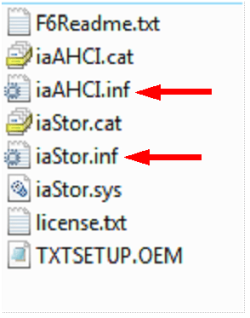
Capture3-1.PNG

The arrowed files are the two setup inf files need at step 12.
http://www.sevenforums.com/tutorials/72185-sata-drivers-slipstream-into-windows-xp-cd.html
 

My Computer My Computer

At a glance

ME/XP/Vista/Win7
OS
ME/XP/Vista/Win7
Thanks theog,

I have downloaded from the link, and slipstreamed both .inf files (they were the only items of the full list that showed when I opened the folder at the single insert page).
In the nlite "applying changes to installation" stage got message:-
"Cablib Compress ERROR: Could not flush cabinet: Could not create cabinet file Error 22: the device does not recognize the command". This came in the Integrating Drivers of the processing list.

Began again, and got the same message. This time continued to burn disk. Tried to install - the message this time is
"Line 9557 of INF file i386/txtsetup.sif is invalid".
 

My Computer My Computer

At a glance

W7 64biti54GBGinbuilt
Computer Manufacturer/Model Number
Dell Vostro 3500
OS
W7 64bit
CPU
i5
Motherboard
Dell
Memory
4GBG
Graphics Card(s)
inbuilt
Sound Card
inbuilt
Monitor(s) Displays
laptop
Hard Drives
320G
Case
laptop
A question for Wrobot, please. Where did you find the SATA driver? I have tried to get the Promise Fasttrak 376 for XP, but one site says the link is missing, tried aCnet download site, again no connection to the site, and also went to Promise.com site, but the 376 does not seem to be there either. Did you use another driver, and if so where did you get it, ...Thanks

I used the one's supplied by intel, found here: 32-bit Intel® RST Driver Files for F6 Install
 

My Computer My Computer

At a glance

Windows 7 / XP ProIntel 2.1GGz Dualcore4GBATI Mobile
Computer Manufacturer/Model Number
Sony VAIO VGN-FW520D
OS
Windows 7 / XP Pro
CPU
Intel 2.1GGz Dualcore
Memory
4GB
Graphics Card(s)
ATI Mobile
Sound Card
Realtek
Monitor(s) Displays
LCD
Hard Drives
500 GB Seagate SATA
As you can see, I followed the tut. to put Windows XP beside my Windows 7 system (Dualboot)

Do far so good, but the major problem is the ammounts of partitions. As I read some information in knowledge books, the maximum is 4.

When I did a Schrink to get approx. 30 GB Free from partition C: it seems to bee allright. Xp came with the famous blue screen. The error code 0x78D663C and another viewed blocks confirmed the problem.

What is the best for now to do. I have my full recovery from Compaq and want to keep it. What's in the HP-Tools I'd really don't know, because it's hidden.

Any suggestions to "open" the HP-Tools and put it on an USB-Stick.

Sorry for my bad English...... Thanks in Advance,

Regards,

Kimble
 

Attachments

  • Knipsel.JPG
    Knipsel.JPG
    30.3 KB · Views: 169

My Computer My Computer

At a glance

Microsoft Windows 7 Premium (OEM)AMD Sempron(tm) M100 2.00 GHZ2048Embedded
Computer Manufacturer/Model Number
Compaq Notebook CQ61
OS
Microsoft Windows 7 Premium (OEM)
CPU
AMD Sempron(tm) M100 2.00 GHZ
Motherboard
HP
Memory
2048
Graphics Card(s)
Embedded
Sound Card
Embedded but with Altec Lansing Speakers
Monitor(s) Displays
15,4" Wide screen with build in Mic - Webcam with spotlight
Screen Resolution
1366x768
Hard Drives
1 SATA 320GB
1 Optical combo CD/DVD
PSU
HP 100~260 to 18,5 Volts
Case
Shiny Black
Cooling
Embedded
Keyboard
HP Full Size
Mouse
Logitech M305
Internet Speed
20 Mbits
Dual Boot W7 and XP

I am using W7 Home. My previous PC I donated to a local Nursing Home for use in their office after changing the 200gb HDD for an 80gb.
I am now using the 200gb drive (it has four partitions) in an external drive. I can access everything that is on it.
What was the c: drive still has Windows XP installed.
Is there any way I can get this to run as a dual boot with my W7?

Just William
 

My Computer My Computer

At a glance

Windows 7 Home?4gb?
Computer Manufacturer/Model Number
Dell
OS
Windows 7 Home
CPU
?
Motherboard
?
Memory
4gb
Graphics Card(s)
?
Sound Card
?
Monitor(s) Displays
LCD
Hard Drives
320gb
200gb External, 80gb External
PSU
?
Case
?
Cooling
?
I am using W7 Home. My previous PC I donated to a local Nursing Home for use in their office after changing the 200gb HDD for an 80gb.
I am now using the 200gb drive (it has four partitions) in an external drive. I can access everything that is on it.
What was the c: drive still has Windows XP installed.
Is there any way I can get this to run as a dual boot with my W7?

Just William

Hi Just William

You can do a Repair install of Win XP first, by removing new PC's hd.
Repair Windows XP - How to Perform a Repair Installation of Windows XP - Part 1 of 2
Than reinstall New PC's HD.

Use EasyBCD 2.0 in Win 7 & Win XP.
EasyBCD 2.0 Beta Builds - The NeoSmart Forums
 

My Computer My Computer

At a glance

ME/XP/Vista/Win7
OS
ME/XP/Vista/Win7
Ok, fixed the problem with 4 partitions. Just called HP and they sant me a link with a software packgage to create the 4 (13,6 GB) DVD's.

But now.....

I have now 1 system partition, 1 Windows 7 and one bij shrinking the W7 partition by a 80 GB.

After a restart changed the boot first options tot CD/DVD.

Putting the original Windows XP into the drive and a boot. Windows is starting from the CD-Rom. He is loading everything normal and then de BSOD... What is happening ??

Windows is playing with me :mad:
 

My Computer My Computer

At a glance

Microsoft Windows 7 Premium (OEM)AMD Sempron(tm) M100 2.00 GHZ2048Embedded
Computer Manufacturer/Model Number
Compaq Notebook CQ61
OS
Microsoft Windows 7 Premium (OEM)
CPU
AMD Sempron(tm) M100 2.00 GHZ
Motherboard
HP
Memory
2048
Graphics Card(s)
Embedded
Sound Card
Embedded but with Altec Lansing Speakers
Monitor(s) Displays
15,4" Wide screen with build in Mic - Webcam with spotlight
Screen Resolution
1366x768
Hard Drives
1 SATA 320GB
1 Optical combo CD/DVD
PSU
HP 100~260 to 18,5 Volts
Case
Shiny Black
Cooling
Embedded
Keyboard
HP Full Size
Mouse
Logitech M305
Internet Speed
20 Mbits
Ok, fixed the problem with 4 partitions. Just called HP and they sant me a link with a software packgage to create the 4 (13,6 GB) DVD's.

But now.....

I have now 1 system partition, 1 Windows 7 and one bij shrinking the W7 partition by a 80 GB.

After a restart changed the boot first options tot CD/DVD.

Putting the original Windows XP into the drive and a boot. Windows is starting from the CD-Rom. He is loading everything normal and then de BSOD... What is happening ??

Windows is playing with me :mad:

Is the BSOD like one of those in the tutorials below?

http://www.sevenforums.com/tutorials/66010-sata-drivers-load-windows-xp-setup-dual-boot.html
http://www.sevenforums.com/tutorials/72185-sata-drivers-slipstream-into-windows-xp-cd.html
 

My Computer My Computer

At a glance

ME/XP/Vista/Win7
OS
ME/XP/Vista/Win7
Back
Top