
Dual boot problem, XP and 7, cannot choose between them

Do you now get the Dual Boot menu? What happens whenyou try to boot each OS?

Change the HD boot order in BIOS setup to see if the other OS boots. This is another good way to Dual Boot: set your preferred HD to boot first, or press the key given for Boot menu on first bootup screen to boot to other HD.

If still no dual boot, what happens when you try to add XP on Add/Remove tab of EasyBCD?
 
Windows XP is already on the "Add/Remove" tab.

I will try the BIOS method.
 

My Computer My Computer

OS
Windows 7
CPU
Intel Core i5-750
Motherboard
Intel DP55WG
Memory
4GB G-Skills Ripjaw 1333
Graphics Card(s)
Gigabyte HD4850
Monitor(s) Displays
Samsung SW2333, Samsung SW2233
Hard Drives
Seagate 500GB
Seagate 360GB
PSU
Antec
Case
Coolermaster
Update:

I just tried rearranging the boot order, same thing happens. Choosing XP gives me the NTLDR error.

Is it because I have the XP drive as active? Should I "de-activate" it?

Is this something to do with the boot drive being on the H: partition? Is it because I shrunk the "Files" hard drive and not the Windows 7 hard drive?
 

My Computer My Computer

OS
Windows 7
CPU
Intel Core i5-750
Motherboard
Intel DP55WG
Memory
4GB G-Skills Ripjaw 1333
Graphics Card(s)
Gigabyte HD4850
Monitor(s) Displays
Samsung SW2333, Samsung SW2233
Hard Drives
Seagate 500GB
Seagate 360GB
PSU
Antec
Case
Coolermaster
After you Repair installed Win7, did you remove XP from Easy BCD Add/Remove tab and Add it back as suggested?

It should offer you 3 boot files to place in Win7 that will enable dual boot.

If not, or if the dual boot still doesnt work, go to Control Panel>Folder Options>View tab and unhide System and Hidden Files to make sure ntdetect, boot.ini and ntldr are in the root of both OS drives.

We have helped fix many of these Dual Boots here but it is hard when I have to keep giving the same steps over and over without any report back that each is being carried out. There are several more steps to try dual booting via Windows, or we can configure a BIOS boot by making each HD boot independently via the BIOS Boot menu.
 
After you Repair installed Win7, did you remove XP from Easy BCD Add/Remove tab and Add it back as suggested?

Yes, but no change.

It should offer you 3 boot files to place in Win7 that will enable dual boot.

I didn't get three boot files anywhere...

If not, or if the dual boot still doesnt work, go to Control Panel>Folder Options>View tab and unhide System and Hidden Files to make sure ntdetect, boot.ini and ntldr are in the root of both OS drives.

Okay, where are these files located?

We have helped fix many of these Dual Boots here but it is hard when I have to keep giving the same steps over and over without any report back that each is being carried out. There are several more steps to try dual booting via Windows, or we can configure a BIOS boot by making each HD boot independently via the BIOS Boot menu.

I understand, but also consider I don't know as much as everyone else here.

Question: Can I just format the XP drive and try again? Or will that screw up my Windows 7 installation?

Again, as you can see in the easyBCD screenshots, does the fact the boot drive is on the H (Windows XP) drive a problem?
 

My Computer My Computer

OS
Windows 7
CPU
Intel Core i5-750
Motherboard
Intel DP55WG
Memory
4GB G-Skills Ripjaw 1333
Graphics Card(s)
Gigabyte HD4850
Monitor(s) Displays
Samsung SW2333, Samsung SW2233
Hard Drives
Seagate 500GB
Seagate 360GB
PSU
Antec
Case
Coolermaster
If anyone could PLEASE offer some advice it would be appreciated :( I have no idea what to do and I'm scared if I format that XP partition then everything will go to hell.
 

My Computer My Computer

OS
Windows 7
CPU
Intel Core i5-750
Motherboard
Intel DP55WG
Memory
4GB G-Skills Ripjaw 1333
Graphics Card(s)
Gigabyte HD4850
Monitor(s) Displays
Samsung SW2333, Samsung SW2233
Hard Drives
Seagate 500GB
Seagate 360GB
PSU
Antec
Case
Coolermaster
My advice is backup your DATA to G:

Remove G: to keep DATA safe.

Delete H:

Install Win XP to D: (SATA1=Disk0=Win XP)
Install Win 7 to C: (SATA2=Disk1=Win 7)

Reinstall G: DATA drive when both OS's working OK.
 

My Computer My Computer

OS
ME/XP/Vista/Win7
Can't I just delete the xp partition? Why not?
 

My Computer My Computer

OS
Windows 7
CPU
Intel Core i5-750
Motherboard
Intel DP55WG
Memory
4GB G-Skills Ripjaw 1333
Graphics Card(s)
Gigabyte HD4850
Monitor(s) Displays
Samsung SW2333, Samsung SW2233
Hard Drives
Seagate 500GB
Seagate 360GB
PSU
Antec
Case
Coolermaster
If not, or if the dual boot still doesnt work, go to Control Panel>Folder Options>View tab and unhide System and Hidden Files to make sure ntdetect, boot.ini and ntldr are in the root of both OS drives.

Okay, where are these files located?

The three files are in the root of the Win7 and XP drive. The root is the C or H drive if those are the ones where your OS's are located. After unhiding the file types specified above in Control Panel location above, look for those 3 files when you click C and H drives. If any are missing in the other drive, copy them over.

Post back a screenshot of your full Disk Management drive map so we can say for sure if removing XP will require recovering the MBR into Win7. This is done by booting the DVD Repair console and running Startup Repair up to 3 separate times with reboots. Win7 must be marked active first, so you would need to do that using a Partition Manager like Partition Wizard, which will be needed to delete XP partition anyway.

But post back a screenshot if you want to proceed with deleting XP so we can give you the exact steps to do so and recover Win7.

I'd suggest you check for the boot files first as that may be all that is needed to Add XP again in EasyBCD and make it work.
 
Okay, I managed to delete the Windows XP partition and everything is hunky dory. I used Paragon to mark the partition as inactive, and then I used EasyBCD to write the boot files again to the Windows 7 drive. All is working well.

I want to attempt this again, but I just have one question. Is it a problem that I made a new partition from the "Files" hard drive and not the hard drive with Windows 7 on it?

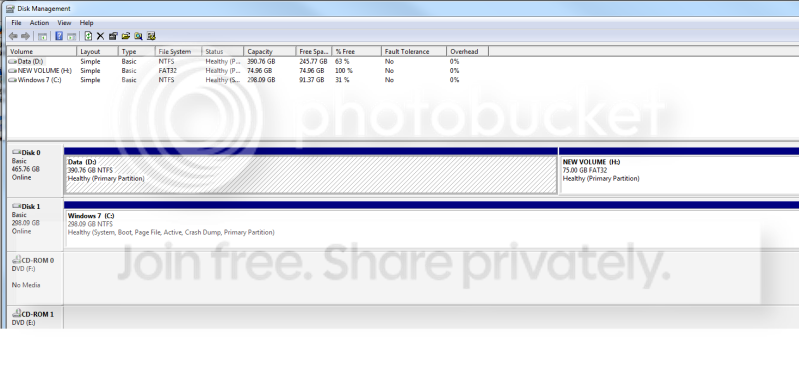
Here's a screenshot of disk management, is there anything I should know before following the steps on the tutorial again?

Also, if I was to install Windows XP again, could I just skip the EasyBCD stuff and choose at startup which hard drive I want to boot from? Or is that a bad idea?
Cheers.

Disks.png
 
Last edited:

My Computer My Computer

OS
Windows 7
CPU
Intel Core i5-750
Motherboard
Intel DP55WG
Memory
4GB G-Skills Ripjaw 1333
Graphics Card(s)
Gigabyte HD4850
Monitor(s) Displays
Samsung SW2333, Samsung SW2233
Hard Drives
Seagate 500GB
Seagate 360GB
PSU
Antec
Case
Coolermaster
If you want to set up a BIOS-managed (rather than Windows-managed) Dual Boot, then unplug the Win7 HD before XP install. It is fine to install XP where you made space.

After install, you will boot to the HD set first to boot in BIOS Boot order. Then if you want to boot to the other HD, use the shortcut key given on first bootup screen for Boot Menu to choose the other HD instead.

For example, you can set Win7 HD as first HD to boot in BIOS. Then it will boot to Win7 straightaway, unless you tap that Boot Menu shortcut key to interrupt it and choose DISK0 at bootup.

If you want to set a Windows-managed Dual Boot, follow the steps in Method Two of this tutorial: http://www.sevenforums.com/tutorials/8057-dual-boot-installation-windows-7-xp.html
 
Last edited:
Unplug "during" install, or beforehand?
 

My Computer My Computer

OS
Windows 7
CPU
Intel Core i5-750
Motherboard
Intel DP55WG
Memory
4GB G-Skills Ripjaw 1333
Graphics Card(s)
Gigabyte HD4850
Monitor(s) Displays
Samsung SW2333, Samsung SW2233
Hard Drives
Seagate 500GB
Seagate 360GB
PSU
Antec
Case
Coolermaster
Also, I will try the windows method again after installing to see if it Will work. I will report back afterwards.
 

My Computer My Computer

OS
Windows 7
CPU
Intel Core i5-750
Motherboard
Intel DP55WG
Memory
4GB G-Skills Ripjaw 1333
Graphics Card(s)
Gigabyte HD4850
Monitor(s) Displays
Samsung SW2333, Samsung SW2233
Hard Drives
Seagate 500GB
Seagate 360GB
PSU
Antec
Case
Coolermaster

My Computer My Computer

OS
ME/XP/Vista/Win7
Method One is for when XP is installed first, before Win7.

Method Two is for when XP is installed last, after Win7.

As he already has Win7 installed, if he were to reinstall XP, then he would need to use the steps in Method Two of the tutorial, using EasyBCD to add XP to Dual Boot.

I would use EasyBCD 2.0 beta as it is automated
 

My Computer My Computer

OS
ME/XP/Vista/Win7
Also, if I was to install Windows XP again, could I just skip the EasyBCD stuff and choose at startup which hard drive I want to boot from? Or is that a bad idea?
Cheers.
If you want to set up a BIOS-managed (rather than Windows-managed) Dual Boot, then unplug the Win7 HD before XP install. It is fine to install XP where you made space.

After install, you will boot to the HD set first to boot in BIOS Boot order. Then if you want to boot to the other HD, use the shortcut key given on first bootup screen for Boot Menu to choose the other HD instead.

For example, you can set Win7 HD as first HD to boot in BIOS. Then it will boot to Win7 straightaway, unless you tap that Boot Menu shortcut key to interrupt it and choose DISK0 at bootup.

If you want to set a Windows-managed Dual Boot, follow the steps in Method Two of this tutorial: http://www.sevenforums.com/tutorials/8057-dual-boot-installation-windows-7-xp.html

Above is my full response to the OP's question. I still believe it is correct.
 
Back
Top