
How to Configure Windows to Create a Dump File for when you get a BSOD
Information
This will show you how to set to create either a Kernel memory dump, Small memory dump (minidump), Complete memory dump, or no memory dump file when you get a BSOD (Blue Screen of Death) in Vista, Windows 7, and Windows 8.
For more information about crash dump files, please see: Understanding Crash Dump Files - Ask the Performance Team - Site Home - TechNet Blogs
You must be logged in as an administrator to be able to do this tutorial.
For more information about crash dump files, please see: Understanding Crash Dump Files - Ask the Performance Team - Site Home - TechNet Blogs
You must be logged in as an administrator to be able to do this tutorial.
Note
Complete memory dump
A complete memory dump records all the contents of physical memory (RAM) at the time of the crash. A complete memory dump may contain data from processes that were running when the memory dump was collected. If a second crash occurs and another complete memory dump (or kernel memory dump) file is created, the previous contents of the C:\Windows\MEMORY.DMP file are overwritten.
By default, the complete memory dump option is not available in Startup and Recovery on computers that have 2 gigabytes (GB) or more of RAM installed. You can still set Windows to create a Complete memory dump using the REG file in step 4 of Option Two below though.
The complete memory dump will require that there is a page file set to at least the size of physical memory installed plus 1MB (for the header).
Kernel memory dump
A kernel dump contains only the kernel-mode read / write pages present in physical memory at the time of the crash. Since this is a kernel-mode only dump, there are no pages belonging to user-mode processes. However, it is unlikely that the user-mode process pages would be required since a system crash (bugcheck) is usually caused by kernel-mode code. The list of running processes, state of the current thread and list of loaded drivers are stored in nonpaged memory that saves in a kernel memory dump. The size of a kernel memory dump will vary based on the amount of kernel-mode memory allocated by Windows and the drivers that are present on the system.
If a second crash occurs and another kernel memory dump (or complete memory dump) file is created, the previous contents of the C:\Windows\MEMORY.DMP file are overwritten.
Small memory dump
A small memory dump (Minidump) is a C:\Windows\Minidump dump file that contains the stop code, parameters, list of loaded device drivers, information about the current process and thread, and the kernel stack for the thread that caused the crash.
OPTION ONE
Configure Dump File Settings in "Startup and Recovery"
1. Open the Start Menu, copy and paste SystemPropertiesAdvanced.exe into the search box, and press Enter.
2. If prompted by UAC, then click on Yes (Windows 7) or Continue (Vista).
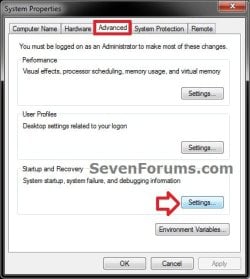
3. In the Advanced tab, click on the Settings button under Startup and Recovery. (see screenshot below)
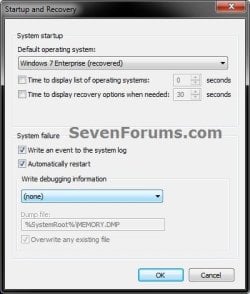
4. Check both the Write an event to the system log and Automatically restart boxes. (see screenshots below)
5. To Not have Windows Create a Dump File on BSOD
A) Select (none) from the Write debugging information drop down menu, and click on OK. (see screenshot below)
B) Go to step 9.
6. To have Windows Create a Small memory dump (Minidump) File on BSOD
A) Select Small memory dump (# KB) from the Write debugging information drop down menu. (see screenshot below)
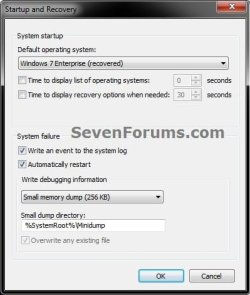
B) Check to make sure that Small dump directory has the location below entered for it, and click on OK. (see screenshot above)
%SystemRoot%\Minidump
C) Go to step 9.
7. To have Windows Create a Kernel memory dump File on BSOD
NOTE: This is the default setting.
A) Select Kernel memory dump from the Write debugging information drop down menu. (see screenshot below)
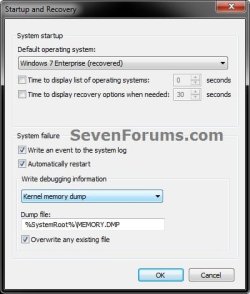
B) Check to make sure that Dump file has the location below entered for it. (see screenshot above)
%SystemRoot%\MEMORY.DMP
C) Check the Overwrite any existing file box, and click on OK. (see screenshot above)
D) Go to step 9.
8. To have Windows Create a Complete memory dump File on BSOD
WARNING: See the NOTE box at the top of the tutorial for important information about the page file requirements for this type of dump file to be created. This option will not be available if you have 2GB or more of RAM installed.
A) Select Complete memory dump from the Write debugging information drop down menu. (see screenshot below)

B) Check to make sure that Dump file has the location below entered for it. (see screenshot above)
%SystemRoot%\MEMORY.DMP
C) Check the Overwrite any existing file box, and click on OK. (see screenshot above)
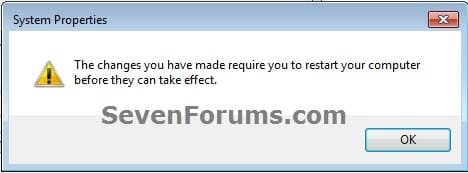
D) If prompted, click on OK. (see screenshot below)
E) Continue on to step 9.
9. Click on OK. (see screenshot below step 3)
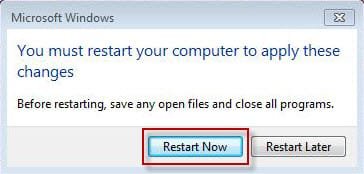
10. If prompted, click on Restart after you save and close anything that you have open. (see screenshot below)
OPTION TWO
Configure Dump File Settings with a REG File Download
1. To Not have Windows Create a Dump File on BSOD
A) Click on the Download button below to download the below.
Create_NO_Dump_File_on_BSOD.reg
Download
B) Go to step 5.
2. To have Windows Create a Small memory dump (Minidump) File on BSOD
A) Click on the Download button below to download the below.
Create_Minidump_on_BSOD.reg
Download
B) Go to step 5.
3. To have Windows Create a Kernel memory dump File on BSOD
NOTE: This is the default setting.
A) Click on the Download button below to download the below.
Create_Kernel_memory_dump_on_BSOD.reg
Download
B) Go to step 5.
4. To have Windows Create a Complete memory dump File on BSOD
WARNING: See the NOTE box at the top of the tutorial for important information about the page file requirements for this type of dump file to be created.
A) Click on the download button below to download the below.
Create_Complete_memory_dump_on_BSOD.reg
Download
B) Continue on to step 5.
5. Save the .reg file to your desktop.
6. Double click on the downloaded .reg file to merge it.
7. When prompted, click on Run, Yes (UAC-Windows 7/8) or Continue (UAC-Vista), Yes, and OK to approve merging the .reg file.
8. Restart the computer to apply.
9. You can now delete the downloaded .reg file if you like.
OPTION THREE
Configure Dump File Settings in Elevated Command Prompt
1. Open an elevated command prompt.
2. To View the Current Memory Dump Type Setting
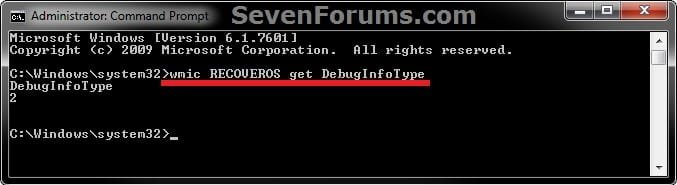
A) Copy and paste the command below into the elevated command prompt, and press Enter. (see screenshot below)
NOTE: For example, it is set to 2 for a kernal memory dump.
wmic RECOVEROS get DebugInfoType
B) Do step 3, 4, 5, or 6 below for what type of memory dump you would like to have created if you get a BSOD.
3. To Not have Windows Create a Dump File on BSOD
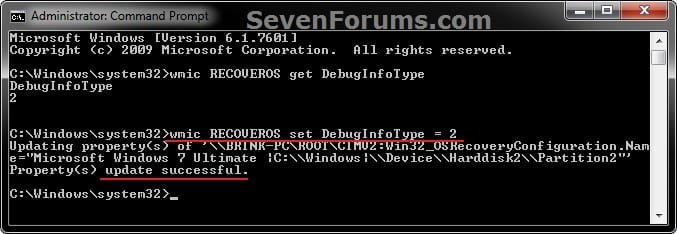
A) Copy and paste the command below into the elevated command prompt, and press Enter. (see screenshot below step 7)
wmic RECOVEROS set DebugInfoType = 0
B) Go to step 7.
4. To have Windows Create a Small memory dump (Minidump) File on BSOD
A) Copy and paste the command below into the elevated command prompt, and press Enter. (see screenshot below step 7)
wmic RECOVEROS set DebugInfoType = 3
B) Go to step 7.
5. To have Windows Create a Kernel memory dump File on BSOD
NOTE: This is the default setting.
A) Copy and paste the command below into the elevated command prompt, and press Enter. (see screenshot below step 7)
wmic RECOVEROS set DebugInfoType = 2
B) Go to step 7.
6. To have Windows Create a Complete memory dump File on BSOD
WARNING: See the NOTE box at the top of the tutorial for important information about the page file requirements for this type of dump file to be created.
A) Copy and paste the command below into the elevated command prompt, and press Enter. (see screenshot below step 7)
wmic RECOVEROS set DebugInfoType = 1
B) Go to step 7.
7. Close the elevated command prompt.
8. Restart the computer to apply.
That's it,
Shawn
Attachments
Last edited:


