Edit

Riptorn

Windows 7 Guru
Power User
VIP
Local time
1:24 AM
Messages
120
Location
Brisbane
Hi, I want to know if it is possible to change the edit in mspaint to photoshop?,if I select a jpeg and right click the edit menu is there but it opens in paint, i want it to open in photoshop. can anyone help here? do not get confused as to open with. this is edit with.
 

My Computer

Computer Manufacturer/Model Number
Dell Inspiron 1525
OS
Windows 7 - 32 Bit
Memory
4 GB
Hard Drives
320 GB
Internet Speed
Broadband
Instead of clicking "edit", click "open with", instead, and select Adobe Photoshop.
Or, if you want all certain file types to open in Photoshop, Open Control Panel > Control Panel Home > Default Programs > Set Associations. Select a file type in the list and click Change Program.
 

My Computer

Computer Manufacturer/Model Number
Custom Build
OS
Windows 7 Pro/32 Academic. Build 7600
CPU
Intel 2.3 Duo core
Motherboard
EliteGroup G31T-M
Memory
4 GB DDR
Graphics Card(s)
Nvidia GeForce 9500 GT
Sound Card
Built in
Monitor(s) Displays
Viewsonic 15" 4:3
Screen Resolution
1280 x 1024
Hard Drives
WD Caviar Black 750 GB
WD 250 GB External
PSU
Antec 450w
Keyboard
Standard windows
Mouse
Logitech USB
Internet Speed
Bellsouth DSL 6.0
Instead of clicking "edit", click "open with", instead, and select Adobe Photoshop.
Or, if you want all certain file types to open in Photoshop, Open Control Panel > Control Panel Home > Default Programs > Set Associations. Select a file type in the list and click Change Program.
Thanks but i know all that, i want to edit in photoshop not paint as it opens up in paint,i already have it to open in picasa,i want to edit in photoshop.
 

My Computer

Computer Manufacturer/Model Number
Dell Inspiron 1525
OS
Windows 7 - 32 Bit
Memory
4 GB
Hard Drives
320 GB
Internet Speed
Broadband

My Computer

Computer Manufacturer/Model Number
Custom Build
OS
Windows 7 Pro/32 Academic. Build 7600
CPU
Intel 2.3 Duo core
Motherboard
EliteGroup G31T-M
Memory
4 GB DDR
Graphics Card(s)
Nvidia GeForce 9500 GT
Sound Card
Built in
Monitor(s) Displays
Viewsonic 15" 4:3
Screen Resolution
1280 x 1024
Hard Drives
WD Caviar Black 750 GB
WD 250 GB External
PSU
Antec 450w
Keyboard
Standard windows
Mouse
Logitech USB
Internet Speed
Bellsouth DSL 6.0

My Computer

Computer type
PC/Desktop
Computer Manufacturer/Model Number
Self Built
OS
Windows 7 Ultimate 64bit
CPU
AMD Phenom Quad core 9950 black edition
Motherboard
Gigabyte
Memory
16Gb
Graphics Card(s)
2x XFX Radeon 5850
Sound Card
PCI Express X-Fi Titanium / Logitech G35
Monitor(s) Displays
2x HP 2410i
Screen Resolution
1920x1080
Hard Drives
2x 500Gb Seagate
1x 300Gb Seagate
1x 1Tb Seagate
2x 1Tb Hitatchi
PSU
Jean Tech Storm 700W
Case
Cooler Master COSMOS S
Cooling
Akasa Evo Blue Pro
Keyboard
Logitech G15
Mouse
Mad Catz M.M.O. 7
Internet Speed
12mb

My Computer

Computer Manufacturer/Model Number
Dell Inspiron 1525
OS
Windows 7 - 32 Bit
Memory
4 GB
Hard Drives
320 GB
Internet Speed
Broadband
Can you give us a screen snip of what your seeing please pal ;)
 

My Computer

Computer type
PC/Desktop
Computer Manufacturer/Model Number
Self Built
OS
Windows 7 Ultimate 64bit
CPU
AMD Phenom Quad core 9950 black edition
Motherboard
Gigabyte
Memory
16Gb
Graphics Card(s)
2x XFX Radeon 5850
Sound Card
PCI Express X-Fi Titanium / Logitech G35
Monitor(s) Displays
2x HP 2410i
Screen Resolution
1920x1080
Hard Drives
2x 500Gb Seagate
1x 300Gb Seagate
1x 1Tb Seagate
2x 1Tb Hitatchi
PSU
Jean Tech Storm 700W
Case
Cooler Master COSMOS S
Cooling
Akasa Evo Blue Pro
Keyboard
Logitech G15
Mouse
Mad Catz M.M.O. 7
Internet Speed
12mb

Attachments

  • Capture.PNG
    Capture.PNG
    24.3 KB · Views: 6

My Computer

Computer Manufacturer/Model Number
Dell Inspiron 1525
OS
Windows 7 - 32 Bit
Memory
4 GB
Hard Drives
320 GB
Internet Speed
Broadband
Hi
Just try to select the image using ctrl+c, open photoshop and select File>New..it will pop up a box so that you can choose the image size. Just bellow the Name you can see definitions. Its default value is Personalized. Click and verify if the Clipboard board is greyed out.

madgirl
 

My Computer

OS
Windows Ultimate 32
CPU
Intel Core2 Duo E7500 2.93GHz
Motherboard
ASUS p/ Intel P5G41-M LX 775
Memory
3 gb
Graphics Card(s)
vga XFX 1024MB (1GB) GeForce 9500 GT DDR2
Monitor(s) Displays
samsung syncmaster 931c
Hard Drives
500 gb - SeaGate and Samsumg 500 gb
Can you give us a screen snip of what your seeing please pal ;)
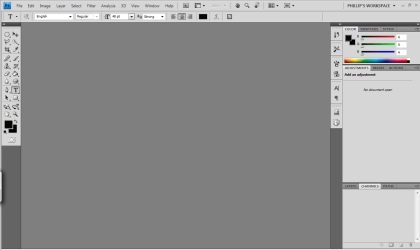
I select edit and photoshop opens but the image is not there?

Okidoki pal

Below is 3 files (a .jpg a .png and a .psd) save all 3 files to your hdd (follow the tutorial http://www.sevenforums.com/tutorials/12196-open-change-default-program.html making sure you assign "photoshop" as the default program for all 3. Once you've done this then 2x click on each file (they should open up with PS) .... let us know what results you get.
 

Attachments

  • glass globe.jpg
    glass globe.jpg
    50.9 KB · Views: 4
  • glass globe.png
    glass globe.png
    315.9 KB · Views: 6
  • glass globe.psd
    glass globe.psd
    984.7 KB · Views: 16

My Computer

Computer type
PC/Desktop
Computer Manufacturer/Model Number
Self Built
OS
Windows 7 Ultimate 64bit
CPU
AMD Phenom Quad core 9950 black edition
Motherboard
Gigabyte
Memory
16Gb
Graphics Card(s)
2x XFX Radeon 5850
Sound Card
PCI Express X-Fi Titanium / Logitech G35
Monitor(s) Displays
2x HP 2410i
Screen Resolution
1920x1080
Hard Drives
2x 500Gb Seagate
1x 300Gb Seagate
1x 1Tb Seagate
2x 1Tb Hitatchi
PSU
Jean Tech Storm 700W
Case
Cooler Master COSMOS S
Cooling
Akasa Evo Blue Pro
Keyboard
Logitech G15
Mouse
Mad Catz M.M.O. 7
Internet Speed
12mb
Hi
Just try to select the image using ctrl+c, open photoshop and select File>New..it will pop up a box so that you can choose the image size. Just bellow the Name you can see definitions. Its default value is Personalized. Click and verify if the Clipboard board is greyed out.

madgirl
it's greyed out.
 

My Computer

Computer Manufacturer/Model Number
Dell Inspiron 1525
OS
Windows 7 - 32 Bit
Memory
4 GB
Hard Drives
320 GB
Internet Speed
Broadband
Can you give us a screen snip of what your seeing please pal ;)
I select edit and photoshop opens but the image is not there?

Okidoki pal

Below is 3 files (a .jpg a .png and a .psd) save all 3 files to your hdd (follow the tutorial http://www.sevenforums.com/tutorials/12196-open-change-default-program.html making sure you assign "photoshop" as the default program for all 3. Once you've done this then 2x click on each file (they should open up with PS) .... let us know what results you get.
well, i did it all, but now picasa does not open as my default image editor.what i want is for photoshop to open jpegs in the EDIT menu when you right click the image.
 

My Computer

Computer Manufacturer/Model Number
Dell Inspiron 1525
OS
Windows 7 - 32 Bit
Memory
4 GB
Hard Drives
320 GB
Internet Speed
Broadband
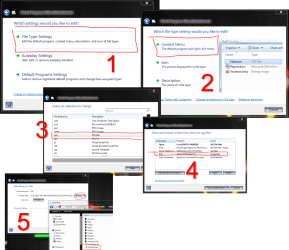
Okidoki pal, i sorta get what you're trying to do. I've had a look into it and there are a few registry keys that need to be changed to achieve what your looking to do.
I've tried out a little free prog (that needs no installation) that will give you the same options without the need to edit the registry Default Programs Editor hopefully this will help you out ;)
 

Attachments

  • context menu.png
    context menu.png
    142.1 KB · Views: 8
Last edited:

My Computer

Computer type
PC/Desktop
Computer Manufacturer/Model Number
Self Built
OS
Windows 7 Ultimate 64bit
CPU
AMD Phenom Quad core 9950 black edition
Motherboard
Gigabyte
Memory
16Gb
Graphics Card(s)
2x XFX Radeon 5850
Sound Card
PCI Express X-Fi Titanium / Logitech G35
Monitor(s) Displays
2x HP 2410i
Screen Resolution
1920x1080
Hard Drives
2x 500Gb Seagate
1x 300Gb Seagate
1x 1Tb Seagate
2x 1Tb Hitatchi
PSU
Jean Tech Storm 700W
Case
Cooler Master COSMOS S
Cooling
Akasa Evo Blue Pro
Keyboard
Logitech G15
Mouse
Mad Catz M.M.O. 7
Internet Speed
12mb
Okidoki pal, i sorta get what you're trying to do. I've had a look into it and there are a few registry keys that need to be changed to achieve what your looking to do.
I've tried out a little free prog (that needs no installation) that will give you the same options without the need to edit the registry Default Programs Editor hopefully this will help you out ;)
Thanks PooMan, I tried it,it works ok,but photoshop still will not view the image,it opens up in photoshop but no image,but if i choose mspaint it opens up ok???...Aaaggghhhhhhh...why why why??
 

My Computer

Computer Manufacturer/Model Number
Dell Inspiron 1525
OS
Windows 7 - 32 Bit
Memory
4 GB
Hard Drives
320 GB
Internet Speed
Broadband
What version of Photoshop have you installed?
 

My Computer

Computer type
PC/Desktop
OS
Microsoft Windows 7 Home Premium 64-bit 7601 Multiprocessor Free Service Pack 1
CPU
Intel(R) Core(TM) i7-3770 CPU @ 3.40GHz
Motherboard
ASUSTeK COMPUTER INC. P8H77-M
Memory
8.00 GB
Graphics Card(s)
Intel(R) HD Graphics 4000
Sound Card
On Board
Monitor(s) Displays
Dell 24"
Screen Resolution
1920 x 1080
Hard Drives
(1) INTEL SSDSC2CT180A3 ATA Device (2) ST500DM002-1BD142 ATA Device (3) WDC WD3200AAKS-75L9A0 ATA Device (4) Generic- Compact Flash USB Device (5) Generic- MS/MS-Pro USB Device (6) Generic- SD/MMC USB Device (7) Generic- SM/xD-Picture USB
PSU
500w Corsair
Case
Cooler Master
Cooling
3 Fans
Keyboard
Logitech MK300
Mouse
Logitech WOM
Internet Speed
75Mb
Antivirus
Norton 360
Browser
Firefox, Opera, IE

My Computer

Computer Manufacturer/Model Number
Dell Inspiron 1525
OS
Windows 7 - 32 Bit
Memory
4 GB
Hard Drives
320 GB
Internet Speed
Broadband
Hello Mate,

Try this if your confident

I was in the same boat because I was quite happy to have Vista use Windows Photo Gallery to preview my pictures on a double-click, as typically I just want to look at them without having to open a whole new application to do so, but wanted Photoshop Elements to open on a right-click Edit. After lots of searching I've concluded that it isn't possible to do in Vista using the GUI, but if you feel confident enough, you can change it in the registry. And here's how:

  1. Open up the registry editor (Regedit.exe) as an administrator
  2. Under HKEY_CLASSES_ROOT, find the file extension you want to change (in this case .jpg)
  3. Take a note of what is listed under this key as the Default value (in this case it was "jpegfile")
  4. Find this entry further down under HKEY_CLASSES_ROOT - it'll be located past the end of the file extensions bit
  5. Expand this entry and you will probably find three subkeys - CLSID, DefaultIcon and Shell
  6. Expand "Shell" and under here will be a subkey for each right-click menu item (in this case I had Edit, Open and Print)
  7. Under "Edit" you'll find another key called "Command", the default value of which is the program currently used to open the file when editing
  8. Change this value to the full path of your chosen editing program (in my case it was "C:\Program Files (x86)\Adobe\Photoshop Elements 7.0\PhotoshopElementsEditor.exe")
  9. After the final speech mark you will need to add a space, then a percent sign and the number one (e.g. Editor.exe" %1) - this tells the program not only to open, but to load the picture file you were right clicking on at the same time.
Hopefully that should work for you - it did for me!

How do I change the default file associations for Open, Preview, Edit and Print in Vista?
 

My Computer

Computer Manufacturer/Model Number
Samsung NP550P5C-S02IN
OS
Windows 7 Ultimate - 64-bit | Windows 8 Pro - 64-bit
CPU
Intel® Core™ i7 Processor 3,610QM (2.30Hz, 6MB L3 Cach
Memory
8 GB
Graphics Card(s)
NVIDIA® GeForce® GT 650M 2GB Graphics, Optimus™ techno
Sound Card
SoundAlive™ JBL 3 Speakers (With sub-Woofer)
Monitor(s) Displays
39.62cm (15.6) SuperBright 300nit HD+ LED Display
Screen Resolution
1,600 x 900, Anti-Reflective
Hard Drives
1TB S-ATA II Hard Drive (5,400RPM)
Try this:
Select a jpeg. Right click and select "Open with..." From that window select "Choose default program" at the bottom. In the next window if PS is shown select it, if it doesn't show click browse and browse to PS exe file and select. Make sure the check box that reads "Always use the selected program for this type of file" is checked. Click OK. CLOSE Windows explorer and reopen. See if that works!
 

My Computer

Computer type
PC/Desktop
OS
Microsoft Windows 7 Home Premium 64-bit 7601 Multiprocessor Free Service Pack 1
CPU
Intel(R) Core(TM) i7-3770 CPU @ 3.40GHz
Motherboard
ASUSTeK COMPUTER INC. P8H77-M
Memory
8.00 GB
Graphics Card(s)
Intel(R) HD Graphics 4000
Sound Card
On Board
Monitor(s) Displays
Dell 24"
Screen Resolution
1920 x 1080
Hard Drives
(1) INTEL SSDSC2CT180A3 ATA Device (2) ST500DM002-1BD142 ATA Device (3) WDC WD3200AAKS-75L9A0 ATA Device (4) Generic- Compact Flash USB Device (5) Generic- MS/MS-Pro USB Device (6) Generic- SD/MMC USB Device (7) Generic- SM/xD-Picture USB
PSU
500w Corsair
Case
Cooler Master
Cooling
3 Fans
Keyboard
Logitech MK300
Mouse
Logitech WOM
Internet Speed
75Mb
Antivirus
Norton 360
Browser
Firefox, Opera, IE
Hello Mate,

Try this if your confident

I was in the same boat because I was quite happy to have Vista use Windows Photo Gallery to preview my pictures on a double-click, as typically I just want to look at them without having to open a whole new application to do so, but wanted Photoshop Elements to open on a right-click Edit. After lots of searching I've concluded that it isn't possible to do in Vista using the GUI, but if you feel confident enough, you can change it in the registry. And here's how:

  1. Open up the registry editor (Regedit.exe) as an administrator
  2. Under HKEY_CLASSES_ROOT, find the file extension you want to change (in this case .jpg)
  3. Take a note of what is listed under this key as the Default value (in this case it was "jpegfile")
  4. Find this entry further down under HKEY_CLASSES_ROOT - it'll be located past the end of the file extensions bit
  5. Expand this entry and you will probably find three subkeys - CLSID, DefaultIcon and Shell
  6. Expand "Shell" and under here will be a subkey for each right-click menu item (in this case I had Edit, Open and Print)
  7. Under "Edit" you'll find another key called "Command", the default value of which is the program currently used to open the file when editing
  8. Change this value to the full path of your chosen editing program (in my case it was "C:\Program Files (x86)\Adobe\Photoshop Elements 7.0\PhotoshopElementsEditor.exe")
  9. After the final speech mark you will need to add a space, then a percent sign and the number one (e.g. Editor.exe" %1) - this tells the program not only to open, but to load the picture file you were right clicking on at the same time.
Hopefully that should work for you - it did for me!
How do I change the default file associations for Open, Preview, Edit and Print in Vista?
Hi Capt.Jack Sparrow, Well i did what you said,photoshop opens up ok but no image?but if i put back mspaint it opens up with the image???aggggghhhhhhhh
 

My Computer

Computer Manufacturer/Model Number
Dell Inspiron 1525
OS
Windows 7 - 32 Bit
Memory
4 GB
Hard Drives
320 GB
Internet Speed
Broadband
Try this:
Select a jpeg. Right click and select "Open with..." From that window select "Choose default program" at the bottom. In the next window if PS is shown select it, if it doesn't show click browse and browse to PS exe file and select. Make sure the check box that reads "Always use the selected program for this type of file" is checked. Click OK. CLOSE Windows explorer and reopen. See if that works!
Sorry mitchell65,ot doesn't work,photoshop opens up but no image?:mad:
 

My Computer

Computer Manufacturer/Model Number
Dell Inspiron 1525
OS
Windows 7 - 32 Bit
Memory
4 GB
Hard Drives
320 GB
Internet Speed
Broadband
Back
Top