Elevated Program Shortcut - Create for Standard User

How to Create an Elevated Program Shortcut Any User is able to Run in Vista, Windows 7, and Windows 8

   Information
This will show you how to create an elevated program shortcut that allows any user (ex: Standard user) to be able to run a program that runs as administrator without being prompted to enter the administator's password each time in Vista, Windows 7, and Windows 8.

   Note
If the user you want to have this shortcut has been restricted with Parental Controls in Windows 7 with it set as Standard Account can only use the programs I allow, then they will not be able to use the shortcut in this tutorial since they will not be allowed to use the runas.exe file used by this shortcut. Windows 7 will not allow runas.exe to be added to the allowed to run list.


If the user you want to have this shortcut has been restricted with Family Safety in Windows 8 with it set as (user) can only use the apps I allow, then they will not be able to use the shortcut in this tutorial since they will not be allowed to use the runas.exe file used by this shortcut. Windows 8 will not allow runas.exe to be added to the allowed to run list.


You will not be able to do this in Vista Starter, Vista Home Basic, Vista Home Premium, Windows 7 Home Basic, and Windows 7 Starter editions since the runas /savecred switch option is not available and will be ignored in them.


If you disable the built-in Administrator account, the elevated shortcut will stop working until you enable the built-in Administrator again. This is because the elevated shortcut uses the password of the built-in Administrator to approve running it.


OPTION ONE

To Create Elevated Shortcut for User using RunasSPC Program


1. Download the free RunasSPC program in a .zip file at the site below.

Download


2. The link below can help show you how to use the program.
Runas Spc guidance and examples
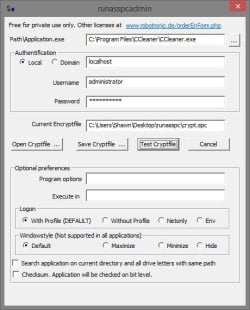

runasspcadmin.jpg


OPTION TWO

To Create Elevated Shortcut for User using runas Command


   Tip
This option uses the runas command included in Windows.

The Administrator's password (credential) used by the elevated shortcut is encrypted and stored in the Credential Manager (Control Panel (icons view)) as an "interactive logon" entry under Windows Credentials for only that user account like below.

The Administrator account's password cannot be viewed.

If you like, you can Remove (delete) this credential at anytime in Credential Manager to strip the password from the elevated shortcut to make it ask for the password again when opened like in step 18 below.
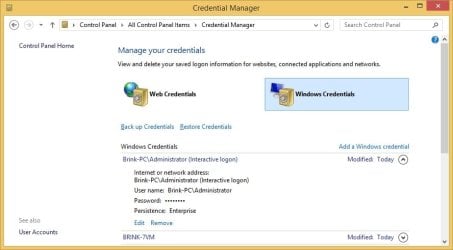
Credential_Manager.jpg

   Warning
This elevated shortcut creates a security hole.

It would be best to only do this with a trusted user.

Once you have created the elevated shortcut, the user can use the built-in Administrator's saved credentials in Credential Manager along with the command below to run and access anything they want on the computer with the same rights as the built-in Administrator.

RUNAS /savecred /user:administrator "command to run"


1. If you have not already, enable the built-in elevated "Administrator" account, and create a password for it.

   Warning
You must use the actual built-in Administrator account, and not just another administrator type user account. If you don't the shortcut will not work.


2. Log in to the built-in Administrator account, right click or press and hold on an empty space on the desktop, and click/tap on New and Shortcut.


3. Type the location below into the location area, and click/tap on the Next button. (see screenshot below)
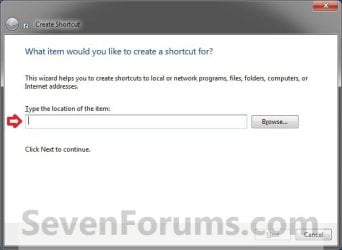
Step1.jpg

   Note

  • You would substitute ComputerName in the command below with the actual computer name.
  • If the Administrator account has been renamed, then you would also need to substitute Administrator in the command below with the new name.
  • You would substitute Full path to program's exe file in the command below with the actual full path of the elevated program's exe file within quotes that you want to have the standard user be able to run.
Code:
runas /user:[B][COLOR=red]ComputerName[/COLOR][/B]\[B]Administrator[/B] /savecred "[B][COLOR=red]Full path to program's exe file[/COLOR][/B]"
For example: I would like to have a standard user to be able to run CCleaner without me or them having to enter the Administrator's account password each time. For this, I would type this:
Code:
runas /user:[B][COLOR=red]Brink-PC[/COLOR][/B]\[B]Administrator[/B] /savecred "[B][COLOR=red]C:\Program Files\CCleaner\CCleaner.exe[/COLOR][/B]"
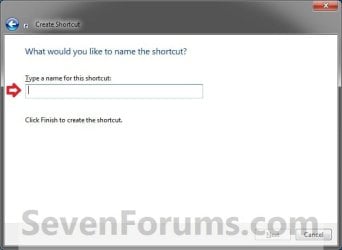
3. Type in the name of the program (ex: CCleaner), and click/tap on the Finish button. (see screenshot below)
Step2.jpg
4. Right click or press and hold on the new shortcut, click/tap on Properties, Shortcut tab, and on the Change Icon button. (see screenshot below)
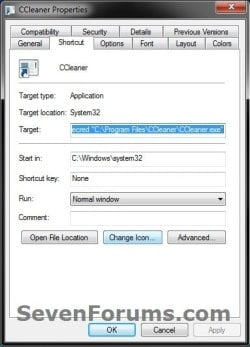
Step3.jpg
5. Click/tap on OK. (see screenshot below)
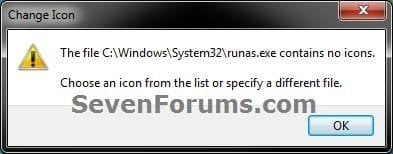
Step4.jpg
6. Click/tap on the Browse button, navigate to the location of the program's (ex: CCleaner) exe file, click on Open, select the program's icon, and click/tap on OK. (see screenshots below)
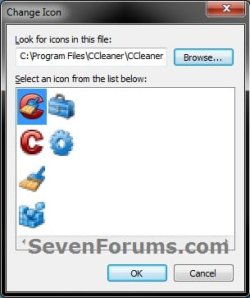
Step5A.jpg

Step5B.jpg

7. Click/tap on OK. (see screenshot below)
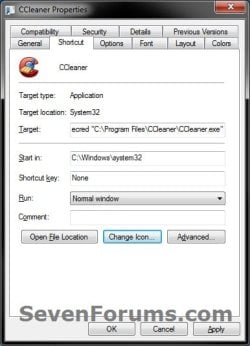
Step6.jpg
8. While still logged in to the "Administrator" account, copy the shortcut to the desktop folder of the user account (ex: Test) that you would like to be able to run this elevated program without getting a UAC prompt or having to provide the administrator's password for it.
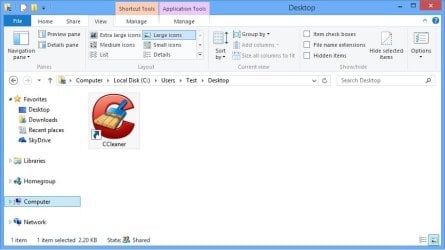
Desktop.jpg
9. Right click or swipe down on the shortcut on the user's desktop that you just copied to, and click/tap on Properties. (see screenshot above)

10. Click/tap on the Security tab, and Advanced button. (see screenshot below)
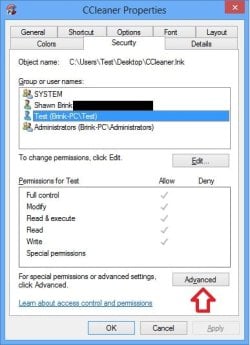
Security-1.jpg
11. Select the user account (ex: Test) that the elevated shortcut is for, and click/tap on the Disable inheritance button. (see screenshot below)
Security-2.jpg
12. Click/tap on Convert inherited permissions into explicit permissions on this object. (see screenshot below)
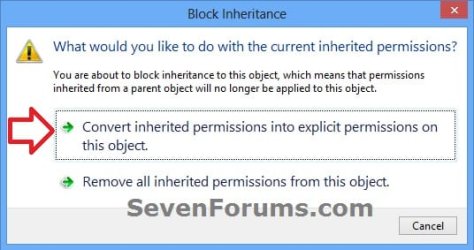
Security-3.jpg
13. Select the user account (ex: Test), and click/tap on the Edit button. (see screenshot below)
security-4.jpg
14. Make sure that only the Read & execute and Read "Allow" permissions are checked, and click/tap on OK. (see screenshot below)
NOTE: This will prevent the user (ex: Test) from being able to change the target of the elevated shortcut, and only be able to run the program the elevated shortcut was created to run.
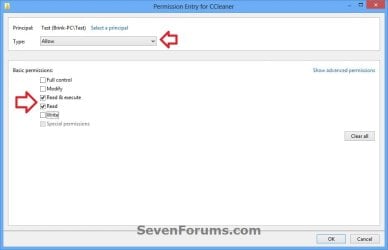
Security-5.jpg
15. Click/tap on OK. (see screenshot below)
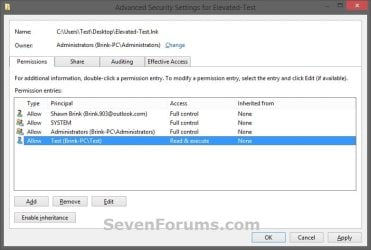
Read_Execute.jpg
16. Click/tap on OK. (see screenshot below)
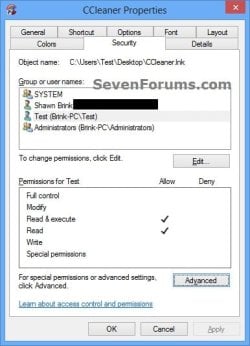
Security-7.jpg
17. Log on to the user account (ex: Test) that you made a copy of this shortcut to, and run the shortcut.

18. In the command prompt that opened, type in your built-in Administrator account's password and press Enter. You will not see the password while you are typing it in. (see screenshot below)

NOTE: You will only have to enter the Administrator's password for only the first time that this shortcut is ran in the user account (ex: Test). Afterwards, it will be remembered and entered automatically for the user when they run it without anyone being able to see the password.
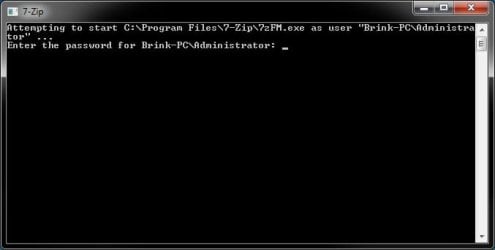
step7.jpg
19. In Vista and Windows 7, the user can now Pin to Taskbar (Windows 7 only) or Pin to Start Menu, add to Quick Launch, assign a keyboard shortcut to it, or move this shortcut to where you like for easy use.

20. In Windows 8 and 8.1, the user can Pin to Taskbar on desktop, Pin to Start screen, add to Quick Launch, assign a keyboard shortcut to it, or move this shortcut to where you like for easy use.


That's it,
Shawn


Last edited:
What were the names of the 3 programs, and I'll see if I may be able to install them to play with. :)
 

My Computer

Computer type
PC/Desktop
Computer Manufacturer/Model Number
Self built custom
OS
64-bit Windows 11 Pro for Workstations
CPU
Intel i7-8700K OC'd to 5 GHz
Motherboard
ASUS ROG Maximus XI Formula Z390
Memory
64 GB (4x16GB) G.SKILL TridentZ RGB DDR4 3600 MHz
Graphics Card(s)
ASUS ROG-STRIX-GTX1080TI-O11G-GAMING
Sound Card
Integrated
Monitor(s) Displays
2 x Samsung Odyssey G7 27"
Screen Resolution
2560x1440
Hard Drives
1TB Samsung 990 PRO M.2,
4TB Samsung 990 PRO PRO M.2,
TerraMaster F8 SSD Plus NAS
PSU
Seasonic Prime Titanium 850W
Case
Thermaltake Core P3
Cooling
Corsair Hydro H115i
Keyboard
Logitech wireless K800
Mouse
Logitech MX Master 4
Internet Speed
2 Gb/s Download and 100 Mb/s Upload
Antivirus
Malwarebyte Anti-Malware Premium
Browser
Google Chrome
Other Info
Logitech Z625 speaker system,
Logitech BRIO 4K Pro webcam,
HP Color LaserJet Pro MFP M477fdn,
APC SMART-UPS RT 1000 XL - SURT1000XLI,
Galaxy S23 Plus phone
  1. Asus DigiPower Control Help
  2. Asus AI Suite II Execute
  3. Not Starting up have to fix.
 

My Computer

Computer type
PC/Desktop
Computer Manufacturer/Model Number
Custom Built
OS
Windows 10 Pro
CPU
Core2Quad (2.6 Ghz)
Motherboard
nVidia 775
Memory
8 Gigs DDR2
Graphics Card(s)
Geforce Titan Black
Sound Card
Motherboard Audio
Monitor(s) Displays
25" Asus LCD
Screen Resolution
1680x1050
Hard Drives
120 Gig SSD
60 Gig SSD
750 Gig HDD
PSU
850 Watts
Case
Mid-Size
Keyboard
Logitech
Mouse
Logitech - I love logitech mouses
Internet Speed
DSL 25Mbps - Although extremely expensive
Antivirus
Microsoft Anti-Virus
Browser
FireFox 36.x
I'm not going to be able to install them since those programs are specific to only Asus OEM PCs. :(
 

My Computer

Computer type
PC/Desktop
Computer Manufacturer/Model Number
Self built custom
OS
64-bit Windows 11 Pro for Workstations
CPU
Intel i7-8700K OC'd to 5 GHz
Motherboard
ASUS ROG Maximus XI Formula Z390
Memory
64 GB (4x16GB) G.SKILL TridentZ RGB DDR4 3600 MHz
Graphics Card(s)
ASUS ROG-STRIX-GTX1080TI-O11G-GAMING
Sound Card
Integrated
Monitor(s) Displays
2 x Samsung Odyssey G7 27"
Screen Resolution
2560x1440
Hard Drives
1TB Samsung 990 PRO M.2,
4TB Samsung 990 PRO PRO M.2,
TerraMaster F8 SSD Plus NAS
PSU
Seasonic Prime Titanium 850W
Case
Thermaltake Core P3
Cooling
Corsair Hydro H115i
Keyboard
Logitech wireless K800
Mouse
Logitech MX Master 4
Internet Speed
2 Gb/s Download and 100 Mb/s Upload
Antivirus
Malwarebyte Anti-Malware Premium
Browser
Google Chrome
Other Info
Logitech Z625 speaker system,
Logitech BRIO 4K Pro webcam,
HP Color LaserJet Pro MFP M477fdn,
APC SMART-UPS RT 1000 XL - SURT1000XLI,
Galaxy S23 Plus phone
Oh :( I'm still on the issue, hopefully someone can give me a solution, until then, I have to manually enter in the UAC password each time the computer logs-in.
 

My Computer

Computer type
PC/Desktop
Computer Manufacturer/Model Number
Custom Built
OS
Windows 10 Pro
CPU
Core2Quad (2.6 Ghz)
Motherboard
nVidia 775
Memory
8 Gigs DDR2
Graphics Card(s)
Geforce Titan Black
Sound Card
Motherboard Audio
Monitor(s) Displays
25" Asus LCD
Screen Resolution
1680x1050
Hard Drives
120 Gig SSD
60 Gig SSD
750 Gig HDD
PSU
850 Watts
Case
Mid-Size
Keyboard
Logitech
Mouse
Logitech - I love logitech mouses
Internet Speed
DSL 25Mbps - Although extremely expensive
Antivirus
Microsoft Anti-Virus
Browser
FireFox 36.x

My Computer

Computer type
PC/Desktop
Computer Manufacturer/Model Number
Self built custom
OS
64-bit Windows 11 Pro for Workstations
CPU
Intel i7-8700K OC'd to 5 GHz
Motherboard
ASUS ROG Maximus XI Formula Z390
Memory
64 GB (4x16GB) G.SKILL TridentZ RGB DDR4 3600 MHz
Graphics Card(s)
ASUS ROG-STRIX-GTX1080TI-O11G-GAMING
Sound Card
Integrated
Monitor(s) Displays
2 x Samsung Odyssey G7 27"
Screen Resolution
2560x1440
Hard Drives
1TB Samsung 990 PRO M.2,
4TB Samsung 990 PRO PRO M.2,
TerraMaster F8 SSD Plus NAS
PSU
Seasonic Prime Titanium 850W
Case
Thermaltake Core P3
Cooling
Corsair Hydro H115i
Keyboard
Logitech wireless K800
Mouse
Logitech MX Master 4
Internet Speed
2 Gb/s Download and 100 Mb/s Upload
Antivirus
Malwarebyte Anti-Malware Premium
Browser
Google Chrome
Other Info
Logitech Z625 speaker system,
Logitech BRIO 4K Pro webcam,
HP Color LaserJet Pro MFP M477fdn,
APC SMART-UPS RT 1000 XL - SURT1000XLI,
Galaxy S23 Plus phone
I use two of those programs. I've unable to get a solution, I've had solutions presented, none have worked so far :(
 

My Computer

Computer type
PC/Desktop
Computer Manufacturer/Model Number
Custom Built
OS
Windows 10 Pro
CPU
Core2Quad (2.6 Ghz)
Motherboard
nVidia 775
Memory
8 Gigs DDR2
Graphics Card(s)
Geforce Titan Black
Sound Card
Motherboard Audio
Monitor(s) Displays
25" Asus LCD
Screen Resolution
1680x1050
Hard Drives
120 Gig SSD
60 Gig SSD
750 Gig HDD
PSU
850 Watts
Case
Mid-Size
Keyboard
Logitech
Mouse
Logitech - I love logitech mouses
Internet Speed
DSL 25Mbps - Although extremely expensive
Antivirus
Microsoft Anti-Virus
Browser
FireFox 36.x
I find that this Windows 7 SP1 Home Premium (OEM HP/Compaq WIM'd or WAIK'd) build does not have the same Advanced Security settings under the Permissions tab as that shown in the screenshot for Step 11 - there is no "Disable inheritance button", nor an "Add, Remove" or "View" button as shown in the screenshot, only a "Change Permissions" button. Invoking this opens a similar Advanced Security settings dialog, which has the buttons "Add", "Edit", and "Remove", as well as a tick-box for "Include inheritable permissions from this object's parent". Could this difference have something to do with the fact that I've enabled Windows Classic Theme in personalizations?
 

My Computer

Computer Manufacturer/Model Number
Compaq Presario BQ472AA-ABA CQ5500Y
OS
Windows 7 Home Premium 64bit; Windows 7 Enterprise (x86VM)
CPU
AMD Sempron 140 2700 M~; 1Mb L2 Cache, 4M~ SysBus
Motherboard
M2N68-LA (Narra5); nVidia MCP61 chipset; Phoenix 5.58 BIOS
Memory
2.00 Gb
Graphics Card(s)
Integrated video (NVIDIA GeForce 6150SE nForce430)
Sound Card
Integrated audio,5.1 surround sound (Realtek 6.0.1.6196)
Monitor(s) Displays
Compaq S1922A & Polaroid FLM-3232
Screen Resolution
1366x768
Hard Drives
Multiple internal & external 500GB 7200RPM Serial ATA:
ST350041 8AS SCSI Disk Device
Hitachi HTS545050B9A USB Device
ST350032 0AS USB Device
And
WD My Book 1140 USB Device (2Tb)
PSU
Unknown---Compaq OEM currently in use
Case
Unknown---Compaq OEM currently installed
Cooling
Customized additions by user
Keyboard
Compaq USB keyboard
Mouse
Compaq optical mouse
Internet Speed
18ms PING, ~15.7Mbs Dwn, <1Mbs Up
Antivirus
Norton N360 v. 20.4.0.40
Browser
IE9 v. 9.00.8112.16421; Chrome v. 28.0.1500.72; Safari 5.1.7
Hello Tech77,

Please go ahead and post screenshots showing what you are seeing instead in the steps.
http://www.sevenforums.com/tutorials/9733-screenshots-files-upload-post-seven-forums.html

Since you have the "Include inheritable permissions from this object's parent" check box, it means that this file already has "disable inheritance" from parent (source) folder applied.

Are you able to pick up at step 14 to set permissions for the user?
 

My Computer

Computer type
PC/Desktop
Computer Manufacturer/Model Number
Self built custom
OS
64-bit Windows 11 Pro for Workstations
CPU
Intel i7-8700K OC'd to 5 GHz
Motherboard
ASUS ROG Maximus XI Formula Z390
Memory
64 GB (4x16GB) G.SKILL TridentZ RGB DDR4 3600 MHz
Graphics Card(s)
ASUS ROG-STRIX-GTX1080TI-O11G-GAMING
Sound Card
Integrated
Monitor(s) Displays
2 x Samsung Odyssey G7 27"
Screen Resolution
2560x1440
Hard Drives
1TB Samsung 990 PRO M.2,
4TB Samsung 990 PRO PRO M.2,
TerraMaster F8 SSD Plus NAS
PSU
Seasonic Prime Titanium 850W
Case
Thermaltake Core P3
Cooling
Corsair Hydro H115i
Keyboard
Logitech wireless K800
Mouse
Logitech MX Master 4
Internet Speed
2 Gb/s Download and 100 Mb/s Upload
Antivirus
Malwarebyte Anti-Malware Premium
Browser
Google Chrome
Other Info
Logitech Z625 speaker system,
Logitech BRIO 4K Pro webcam,
HP Color LaserJet Pro MFP M477fdn,
APC SMART-UPS RT 1000 XL - SURT1000XLI,
Galaxy S23 Plus phone
Perplexed

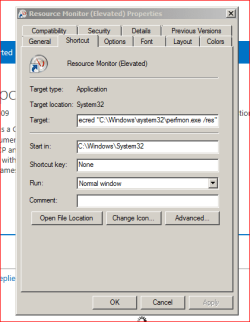
Hello, Shawn, and thanks for the quick reply. I'd also like to take a moment to express my thanks for all the valuable knowledge and insights I've gained from your tutorials & replies @ the various Vista/7/8 Forums over the years. Here are the requested screenshots of what I see in the various tabs & dialogs invoked from the context menu Properties sheet of a shortcut (or any other file) on this W7 HomePremSP1 build. For Step 9, the Properties sheet of the shortcut copied to the standard user's desktop, after navigating to that folder while still logged in to the Administrator account shortcut was created in:

1-Props.PNG

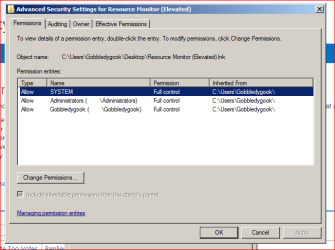
For Step 10, the Properties sheet's Security tab:

2-SecTabGobble.PNG

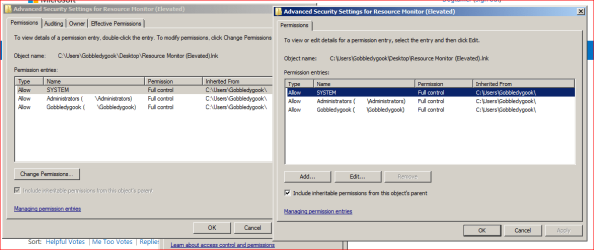
Clicking "Advanced" results in the below Advanced Security Settings dialog box:

3-AdvSecSet1Gobble.PNG

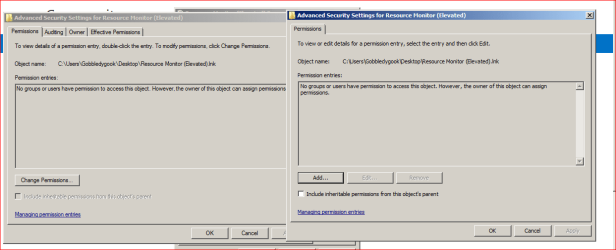
The "Change Permissions..." button must be clicked to invoke a dialog box similar to that shown in Step 11 of the tutorial; it's the right-hand one in the next screenshot (this dialog box is also named Advanced Security Settings; I've noticed that the "Include inheritable permissions from this object's parent" tick-box is always ticked - and #greyed out - in this dialog box, for any object, whether of container or non-container variety, that I've seen on this build):

4-AdvSecSet2Gobble.PNG

It can be seen that the "Disable Inheritance" button is missing, replaced on this build by another "Change Permissions..." button and an "Include inheritable permissions from this object's parent" tick-box that is active, and that may indeed be toggled to change permissions; it does not, however, invoke the "Block Inheritance" dialog box shown in the tutorial's Step 12, but rather a Windows Security warning dialog:

5-SecWarningGobble.PNG

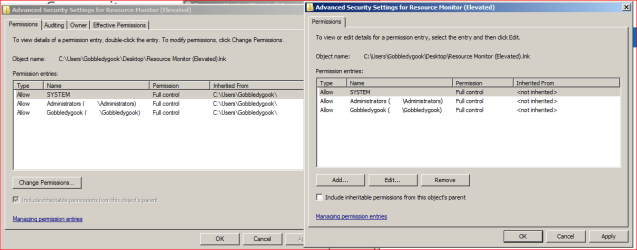
Clicking "Add" - which the Security warning dialog says will "...convert and add inherited parent permissions on this object" - would seem to do exactly the opposite, as evidenced (I believe) by the results shown in the below screenshot, which shows permissions are "<not inherited>"; since the permissions were inherited when the tick-box "Include inheritable permissions from this object's parent" was ticked (see earlier screenshot #5), and removing the tick removes the inherited permissions, I assume that this is correct behavior, and that either the Windows Security warning dialog is poorly worded or, perhaps more likely, I am simply failing to interpret it correctly. One thing I've noticed in creating these elevated shortcuts is that doing so from the built-in administrator account never results in that account being listed in the DACL shown in the security tab, and that adding it to the list through the "Select User or Group" dialog always results in that account's permissions showing as "<not inherited>", but I don't yet have a firm enough grasp of NT security principles to understand why this is so...Here's the result of clicking the "Add" button in the Windows Security warning dialog:

6-NotInheritGobble.PNG

And here's the result of clicking the "Remove" button in the Windows Security warning dialog - all groups and users have been removed from the object's DACL, with the caveat that the object's owner may now assign permissions, as shown below:

7-RemInheritGobble.PNG

I have screenshots showing how the "Change Permissions..." button may be utilized to invoke the "Select User or Group" dialog and add either back into the DACL, but I realize this post is already rather long, and I'd like to see what you think of what I've demonstrated so far. I've already verified that my initial assumption, concerning possible involvement of the use of Windows Classic theme (which I prefer because of the "Display full path in the title bar (Classic Theme only)" feature), holds no water, as I created a pristine user account with the default Windows 7 settings in Folder Options, onto which account's desktop I placed this shortcut, and then took these screenshots of it's security tab (while still logged into the elevated admin account) - the results are exactly the same as those for shortcuts in my daily-use standard account, which does have Folder Options set to my personal preferences. As I've already reverted this build to the Factory partition's "OOB" settings in researching this permissions behavior without making any difference in what the security tab's advanced settings show, I'm starting to think that the OEM has done some strange things via their WIM or WAIK in creating this build...or that I'm more clueless than I had imagined! :sick:
 
Last edited:

My Computer

Computer Manufacturer/Model Number
Compaq Presario BQ472AA-ABA CQ5500Y
OS
Windows 7 Home Premium 64bit; Windows 7 Enterprise (x86VM)
CPU
AMD Sempron 140 2700 M~; 1Mb L2 Cache, 4M~ SysBus
Motherboard
M2N68-LA (Narra5); nVidia MCP61 chipset; Phoenix 5.58 BIOS
Memory
2.00 Gb
Graphics Card(s)
Integrated video (NVIDIA GeForce 6150SE nForce430)
Sound Card
Integrated audio,5.1 surround sound (Realtek 6.0.1.6196)
Monitor(s) Displays
Compaq S1922A & Polaroid FLM-3232
Screen Resolution
1366x768
Hard Drives
Multiple internal & external 500GB 7200RPM Serial ATA:
ST350041 8AS SCSI Disk Device
Hitachi HTS545050B9A USB Device
ST350032 0AS USB Device
And
WD My Book 1140 USB Device (2Tb)
PSU
Unknown---Compaq OEM currently in use
Case
Unknown---Compaq OEM currently installed
Cooling
Customized additions by user
Keyboard
Compaq USB keyboard
Mouse
Compaq optical mouse
Internet Speed
18ms PING, ~15.7Mbs Dwn, <1Mbs Up
Antivirus
Norton N360 v. 20.4.0.40
Browser
IE9 v. 9.00.8112.16421; Chrome v. 28.0.1500.72; Safari 5.1.7
If you like, a standard user is able to run the perfmon.exe file without having to "run as administrator".

Since this is a system file, this is why you have "Change Permissions" instead. To restore the default permissions of this file, you will need to check the Include inheritable permissions from this object's parent box in your last screenshot, and click on OK.
 

My Computer

Computer type
PC/Desktop
Computer Manufacturer/Model Number
Self built custom
OS
64-bit Windows 11 Pro for Workstations
CPU
Intel i7-8700K OC'd to 5 GHz
Motherboard
ASUS ROG Maximus XI Formula Z390
Memory
64 GB (4x16GB) G.SKILL TridentZ RGB DDR4 3600 MHz
Graphics Card(s)
ASUS ROG-STRIX-GTX1080TI-O11G-GAMING
Sound Card
Integrated
Monitor(s) Displays
2 x Samsung Odyssey G7 27"
Screen Resolution
2560x1440
Hard Drives
1TB Samsung 990 PRO M.2,
4TB Samsung 990 PRO PRO M.2,
TerraMaster F8 SSD Plus NAS
PSU
Seasonic Prime Titanium 850W
Case
Thermaltake Core P3
Cooling
Corsair Hydro H115i
Keyboard
Logitech wireless K800
Mouse
Logitech MX Master 4
Internet Speed
2 Gb/s Download and 100 Mb/s Upload
Antivirus
Malwarebyte Anti-Malware Premium
Browser
Google Chrome
Other Info
Logitech Z625 speaker system,
Logitech BRIO 4K Pro webcam,
HP Color LaserJet Pro MFP M477fdn,
APC SMART-UPS RT 1000 XL - SURT1000XLI,
Galaxy S23 Plus phone
This happens to me in both my win7-64 HP desktop and my win8 laptop. At step 17 the command window flashes on and immediately off like what happens when one try's to run a command in a standard mode but one should have opened it in the command window as an administrator. This does not enable me to put the password in. I looked at the directions again today and am lost at what I did wrong. Any ideas? Oh yes I was in the hidden Administrator account.

Originally posted by Windows 7 Help Forums - View Profile: rfhar, but I made a bit of a mess moving it. :o
 

My Computer

Computer type
PC/Desktop
Computer Manufacturer/Model Number
Dwarf Dwf/11/2012 r09/2013
OS
Windows 8.1 Pro RTM x64
CPU
Intel Core-i5-3570K 4-core @ 3.4GHz (Ivy Bridge) (OC 4.4GHz)
Motherboard
ASRock Z77 Extreme4-M
Memory
4 x 4GB DDR3-1600 Corsair Vengeance CMZ8GX3M2A1600C9B (16GB)
Graphics Card(s)
MSI GeForce GTX770 Gaming OC 2GB
Sound Card
Realtek High Definition on board solution (ALC 898)
Monitor(s) Displays
ViewSonic VA1912w Widescreen (VGA)
Screen Resolution
1440x900
Hard Drives
OCZ Agility 3 SSD 120GB SATA III x2 (RAID 0)
Samsung HD501LJ 500GB SATA II x2
Hitachi HDS721010CLA332 1TB SATA II
Iomega 1.5TB Ext USB 2.0
WD 2.0TB Ext USB 3.0
PSU
XFX Pro Series 850W Semi-Modular
Case
Gigabyte IF233
Cooling
1 x 120mm Front Inlet 1 x 120mm Rear Exhaust
Keyboard
Microsoft Comfort Curve Keyboard 3000 (USB)
Mouse
Microsoft Comfort Mouse 3000 for Business (USB)
Internet Speed
NetGear DG834Gv3 ADSL Modem/Router (Ethernet) ~4.0 Mb/s (O2)
Antivirus
Avast! 8.0.1497
Browser
IE 11
Other Info
Optical Drive: HL-DT-ST BD-RE BH10LS30 SATA Bluray
Lexmark S305 Printer/Scanner/Copier (USB)
WEI Score: 8.1/8.1/8.5/8.5/8.25
Asus Eee PC 1011PX Netbook (Windows 7 x86 Starter)
This happens to me in both my win7-64 HP desktop and my win8 laptop. At step 17 the command window flashes on and immediately off like what happens when one try's to run a command in a standard mode but one should have opened it in the command window as an administrator. This does not enable me to put the password in. I looked at the directions again today and am lost at what I did wrong. Any ideas? Oh yes I was in the hidden Administrator account.

Originally posted by Windows 7 Help Forums - View Profile: rfhar, but I made a bit of a mess moving it. :o

Sounds like something may have gone wrong while setting it up. You might see if deleting all of this, and starting over from scratch may help. You won't be able to use the existing shortcut.
 

My Computer

Computer type
PC/Desktop
Computer Manufacturer/Model Number
Self built custom
OS
64-bit Windows 11 Pro for Workstations
CPU
Intel i7-8700K OC'd to 5 GHz
Motherboard
ASUS ROG Maximus XI Formula Z390
Memory
64 GB (4x16GB) G.SKILL TridentZ RGB DDR4 3600 MHz
Graphics Card(s)
ASUS ROG-STRIX-GTX1080TI-O11G-GAMING
Sound Card
Integrated
Monitor(s) Displays
2 x Samsung Odyssey G7 27"
Screen Resolution
2560x1440
Hard Drives
1TB Samsung 990 PRO M.2,
4TB Samsung 990 PRO PRO M.2,
TerraMaster F8 SSD Plus NAS
PSU
Seasonic Prime Titanium 850W
Case
Thermaltake Core P3
Cooling
Corsair Hydro H115i
Keyboard
Logitech wireless K800
Mouse
Logitech MX Master 4
Internet Speed
2 Gb/s Download and 100 Mb/s Upload
Antivirus
Malwarebyte Anti-Malware Premium
Browser
Google Chrome
Other Info
Logitech Z625 speaker system,
Logitech BRIO 4K Pro webcam,
HP Color LaserJet Pro MFP M477fdn,
APC SMART-UPS RT 1000 XL - SURT1000XLI,
Galaxy S23 Plus phone
I had a fun little exercise with this. I had to create 2 of these shortcuts to 2 different accounts in a domain. Things didn't go well at first, but I finally buckled down and got them working on one of the accounts. I couldn't figure out why the second account wouldn't work. The problem was that when the person went to print, they would get an error. But the other account was error free. I found out just now that the culprit was a corrupt copy of the print driver, of all things (ie. Print_Driver_Copy1). After starting over again and again with the shortcuts, I finally got them both working by selecting the original printer (driver) to use. Thanks! This is extremely helpful so that I can place both accounts as standard users instead of administrators, since apparently they are fond of downloading malware...
 

My Computer

Computer type
PC/Desktop
Computer Manufacturer/Model Number
Custom Asus Build
OS
Microsoft Windows 8.1 Pro 64-bit
CPU
Intel(R) Core(TM) i3-4130 CPU @ 3.40GHz
Motherboard
B85M-E
Memory
8.00 GB
Graphics Card(s)
None
Sound Card
Realtek High Definition Audio
Monitor(s) Displays
Asus 23.6" Monitor
Screen Resolution
1920 x 1080 x 32 bits (4294967296 colors) @ 60 Hz
Hard Drives
INTEL SSDSC2BW180A4
Samsung SSD 840 PRO Series
PSU
Seasonic S12II-380Bronze
Case
Lian Li
Cooling
Fan, Passive
Keyboard
Logitech K120
Mouse
Microsoft Touch Mouse
Internet Speed
4ms Ping, 19.0 Mbps Download, 19.0 Mbps Upload
Antivirus
Eset Endpoint
Browser
Internet Explorer, Chrome
Also, I noticed that once I entered the mysteriously invisible admin password for an account into the CMD prompt, as required by the shortcut, I never had to do it again. If I deleted the shortcut and created a new elevated shortcut, the password seemed to have been stored somewhere and automatically accepted the elevation without requiring me to enter the password again. That may have been the trouble Dwarf above was having - the CMD window would pop open and disappear as if having the password entered beforehand. If he had entered an incorrect admin password, it may not have prompted to have the password entered again, and would therefore not work for any new elevated shortcuts that he created.

I had thought that entering an incorrect Admin password required you to enter the password again before the program launch - so in other words, the CMD window doesn't accept the password and auto-close until the correct password has been entered. This would prevent what I described earlier. Or perhaps mine is a unique situation, I don't know.

All I know is that any new shortcut I create does not require me to enter the admin password again, but the CMD window still pops open and closes once an elevated program launch occurs. Great Tutorial, Brink
 

My Computer

Computer type
PC/Desktop
Computer Manufacturer/Model Number
Custom Asus Build
OS
Microsoft Windows 8.1 Pro 64-bit
CPU
Intel(R) Core(TM) i3-4130 CPU @ 3.40GHz
Motherboard
B85M-E
Memory
8.00 GB
Graphics Card(s)
None
Sound Card
Realtek High Definition Audio
Monitor(s) Displays
Asus 23.6" Monitor
Screen Resolution
1920 x 1080 x 32 bits (4294967296 colors) @ 60 Hz
Hard Drives
INTEL SSDSC2BW180A4
Samsung SSD 840 PRO Series
PSU
Seasonic S12II-380Bronze
Case
Lian Li
Cooling
Fan, Passive
Keyboard
Logitech K120
Mouse
Microsoft Touch Mouse
Internet Speed
4ms Ping, 19.0 Mbps Download, 19.0 Mbps Upload
Antivirus
Eset Endpoint
Browser
Internet Explorer, Chrome
Hey Dusty,

When you enter the password for the elevated shortcut, it's encrypted and saved in the Credential Manager in the "Windows Credentials" section.

Removing it from Credential Manager would cause you to have to enter the password again the next time the elevated shortcut is used, but only for that one time again since it'll be saved again.

The yellow tip box at the top of the tutorial will show you more about details this in Credential Manager. :)
 

My Computer

Computer type
PC/Desktop
Computer Manufacturer/Model Number
Self built custom
OS
64-bit Windows 11 Pro for Workstations
CPU
Intel i7-8700K OC'd to 5 GHz
Motherboard
ASUS ROG Maximus XI Formula Z390
Memory
64 GB (4x16GB) G.SKILL TridentZ RGB DDR4 3600 MHz
Graphics Card(s)
ASUS ROG-STRIX-GTX1080TI-O11G-GAMING
Sound Card
Integrated
Monitor(s) Displays
2 x Samsung Odyssey G7 27"
Screen Resolution
2560x1440
Hard Drives
1TB Samsung 990 PRO M.2,
4TB Samsung 990 PRO PRO M.2,
TerraMaster F8 SSD Plus NAS
PSU
Seasonic Prime Titanium 850W
Case
Thermaltake Core P3
Cooling
Corsair Hydro H115i
Keyboard
Logitech wireless K800
Mouse
Logitech MX Master 4
Internet Speed
2 Gb/s Download and 100 Mb/s Upload
Antivirus
Malwarebyte Anti-Malware Premium
Browser
Google Chrome
Other Info
Logitech Z625 speaker system,
Logitech BRIO 4K Pro webcam,
HP Color LaserJet Pro MFP M477fdn,
APC SMART-UPS RT 1000 XL - SURT1000XLI,
Galaxy S23 Plus phone
When you enter the password for the elevated shortcut, it's encrypted and saved in the Credential Manager in the "Windows Credentials" section.

Removing it from Credential Manager would cause you to have to enter the password again the next time the elevated shortcut is used, but only for that one time again since it'll be saved again.

The yellow tip box at the top of the tutorial will show you more about details this in Credential Manager. :)
I thought this would be the case, but wasn't sure. Thanks for clarifying!
 

My Computer

Computer type
PC/Desktop
Computer Manufacturer/Model Number
Custom Asus Build
OS
Microsoft Windows 8.1 Pro 64-bit
CPU
Intel(R) Core(TM) i3-4130 CPU @ 3.40GHz
Motherboard
B85M-E
Memory
8.00 GB
Graphics Card(s)
None
Sound Card
Realtek High Definition Audio
Monitor(s) Displays
Asus 23.6" Monitor
Screen Resolution
1920 x 1080 x 32 bits (4294967296 colors) @ 60 Hz
Hard Drives
INTEL SSDSC2BW180A4
Samsung SSD 840 PRO Series
PSU
Seasonic S12II-380Bronze
Case
Lian Li
Cooling
Fan, Passive
Keyboard
Logitech K120
Mouse
Microsoft Touch Mouse
Internet Speed
4ms Ping, 19.0 Mbps Download, 19.0 Mbps Upload
Antivirus
Eset Endpoint
Browser
Internet Explorer, Chrome
Anytime. :)
 

My Computer

Computer type
PC/Desktop
Computer Manufacturer/Model Number
Self built custom
OS
64-bit Windows 11 Pro for Workstations
CPU
Intel i7-8700K OC'd to 5 GHz
Motherboard
ASUS ROG Maximus XI Formula Z390
Memory
64 GB (4x16GB) G.SKILL TridentZ RGB DDR4 3600 MHz
Graphics Card(s)
ASUS ROG-STRIX-GTX1080TI-O11G-GAMING
Sound Card
Integrated
Monitor(s) Displays
2 x Samsung Odyssey G7 27"
Screen Resolution
2560x1440
Hard Drives
1TB Samsung 990 PRO M.2,
4TB Samsung 990 PRO PRO M.2,
TerraMaster F8 SSD Plus NAS
PSU
Seasonic Prime Titanium 850W
Case
Thermaltake Core P3
Cooling
Corsair Hydro H115i
Keyboard
Logitech wireless K800
Mouse
Logitech MX Master 4
Internet Speed
2 Gb/s Download and 100 Mb/s Upload
Antivirus
Malwarebyte Anti-Malware Premium
Browser
Google Chrome
Other Info
Logitech Z625 speaker system,
Logitech BRIO 4K Pro webcam,
HP Color LaserJet Pro MFP M477fdn,
APC SMART-UPS RT 1000 XL - SURT1000XLI,
Galaxy S23 Plus phone
Hello Shawn
Sorry I didn't post a reply after your last reply to my question about this escellent tutorial (p. 17) - I figured I'd posted more than enough data to this thread with my somewhat-convoluted August 2013 post (the knowledge I gained from your reply of 23 August was like a lightbulb illuminating - as so much of what you impart is! Thanks again). I got a notification of new postings and so perused the thread again, noticing the updates (the Credentials Mgr tip opened my eyes to another lingering question I previously had); I might better have asked this next question elsewhere but wasn't sure how to do so... I was wondering if you can say what the program is you were logged into while creating the new screenshots for the updated tutorial - specifically, the one for Step 8, "Desktop.jpg"? The Outlook-type interface appears quite intriguing...
 

My Computer

Computer Manufacturer/Model Number
Compaq Presario BQ472AA-ABA CQ5500Y
OS
Windows 7 Home Premium 64bit; Windows 7 Enterprise (x86VM)
CPU
AMD Sempron 140 2700 M~; 1Mb L2 Cache, 4M~ SysBus
Motherboard
M2N68-LA (Narra5); nVidia MCP61 chipset; Phoenix 5.58 BIOS
Memory
2.00 Gb
Graphics Card(s)
Integrated video (NVIDIA GeForce 6150SE nForce430)
Sound Card
Integrated audio,5.1 surround sound (Realtek 6.0.1.6196)
Monitor(s) Displays
Compaq S1922A & Polaroid FLM-3232
Screen Resolution
1366x768
Hard Drives
Multiple internal & external 500GB 7200RPM Serial ATA:
ST350041 8AS SCSI Disk Device
Hitachi HTS545050B9A USB Device
ST350032 0AS USB Device
And
WD My Book 1140 USB Device (2Tb)
PSU
Unknown---Compaq OEM currently in use
Case
Unknown---Compaq OEM currently installed
Cooling
Customized additions by user
Keyboard
Compaq USB keyboard
Mouse
Compaq optical mouse
Internet Speed
18ms PING, ~15.7Mbs Dwn, <1Mbs Up
Antivirus
Norton N360 v. 20.4.0.40
Browser
IE9 v. 9.00.8112.16421; Chrome v. 28.0.1500.72; Safari 5.1.7
Hello J.R.,

The screenshot under step 8 was taken in Windows 8 using the included Paint to edit it.

File Explorer (new name for Windows Explorer) in Windows 8 and 8.1 now has a ribbon. :)
 

My Computer

Computer type
PC/Desktop
Computer Manufacturer/Model Number
Self built custom
OS
64-bit Windows 11 Pro for Workstations
CPU
Intel i7-8700K OC'd to 5 GHz
Motherboard
ASUS ROG Maximus XI Formula Z390
Memory
64 GB (4x16GB) G.SKILL TridentZ RGB DDR4 3600 MHz
Graphics Card(s)
ASUS ROG-STRIX-GTX1080TI-O11G-GAMING
Sound Card
Integrated
Monitor(s) Displays
2 x Samsung Odyssey G7 27"
Screen Resolution
2560x1440
Hard Drives
1TB Samsung 990 PRO M.2,
4TB Samsung 990 PRO PRO M.2,
TerraMaster F8 SSD Plus NAS
PSU
Seasonic Prime Titanium 850W
Case
Thermaltake Core P3
Cooling
Corsair Hydro H115i
Keyboard
Logitech wireless K800
Mouse
Logitech MX Master 4
Internet Speed
2 Gb/s Download and 100 Mb/s Upload
Antivirus
Malwarebyte Anti-Malware Premium
Browser
Google Chrome
Other Info
Logitech Z625 speaker system,
Logitech BRIO 4K Pro webcam,
HP Color LaserJet Pro MFP M477fdn,
APC SMART-UPS RT 1000 XL - SURT1000XLI,
Galaxy S23 Plus phone
Note that the Administrator account must not be disabled or the shortcut stops working until it is enabled again.
 

My Computer

Computer type
Laptop
Computer Manufacturer/Model Number
Macbook pro
OS
8.1 Pro x64
CPU
core2duo
Memory
3GB
Graphics Card(s)
ATI X1600
Antivirus
Defender
Browser
IE11
Back
Top