Enable Ready Boost in win 7?

Once again you are several years too late to convince me or any of the 1,000's and 1,000's of people who have cleaned up their computer by disabling unneeded services and noticed not only performance improvements but quicker start times as a result of the computer's processor not being burdened down with useless services as well as several instances of Microsoft information gathering that most users including myself thought that they had opted out of in Windows 7.

Case in point my Vista laptop with its 2.0 Ghz Dual Core processor and 3 GB of RAM not only performed better after disabling 35 unneeded services many of which were running every day and dragging the performance of the hardware challenged down, but trimming the bloat of of the totally unneeded services cut a full 30 seconds off of its boot time!

OTOH on my Win 7 desktop which has an Intel Core i7 quad core processor that benchmarks 6X higher than the laptop's dual core processor the performance enhancements from disabling services were not nearly so noticeable, but its start time did improved by 16% and along with many other totally unneeded services 4 of the Microsoft information gathering services that start every day had finally been disabled!

Why would people want to keep totally unneeded services for things like Fax, Bit Locker, Bluetooth, Human Interface Device Access, Remote Registry, Parental Controls and many other services that they will never ever use as vital elements on their computer. You have every right to try to convince people who know little or nothing about cutting unneeded services some of which gather detailed information about their computer for Microsoft which is new to Windows 7 that more is somehow less, but those of us who have taken the time to understand the highly complex set of 150+ services which run Windows already have proof that disabling totally unneeded services does no harm and the more you tell people not to do something the more they are going to want to find out for themselves.

~Maxx~
.
938af360.png
 

My Computer My Computer

Computer Manufacturer/Model Number
HP HPE 270f
OS
Windows 7 x64 Home Premium
CPU
Intel Core i7 930 @ 2.8 Ghz Socket 1366 LGA
Motherboard
Pegatron Truckee v1.04E41
Memory
8 GB 1366 Mhz DDR3 (PC3-10700) RAM
Graphics Card(s)
ATI Radeon 5770 1 GB DDR5 RAM
Sound Card
Realtech High Definition
Monitor(s) Displays
32" Sony Bravia
Screen Resolution
1366 X 768
Hard Drives
Intel 25nm 120 GB Series 320 SSD HD Tune- 265 MBps Read/ 130 MBps Write

LaCie 1TB + 1TB RAID 0 eSATA Drive HD Tune- 160 MBps Read/ 90 MBps Write
Keyboard
Logitech Illuminated
Mouse
Logitech MX Revolution
Internet Speed
36.4 Mbps Maximum on a 37 Mbps Motorola SB501 Modem
Which ones can i dissable?
 

My Computer My Computer

OS
Windows 7 Ultimate
CPU
AMD Athlon II X4 630 (95W) Quad Core Socket AM3
Motherboard
GIGABYTE MA785GMT-UD2H
Memory
Patriot Viper Series DDR3 PC3-10666 1333MHz 4GB CL 7-7-7-20
Graphics Card(s)
Geforce GTX550 TI
Sound Card
built in realtech hd
Once again you are several years too late to convince me or any of the 1,000's and 1,000's of people who have cleaned up their computer by disabling unneeded services and noticed not only performance improvements but quicker start times as a result of the computer's processor not being burdened down with useless services as well as several instances of Microsoft information gathering that most users including myself thought that they had opted out of in Windows 7.

Case in point my Vista laptop with its 2.0 Ghz Dual Core processor and 3 GB of RAM not only performed better after disabling 35 unneeded services many of which were running every day and dragging the performance of the hardware challenged down, but trimming the bloat of of the totally unneeded services cut a full 30 seconds off of its boot time!

OTOH on my Win 7 desktop which has an Intel Core i7 quad core processor that benchmarks 6X higher than the laptop's dual core processor the performance enhancements from disabling services were not nearly so noticeable, but its start time did improved by 16% and along with many other totally unneeded services 4 of the Microsoft information gathering services that start every day had finally been disabled!

Why would people want to keep totally unneeded services for things like Fax, Bit Locker, Bluetooth, Human Interface Device Access, Remote Registry, Parental Controls and many other services that they will never ever use as vital elements on their computer. You have every right to try to convince people who know little or nothing about cutting unneeded services some of which gather detailed information about their computer for Microsoft which is new to Windows 7 that more is somehow less, but those of us who have taken the time to understand the highly complex set of 150+ services which run Windows already have proof that disabling totally unneeded services does no harm and the more you tell people not to do something the more they are going to want to find out for themselves.

~Maxx~
.
938af360.png


+1 Could not agree more.
 

My Computer My Computer

Computer Manufacturer/Model Number
Homemade
OS
Win 7 64 bit professional
CPU
CPU: 3930K @ 4.8 MHz Stable as a rock
Motherboard
ASUS Rampage IV Extreme LGA 2011
Memory
CORSAIR DOMINATOR GT 16GB (4 x 4GB) 240-Pin DDR3
Graphics Card(s)
EVGA SuperClocked+ GeForce GTX 680
Monitor(s) Displays
Dell 3007WFP
Screen Resolution
2560 x 1600
Hard Drives
Vector(256gb) x 2
RevoDrive 3 X2 space (240 GB)
Crucial C300 256 GB SSD
PSU
CORSAIR AX1200i 1200W Digital ATX12V v2.31 and EPS 2.92 SLI
Cooling
Water cooling EK Supremacy ELITE
Mouse
ratZ-7
Other Info
WEI-7.8
Which ones can i dissable?

The task of disabling services is absolutely subjective. You are the only one who knows how you use your computer so only you can decide which services to disable. The Black Viper Web Site has all of the information you need, but I warn you this is very complicated business if you go beyond the basic cuts like the ones I listed above. At first I would recommend that you stick to Black Viper's "Safe" configuration and make notes of every change you make. Even then don't make any changes that you are not 100% sure of.

I saw your Win 7 computer's specs and I will tell you right now that with a powerful system like that probably all that will be noticed is an improvement in start up time, that and the satisfaction of knowing that a lot of unnecessary services will no longer run all day long in the background on your computer.

In addition to disabling unneeded services probably the most important running tasks to disable on a Win 7 computer which are completely safe to disable are the the Microsoft Customer Experience Improvement Program Information Gathering Tasks located in the Task Scheduler. This is because new and for the first time in Win 7 these tasks are scheduled to continue to collect CEIP information from your computer for years after opting out of the CEIP program. The following is from an earlier post of mine on the subject...

4a5667d1.jpg


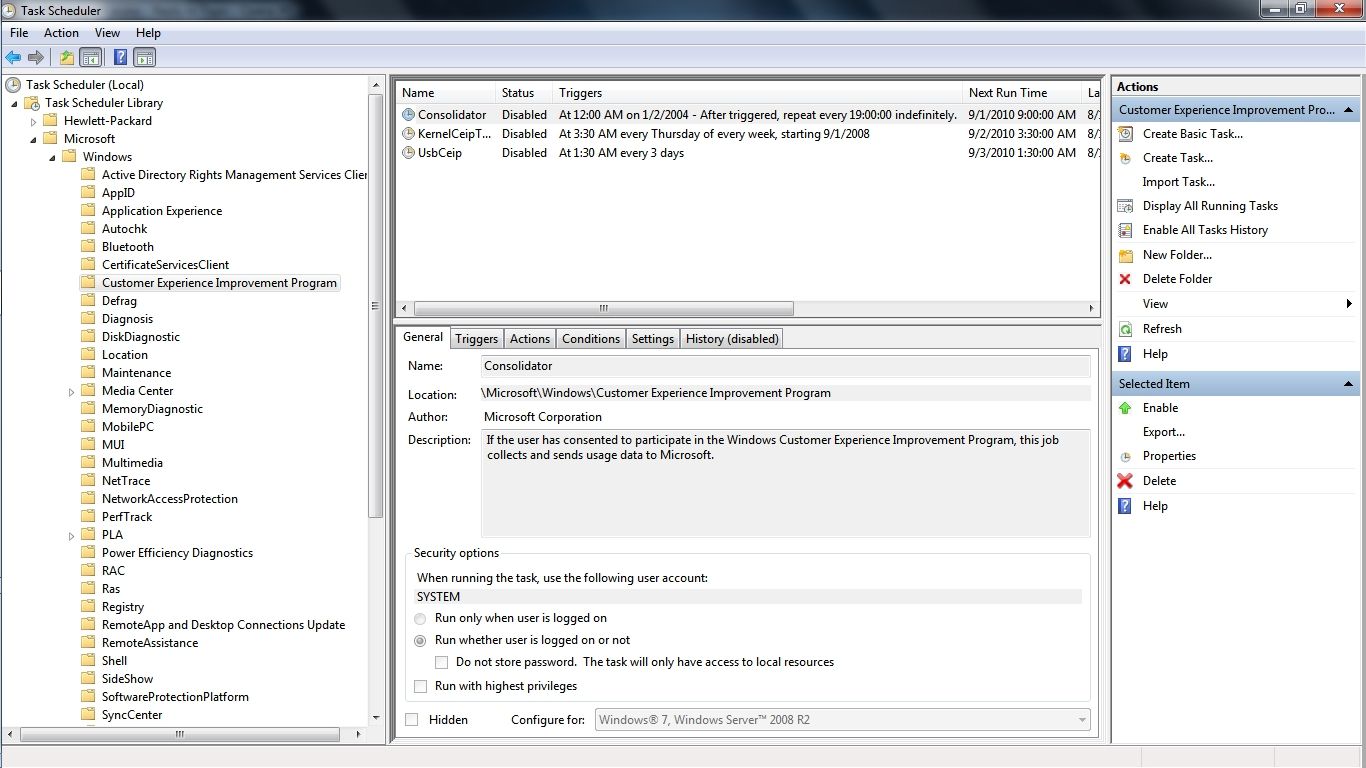
The simple method would be to click Start and type and then click on Task Scheduler. Next go into the file tree and click on Microsoft and all of the scheduled tasks will appear. Select the group of tasks by clicking on the title and by right clicking on any individual task you can select which action you want to take.

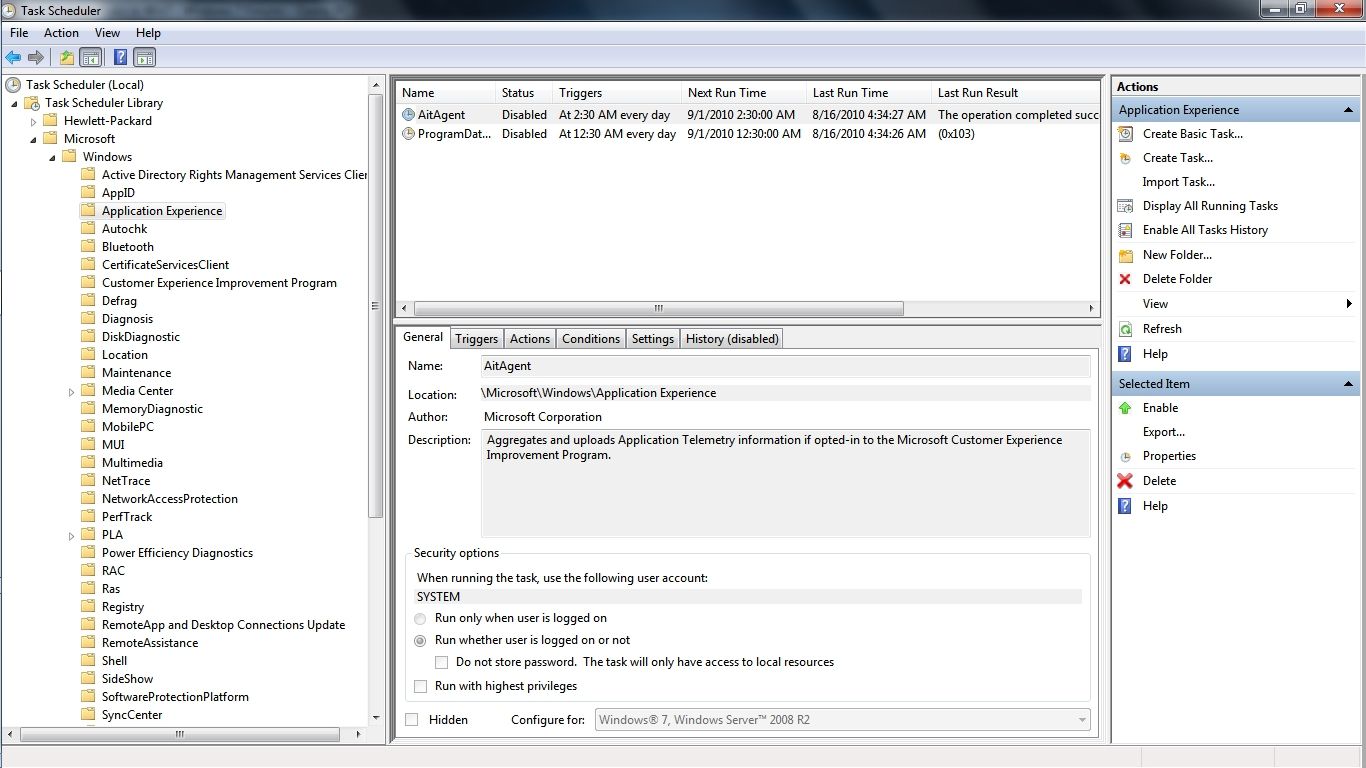
You may notice in the graphic that I have deleted 3 of the scheduled CEIP information gathering tasks under because even though officially opted out of CEIP in Win 7 the scheduled task information gathering will continue. As I understand this is new to Win 7 and there are even more scheduled CEIP information gathering tasks under Application Experience...

64513911.jpg


After Disabling these scheduled tasks along with 2 more under the heading DiskDiagnostic my Win 7 computer now boots with 4 less programs starting and running all day and that is my version of a genuine Customer Experience Improvement! I plan on deleting these CEIP information gathering tasks as soon as I am 100% sure that there have been no negative consequences to preventing this information gathering.

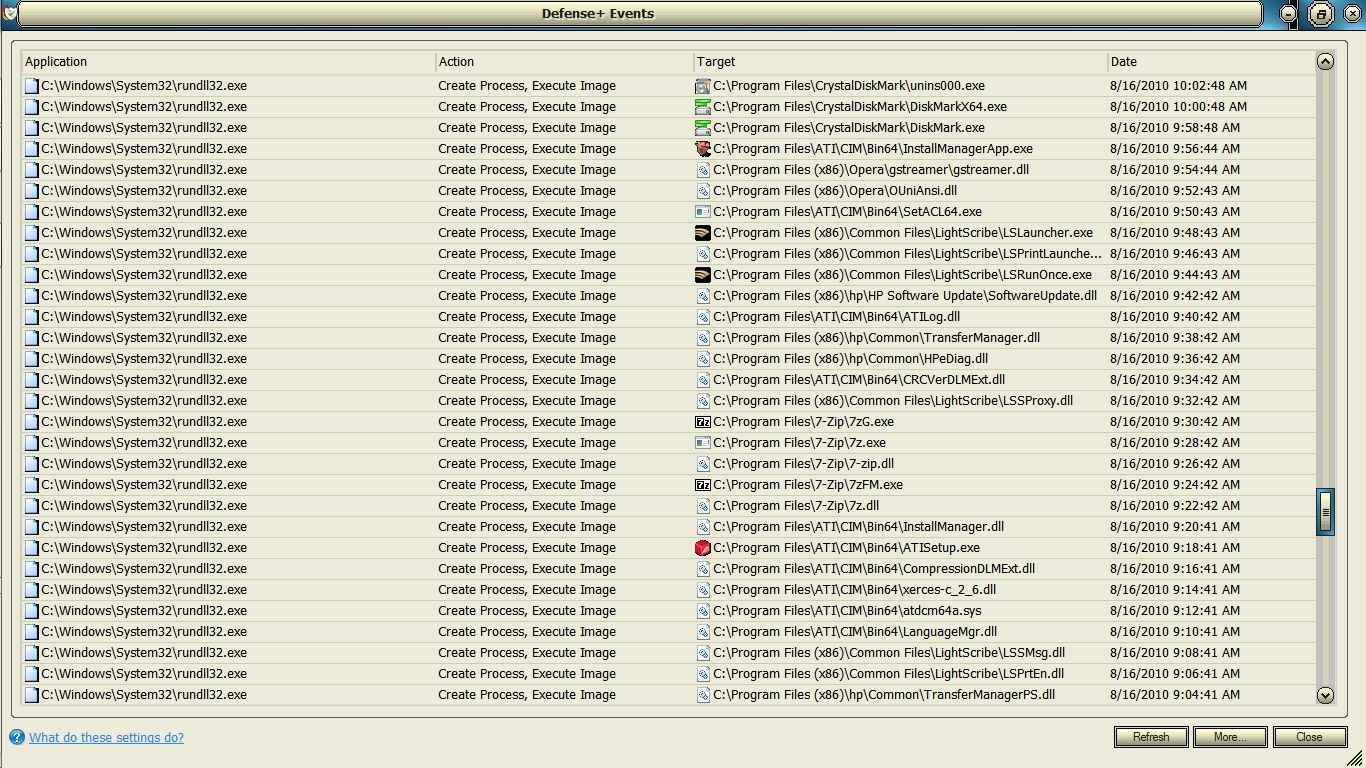
Speaking of which here is the Comodo Defense+ log that shows the scheduled Application Experience information gathering in progress as rundll32.exe silently opens each of the programs on my computer and spends a good 2 minutes examining each one until it starts the next which is what initially started my investigation into this matter. This is just a 1 hour excerpt out of an MS scheduled application information gathering process that went on for hours even though I had officially opted out of CEIP when I first set up the computer...

6f6efd29.jpg


~Maxx~
.
938af360.png
 

My Computer My Computer

Computer Manufacturer/Model Number
HP HPE 270f
OS
Windows 7 x64 Home Premium
CPU
Intel Core i7 930 @ 2.8 Ghz Socket 1366 LGA
Motherboard
Pegatron Truckee v1.04E41
Memory
8 GB 1366 Mhz DDR3 (PC3-10700) RAM
Graphics Card(s)
ATI Radeon 5770 1 GB DDR5 RAM
Sound Card
Realtech High Definition
Monitor(s) Displays
32" Sony Bravia
Screen Resolution
1366 X 768
Hard Drives
Intel 25nm 120 GB Series 320 SSD HD Tune- 265 MBps Read/ 130 MBps Write

LaCie 1TB + 1TB RAID 0 eSATA Drive HD Tune- 160 MBps Read/ 90 MBps Write
Keyboard
Logitech Illuminated
Mouse
Logitech MX Revolution
Internet Speed
36.4 Mbps Maximum on a 37 Mbps Motorola SB501 Modem
All My Running Services Under Win7-64 Task Manager in Services.msc

I don't show ready boost on my win7 laptop:shock:
Correct - the service is actually called "SysMain", and it's not a visible service (there are quite a few services that are on the system and can be found in the registry, but not in the services UI). You can find it's configuration under HKLM\System\CurrentControlSet\Services\SysMain.
Actually, I counted 63 Running services in Windows 7-64 Pro Task Manager. I ran Services.msc and I also counted 63 Started services there. In order to find the service you are looking for, it helps to click on "Description" and then "Status" in Task Manager. This will sort under these 2 categories. In Services.msc, sort by "Status".

SysMain is the name of the Service and Superfetch is the Description in Task Manager. In Services.msc, Superfetch is the Display Name and SysMain is the Service Name.

When enabling or disabling services, it's best to use the Services.msc GUI and not delve into the Registry. In addition, I highly recommend you use Notepad to create a small "system-changes.txt" diary file. Date and note all changes you make to your system. Keep the link to this diary on your desktop and update it every time you make a change. This way, if you make a change which you need to reverse, you can open your diary and find it.
 

My Computer My Computer

OS
Windows 7 Pro x64
4 GB is the largest that ReadyBoost can use although Microsoft is trying to increase that amount so go with 4 GB.

~Maxx~
.
938af360.png

Just as an experiment, I plugged in an externall SSD and selected Readyboost. It would seem that it is using 32GB (or about half) of an 80GB drive.
Win7 Pro x86, 1GB RAM. The drives thrashed for a couple of minutes and settled to no disk activity.
 

Attachments

  • rdybst.JPG
    rdybst.JPG
    103.5 KB · Views: 22
  • 1.JPG
    1.JPG
    60.5 KB · Views: 26

My Computer My Computer

Computer Manufacturer/Model Number
Old (2004) Gateway laptop
OS
Windows 7 Pro x86; Pro x64; Home Prem x64; and others....
CPU
Pentium 4 @ 3.4
Motherboard
Gateway
Memory
2GB
Graphics Card(s)
ATI Mobility Radeon 9700
Sound Card
SigmaTel C-Major Audio
Monitor(s) Displays
Element 19 in. LCD HD TV
Screen Resolution
1360x768
Hard Drives
Intel SSD 3200 80GB; Seagate Momentus XT (Hybrid) 500GB
PSU
HP monitor PSU - Spliced;lol
Cooling
Coolingpad
Mouse
MS TouchMouse Arc & Mouse
another question is why stopping the services in windows 7 is a big mistake?

Two reasons: the descriptions of the services don't really tell you what they do, and because they're poorly designed and not modular; for instance, I lost audio when I stopped the "power" service even though power and audio have nothing to do with each other except for some really bad programming from MS.

I shut off a lot of services and get *really fast* booting (and everything else) from a low-end machine with no loss of functionality, *much* faster than most people with fancier computers in the "boot time" thread(s), and as far as ReadyBoot and Prefetch, I shut them both off (via services and regedit) and the only difference is slightly faster booting with them off. It's a good idea to shut off unnecessary services, but it's also risky for the two reasons above, so if you want to experiment do them one at a time.
 

My Computer My Computer

Computer Manufacturer/Model Number
eMachines ET1831-7
OS
Windows 7 Ultimate
CPU
Pentium Dual-Core CPU E5400 @ 2.70GHz
Motherboard
EMCP73VT-PM
Memory
4096M
Graphics Card(s)
nVidia 8400GS
Sound Card
built-in Realtek
Monitor(s) Displays
Acer 20"
Screen Resolution
1680x1050
Hard Drives
Seagate ST3750528AS ATA 500G
Other Info
Dual-boot with Linux.
Everyone made great arguments (way back when), and eventually I'm sure everyone could have found great links/sources to back their POV up, but meanwhile, anyone who happens upon this thread (or Hong, if Hong is still waiting for an answer a year later :) ) is not really that much better then when they arrived. So in my somewhat objective opinion, I'd recommend someone in such a position, don't change any services until they understand just what they are doing by changing them. Read up, Goggle them all and check several sources for an idea of their origin and purpose at least. Seven forums has lots of OTHER past forum dialogs between members you can search through, as well as tutorials which may contain related info - and they are of the highest quality available on the internet. I only recommend this because of the wide spread of opinions being presented here. rather than contribute to the lack of an answer, I'll yield to the above intelligent opinions, as my answer is mixed in there to a degree just as much as many other's. That's my recommendation for anytime you get an answer that's more of an argument than an answer.

Good Luck "Hong".... and/or similar cases, :)
Mike
 

My Computer My Computer

Computer Manufacturer/Model Number
Custom self build - Desktop
OS
MS Windows 7 Home Premium SP1 64-bit (Family Pack Lic.) Upgrade
CPU
AMD Phenom II X6: Black Ed 1090T - AM3 / 3.2GHz / 8MB
Motherboard
Biostar TA790XE3
Memory
2 dual ch sets OCZ DDR3 PC3-10666 Platinum 1333MHz 8GB total
Graphics Card(s)
Onboard
Sound Card
Onboard 5.1 channel HD
Monitor(s) Displays
SyncMaster "Legal-sized" LCD (rotatable)
Screen Resolution
unknown (8.5"x15")? pixels are not known
Hard Drives
HDD1: WD RE3 Enterprize [p/n: WD500ABYS-NDW]
________SATA-II (3Gb/s) 500GB/7200rpm/16MB

HDD2: Deskstar 7K1000.C [p/n: HDS721010CLA332]
________SATA-II (3Gb/s) 1TB/7200rpm/32MB
PSU
Antec 900W mATX 20+4 w/6-8SATA;2MLX;4x6(+2)PCIe[p/n HCG-900]
Case
Mid 10-bay tower - free space design interior & well vented
Cooling
CPU HS cooler, 14.5" Case-sysfan1, dual sysfan2, exhaust
Keyboard
Blue Star Ergonomic - ps/2
Mouse
LED coorded w/v. roller wheel - ps/2
Internet Speed
GbLAN 10/100/1000 & WLAN - on T1 (Peer Network)
Other Info
Harmon-Karden speakers (L,R @ sub)

APC (Lead/Acid Batt backup UPC+Surge protector+etc)

Sony DVD SATA(300) - RW DVD/CD SATA-II(300)
As a quick note, I want to update my post here. After doing some searches and matching the date of my SQL folder with its matching application, I decided to make some changes via the Services.msc GUI:

Services
SQL Server (SQLEXPRESS) set to "Manual" from "Automatic"
SQL Server VSS Writer set to "Manual" from "Automatic"

SQL Server, sqlservr.exe, is a bit of a RAM hog taking over 160 MB's and I don't use it. In Process Explorer it shows as taking 4 GB of "Virtual Size"! I set SQL Server to "Manual". Hopefully, if any program calls SQL Server it will start without any necessary intervention. As a general rule, if you wish to save RAM and increase system speed, you should set any Service you feel is extraneous to "Manual" not "Disabled". This way, if any process needs it, it can start it later. Task Manager now shows my "Commit (MB)" as 400 MB's lower and my bootup is slightly faster.

Regarding my first post: I found this thread via Google search and I wanted to correct an error in a previous post.
 

My Computer My Computer

OS
Windows 7 Pro x64
Back
Top