F11 function not working in Windows 7

greg30

New member
Local time
5:36 PM
Messages
4
Hello to all,

I am having an issue with F11 key when booting up to engage in a recovery of factory partition of Windows 7 as it was shipped from factory, or as Lenovo calls it, Q drive. It is basically an image of Windows for reinstalling as was.

For some reason unknown to me, it will not work. I get no response. This may be better served at the Lenovo forums, I do not know. Can anyone suggest a way to either get my F11 key to bring up the desired screens for a new image procedure, or any workarounds to this? I cannot access this through ThinkVantage either, which is a Lenovo help program. I have not reinstalled any new OS, nor have I reinstalled any previous versions of images of same OS. I have the x64 version.

I guess I could contact Lenovo and buy a new set of disks to do this, but it is too much money right now without trying something first.

I really need to reimage my laptop, as my Windows 7 pro has some serious issues that only a new installation (or new image in this case) will solve. Any and all answers will be greatly appreciated, and yes, the Q drive is showing up in Disk Management as around 6 or 7 GB, yet I have no idea of how to initiate this process at bootup.

Thanks in advance
 

My Computer

Computer type
Laptop
Computer Manufacturer/Model Number
Lenovo X201
OS
Windows 7 64 bit
Browser
IE
If you are talking about F11 at power on/boot up, that is NOT a Windows function. Windows is not loaded at that point.
I have a Lenovo Ideapad Z560 and only get F1 and F12 options at boot up.
 

My Computer

Computer type
PC/Desktop
Computer Manufacturer/Model Number
My Own Build
OS
Windows 10 64 bit
CPU
Intel i7 6700K
Motherboard
ASUS ROG Maximus VIII Hero
Memory
16GB Corsair Dominator
Graphics Card(s)
Intel CPU Graphics
Sound Card
RealTek
Monitor(s) Displays
27" Dell S2719dgf
Screen Resolution
2560X1440
Hard Drives
1 TB Samsung 850 EVO SSD for Win 10 Pro
500GB Samsung 850 EVO SSD for Win 10 Insider
2 TB drive for backup
PSU
EVGA Supernova 750G2
Case
BeQuiet Silent Base 600
Cooling
Deepcool Captain 120EX
Keyboard
Microsoft Wireless 2000
Mouse
Microsoft wireless
Internet Speed
100 MB/sec (Cable)
Antivirus
Microsoft Defender and Malwarebytes
Browser
Edge/Firefox
Other Info
Cakewalk (Sonar) by BandLab and Studio One 4.1 Pro recording studio software. MOTU 896Mk3 Hybrid recording interface, Frontier Tranzport wireless control unit, Behringer X-Touch Control Surface.
Five USB connected optical drives for CD Audio production using Nero BurningROM
The F11 key is for the Q drive image, or image to bring back to state of when computer was first bought. You will only need it if you decide to reinstall a factory made image and redo all info on computer. I cannot understand why this very important feature depends upon an F11 key to initiate this process. As in my case, I cannot get it to work, as it boots into a normal mode of Windows Startup. I have to use this Q drive as my Windows needs reinstalled and this is easiest way if I can find a way to boot up to allow me to do this.
 

My Computer

Computer type
Laptop
Computer Manufacturer/Model Number
Lenovo X201
OS
Windows 7 64 bit
Browser
IE
Those F keys can be touchy--depending on the individual case. Try holding the key down during the entire boot process; try tapping it once per second or so; try various intervals. I had a hard time getting my Gigabyte motherboard to acknowledge the boot menu key until I got the hang of it.

Of course, I'm assuming you've got the right key and that the functionality is intact on your machine.

Many here would tell you to do a clean install and avoid the factory recovery option, but it's your call. You could do that easily enough and activate with your current Product Key.
 

My Computer

Computer type
PC/Desktop
Computer Manufacturer/Model Number
Ignatz Special; 4 speed manual gearbox; factory air conditioning; one of one
OS
Windows 7 Home Premium SP1, 64-bit
CPU
Intel Skylake i5-6600K, not overclocked
Motherboard
AsRock Z170M Extreme 4, micro ATX
Memory
8 GB HyperX DDR4-2666 (2 x 4 GB)
Graphics Card(s)
none; graphics are integrated on CPU
Sound Card
onboard: Realtek ALC1150; external: USB Behringer UF0-202
Monitor(s) Displays
Dell S2340M 23 inch IPS
Screen Resolution
1600 x 900
Hard Drives
System: Crucial MX100 series SSD, 128 GB;
Data: Samsung Spinpoint 103SJ, 1 TB;
Backup: WD Caviar Green WD30EZRX-00D8PB0, 3 TB
PSU
Rosewill SilentNight 500 watt fanless, semi-modular
Case
Antec Solo II
Cooling
Noctua NH-U12S; Noctua F12 intake, Noctua S12A exhaust
Keyboard
Microsoft 200 6JH-00001 USB
Mouse
Dell or Microsoft optical wired; USB
Antivirus
Microsoft Security Essentials and Malwarebytes Premium
Browser
Pale Moon
Other Info
All fans PWM; speeds at idle: CPU circa 500 rpm; intake circa 600 rpm; exhaust circa 600 rpm; CPU temps 27 idle and 47 C load in a warm room (27 C/81 F) when running Intel Extreme Tuning Utility stress test.
Before deciding that it is a keyboard / single key issue, boot to Windows desktop if you can and open any browser. Press then F11 to see if the browser Kiosk Mode toggle works. Kiosk Mode = full screen without title, address and status bars, F11 toggles it in most browsers.

If it works we know your F11 key works and must seek the issue elsewhere.

Kari
 

My Computer

Computer type
Laptop
Computer Manufacturer/Model Number
HP ENVY 17-1150eg
OS
Windows 10 Pro x64 EN-GB
CPU
1.6 GHz Intel Core i7-720QM Processor
Memory
6 GB
Graphics Card(s)
ATI Mobility Radeon HD 5850 Graphics
Sound Card
Beats sound system with integrated subwoofer
Monitor(s) Displays
17" laptop display, 22" LED and 32" Full HD TV through HDMI
Screen Resolution
1600*900 (1), 1920*1080 (2&3)
Hard Drives
Internal: 2 x 500 GB SATA Hard Disk Drive 7200 rpm
External: 2TB for backups, 3TB USB3 network drive for media
Cooling
As Envy runs a bit warm, I have it on a Cooler Master pad
Keyboard
Logitech diNovo Media Desktop Laser (bluetooth)
Mouse
Logitech Performance Mouse MX
Internet Speed
50/10 Mbps VDSL
Antivirus
Windows Defender 4.3.9431.0
Browser
Maxthon 3.5.2., IE11
F11 key works properly if using the Kiosk mode. All titles disappeared when pressed.

As to holding or tapping down F11 key, I did try that and that also did not appear to help but all suggestions are greatly appreciated.

I would like to share a link with those who are more apt and capable of solving these issues than me. Please look at this link as it shows what takes place and what happens when the F11 key is pressed in a 2 minute video. Please remember that when I press F11 it does nothing but enters into a normal startup. I think the menus this shows will help others understand what is happening much more clearly than me writing it all down and is only a few minutes long. This shows how a successful reimage is initiated using the recovery disk image put on at time of making computer so one always has a viable way of getting back to a clean Windows version, other than what company has installed.

I would think there has to be another way of getting this screen to do this, but I have yet not been able to find it and am not knowledgeable enough to find it out for myself. Very rarely do I do this, and usually just reinstall Windows, but I get no windows CD on a new laptop buy, and this is how your copy of a Windows backup is packaged. I guess you only lease Windows when it is packaged in a new laptop pre-installed buy. No wonder Mr. Gates is so rich.


I am not sure that this solution is applicable here or not, but F11 key should bring up what this video shows. I have a 2011 model year X201 Lenovo laptop. Windows restore does not work properly, and Windows Update stopped working a few months ago. I also cannot install any new USB WD SES drivers for external hard drives or Cruzer USB drives. This is main reason I wanted to reimage this hard drive. I was lucky enough to remove all info I needed through use of an older USB WD hard drive. Go figure, it will install these older WD SES drivers but no new drivers. Time to reimage and yet another problem here, that F11 key to initiate this process. I do not like how this was done at all, as it should be an errorless process to get back an image, as that is the main issue here..
 

My Computer

Computer type
Laptop
Computer Manufacturer/Model Number
Lenovo X201
OS
Windows 7 64 bit
Browser
IE

My Computer

Computer type
PC/Desktop
Computer Manufacturer/Model Number
Own build (new) Desk1 / Asus ROG Win 7 / Desk2 1st build
OS
Desk1 7 Home Prem / Desk2 10 Pro / Main lap Asus ROG 10 Pro 2 laptop Toshiba 7 Pro Asus P2520 7 & 10
CPU
Desk1 i5 3750K / Laptop i7 GTX 860M / Desk2 i5 2500
Motherboard
Desk1 Asus P877-V / Desk2 Gigabyte H67 UD3H / Laptop ?
Memory
Desk1 8GB (1866) / Desk2 16GB (1333) / Laptop 8Gb DDR3
Graphics Card(s)
Desk 1& 2NVidia GTX 650 & Laptops on board Intel
Sound Card
Desk 1 & 2 -XONAR DG Realtek High Def audio Laptop
Monitor(s) Displays
Desk 1 Benq HD 2450 / Desk2 Philips 24" / Laptop 17.5"
Screen Resolution
1920x1080 D1 & D2 & Laptop 1
Hard Drives
Desk1 Samsung 120GB 830 SSD
Asus ROG 256GB 850 Pro SSD
Desk2 Samsung 840 256 SSD
Toshiba 120GB EVO
PSU
Desk 1 Corsair HX 1050/ Laptop ? / Desk 2 Corsair HX 650
Case
Desk 1 Cooler HAF XM ? Toshiba laptop / Desk2 Coolermaster
Cooling
Fans on all Desk1 -2 Desk2 - all Coolermasters 5 Laptop ?
Keyboard
Desk 1 MS Sidewinder X6 Desk 2 MS Sidewinder X 4
Mouse
Desk 1&2 - Gigabyte MS 900 gamer - laptop - Logitec wireless
Internet Speed
ADSL2+
Other Info
One other Desktop (tester) and spare Toshba laptop both with SSD's
Running Kaspersky 2016 ISS on all machines config'd identically
Logitec audio stereo systems on each machine (x3)
Canon MG5250MFC
Router/modem TP-Link running WPA2SK
One question first. Would an image done by Acronis TI of this Q drive and then reinstalled using Acronis through a USB driver allow me to reimage this Q drive? Just a thought as I have no idea. Maybe best just to do a new re install of Windows 7 Pro X64 if possible.

I found this https://forums.lenovo.com/t5/ThinkVa...ult/m-p/665985 and

https://forums.lenovo.com/t5/ThinkVa...us/td-p/364389

Mind you if you just want a clean install why not use this
Clean Reinstall - Factory OEM Windows 7
This way you get rid of the bloatware

I am now leaning toward just reinstalling a new Windows 7 Pro X64 reinstall. I did not know I could get a OEM download of this. Does the link above for Clean Reinstall show how to do this? I am assuming it should be burnt to DVD and done that way?

I haven't reinstalled an OS for a long time due to imaging backups. Yes, I can reduce all factory bloatware, but to tell the truth, there was not that much on it. Regardless, I may have to go that route and will do it after re-reading that link again. As long as the Q hidden drive is not disturbed, I will always still have that option to do that anyways. I have my product code on back of this laptop so I assume that is all I need to get this properly installed?

I have been reading a lot about this RnR or something like that, partition where Q drive is. I do not see anything like that. Is that necessary to load F11 key for reimage?

As to the Lenovo One-Key factory recovery next to power button, no, I do not have that button on this laptop. It may have been added due to this issue later, which makes a whole lot of sense to me to have a dedicated button for this, and not a F key to do this.
 

My Computer

Computer type
Laptop
Computer Manufacturer/Model Number
Lenovo X201
OS
Windows 7 64 bit
Browser
IE
If you want to give the factory recovery a try before doing a reinstall, you could try if this works:
  • Log in to Windows using your administrative credentials
  • Make the recovery partition active (tutorial)
  • Reboot, try if the F11 option now works
If this works, you are good to go. If not, I suggest you reinstall following instructions in Greg's tutorial.

Whatever you do, be sure to backup your personal data before starting as both factory recovery and clean install wipe your HDD.

Kari
 

My Computer

Computer type
Laptop
Computer Manufacturer/Model Number
HP ENVY 17-1150eg
OS
Windows 10 Pro x64 EN-GB
CPU
1.6 GHz Intel Core i7-720QM Processor
Memory
6 GB
Graphics Card(s)
ATI Mobility Radeon HD 5850 Graphics
Sound Card
Beats sound system with integrated subwoofer
Monitor(s) Displays
17" laptop display, 22" LED and 32" Full HD TV through HDMI
Screen Resolution
1600*900 (1), 1920*1080 (2&3)
Hard Drives
Internal: 2 x 500 GB SATA Hard Disk Drive 7200 rpm
External: 2TB for backups, 3TB USB3 network drive for media
Cooling
As Envy runs a bit warm, I have it on a Cooler Master pad
Keyboard
Logitech diNovo Media Desktop Laser (bluetooth)
Mouse
Logitech Performance Mouse MX
Internet Speed
50/10 Mbps VDSL
Antivirus
Windows Defender 4.3.9431.0
Browser
Maxthon 3.5.2., IE11
Why don't you read the links to see what's involved? ;)

If you mark Active and Recovery doesn't start you may lose the ability to boot into Win7 until you move the Active flag back to where it was. This is why I offered the chance to add a Dual Boot to the Recovery partition from within Win7 which always works.

Post back a screenshot of Disk Management - Post a Screen Capture Image
 
Probably just need to create a bcd entry.

Post a screenshot of disk mgmt window.
 

My Computers

System One System Two

  • Computer type
    PC/Desktop
    OS
    7 X64
    CPU
    i5 8400
    Motherboard
    gigabyte b365m ds3h
    Memory
    2x8gb 3200mhz
    Hard Drives
    various
    PSU
    pure power 11 400w cm
    Case
    Coolermaster
    Cooling
    cryorig m9i
  • Computer type
    PC/Desktop
    OS
    7x64
    CPU
    g5400
    Motherboard
    ga b365m ds3h
    Memory
    8gb ddr4 2400
    PSU
    xfx pro 450w
See the following:
http://download.lenovo.com/ibmdl/pub/pc/pccbbs/thinkvantage_en/tvtvrnr4.52_005en.txt
How do I recover my system using ThinkVantage Rescue and Recovery

Some references note that the old version should be uninstalled first - I do not know if it is required or only suggested.

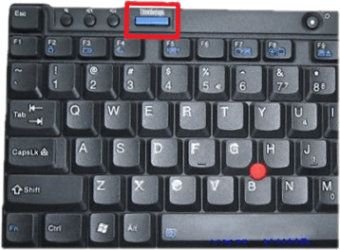
Also Greg asked about a one-touch button. The documentation I read stated F11 or ThinkVantage button. I don't know if both can be used or only one on certain models. If you have that key - try it.
The label on the button changed over time: Thinkpad, Access IBM, and ThinkVantage.
Capture.PNG

What version is your BIOS?
 

My Computer

Computer type
Laptop
Computer Manufacturer/Model Number
HP Pavilion dv6-6c10us
OS
x64 (6.3.9600) Win8.1 Pro & soon dual boot x64 (6.1.7601) Win7_SP1 HomePrem
CPU
AMD A6-3420M APU with Radeon(tm) HD Graphics
Motherboard
Hewlett-Packard 1805
Memory
6.00 GB
Graphics Card(s)
AMD Radeon(TM) HD 6520G
Sound Card
(1) AMD High Definition Audio Device (2) IDT High Definiti
Monitor(s) Displays
HP W2072a 20" LCD (1600 x 900) @ 60 Hz
Screen Resolution
1366 x 768 x 32 bits (4294967296 colors) @ 60 Hz
Hard Drives
ST640LM0 00 HM641JI SATA Disk Device
Keyboard
Logitech k520 wireless KB
Mouse
Logitech m320 wireless mouse (bundled with KB)
Internet Speed
15/5 | 54 MB Wireless 'n'
Antivirus
Realtime: Defender or Avast | On-demand: Malwarebytes, ESET
Browser
IE 11 on Win8, IE 10 on win 7
Other Info
Media: [Gimp, Audacity, VLC] || Comm: [WEmail 2012, Skype] || Productivity: [OpenOffice,| Textpad] || Utils: [Sysinternals, cCleaner, Speccy, Defraggler]
Back
Top