File and Folder - Hide or Unhide

How to Hide or Unhide a File or Folder in Vista, Windows 7, and Windows 8

   Information
This tutorial will show you how to set the hidden attribute of a file or folder to be hidden or unhidden in Vista, Windows 7, and Windows 8.


OPTION ONE

Through the File's or Folder's Properties Page


1.To Hide a File or Folder
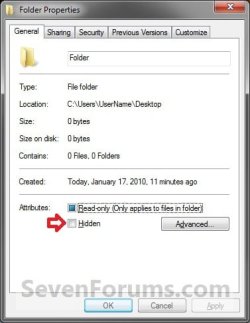
A) Right click on the file or folder, and click on Properties.

B) Check the Hidden box, and click on OK. (see screenshots below)
File1.jpg

Folder1.jpg
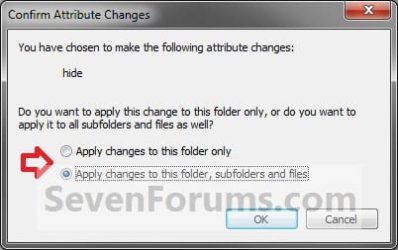
C) If this is for a folder and it has a subfolder or file in it, then you will also need to select (dot) to only hide the folder or to hide the folder and all of it's subfolders and files in it. Click on OK. (see screenshot below)
Folder2.jpg
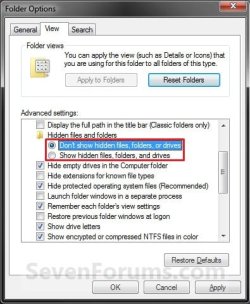
D) In Folder Options, make sure that Don't Show hidden files, folders, and drives is selected (dotted).
3. To Unhide a File or Folder
A) Open Folder Options, select (dot) Show hidden files, folders, and drives, and click on OK. (see screenshot below)
NOTE: This way you will be able to see the hidden file or folder to be able to unhide it.
Folder_Options-1.jpg
B) Right click on the file or folder, and click on Properties.

C) Uncheck the Hidden box and click on OK. (see screenshots below step 2B)

D) If this is for a folder and it has a subfolder or file in it, then you will also need to select (dot) to only unhide the folder or to unhide the folder and all of it's subfolders and files in it. Click on OK. (see screenshot below step 2C)

E) In Folder Options, select (dot) Don't Show hidden files, folders, and drives, and click on OK. (see screenshot below step 3A)


OPTION TWO

Through the Command Prompt


   Note
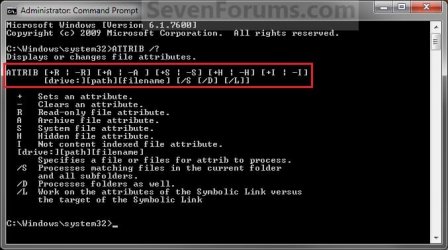
This will show you how to hide or unhide a file or folder using the ATTRIB command.
About_ATTRIB.jpg

While you can run this command in a non-elevated or elevated command prompt, you would get the best results using a elevated command prompt.

1. Open a elevated command prompt, then do either step 2, 3, 4, 5, 6, 7, or 8 below for what you would like to do.

2. To Hide a specific File
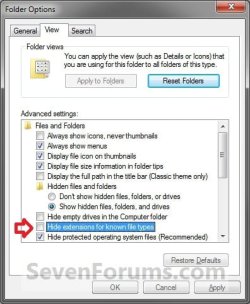
A) Open Folder Options and uncheck the Hide extensions for known file types option and click on OK. (see screenshot below)
NOTE: This way you will be able to see the file extension in your file's name to use in the command below.
Folder_Options.jpg
B) In the command prompt, type the command below and press enter.
NOTE: Substitute Full Path of File with extension within quotes below with your files's full path and name with the extension included within quotes instead.

Code:
ATTRIB +H "[COLOR=red][B]Full Path of File with extension[/B][/COLOR]"

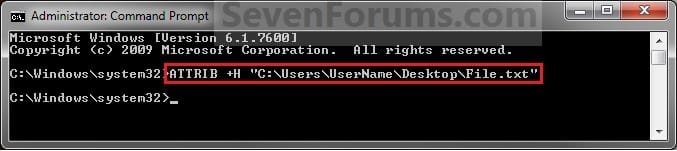
NOTE: For example, if I wanted to hide a text file named File with the file extension .txt on my desktop, I would type this command below.

Code:
ATTRIB +H "C:\Users\UserName\Desktop\File.txt"
Attrib_Hide_File.jpg
C) In Folder Options, make sure that Don't Show hidden files, folders, and drives is selected (dotted).

D) The file should now be hidden. Go to step 7.
4. To Unhide a specific File
A) Open Folder Options and uncheck the Hide extensions for known file types option and click on OK. (see screenshot below step 3A)
NOTE: This way you will be able to see the file extension in your file's name to use in the command below.

B) In the command prompt, type the command below and press enter.
NOTE: Substitute Full Path of File with extension within quotes below with your files's full path and name with the extension included within quotes instead.

Code:
ATTRIB -H "[COLOR=red][B]Full Path of File with extension[/B][/COLOR]"

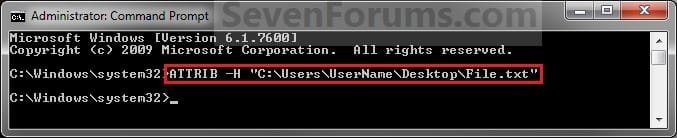
NOTE: For example, if I wanted to unhide a hidden text file named File with the file extension .txt on my desktop, I would type this command below.

Code:
ATTRIB -H "C:\Users\UserName\Desktop\File.txt"
Attrib_Unhide_File.jpg
C) The file should now be unhidden. Go to step 7.
5. To Hide a specific Folder
A) In the command prompt, type the command below and press enter.
NOTE: Substitute Full Path of Folder within quotes below with your folder's full path within quotes instead.

Code:
ATTRIB +H "[COLOR=red][B]Full Path of Folder[/B][/COLOR]"

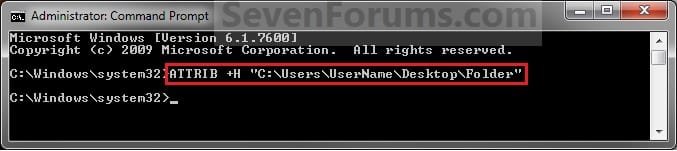
NOTE: For example, if I wanted to hide a folder named Folder on my desktop, I would type this command below.

Code:
ATTRIB +H "C:\Users\UserName\Desktop\Folder"
Attrib_Hide_Folder.jpg
B) In Folder Options, make sure that Don't Show hidden files, folders, and drives is selected (dotted).

C) The folder should now be hidden. Go to step 7.
6. To Unhide a specific Folder
A) In the command prompt, type the command below and press enter.
NOTE: Substitute Full Path of Folder within quotes below with your folder's full path within quotes instead.

Code:
ATTRIB -H "[COLOR=red][B]Full Path of Folder[/B][/COLOR]"

NOTE: For example, if I wanted to unhide a hidden folder named Folder on my desktop, I would type this command below.

Code:
ATTRIB -H "C:\Users\UserName\Desktop\Folder"
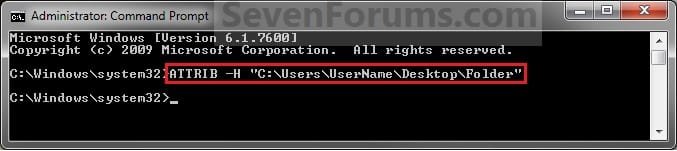
Attrib_Unhide_Folder.jpg
B) The folder should now be unhidden.
7. To Hide a Folder and all Contents in the Folder
NOTE: This will hide the selected folder along with all subfolders and files inside this folder.
A) In the command prompt, type the command below and press enter.
NOTE: Substitute Full Path of Folder within quotes below with your folder's full path within quotes instead.

Code:
ATTRIB +H "[COLOR=red][B]Full Path of Folder[/B][/COLOR]\*" /S /D

NOTE: For example, if I wanted to hide a folder named Folder on my desktop along with all of it's contents, I would type this command below.

Code:
ATTRIB +H "C:\Users\UserName\Desktop\Folder\*" /S /D
Attrib_Hide_Folder.jpg
B) In Folder Options, make sure that Don't Show hidden files, folders, and drives is selected (dotted).

C) The folder should now be hidden. Go to step 7.
8. To Unhide a Folder and all Contents in the Folder
NOTE: This will unhide the selected folder along with all subfolders and files inside this folder.
A) In the command prompt, type the command below and press enter.
NOTE: Substitute Full Path of Folder within quotes below with your folder's full path within quotes instead.
Code:
ATTRIB -H "[COLOR=red][B]Full Path of Folder[/B][/COLOR]\*" /S /D

NOTE: For example, if I wanted to unhide a hidden folder named Folder on my desktop and all of it's contents, I would type this command below.

Code:
ATTRIB -H "C:\Users\UserName\Desktop\Folder\*" /S /D
Attrib_Unhide_Folder.jpg
B) The folder should now be unhidden.
9. When done, close the command prompt.
That's it,
Shawn


Last edited:
hide folder

hey hiii
am using this trick but now am facing some problem..
am nt remebr ma folder name so how can i access it from comand prompt??
pls help
 

My Computer My Computer

OS
win-7

My Computer My Computer

Computer type
PC/Desktop
Computer Manufacturer/Model Number
Self built custom
OS
64-bit Windows 11 Pro for Workstations
CPU
Intel i7-8700K OC'd to 5 GHz
Motherboard
ASUS ROG Maximus XI Formula Z390
Memory
64 GB (4x16GB) G.SKILL TridentZ RGB DDR4 3600 MHz
Graphics Card(s)
ASUS ROG-STRIX-GTX1080TI-O11G-GAMING
Sound Card
Integrated
Monitor(s) Displays
2 x Samsung Odyssey G7 27"
Screen Resolution
2560x1440
Hard Drives
1TB Samsung 990 PRO M.2,
4TB Samsung 990 PRO PRO M.2,
TerraMaster F8 SSD Plus NAS
PSU
Seasonic Prime Titanium 850W
Case
Thermaltake Core P3
Cooling
Corsair Hydro H115i
Keyboard
Logitech wireless K800
Mouse
Logitech MX Master 4
Internet Speed
2 Gb/s Download and 100 Mb/s Upload
Antivirus
Malwarebyte Anti-Malware Premium
Browser
Google Chrome
Other Info
Logitech Z625 speaker system,
Logitech BRIO 4K Pro webcam,
HP Color LaserJet Pro MFP M477fdn,
APC SMART-UPS RT 1000 XL - SURT1000XLI,
Galaxy S23 Plus phone
You're most welcome Kevin, and welcome to Seven Forums. :)
 

My Computer My Computer

Computer type
PC/Desktop
Computer Manufacturer/Model Number
Self built custom
OS
64-bit Windows 11 Pro for Workstations
CPU
Intel i7-8700K OC'd to 5 GHz
Motherboard
ASUS ROG Maximus XI Formula Z390
Memory
64 GB (4x16GB) G.SKILL TridentZ RGB DDR4 3600 MHz
Graphics Card(s)
ASUS ROG-STRIX-GTX1080TI-O11G-GAMING
Sound Card
Integrated
Monitor(s) Displays
2 x Samsung Odyssey G7 27"
Screen Resolution
2560x1440
Hard Drives
1TB Samsung 990 PRO M.2,
4TB Samsung 990 PRO PRO M.2,
TerraMaster F8 SSD Plus NAS
PSU
Seasonic Prime Titanium 850W
Case
Thermaltake Core P3
Cooling
Corsair Hydro H115i
Keyboard
Logitech wireless K800
Mouse
Logitech MX Master 4
Internet Speed
2 Gb/s Download and 100 Mb/s Upload
Antivirus
Malwarebyte Anti-Malware Premium
Browser
Google Chrome
Other Info
Logitech Z625 speaker system,
Logitech BRIO 4K Pro webcam,
HP Color LaserJet Pro MFP M477fdn,
APC SMART-UPS RT 1000 XL - SURT1000XLI,
Galaxy S23 Plus phone
Shawn

Is there a way to copy a hidden file folder so the copied folder is also hidden?
 

My Computer My Computer

Computer Manufacturer/Model Number
Clone
OS
Windows 7 Home Premiun 64bit
CPU
Intel Core i3-2100 301Ghz
Motherboard
Asus P8H61-M Rev 3.0
Memory
6 gig
Graphics Card(s)
Onboard
Sound Card
Onboard
Monitor(s) Displays
HP w1858
Hard Drives
WD Sata 500 Gig
Hello rwmol,

When I copy a hidden folder and paste it somewhere, the pasted (copied) folder is still hidden for me. Is it not the same for you?
 

My Computer My Computer

Computer type
PC/Desktop
Computer Manufacturer/Model Number
Self built custom
OS
64-bit Windows 11 Pro for Workstations
CPU
Intel i7-8700K OC'd to 5 GHz
Motherboard
ASUS ROG Maximus XI Formula Z390
Memory
64 GB (4x16GB) G.SKILL TridentZ RGB DDR4 3600 MHz
Graphics Card(s)
ASUS ROG-STRIX-GTX1080TI-O11G-GAMING
Sound Card
Integrated
Monitor(s) Displays
2 x Samsung Odyssey G7 27"
Screen Resolution
2560x1440
Hard Drives
1TB Samsung 990 PRO M.2,
4TB Samsung 990 PRO PRO M.2,
TerraMaster F8 SSD Plus NAS
PSU
Seasonic Prime Titanium 850W
Case
Thermaltake Core P3
Cooling
Corsair Hydro H115i
Keyboard
Logitech wireless K800
Mouse
Logitech MX Master 4
Internet Speed
2 Gb/s Download and 100 Mb/s Upload
Antivirus
Malwarebyte Anti-Malware Premium
Browser
Google Chrome
Other Info
Logitech Z625 speaker system,
Logitech BRIO 4K Pro webcam,
HP Color LaserJet Pro MFP M477fdn,
APC SMART-UPS RT 1000 XL - SURT1000XLI,
Galaxy S23 Plus phone
No. Perhaps I should have given you a little more info. These folders are being copied to another drive. Copied files work just fine. Not so with folders.

As an example, I created a folder named "test". Marked the attributes as hidden and copied it to another drive. The copied folder has hidden unchecked.
 

My Computer My Computer

Computer Manufacturer/Model Number
Clone
OS
Windows 7 Home Premiun 64bit
CPU
Intel Core i3-2100 301Ghz
Motherboard
Asus P8H61-M Rev 3.0
Memory
6 gig
Graphics Card(s)
Onboard
Sound Card
Onboard
Monitor(s) Displays
HP w1858
Hard Drives
WD Sata 500 Gig
What type (ex: internal, external, network, local, etc...) is the other drive, and how is it formatted (ex: NTFS, FAT32, etc..)?

I was able to copy a hidden "test" folder from my desktop to another internal HDD, and it was still hidden as well.

Until we can get this sorted, the context menu options in the tutorial below may help make it easier for you to set the copied folder as hidden again.

http://www.sevenforums.com/tutorials/204725-file-folder-add-hide-unhide-context-menu.html
 

My Computer My Computer

Computer type
PC/Desktop
Computer Manufacturer/Model Number
Self built custom
OS
64-bit Windows 11 Pro for Workstations
CPU
Intel i7-8700K OC'd to 5 GHz
Motherboard
ASUS ROG Maximus XI Formula Z390
Memory
64 GB (4x16GB) G.SKILL TridentZ RGB DDR4 3600 MHz
Graphics Card(s)
ASUS ROG-STRIX-GTX1080TI-O11G-GAMING
Sound Card
Integrated
Monitor(s) Displays
2 x Samsung Odyssey G7 27"
Screen Resolution
2560x1440
Hard Drives
1TB Samsung 990 PRO M.2,
4TB Samsung 990 PRO PRO M.2,
TerraMaster F8 SSD Plus NAS
PSU
Seasonic Prime Titanium 850W
Case
Thermaltake Core P3
Cooling
Corsair Hydro H115i
Keyboard
Logitech wireless K800
Mouse
Logitech MX Master 4
Internet Speed
2 Gb/s Download and 100 Mb/s Upload
Antivirus
Malwarebyte Anti-Malware Premium
Browser
Google Chrome
Other Info
Logitech Z625 speaker system,
Logitech BRIO 4K Pro webcam,
HP Color LaserJet Pro MFP M477fdn,
APC SMART-UPS RT 1000 XL - SURT1000XLI,
Galaxy S23 Plus phone
I've tried it on two types of drives. NFTS internal IDE drive and UDF internal DVD RW. In both cases the folder is unhidden.

Using the Context Menu method above doesn't really serve my purpose. Eventhough, effective for most people.

Randy
 

My Computer My Computer

Computer Manufacturer/Model Number
Clone
OS
Windows 7 Home Premiun 64bit
CPU
Intel Core i3-2100 301Ghz
Motherboard
Asus P8H61-M Rev 3.0
Memory
6 gig
Graphics Card(s)
Onboard
Sound Card
Onboard
Monitor(s) Displays
HP w1858
Hard Drives
WD Sata 500 Gig
I've tried it on two types of drives. NFTS internal IDE drive and UDF internal DVD RW. In both cases the folder is unhidden.

Using the Context Menu method above doesn't really serve my purpose. Eventhough, effective for most people.

Randy

Randy,

I must admit that I'm not sure why it's not copying over to a nonremovable drive as still hidden. :confused:
 
Last edited:

My Computer My Computer

Computer type
PC/Desktop
Computer Manufacturer/Model Number
Self built custom
OS
64-bit Windows 11 Pro for Workstations
CPU
Intel i7-8700K OC'd to 5 GHz
Motherboard
ASUS ROG Maximus XI Formula Z390
Memory
64 GB (4x16GB) G.SKILL TridentZ RGB DDR4 3600 MHz
Graphics Card(s)
ASUS ROG-STRIX-GTX1080TI-O11G-GAMING
Sound Card
Integrated
Monitor(s) Displays
2 x Samsung Odyssey G7 27"
Screen Resolution
2560x1440
Hard Drives
1TB Samsung 990 PRO M.2,
4TB Samsung 990 PRO PRO M.2,
TerraMaster F8 SSD Plus NAS
PSU
Seasonic Prime Titanium 850W
Case
Thermaltake Core P3
Cooling
Corsair Hydro H115i
Keyboard
Logitech wireless K800
Mouse
Logitech MX Master 4
Internet Speed
2 Gb/s Download and 100 Mb/s Upload
Antivirus
Malwarebyte Anti-Malware Premium
Browser
Google Chrome
Other Info
Logitech Z625 speaker system,
Logitech BRIO 4K Pro webcam,
HP Color LaserJet Pro MFP M477fdn,
APC SMART-UPS RT 1000 XL - SURT1000XLI,
Galaxy S23 Plus phone
I found the problem. I was copying with a Norton Commander type file management utility. Works fine with Windows Explorer.

Sorry for the hassle.

Randy
 

My Computer My Computer

Computer Manufacturer/Model Number
Clone
OS
Windows 7 Home Premiun 64bit
CPU
Intel Core i3-2100 301Ghz
Motherboard
Asus P8H61-M Rev 3.0
Memory
6 gig
Graphics Card(s)
Onboard
Sound Card
Onboard
Monitor(s) Displays
HP w1858
Hard Drives
WD Sata 500 Gig
Randy,

Ah, ok. I'm happy to hear that you got it sorted. Thank you for posting back with your findings and results. :)
 

My Computer My Computer

Computer type
PC/Desktop
Computer Manufacturer/Model Number
Self built custom
OS
64-bit Windows 11 Pro for Workstations
CPU
Intel i7-8700K OC'd to 5 GHz
Motherboard
ASUS ROG Maximus XI Formula Z390
Memory
64 GB (4x16GB) G.SKILL TridentZ RGB DDR4 3600 MHz
Graphics Card(s)
ASUS ROG-STRIX-GTX1080TI-O11G-GAMING
Sound Card
Integrated
Monitor(s) Displays
2 x Samsung Odyssey G7 27"
Screen Resolution
2560x1440
Hard Drives
1TB Samsung 990 PRO M.2,
4TB Samsung 990 PRO PRO M.2,
TerraMaster F8 SSD Plus NAS
PSU
Seasonic Prime Titanium 850W
Case
Thermaltake Core P3
Cooling
Corsair Hydro H115i
Keyboard
Logitech wireless K800
Mouse
Logitech MX Master 4
Internet Speed
2 Gb/s Download and 100 Mb/s Upload
Antivirus
Malwarebyte Anti-Malware Premium
Browser
Google Chrome
Other Info
Logitech Z625 speaker system,
Logitech BRIO 4K Pro webcam,
HP Color LaserJet Pro MFP M477fdn,
APC SMART-UPS RT 1000 XL - SURT1000XLI,
Galaxy S23 Plus phone
rehide help

Hi...I was searching google for a code how to rehide files I unhid...because I found a code somewhere that unhid ALL my files [to clear 'system check' malware], but now when I use the standard 'view files' options to [re]hide system files, theyy remain showing...

Basically all I want to do now [after having cleaned the virus] is a command prompt code to re-hide throughout my pc [windows xp] all normally hidden files, ie, all normally system files and the like...

Thank you so much,
Izzy

update... I'm not a pro or techie, so not sure which are supposed to be hidden and which not, but i see desktop.ini around in folders and on desktop, and dll files etc... basically I want all normally hidden files [system and such] to be hidden again [with ability to uhide them with folder optios/view capabilities, in case I need to one day unhide them etc.]
 
Last edited:

My Computer My Computer

OS
Windows XP 32 bit
Hello Izzy, and welcome to Seven Forums.

It would be an almost impossible job to determine which files should be hidden and not hidden at this point. You could do a system restore using a restore point (if available) dated before the virus to hopefully fix all of this for you. desktop.ini files are hidden protected OS files by default though.

If system restore is not an option, then you could use the tutorial below to be able to hide/unhide files/folders using the context menu to make it easier.

http://www.sevenforums.com/tutorials/204725-file-folder-add-hide-unhide-context-menu.html

Hope this helps,
Shawn
 

My Computer My Computer

Computer type
PC/Desktop
Computer Manufacturer/Model Number
Self built custom
OS
64-bit Windows 11 Pro for Workstations
CPU
Intel i7-8700K OC'd to 5 GHz
Motherboard
ASUS ROG Maximus XI Formula Z390
Memory
64 GB (4x16GB) G.SKILL TridentZ RGB DDR4 3600 MHz
Graphics Card(s)
ASUS ROG-STRIX-GTX1080TI-O11G-GAMING
Sound Card
Integrated
Monitor(s) Displays
2 x Samsung Odyssey G7 27"
Screen Resolution
2560x1440
Hard Drives
1TB Samsung 990 PRO M.2,
4TB Samsung 990 PRO PRO M.2,
TerraMaster F8 SSD Plus NAS
PSU
Seasonic Prime Titanium 850W
Case
Thermaltake Core P3
Cooling
Corsair Hydro H115i
Keyboard
Logitech wireless K800
Mouse
Logitech MX Master 4
Internet Speed
2 Gb/s Download and 100 Mb/s Upload
Antivirus
Malwarebyte Anti-Malware Premium
Browser
Google Chrome
Other Info
Logitech Z625 speaker system,
Logitech BRIO 4K Pro webcam,
HP Color LaserJet Pro MFP M477fdn,
APC SMART-UPS RT 1000 XL - SURT1000XLI,
Galaxy S23 Plus phone
Thanks Shawn for swift reply...I have system restore off, so that won't help. Isn't there a way I could hide all those "protected operating system files" which are usually hidden in folder options/view?

Are there specific sorts of file extensions, or the like, that are supposed to be hidden...?

Also, that tutorial you mention, what is the purpose/advantage of using the context menu? Would that help in my specific problem? And for Windows XP?

Thanks again!
Izzy
 

My Computer My Computer

OS
Windows XP 32 bit
I haven't tested the context menu in XP, but it should work the same. It's just an option to be able to make hiding them easier instead of having to go through the properties menu.

The problem is that some are just hidden system files, and others are hidden protected OS files. The protected OS files have the system attribute in addition to the hidden attribute. There's just to many files that would be hidden to try and go through each one of them.

If you are not experiencing any issues, then I wouldn't worry about it and only hide the ones you wish to. For example, desktop.ini files.
 

My Computer My Computer

Computer type
PC/Desktop
Computer Manufacturer/Model Number
Self built custom
OS
64-bit Windows 11 Pro for Workstations
CPU
Intel i7-8700K OC'd to 5 GHz
Motherboard
ASUS ROG Maximus XI Formula Z390
Memory
64 GB (4x16GB) G.SKILL TridentZ RGB DDR4 3600 MHz
Graphics Card(s)
ASUS ROG-STRIX-GTX1080TI-O11G-GAMING
Sound Card
Integrated
Monitor(s) Displays
2 x Samsung Odyssey G7 27"
Screen Resolution
2560x1440
Hard Drives
1TB Samsung 990 PRO M.2,
4TB Samsung 990 PRO PRO M.2,
TerraMaster F8 SSD Plus NAS
PSU
Seasonic Prime Titanium 850W
Case
Thermaltake Core P3
Cooling
Corsair Hydro H115i
Keyboard
Logitech wireless K800
Mouse
Logitech MX Master 4
Internet Speed
2 Gb/s Download and 100 Mb/s Upload
Antivirus
Malwarebyte Anti-Malware Premium
Browser
Google Chrome
Other Info
Logitech Z625 speaker system,
Logitech BRIO 4K Pro webcam,
HP Color LaserJet Pro MFP M477fdn,
APC SMART-UPS RT 1000 XL - SURT1000XLI,
Galaxy S23 Plus phone
ok, a couple questions please: would that download using context menu be able to hide all protected system files together in one shot?

is there no code that could rehide all the protected ones, as it was a code [don't remember which but could attempt to find it if that would help here...] that unhid them in the first place?

so which ones should be hidden for safety, the ones with the system attribute in addition to the hidden attribute, or both/all?

also, if using properties menu [if its the same as using context menu download, inasmuch of having to do them one-by-one, and if so, I would need to know which types I should be doing...] should I also check that they should be 'read only'...what does that option mean..?

Thanks again,
Izzy
 

My Computer My Computer

OS
Windows XP 32 bit
Izzy,

There's not a code that I know of that will hide all the default hidden files again. Personally, I wouldn't worry about it, and just hide the ones that are in your way like the Desktop.ini file. :(
 

My Computer My Computer

Computer type
PC/Desktop
Computer Manufacturer/Model Number
Self built custom
OS
64-bit Windows 11 Pro for Workstations
CPU
Intel i7-8700K OC'd to 5 GHz
Motherboard
ASUS ROG Maximus XI Formula Z390
Memory
64 GB (4x16GB) G.SKILL TridentZ RGB DDR4 3600 MHz
Graphics Card(s)
ASUS ROG-STRIX-GTX1080TI-O11G-GAMING
Sound Card
Integrated
Monitor(s) Displays
2 x Samsung Odyssey G7 27"
Screen Resolution
2560x1440
Hard Drives
1TB Samsung 990 PRO M.2,
4TB Samsung 990 PRO PRO M.2,
TerraMaster F8 SSD Plus NAS
PSU
Seasonic Prime Titanium 850W
Case
Thermaltake Core P3
Cooling
Corsair Hydro H115i
Keyboard
Logitech wireless K800
Mouse
Logitech MX Master 4
Internet Speed
2 Gb/s Download and 100 Mb/s Upload
Antivirus
Malwarebyte Anti-Malware Premium
Browser
Google Chrome
Other Info
Logitech Z625 speaker system,
Logitech BRIO 4K Pro webcam,
HP Color LaserJet Pro MFP M477fdn,
APC SMART-UPS RT 1000 XL - SURT1000XLI,
Galaxy S23 Plus phone
Izzy,

There's not a code that I know of that will hide all the default hidden files again. Personally, I wouldn't worry about it, and just hide the ones that are in your way like the Desktop.ini file. :(

ok, should the desktop.ini also be 'read only' or...?

my main prob is that its difficult searching through folders when all these system files are in the way [like those $filenames, ghosts etc.]...is there a way to solve that then?
 

My Computer My Computer

OS
Windows XP 32 bit
Back
Top