
How to Hide or Unhide a File or Folder in Vista, Windows 7, and Windows 8
Information
This tutorial will show you how to set the hidden attribute of a file or folder to be hidden or unhidden in Vista, Windows 7, and Windows 8.
OPTION ONE
Through the File's or Folder's Properties Page
1.To Hide a File or Folder
A) Right click on the file or folder, and click on Properties.
B) Check the Hidden box, and click on OK. (see screenshots below)

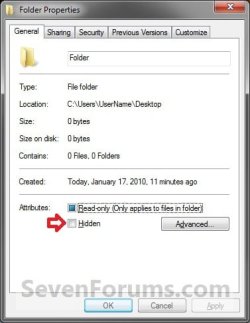
C) If this is for a folder and it has a subfolder or file in it, then you will also need to select (dot) to only hide the folder or to hide the folder and all of it's subfolders and files in it. Click on OK. (see screenshot below)
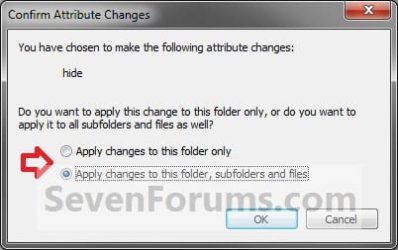
D) In Folder Options, make sure that Don't Show hidden files, folders, and drives is selected (dotted).
3. To Unhide a File or Folder
A) Open Folder Options, select (dot) Show hidden files, folders, and drives, and click on OK. (see screenshot below)
NOTE: This way you will be able to see the hidden file or folder to be able to unhide it.
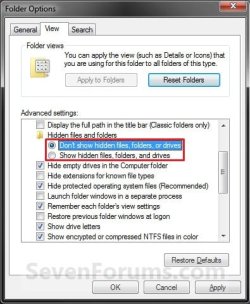
B) Right click on the file or folder, and click on Properties.
C) Uncheck the Hidden box and click on OK. (see screenshots below step 2B)
D) If this is for a folder and it has a subfolder or file in it, then you will also need to select (dot) to only unhide the folder or to unhide the folder and all of it's subfolders and files in it. Click on OK. (see screenshot below step 2C)
E) In Folder Options, select (dot) Don't Show hidden files, folders, and drives, and click on OK. (see screenshot below step 3A)
OPTION TWO
Through the Command Prompt
Note
This will show you how to hide or unhide a file or folder using the ATTRIB command.
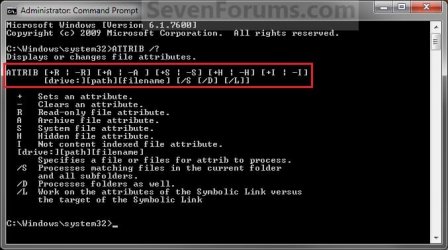
While you can run this command in a non-elevated or elevated command prompt, you would get the best results using a elevated command prompt.
While you can run this command in a non-elevated or elevated command prompt, you would get the best results using a elevated command prompt.
1. Open a elevated command prompt, then do either step 2, 3, 4, 5, 6, 7, or 8 below for what you would like to do.
2. To Hide a specific File
A) Open Folder Options and uncheck the Hide extensions for known file types option and click on OK. (see screenshot below)
NOTE: This way you will be able to see the file extension in your file's name to use in the command below.
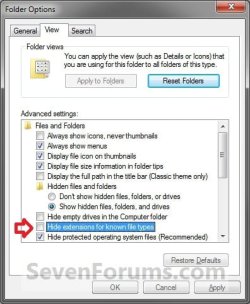
B) In the command prompt, type the command below and press enter.
NOTE: Substitute Full Path of File with extension within quotes below with your files's full path and name with the extension included within quotes instead.
Code:
ATTRIB +H "[COLOR=red][B]Full Path of File with extension[/B][/COLOR]"NOTE: For example, if I wanted to hide a text file named File with the file extension .txt on my desktop, I would type this command below.
Code:
ATTRIB +H "C:\Users\UserName\Desktop\File.txt"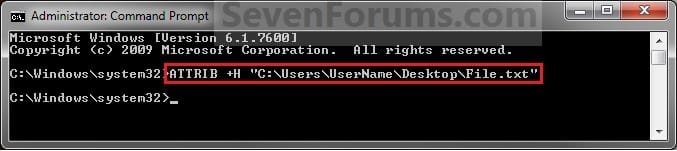
C) In Folder Options, make sure that Don't Show hidden files, folders, and drives is selected (dotted).
D) The file should now be hidden. Go to step 7.
4. To Unhide a specific File
A) Open Folder Options and uncheck the Hide extensions for known file types option and click on OK. (see screenshot below step 3A)
NOTE: This way you will be able to see the file extension in your file's name to use in the command below.
B) In the command prompt, type the command below and press enter.
NOTE: Substitute Full Path of File with extension within quotes below with your files's full path and name with the extension included within quotes instead.
Code:
ATTRIB -H "[COLOR=red][B]Full Path of File with extension[/B][/COLOR]"NOTE: For example, if I wanted to unhide a hidden text file named File with the file extension .txt on my desktop, I would type this command below.
Code:
ATTRIB -H "C:\Users\UserName\Desktop\File.txt"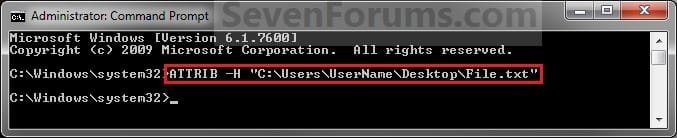
C) The file should now be unhidden. Go to step 7.
5. To Hide a specific Folder
A) In the command prompt, type the command below and press enter.
NOTE: Substitute Full Path of Folder within quotes below with your folder's full path within quotes instead.
Code:
ATTRIB +H "[COLOR=red][B]Full Path of Folder[/B][/COLOR]"NOTE: For example, if I wanted to hide a folder named Folder on my desktop, I would type this command below.
Code:
ATTRIB +H "C:\Users\UserName\Desktop\Folder"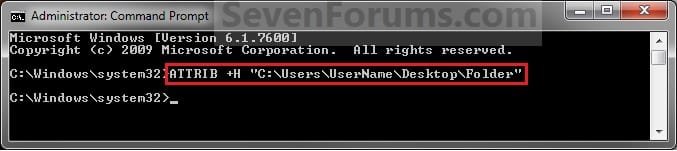
B) In Folder Options, make sure that Don't Show hidden files, folders, and drives is selected (dotted).
C) The folder should now be hidden. Go to step 7.
6. To Unhide a specific Folder
A) In the command prompt, type the command below and press enter.
NOTE: Substitute Full Path of Folder within quotes below with your folder's full path within quotes instead.
Code:
ATTRIB -H "[COLOR=red][B]Full Path of Folder[/B][/COLOR]"NOTE: For example, if I wanted to unhide a hidden folder named Folder on my desktop, I would type this command below.
Code:
ATTRIB -H "C:\Users\UserName\Desktop\Folder"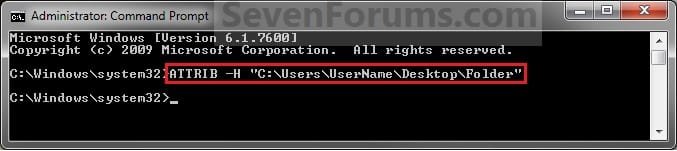
B) The folder should now be unhidden.
7. To Hide a Folder and all Contents in the Folder
NOTE: This will hide the selected folder along with all subfolders and files inside this folder.
A) In the command prompt, type the command below and press enter.
NOTE: Substitute Full Path of Folder within quotes below with your folder's full path within quotes instead.
Code:
ATTRIB +H "[COLOR=red][B]Full Path of Folder[/B][/COLOR]\*" /S /DNOTE: For example, if I wanted to hide a folder named Folder on my desktop along with all of it's contents, I would type this command below.
Code:
ATTRIB +H "C:\Users\UserName\Desktop\Folder\*" /S /DB) In Folder Options, make sure that Don't Show hidden files, folders, and drives is selected (dotted).
C) The folder should now be hidden. Go to step 7.
8. To Unhide a Folder and all Contents in the Folder
NOTE: This will unhide the selected folder along with all subfolders and files inside this folder.
A) In the command prompt, type the command below and press enter.
NOTE: Substitute Full Path of Folder within quotes below with your folder's full path within quotes instead.
Code:
ATTRIB -H "[COLOR=red][B]Full Path of Folder[/B][/COLOR]\*" /S /DNOTE: For example, if I wanted to unhide a hidden folder named Folder on my desktop and all of it's contents, I would type this command below.
Code:
ATTRIB -H "C:\Users\UserName\Desktop\Folder\*" /S /DB) The folder should now be unhidden.
9. When done, close the command prompt.
That's it,
Shawn
Related Tutorials
- How to Show or Hide All Hidden Files, Folders, and Drives in Vista, Windows 7, and Windows 8
- How to Delete a Folder from the Command Prompt
- How to Delete a File from the Command Prompt
- How to Rename a File and Folder from the Command Prompt
- How to Set and Unset the Read-only File and Folder Attribute in Vista, Windows 7, and Windows 8
- How to Add "Show/Hide Hidden Files" to Context Menu in Vista, Windows 7, and Windows 8
- How to Fix Libraries when Hidden and Empty in Windows 7
- How to Add "Hide" and "Unhide" to File and Folder Context Menu in Vista, Windows 7, and Windows 8
- How to Add "List Hidden Files" to Context Menu in Vista, Windows 7, and Windows 8
- How to "Hide file names" of Files in Picture and Video Folders in Windows 7 and Windows 8
- Hide or Show File Names of Shortcuts and Folders in Windows 7 and Windows 8
Last edited:


