Folder Icon - Change Default Icon

How to Change Windows 7 Default Folder Icons using Resource Hacker

   Information
Windows 7 Folders are Live Folders , and they are not a single icon, but a combination of 5 different icons . In imageres.dll's icon group, the numbers of these 5 icons are respectively 3, 4, 5, 6, and 162 . So it is to change all the five icons to change the folder icon's look.

   Note
Tools Required :
1. Resource Hacker
2. System File Replacer

   Warning
To be safe and secured, it is better to http://www.sevenforums.com/tutorials/663-backup-complete-computer-create-image-backup.html before starting any customization activities. Moreover, I recommend to have manual backup (copy and paste in a secured place) of the files before modifying, so that it may be changed easily to default as and when it is needed.


OPTION ONE

To Change the Default Folder Icon to a Custom Icon


1. Open your resource hacker, Click on file > open ; it will open an window naming "open file continuing resource ...." make it sure that the location of look in box is System 32 . Type the filename "imageres.dll" , click the open button .
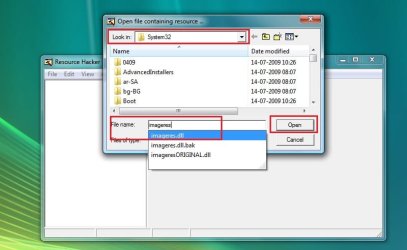
1.jpg
2. Click on the plus sign in front of "Icon Group" .
2.JPG
3. Now change 3, 4, 5, and 6 respectively with the Custom Icons . (The process is the same as described in http://www.sevenforums.com/tutorials/73191-icons-change-using-resource-hacker.html ; from step 9 to step 13; repeat steps for each number) {Change both 3 and 4 with the same open folder icon, 5 with the back side icon , and 6 with the front side icon}
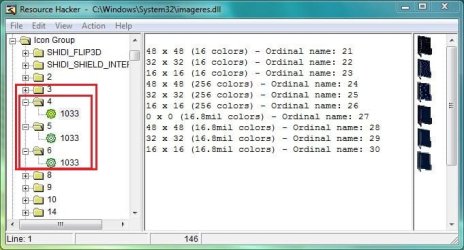
3.JPG
4. Scroll down to 162, and change it (using the same process, with the icon having some stuff in it) .
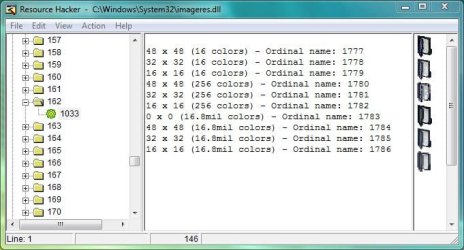
4.JPG
:warn:
   Note
During Steps 3 and 4 , if you get a dialog saying "out of system resources", dont worry . Click OK and proceed . As all the resolutions (13 resolution layers are usually required there for system icons; for all the alternative locations) are not found, such a dialog pops up . It wont resist our customization.


5. Now File > Save As . In the "Save File As" window, set the save location to Desktop, give the filename "imageres.dll" and save .

So your custom imageres.dll file is ready . Now it is to apply .

6. Take Ownership of the original imageres.dll file, have a manual backup of it , and place the modded one to C:\Windows\System32 , choose Copy and Replace, if prompted . Otherwise, you may use System File Replacer to do the replacement .

   Information
For a 32 bit system, manual work for changing system resources is completed here, but if you are using a 64 bit system , you are to do the same for the imageres.dll situated in SysWoW64, too (as suggested by Bongo)


So your custom folder icon set is done . Now make it workable .

7. To make the icons take effect , rebuild the icon cache, and delete the thumbnail cache.

8. Restart your Computer . After restarting, you may have another Disk Cleanup, to make the changes perfectly. If the thumbnail Cache is not deleted and Icon Cache is not Rebuilt, no change will take effect at all.


OPTION TWO

To Restore the Default Folder Icon


1. To restore the defaults, you will need your manual backup of the original imageres.dll file, that you have made earlier. Next, follow steps 6, 7 and 8 with it to get back the defaults.

 
Last edited by a moderator:

My Computer

Computer Manufacturer/Model Number
Dell XPS8300
OS
Windows 7 Home Premium 64bit
CPU
Core i7-2600 @ 3.4GHz
Memory
8GB
Graphics Card(s)
ATI Radeon 5700
Sound Card
Onboard
Monitor(s) Displays
22" - HP w2207h
Case
Dell tower

My Computer

Computer type
PC/Desktop
Computer Manufacturer/Model Number
Self Assembled
OS
Microsoft Windows 10 Pro Insider Preview 64-bit
CPU
Intel(R) Core(TM) i3-4130 CPU @ 3.40GHz
Motherboard
Gigabyte Technology Co., Ltd. B85M-D3H
Memory
Corsair Vengence 4GB x2 (8.00GB Dual-Channel DDR3 @ 798MHz)
Graphics Card(s)
2047MB GeForce GTS 450 (ZOTAC International)
Sound Card
Onboard (Realtek High Definition Audio)
Monitor(s) Displays
LG Flatron E2040T
Screen Resolution
1600x900
Hard Drives
Western Digital 1 TB
Seagate 500 GB
PSU
Corsair VS550
Case
Cooler Master K380
Cooling
Cooler Master Seidon 120V Plus
Keyboard
Logitech MK260r
Mouse
Logitech MK260r
Internet Speed
PMPL Broadband
Antivirus
Windows Defender + MBAM
Browser
Firefox
Other Info
Dell Studio 15" Laptop
Oh cheers then! Glad you like. There are tons of great icons at that site. And the red/black one has inspired me to put together a Ferrari theme which I think is going to turn out pretty cool. Thanks for giving me the tools to make that happen!

Oh, and Senary is another good set on the same site. More futuristic, and with many more file types represented. Senary Iconset (133 icons) | Arrioch
 
Last edited by a moderator:

My Computer

Computer Manufacturer/Model Number
Dell XPS8300
OS
Windows 7 Home Premium 64bit
CPU
Core i7-2600 @ 3.4GHz
Memory
8GB
Graphics Card(s)
ATI Radeon 5700
Sound Card
Onboard
Monitor(s) Displays
22" - HP w2207h
Case
Dell tower
Went through the tutorial 3 times, I cannot get the folder icons to change in Windows Explorer or on the Desktop.
It did change the folder icons when I'm in a open file or save file dialog window. Just not in Explorer. Any other advice? (I checked imageres.dll in Syswow64, but it seems it was automatically changed to match the file in System32. edit: I tried repeating all steps to change the imageres.dll in syswow64, but same outcome))
 
Last edited:

My Computer

OS
Win7 Premium x64
CPU
q6600 @3.4ghz oc
Motherboard
Asus Maximus Formula
Memory
2GB OCZ @850mhz
Graphics Card(s)
EVGA Nvidia 8800GT
Sound Card
Creative Xfi Titanium
Monitor(s) Displays
Acer 21.5"/LG 50" plasma
Screen Resolution
1080p/1080p
Hard Drives
OCZ Vertex 30GB ssd
PSU
600w Cooler Master iGreen
Cooling
CM Hyper 212 cpu cooler
Keyboard
Logitech Dinovo Edge
Mouse
Logitech Dinovo Edge
Internet Speed
5mb

My Computer

Computer type
Laptop
Computer Manufacturer/Model Number
Sager NP9170
OS
Win 7 Pro x64 / Win 10 Pro
CPU
Intel(R) Core(TM) i7-3630QM CPU @ 2.40GHz
Motherboard
CLEVO P170EM
Memory
12 GB
Graphics Card(s)
(1) Intel(R) HD Graphics 4000 (2) NVIDIA GeForce GTX 675M
Sound Card
(1) Realtek High Definition Audio (2) Intel(R) Display Aud
Monitor(s) Displays
17.3
Screen Resolution
1920x1080
Hard Drives
(1) Samsung 860 EVO 500GB(OS) (1) Samsung 860 EVO 500GB(Data)
Keyboard
Backlite
Antivirus
MSE, Malwarebytes Pro
Browser
Firefox
Other Info
DESKTOP: Custom-built.
OS: Win 10 Pro x64.
CASE: Rosewill R5.
CPU: Intel I5 4670K CPU @ 3.40GHz.
CPU COOLER: Cool Master Hyper 212 EVO.
MOTHERBOARD: Asus Z87-A.
MEMORY: Kingston HyperX 2x4 GB.
GPU: Nvidia Geforce 650 TI.
PSU: Corsair TX750.
DRIVES: (1) Samsung 840 120 GB SSD (2) Western Digital blue 500 GB 7200 RPM.
Lazarus Dark, have you followed the step 7 ? Sometimes it needs to run the step 7 a couple of times ....

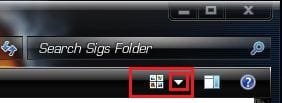
And one more trick is , click on the arrow beside the "more options' button ... (shown in the image below)
Capture.JPG

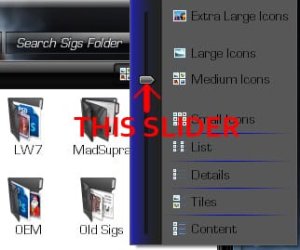
And then move the slider ... set it to extra large .... the folders will change their look .... and then get back to your option, the change will be there .
Untitled.jpg

If this trick didn't work, let me know ... I am to think again .
 

My Computer

Computer type
PC/Desktop
Computer Manufacturer/Model Number
Self Assembled
OS
Microsoft Windows 10 Pro Insider Preview 64-bit
CPU
Intel(R) Core(TM) i3-4130 CPU @ 3.40GHz
Motherboard
Gigabyte Technology Co., Ltd. B85M-D3H
Memory
Corsair Vengence 4GB x2 (8.00GB Dual-Channel DDR3 @ 798MHz)
Graphics Card(s)
2047MB GeForce GTS 450 (ZOTAC International)
Sound Card
Onboard (Realtek High Definition Audio)
Monitor(s) Displays
LG Flatron E2040T
Screen Resolution
1600x900
Hard Drives
Western Digital 1 TB
Seagate 500 GB
PSU
Corsair VS550
Case
Cooler Master K380
Cooling
Cooler Master Seidon 120V Plus
Keyboard
Logitech MK260r
Mouse
Logitech MK260r
Internet Speed
PMPL Broadband
Antivirus
Windows Defender + MBAM
Browser
Firefox
Other Info
Dell Studio 15" Laptop
Welcome to the Seven Forums
Did you rebuild the Icon Cache? http://www.sevenforums.com/tutorials/49819-icon-cache-rebuild.html
Jerry

Lazarus Dark, have you followed the step 7 ? Sometimes it needs to run the step 7 a couple of times ....

And one more trick is , click on the arrow beside the "more options' button ... (shown in the image below)

Yes, I rebuilt icon cache/deleted thumbnail cache several times using those steps (and the slider to change icon size does not make any difference). Interestingly, whereas I said before that I could see my folder changes in an open file or save file dialog, after a while it stopped doing this as well. Now I see the standard yellow folder in the open/save dialog as well as windows explorer. :/
(btw, though new to this forum and only recently having upgraded to Win7 from XP, I've got years of hacking Windows experience, and this doesn't seem like it should be that difficult. I can't imagine what step I could be messing up.)
 

My Computer

OS
Win7 Premium x64
CPU
q6600 @3.4ghz oc
Motherboard
Asus Maximus Formula
Memory
2GB OCZ @850mhz
Graphics Card(s)
EVGA Nvidia 8800GT
Sound Card
Creative Xfi Titanium
Monitor(s) Displays
Acer 21.5"/LG 50" plasma
Screen Resolution
1080p/1080p
Hard Drives
OCZ Vertex 30GB ssd
PSU
600w Cooler Master iGreen
Cooling
CM Hyper 212 cpu cooler
Keyboard
Logitech Dinovo Edge
Mouse
Logitech Dinovo Edge
Internet Speed
5mb

My Computer

Computer type
PC/Desktop
Computer Manufacturer/Model Number
Self Assembled
OS
Microsoft Windows 10 Pro Insider Preview 64-bit
CPU
Intel(R) Core(TM) i3-4130 CPU @ 3.40GHz
Motherboard
Gigabyte Technology Co., Ltd. B85M-D3H
Memory
Corsair Vengence 4GB x2 (8.00GB Dual-Channel DDR3 @ 798MHz)
Graphics Card(s)
2047MB GeForce GTS 450 (ZOTAC International)
Sound Card
Onboard (Realtek High Definition Audio)
Monitor(s) Displays
LG Flatron E2040T
Screen Resolution
1600x900
Hard Drives
Western Digital 1 TB
Seagate 500 GB
PSU
Corsair VS550
Case
Cooler Master K380
Cooling
Cooler Master Seidon 120V Plus
Keyboard
Logitech MK260r
Mouse
Logitech MK260r
Internet Speed
PMPL Broadband
Antivirus
Windows Defender + MBAM
Browser
Firefox
Other Info
Dell Studio 15" Laptop
Upload your imageres.dll from both System32 and Syswow64 in separate zip folders and I will have a look at it.
Jerry
 

My Computer

Computer type
Laptop
Computer Manufacturer/Model Number
Sager NP9170
OS
Win 7 Pro x64 / Win 10 Pro
CPU
Intel(R) Core(TM) i7-3630QM CPU @ 2.40GHz
Motherboard
CLEVO P170EM
Memory
12 GB
Graphics Card(s)
(1) Intel(R) HD Graphics 4000 (2) NVIDIA GeForce GTX 675M
Sound Card
(1) Realtek High Definition Audio (2) Intel(R) Display Aud
Monitor(s) Displays
17.3
Screen Resolution
1920x1080
Hard Drives
(1) Samsung 860 EVO 500GB(OS) (1) Samsung 860 EVO 500GB(Data)
Keyboard
Backlite
Antivirus
MSE, Malwarebytes Pro
Browser
Firefox
Other Info
DESKTOP: Custom-built.
OS: Win 10 Pro x64.
CASE: Rosewill R5.
CPU: Intel I5 4670K CPU @ 3.40GHz.
CPU COOLER: Cool Master Hyper 212 EVO.
MOTHERBOARD: Asus Z87-A.
MEMORY: Kingston HyperX 2x4 GB.
GPU: Nvidia Geforce 650 TI.
PSU: Corsair TX750.
DRIVES: (1) Samsung 840 120 GB SSD (2) Western Digital blue 500 GB 7200 RPM.

Attachments

  • scrnprnt resource hacker.png
    scrnprnt resource hacker.png
    83.1 KB · Views: 476

My Computer

OS
Win7 Premium x64
CPU
q6600 @3.4ghz oc
Motherboard
Asus Maximus Formula
Memory
2GB OCZ @850mhz
Graphics Card(s)
EVGA Nvidia 8800GT
Sound Card
Creative Xfi Titanium
Monitor(s) Displays
Acer 21.5"/LG 50" plasma
Screen Resolution
1080p/1080p
Hard Drives
OCZ Vertex 30GB ssd
PSU
600w Cooler Master iGreen
Cooling
CM Hyper 212 cpu cooler
Keyboard
Logitech Dinovo Edge
Mouse
Logitech Dinovo Edge
Internet Speed
5mb
The imageres files you have uploaded shows that the syswow64 thing has taken the effect of the change, but the system32 file is still in the default state. You are to change it , too.

As the imageres in system32 will be changed, the change of icon will take effect properly.

BTW, I hope you have your backups before attempting the change (it will be needed if you want to get back to defaults).
 

My Computer

Computer type
PC/Desktop
Computer Manufacturer/Model Number
Self Assembled
OS
Microsoft Windows 10 Pro Insider Preview 64-bit
CPU
Intel(R) Core(TM) i3-4130 CPU @ 3.40GHz
Motherboard
Gigabyte Technology Co., Ltd. B85M-D3H
Memory
Corsair Vengence 4GB x2 (8.00GB Dual-Channel DDR3 @ 798MHz)
Graphics Card(s)
2047MB GeForce GTS 450 (ZOTAC International)
Sound Card
Onboard (Realtek High Definition Audio)
Monitor(s) Displays
LG Flatron E2040T
Screen Resolution
1600x900
Hard Drives
Western Digital 1 TB
Seagate 500 GB
PSU
Corsair VS550
Case
Cooler Master K380
Cooling
Cooler Master Seidon 120V Plus
Keyboard
Logitech MK260r
Mouse
Logitech MK260r
Internet Speed
PMPL Broadband
Antivirus
Windows Defender + MBAM
Browser
Firefox
Other Info
Dell Studio 15" Laptop
The imageres files you have uploaded shows that the syswow64 thing has taken the effect of the change, but the system32 file is still in the default state. You are to change it , too.

As the imageres in system32 will be changed, the change of icon will take effect properly.

BTW, I hope you have your backups before attempting the change (it will be needed if you want to get back to defaults).

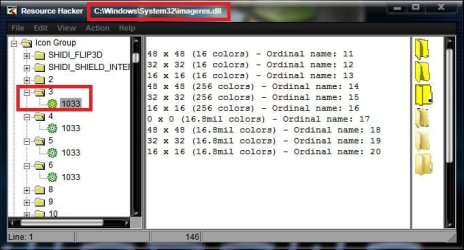
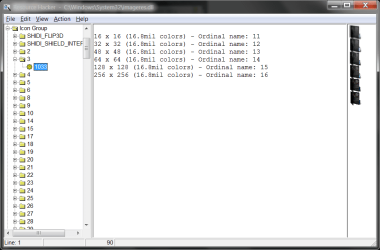
Um. What the heck? When I open C:\Windows\System32\imageres.dll in resource hacker it shows my new black folder icons. But when I copy that file into a folder on my desktop, then open the copied file in resource hacker, it shows the yellow folders (which is apparently how that got in the zip folder i uploaded). I have never heard of such a thing. How does resource hacker show black folders, but then when I copy the file, it has stock folders? I'm confused, how does a copy look different... it should be a copy, right?
 

My Computer

OS
Win7 Premium x64
CPU
q6600 @3.4ghz oc
Motherboard
Asus Maximus Formula
Memory
2GB OCZ @850mhz
Graphics Card(s)
EVGA Nvidia 8800GT
Sound Card
Creative Xfi Titanium
Monitor(s) Displays
Acer 21.5"/LG 50" plasma
Screen Resolution
1080p/1080p
Hard Drives
OCZ Vertex 30GB ssd
PSU
600w Cooler Master iGreen
Cooling
CM Hyper 212 cpu cooler
Keyboard
Logitech Dinovo Edge
Mouse
Logitech Dinovo Edge
Internet Speed
5mb
I don't know why your resource hacker did that to you but I put your folders in your dll imageres dll.zip
Jerry
 

My Computer

Computer type
Laptop
Computer Manufacturer/Model Number
Sager NP9170
OS
Win 7 Pro x64 / Win 10 Pro
CPU
Intel(R) Core(TM) i7-3630QM CPU @ 2.40GHz
Motherboard
CLEVO P170EM
Memory
12 GB
Graphics Card(s)
(1) Intel(R) HD Graphics 4000 (2) NVIDIA GeForce GTX 675M
Sound Card
(1) Realtek High Definition Audio (2) Intel(R) Display Aud
Monitor(s) Displays
17.3
Screen Resolution
1920x1080
Hard Drives
(1) Samsung 860 EVO 500GB(OS) (1) Samsung 860 EVO 500GB(Data)
Keyboard
Backlite
Antivirus
MSE, Malwarebytes Pro
Browser
Firefox
Other Info
DESKTOP: Custom-built.
OS: Win 10 Pro x64.
CASE: Rosewill R5.
CPU: Intel I5 4670K CPU @ 3.40GHz.
CPU COOLER: Cool Master Hyper 212 EVO.
MOTHERBOARD: Asus Z87-A.
MEMORY: Kingston HyperX 2x4 GB.
GPU: Nvidia Geforce 650 TI.
PSU: Corsair TX750.
DRIVES: (1) Samsung 840 120 GB SSD (2) Western Digital blue 500 GB 7200 RPM.
Sry bro but i can't understand exactly what u hv said can u plzzzz make a video tutorial if possible plzzzz.............
 

My Computer

Computer Manufacturer/Model Number
Gigabyte/G31M-S2L
OS
Windows 7 Ultimate x64
CPU
Intel Core 2 Duo 2.80Ghz
Motherboard
G31M-S2l
Memory
3GB DDR-3
Graphics Card(s)
Nvidia Geforce 8800gt Alpha dog Edition 512MB
Sound Card
No
Monitor(s) Displays
Samsung Sync master 794MG 17 inches monitor
Screen Resolution
1024*768
Hard Drives
Western Digital Disc-320 GB
PSU
Cooler master
Case
Navtech
Cooling
None
Keyboard
TVS GOLD
Mouse
Writex
Internet Speed
512Kbps
Sry bro but i can't understand exactly what u hv said can u plzzzz make a video tutorial if possible plzzzz.............
I dont know how to make a video :sarc: :confused:
 

My Computer

Computer type
PC/Desktop
Computer Manufacturer/Model Number
Self Assembled
OS
Microsoft Windows 10 Pro Insider Preview 64-bit
CPU
Intel(R) Core(TM) i3-4130 CPU @ 3.40GHz
Motherboard
Gigabyte Technology Co., Ltd. B85M-D3H
Memory
Corsair Vengence 4GB x2 (8.00GB Dual-Channel DDR3 @ 798MHz)
Graphics Card(s)
2047MB GeForce GTS 450 (ZOTAC International)
Sound Card
Onboard (Realtek High Definition Audio)
Monitor(s) Displays
LG Flatron E2040T
Screen Resolution
1600x900
Hard Drives
Western Digital 1 TB
Seagate 500 GB
PSU
Corsair VS550
Case
Cooler Master K380
Cooling
Cooler Master Seidon 120V Plus
Keyboard
Logitech MK260r
Mouse
Logitech MK260r
Internet Speed
PMPL Broadband
Antivirus
Windows Defender + MBAM
Browser
Firefox
Other Info
Dell Studio 15" Laptop
Great tutorial. Thanks for the work! :D
 

My Computer

Computer Manufacturer/Model Number
Dell XPS
OS
Windows 7 Home Premium 64-bit

My Computer

Computer type
PC/Desktop
Computer Manufacturer/Model Number
Self Assembled
OS
Microsoft Windows 10 Pro Insider Preview 64-bit
CPU
Intel(R) Core(TM) i3-4130 CPU @ 3.40GHz
Motherboard
Gigabyte Technology Co., Ltd. B85M-D3H
Memory
Corsair Vengence 4GB x2 (8.00GB Dual-Channel DDR3 @ 798MHz)
Graphics Card(s)
2047MB GeForce GTS 450 (ZOTAC International)
Sound Card
Onboard (Realtek High Definition Audio)
Monitor(s) Displays
LG Flatron E2040T
Screen Resolution
1600x900
Hard Drives
Western Digital 1 TB
Seagate 500 GB
PSU
Corsair VS550
Case
Cooler Master K380
Cooling
Cooler Master Seidon 120V Plus
Keyboard
Logitech MK260r
Mouse
Logitech MK260r
Internet Speed
PMPL Broadband
Antivirus
Windows Defender + MBAM
Browser
Firefox
Other Info
Dell Studio 15" Laptop
Hellow, i would like to open this topic again because its still now solved..

somehow ive been able to disable live folders..

Please download these first..
Aq7ion IconPack Installer by ~Mr-Ragnarok on deviantART


and install ..be careful with the bat files. make sure you have a restore point, and a bootCD first...


after install, i was surprised there was no live folders,
so my conclusion is that, we can modify something on the system files included on the pack and actually disable the live folders..


Please help me solve this..
God Bless us All!
 

My Computer

OS
Windows 7 Ultimate x86
Hi,

So I've edited strings 3 and 4 and the icons are displaying, but the folders change to the thumbnails when I add things into the folder. Instead of disabling it, I'd like to change the Icon for a filled folder.

I noticed you linked to a program called resource hacker which coincidentally also uses folder 3 and 4 in addition to 5, 6, and 162. Are these in correspondence with the string values from Regedit? If so, can I just create the strings in there and write the path like I did with 3 and 4?


Sorry, was looking at several guides when I posted this. Though I think my question could be answered here as well. Can I manually replace those icons through regedit? I tried adding in strings 5,6, and 162 but to no avail, so I'm guessing the hacker does this by a different means.
 
Last edited:

My Computer

OS
Windows 7 Professional 32bit
Arc I just used your tutorial and it works perfect.
I would like to make one suggestion for those using 64-bit they will need to do the same .dll in C:\Windows\SysWOW64 also.
Jerry
View attachment 167592


Hey Jerry, nice Win Explorer. Liked the black Win Explorer, can you share the theme that you are using in the above post??? :D
 

My Computer

Computer type
Laptop
OS
Windows 7 Ultimate
Back
Top