Folder navigation in Windows 7

jiayi

New member
Local time
8:13 PM
Messages
4
Hi all,

I find one unpleasant design of folder expansion/navigation in Windows 7.
In Wins XP, when we click on the folder's name in folder navigation pane, the sub-folder directories will be displayed automatically. But now in Windows 7, we need to manually click on the folder expansion sign (the "+" icon on the left of the folder) then only the sub-folder directories will get displayed. I have turn on the "Expand to current folder" setting but this brings no effect.... This is not a user intuitive design.

Is there a setting in Windows 7 which enable us to do the same like in Wins XP?

Thanks,
Jiayi
 

My Computer

OS
Windows 7 Enterprise x64
Hello jiay Welcome to SF!

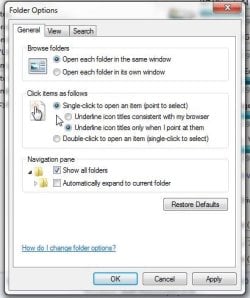
Simply open up any WE window and simply go to menu bar>Tools>Folder options and tick the single click to open an item. Here I use a programmable mouse with one button set to double click
 

Attachments

  • Single Click to Open Option.jpg
    Single Click to Open Option.jpg
    38.3 KB · Views: 7

My Computers

System One System Two

  • Computer type
    PC/Desktop
    Computer Manufacturer/Model Number
    Custom builds = 2
    OS
    W7 Ultimate x64/W10 Pro x64/W11 Pro Triple Boot - Main PC W7 Remote PC Micro ATX W7 Pro x64/W11 Pro
    CPU
    AMD Phenom II X4 975 Deneb 3.6ghz - 965 2nd remote pc
    Motherboard
    Gigabyte GA-790XTA-UD4-Gigabyte GA-880GM-D2H remote pc
    Memory
    Kingston Hyper X DDR3 1600 1.5v 16gb - Hyper X Fury 8gb 2nd
    Graphics Card(s)
    MSI HD Radeon 5750 1gb - MSI HD Radeon 6450 on mini tower
    Sound Card
    Creative Labs X-Fi Xtreme Audio P - Realtek onooard 2nd case
    Monitor(s) Displays
    ASUS VW199T-P 19" HP 2082a Main-HP 2082a 20" remote pc
    Screen Resolution
    Asus 1440x900 - HP 1600x900
    Hard Drives
    WD Black 1TB HD per OS W7, W10, and pending W11 presently on 500gb OS Drive - Pending Triple 1TB HDs for Spanned Storage/backup volume
    Single 2TB external USB enclosure, single 1TB System 7 Host/Boot drive, Pending 8TB external HD for system image b
    PSU
    Corsair 750TX - primary / Corsair CX600 - second
    Case
    Antec 900-2 - SSD compatible / NZXT Vulcan mini tower
    Cooling
    Zalman CNPS9900A
    Keyboard
    AZIO L70 Backlit Letters Gaming - ONN Cordless/USB
    Mouse
    MSI DS200 Programmable, Logitech Cordless
    Internet Speed
    30mbps upgrade - primary hard wired - mini tower usb WiFi
    Antivirus
    GFI VIPRE Internet Security 2014 on W7 2016 beta on W10,
    Browser
    Cyberfox, WaterFox 64bit FF variants, FireFox x64, Pale Moon
    Other Info
    Accomdata fan cooled usb 2.0 PIDE/Sata II, III external enclosure.
    Sambient usb/eSata PATA/Sata II, III external enclosure.
  • Computer type
    PC/Desktop
    System Manufacturer/Model Number
    CUSTOM ASSEMBLY
    OS
    W7 Pro x64/W11 Pro
    CPU
    AMD Deneb 3.6ghz - 965
    Motherboard
    Gigabyte GA-880GM-D2H remote pc
    Memory
    Kingston Hyper X Fury 8gb
    Graphics Card(s)
    MSI HD Radeon 6450 DVI Output
    Sound Card
    Realtek onooard Creative or Other separate PENDING
    Monitor(s) Displays
    VIZIO 32" LCD TV Separate LCD Pending
    Screen Resolution
    1600x1080
    Hard Drives
    WD 500GB OS Host/Boot WD Green 1TB Storage/Backup
    PSU
    Corsair 600W - THERMALTAKE 600W spare case
    Case
    NZXT Vulcan mini tower
    Cooling
    Twin 120mm Top Fans - 240mm Side Cover
    Keyboard
    ONN Cordless/USB Logitech Cordless
    Mouse
    ONN USB/Cordless - Logitech Cordless
    Internet Speed
    DSL 5G
    Browser
    MS Edge, FireFox, WaterFox x64, FireFox Nightly
    Other Info
    OS Testing-Remote Access to Main TeamViewer
Hi Night Hawk,

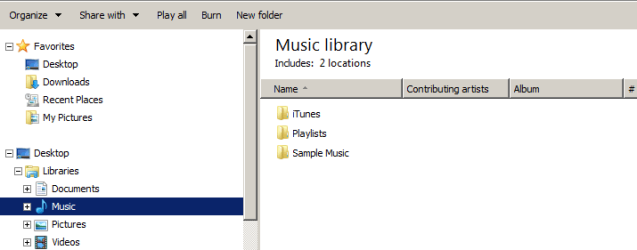
Thanks for your quick reply. I tried the settings you suggested but it doesn't work on the folder navigation pane. To better explained my problem, I have attached the screenshot as follow for your kind reference.

As you can see, I clicked on the folder named "Music", the sub-folders "iTune", "Playlist" and "Sample Music" will not be displayed on the folder navigation pane - this means that the parent folder will not get auto expanded though clicking on the folder name... But in Wins XP, this works well when I clicked on the folder name... In Windows 7, we need to click on the + sign (on the left most of the folder) in order to expand the folder "Music"...

Small note: I have turn on the "Expand to current folder" setting but this brings no effect...

Thanks,
Jiayi
 

Attachments

  • folder navigation.png
    folder navigation.png
    7.3 KB · Views: 15

My Computer

OS
Windows 7 Enterprise x64
You could give Classic Shell a try, see if it works the way you want. May be more that you want though I think you can select which changes are active or not.
 

My Computer

Computer type
PC/Desktop
Computer Manufacturer/Model Number
Lenovo IdeaCenter 450
OS
Windows 10 Pro X64
CPU
Intel Quad Core i7-4770 @ 3.4Ghz
Memory
16.0GB PC3-12800 DDR3 SDRAM 1600 MHz
Graphics Card(s)
Intel Integrated HD Graphics
Sound Card
Realtek HD Audio
Monitor(s) Displays
HP 22" LCD
Screen Resolution
1680 x 1050
Hard Drives
250GB Samsung EVO SATA-3 SSD
2TB Seagate ST2000DM001 SATA-2
1.5TB Seagate ST3150041AS SATA
Keyboard
Dell USB
Mouse
Lenovo USB
Internet Speed
Cable via Road Runner 3MB Upload, 30MB Download
Antivirus
Windows Defender, MBAM Pro, MBAE
Browser
Seamonkey
Other Info
UEFI/GPT
PLDS DVD-RW DH16AERSH
Hi Night Hawk,

Thanks for your quick reply. I tried the settings you suggested but it doesn't work on the folder navigation pane. To better explained my problem, I have attached the screenshot as follow for your kind reference.

As you can see, I clicked on the folder named "Music", the sub-folders "iTune", "Playlist" and "Sample Music" will not be displayed on the folder navigation pane - this means that the parent folder will not get auto expanded though clicking on the folder name... But in Wins XP, this works well when I clicked on the folder name... In Windows 7, we need to click on the + sign (on the left most of the folder) in order to expand the folder "Music"...

Small note: I have turn on the "Expand to current folder" setting but this brings no effect...

Thanks,
Jiayi

While I do understand your concerns, I must point out that your example is not accurate, because of the fact that you are NOT clicking on a folder. "Music" is not a folder, but is a library and therefore operates differently than folders.

I library is a collection of folders from various locations on your hard drive, designed to help consolidate different classes of files into on place.

If you where to navigate to your C:, and then go to folders from there, you'll notice that the tree pane at the left will expand as expected with your current settings.
 

My Computer

Computer type
PC/Desktop
Computer Manufacturer/Model Number
Virtual Machine
OS
Windows 7 Professional 32-bit SP1
CPU
AMD A4/A6
Motherboard
Intel Corporation 440BX Desktop Reference Platform
Memory
3.00GB EDO
Graphics Card(s)
VMware SVGA 3D
Sound Card
High Definition Audio Device
Monitor(s) Displays
Generic Non-PnP Monitor on VMware SVGA 3D
Screen Resolution
1440x900
Hard Drives
1 x 60GB VMware Virtual SATA Hard Drive ATA Device
Antivirus
Kaspersky Total Security
That's a substitute for the original Classic Start menu seen from 95 through Vista not having anything to do with WE as far as opening navigation items. In the previous versions a drive would have a link under it where you made one simple left click.

In 7 however you need to double click on the highlighted item like your main drive in order to see it expand in the navigation pane. I know where jiay is coming from on that. There is a solution however namely using the custom settings under Organize>Layout>navigation pane.

1.In an open window, click Organize, and then click Folder and search options.

2.In the Folder Options dialog box, click the General tab, and then do one or both of the following:

•To show all the folders on your computer in the navigation pane, including your personal folder, select the Show all folders check box, and then click OK.

•To automatically expand the navigation pane to the folder that's selected in the folder window, select the Automatically expand to current folder check box, and then click OK.

The MS page for this is seen at Working with the navigation pane

That was about the closest answer without a registry edit of some value. A similar answer is seen at http://www.mydigitallife.info/2009/...ion-pane-tree-to-current-folder-in-windows-7/
 

My Computers

System One System Two

  • Computer type
    PC/Desktop
    Computer Manufacturer/Model Number
    Custom builds = 2
    OS
    W7 Ultimate x64/W10 Pro x64/W11 Pro Triple Boot - Main PC W7 Remote PC Micro ATX W7 Pro x64/W11 Pro
    CPU
    AMD Phenom II X4 975 Deneb 3.6ghz - 965 2nd remote pc
    Motherboard
    Gigabyte GA-790XTA-UD4-Gigabyte GA-880GM-D2H remote pc
    Memory
    Kingston Hyper X DDR3 1600 1.5v 16gb - Hyper X Fury 8gb 2nd
    Graphics Card(s)
    MSI HD Radeon 5750 1gb - MSI HD Radeon 6450 on mini tower
    Sound Card
    Creative Labs X-Fi Xtreme Audio P - Realtek onooard 2nd case
    Monitor(s) Displays
    ASUS VW199T-P 19" HP 2082a Main-HP 2082a 20" remote pc
    Screen Resolution
    Asus 1440x900 - HP 1600x900
    Hard Drives
    WD Black 1TB HD per OS W7, W10, and pending W11 presently on 500gb OS Drive - Pending Triple 1TB HDs for Spanned Storage/backup volume
    Single 2TB external USB enclosure, single 1TB System 7 Host/Boot drive, Pending 8TB external HD for system image b
    PSU
    Corsair 750TX - primary / Corsair CX600 - second
    Case
    Antec 900-2 - SSD compatible / NZXT Vulcan mini tower
    Cooling
    Zalman CNPS9900A
    Keyboard
    AZIO L70 Backlit Letters Gaming - ONN Cordless/USB
    Mouse
    MSI DS200 Programmable, Logitech Cordless
    Internet Speed
    30mbps upgrade - primary hard wired - mini tower usb WiFi
    Antivirus
    GFI VIPRE Internet Security 2014 on W7 2016 beta on W10,
    Browser
    Cyberfox, WaterFox 64bit FF variants, FireFox x64, Pale Moon
    Other Info
    Accomdata fan cooled usb 2.0 PIDE/Sata II, III external enclosure.
    Sambient usb/eSata PATA/Sata II, III external enclosure.
  • Computer type
    PC/Desktop
    System Manufacturer/Model Number
    CUSTOM ASSEMBLY
    OS
    W7 Pro x64/W11 Pro
    CPU
    AMD Deneb 3.6ghz - 965
    Motherboard
    Gigabyte GA-880GM-D2H remote pc
    Memory
    Kingston Hyper X Fury 8gb
    Graphics Card(s)
    MSI HD Radeon 6450 DVI Output
    Sound Card
    Realtek onooard Creative or Other separate PENDING
    Monitor(s) Displays
    VIZIO 32" LCD TV Separate LCD Pending
    Screen Resolution
    1600x1080
    Hard Drives
    WD 500GB OS Host/Boot WD Green 1TB Storage/Backup
    PSU
    Corsair 600W - THERMALTAKE 600W spare case
    Case
    NZXT Vulcan mini tower
    Cooling
    Twin 120mm Top Fans - 240mm Side Cover
    Keyboard
    ONN Cordless/USB Logitech Cordless
    Mouse
    ONN USB/Cordless - Logitech Cordless
    Internet Speed
    DSL 5G
    Browser
    MS Edge, FireFox, WaterFox x64, FireFox Nightly
    Other Info
    OS Testing-Remote Access to Main TeamViewer
Back
Top