
How to Add or Remove Default Items from Folder Options "View" Tab in Windows 7 and Vista
Information
This will show you how to add (restore) or remove the default Advanced settings items from within the View tab in Folder Options for all users in Windows 7 and Vista.
You must be logged in as an administrator to be able to do this tutorial.
You must be logged in as an administrator to be able to do this tutorial.
EXAMPLE: Folder Options
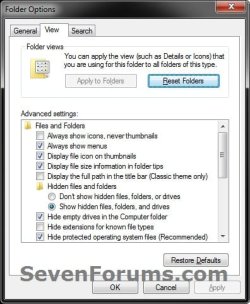
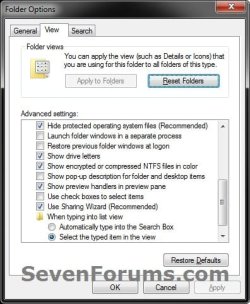
Here's How:
1. To Add "Always show icons, never thumbnails"
A) Click on the Download button below to download the file below.
Add_IconsOnly_to_Folder-Options.reg
Download
B) Go to step 41.
2. To Remove "Always show icons, never thumbnails"
A) Click on the Download button below to download the file below.
Remove_IconsOnly_from_Folder-Options.reg
Download
B) Go to step 41.
3. To Add "Always show menus"
A) Click on the Download button below to download the file below.
Add_AlwaysShowMenus_to_Folder-Options.reg
Download
B) Go to step 41.
4. To Remove "Always show menus"
A) Click on the Download button below to download the file below.
Remove_AlwaysShowMenus_from_Folder-Options.reg
Download
B) Go to step 41.
5. To Add "Display file icon on thumbnails"
A) Click on the Download button below to download the file below.
Add_ShowTypeOverlay_to_Folder-Options.reg
Download
B) Go to step 41.
6. To Remove "Display file icon on thumbnails"
A) Click on the Download button below to download the file below.
Remove_ShowTypeOverlay_from_Folder-Options.reg
Download
B) Go to step 41.
7. To Add "Display simple folder view in Navigation Pane"
NOTE: This item is only available in Vista. DO NOT USE this in Windows 7.
A) Click on the Download button below to download the file below.
Add_FriendlyTree_to_Folder-Options.reg
Download
B) Go to step 41.
8. To Remove "Display simple folder view in Navigation Pane"
NOTE: This item is only available in Vista. DO NOT USE this in Windows 7.
A) Click on the Download button below to download the file below.
Remove_FriendlyTree_from_Folder-Options.reg
Download
B) Go to step 41.
9. To Add "Display file size information in folder tips"
A) Click on the Download button below to download the file below.
Add_FolderSizeTip_to_Folder-Options.reg
Download
B) Go to step 41.
10. To Remove "Display file size information in folder tips"
A) Click on the Download button below to download the file below.
Remove_FolderSizeTip_from_Folder-Options.reg
Download
B) Go to step 41.
11. To Add "Display the full path in the title bar"
A) Click on the Download button below to download the file below.
Add_ShowFullPath_to_Folder-Options.reg
Download
B) Go to step 41.
12. To Remove "Display the full path in the title bar"
A) Click on the Download button below to download the file below.
Remove_ShowFullPath_from_Folder-Options.reg
Download
B) Go to step 41.
13. To Add "Hidden files and folders"
NOTE: This includes both Don't show hidden files, folders, or drives and Show hidden files, folders, and drives under this item.
A) Click on the Download button below to download the file below.
Add_Hidden_to_Folder-Options.reg
Download
B) Go to step 41.
14. To Remove "Hidden files and folders"
NOTE: This includes both Don't show hidden files, folders, or drives and Show hidden files, folders, and drives under this item.
A) Click on the Download button below to download the file below.
Remove_Hidden_from_Folder-Options.reg
Download
B) Go to step 41.
15. To Add "Hide empty drives in the Computer folder"
NOTE: This item is only available in Windows 7. DO NOT USE this in Vista.
A) Click on the Download button below to download the file below.
Add_HideDrivesWithNoMedia_to_Folder-Options.reg
Download
B) Go to step 41.
16. To Remove "Hide empty drives in the Computer folder"
NOTE: This item is only available in Windows 7. DO NOT USE this in Vista.
A) Click on the Download button below to download the file below.
Remove_HideDrivesWithNoMedia_from_Folder-Options.reg
Download
B) Go to step 41.
17. To Add "Hide extensions for known file types"
A) Click on the Download button below to download the file below.
Add_HideFileExt_to_Folder-Options.reg
Download
B) Go to step 41.
18. To Remove "Hide extensions for known file types"
A) Click on the Download button below to download the file below.
Remove_HideFileExt_from_Folder-Options.reg
Download
B) Go to step 41.
19. To Add "Hide protected operating system files"
A) Click on the Download button below to download the file below.
Add_SuperHidden_to_Folder-Options.reg
Download
B) Go to step 41.
20. To Remove "Hide protected operating system files"
A) Click on the Download button below to download the file below.
Remove_SuperHidden_from_Folder-Options.reg
Download
B) Go to step 41.
21. To Add "Launch folder windows in a separate process"
A) Click on the Download button below to download the file below.
Add_DesktopProcess_to_Folder-Options.reg
Download
B) Go to step 41.
22. To Remove "Launch folder windows in a separate process"
A) Click on the Download button below to download the file below.
Remove_DesktopProcess_from_Folder-Options.reg
Download
B) Go to step 41.
23. To Add "Remember each folder's view settings"
NOTE: This item is only available in Vista. DO NOT USE this in Windows 7.
A) Click on the Download button below to download the file below.
Add_ClassicViewState_from_Folder-Options.reg
Download
B) Go to step 41.
24. To Remove "Remember each folder's view settings"
NOTE: This item is only available in Vista. DO NOT USE this in Windows 7
A) Click on the Download button below to download the file below.
Remove_ClassicViewState_from_Folder-Options.reg
Download
B) Go to step 41.
25. To Add "Restore previous folder windows at logon"
A) Click on the Download button below to download the file below.
Add_PersistBrowsers_to_Folder-Options.reg
Download
B) Go to step 41.
26. To Remove "Restore previous folder windows at logon"
A) Click on the Download button below to download the file below.
Remove_PersistBrowsers_from_Folder-Options.reg
Download
B) Go to step 41.
27. To Add "Show drive letters"
A) Click on the Download button below to download the file below.
Add_ShowDriveLetters_to_Folder-Options.reg
Download
B) Go to step 41.
28. To Remove "Show drive letters"
A) Click on the Download button below to download the file below.
Remove_ShowDriveLetters_from_Folder-Options.reg
Download
B) Go to step 41.
29. To Add "Show encrypted or compressed NTFS files in color"
A) Click on the Download button below to download the file below.
Add_ShowCompColor_to_Folder-Options.reg
Download
B) Go to step 41.
30. To Remove "Show encrypted or compressed NTFS files in color"
A) Click on the Download button below to download the file below.
Remove_ShowCompColor_from_Folder-Options.reg
Download
B) Go to step 41.
31. To Add "Show pop-up descriptions for folders and desktop items"
A) Click on the Download button below to download the file below.
Add_ShowInfoTip_to_Folder-Options.reg
Download
B) Go to step 41.
32. To Remove "Show pop-up descriptions for folders and desktop items"
A) Click on the Download button below to download the file below.
Remove_ShowInfoTip_from_Folder-Options.reg
Download
B) Go to step 41.
33. To Add "Show preview handlers in preview pane"
A) Click on the Download button below to download the file below.
Add_ShowPreviewHandlers_to_Folder-Options.reg
Download
B) Go to step 41.
34. To Remove "Show preview handlers in preview pane"
A) Click on the Download button below to download the file below.
Remove_ShowPreviewHandlers_from_Folder-Options.reg
Download
B) Go to step 41.
35. To Add "Use check boxes to select items"
A) Click on the Download button below to download the file below.
Add_AutoCheckSelect_to_Folder-Options.reg
Download
B) Go to step 41.
36. To Remove "Use check boxes to select items"
A) Click on the Download button below to download the file below.
Remove_AutoCheckSelect_from_Folder-Options.reg
Download
B) Go to step 41.
37. To Add "Use Sharing Wizard"
A) Click on the Download button below to download the file below.
Add_SharingWizardOn_to_Folder-Options.reg
Download
B) Go to step 41.
38. To Remove "Use Sharing Wizard"
A) Click on the Download button below to download the file below.
Remove_SharingWizardOn_from_Folder-Options.reg
Download
B) Go to step 41.
39. To Add "When typing into list view"
NOTE: This includes both Automatically type into the Search Box and Select the typed item in the view under this item.
A) Click on the Download button below to download the file below.
Add_TypeAhead_to_Folder-Options.reg
Download
B) Go to step 41.
40. To Remove "When typing into list view"
NOTE: This includes both Automatically type into the Search Box and Select the typed item in the view under this item.
A) Click on the Download button below to download the file below.
Remove_TypeAhead_from_Folder-Options.reg
Download
41. Click on Save, and save the .reg file to the desktop.
42. Right click on the downloaded .reg file and click on Merge.
43. Click on Run, Yes (UAC-Windows 7) or Continue (UAC-Vista), Yes, and OK when prompted.
44. Repeat these steps for any other item that you would like to add or remove from Folder Options.
45. When done, you can delete the downloaded .reg file(s) if you like.
That's it,
Shawn
Attachments
-
Add_IconsOnly_to_Folder-Options.reg1.3 KB · Views: 1,789
-
Remove_IconsOnly_from_Folder-Options.reg290 bytes · Views: 998
-
Add_AlwaysShowMenus_to_Folder-Options.reg1.3 KB · Views: 834
-
Remove_AlwaysShowMenus_from_Folder-Options.reg302 bytes · Views: 745
-
Add_ShowTypeOverlay_to_Folder-Options.reg856 bytes · Views: 763
-
Remove_ShowTypeOverlay_from_Folder-Options.reg302 bytes · Views: 730
-
Add_FolderSizeTip_to_Folder-Options.reg864 bytes · Views: 735
-
Remove_FolderSizeTip_from_Folder-Options.reg298 bytes · Views: 680
-
Add_ShowFullPath_to_Folder-Options.reg900 bytes · Views: 806
-
Remove_ShowFullPath_from_Folder-Options.reg296 bytes · Views: 715
-
Add_Hidden_to_Folder-Options.reg2.3 KB · Views: 967
-
Remove_Hidden_from_Folder-Options.reg284 bytes · Views: 899
-
Add_HideDrivesWithNoMedia_to_Folder-Options.reg880 bytes · Views: 673
-
Remove_HideDrivesWithNoMedia_from_Folder-Options.reg314 bytes · Views: 657
-
Add_HideFileExt_to_Folder-Options.reg896 bytes · Views: 684
-
Remove_HideFileExt_from_Folder-Options.reg294 bytes · Views: 712
-
Add_SuperHidden_to_Folder-Options.reg1.4 KB · Views: 915
-
Remove_SuperHidden_from_Folder-Options.reg294 bytes · Views: 769
-
Add_DesktopProcess_to_Folder-Options.reg1.4 KB · Views: 651
-
Remove_DesktopProcess_from_Folder-Options.reg300 bytes · Views: 658
-
Add_PersistBrowsers_to_Folder-Options.reg912 bytes · Views: 650
-
Remove_PersistBrowsers_from_Folder-Options.reg302 bytes · Views: 651
-
Add_ShowDriveLetters_to_Folder-Options.reg896 bytes · Views: 763
-
Remove_ShowDriveLetters_from_Folder-Options.reg304 bytes · Views: 636
-
Add_ShowCompColor_to_Folder-Options.reg904 bytes · Views: 713
-
Remove_ShowCompColor_from_Folder-Options.reg298 bytes · Views: 701
-
Add_ShowInfoTip_to_Folder-Options.reg896 bytes · Views: 787
-
Remove_ShowInfoTip_from_Folder-Options.reg294 bytes · Views: 651
-
Add_ShowPreviewHandlers_to_Folder-Options.reg872 bytes · Views: 641
-
Remove_ShowPreviewHandlers_from_Folder-Options.reg310 bytes · Views: 641
-
Add_AutoCheckSelect_to_Folder-Options.reg856 bytes · Views: 637
-
Remove_AutoCheckSelect_from_Folder-Options.reg302 bytes · Views: 651
-
Add_SharingWizardOn_to_Folder-Options.reg856 bytes · Views: 744
-
Remove_SharingWizardOn_from_Folder-Options.reg302 bytes · Views: 680
-
Add_TypeAhead_to_Folder-Options.reg2.2 KB · Views: 720
-
Remove_TypeAhead_from_Folder-Options.reg286 bytes · Views: 655
-
Add_ClassicViewState_to_Folder-Options.reg916 bytes · Views: 676
-
Remove_ClassicViewState_from_Folder-Options.reg304 bytes · Views: 757
-
Add_FriendlyTree_to_Folder_Options.reg900 bytes · Views: 663
-
Remove_FriendlyTree_from_Folder_Options.reg292 bytes · Views: 663
Last edited:


