Folder Template - Change

How to Change a Folder Template in Windows 7

   Information
This will show you how to change a folder template in Windows Explorer to have it optimized as either a General Items, Documents, Pictures, Music, or Videos folder in Windows 7.


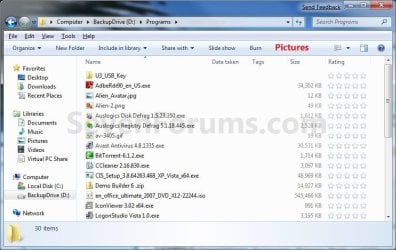
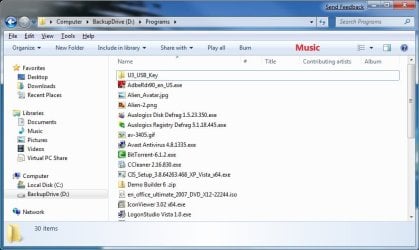
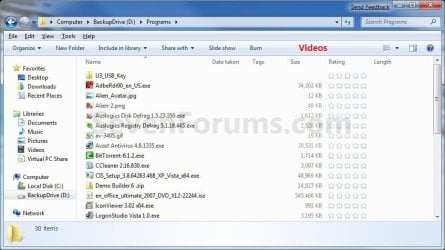
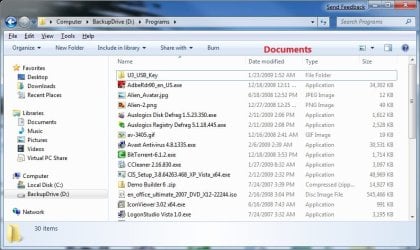
EXAMPLE: General Items, Documents, Pictures, Music, and Videos templates
NOTE: These screenshots are with using the Details view. What you see in your window will also depend on what you have the View arrangement, Group by, Sort by, Stack by arrangement, or icon size set as.
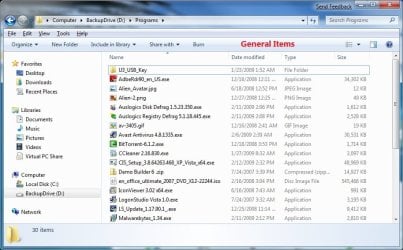
General_Items.jpg

Documents.jpg

Pictures.jpg

Music.jpg

Videos.jpg


OPTION ONE

To Change Template of a Folder or Drive in Windows Explorer

1. Open Windows Explorer, and do step 2, 3, or 4 below for what you would like to do.

2. Right click on a folder or drive that you want to change the template of, click on Properties.
NOTE: You will not be able to do this for the C: drive that you current Windows 7 is installed on, and also not for the folders in the root directory of C:. A) Go to step 5 below.
OR

3. Open a folder that you want to change the template of, click on View (menu bar), and click on Customize This Folder. (see screenshot below) View.jpg
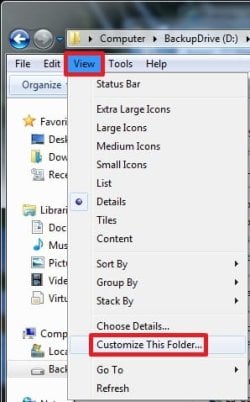
A) Go to step 5 below.
OR

4. Open a folder that you want to change the template of, right click on a empty space in the window, and click on Customize This Folder. (see screenshot below) Right_Click.jpg
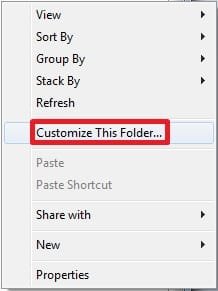
A) Go to step 5 below.
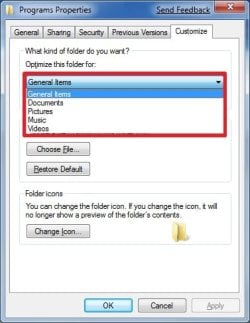
5. Click on the Customize tab. Under What kind of folder do you want, select the folder template that you want to have the folder optimized for, and click on OK. (See screenshots below)
NOTE: If you wish to also apply this template to all subfolders in this folder, then check that box as well. Properties1.jpgProperties2.jpg


OPTION TWO

To Change Template of a Library


NOTE: All included folders in a library will share the same folder template. 1. Open the Libraries folder.

2. Right click on the library folder (ex: Pictures) that you want to change the folder template for, and click on Properties. (See screenshot below) Library_Folders.jpg
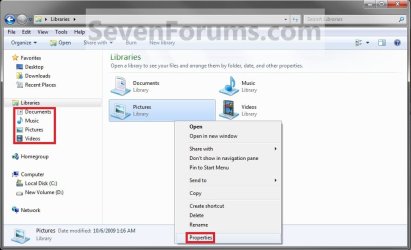
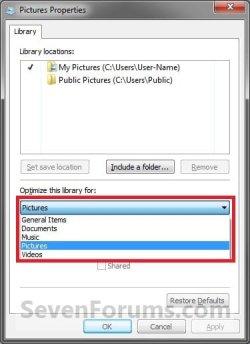
3. Under Optimize this library for, select the folder template that you want for the library and click OK. (See screenshots below) Library_Properties1.jpgLibrary_Properties2.jpg
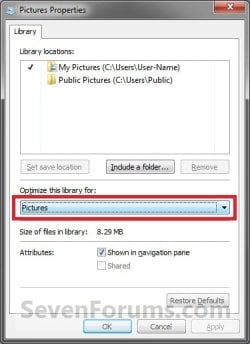
That's it,
Shawn


Last edited:
The problem is that the changes appear to be only temporary.

I have an entire drive that contains nothing but images; however, I do NOT want thumbnail displays -- I prefer a simple list. I've changed the display options as described above and I've gone to Organize > Folder and Search Options > View > Apply to Folders in an attempt to force my will on wayward Windows. Unfortunately, when creating a new folder and copying files into it, I get thumbnails. And, at irregular intervals, folders that I thought where set at list revert to thumbnails. I've done it at the root directory level and to multiple sub-directories. Nothing seems to work for long. It is infuriating.
 

My Computer

Computer Manufacturer/Model Number
home brew
OS
Win.7.Ult.x64
CPU
Intel Core i7 970
Motherboard
Gigabyte GA-X58-UD5
Memory
12GB (6x2GB) OCZ Platinum DDR3 1600
Graphics Card(s)
Gigabyte GV-R485MC-1GH, ATI 4850, 1GB GDDR3, passive cooler
Sound Card
(on-board) Speakers - Klipsch ProMedia 2.1
Monitor(s) Displays
2x Dell U2410 (H-IPS)
Screen Resolution
1920x1200, 1920x1200
Hard Drives
System = Intel 320 160GB SSD --
Data = 2x WD2002FAEX, RAID1 (ICH10R) --
Backup = 5x WD20EARS (eSata port) --
Add'l Storage = 8x WD20EARS, RAID6 (Adaptec 5805)
PSU
PCP&C S75QB
Case
Lian Li PC-V2010B + EX-H34 expansion HD cage
Cooling
Xigmatek HDT-1283 heatsink & bracket + Scythe S-Flex SFF21E
Keyboard
Das Keyboard Professional, Logitech UltraX
Mouse
Logitech G400
Internet Speed
6.85 Mb/s down, 0.35 Mb/s up (typical)
Other Info
Pioneer DVR-217DBK burner --
stock Lian Li case fans + BS-06 PCI 140mm exhaust (all set on 'low')
Hello Weh,

I have not need to apply this yet in Windows 7 myself, but it works great in Vista for this exact problem. If you would like to, apply Method Three in the tutorial below to reset all folder view setting to have the Details view.

Windows Explorer Folder View settings - Vista Forums

I would recommend that you create system restore point first though in case you do like what it does and can then do a system restore to undo it.

Hope this helps,
Shawn
 

My Computer

Computer type
PC/Desktop
Computer Manufacturer/Model Number
Self built custom
OS
64-bit Windows 11 Pro for Workstations
CPU
Intel i7-8700K OC'd to 5 GHz
Motherboard
ASUS ROG Maximus XI Formula Z390
Memory
64 GB (4x16GB) G.SKILL TridentZ RGB DDR4 3600 MHz
Graphics Card(s)
ASUS ROG-STRIX-GTX1080TI-O11G-GAMING
Sound Card
Integrated
Monitor(s) Displays
2 x Samsung Odyssey G7 27"
Screen Resolution
2560x1440
Hard Drives
1TB Samsung 990 PRO M.2,
4TB Samsung 990 PRO PRO M.2,
TerraMaster F8 SSD Plus NAS
PSU
Seasonic Prime Titanium 850W
Case
Thermaltake Core P3
Cooling
Corsair Hydro H115i
Keyboard
Logitech wireless K800
Mouse
Logitech MX Master 4
Internet Speed
2 Gb/s Download and 100 Mb/s Upload
Antivirus
Malwarebyte Anti-Malware Premium
Browser
Google Chrome
Other Info
Logitech Z625 speaker system,
Logitech BRIO 4K Pro webcam,
HP Color LaserJet Pro MFP M477fdn,
APC SMART-UPS RT 1000 XL - SURT1000XLI,
Galaxy S23 Plus phone
  • Like
Reactions: weh
Thanks!
 

My Computer

Computer Manufacturer/Model Number
home brew
OS
Win.7.Ult.x64
CPU
Intel Core i7 970
Motherboard
Gigabyte GA-X58-UD5
Memory
12GB (6x2GB) OCZ Platinum DDR3 1600
Graphics Card(s)
Gigabyte GV-R485MC-1GH, ATI 4850, 1GB GDDR3, passive cooler
Sound Card
(on-board) Speakers - Klipsch ProMedia 2.1
Monitor(s) Displays
2x Dell U2410 (H-IPS)
Screen Resolution
1920x1200, 1920x1200
Hard Drives
System = Intel 320 160GB SSD --
Data = 2x WD2002FAEX, RAID1 (ICH10R) --
Backup = 5x WD20EARS (eSata port) --
Add'l Storage = 8x WD20EARS, RAID6 (Adaptec 5805)
PSU
PCP&C S75QB
Case
Lian Li PC-V2010B + EX-H34 expansion HD cage
Cooling
Xigmatek HDT-1283 heatsink & bracket + Scythe S-Flex SFF21E
Keyboard
Das Keyboard Professional, Logitech UltraX
Mouse
Logitech G400
Internet Speed
6.85 Mb/s down, 0.35 Mb/s up (typical)
Other Info
Pioneer DVR-217DBK burner --
stock Lian Li case fans + BS-06 PCI 140mm exhaust (all set on 'low')
You're welcome Weh. :)
 

My Computer

Computer type
PC/Desktop
Computer Manufacturer/Model Number
Self built custom
OS
64-bit Windows 11 Pro for Workstations
CPU
Intel i7-8700K OC'd to 5 GHz
Motherboard
ASUS ROG Maximus XI Formula Z390
Memory
64 GB (4x16GB) G.SKILL TridentZ RGB DDR4 3600 MHz
Graphics Card(s)
ASUS ROG-STRIX-GTX1080TI-O11G-GAMING
Sound Card
Integrated
Monitor(s) Displays
2 x Samsung Odyssey G7 27"
Screen Resolution
2560x1440
Hard Drives
1TB Samsung 990 PRO M.2,
4TB Samsung 990 PRO PRO M.2,
TerraMaster F8 SSD Plus NAS
PSU
Seasonic Prime Titanium 850W
Case
Thermaltake Core P3
Cooling
Corsair Hydro H115i
Keyboard
Logitech wireless K800
Mouse
Logitech MX Master 4
Internet Speed
2 Gb/s Download and 100 Mb/s Upload
Antivirus
Malwarebyte Anti-Malware Premium
Browser
Google Chrome
Other Info
Logitech Z625 speaker system,
Logitech BRIO 4K Pro webcam,
HP Color LaserJet Pro MFP M477fdn,
APC SMART-UPS RT 1000 XL - SURT1000XLI,
Galaxy S23 Plus phone
I made the customizations to various folders to match my preferences. For example, My Picture folders have been set such that each folder appears as "list" (there are dozens of folders) and within each folder, the picture files appear as "thumbnails."

But, when I open My Pictures through my libraries or by clicking the link in my start menu, the customizations do not work. Everything appears as a list, even the pictures.

Any idea why?
 

My Computer

Computer Manufacturer/Model Number
Shuttle SG31G2 Barebones
OS
Windows 7
CPU
Intel Core 2 Quad Q9550 @ 2.83GHz, 12MB Cache
Motherboard
Stock Intel G31
Memory
G.SKILL 4GB (2 x 2GB) DDR2 800
Graphics Card(s)
Onboard GMA 3100
Sound Card
Realtec ALC888
Monitor(s) Displays
Samsung 2333sw 23"
Screen Resolution
1920 x 1080
Hard Drives
Western Digital Caviar Black 640GB 7200 RPM
Hello Eyc,

In a Library folder (ex: Pictures), all included folders have the same folder views. When you change a folder view in one included folder, it changes them in all of the included folders in that library.

These do not affect the actual folder (ex: C:\Users\(user-name)\My Pictures) though when opened normally in Windows Explorer. These have their own separate set of folder view settings.

You will need to make the folder view changes that you want at each location.

Hope this helps,
Shawn
 
Last edited:

My Computer

Computer type
PC/Desktop
Computer Manufacturer/Model Number
Self built custom
OS
64-bit Windows 11 Pro for Workstations
CPU
Intel i7-8700K OC'd to 5 GHz
Motherboard
ASUS ROG Maximus XI Formula Z390
Memory
64 GB (4x16GB) G.SKILL TridentZ RGB DDR4 3600 MHz
Graphics Card(s)
ASUS ROG-STRIX-GTX1080TI-O11G-GAMING
Sound Card
Integrated
Monitor(s) Displays
2 x Samsung Odyssey G7 27"
Screen Resolution
2560x1440
Hard Drives
1TB Samsung 990 PRO M.2,
4TB Samsung 990 PRO PRO M.2,
TerraMaster F8 SSD Plus NAS
PSU
Seasonic Prime Titanium 850W
Case
Thermaltake Core P3
Cooling
Corsair Hydro H115i
Keyboard
Logitech wireless K800
Mouse
Logitech MX Master 4
Internet Speed
2 Gb/s Download and 100 Mb/s Upload
Antivirus
Malwarebyte Anti-Malware Premium
Browser
Google Chrome
Other Info
Logitech Z625 speaker system,
Logitech BRIO 4K Pro webcam,
HP Color LaserJet Pro MFP M477fdn,
APC SMART-UPS RT 1000 XL - SURT1000XLI,
Galaxy S23 Plus phone
Brink - thanks for the help.

I understand what you mean. So, when I make the changes to the actual Pictures folder, it works just great. When I go to that folder (or use a shortcut), the folders keep their respective folder views. All is well.

But, when I open that same folder through the library, all the folder and sub-folders have the same folder view (just as you had stated in your previous post).

Is there any way to have the library folder have the same folder views as the actual folder? In other words, if I choose "Pictures" from the start menu, can I have it optimized so that it keeps the folder views?
 

My Computer

Computer Manufacturer/Model Number
Shuttle SG31G2 Barebones
OS
Windows 7
CPU
Intel Core 2 Quad Q9550 @ 2.83GHz, 12MB Cache
Motherboard
Stock Intel G31
Memory
G.SKILL 4GB (2 x 2GB) DDR2 800
Graphics Card(s)
Onboard GMA 3100
Sound Card
Realtec ALC888
Monitor(s) Displays
Samsung 2333sw 23"
Screen Resolution
1920 x 1080
Hard Drives
Western Digital Caviar Black 640GB 7200 RPM
Sure, you can set the library folder to have the same folder view for all included folders to match one of the actual folders folder view.
 

My Computer

Computer type
PC/Desktop
Computer Manufacturer/Model Number
Self built custom
OS
64-bit Windows 11 Pro for Workstations
CPU
Intel i7-8700K OC'd to 5 GHz
Motherboard
ASUS ROG Maximus XI Formula Z390
Memory
64 GB (4x16GB) G.SKILL TridentZ RGB DDR4 3600 MHz
Graphics Card(s)
ASUS ROG-STRIX-GTX1080TI-O11G-GAMING
Sound Card
Integrated
Monitor(s) Displays
2 x Samsung Odyssey G7 27"
Screen Resolution
2560x1440
Hard Drives
1TB Samsung 990 PRO M.2,
4TB Samsung 990 PRO PRO M.2,
TerraMaster F8 SSD Plus NAS
PSU
Seasonic Prime Titanium 850W
Case
Thermaltake Core P3
Cooling
Corsair Hydro H115i
Keyboard
Logitech wireless K800
Mouse
Logitech MX Master 4
Internet Speed
2 Gb/s Download and 100 Mb/s Upload
Antivirus
Malwarebyte Anti-Malware Premium
Browser
Google Chrome
Other Info
Logitech Z625 speaker system,
Logitech BRIO 4K Pro webcam,
HP Color LaserJet Pro MFP M477fdn,
APC SMART-UPS RT 1000 XL - SURT1000XLI,
Galaxy S23 Plus phone
Brink - I still can't get it to work!

Let me try to explain:

Whenever I open the Pictures folder through the start menu (not through C:/users/____/Pictures), the folder view settings are wrong. I will change it to "list" view for subfolders, and "thumbnail" for actual photos, but whatever I use will apply to all folders and files. The option to "customize" my view is not available.

On the contrary, when I open the actual Pictures folder through C:/users/____/Pictures, I can customize the folder whichever way I want (e.g., list view for subfolders, and thumbnails for photos), and it works like a charm.

So, my question is: can I access my Pictures folder through the start menu and have list view for subfolders and thumbnail view for photos? If yes, how? I've tried everything, and cannot get it to work.
 

My Computer

Computer Manufacturer/Model Number
Shuttle SG31G2 Barebones
OS
Windows 7
CPU
Intel Core 2 Quad Q9550 @ 2.83GHz, 12MB Cache
Motherboard
Stock Intel G31
Memory
G.SKILL 4GB (2 x 2GB) DDR2 800
Graphics Card(s)
Onboard GMA 3100
Sound Card
Realtec ALC888
Monitor(s) Displays
Samsung 2333sw 23"
Screen Resolution
1920 x 1080
Hard Drives
Western Digital Caviar Black 640GB 7200 RPM
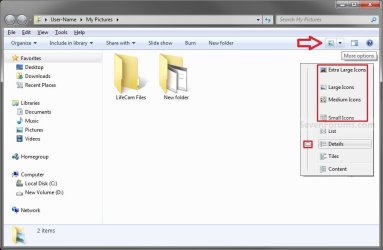
To have thumbnails instead of icons, you must also use a folder view other than Small Icons, List, ar Details. Thumbnails will display when the icon is small like that in those folder views in all Windows Explorer and Library folders.

You should be able to change these folder view sizes for the icons as well from the Start Menu location.

My_Pictures_Start_Menu.jpg
 

My Computer

Computer type
PC/Desktop
Computer Manufacturer/Model Number
Self built custom
OS
64-bit Windows 11 Pro for Workstations
CPU
Intel i7-8700K OC'd to 5 GHz
Motherboard
ASUS ROG Maximus XI Formula Z390
Memory
64 GB (4x16GB) G.SKILL TridentZ RGB DDR4 3600 MHz
Graphics Card(s)
ASUS ROG-STRIX-GTX1080TI-O11G-GAMING
Sound Card
Integrated
Monitor(s) Displays
2 x Samsung Odyssey G7 27"
Screen Resolution
2560x1440
Hard Drives
1TB Samsung 990 PRO M.2,
4TB Samsung 990 PRO PRO M.2,
TerraMaster F8 SSD Plus NAS
PSU
Seasonic Prime Titanium 850W
Case
Thermaltake Core P3
Cooling
Corsair Hydro H115i
Keyboard
Logitech wireless K800
Mouse
Logitech MX Master 4
Internet Speed
2 Gb/s Download and 100 Mb/s Upload
Antivirus
Malwarebyte Anti-Malware Premium
Browser
Google Chrome
Other Info
Logitech Z625 speaker system,
Logitech BRIO 4K Pro webcam,
HP Color LaserJet Pro MFP M477fdn,
APC SMART-UPS RT 1000 XL - SURT1000XLI,
Galaxy S23 Plus phone
Brink - I think we are miscommunicating with each other. Either that, or I am being an idiot.

Let me walk through my issue with steps for you to follow (if you have time):

1) Open C:/users/_______/My Pictures.
2) Do you already have some folders in there? If not, create a new folder in My Pictures named XYZ.
3) Open XYZ and place a picture in that folder.
4) Change the view for XYZ to "large icons."
5) Go back one directory to "My Pictures." Change the view to "list."

Now, as you will see, any time you go into C:/users/_____/My Pictures, the initial view will be "list" view. However, every time you go into XYZ, the pictures are shown in "large icons." There is a happy combination of both "list" and "large icon" views. List makes sense for the folders, and large icons makes sense for the pictures.

Now, the problem. This does not work for the "Pictures" library. I've tried everything. But, it seems that every single folder in the "Pictures" library and every picture contained in those folders shows up in one uniform folder view (either "list" or "large icons," but never a combination of the two like C:/users/______/My Pictures).

Does that make sense?
 

My Computer

Computer Manufacturer/Model Number
Shuttle SG31G2 Barebones
OS
Windows 7
CPU
Intel Core 2 Quad Q9550 @ 2.83GHz, 12MB Cache
Motherboard
Stock Intel G31
Memory
G.SKILL 4GB (2 x 2GB) DDR2 800
Graphics Card(s)
Onboard GMA 3100
Sound Card
Realtec ALC888
Monitor(s) Displays
Samsung 2333sw 23"
Screen Resolution
1920 x 1080
Hard Drives
Western Digital Caviar Black 640GB 7200 RPM
Eyc,

I understand what you mean, but I think you may have missed the post below though. ;)

That's how it is in a Library folder. All folders in a Library are treated as one.

Hello Eyc,

In a Library folder (ex: Pictures), all included folders have the same folder views. When you change a folder view in one included folder, it changes them in all of the included folders in that library...........
 

My Computer

Computer type
PC/Desktop
Computer Manufacturer/Model Number
Self built custom
OS
64-bit Windows 11 Pro for Workstations
CPU
Intel i7-8700K OC'd to 5 GHz
Motherboard
ASUS ROG Maximus XI Formula Z390
Memory
64 GB (4x16GB) G.SKILL TridentZ RGB DDR4 3600 MHz
Graphics Card(s)
ASUS ROG-STRIX-GTX1080TI-O11G-GAMING
Sound Card
Integrated
Monitor(s) Displays
2 x Samsung Odyssey G7 27"
Screen Resolution
2560x1440
Hard Drives
1TB Samsung 990 PRO M.2,
4TB Samsung 990 PRO PRO M.2,
TerraMaster F8 SSD Plus NAS
PSU
Seasonic Prime Titanium 850W
Case
Thermaltake Core P3
Cooling
Corsair Hydro H115i
Keyboard
Logitech wireless K800
Mouse
Logitech MX Master 4
Internet Speed
2 Gb/s Download and 100 Mb/s Upload
Antivirus
Malwarebyte Anti-Malware Premium
Browser
Google Chrome
Other Info
Logitech Z625 speaker system,
Logitech BRIO 4K Pro webcam,
HP Color LaserJet Pro MFP M477fdn,
APC SMART-UPS RT 1000 XL - SURT1000XLI,
Galaxy S23 Plus phone
Eyc,

I understand what you mean, but I think you may have missed the post below though. ;)

That's how it is in a Library folder. All folders in a Library are treated as one.

Hello Eyc,

In a Library folder (ex: Pictures), all included folders have the same folder views. When you change a folder view in one included folder, it changes them in all of the included folders in that library...........

Agh...I missed that! I am sorry. Thanks for being patient Brink. Also, on a related note, it's annoying that we cannot customize library folders.
 

My Computer

Computer Manufacturer/Model Number
Shuttle SG31G2 Barebones
OS
Windows 7
CPU
Intel Core 2 Quad Q9550 @ 2.83GHz, 12MB Cache
Motherboard
Stock Intel G31
Memory
G.SKILL 4GB (2 x 2GB) DDR2 800
Graphics Card(s)
Onboard GMA 3100
Sound Card
Realtec ALC888
Monitor(s) Displays
Samsung 2333sw 23"
Screen Resolution
1920 x 1080
Hard Drives
Western Digital Caviar Black 640GB 7200 RPM
LOL, no problem Eyc.

Yeah, it would be nice to be able to have separate folder view settings for each included folder in a library instead of just one folder view for all included folders in the library.
 

My Computer

Computer type
PC/Desktop
Computer Manufacturer/Model Number
Self built custom
OS
64-bit Windows 11 Pro for Workstations
CPU
Intel i7-8700K OC'd to 5 GHz
Motherboard
ASUS ROG Maximus XI Formula Z390
Memory
64 GB (4x16GB) G.SKILL TridentZ RGB DDR4 3600 MHz
Graphics Card(s)
ASUS ROG-STRIX-GTX1080TI-O11G-GAMING
Sound Card
Integrated
Monitor(s) Displays
2 x Samsung Odyssey G7 27"
Screen Resolution
2560x1440
Hard Drives
1TB Samsung 990 PRO M.2,
4TB Samsung 990 PRO PRO M.2,
TerraMaster F8 SSD Plus NAS
PSU
Seasonic Prime Titanium 850W
Case
Thermaltake Core P3
Cooling
Corsair Hydro H115i
Keyboard
Logitech wireless K800
Mouse
Logitech MX Master 4
Internet Speed
2 Gb/s Download and 100 Mb/s Upload
Antivirus
Malwarebyte Anti-Malware Premium
Browser
Google Chrome
Other Info
Logitech Z625 speaker system,
Logitech BRIO 4K Pro webcam,
HP Color LaserJet Pro MFP M477fdn,
APC SMART-UPS RT 1000 XL - SURT1000XLI,
Galaxy S23 Plus phone
Hello Zeshan,

I do not believe it's possible to have a custom folder template. :(
 

My Computer

Computer type
PC/Desktop
Computer Manufacturer/Model Number
Self built custom
OS
64-bit Windows 11 Pro for Workstations
CPU
Intel i7-8700K OC'd to 5 GHz
Motherboard
ASUS ROG Maximus XI Formula Z390
Memory
64 GB (4x16GB) G.SKILL TridentZ RGB DDR4 3600 MHz
Graphics Card(s)
ASUS ROG-STRIX-GTX1080TI-O11G-GAMING
Sound Card
Integrated
Monitor(s) Displays
2 x Samsung Odyssey G7 27"
Screen Resolution
2560x1440
Hard Drives
1TB Samsung 990 PRO M.2,
4TB Samsung 990 PRO PRO M.2,
TerraMaster F8 SSD Plus NAS
PSU
Seasonic Prime Titanium 850W
Case
Thermaltake Core P3
Cooling
Corsair Hydro H115i
Keyboard
Logitech wireless K800
Mouse
Logitech MX Master 4
Internet Speed
2 Gb/s Download and 100 Mb/s Upload
Antivirus
Malwarebyte Anti-Malware Premium
Browser
Google Chrome
Other Info
Logitech Z625 speaker system,
Logitech BRIO 4K Pro webcam,
HP Color LaserJet Pro MFP M477fdn,
APC SMART-UPS RT 1000 XL - SURT1000XLI,
Galaxy S23 Plus phone
No problem. That would be nice to be able to do though.
 

My Computer

Computer type
PC/Desktop
Computer Manufacturer/Model Number
Self built custom
OS
64-bit Windows 11 Pro for Workstations
CPU
Intel i7-8700K OC'd to 5 GHz
Motherboard
ASUS ROG Maximus XI Formula Z390
Memory
64 GB (4x16GB) G.SKILL TridentZ RGB DDR4 3600 MHz
Graphics Card(s)
ASUS ROG-STRIX-GTX1080TI-O11G-GAMING
Sound Card
Integrated
Monitor(s) Displays
2 x Samsung Odyssey G7 27"
Screen Resolution
2560x1440
Hard Drives
1TB Samsung 990 PRO M.2,
4TB Samsung 990 PRO PRO M.2,
TerraMaster F8 SSD Plus NAS
PSU
Seasonic Prime Titanium 850W
Case
Thermaltake Core P3
Cooling
Corsair Hydro H115i
Keyboard
Logitech wireless K800
Mouse
Logitech MX Master 4
Internet Speed
2 Gb/s Download and 100 Mb/s Upload
Antivirus
Malwarebyte Anti-Malware Premium
Browser
Google Chrome
Other Info
Logitech Z625 speaker system,
Logitech BRIO 4K Pro webcam,
HP Color LaserJet Pro MFP M477fdn,
APC SMART-UPS RT 1000 XL - SURT1000XLI,
Galaxy S23 Plus phone
Back
Top